GETTING STARTED WITH
This guide provides a clear overview of how The KWL Hub is organized and how teachers use it in the classroom.
It is designed for:
• First-time platform users
• Teachers reviewing materials
• Pilot or adoption exploration
The structure and tools function the same way across all KWL programs.
This walkthrough uses Reporteros as a reference example.
Let’s get started!
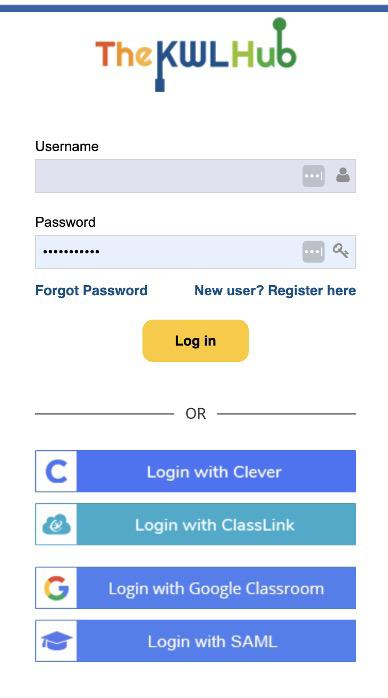
Use the login credentials provided in the demo code flyer you’ve received:
• Username
• Password
During full implementation, schools may integrate with Clever, ClassLink, Google Classroom, or SAML authentication for secure sign-in and roster synchronization.
For this overview, simply log in using the provided credentials
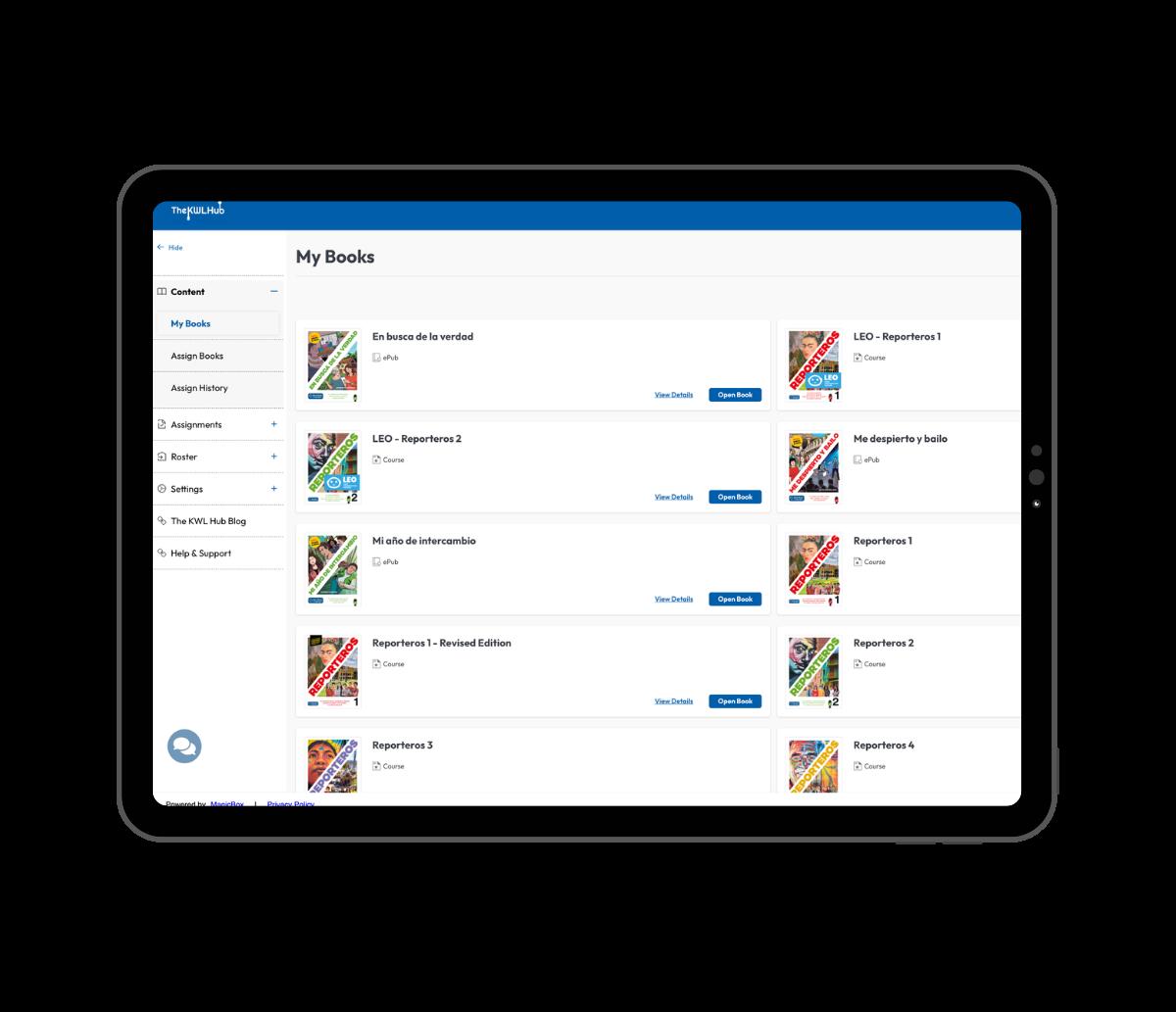
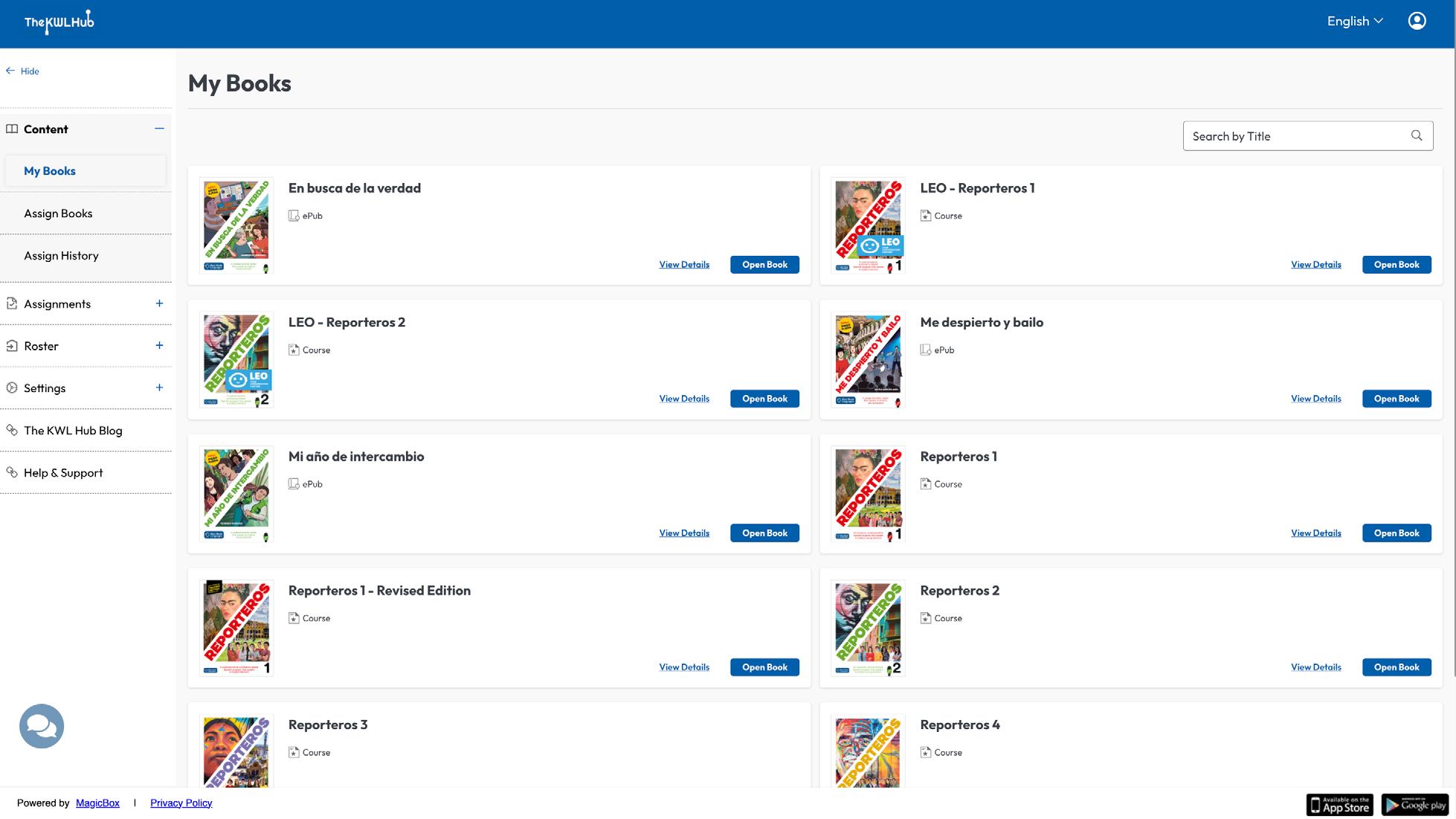
After signing in, you will land on My Books
This is your main dashboard and control center.
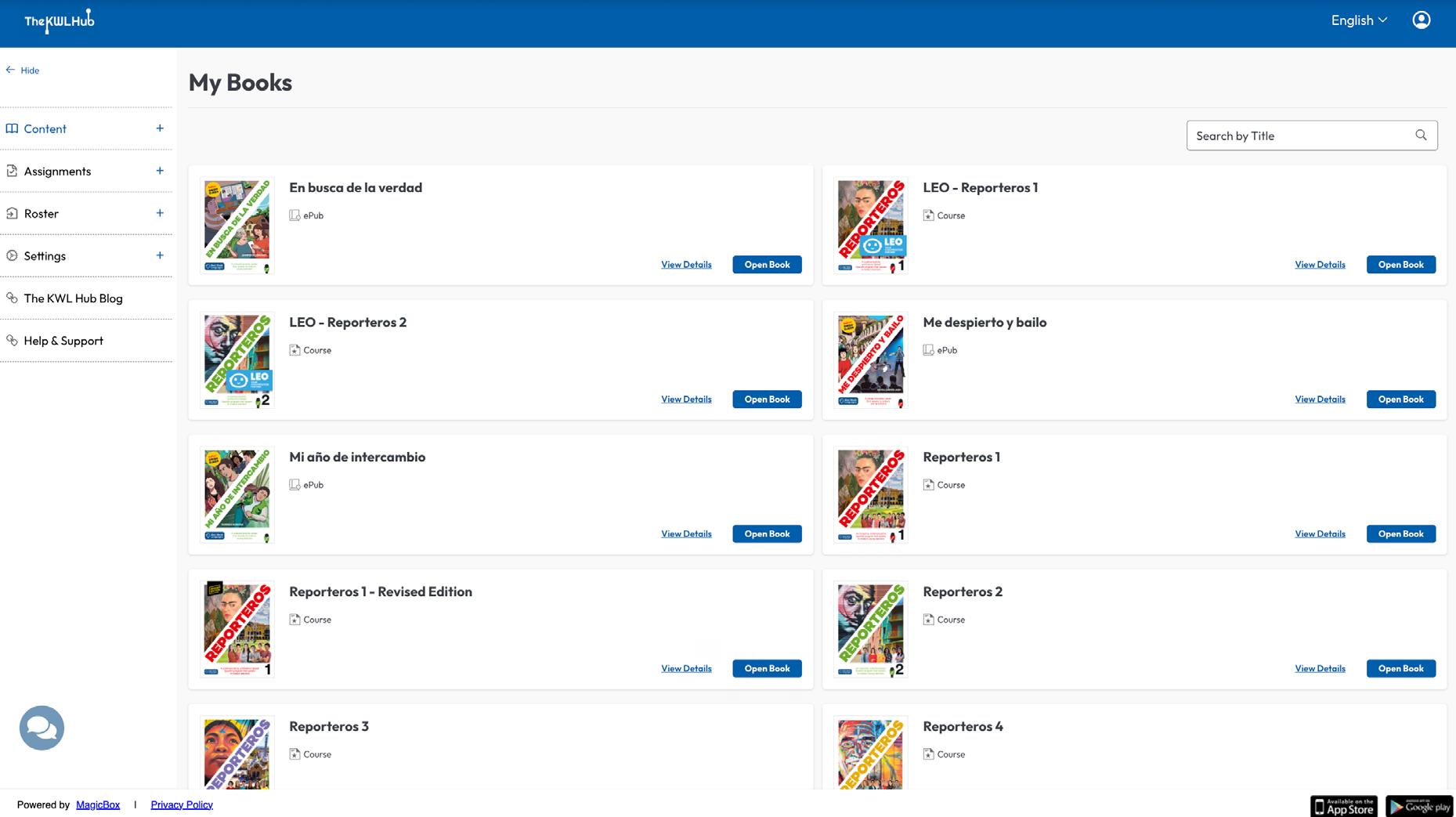
From here, you can:
• View all your courses
• Easily navigate between courses
If you teach multiple courses, they will all appear here.
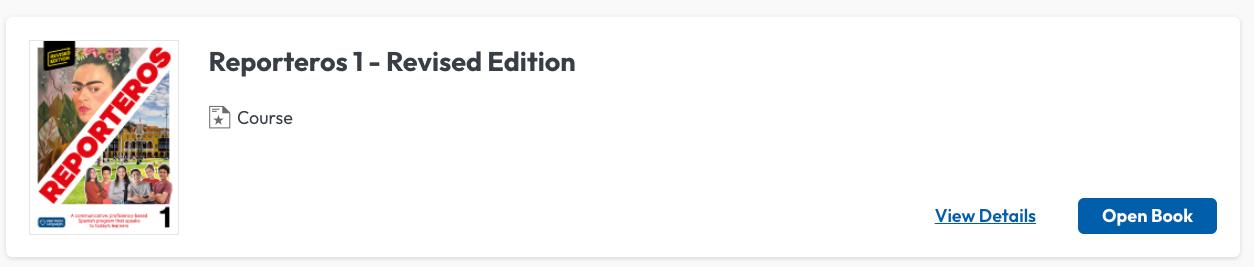
To begin exploring your course content, open one of your books. In this example, we will open Reporteros Revised Edition 1.
Clicking Open Book opens the full Course View, where all instructional materials and resources are organized.
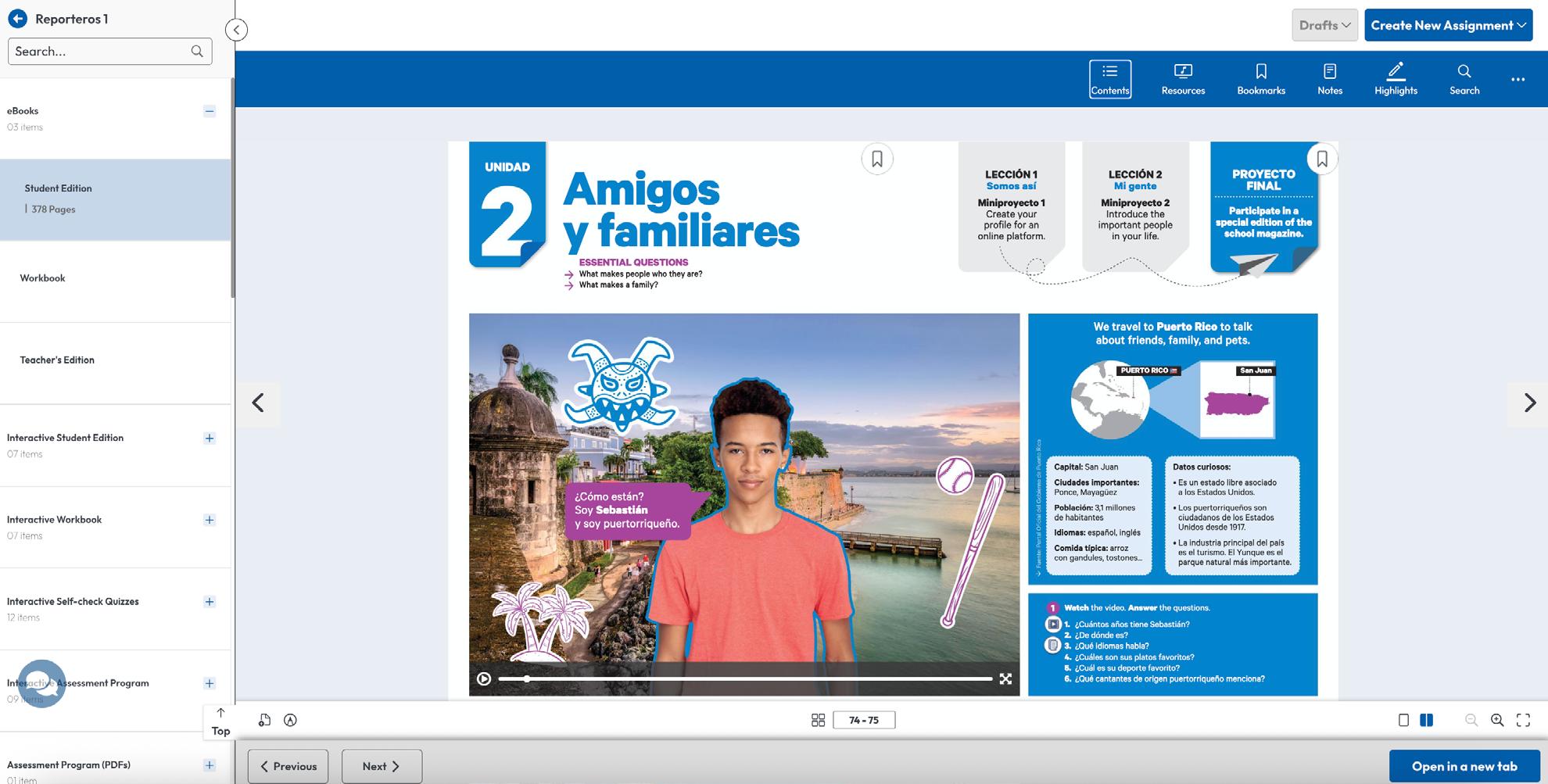
The interface is divided into three areas:
• Left Panel — All course materials, reflecting the full curriculum structure
• Center Area — The content you’re currently viewing
• Top Toolbar — Navigation and instructional tools
Start by exploring the left panel.
The KWL Hub houses all instructional components in one integrated environment.
All components are intentionally designed to function as a unified instructional ecosystem, ensuring alignment between planning, instruction, practice, assessment, and differentiation.
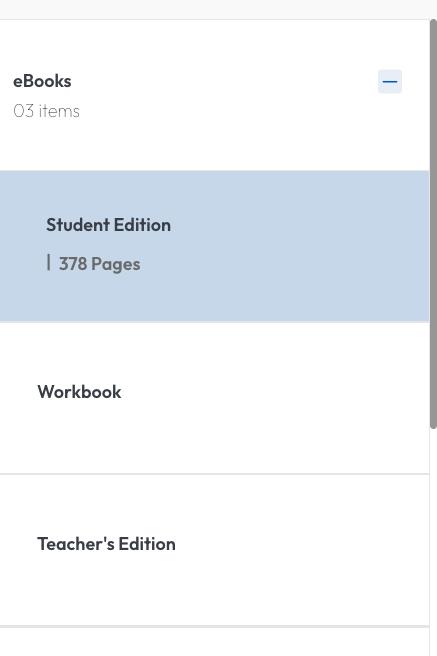
The eBook versions support daily instruction, classroom projection, and lesson planning.
Includes:
• Student Edition
• Workbook
• Teacher’s Edition
All eBook versions are located in the left-hand panel under eBooks.
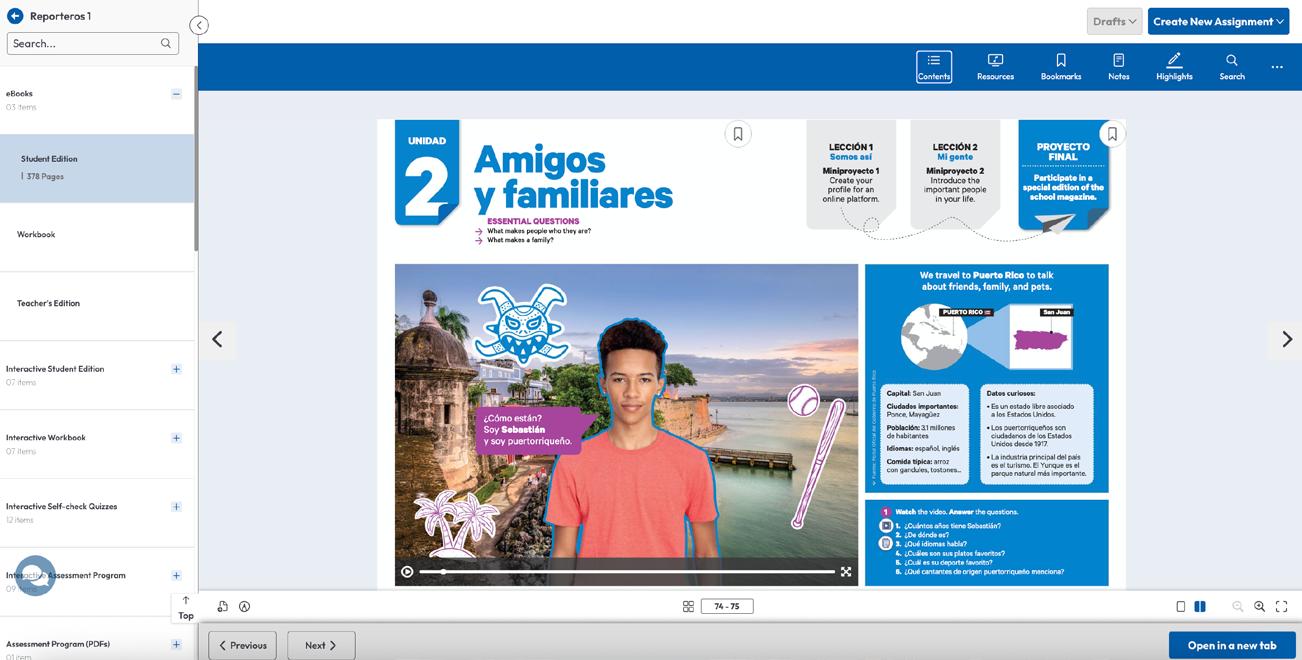
All student resources (audios, videos, rubrics, etc.) are embedded directly within the eBook version, allowing seamless access in one place.
The interactive versions support active learning and digital assignment with built-in instructional tools.
Includes:
• Interactive Student Edition
• Interactive Workbook
All interactive book versions are located in the left-hand panel under Interactive Student Edition and Interactive Workbook.
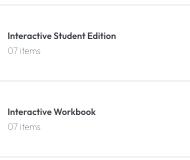
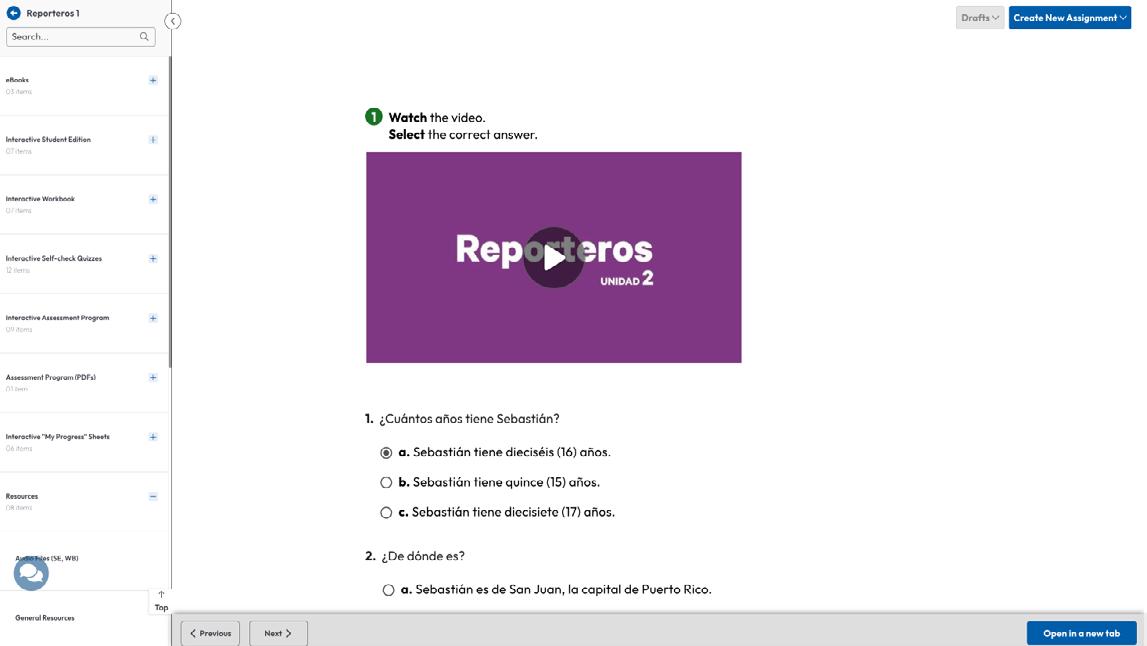
Both components can be assigned digitally and include built-in tools such as auto-grading and instant feedback, giving teachers real-time insight into student progress.
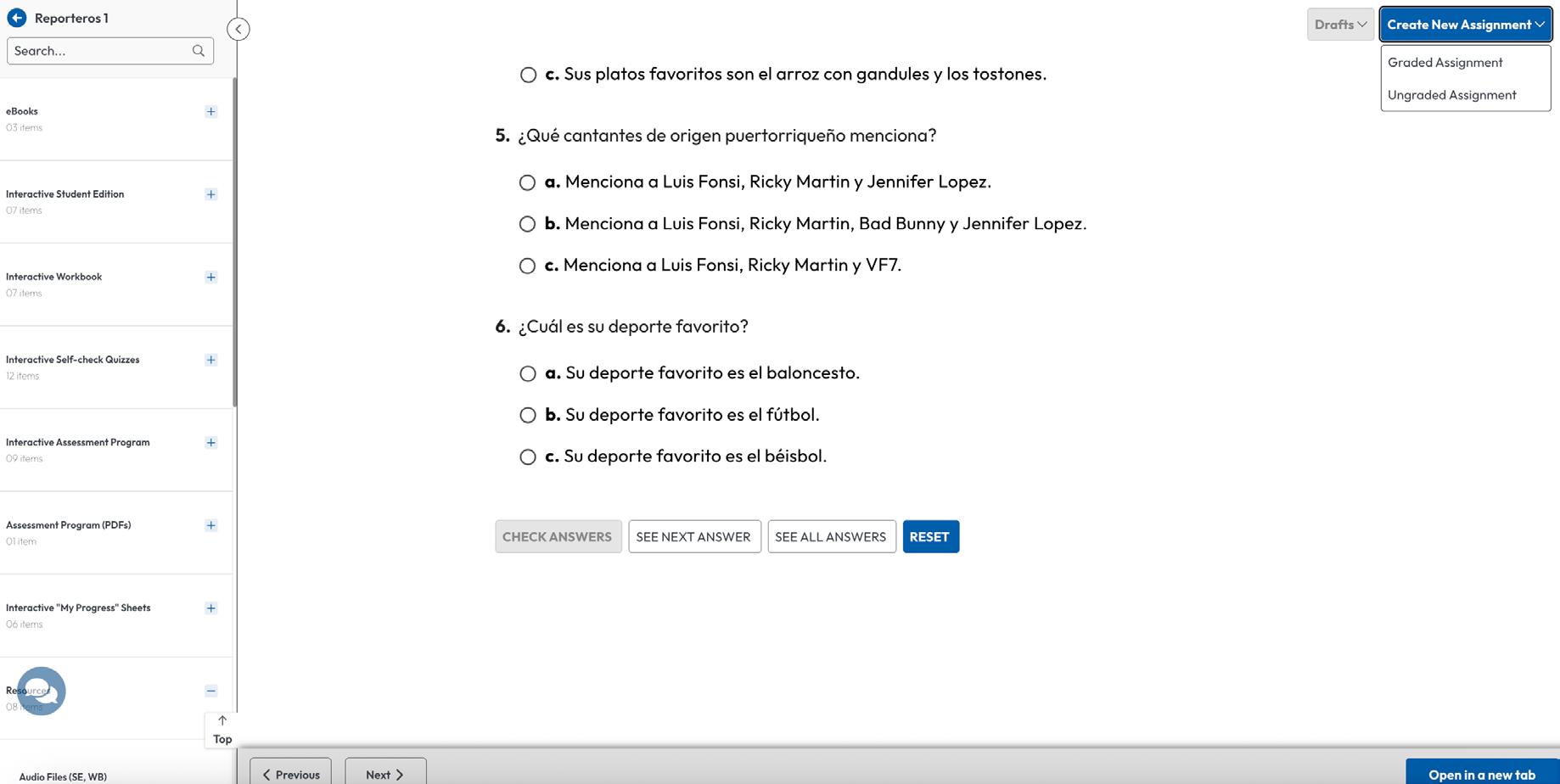
Assessment tools support both formative checks and summative evaluation.
Formative Checks
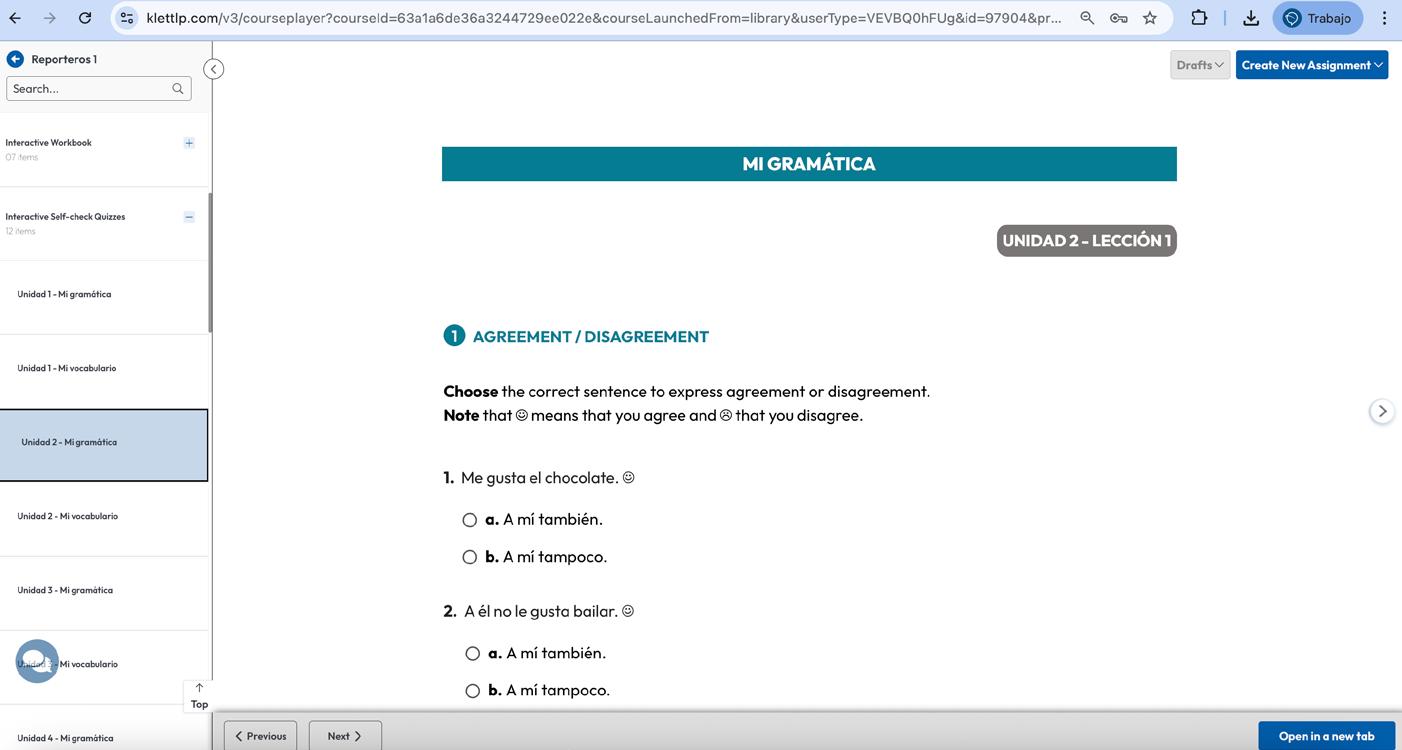
• Self-Check Quizzes — short, interactive, auto-graded quizzes for grammar and vocabulary designed for quick checks and immediate feedback
Self-Check Quizzes are located in the left-hand panel under Interactive Self-Check Quizzes.
Summative Assessment (Assessment Program)
• Pre-Course Assessments
• Unit Exams & IPAs (with rubrics and audio/video components)
• Midterm Exams
• Final Exams
The Assessment Program is available in both interactive and PDF versions: Interactive assessments are located in the left-hand panel under Interactive Assessment Program.
Printable versions are available in the left-hand panel under Assessment Program (PDFs).
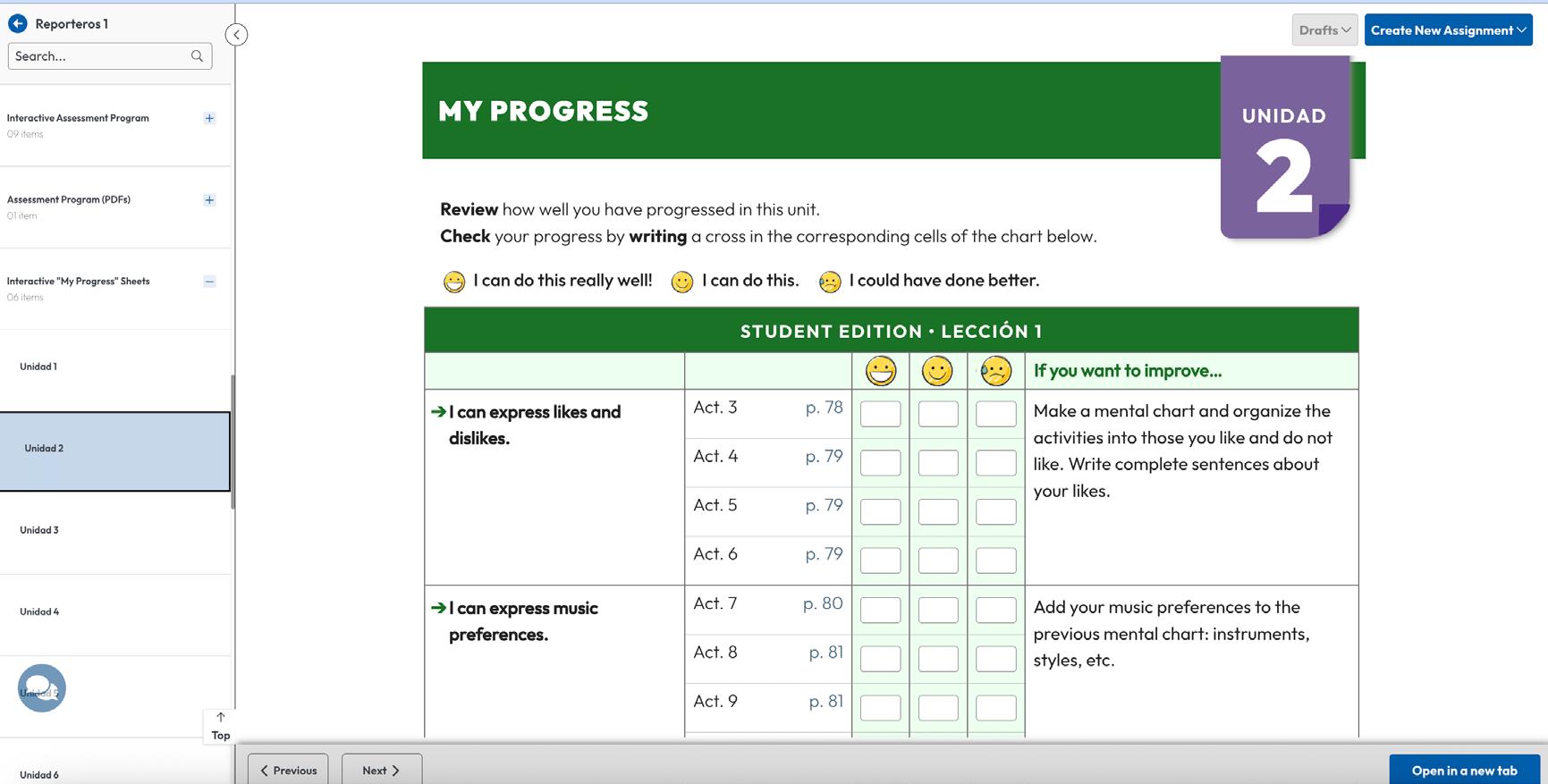
Unit-based tracking sheets that allow students to monitor their own progress.
Located in the left-hand panel under Interactive “My Progress” Sheets (where available).
Access instructional, planning, and support materials in one convenient location.
Includes:
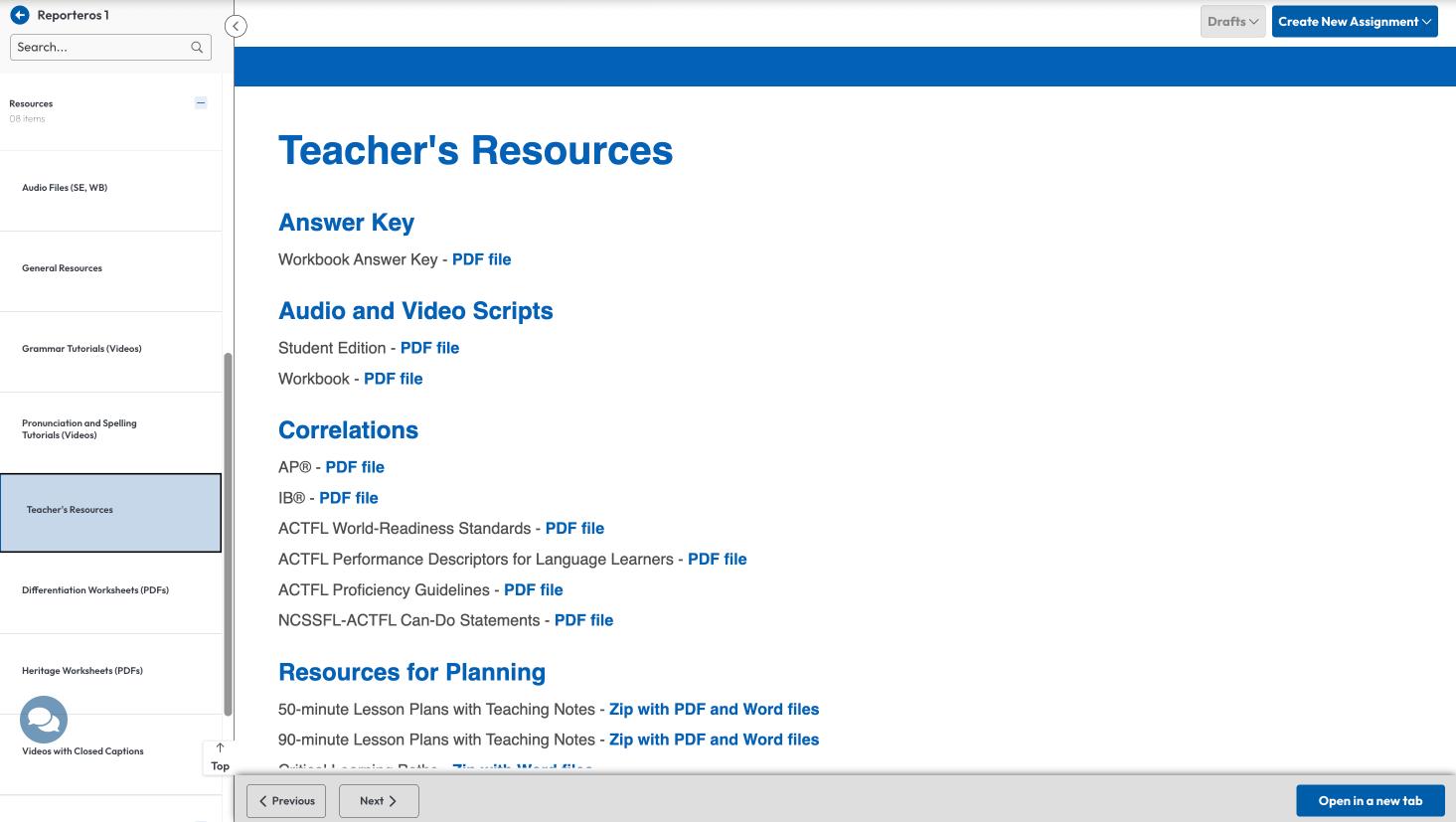
• Audio Files (SE, WB) – Downloadable audio files for Student Edition (SE) and Workbook (WB) activities. Audio is also embedded in the interactive and eBook versions.
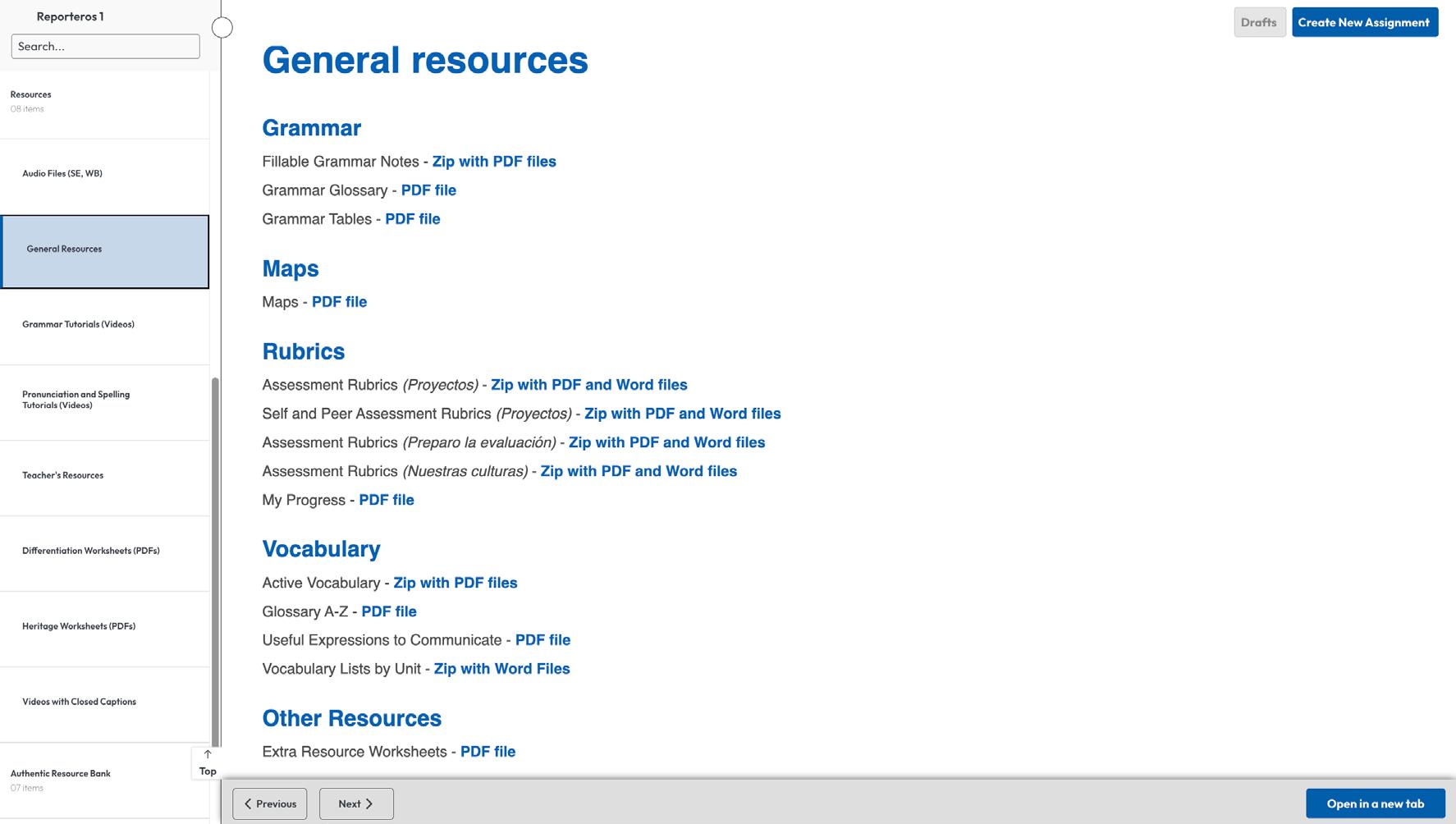
• General Resources – Reference and enrichment materials to support grammar, vocabulary development, and project-based learning.
The General Resources include:
- grammar resources
- vocabulary lists
- maps, rubrics
- additional worksheets
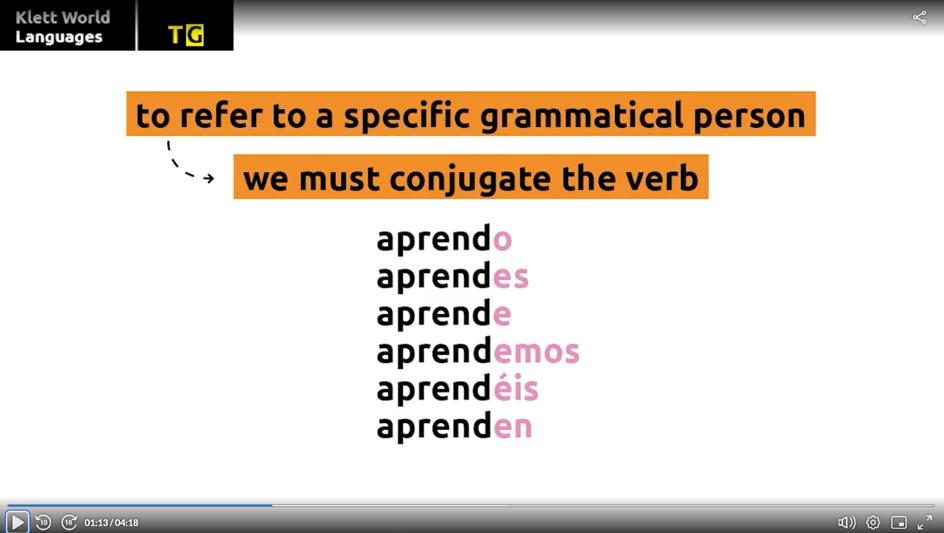
• Grammar Tutorials (Videos) – Concise video explanations of key grammar concepts. Also available within the interactive and eBook versions.
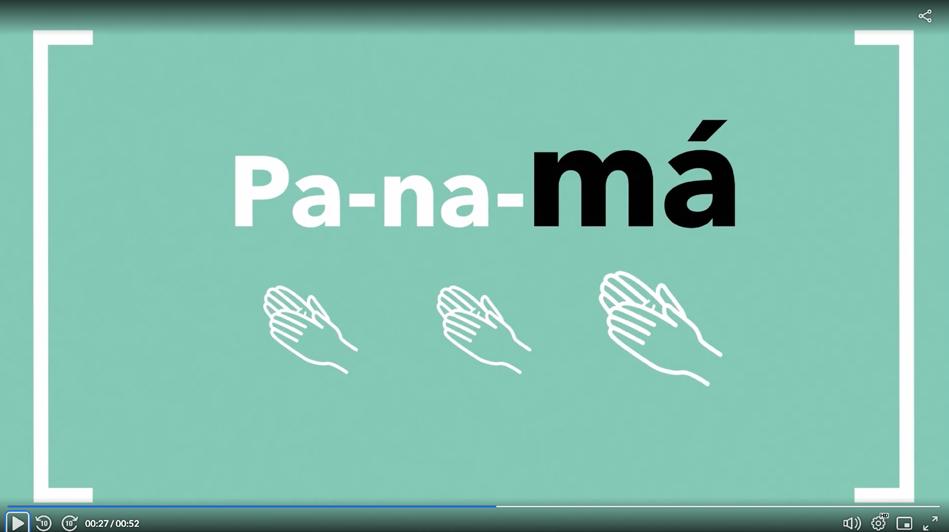
• Pronunciation & Spelling Tutorials (Videos) – Focused video support for pronunciation and orthography skills. Also available within the interactive and eBook versions.
• Teacher’s Resources – Instructional support materials to assist with grading, planning, standards alignment, and classroom communication.
Teacher’s Resources include:
- answer keys
- audio and video scripts
- standards correlations (AP®, IB®, ACTFL)
- lesson plans
- pacing guides
- parent communication tools.
• Differentiation Worksheets (PDFs) – Printable differentiated practice materials. Also available in an interactive version (see next page).
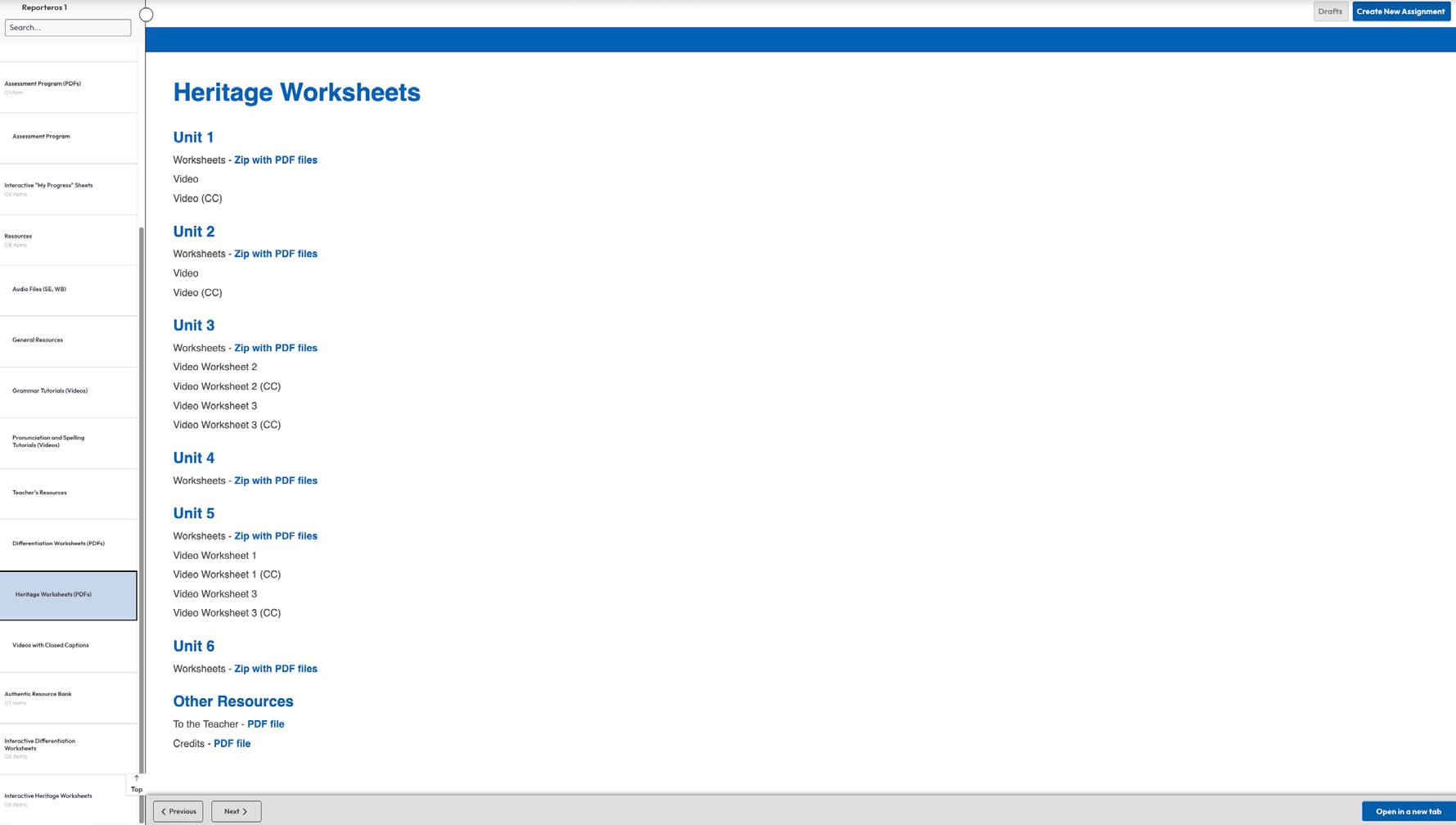
• Heritage Worksheets (PDFs) – Printable materials designed for heritage learners. Also available in an interactive version (see next page).
• Videos with Closed Captions – Accessible video content with captioning support.
These materials are available under Resources in the left-hand panel.
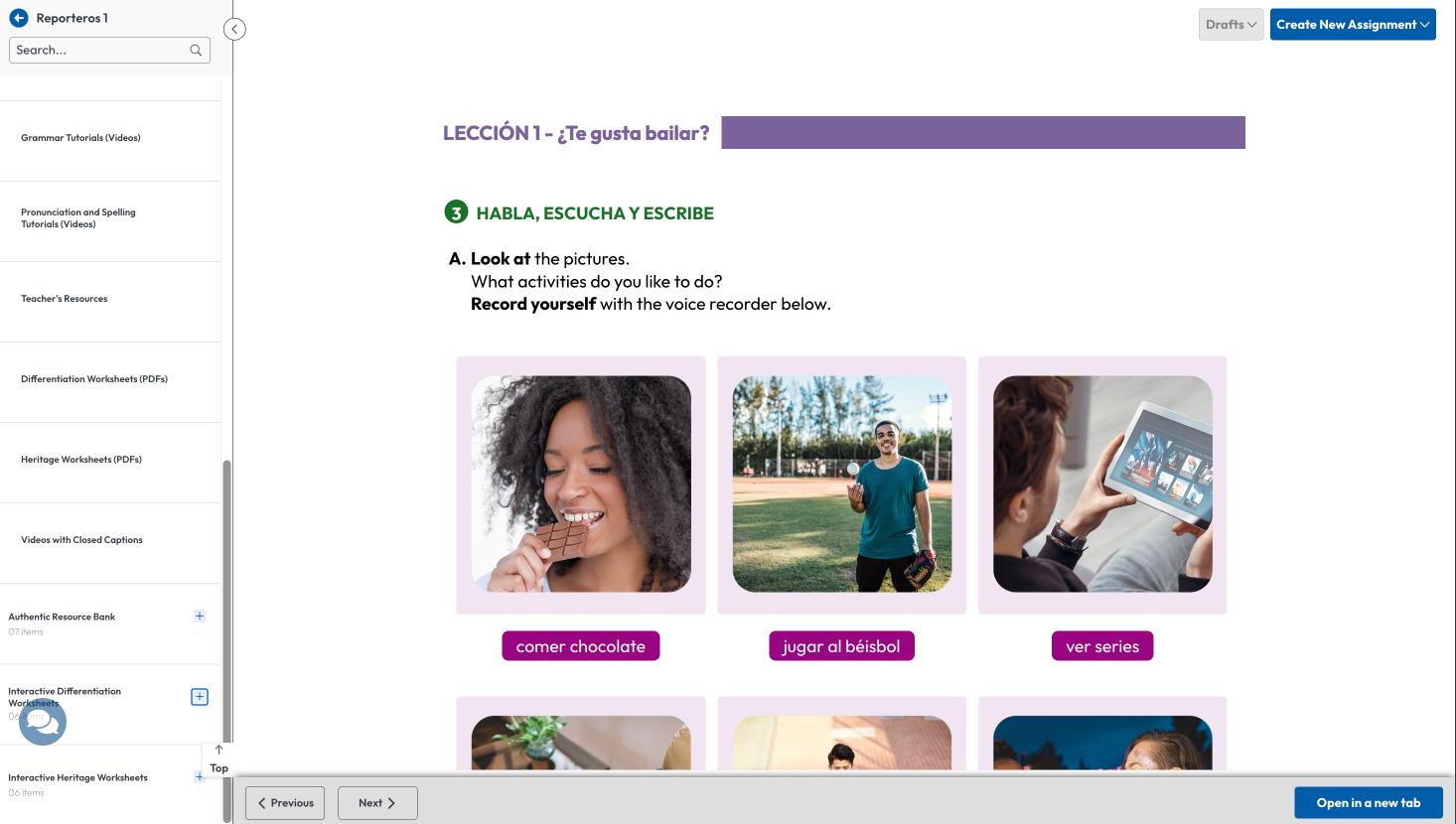
Interactive Differentiation and Heritage Worksheets* are the digital, assignable versions of the corresponding PDF worksheets.
These activities include the same built-in tools available in the core interactive materials, such as auto-grading and instant feedback, allowing teachers to assign them directly and monitor student progress.
Interactive versions are located in the left-hand panel under Interactive Differentiation Worksheets and Interactive Heritage Worksheets (where available).
* Heritage learner materials are available in select programs.
Available in select programs, this extended collection provides additional real-world cultural materials beyond those included in the core textbook.
Organized by unit, these resources offer enrichment and deeper cultural exploration.
Located in the left-hand panel under Authentic Resource Bank (where available).
Within Course View, teachers can complete the full instructional cycle:
• Teach & Plan – Use the Student Edition, Workbook, and Annotated Teacher’s Edition
• Practice – Assign interactive activities
• Check – Use Self-Check Quizzes
• Assess – Administer formal assessments
• Support – Access teacher resources and differentiated materials
All components are accessible within the same Course View environment.
Return to the Home page (My Books) to access additional tools from the main navigation menu:
• Assignments — Create, review, and grade student work
• Roster — Manage class sections and enrollment (sync via Clever, ClassLink, etc.)
• Settings — Configure integrations (e.g., Google Classroom) and manage account preferences
• The KWL Hub Blog — Platform updates and feature announcements
• Help & Support — Technical and platform assistance.
All tools are accessible from the left-hand navigation panel.
If you are reviewing The KWL Hub for the first time — whether for exploration, pilot, or RFP evaluation — we recommend the following pathway to understand the program’s instructional design and classroom implementation.
This sequence is designed to highlight pedagogy, student experience, assessment alignment, and classroom management tools.
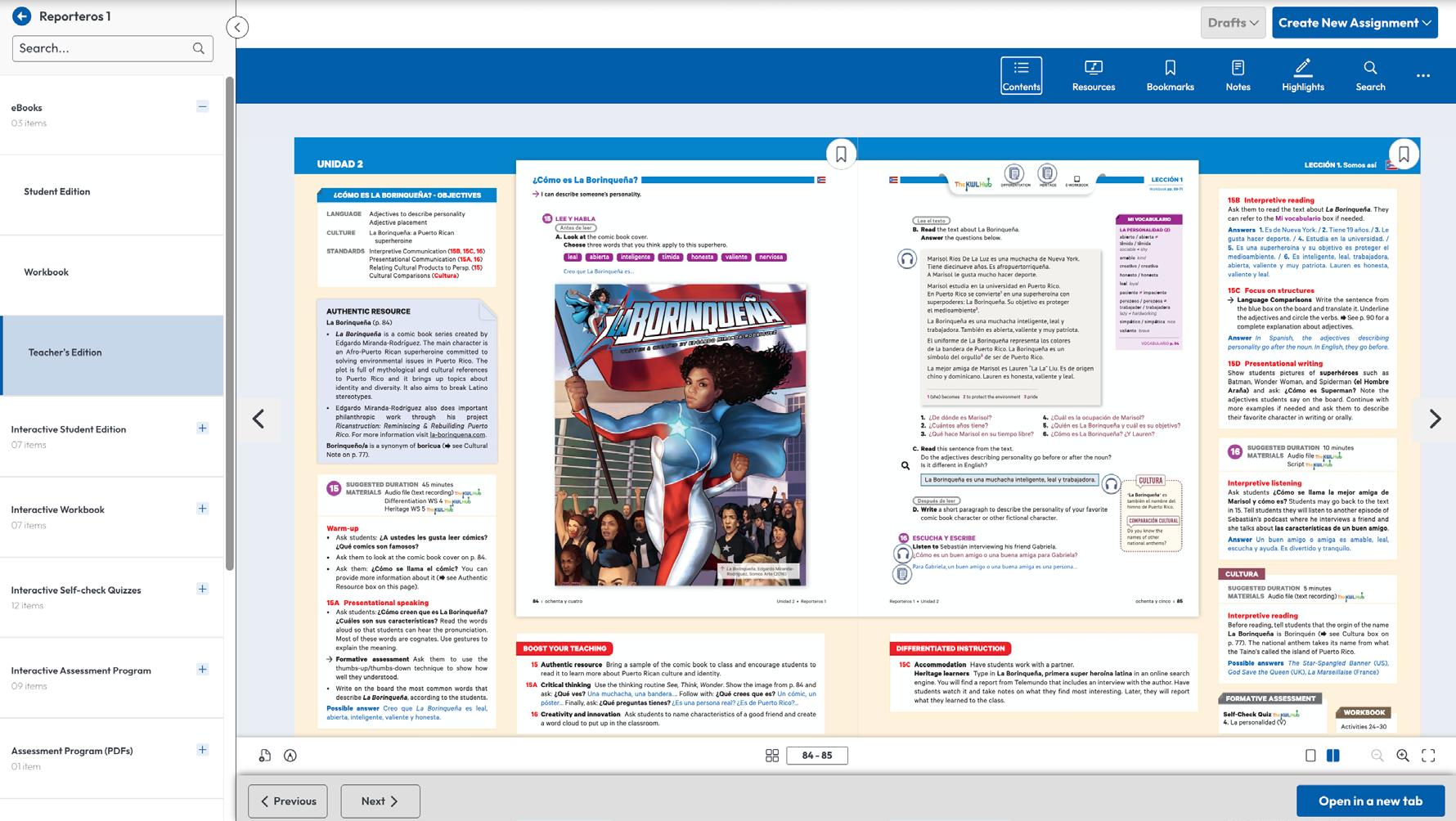
In Course View>eBooks>Teacher’s Edition, open one lesson within a unit.
Focus on:
• Lesson objectives and sequencing
• Pacing guidance
• Embedded instructional notes
• Support for differentiation and cultural integration
This step reveals the instructional architecture and how daily lessons are structured.
Important: Select one unit and follow that same unit across all components to evaluate instructional coherence.
This step helps you evaluate thematic development, skill progression, and the studentfacing learning experience.
We recommend selecting one unit and lesson and reviewing that same unit across all formats to evaluate instructional coherence.
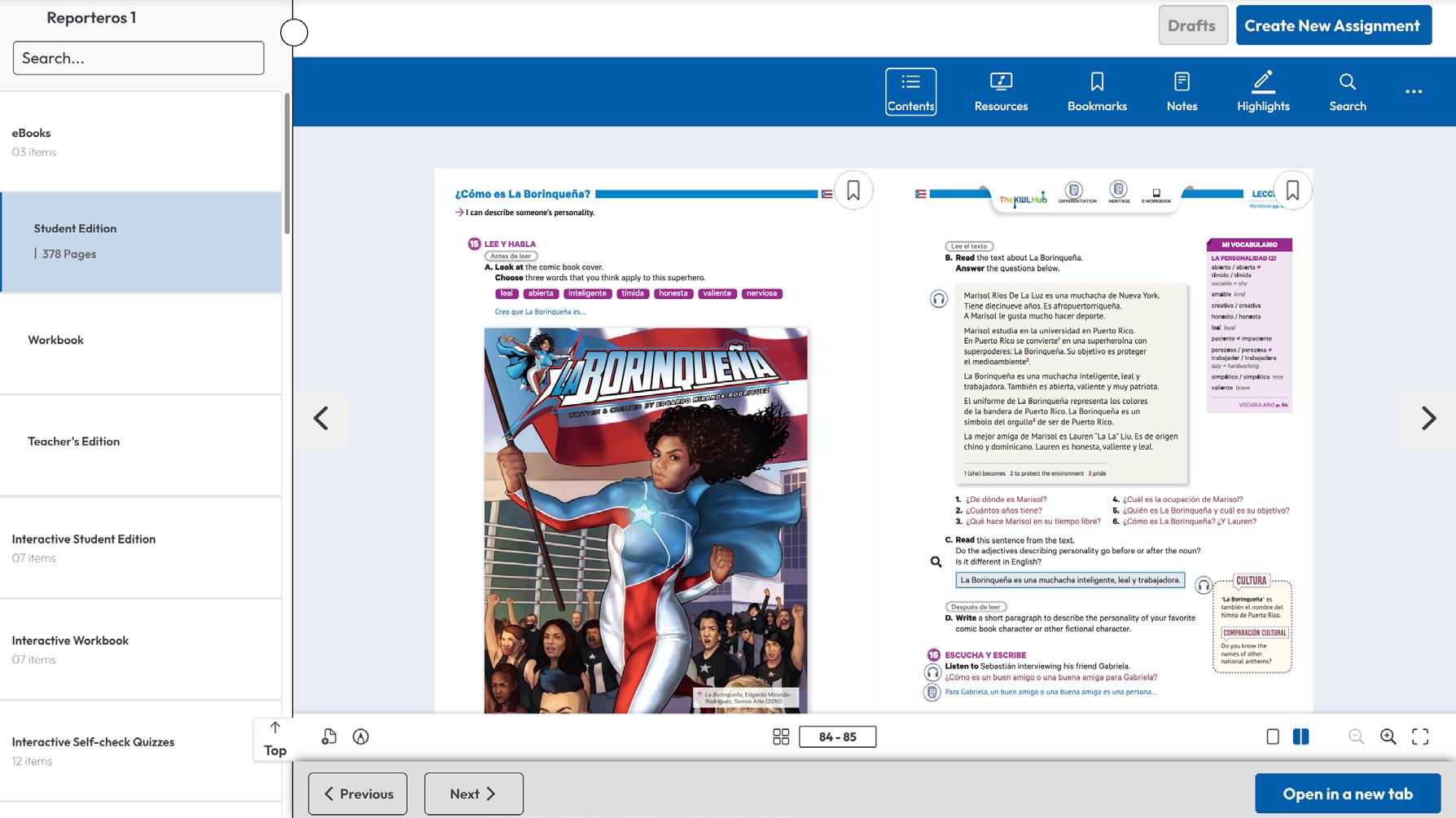
In Course View>Left-hand panel>eBooks, click Student Edition
Open one unit and review:
• Thematic and unit organization
• Vocabulary presentation in context
• Grammar development within meaningful communication
• Embedded audio and video directly on the page
This version is used for instruction and projection and is not assignable.
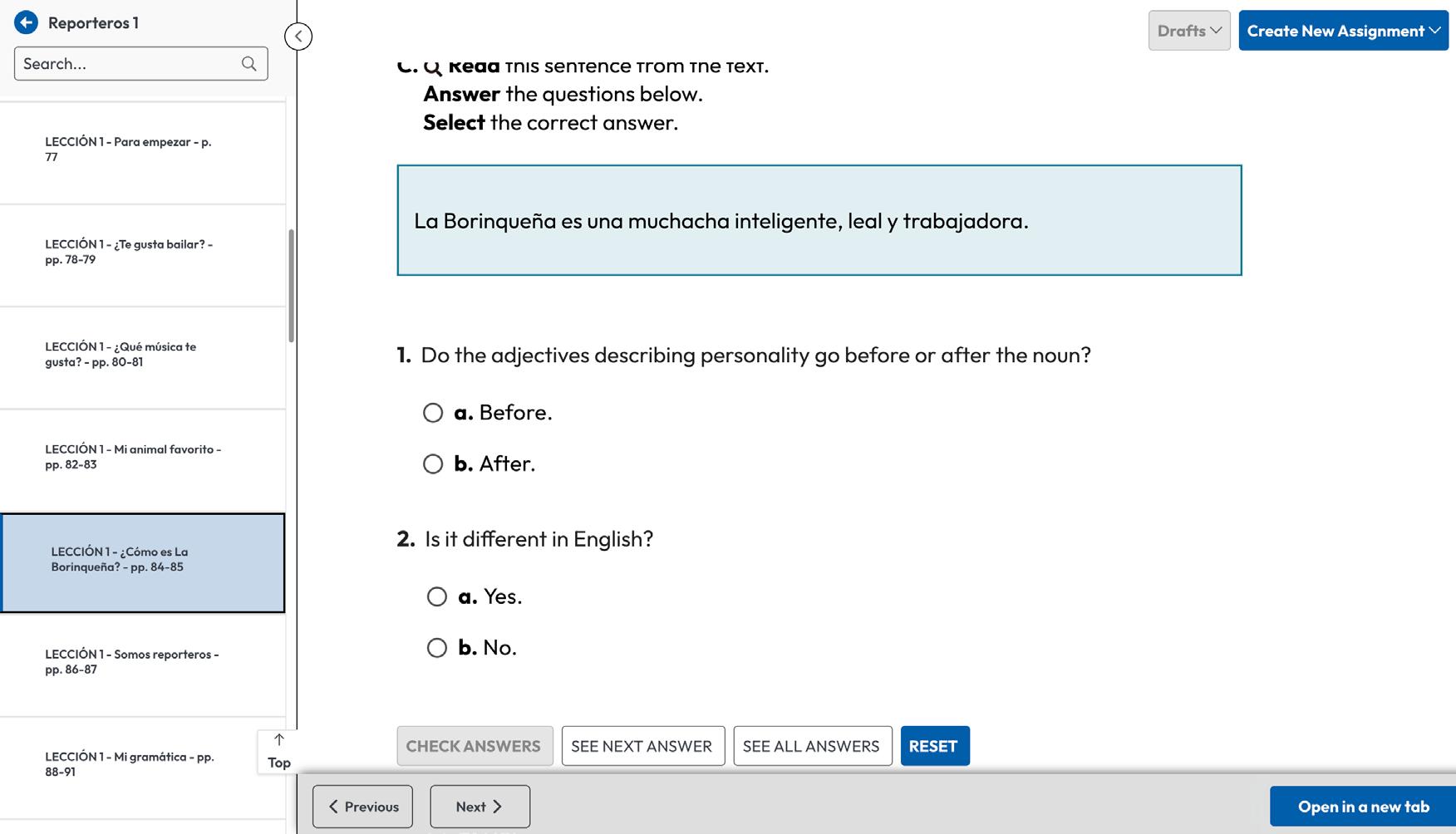
In the left-hand panel, scroll to Interactive Student Edition
Open the same unit.
Complete at least one activity and notice:
• Immediate feedback
• Auto-grading
• Digital submission capability
• Built-in progress tracking
In Course View>Left-hand panel>eBooks, click Workbook
Open the same unit you reviewed in the Student Edition.
Notice:
• How practice activities reinforce vocabulary and grammar
• Skill-based application aligned to the lesson
• Structured progression from guided to independent practice
Like the Student Edition, this version is used for instruction and projection and is not assignable.
D. THEN SCROLL TO INTERACTIVE WORKBOOK.
Open one activity from the same unit to compare how practice appears in digital format.
Notice:
• Consistency with the print version
• Assignable digital functionality
• Integrated grading tools
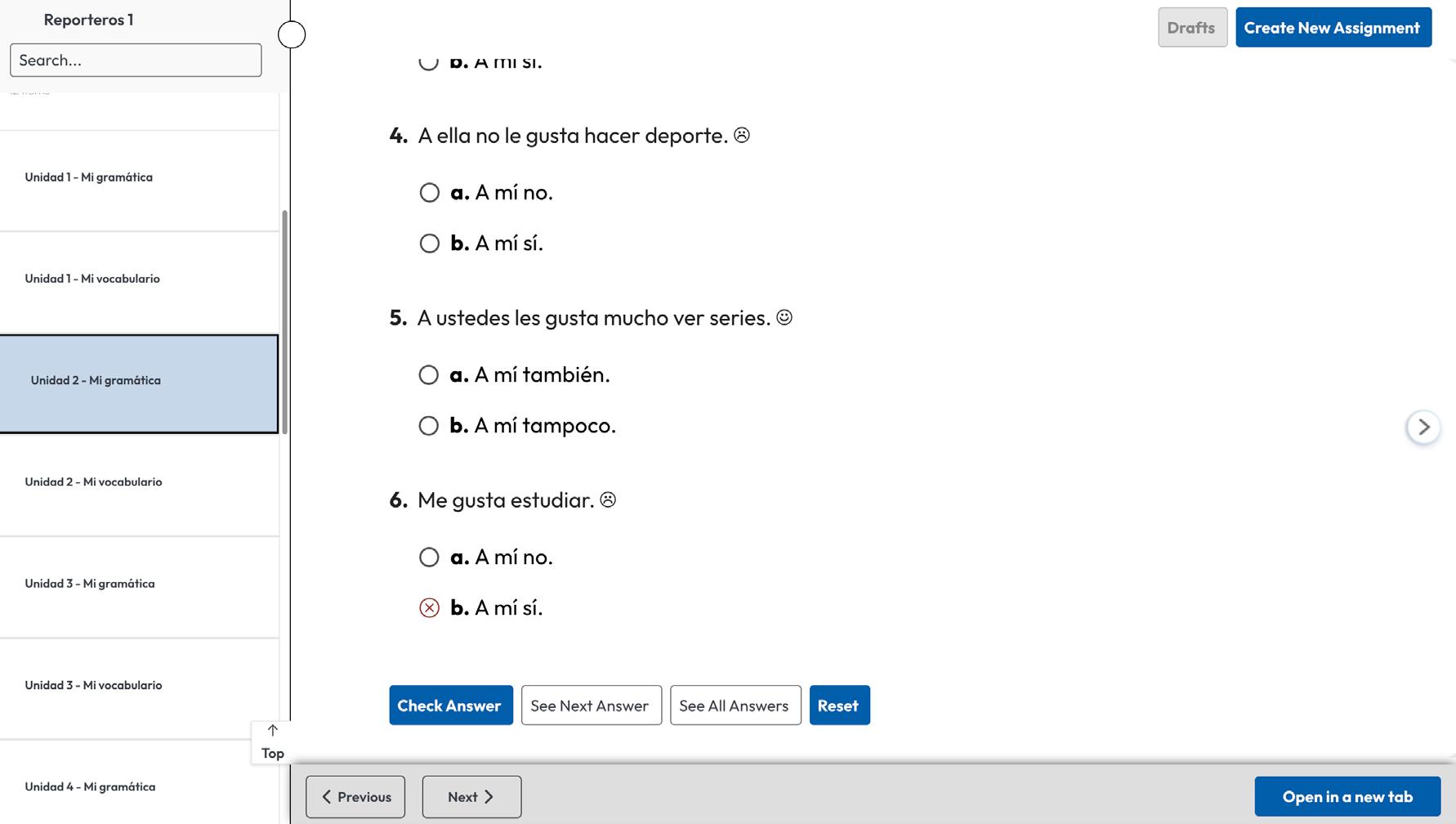
Finally, scroll to Interactive Self-Check Quizzes
Complete one quiz for the same unit and observe:
• Formative vocabulary and grammar checks
• Instant scoring
• Integrated feedback
This sequence demonstrates how instruction transitions into digital practice and formative assessment.
6.3.REVIEW ASSESSMENT ALIGNMENT
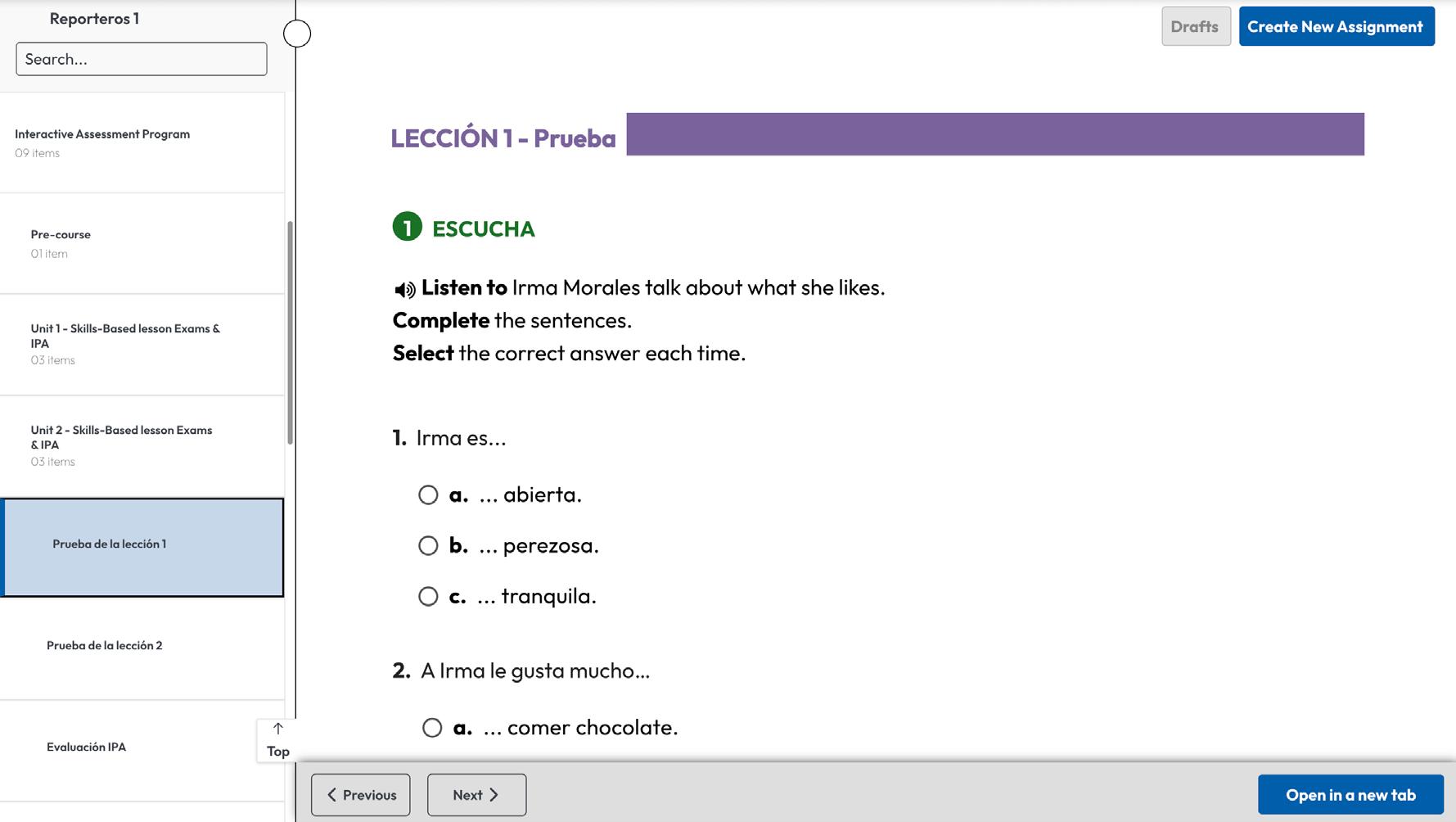
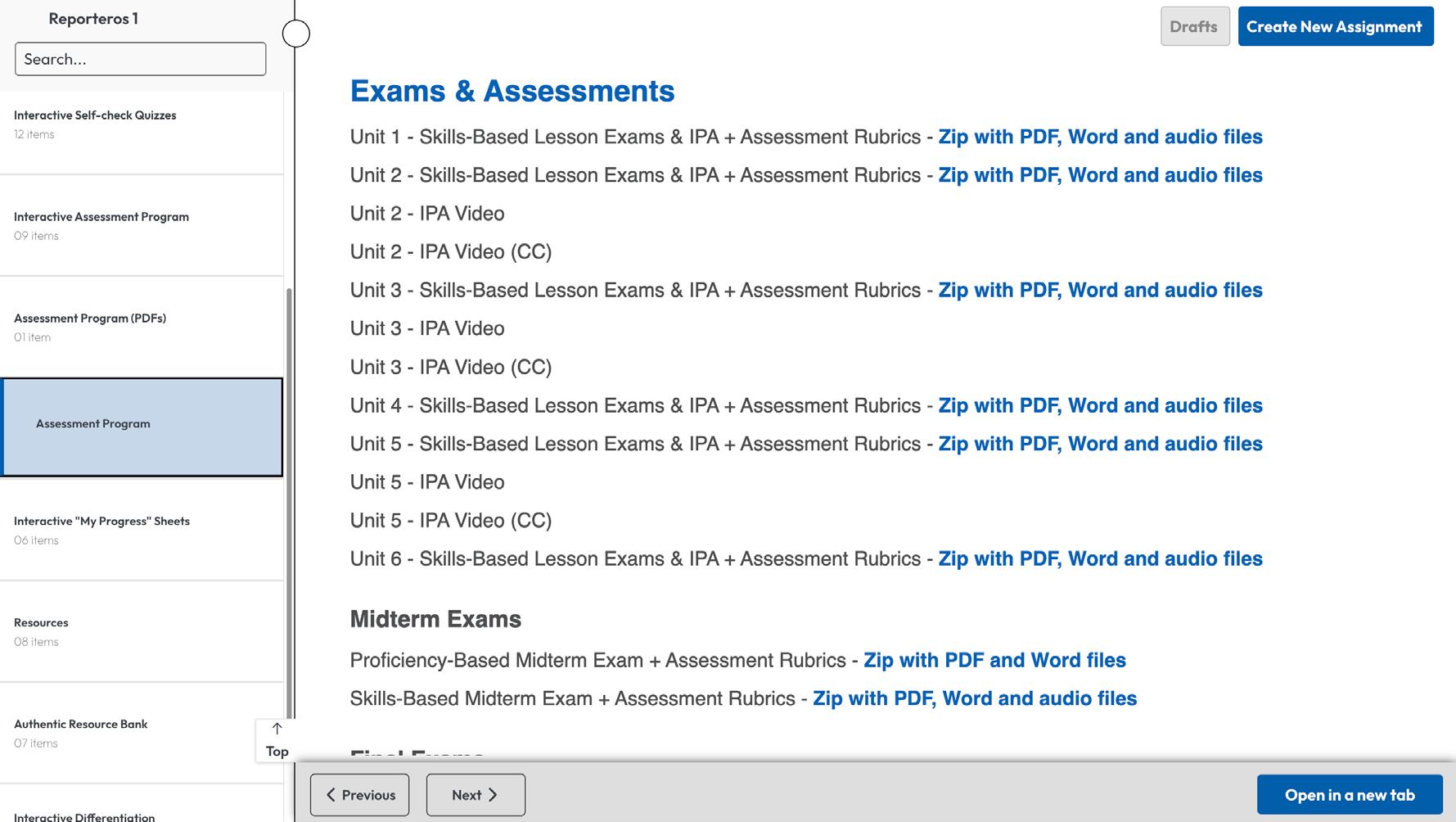
In the left-hand panel, scroll to:
• Interactive Assessment Program
• Assessment Program (PDFs)
Open the same unit assessment.
Both sections contain the same assessment content, offered in two formats:
• Interactive Assessment Program is the assignable digital version
• Assessment Program (PDFs) is the printable version
Review:
• Variety of question types
• Performance-based components (where applicable)
• Assessment rubrics
This step demonstrates coherence between instruction and evaluation.
6.4. REVIEW PLANNING & INSTRUCTIONAL
In the left-hand panel, scroll to the section labeled Resources
Follow this sequence:
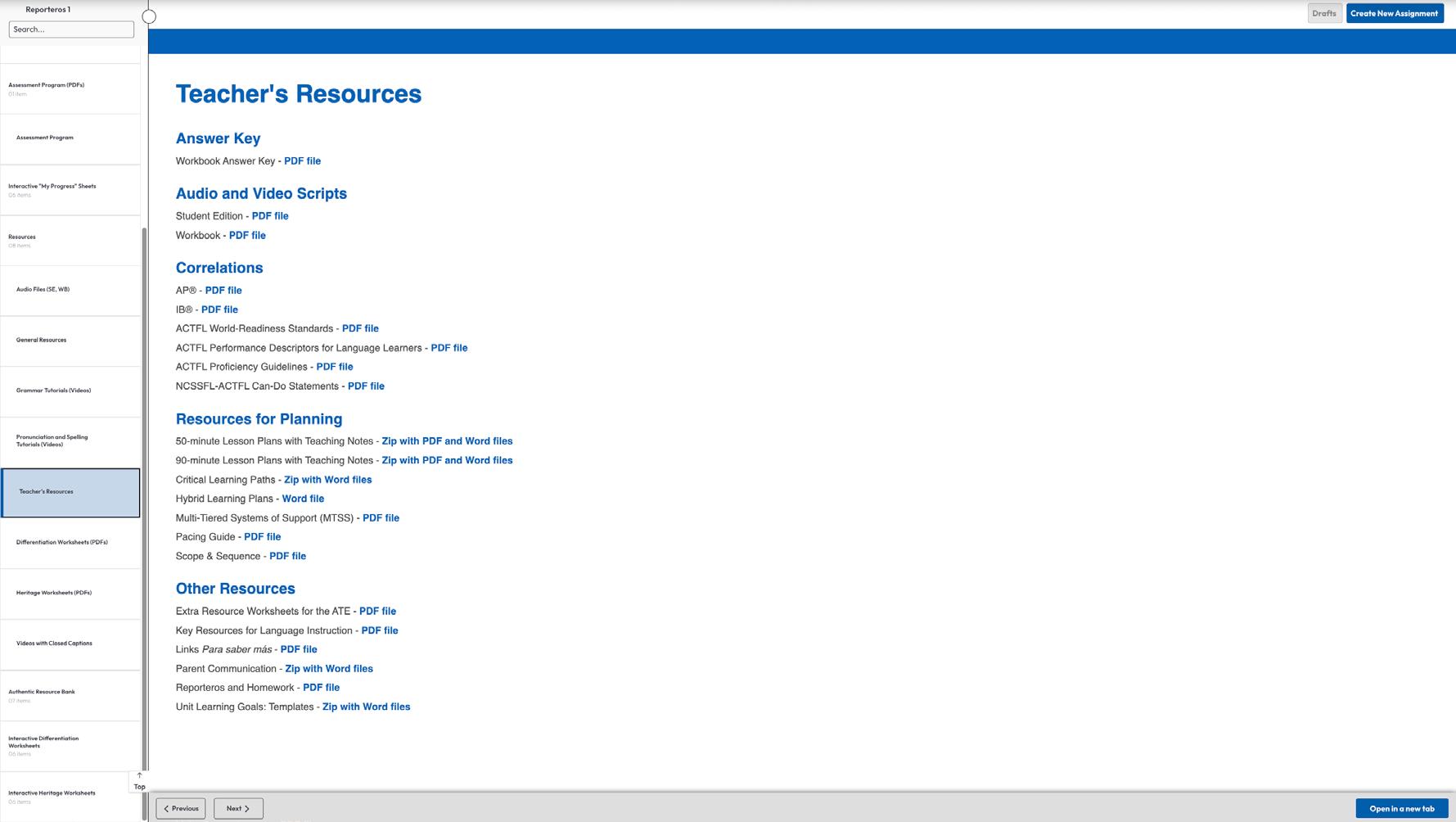
Click Teacher’s Resources
Review:
• Lesson plans (50- and 90-minute formats)
• Scope & Sequence
• Pacing Guide
• Standards correlations (ACTFL, AP®, IB®)
• Answer keys and audio/video scripts
Then click General Resources and review:
• Grammar reference materials
• Rubrics (assessment and project-based)
• Vocabulary lists
• Additional instructional supports
This section demonstrates district-level alignment, instructional planning depth, and implementation support.
Still within Resources, explore:
• General Resources
• Grammar Tutorials (Videos)
• Pronunciation and Spelling Tutorials (Videos)
• Videos with Closed Captions
• Audio Files (Student Edition and Workbook)
These materials support instruction and reinforcement beyond the core lesson. Notice:
• Skill-focused tutorial videos
• Closed-caption accessibility
• Downloadable audio files
• Grammar and vocabulary reference tools (Videos are available for streaming within the platform and are not downloadable due to copyright restrictions.)
Continue reviewing the same unit you selected earlier to evaluate instructional coherence.
In the left-hand panel, scroll to:
• Interactive Differentiation Worksheets
• Interactive Heritage Worksheets
Review:
• Scaffolded practice aligned to lesson objectives
• Tiered language support
• Structured reinforcement activities
• Heritage learner extensions (where available) that deepen linguistic and cultural knowledge
Consider how these materials:
• Provide multiple proficiency access points
• Support diverse classroom populations
• Extend learning beyond core instruction
Now scroll up to Resources and open:
• Differentiation Worksheets (PDFs)
• Heritage Worksheets (PDFs)
These contain the same instructional content, offered in printable format.
Return to My Books (Home dashboard).
From the main left navigation menu, explore:
• Assignments — Create and distribute assignments
• Assign to selected students or classes
• Set due dates
• Monitor progress by unit
• Review the Gradebook
Create a sample assignment and preview how it appears in Student View.
This completes the full instructional and accountability cycle within one unified platform.
After completing the Recommended First Look Path, use this section as a quick-reference guide to locate specific materials efficiently.
• Instructional materials are located in the left-hand panel within Course View
• Classroom management tools are located in the left-hand panel of the Home dashboard (My Books).
Go to Course View>left-hand panel>eBooks:
• Teacher’s Edition
Lesson plans, pacing guidance, instructional notes, answer keys, and standards alignment.
• Student Edition
Student-facing content with embedded audio and video.
• Workbook
Practice activities in non-interactive format.
These are non-interactive eBook versions used for lesson planning, classroom projection, and reference.
They are not assignable and do not include auto-grading.
Go to:
• Course View>left-hand panel>Interactive Student Edition
• Course View>left-hand panel>Interactive Workbook
These are the assignable, interactive versions of the eBooks.
They include:
• Auto-grading
• Immediate feedback
• Digital submission
• Progress tracking
These tools transform daily practice into actionable instructional data, supporting responsive teaching and student accountability.
Go to:
• Course View>left-hand panel>Interactive Self-Check Quizzes
Short, auto-graded quizzes for vocabulary and grammar checks.
Go to:
• Course View>left-hand panel>Interactive Assessment Program
• Course View>left-hand panel>Assessment Program (PDFs)
Both contain the same assessment content, offered in two formats:
• Interactive Assessment Program – Assignable, digital format with built-in tools and auto-grading (where applicable).
• Assessment Program (PDFs) – Printable, non-interactive format for paper-based administration.
Both versions follow the same structure, question types, and alignment to instructional objectives.
Go to:
• Course View>left-hand panel>Interactive Differentiation Worksheets
• Course View>left-hand panel>Resources>Differentiation Worksheets (PDFs)
These contain the same differentiation content, offered in two formats:
• Interactive Differentiation Worksheets – Assignable, digital version with built-in tools and auto-grading (where applicable).
• Differentiation Worksheets (PDFs) – Printable, non-interactive version.
For heritage learners (where available):
• Interactive Heritage Worksheets
• Resources>Heritage Worksheets (PDFs)
Again, these contain the same instructional content, provided in both digital and printable formats to support flexible implementation.
7.6.
Go to:
• Course View>left-hand panel>Authentic Resource Bank (where available)
Provides additional real-world cultural materials organized by unit.
7.7.
Media is integrated directly into the instructional flow.
You can access it in several ways:
A. Embedded in eBooks
Audio and video are built directly into the Student Edition and Workbook.
B. Embedded in Interactive Versions
Media supports assignable digital activities within:
• Course View>left-hand panel>Interactive Student Edition
• Course View>left-hand panel>Interactive Workbook
C. Downloadable Audio Files
Go to Resources>Audio Files (SE, WB) to download audio files separately.
D. Grammar & Pronunciation Tutorials
Available under:
• Resources>Grammar Tutorials
• Resources>Pronunciation & Spelling Tutorials
Videos are available for streaming within the platform but are not downloadable due to copyright restrictions.
7.8. TEACHER SUPPORT MATERIALS
Go to Resources to access:
• Teacher’s Resources
• Answer keys
• Audio and video scripts
• Standards correlations (AP®, IB®, ACTFL)
• Rubrics and reference materials
7.9. TRACKING PROGRESS & MANAGING CLASSES
Return to My Books (Home dashboard).
In the left-hand navigation panel, you will find:
• Assignments
• Roster
• Settings
• Gradebook
Note: These classroom management tools are accessible from the left-hand panel on the Home dashboard, not within Course View.
Q: WHAT IS THE DIFFERENCE BETWEEN EBOOK AND INTERACTIVE VERSIONS?
A: eBook versions are used for instruction and projection and are not assignable. Interactive versions are assignable, include auto-grading (where applicable), and support digital submission and progress tracking.
Q: ARE THE INTERACTIVE AND PDF ASSESSMENTS THE SAME?
A: Yes. Both contain the same assessment content. The interactive version is assignable digitally; the PDF version is printable for paper-based administration.
Q: HOW DOES THE PROGRAM SUPPORT DIFFERENTIATION AND HERITAGE LEARNERS?
A: Differentiation and heritage materials are available in both interactive (assignable) and PDF formats, aligned to the same unit objectives.
Q: WHERE CAN TEACHERS FIND LESSON PLANS AND STANDARDS ALIGNMENT?
A: Under Course View > Resources > Teacher’s Resources.
Q: WHERE ARE CLASSROOM MANAGEMENT TOOLS LOCATED?
A: Assignments, Roster, Settings, and Gradebook are located in the left-hand panel of the Home dashboard (My Books).
Q: ARE VIDEOS DOWNLOADABLE?
A: Videos stream within the platform and are not downloadable due to copyright restrictions.
THANK YOU!
Thank you for exploring The KWL Hub and its instructional resources.
If you have any questions or need additional support, please contact your sales representative for assistance
We look forward to supporting your teaching and your students’ success.