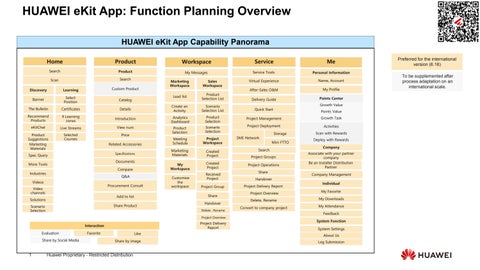
HUAWEI eKit App: Function Planning Overview


Path 1:Download HUAWEI eKit App from App Store

Path 2: Scan the QR code and redirect to App Store

Scan the QR code
Path 1:Download HUAWEI eKit App from App Store
Path 2: Scan the QR code and redirect to App Store
Scan the QR code









①Before using the HUAWEI eKit App, the system will prompt to select a country and language.
② Select country/region and language.
③ The privacy statement and user agreement must be signed each time a country/site is selected.

④ Show the GUI, content, and functions of the corresponding country/site.
Register an account before login:
1. Click Register,the registration page is displayed.
2. Select a registration mode, for example, using a mobile phone number or email address.
3. Enter the verification code and set password information..
4. Click Register.
Tips:
* A password must contain at least eight characters, including letters, digits, and special characters.
* After successful registration, you need to enter your account and password for the first login.
If you are a Huawei employee, you can:Log in your W3 account and password.
If you are a common user, you can:Log in using your registered account and password or via SMS verification.
Tips:
* Select Remember Account Name. Your account information will be displayed next time you log in to the app.
* The system cannot identify the mobile phone number linked with your employee ID. If you use your phone number or email address to log in, your login identity will be a common user instead of a Huawei employee.
1. Click Register/Log in.
2.Log in via SMS or password


Select the country/region where your company is registered. ① Select Country/Region


Sign Agreement ② Enter Information
Enter company info. and upload support document.
Tap "Agree to sign“ to complete the signing.

Preview & Submit
Review your entered info. and submit.