5 minute read
Item 57: Use Source Maps to Debug TypeScript

When you run TypeScript code, you’re actually running the JavaScript that the Type‐Script compiler generates. This is true of any source-to-source compiler, be it a mini‐fier, a compiler, or a preprocessor. The hope is that this is mostly transparent, that you can pretend that the TypeScript source code is being executed without ever having to look at the JavaScript. This works well until you have to debug your code. Debuggers generally work on the code you’re executing and don’t know about the translation process it went through. Since JavaScript is such a popular target language, browser vendors collaborated to solve this problem. The result is source maps. They map positions and symbols in a generated file back to the corresponding positions and symbols in the original source. Most browsers and many IDEs support them. If you’re not using them to debug your TypeScript, you’re missing out! Suppose you’ve created a small script to add a button to an HTML page that incre‐ments every time you click it:
function addCounter(el: HTMLElement) { let clickCount = 0; const button = document.createElement('button'); button.textContent = 'Click me'; button.addEventListener('click', () => { clickCount++; button.textContent = `Click me (${clickCount})`; }); el.appendChild(button);
addCounter(document.body);
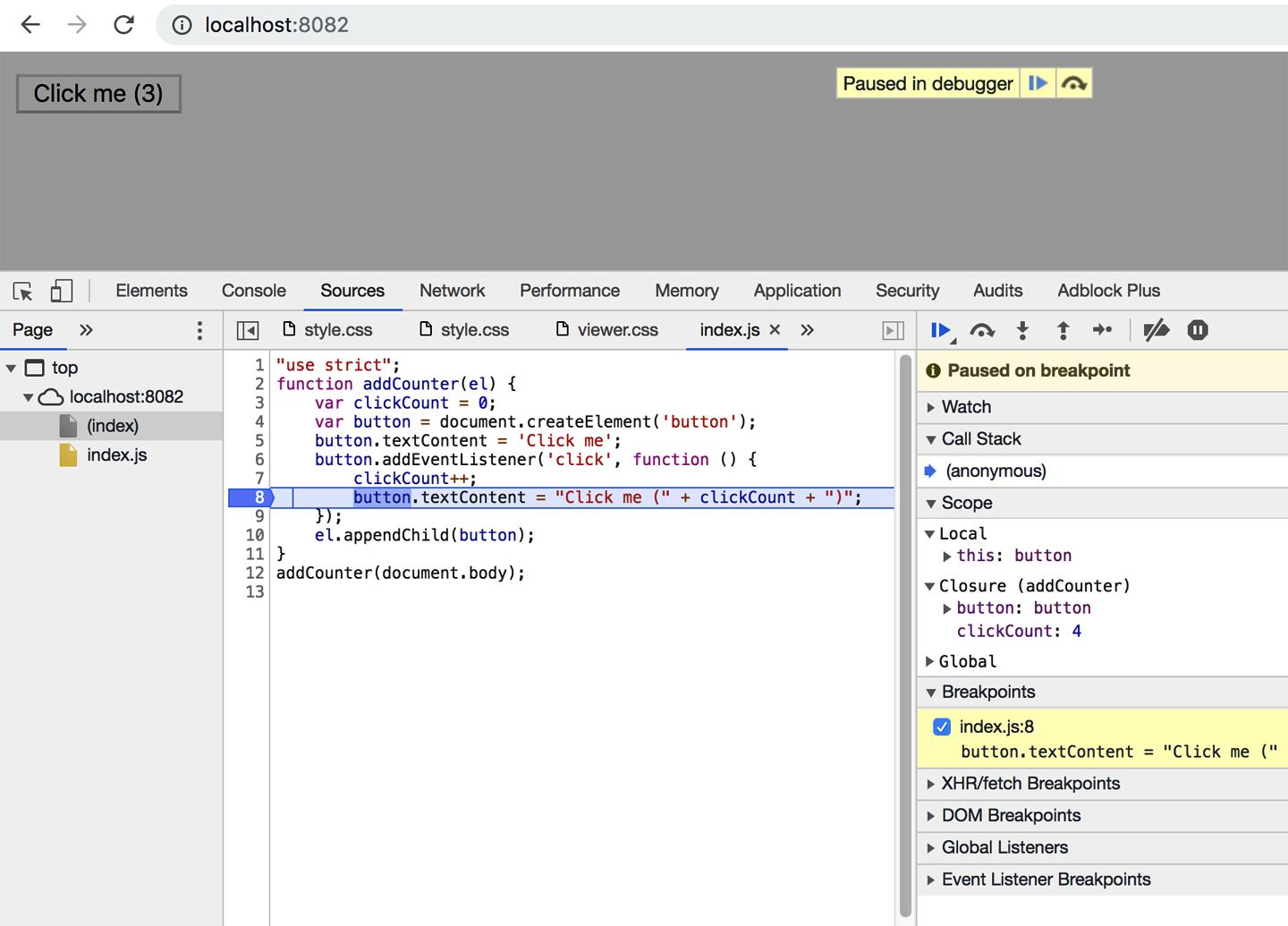
If you load this in your browser and open the debugger, you’ll see the generated Java‐Script. This closely matches the original source, so debugging isn’t too difficult, as you can see in Figure 7-1.
Figure 7-1. Debugging generated JavaScript using Chrome’s developer tools. For this sim‐ple example, the generated JavaScript closely resembles the TypeScript source.
Let’s make the page more fun by fetching an interesting fact about each number from numbersapi.com:
function addCounter(el: HTMLElement) { let clickCount = 0; const triviaEl = document.createElement('p'); const button = document.createElement('button'); button.textContent = 'Click me'; button.addEventListener('click', async () => { clickCount++; const response = await fetch(`http://numbersapi.com/${clickCount}`); const trivia = await response.text(); triviaEl.textContent = trivia; button.textContent = `Click me (${clickCount})`; }); el.appendChild(triviaEl); el.appendChild(button);
If you open up your browser’s debugger now, you’ll see that the generated source has gotten dramatically more complicated (see Figure 7-2).
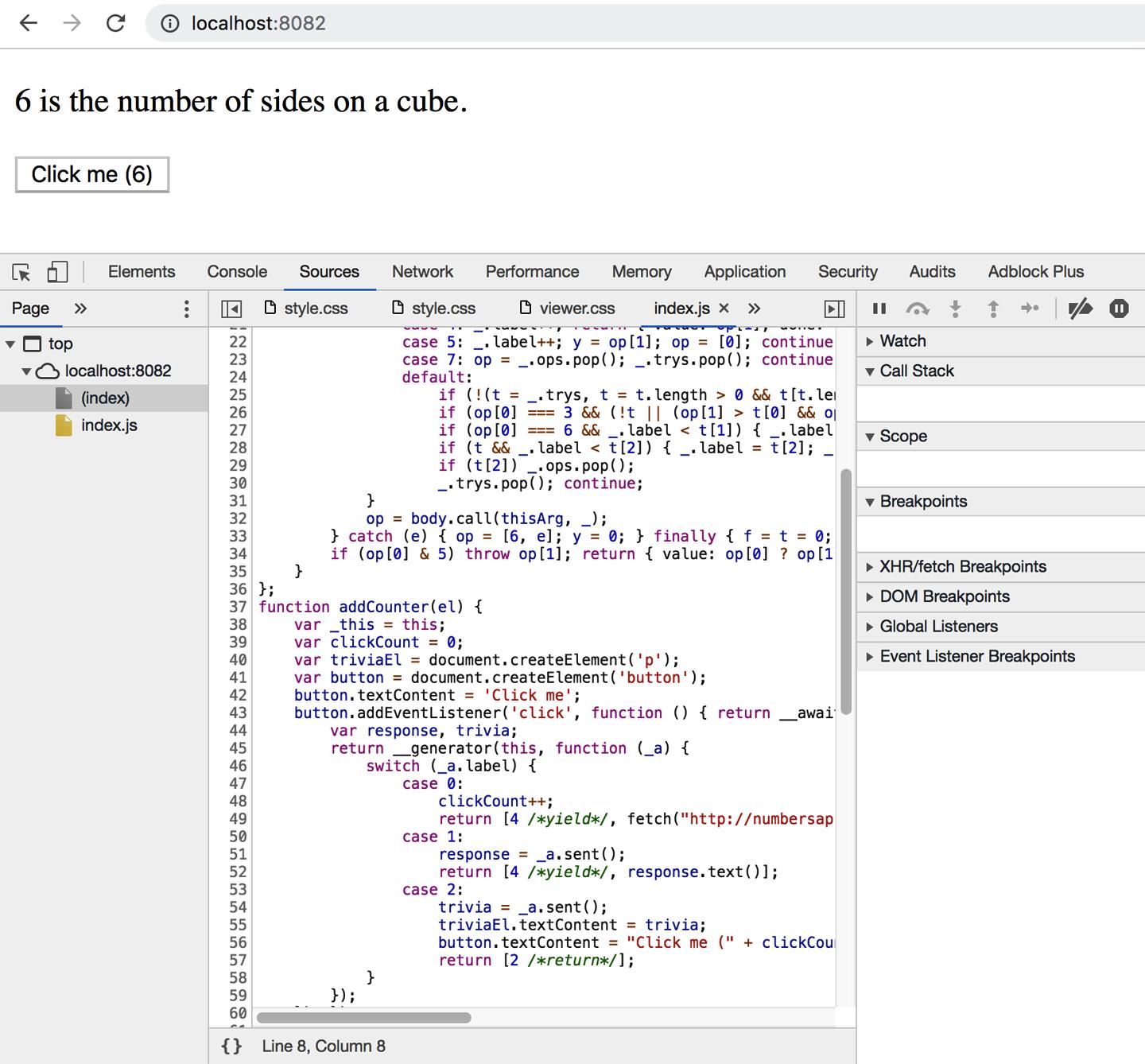
Figure 7-2. In this case the TypeScript compiler has generated JavaScript that doesn’t closely resemble the original TypeScript source. This will make debugging more di cult.
To support async and await in older browsers, TypeScript has rewritten the event handler as a state machine. This has the same behavior, but the code no longer bears such a close resemblance to the original source. This is where source maps can help. To tell TypeScript to generate one, set the source Map option in your tsconfig.json:
"compilerOptions": { "sourceMap": true
Now when you run tsc, it generates two output files for each .ts file: a .js file and a .js.map file. The latter is the source map.
With this file in place, a new index.ts file appears in your browser’s debugger. You can set breakpoints and inspect variables in it, just as you’d hope (see Figure 7-3).
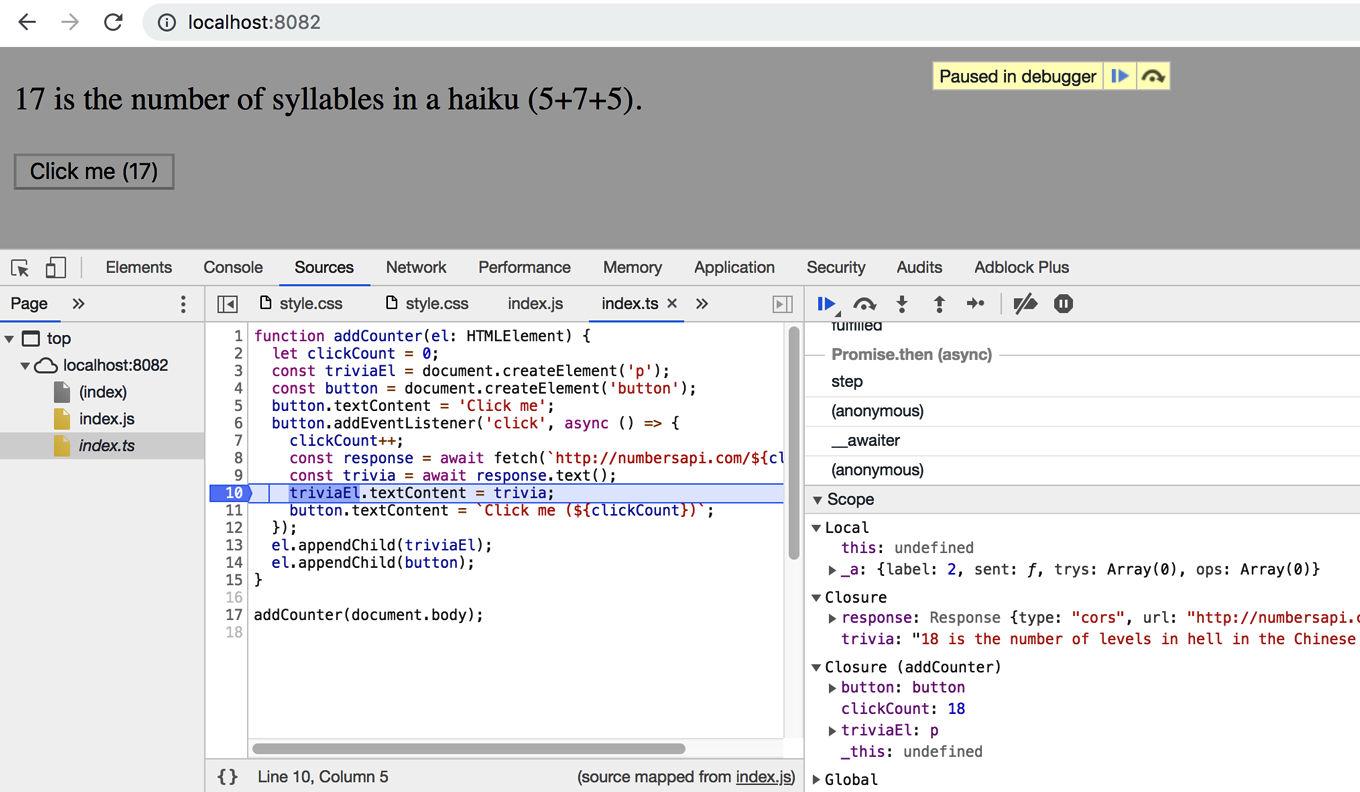
Figure 7-3. When a source map is present, you can work with the original TypeScript source in your debugger, rather than the generated JavaScript.
Note that index.ts appears in italics in the file list on the left. This indicates that it isn’t a “real” file in the sense that the web page included it. Rather, it was included via the source map. Depending on your settings, index.js.map will contain either a reference to index.ts (in which case the browser loads it over the network) or an inline copy of it (in which case no request is needed). There are a few things to be aware of with source maps:
• If you are using a bundler or minifier with TypeScript, it may generate a source map of its own. To get the best debugging experience, you want this to map all the way back to the original TypeScript sources, not the generated JavaScript. If your bundler has built-in support for TypeScript, then this should just work. If not, you may need to hunt down some flags to make it read source map inputs. • Be aware of whether you’re serving source maps in production. The browser won’t load source maps unless the debugger is open, so there’s no performance impact for end users. But if the source map contains an inline copy of your origi‐nal source code, then there may be content that you didn’t intend to publicize.
Does the world really need to see your snarky comments or internal bug tracker
URLs?
You can also debug NodeJS programs using source maps. This is typically done via your editor or by connecting to your node process from a browser’s debugger. Con‐sult the Node docs for details.
The type checker can catch many errors before you run your code, but it is no substi‐tute for a good debugger. Use source maps to get a great TypeScript debugging expe‐rience.
Things to Remember
• Don’t debug generated JavaScript. Use source maps to debug your TypeScript code at runtime. • Make sure that your source maps are mapped all the way through to the code that you run. • Depending on your settings, your source maps might contain an inline copy of your original code. Don’t publish them unless you know what you’re doing!
CHAPTER 8 Migrating to TypeScript
You’ve heard that TypeScript is great. You also know from painful experience that maintaining your 15-year-old, 100,000-line JavaScript library isn’t. If only it could become a TypeScript library! This chapter offers some advice about migrating your JavaScript project to TypeScript without losing your sanity and abandoning the effort. Only the smallest codebases can be migrated in one fell swoop. The key for larger projects is to migrate gradually. Item 60 discusses how to do this. For a long migra‐tion, it’s essential to track your progress and make sure you don’t backslide. This cre‐ates a sense of momentum and inevitability to the change. Item 61 discusses ways to do this.
Migrating a large project to TypeScript won’t necessarily be easy, but it does offer a huge potential upside. A 2017 study found that 15% of bugs fixed in JavaScript projects on GitHub could have been prevented with TypeScript.1 Even more impres‐sive, a survey of six months’ worth of postmortems at AirBnb found that 38% of them could have been prevented by TypeScript.2 If you’re advocating for TypeScript at your organization, stats like these will help! So will running some experiments and finding early adopters. Item 59 discusses how to experiment with TypeScript before you begin migration. Since this chapter is largely about JavaScript, many of the code samples are either pure JavaScript (and not expected to pass the type checker) or checked with looser settings (e.g., with noImplicitAny off).
1 Z. Gao, C. Bird, and E. T. Barr, “To Type or Not to Type: Quantifying Detectable Bugs in JavaScript,” ICSE 2017, http://earlbarr.com/publications/typestudy.pdf. 2 Brie Bunge, “Adopting TypeScript at Scale,” JSConf Hawaii 2019, https://youtu.be/P-J9Eg7hJwE.
