

Educating to Make a Difference in the World

Our Mission
Discovering the brilliance in every individual. Building community through respect and a sense of belonging.
Empowering people to act with purpose.
Primary Device Strategy
Device Specifications
Purchasing via JTRS
Managing Devices (School)
Managing Devices (Home)
Qustodio Protection at Home
iPad Preparation (non-JTRS)
Backing Up Your iPad
Personal App Store Access
iPad 1:1 Guidelines
Student iPad Use Agreement
FAQs (Frequently Asked Questions)
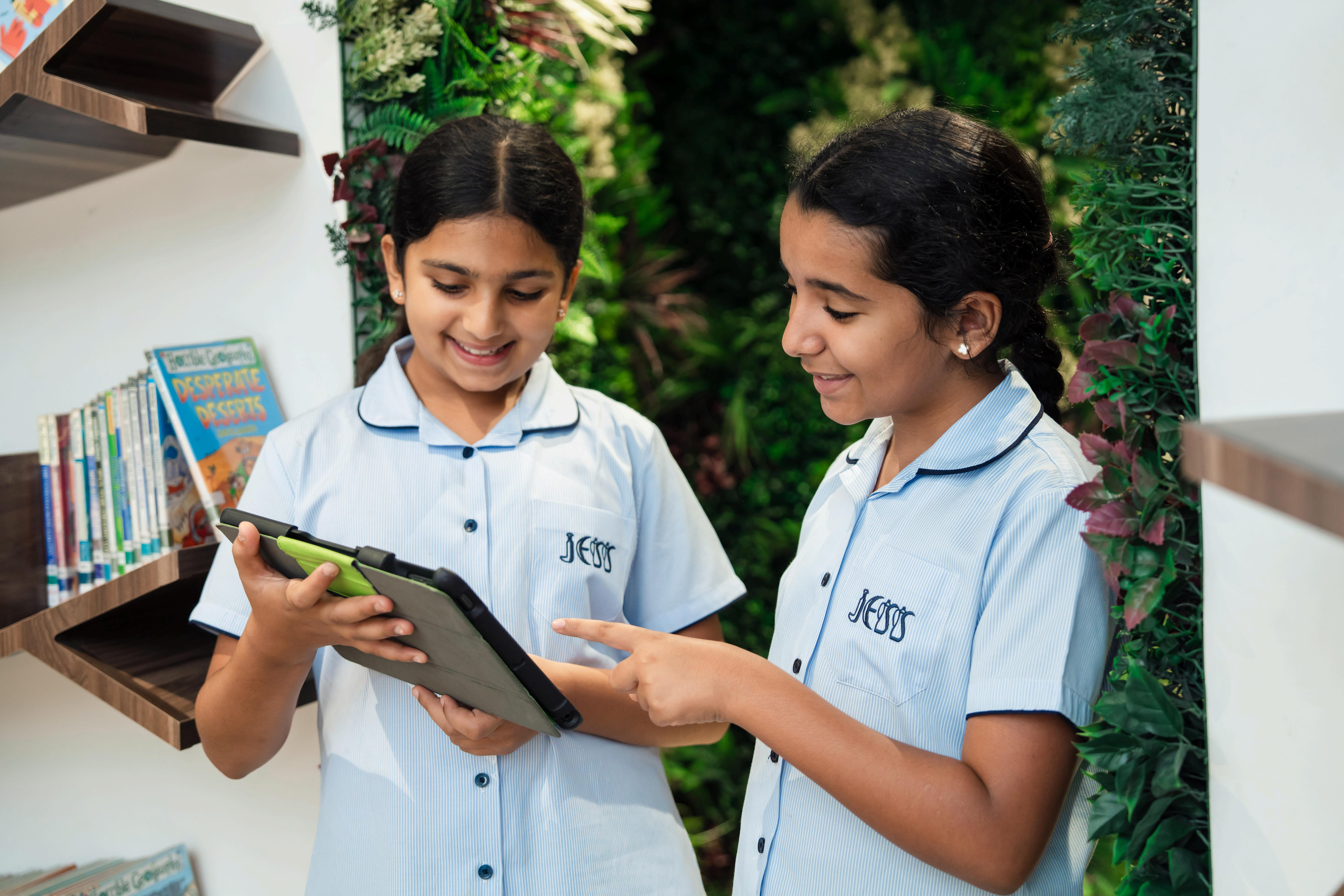
Mobile technology has long been an integral part of education at JESS Dubai In 2012 JESS became one of the first schools in the world to integrate iPads into teaching and learning and since then, JESS has developed an international reputation as a beacon of best practice in the use of iPads in education, winning several awards in the process.
In 2018, the JESS Bring Your Own Device (BYOD) scheme was revised to ensure that all learners had access to the same level of technology and consistent access to a wide array of rich digital learning opportunities The BYOD scheme is active for students in Years 4-6 across both JESS primary schools.
This guide will help to ensure that you understand the hardware requirements and options available to you as well as answer many common questions. If you have any further queries, please do get in touch

Mr Steve Bambury Head of AI & Digital Innovation
In September 2018, we standardised the iPad models that we use at JESS This is to ensure that all students have access to the same level of technology and can access learning content in the same way.
What we recommend:
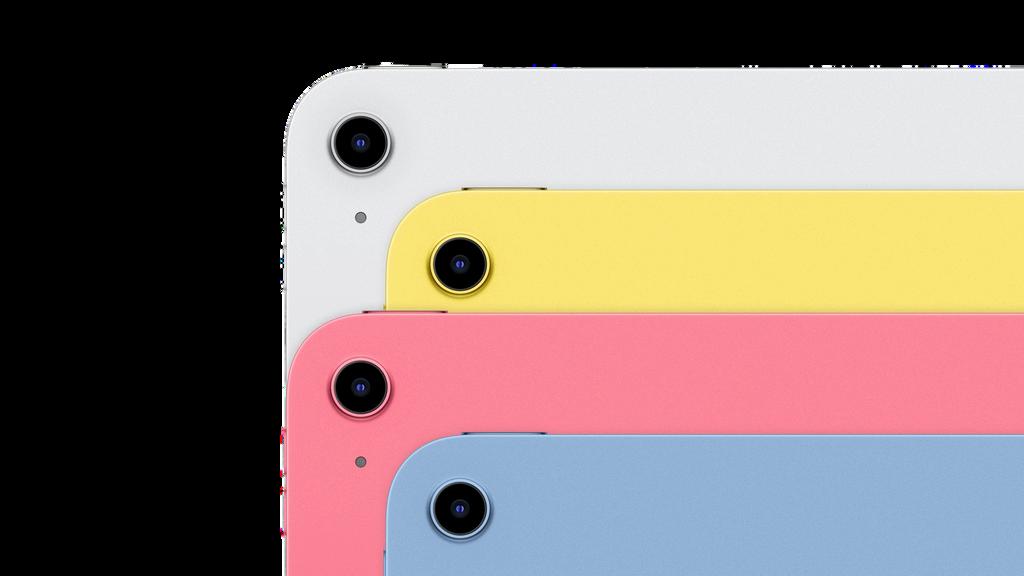
11th Generation iPad (A16)
256GB and 512GB models are available. Students also require an Apple Pencil or equivalent stylus
A rugged case to protect the device is essential. A wireless keyboard is optional but many students find it useful.
What if you already have an iPad?
Whilst we recommend that students are equipped with the 11th Generation iPad, we do understand that, in some situations, this may not be feasible e.g. the student has recently been gifted an alternate model iPad Students are allowed to bring in other model iPads, but we would highlight the fact that some learning content may not be accessible if the device is significantly older.
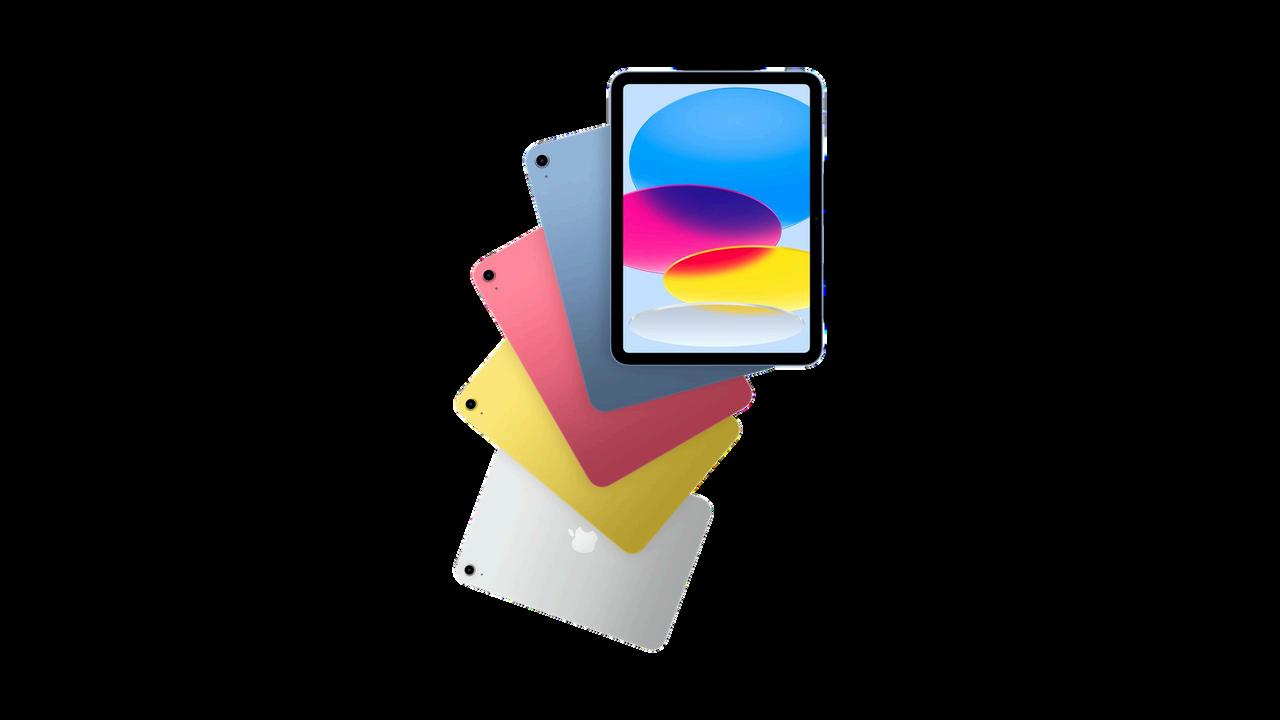
We work directly with Apple Solution Experts JTRS for sourcing iPads in our primary schools JTRS can provide parents with a bespoke offer on a device as well as the ability to purchase additional peripherals such as the Apple Pencil or a keyboard.
We would like to draw your attention to the following key points:
Purchasing through JTRS will mean the device arrives to you, ready to use Purchasing through the portal is not compulsory. However, we have worked on securing a cost-effective and long-lasting solution for families
We recommend getting the proposed Nutkase cover and Apple Care. However, this is completely optional.
Apple Care can be set up through JTRS or directly on the device when purchased. It will cover any damage done to the device for 2 years with the option to extend the care after this period
All maintenance of devices can take place through school, there is no need to find a repair centre or visit an Apple Store
If a student brings an iPad into school that was not purchased through JTRS, then the device will need to be erased and reset in order to be enrolled onto our device management system With the appropriate backups no content will be lost and all prior purchases on the device can be reinstalled at no additional charge. More information about how to do this can be found later in this document
To purchase your iPad from JTRS, please visit this link and click “School Store” at the top to select either JESS Jumeirah or JESS Arabian Ranches.
At JESS we use the JAMF School MDM (Mobile Device Management) system which means that all iPads are managed by the school. This allows us to deploy apps to devices with ease, as well as apply restrictions on the school network to ensure that online safety protocols are maintained.
There are many benefits to using an MDM with our devices:
School-wide safety protocols - Teachers can view student iPads in real time during lessons via Apple Classroom
Self-service: students can install school apps independently
School pays for educational apps
No delays apps can be used as required
Time-stamped profiles ensure only educational apps are available during the school day (non-school apps are inaccessible during the school day)

Parents have a choice of three methods for managing their child's device at home We strongly recommend trying the first method before considering the others.
Implementing screen time restrictions can be an effective way to regulate your child's device usage at home when applied properly We recommend remaining vigilant, routinely checking your child’s device, and engaging in frequent discussions about technology.
Another option is to employ the use of Qustodio. This is a free piece of software that is provided by our e-safety partner, Qoria. Using this tool, parents can restrict internet and app access on their children’s devices
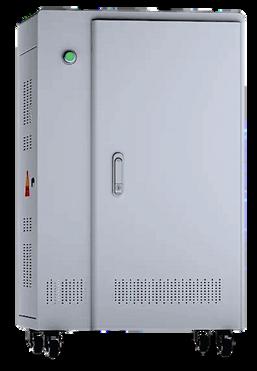
The final option available is for your child to leave their device at school overnight in a secure charging station A Microsoft Form will be sent by your school prior to the summer holiday for you to register your interest in this option.
Students whose parents have opted for overnight storage must return their iPads to the designated storage area at the end of each school day.


Keeping your child safe beyond the school gate
We provide all JESS families with free access to the award-winning parental control platform Qustodio to use at home Through a straightforward parent dashboard, you can block inappropriate apps, games and websites, review browsing history, monitor YouTube activity and get a clear picture of how screen time is being spent, and all in real time. You can also see your child's location on a map, track where they've been, and set up notifications for when they arrive at or leave from saved places like home or school.
To connect, visit qustodio.com/my-school and register using the same email address you receive iSAMS notifications on. This is essential because it is how the system links you to your child's profile. Once logged in, you should see your child's profile listed; simply click Connect and the initial setup is complete. For any technical support, please reach out to Qustodio’s support team directly via help.qustodio.com
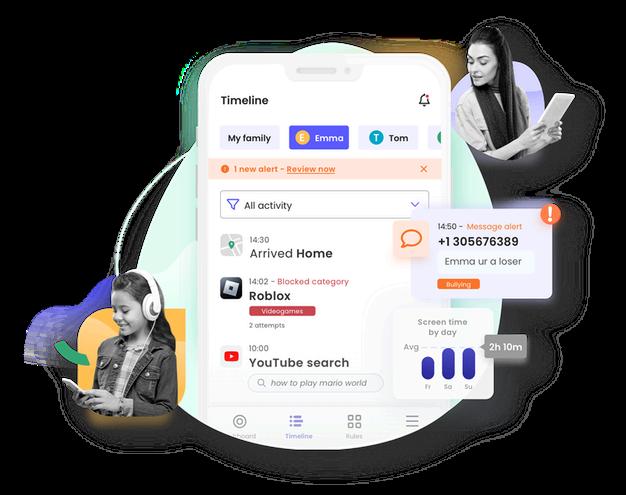
The Qustodio plan we provide for free includes games and apps blocking, daily time limits, web filtering, location monitoring, and the ability to pause internet access. It also includes coverage for one additional personal device per student A three-day free trial of the Complete Plan is available so you can explore the full range of tools before deciding if you would like to upgrade to access all of the features
This note is for parents who are providing an iPad that was not purchased via the JTRS portal Following these instructions will ensure that your child’s iPad is ready to be enrolled onto the school’s device management platform.
Please ensure that:
You have recorded all passwords for important apps and games
You know your personal Apple ID password to use once the iPad has been configured (NB you do not need to share these details with the school)
Sign out of iCloud & App Store
1. Go to Settings
2. Tap on your name on the top left.
3 On the bottom, in red, tap Sign out
4. A pop-up screen may offer to sign out of iCloud and Store, sign out of both iCloud and App Store
Remove Passcode
1. Go to Settings
2. Scroll down to Touch/Face ID & Passcode.
3 On the right, choose Turn Passcode Off
4. Follow the on-screen instructions
Please do not wipe or erase your child’s iPad. This process will be done at school.
You can back up your iPad (Photos, videos, game data, apps, contacts etc using iCloud Before you begin, please ensure that your device is connected to a power source and a Wi-Fi network.
Go to Settings > [your name] and tap iCloud.
Tap iCloud Backup Make sure that iCloud Backup is turned on Also, make sure Photos is set to ‘ON’ and turn on any other features you may wish to back up such as Contacts, Calendar and any information from apps (you will see this if you scroll further down)
Tap Back Up Now. Stay connected to your Wi-Fi network until the process completes.
You can check the progress and confirm the backup completed. Go to Settings > [your name] > iCloud > iCloud Backup Under Back Up Now, you will see the date and time of your last backup.
We are able to provide the students with a school iCloud account that provides them with 200GB of free storage. We encourage students to avail of this if they are not part of a family sharing iCloud account

Devices enrolled on our Device Management System can still be used with personal App Store accounts to download/purchase content as usual. This includes restoring apps that have previously been purchased. You will not be required to pay for this content again. Please sign into your App Store account through the App Store app on your device.
If you have any difficulties, please speak with a member of our IT team and they will be happy to assist you with this process. Please note that you should not sign out of the school iCloud account, only the account used for the App Store
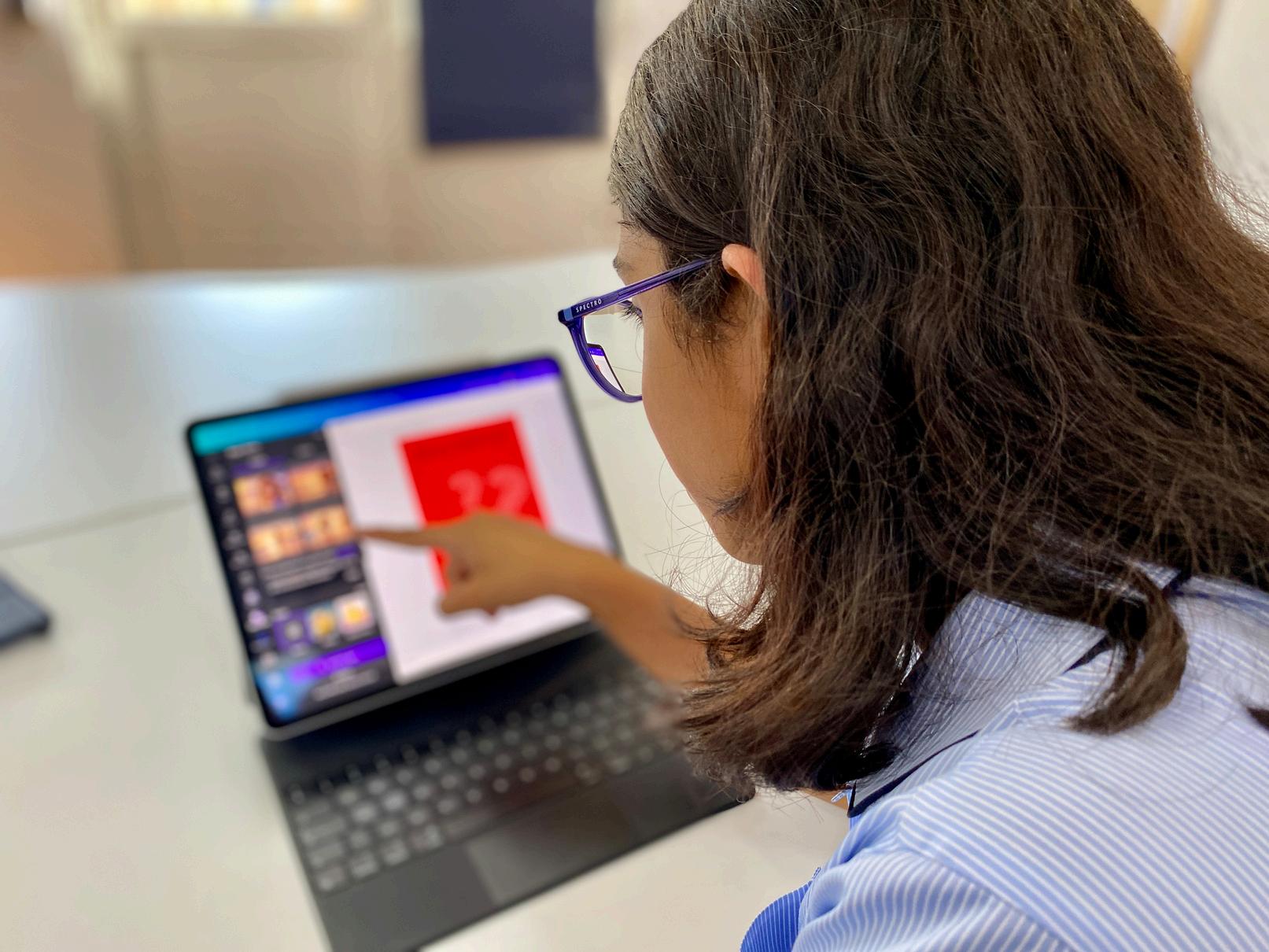
All students’ iPads must be enrolled on JAMF, the school’s Mobile Device Manager (MDM)
This is to ensure the safe and proper use of the device in school.
Children are responsible for password protecting their device to prevent unauthorised access. Parents should be aware of these passwords.
The IT department at JESS will not keep a record of iPad passwords
The IT department may be able to help if the device is enrolled on JAMF School and connected to the WiFi. However, this is not guaranteed.
Devices, keyboards, earphones and Apple Pencils should be clearly labelled
Devices should be brought to school fully charged.
All students will connect to the school’s student WiFi network
All reasonable precautions will be taken to protect the devices whilst in school.
This includes:
No iPads on the playground during lunch times.
All iPads must be kept in their protective case.
Firewalls and filters
The JESS IT department is able to offer support in the following areas:
Deployment of educational apps necessary for learning in school time
Advice on restrictions, family sharing and guidelines with online safety.
Detecting the last active location of lost devices We strongly encourage parents to activate ‘Find my iPad’
Breakages, damages and loss:
Any damage or loss should be reported immediately.
JESS recommends that parents purchase ‘Apple Care’ warranty.
Parents who purchase devices through JTRS can log repair/hardware requests via repairs@JTRS.ae
Any broken or damaged devices not bought through the school recommended resellers will need to be fixed without the school’s assistance.
All parents are expected to review the AUP with their children and to agree home consequences for misuse of devices.
For further support, please contact: parenthelpdesk@jess.sch.ae
I understand using my iPad is a privilege
I understand that I am responsible for my iPad.
I understand that the use of my iPad before and after school, or during break times is prohibited.
I understand that I will give my teacher access to my device should they request it. It is my duty to be a responsible digital citizen
I will use appropriate language and keep my communication with others positive and respectful
I will keep my personal information (full name, address, phone number, photos) private.
I will report any inappropriate use, content, images or messages to a responsible adult.
I will only use my iPad under adult supervision, during lessons, while on the school premises.
I agree to follow instructions and use only the apps directed by my teacher I will be responsible for my passcode and understand that only I and my parents know it.
I will ensure that the content of my iPad, including apps, is age-appropriate.
I will manage my screen time in a constructive and balanced manner, in agreement with my family.
I will not use the device to intimidate, bully or otherwise harass others I will not record or photograph another person without permission.
I will not send messages during school hours.
I will not touch, use or remove another person’s device without the permission of the teacher.
I have agreed to this with my family and the school.
Child Name
Are the students able to access games on the iPad during the school day?
No. The device management system ensures that all non-school apps are unavailable during school hours
What happens with the device/apps if my child leaves JESS?
If your child leaves JESS, their device will be removed from the school’s system. Apps that were deployed to the device by the school will be removed, but any personal apps will remain
Our child already has an iPad and you say it needs to be wiped in order for our child to use it at school. Will we lose all of our apps?
Any content purchased using a personal App Store account can easily be redownloaded for free from the App Store. Please ensure you back up games, such as Minecraft, to a cloud storage solution
What about photos, videos and documents?
These need to be backed up either to a cloud storage space like iCloud, Dropbox or OneDrive or by connecting the device to a PC and manually transferring files. We can also assist you with backing up files to the free 200GB iCloud account that each student is provided by the school.
What about games, progress and worlds that my child has saved?
Progress and scores are generally saved to the Apple Game Center and therefore safe. Worlds created in platforms like Minecraft need to be transferred manually Please contact parenthelpdesk@jess.sch.ae for support with this.
What if my child is joining JESS in Year 6? Do we still need to buy them an iPad?
All students in KS2 use iPads across the curriculum daily As such it is crucial that your child is equipped with the correct device whilst in the JESS primary schools. JTRS offer bespoke education discounts to JESS families as well as providing after-sales support. If your child is joining JESS mid-way through Year 6, please speak with a member of the school management team in order to explore the best practical option for you. Please also note that JESS Secondary operates a separate initiative using Windows 11 devices rather than iPad
