1 minute read
Generic Guide to Scrape Walmart Product Data

First, you need to find the product or the category page that you want data from.
https://www.iwebdatascraping.com/ecommerce-data-scraping-services.php https://www.iwebdatascraping.com/social-app-data-scraping-services.php https://www.iwebdatascraping.com/e-commers-scraper.php https://www.iwebdatascraping.com/e-commers-scraper.php
Advertisement
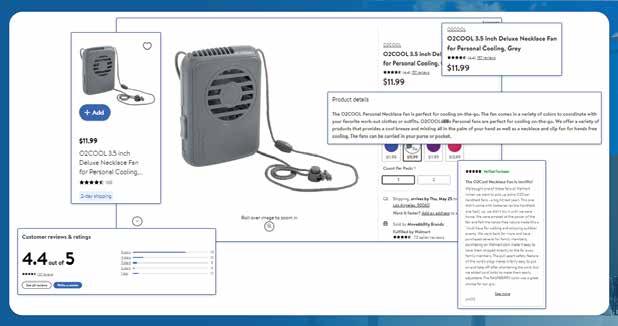
When you scrape data from E-commerce websites, decide the type of data you want to collect – Prices, images, reviews, etc.
Inspect the page source.
Locate the HTML elements for the required data. For example, product title or price using find() or find _all() methods.
Using the text attribute, extract the text content.
If you are using BeautifulSopup, send a GET request to the Walmart page https://www.iwebdatascraping.com/scrape-taobao-product-data.php
Iterating on a list of URLs will allow the scraping of multiple pages. Make sure to put a time break using the time.sleep() function.
JSON data will allow you to parse and load into JSON modules.
Export the data to CSV or another file format.
List of Data Fields
https://www.iwebdatascraping.com/facebook-scarper.phpt
Product Name
Title
Description
Price
URL
Reviews
Ratings
Images
Brand Details
Variations https://www.iwebdatascraping.com/taobao-scraper.php
In this blog, we will scrape Walmart data using Python and Selenium.
Regarding web scraping, Python is the most demanding programming language. While Selenium helps automate testing. It enhances the manual procedure in the web browser. With the help of Python and Selenium, you can easily open a web browser and then scrape data from a specific page. It needs WebDriver to perform this. If you don't have prior installed Selenium, install both the browser driver and Selenium library.

Products Searching: First, for web scraping Walmart data using Python, we will import using the following code:
After importing the Selenium, open the Chrome browser by using the below code as a Python script.
Now, go to the Walmart homepage using the below-mentioned code: driver.get("https://www.walmart.com") https://www.iwebdatascraping.com/scrape-amazon-product-data.php https://www.iwebdatascraping.com/web-scraping-services.php https://www.iwebdatascraping.com/mobile-apps-data-scraping.php
You can easily view the HTML and CSS of any webpage. Using the Inspect tool, look for the page’s source code. It will help to inspect the specific element of the webpage.
As we are looking for the product, we will go through the search bar, right-click, and then click on Inspect. Use the ‘type’ attribute to locate the input. Find the name attribute and look into its value. Here, you will find that the ‘name’ attribute possess the value q.


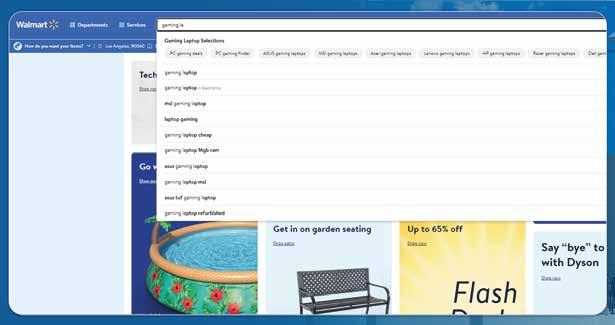
To input a keyword in the search bar, we will use the below code:
Although, the code will feed the query of Gaming Laptops. But, you can replace the Gaming laptops query with anything you want to https://www.iwebdatascraping.com/web-scraping-services.php https://www.iwebdatascraping.com/mobile-apps-data-scraping.php https://www.iwebdatascraping.com/twitter-data-scraping-services.php
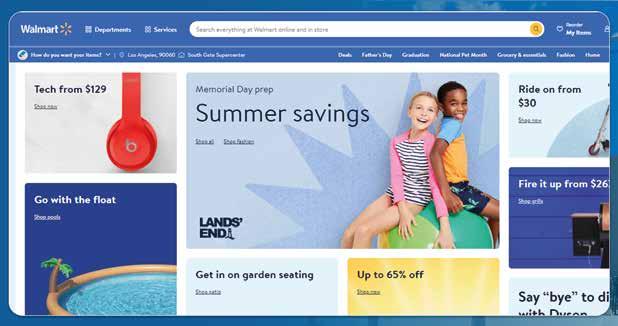


The below-mentioned code will search for the term in the search bar.
search.send_keys(Keys.ENTER)


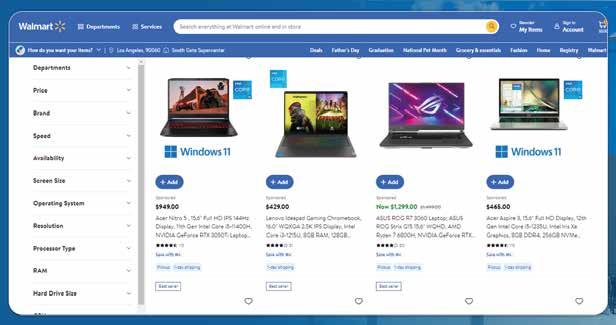
The output will appear like this: https://www.iwebdatascraping.com/scrape-amazon-product-data.php https://www.iwebdatascraping.com/web-scraping-services.php https://www.iwebdatascraping.com/web-scraping-services.php https://www.iwebdatascraping.com/mobile-apps-data-scraping.php