
Cheat Sheet

Fabric Data Warehouse (FDWH) Cheat Sheet
Explanation and Use for Each Category
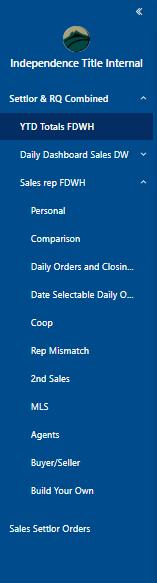

YTD Totals FDWH: Displays open, closed, and net premium by month for sales reps or escrow officers. Hover over a month’s open or closed totals to drill down into specific transactions. Provides a snapshot of company-wide production and an easy place to see numbers for the month and year. Use this view to submit New Business/Commission Reports.
Explanation and Use for Each Category
Personal: Allows you to track your progress month-by- month, see which brokerages are sending you business, which agents within those brokerages are referring it, and view your net premium by brokerage and referral source.
Sum Net Premium LY for full previous year (1/1/25-12/31/25).
Sum Net Premium SPLY same period last year (1/1/25-4/30/25).
Sum Net Premium for dates selected (1/1/26-4/30/26).
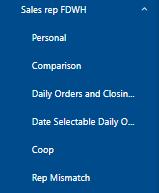
Comparison: View month-by-month open and funded orders by escrow officer and by rep. View production comparisons across closers and reps. Check to see if you’re on track to meet your goals.
Daily orders and closings: Displays all orders opened and closed on the last business day. Open orders provide an opportunity to reach out and welcome the client, while funded orders allow you to thank the agent for business and follow up on the closing experience.
Date selectable daily orders and closings: View open and funded orders within a selected date range (multiple days, weeks, months). Review transactions with “None” as rep to ensure accurate GF referral/rep assignment.
Coop: Review open and funded orders to identify warm leads. For open orders, connect with coop/non-directing agents to make welcome calls and explore additional business opportunities. For funded orders, follow up on the closing experience.
Rep Mismatch: GF records found here have a mismatched rep assignment. This could be one of your clients who referred business, but the rep was entered as another rep or as “None.” Submit correction requests as directed by sales manager.
Explanation and Use for Each Category
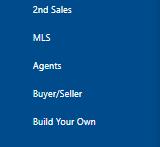
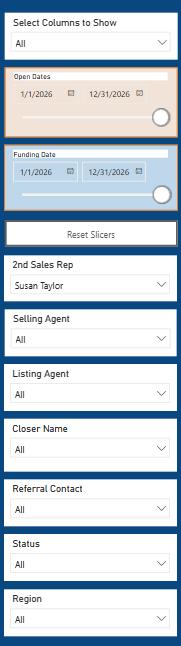
2nd Sales: Displays GFs that have a split with another rep assigned. Splits must be requested and approved by manager.
MLS: Data feed from the MLS system showing MLS listings that have opened and closed within a specific date range. This is not feeding correctly yet.
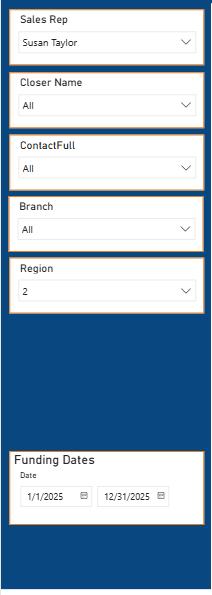
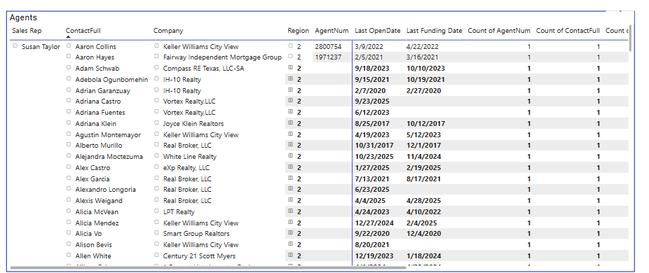
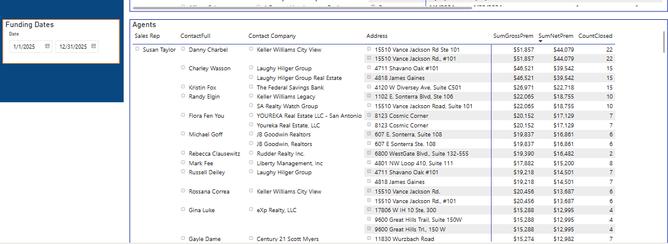
Agents: Displays all clients and companies associated with each agent, along with the date of the last opened transaction and the last funding date. Also provides a summary of top clients, including gross and net premium totals and the number of closed transactions within the selected date range.
Buyer/Seller: Provides option to search transactions using the name of the buyer or seller.
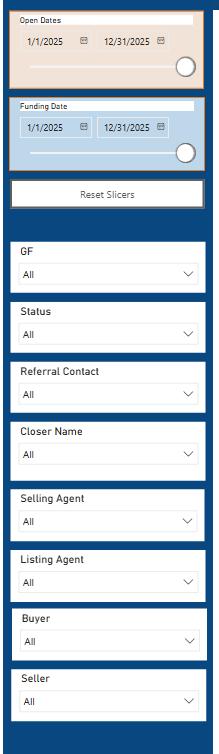
Build your Own: Option to create your own report.
YTD Totals FDWH

Set-up Instructions:
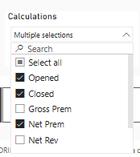
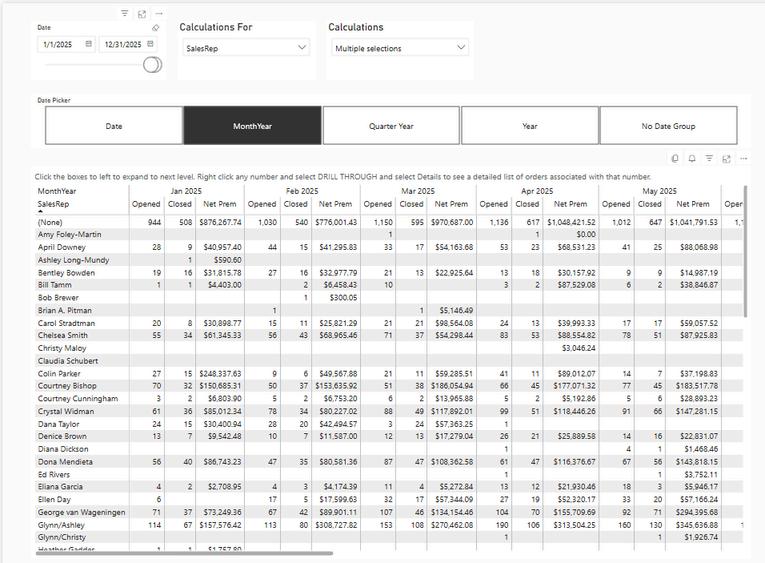
Set your desired date parameters. Choose whether to calculate for a Sales Rep or a Closer. Under Calculations, select Open, Closed, and Net Premium. Change the date parameters (full year or current month).
Locate your name under the Sales Rep section. Hover over either Open or Closed orders to drill down and view detailed information. To submit corrections or change requests, click on the GF you want to copy, right click and “copy selected,” paste into an email to manager.
YTD Totals FDWH -Continued
Set-up Instructions to View Only Your Totals:
Keep all settings from previous page.
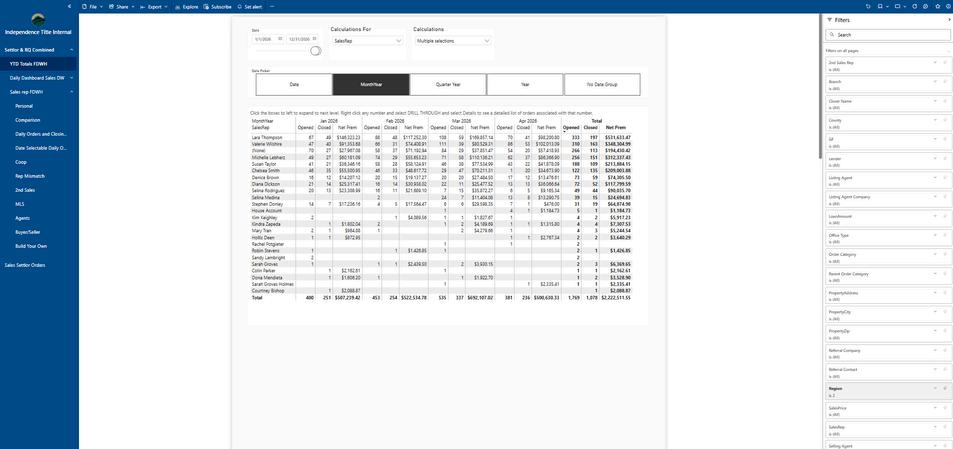
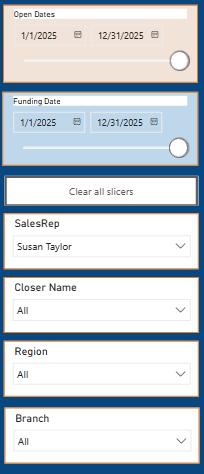
On the far right side you will see the word “Filters” using the arrow open the filters
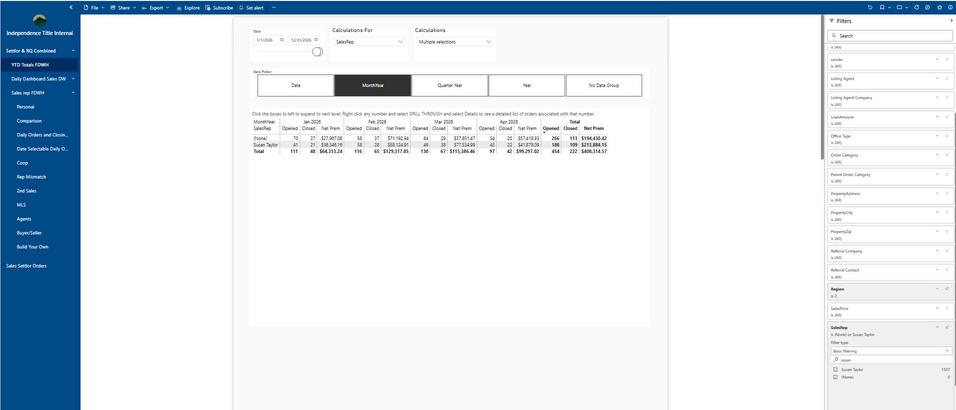
Scroll down to SalesRep and check your name (this opens the window showing only your information).
Hover over the totals in any month or hover over the year end totals to drill through for details.
YTD Totals FDWH-
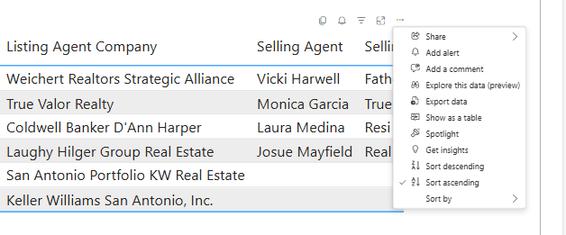
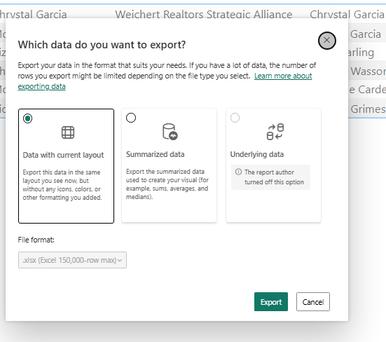
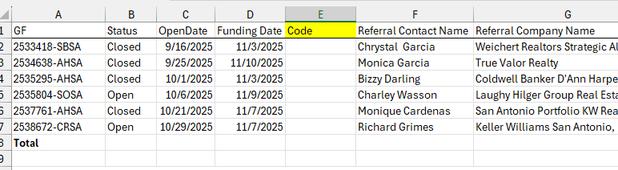
To export for New Business/Commission/EOM reporting, find the three dots to the far right (...), click on “Export Data to Excel Spreadsheet,” add a column next to Referral and code appropriately (New for New Business, etc.).
Personal: Comparison: Fabric Data Warehouse (FDWH) Settings
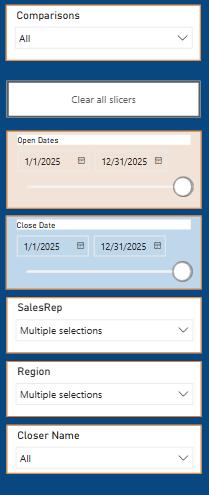
Fabric Data Warehouse (FDWH) Settings
Personal & Comparison
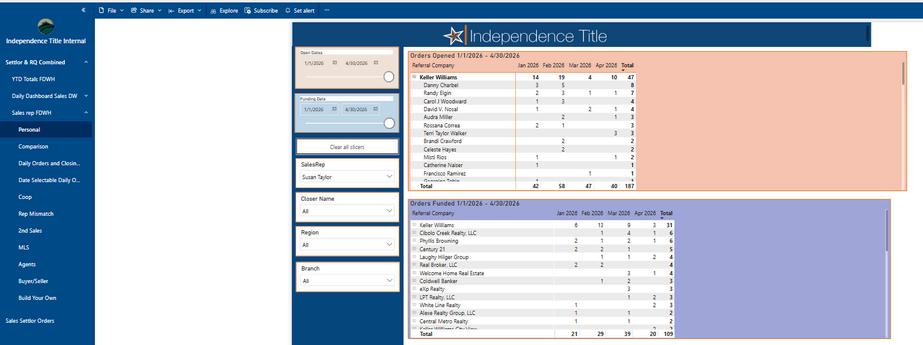
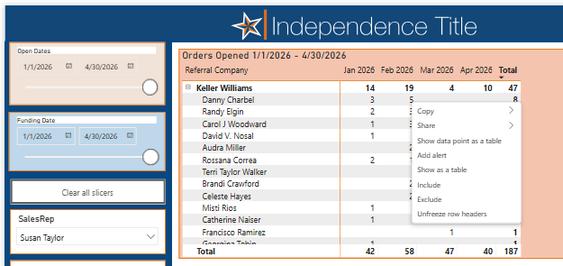
Right Click on the number you wish to dial down on and Select “Show Data Point as a Table” will bring up all orders for this selection.

Fabric Data Warehouse (FDWH) Settings
Note: The next few pages include instructions on how to “Select Columns to Show.” You are not required to select all of the columns listed. These were originally included to mirror the layout of the old Informer reports that everyone is familiar with. You can customize the view by selecting only the columns you want to see, in the order you prefer. Example: If you only want to view GF, Status, Open Date, Funding Date, and Net Premium, simply select those columns.
Daily Orders and Closings:
Select columns to show: (Clear all and then select in this order to match Informer.)
GF, Status, Open Date, Funding Date, Referral Contact Name, Referral Company Name, Listing Agent, Listing Agent Company, Selling Agent, Selling Agent Company, Closer Name, Sales Rep, 2nd Sales Rep, Gross Premium, Net Premium, Escrow Fees, Net Revenue, Lender, Order Category, Close Date, Branch, Sales Price, Loan Amount, Region, Underwriter, Property Address, Property County, Parent Order Category.
Uncheck any columns that you don’t want to see. Once set, your selections should save.
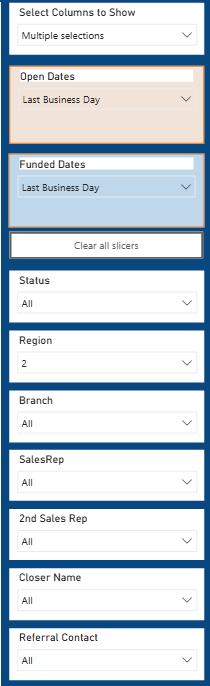
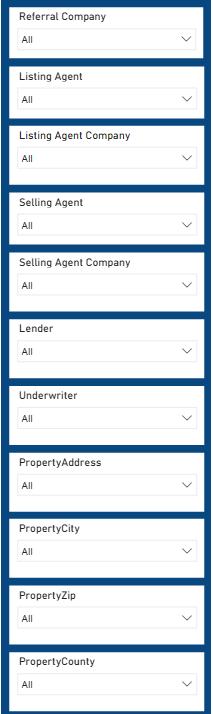
Date Selectable Daily Orders Open/Closed
Select columns to show: (Clear all and select in this order to match Informer.)
GF, Status, Open Date, Funding Date, Referral Contact Name, Referral Company Name, Listing Agent, Listing Agent Company, Selling Agent, Selling Agent Company, Closer Name, Sales Rep, 2nd Sales Rep, Gross Premium, Net Premium, Escrow Fees, Net Revenue, Lender, Order Category, Close Date, Branch, Sales Price, Loan Amount, Region, Underwriter, Property Address, Property County, Parent Order Category.
For both open and funding dates: Enter the end date first, then the beginning date. If you wish to enter the last day of the year, you will have to manually type this in.
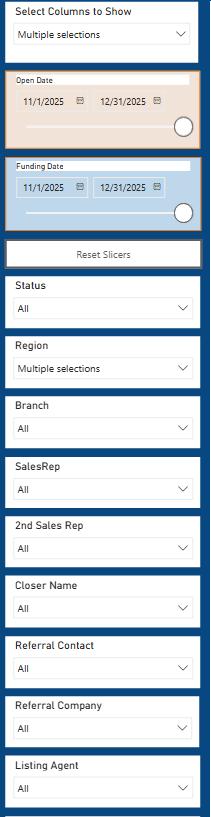
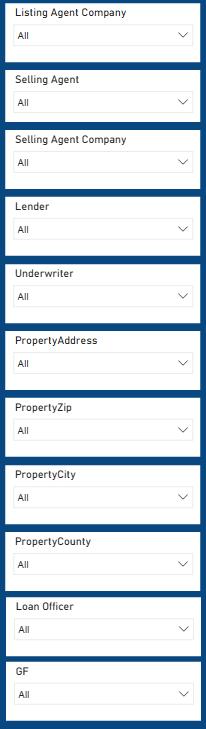
Searching for a Specific GF
Note: RQ Orders begin with numbers and Settlor Orders begin with letters.
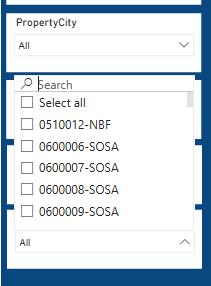
Under “Date Selectable Daily Orders,” scroll to the GF tab at the bottom. Click the down arrow and type the GF number you’re searching for in the search bar. When it appears below, check the box next to it to display the record.
Coop Reports
Note: Specific setup required for functionality.
Select columns to show: (Clear all and select in this order to match informer.)
GF, Closer Name, Referral Contact Name, Referral Company Name, Referral Agent User Name 3, Listing Agent, Listing Agent Company, Listing Agent User Name 3, Selling Agent, Selling Agent Company, Selling Agent User Name 3, Sales Price, Property Address, Property City, Property Zip, Order Category, Open Date, Region.
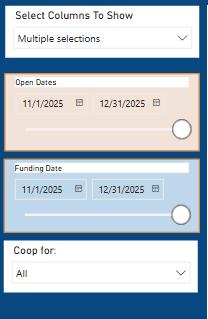
For both open and funding dates: Enter the end date first, then the beginning date. If you wish to enter the last day of the year, you will have to manually type this in.
Rep MisMatch
Select columns to show: (Clear all and select in this order to match informer.)
GF, Status, Open Date, Funding Date, Referral Contact Name, Referral Company Name, Listing Agent, Listing Agent Company, Selling Agent, Selling Agent Company, Closer Name, Sales Rep, 2nd Sales Rep, Gross Premium, Net Premium, Escrow Fees, Net Revenue, Lender, Order Category, Close Date, Branch, Sales Price, Loan Amount, Region, Underwriter, Property Address, Property County, Parent Order Category.
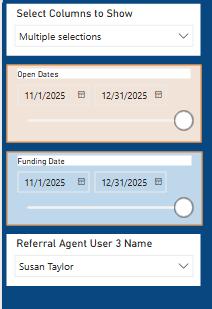
For both open and funding dates: Enter the end date first, then the beginning date. If you wish to enter the last day of the year, you will have to manually type this in.
Referral Agent User 3 Name: Type your name to view GFs that are either unassigned or assigned to a rep different from the one linked to the agent.
2nd Sales Rep
Note: Splits must be requested and approved by manager.
Select columns to show: (Clear all and select in this order to match Informer.)
2nd sales rep, GF, Status, Open Date, Funding Date, Referral Contact Name, Referral Company Name, Referral Agent User 3, Listing Agent, Listing Agent Company, Listing Agent User 3, Selling Agent, Selling Agent Company, Selling Agent User 3, Closer Name, Gross Premium, Net Premium, Escrow Fees, Net Revenue, Lender, Order Category, Close Date, Branch, Sales Price, Loan Amount, Region, Underwriter, Property Address, City, Zip, Parent Order Category.
MLS: Select City or Cities. Data not fully functional yet.
A G E N T S MLS
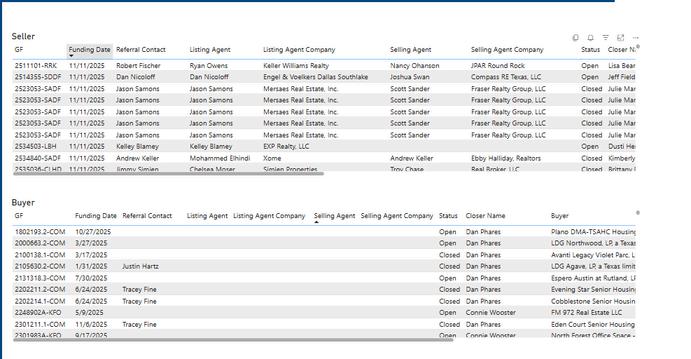
B U I L D Y O U R O W N
Option to create your own report if needed.