Line Breaks and Spacing Between Paragraphs
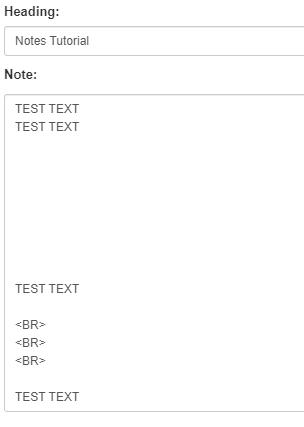
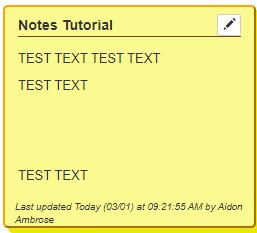
If you want there to be a lot of space between two lines, type <BR> between the lines to create extra space.
Bolding and Italicizing Words
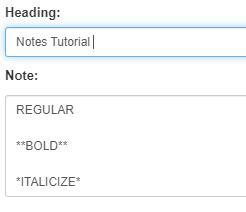
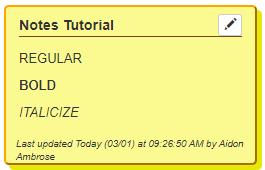
Bold words need to have two asterisks ** on each side of the word you would like to make bold. Italicized words need to have one asteris k * on ea ch side of the word you would like to make bold.
Modifying the Font Size
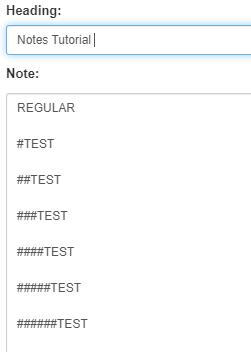
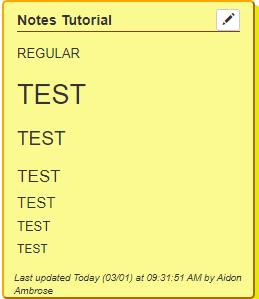
Using a pound sig n # before a word will change the size of the word. One # will make the largest font and Six #'s will make the smallest font.
Bullet Points
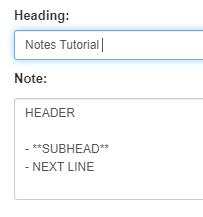
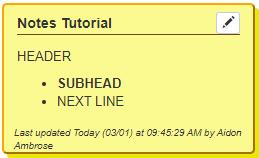
To make a bullet point, there needs to be a full space between the header line and the bulleted line Then, place a dash - with a space before the line you want to bullet If there are pound signs # or asterisks * also mod ifying that line, the dash and spa ce need to be placed first
Strike Through
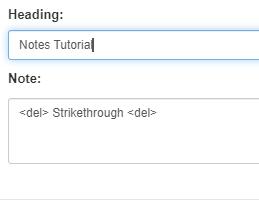
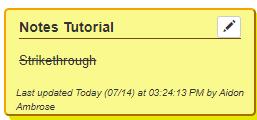
If you want to add a strike through any lines in the sticky note, you can add <del> both before and after the words you want to strike through.
Creating a Sticky Note Template
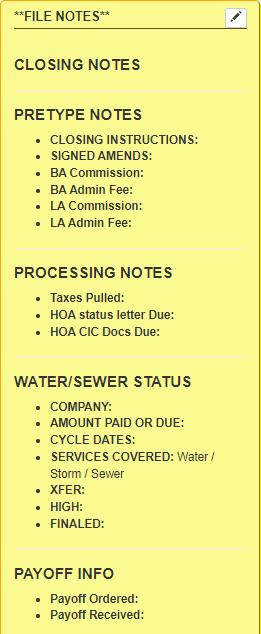
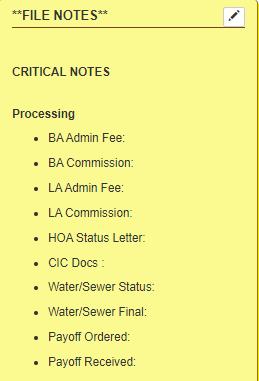
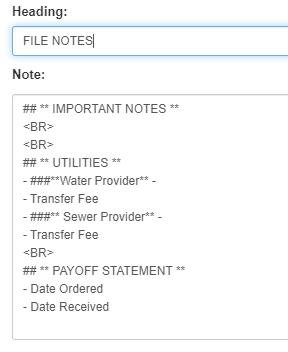
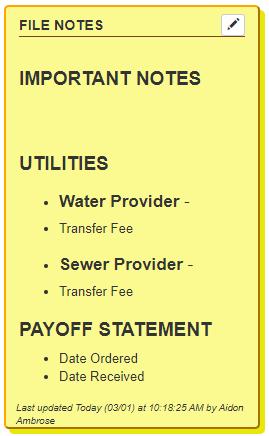
If you want to create a templ ate for a sticky note to pull through into all orders, simply format the sticky note in the ord er base that you use. This can be done in the clos ing application by going to “A pplications” and clicking on “Order Bases.” Find the base that you use for your orders and select “Base Dashboard ” If you make a templ ate on this scre en and select “save changes,” ever y stick note in ne w orders for that base will have the templ ate created S ee below for a sample templ ate
Useful Sticky Note Formats