
WELCOME TO SOCS

USER GUIDE FOR PARENTS
Title
Accessing SOCS
Accessing SOCS for the first time
Logging in to SOCS
SOCS Calendar
Viewing the whole school calendar
SOCS calendar on a mobile device
SOCS calendar sync
SOCS Co-Curricular
How do I sign my child up to clubs and activities?
Setting preferences
First come, first served
Viewing my child’s co-curricular timetable
Syncing your child’s calendar
SOCS Sport
Exploring sports fixtures and the sports calendar
Tips for syncing fixture details to Outlook, Google, Apple etc
Syncing fixtures to my own calendar
Following a team
How to view opponent information
Collecting students from fixtures
SOCS Music & Tuition
Viewing my child’s one-to-one and music lessons
Syncing the calendar

Accessing SOCS for the first time
To access SOCS please follow the steps below:
Step 1
Click on the link below Parent Login Page
Step 2 Step 3 Step 4
Select the ‘Parent’ login tab and click ‘Activate Account.’
Enter the email address that you have registered with the school, and click ‘Activate’. An email will then be sent to your email address containing an activation link.
If you experience any issues receiving the activation link from SOCS via email, please ensure to check the following:
Check the email has not been sent to your junk folder
Add ‘noreply@misocs.com’ to your safe senders list and try re-activating your account again
Logging in to SOCS
Step 1
Step 2
Click on the link below Parent Login Page Select the ‘Parent’ tab
Logging in to SOCS (cont).
Step 3
Enter your email address and password that you used to activate your account.
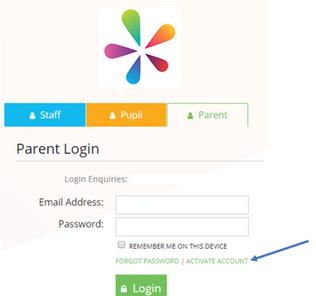
Once you have logged in you will be able to see your child/ren’s timetable, cocurricular activities and sport fixtures
SOCS CALENDAR
Viewing the whole school calendar
Visit the school SOCS calendar via the SOCS website
View Options
You can choose to view the school calendar as a grid or a list by selecting the corresponding icons Once you have decided on the preferred format, you can further customise your view by selecting day, week, or month
Category Filters
To streamline your calendar experience, you have the option to filter events by category This feature enables you to focus on specific areas of interest within the school calendar
For example:
Pre-Prep
Prep
Eaton Grange
Parent Events
General
SOCS Calendar on a mobile device
If you access the school calendar website on your mobile phone it will load as a Mobile Web App
You can even save the website icon to your home screen for quick and easy access on the go. How you save to your home screen will be dependent on the mobile device you are using
SOCS Calendar sync
To help you stay organised it is possible to synchronise your SOCS school calendar with your personal calendar
To do this select the Calendar Sync option within the side menu on the calendar website.
You have the flexibility to sync the entire school calendar or select specific categories using the filters.
Any changes made to the school calendar will automatically update your personal calendar
SOCS CO-CURRICULAR
How do i sign my child up to clubs and activites?
Setting Preferences
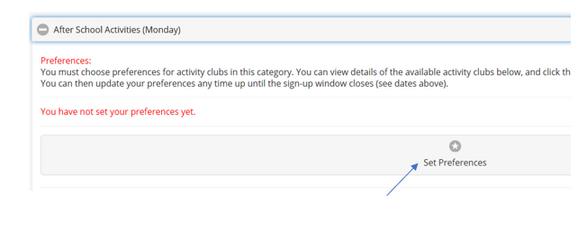
Please note that this is the option that you will use when selecting clubs. For Chill Out, Prep, and Eaton Grange Prep, you can make a preference if you would like to reserve a spot for the entire term However, keep in mind that you can also make a daily booking for these clubs (only).
This preferential sign-up method allows you the option to rank the clubs you wish to attend within a specific category in SOCS Co-curricular. We will endeavour to award as many first choice clubs to students as possible, followed by second choice, and so on. You will also need to select ‘No Activity’ as a choice to finish of your selection You only need to do this under the preference setting
To sign up to activities and clubs follow these steps:
SOCS CO-CURRICULAR
Setting Preferences (cont).
Step 2
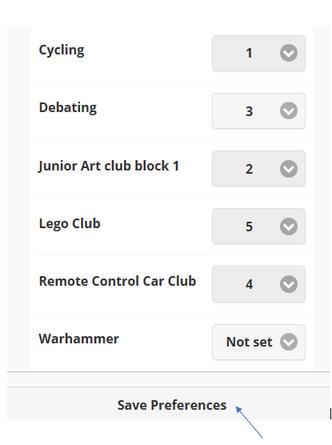
Set your preferences for each activity by selecting the order in the drop-down box. Once you have selected your preferences, click ‘Save’ You can set as many preferences as you like. We would recommend that you select 3 preferences.
Step 2
Please note that you do not have to set preferences for every activity. As long as you make one choice (by setting one preference), then SOCS will randomise the rest of your preferences. In this case, you will always be allocated into an activity.
Please read the note below on ‘No Activity’.
What if I do not want my child to attend activities other than those I have selected as my preferences?
Please ensure that you click ‘No Activity’. Ensure you select this activity as your final choice if you do not wish to be randomly allocated to an activity. If you do not add this as your final preference selection and you are unsuccessful in getting any of the activities you selected then SOCS will randomise the rest of your preferences and you will be allocated into an activity within that category.
SOCS CO-CURRICULAR
First Come, First Served
To sign up to activities and clubs follow these steps:
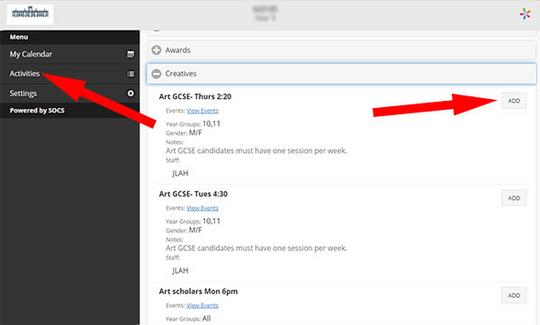
Step 1
Click on Activities to select your clubs for the term.
Step 2
Click on the ADD button next to the club (you can also view the events here)
SOCS CO-CURRICULAR
First Come, First Served (cont.)
Step 3
The club will then appear on the calendar (and any changes to the club will be update in the calendar view)
Important Club Information
Invite Only: Some clubs may only allow staff to add pupils, and parents or students cannot sign up directly
Parental Authorisation: Certain clubs require parents to use their parent login to sign up during the designated sign-up window Students cannot add themselves to these clubs
Full Capacity: If a club is marked as "Full," it means it has reached its maximum capacity and is no longer available for sign-ups.
SOCS CO-CURRICULAR
Viewing my child’s co-curricular timetable
Once your account is activated and you ' re logged in, you can access the list of clubs available for your child and sign them up during the ‘club registration open period’.
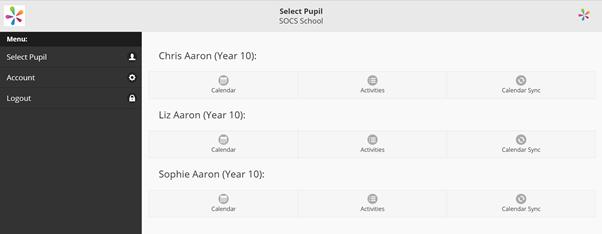
If you have multiple children in the same school, you'll have the option to filter between them upon logging in (refer to the example screenshot below)
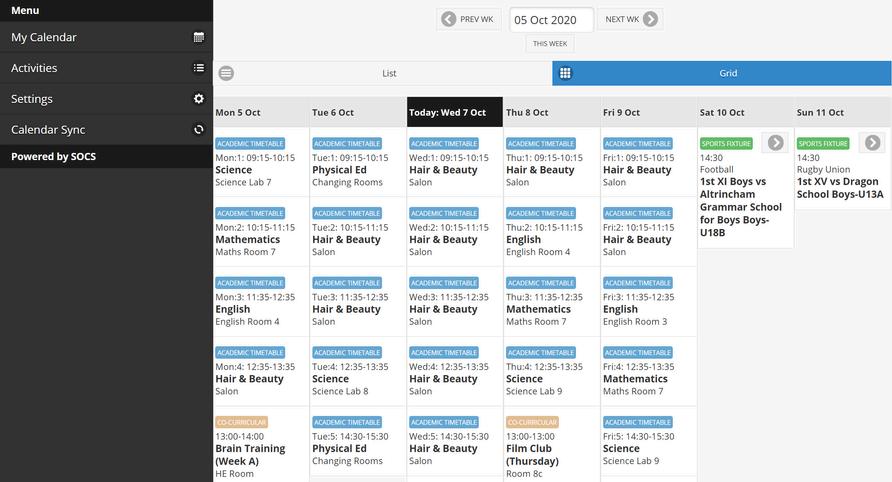
Calendar Tab: Click on the "Calendar" tab to view your child's SOCS timetable, which includes co-curricular clubs they have joined or signed up for SOCS Sport and SOCS Music/Tuition, their fixtures and one-to-one lessons will appear in this timetable
SOCS CO-CURRICULAR
Syncing your child’s calendar
You can synchronise your child's SOCS calendar with your personal calendar (eg, Google or Outlook) to receive live updates about clubs, fixtures, and one-to-one lessons. Any changes made to clubs or fixtures will be automatically updated in your personal calendar.
To sync the calendar
Step 1
Step 2 Step 3
Log into SOCS Click on the ‘Calendar Sync’ button
Click on the WebCal link generated by SOCS
Step 4
Follow the on-screen instructions to complete the syncing process This will create a live feed of clubs and fixtures in your personal calendar.
SOCS SPORTS
Exploring sports fixtures and the sports calendar
For an overview of sports fixtures you can navigate the school’s Sports Calendar through the main menu on the sport website
From the calendar you can:
View a day in detail: Select a specific day of interest and click on the "Details" link to view venue information. If you are playing away, you will find a link to the location map of the opponent's school
View team selections: These will be indicated by a blue person icon
Access team-specific fixtures and results: You can directly access a team's fixtures and results listing by clicking on the team's name. For example, if you want to view the "Girls-U16A" team's information, simply click on their name
Locate away venues: If you need to find the location of an away venue, you can either click on the map link available via the "Details" button within a fixture or select "Opponent Maps & Links" from the main menu.
Today's Teams: To quickly find out what's happening on any particular day, you can visit the "Today's Teams" page
Tips for syncing fixture details to Outlook, Google, Apple etc.
SOCS Parent Portal (Personal Sync)
Log in to the SOCS Parent Portal to sync your child's fixtures and team selections
Note: Fixtures will only appear in your calendar once we have finalised the team selection.
For details about how to do this, please see Syncing to my own calendar
School's Sport Website (Team Sync)
Visit the sport website to sync the entire team's schedule. This is useful for future planning and staying informed about upcoming matches involving teams you ' re interested in, regardless of whether your child has been selected to participate yet
For details about how to do this, please see Following a team.
SOCS SPORTS
Syncing fixtures to my own calendar
Take advantage of the iCal sync feature to integrate your child's clubs, fixtures, and one-toone lessons By syncing your SOCS calendar with your personal calendar (such as Google or Outlook), you gain access to a live feed of clubs and fixtures. Any modifications made to a club or fixture will automatically update your personal calendar, keeping you up to date.
Step 1 Step 2 Step 3
Log into SOCS
Click on the ‘Calendar Sync’ button
Click on the WebCal link generated by SOCS
Step 4
Follow the on-screen instructions to complete the syncing process This will create a live feed of clubs and fixtures in your personal calendar
SOCS SPORTS
Following a team
To ensure you stay up to date with any changes to fixtures, you can download the entire fixture list to your personal calendar on your PC or mobile device
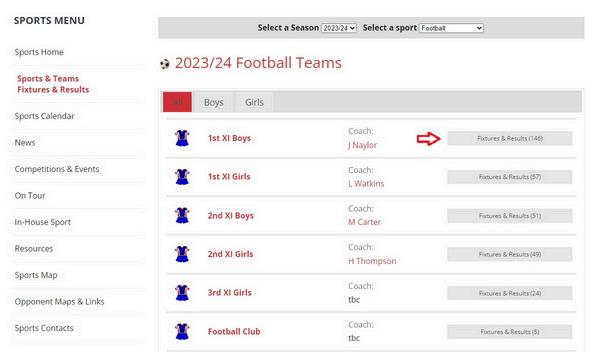
Navigate to the SOCS Sport website, select 'Sports & Teams Fixtures & Results' and then click the 'Teams, Fixtures & Results' button for the sport of your choice.
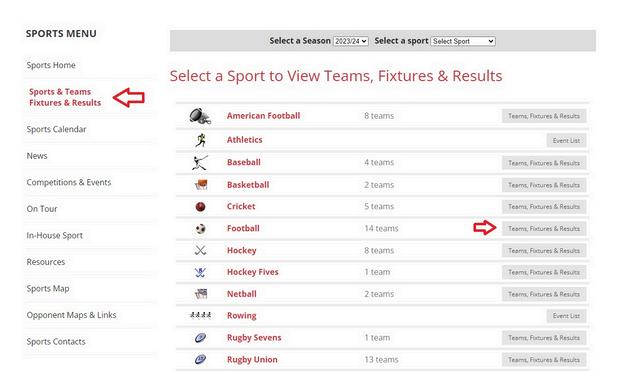
Select 'Fixtures and Results' for the relevant team and choose to 'Download to Your Calendar':
SOCS SPORTS
Following a team (cont).
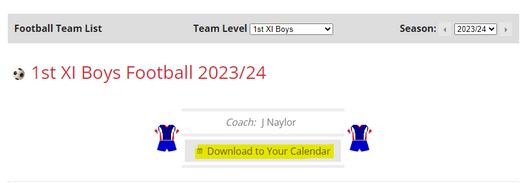
Follow the on-screen instructions to complete the set up
Once you have set up your iCal sync, every time you connect your device to the internet, any updates made to the fixtures will be synchronised automatically.
How to view opponent information
From any team's Fixtures & Results listing, you can click on the spyglass button to view their recent results
Additionally, you can check their playing record or find their location by clicking on the map point button
Collecting students from fixtures
We will ask if you are collecting your child from the venue (if offsite) or school. Please ensure that this consent is completed prior to a fixture taking place
More information can be found here
SOCS MUSIC & TUITION
Viewing my child’s one-to-one and music lessons - COMING SOON
Once your account is activated and you ' re logged in, you can access the music lessons for your child.
If you have multiple children in the same school, you'll have the option to filter between them upon logging in (refer to the example screenshot below)
Calendar Tab: Click on the "Calendar" tab to view your child's SOCS timetable, which includes one-to-one music lessons within their timetable
If your school also uses SOCS Sport and SOCS Co-curricular, their fixtures and clubs/activities will appear in this timetable. You may also be able to view their academic timetable if your school has configured this
Syncing the calendar
Step
By following these steps, you'll establish a live feed of clubs, fixtures, and lessons within your personal calendar