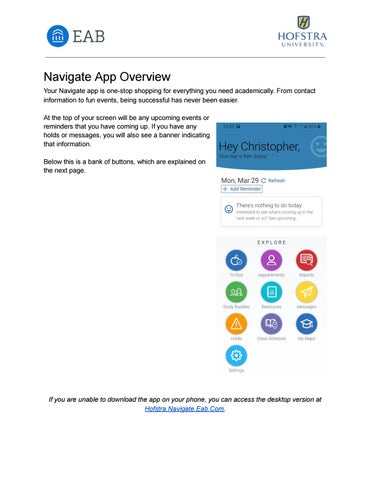
NavigateAppOverview YourNavigateappisone-stopshoppingforeverythingyouneedacademically.Fromcontact informationtofunevents,beingsuccessfulhasneverbeeneasier. Atthetopofyourscreenwillbeanyupcomingeventsor remindersthatyouhavecomingup.Ifyouhaveany holdsormessages,youwillalsoseeabannerindicating thatinformation. Belowthisisabankofbuttons,whichareexplainedon thenextpage. Ifyouareunabletodownloadtheapponyourphone,youcanaccessthedesktopversionat Hofstra.Navigate.Eab.Com.
NavigateAppOverview(Continued) Icon
Name To-Dos
Purpose To-do’sareremindersofwhatyouhavegoingonthatday,aswellas futureappointments.
Thisiswhereyoucanfindappointmentsyou’vemadeorareinvitedto. Appointments Youcanalsoscheduleanappointmentwithyouradvisorsthroughthis button. Reports
Anyreportsthatstaffsendyou,suchasprogressreportsor mid-semesteradvisories,willappearinthissection.
Study Buddies
StudyBuddiesisaprogramthatshowsyouotherstudentsinyour classeswhowishtostudytogether.Formoreinformation,viewtheguide onthewebsite
Resources
Theresourcespageincludeslinksforhealthandwellness,fitness,and gettingincontactwithadvisors.
Messages
Anymessagesyousend/receivewillshowhere.Mostoften,aprofessor oradministratorisattemptingtosetupanappointmentwithyou.
Holds
Anyholdsplacedonyouraccountwillappearhere.Holdsmayprevent youfromregisteringforfuturecourses.Holdscanbearesultofseveral factors,mostcommonlypaymentissuesand/oracademicperformance.
Class Schedule
Thisbuttonshowsyourclassschedule.
MyMajor
Hereyoucanfindinformationregardingyourmajor,aswellasexploring othermajorsorcareerpaths.
Settings
MostsettingsarecontrolledbyHofstra’sadministration.Thispage includesinformationonhowtocontactthemforvariousissues.