
Matterport Navigation Guide
Your project is ready to explore.
This guide will help you navigate your Matterport model, a fully immersive, interactive 3D capture of your project. No software to install; it works in any web browser on desktop, tablet, or phone.
Toolbar Overview
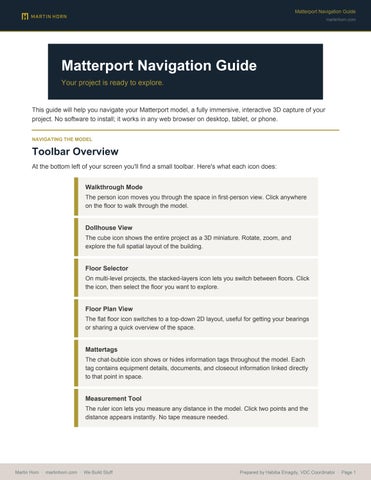
At the bottom left of your screen you'll find a small toolbar. Here's what each icon does:
Walkthrough Mode
The person icon moves you through the space in first-person view. Click anywhere on the floor to walk through the model.
Dollhouse View
The cube icon shows the entire project as a 3D miniature. Rotate, zoom, and explore the full spatial layout of the building.
Floor Selector
On multi-level projects, the stacked-layers icon lets you switch between floors. Click the icon, then select the floor you want to explore.
Floor Plan View
The flat floor icon switches to a top-down 2D layout, useful for getting your bearings or sharing a quick overview of the space.
Mattertags
The chat-bubble icon shows or hides information tags throughout the model. Each tag contains equipment details, documents, and closeout information linked directly to that point in space.
Measurement Tool
The ruler icon lets you measure any distance in the model. Click two points and the distance appears instantly. No tape measure needed.
Virtual Reality (optional): In the bottom right corner you'll find a VR headset icon. If you have a compatible headset, you can use it to walk the model in virtual reality.
UNDERSTANDING THE MODEL
How Floors Are Organized
Each Matterport model is organized by project phase. This lets you compare the space at different stages of construction, from framing through final completion.
Standard project (single level):
FLOOR
Floor 1
REPRESENTS
Framing Stage
Floor 2 Final Stage
Multi-level project:
FLOOR
Floor 1
Floor 2
Floor 3
Floor 4
REPRESENTS
Level 1: Framing Stage
Level 1: Final Stage
Level 2: Framing Stage
Level 2: Final Stage
… Pattern continues for additional levels
Projects scanned before demolition: If your project included a pre-demo scan, that floor will appear first in the list, followed by framing and then final.
NEED HELP?
Questions & Support
If you have any questions about navigating your model or accessing specific information, please reach out to your Martin Horn project contact. We're happy to walk you through it or schedule a live model review with your team.