(Ebook) METODOLOGIA DE LA INVESTIGACION LAS RUTAS CUANTITATIVA CUALI (Spanish Edition) by ROBERTO HERNANDEZ-SAMPIERI, Christian P. Mendoza ISBN 9781456260965, 1456260960
(Ebook) Beginning Ubuntu Server Administration: From Novice to Professional by Vugt, Sander van ISBN 9781430205098, 9781590599235, 9789781590597, 1430205091, 1590599233, 9781590599
This book is available for free download from www.syncfusion.com on completion of a registration form.
If you obtained this book from any other source, please register and download a free copy from www.syncfusion.com
This book is licensed for reading only if obtained from www.syncfusion.com.
This book is licensed strictly for personal or educational use.
Redistribution in any form is prohibited.
The authors and copyright holders provide absolutely no warranty for any information provided.
The authors and copyright holders shall not be liable for any claim, damages, or any other liability arising from, out of, or in connection with the information in this book.
Please do not use this book if the listed terms are unacceptable.
Use shall constitute acceptance of the terms listed.
SYNCFUSION, SUCCINCTLY, DELIVER INNOVATION WITH EASE, ESSENTIAL, and .NET ESSENTIALS are the registered trademarks of Syncfusion, Inc.
Technical Reviewer: Jason Cannon
Copy Editor: Courtney Wright
Acquisitions Coordinator: Hillary Bowling, online marketing manager, Syncfusion, Inc.
Proofreader: Graham High, senior content producer, Syncfusion, Inc.
SThe Story behind the Succinctly Series of Books
Daniel Jebaraj, Vice President Syncfusion, Inc. taying on
the
cutting edge
As many of you may know, Syncfusion is a provider of software components for the Microsoft platform. This puts us in the exciting but challenging position of always being on the cutting edge.
Whenever platforms or tools are shipping out of Microsoft, which seems to be about every other week these days, we have to educate ourselves, quickly.
Information is plentiful but harder to digest
In reality, this translates into a lot of book orders, blog searches, and Twitter scans.
While more information is becoming available on the Internet and more and more books are being published, even on topics that are relatively new, one aspect that continues to inhibit us is the inability to find concise technology overview books.
We are usually faced with two options: read several 500+ page books or scour the web for relevant blog posts and other articles. Just as everyone else who has a job to do and customers to serve, we find this quite frustrating.
The Succinctly series
This frustration translated into a deep desire to produce a series of concise technical books that would be targeted at developers working on the Microsoft platform.
We firmly believe, given the background knowledge such developers have, that most topics can be translated into books that are between 50 and 100 pages.
This is exactly what we resolved to accomplish with the Succinctly series. Isn’t everything wonderful born out of a deep desire to change things for the better?
The best authors, the best content
Each author was carefully chosen from a pool of talented experts who shared our vision. The book you now hold in your hands, and the others available in this series, are a result of the authors’ tireless work. You will find original content that is guaranteed to get you up and running in about the time it takes to drink a few cups of coffee.
About the Author
I’m an IT businesses entrepreneur, software developer, and huge technology fan. My company went to market in 1990, focused in custom software development. We started with COBOL as our main programming language, and since then we’ve been evolving up to NET and Microsoft Office technologies. Since the moment we came up in the IT market arena, Microsoft technologies were the main core of our business…until a few years ago.
Ubuntu appeared when some of our customers asked for better performance of the RDBMS that they were using. But they were clear about this: “We don’t want to spend money in server and RDBMS software licensing ” That requirement brought two players to our game: PostgreSQL and Linux.
At that time, we had no consultants focused in any Linux distribution available in the market, and the time needed to acquire enough implementing skills was beyond our deadline for many of those Linux distributions.
After intensive research, we found Ubuntu, and we chose it because the distribution has a focus on providing a solid desktop and server experience. That experience made our consultants’ transition from Windows to Linux easier. At the same time, it allowed us to get into the Linux market quickly, expanding our solutions portfolio.
Recently, we’ve been thinking that selecting Ubuntu as our main Linux distribution was the best choice we made. Canonical, the company that delivers Ubuntu, has made a huge effort to ensure more hardware and software can work optimally with the Ubuntu platform, and with its partners’ collaboration, has taken Ubuntu to smartphones and IoT. This tells us we can count on using Ubuntu as part of our solutions portfolio for many years to come.
Who Is This Book For?
This book is written primarily for IT professionals who want to learn about making an Ubuntu Server implementation. The book starts with a brief story about the vision of Canonical, the company that delivers Ubuntu, and how Ubuntu came into the IT market. It also shows some of the promises and goals that motivated the Ubuntu project.
The first chapter covers the Ubuntu installation process, including hardware requirements. The rest of the book is intended to show how to implement several features that are expected in a server operating system. Themes like security and remote administration are discussed, too.
Then, I’ll explain how to make Ubuntu and Windows work together in harmony, integrating network resources such as files and printing. We’ll also explain how to turn Ubuntu into a database server, using PostgreSQL.
Finally, I’ll explain the concept of the desktop experience in Ubuntu Server and the process needed to install this feature in the server.
Ubuntu Server 15.10 was used for the purposes of this book. Regarding the scripting section, a series of script samples can be downloaded from the Syncfusion Bitbucket account
I hope that by the end of this book, IT professionals who aren’t involved with Linux can deliver an Ubuntu Server installation, take advantage of its capabilities, and benefit from using it in their projects.
philosophy are these ideas: Every computer user should have the freedom to download, run, copy, distribute, study, share, change, and improve their software for any purpose, without paying license fees. Every computer user should be able to user their software in the language of their choice Every computer user should be given every opportunity to use software, even if they have a disability.
Free software: The “free” in free software is used primarily in reference to freedom and not in price, although they’re committed to not charging for Ubuntu. The most important thing about Ubuntu is that it confers rights of software freedom to the people who install and use it.
Open source: Open source is a term created in 1998 to remove the ambiguity in the word “free ” The open source definition describes open software as a software project that allows access to source code, free redistribution, and modifications to create derived works that can be distributed under the same terms as the license of the original software.
Sustaining and going beyond the vision
The group that plays a significant role in driving the Ubuntu project is Canonical Ltd. Canonical is a company founded by Mark Shuttleworth with the primary goal of developing and supporting the Ubuntu distribution. Many of the core developers on Ubuntu work full time or part time for Canonical Ltd. This funding by the company allows Ubuntu to make the type of support commitment that it does, because this subset of developers has paid jobs. In this way, Canonical ensures that Ubuntu’s bottom-line commitments are kept.
Canonical does not fund all Ubuntu work, and maybe it couldn’t. Canonical can release a distribution every six months, but the distribution is made much better by the contributions from the community of users. Many of the features, translations, documentation, and much more are created outside Canonical. In that way, Canonical focuses on essential work and ensures that the deadlines are met. Besides, Canonical’s staff is sprinkled across the globe, so no proper office is necessary, and that cuts down on the costs of infrastructure and daily expenses.
So, if downloading Ubuntu is free of charge, how does Canonical make money? At this time, Canonical hasn’t been making money. The main funding comes from Mark Shuttleworth and some people’s donations. However, Canonical is looking toward making Ubuntu profitable, and their key revenue comes from the following services:
Support services, mostly for businesses.
Contracting services for businesses, such as OEMs like Dell, to integrate Ubuntu in their hardware solutions.
Ubuntu Software Center’s paid section (Canonical takes a cut of purchases)
The Canonical Store, which sells physical Ubuntu branded items
Amazon referrals. When a search is made in the Ubuntu Dash, the user may see Amazon products (unless they are turned off). Ubuntu takes a cut of these.
Chapter summary
This introduction looked into the vision of a better Linux distribution and OS. Also, it provided a brief history about Ubuntu, the project which came from that vision. It also showed how Ubuntu is sustained with the main role played by Canonical and the huge collaboration of the community of users.
Chapter 2 Installing Ubuntu Server
Getting started
Hardware requirements
Ubuntu 15.10 is available for the three major architectures: Intel x86, AMD64, and ARM. The following table lists the recommended hardware specifications.
Table 1: Recommended Minimum Requirements
Install type CPU RAM Hard Drive Space Base System All Tasks Installed
Server (Standard) 1 Gigahertz 512 Megabytes 1 Gigabyte 1.75 Gigabytes
Server (Minimal) 300 Megahertz 192 Megabytes 700 Megabytes 1.4 Gigabytes
Note: Depending on the user needs, Ubuntu might manage with less than what is suggested. However, most users risk being frustrated if they ignore these suggestions.
Getting Ubuntu
Ubuntu can be downloaded from the Ubuntu website as an ISO image file
Once the download is complete, the file must be burned onto a CD or DVD Also, the user needs to ensure that the CD/DVD drive is set as the first boot device in the system that will be used for installation.
Note: Setting boot device priority depends on the type of BIOS embedded into each device, but commonly this feature is identified as boot priority or boot order.
Booting from installation disc
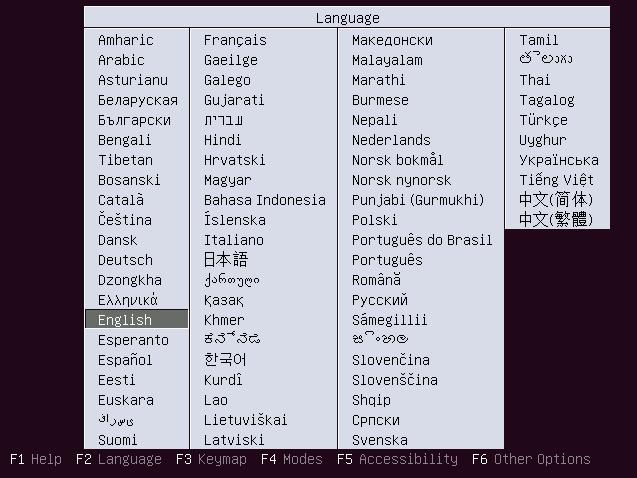
First, the disc containing the Ubuntu Sever installation must be inserted in the system’s CD/DVD drive. Then, the system needs to be rebooted. Once this has been done, the following screen will appear.
Figure 1: Screen for Choosing Installation Language
As shown in the previous figure, the Ubuntu installation program asks for the language that will be used for the entire installation process. Choose English and press Enter to show the installation menu.
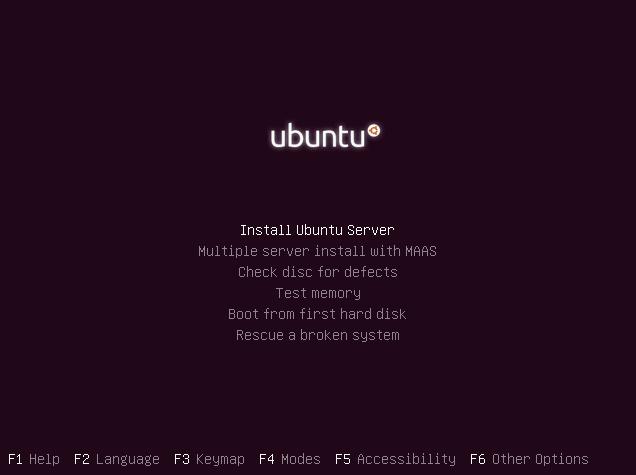
The installation menu
This menu shows a group of options that allow installation of Ubuntu Server in the system, including a rescue alternative for broken systems. Choices for checking hard drive defects and testing system memory are also included.
Here is a brief explanation of each option that appears in the menu:
Install Ubuntu Server: Starts the Ubuntu Server installation process.
Multiple server install with MAAS: Allows you to install several servers using MAAS (Metal as a Service)
Check disc for defects: Runs a utility to check the destination hard drive for bad sectors or physical defects
Test memory: Runs a utility to check system RAM integrity
Boot from first hard disk: Exits the installation process and tries to boot the system from the first hard drive found in it.
Rescue a broken system: Initiates the System Rescue utility to fix problems found in a previous installation
Select Install Ubuntu Server to start the installation process, which is described in the following section.
The installation process
Language selection
The first step in this process is the selection of the default language that Ubuntu will use, both for installation and for the user interface once Ubuntu is installed.
Figure 2: Screen for Installation Menu
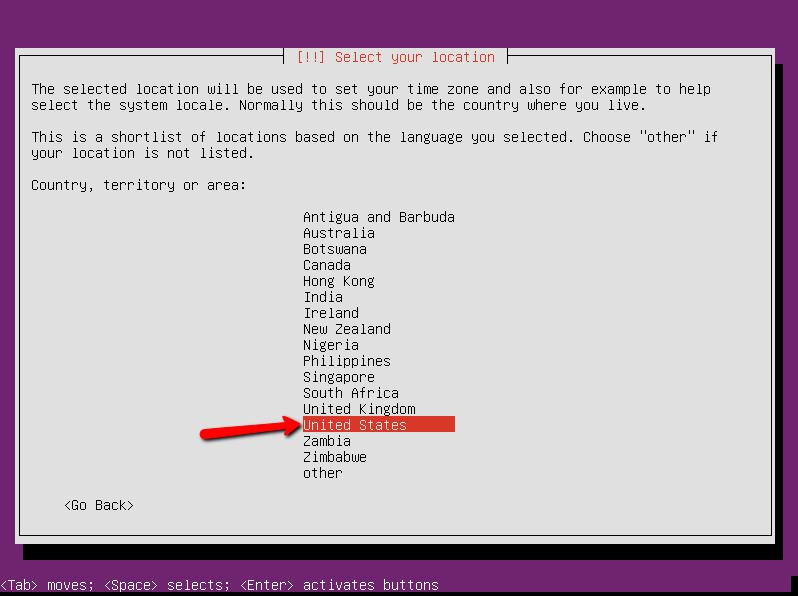
Selecting geographical location
4: Selecting Geographical Location
This screen allows you to choose the geographical location in which the system will be installed, and for the purpose of this book, we’ll select United States.
Configuring the keyboard layout
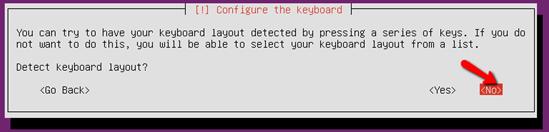
Now the keyboard layout must be selected to make sure it works properly during the installation process and after the system is installed. The configuration can be made automatically (by pressing a series of keys) or by selecting the keyboard type from a list. This depends on the Yes or No selection, as shown in the following screenshot
Figure
To manually choose the keyboard type, press Enter to select No
Selecting the country of origin
6: Configuring the Keyboard: Country of Origin
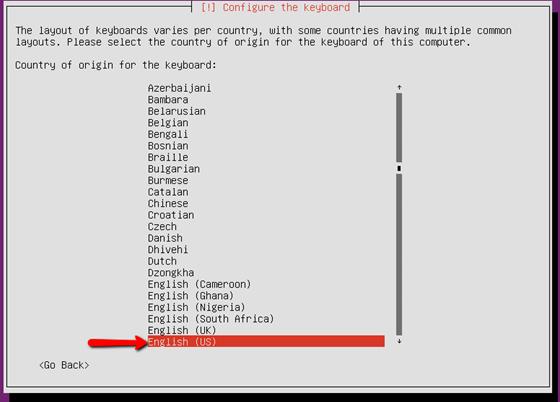
Next, the installation program asks for the country of origin for the keyboard attached to the computer. Select English (US) as the country of origin to match the geographical location previously chosen.
Figure 5: Configuring the Keyboard
Figure
Configuring the server for networking
Setting up a hostname
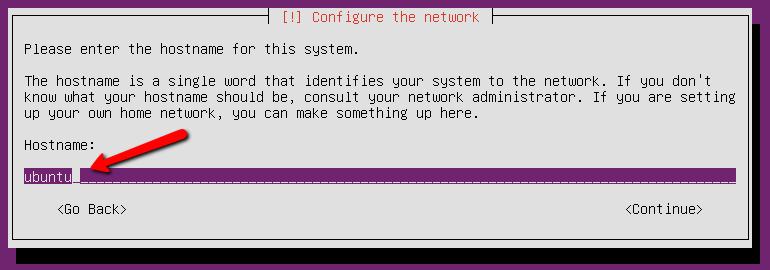
Every computer must be identified with a name for networking purposes. This name is known as the hostname, and must be unique for each computer connected to the network. The installation program suggests that the network administrator should be consulted to assign a correct hostname to the system. In case of building a home network, a name that identifies the main purpose for the computer to be set up is recommended (e.g., mailserver).
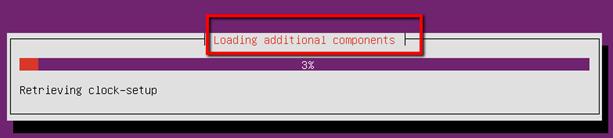
Figure 9: Detecting Additional Components
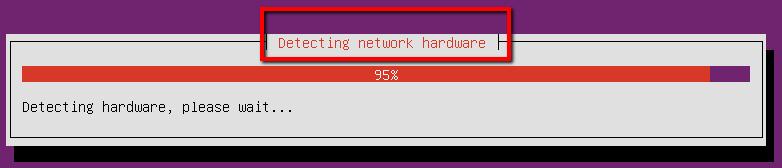
Figure 10: Detecting Network Hardware
Figure 11: Assigning a Hostname to the System
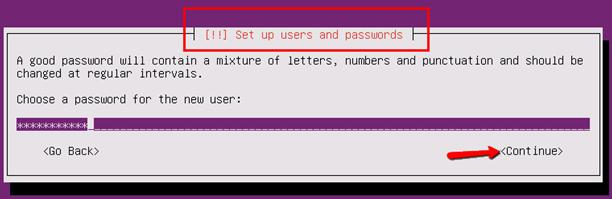
The second step is assigning a password to the user account. A good mixture of letters, numbers, and punctuation is suggested, as well as changing the password at regular intervals.
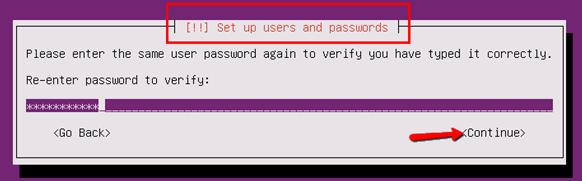
Type a password and press Enter. Once this is done, a second dialog box will appear asking for the confirmation of the previous entry typed. If both entries match, the process will continue.
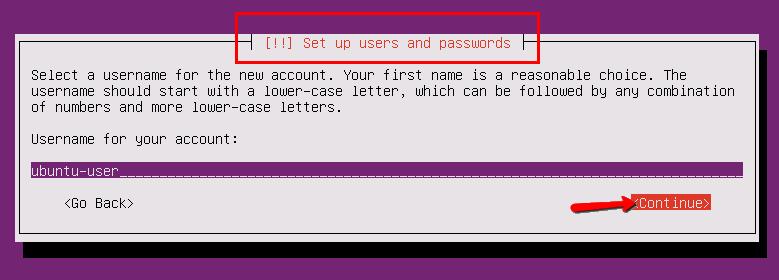
Figure 13: User Account: Entering the Plain User Name
Figure 14: User Account: Entering Password
Figure 15: User Account: Re-entering Password for Verification
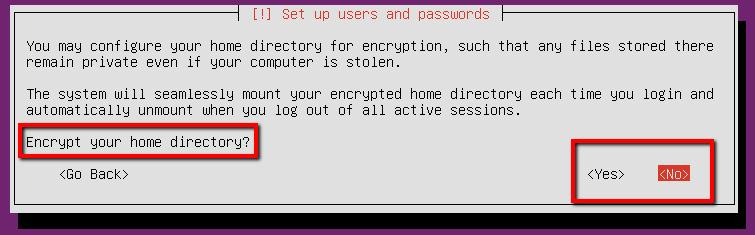
Now, the installation program wants to know if the user’s home directory should be encrypted to keep its contents private from other persons. The home directory is where documents, pictures, music, and pretty much everything else can be stored. The user’s application settings are stored here, too.
The suggestion is to keep the home directory unencrypted so that data can be easily recovered from a possible corruption.
Configuring the clock
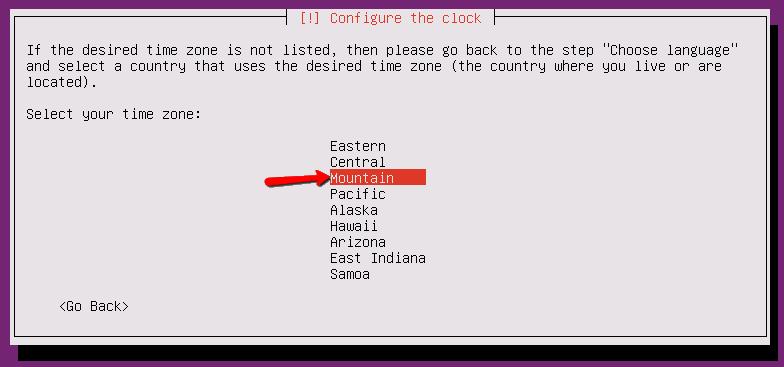
At this point, the installation program asks for clock configuration. A dialog box appears for selecting the proper time zone according to the physical location in which the system is being deployed. Choose the appropriate time zone with the arrow keys and then press Enter to continue the process.
Figure 16: Asking for Home Directory Encryption
Figure 17: Time Zone Selection Dialog Box
Hard disk partitioning
Disk partitioning is the creation of one or more regions on a hard disk or other kind of storage so that an operating system can manage data in each region separately. Partitioning is the first step for preparing a disk before any files or directories have been created. Once the partitions are created, the disk stores the information about their locations and sizes in a special area known as the partition table. This partition table is read by the operating system before any other part of the disk. Each partition appears in the operating system as a distinct “logical” disk that uses part of the actual disk.
Identifying hard disks in Ubuntu
For a user who is making a transition from Windows, the first thing to understand is that there are no letters (e.g., C or D) to identify a hard disk in Ubuntu. The naming convention for a hard drive starts with a slash and the dev abbreviation. This abbreviation stands for “device ” Then, dev is followed by another slash and the sd abbreviation, which stands for SCSI (Small Computer System Interface) device
An example of a hard disk identification would be /dev/sd, but what if the computer has more than one hard disk? This issue is solved by adding a letter at the end of the hard disk identification, starting with a. So, for the first drive found in the computer, its identification name would be /dev/sda. This is equal to hard disk 0 in Windows. For the second disk, it would be /dev/sdb, and so on.
File systems and partitions in Ubuntu
Once a disk partition is created, it needs to be formatted before it can be used to store data. This process includes formatting the partition with a file system. A file system is a way in which files are named and placed logically, for storage and retrieval. This way also takes into account naming conventions, including the maximum number of characters in the name, which characters can be used to name files, and the format for specifying the path to a file through the storage structure.
There are several file systems available for Ubuntu (in fact, for every Linux distribution). The ones used the most are Ext4, Ext3, and Ext2.
In addition to these file systems, there’s another type called swap. It’s used to increase the amount of total RAM (physical RAM plus virtual memory).
Note: For those who are moving from Windows: The file system used by Windows is named NTFS (New Technology File System). Ubuntu can handle NTFS partitions for storage and retrieval purposes only.
Mount points
A mount point is a directory (typically empty) in the current accessible file system that a hard drive is using, and is used to mount an additional file system on it (logically attached). This
mount point becomes the root directory of the newly added file system, and the file system becomes accessible from that directory.
The most common mount points used on Ubuntu are summarized in the following table.
Table 3: Common Mount Points in Ubuntu
Mount Point Purpose
/ Root; the equivalent of the C drive in Windows
/boot The partition on which the boot loader files are stored
/home
The partition that will store the user’s files and directories
swap Used to increase the amount of RAM (virtual memory).
Partitioning and mount point creation
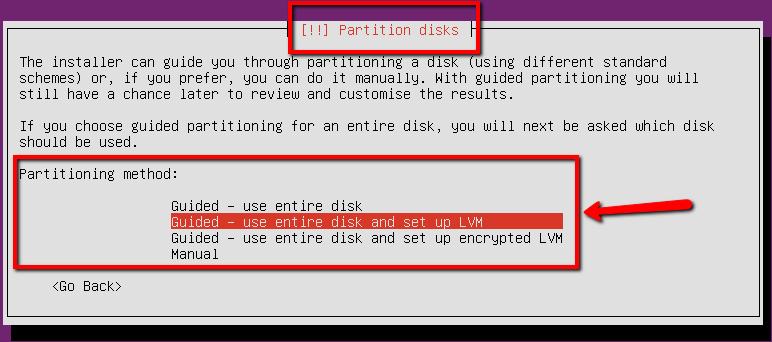
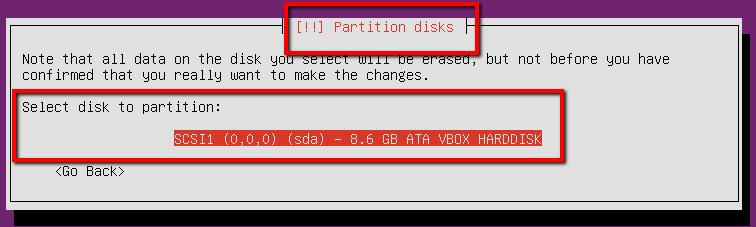
The best way to accomplish this task is by choosing the Guided Partitioning option from the partitioning menu. In this case, all common partitions will be created automatically, and the LVM (Logical Volume Manager) will be set up. Press Enter, and the hard disk selection menu will pop up asking for a disk to be used for partitioning.
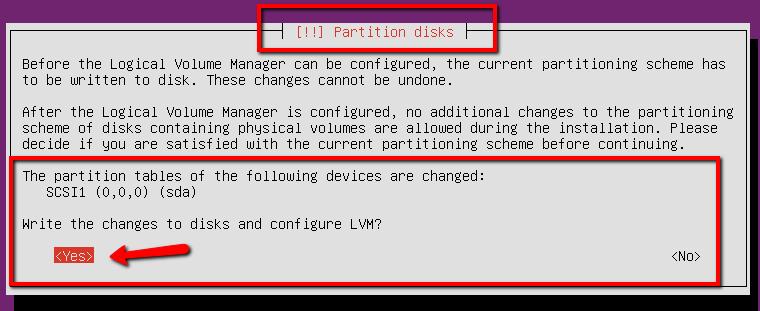
Once the desired disk is selected, a dialog box will be shown, asking to save the partitioning scheme created by the installation program.
Figure 18: Selection of Guided Partitioning Option
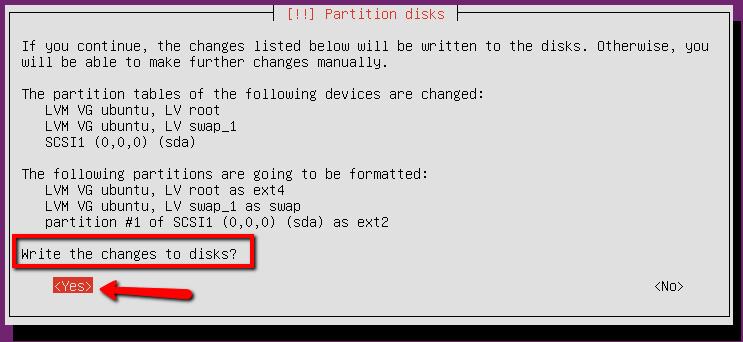
Before saving the partitioning scheme on hard disk, the installation program shows it in a dialog box. Press Enter to select Yes, and the changes will be written to the disk.
Figure 19: Hard Disk Selection
Figure 20: Dialog Box for Saving Changes
Figure 21: Partition Scheme Dialog Box
Install additional software
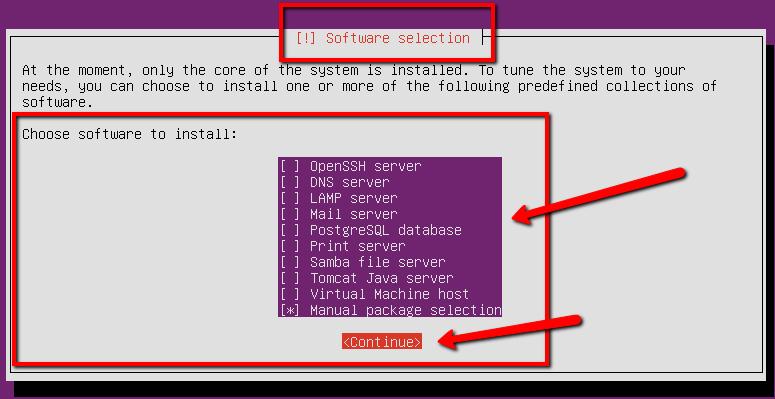
At this time, the core software of the system is installed. It is possible to install one or more predefined collections of software prior to the installation process ending. You can install software at any time later, so I recommended not making any selection at all at this point
Installing the GRUB boot loader
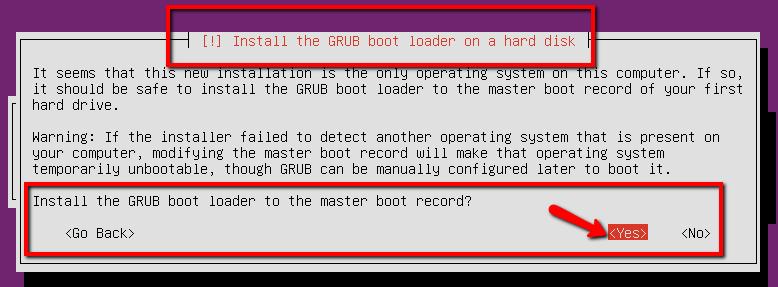
A boot loader is a small piece of software that places the operating system of a computer into memory. When the computer is powered up or restarted, the basic input/output system (BIOS) performs some initial tests and then transfers control to the Master Boot Record (MBR), where the boot loader is found. GRUB should be installed to manage the Ubuntu booting process.
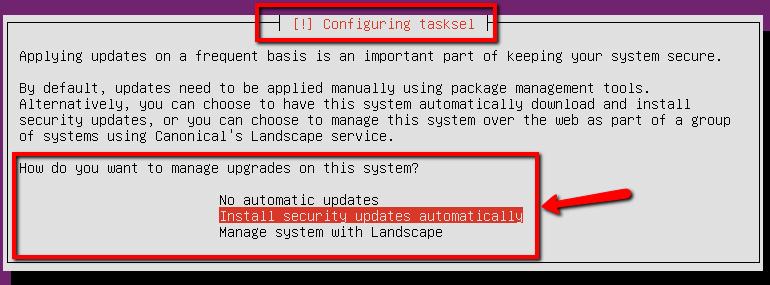
Figure 23: Update Configuration Dialog Box
Figure 24: Software Selection Dialog Box
Finishing the installation
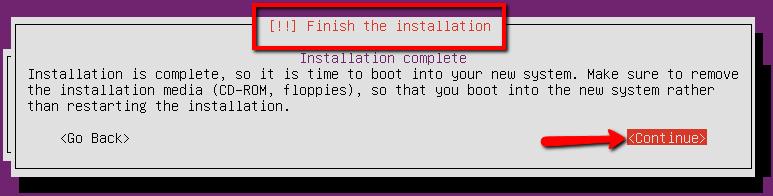
This is the final step of the installation process. Once the GRUB boot loader is installed, a series of system files are copied to the disk and a dialog box appears. It indicates that all the installation media used for the process must be removed from the computer. Once this is done, the computer must be restarted. Now you can log into Ubuntu Server with the username and password created during installation.
Chapter summary
This chapter focused on the Ubuntu Server installation process. It started with some explanation about the hardware requirements for installing Ubuntu properly. Concepts like disk partitioning, mount points, and boot loader were discussed, while the installation process was explained step by step. Also, information about the root user was briefly discussed. If you’ve made it through this chapter, a useful working copy of Ubuntu Server should now be deployed.
Ubuntu Server is loaded once the computer is powered on or restarted. After performing a series of tasks, the login screen appears.
The username and password chosen during installation must be entered in order to start an Ubuntu Server session. When the session begins, the command prompt appears on the screen.
The command prompt has the following parts: The user name, an @ (at) symbol, the hostname given to the computer during installation, the working directory (in this case the home directory, indicated by the ~ symbol), and a dollar sign ($), which indicates that a non-root user is logged in. The cursor is placed after the $ symbol appearing at the end, waiting for a command entered by the user. Some concepts, like home directory or non-root user, will be explained later.
The sudo command
When Ubuntu Server was installed, a username and password were supplied to log into a session after installation. This user account lacks administrative privileges, so any attempt to execute a command that requires these privileges will be denied. But what if an administrative task must be done? The sudo command comes to save the day!
sudo stands for “super user do” and it’s generally pronounced as “sue dough ” When the user prefixes any command with sudo, it will run with elevated privileges. Elevated privileges are required to perform certain administrative tasks like shutting down or rebooting the computer.
For those who are used to Windows, sudo is very similar to the WUAC (Windows User Account Control) dialog box that pop ups when you try to do anything important. This dialog box asks the user if they wish to continue, and if the answer is “yes,” the task is performed.
The story is more dramatic in Ubuntu; things might behave quite strangely without the proper permissions. A configuration file may not save correctly, or a program previously installed might
Figure 27: Ubuntu Server login screen
Figure 28: Ubuntu Server command prompt
simply refuse to run, but all that is needed to do is ask for permission. And that’s when the sudo command comes into play.
When the user tries to issue the following command:
Code Listing 1
$ reboot
This command fails, citing: “must be superuser.” In this case, superuser refers to the root user, which holds all necessary permissions to perform any task. To avoid this failure, the sudo command is used, as shown in the following snippet.
Code Listing 2
$ sudo reboot
sudo asks for the current user password, and if it is supplied correctly, then executes the command indicated.
Note: The $ sign, which appears here and will be appear in every given sample, refers to the Ubuntu Server command prompt. The user does not have to type it when entering commands.
Why is sudo better?
sudo is the best and safest way to get elevated privileges because the user doesn’t need to know the root password. Every time sudo is executed, the user’s password is required.
Let’s look at another way of doing things. The switch user command su will ask the person who uses the computer for the root password Then, it gives that person a superuser prompt identified by the # symbol. That # symbol means “Danger! You’re logged in as root!” The first command that this person issues may go well. But their forgetfulness will cause them to remain logged in as root. One bad typo, and bam! The entire hard drive is erased instead of that fake file that was downloaded. With sudo, that person has to enter sudo every time a command is issued Thus, they don’t have to remember to switch back to regular user mode, and fewer accidents will happen.
The sudoers file
This file controls who can use the sudo command to gain elevated privileges. Generally, it is located at /etc/sudoers. The best and safest way to edit this file is by using the following command.
Aliases
There are four kinds of aliases: User_Alias, Runas_Alias, Host_Alias, and Cmnd_Alias. An alias definition must be stored in the file using the following form.
Code Listing 5
Alias_Type NAME = item1, item2…
Alias_Type is one of User_Alias, Runas_Alias, Host_Alias, or Cmnd_Alias. A name is a string of uppercase letters, numbers, and underscores starting with an uppercase letter. Several aliases of the same type can be placed on one line by separating them with colons (:) using the following form.
Code Listing 6
Alias_Type NAME1 = item1, item2… : NAME2 = item3
User aliases
User aliases allow you to specify groups of users. Usernames, system groups (prefixed by a %), and netgroups (prefixed by a +) can be declared, as shown in the following sample.
Code Listing 7
# Everybody in the system group "admin" is covered by the alias ADMINS
User_Alias ADMINS = %admin
# The users "tom", "dick", and "harry" are covered by the USERS alias
User_Alias USERS = tom, dick, harry
# The users "tom" and "mary" are in the WEBMASTERS alias
User_Alias WEBMASTERS = tom, mary
# You can also use "!" to exclude users from an alias
# This matches anybody in the USERS alias who isn't in WEBMASTERS or ADMINS aliases
Runas aliases are almost the same as user aliases, but you are allowed to specify users by user IDs (UIDs). For example:
Code Listing 8
# Note the hash (#) on the following line indicates a uid, not a comment. Runas_Alias ROOT = #15
# This is for all the admin users similar to the User_Alias of ADMINS set earlier
# with the addition of "root"
Runas_Alias ADMINS = %admin, root
In the previous example, the UID 15 is specified as a member of the ROOT alias. Then an alias ADMINS is defined with the admin group and the root user. Assuming the sudoers file has a command definition in which one or more commands need to be executed with superuser privileges, and that definition grants these privileges for both aliases (ROOT and ADMINS), the user with a UID of 15 will get superuser privileges.
Host aliases
A host alias is a list of hostnames, IP addresses, networks, and netgroups (prefixed with a +). If a netmask is not specified with a network, the netmask of the host’s Ethernet interface(s) will be used when matching.
# And this is every machine in the network that is not a server
Host_Alias WORKSTATIONS = NETWORK, !SERVER
# This could have been done in one step with # Host_Alias WORKSTATIONS = 192.168.0.0/255.255.255.0, !SERVERS
# But this method may be clearer.
Command aliases
Command aliases are lists of commands and directories. You can use this to specify a group of commands. If you specify a directory, it will include any file within that directory, but not in any subdirectories.
User specifications are where the sudoers file sets who can run what as who. It is the key part of the file, and all the aliases have just been set up for this very point. If this was a film, this is