Quick Reference Card
Please consult your spa user manual for complete info on the features of your spa system.
Please consult your spa user manual for complete info on the features of your spa system.
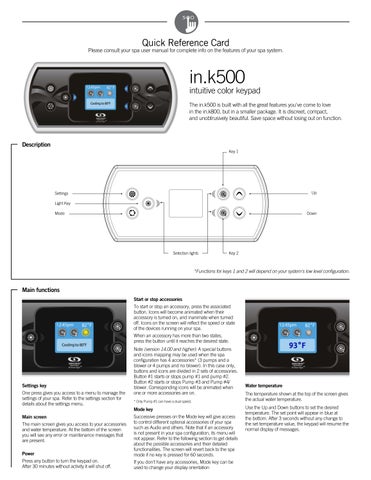
The in.k500 is built with all the great features you've come to love in the in.k800, but in a smaller package. It is discreet, compact, and unobtrusively beautiful. Save space without losing out on function.
*Functions for keys 1 and 2 will depend on your system's low level configuration.
Main functions
To start or stop an accessory, press the associated button. Icons will become animated when their accessory is turned on, and inanimate when turned off. Icons on the screen will reflect the speed or state of the devices running on your spa.
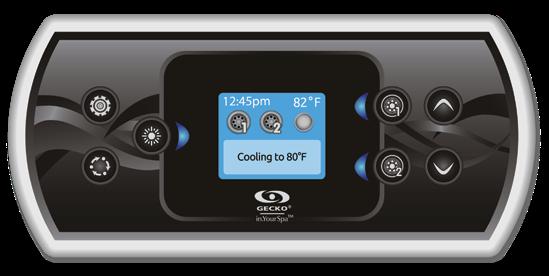
When an accessory has more than two states, press the button until it reaches the desired state.
Note (version 14.00 and higher): A special buttons and icons mapping may be used when the spa configuration has 4 accessories* (3 pumps and a blower or 4 pumps and no blower). In this case only, buttons and icons are divided in 2 sets of accessories.
One press gives you access to a menu to manage the settings of your spa. Refer to the settings section for details about the settings menu.
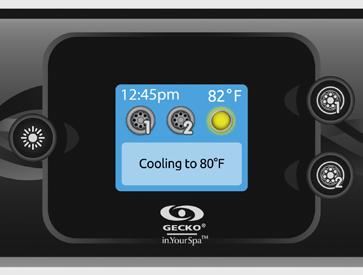
The main screen gives you access to your accessories and water temperature. At the bottom of the screen you will see any error or maintenance messages that are present.
Power
Press any button to turn the keypad on. After 30 minutes without activity it will shut off.
Button #1 starts or stops pump #1 and pump #2. Button #2 starts or stops Pump #3 and Pump #4/ blower. Corresponding icons will be animated when one or more accessories are on.
* Only Pump #1 can have a dual speed.
Mode key
Successive presses on the Mode key will give access to control different optional accessories of your spa such as Audio and others. Note that if an accessory is not present in your spa configuration, its menu will not appear. Refer to the following section to get details about the possible accessories and their detailed functionalities. The screen will revert back to the spa mode if no key is pressed for 60 seconds.
If you don't have any accessories, Mode key can be used to change your display orientation
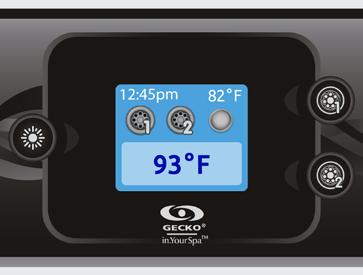
The temperature shown at the top of the screen gives the actual water temperature.
Use the Up and Down buttons to set the desired temperature. The set point will appear in blue at the bottom. After 3 seconds without any change to the set temperature value, the keypad will resume the normal display of messages.
Settings
From the home page you can access the Settings, where you will find:
• Water Care
• Heat Pump (if installed)
• Audio (if installed)
• in.clear-200 linked version (version 13.00 and higher
• Standby (version 6.00 only)
• Maintenance (version 7.00 and higher)
• Date & time
• Keypad
• Wi-Fi (Version 7.00 and higher. Only available on in.touch with software 11.00 and higher.)
• Config *
• Restore *
• About
Use the arrow keys to move up and down in the list. To select an option, press the lit button beside it (Light button). At any point you can press the Settings button to return to the home screen.
*Reserved for qualified electricians installers
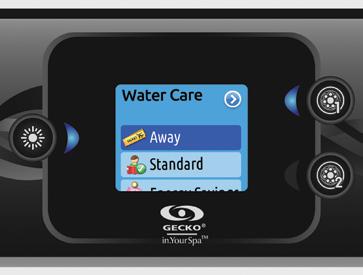
The Water Care section will help you set up your ideal filtration and heating settings. Choose a mode depending on your need.
Use the Light key to choose your setting. A checkmark will appear on the selected icon to confirm.


In Economy mode, the set point will be reduced by 20°F*, which means that the heating system will not be engaged unless the temperature falls to 20°F below the spa's set temperature.
*Default pack value
Away:
In this mode the spa will always be in economy mode; the set point will be reduced by 20° F*.
Standard:
The spa will never be in economy mode and will be filtering according to the pack's low level configuration.
Energy Savings:
The spa will be in economy mode during the peak hours of the day and resume normal mode on the weekend*.
Super Energy:
The spa will always in economy mode during peak hours, every day of the week*.
Weekender:
The spa will be in economy mode from Monday to Friday, and will run normally on the weekend*.
Modifying schedules
Use the arrow keys to scroll through the Water Care selections. To see and/or modify a Water Care category, use the lit button to the right (key 1) to open the selected Water Care menu.
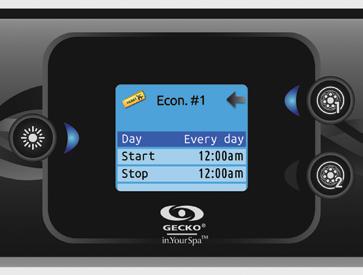
Use the arrow keys to choose a schedule to modify (choice of economy and filtration schedules). Use the Light key to move between parameters. You have several possibilities for the schedule (Mon-Fri, weekend, every day, or single days). The schedules will be repeated every week. The time and duration are set in 30 minute increments. Once you have set the schedule, use Key 1 to go back. Ensure that you have selected the desired Water Care option in the main Water Care menu.
If your spa uses a circulation pump configured to run 24 hours, the screen will show you the purge setting instead of filtration. The purges are pre-programmed for a fixed number of minutes, therefore the duration will be set to N/A on the screen, and only the start time can be modified.
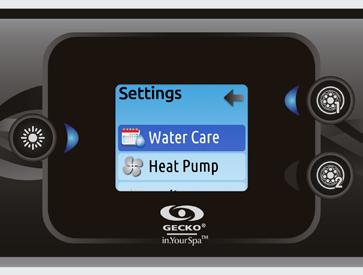
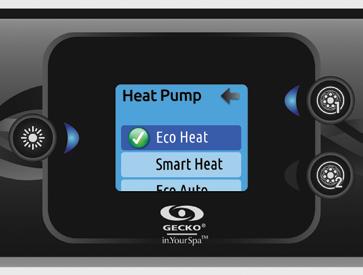
This menu allows you to change the regulation mode of your heat pump. You can choose from Eco Heat, Smart Heat, Eco Auto, Smart Auto, Cool and Electric. A green checkmark indicates the currently selected regulation mode. To change the setting, simply navigate the menu using the arrow key and press the Light Key to choose the desired regulation mode.
Heat pump modes:

Eco Heat
In this mode, the heat pump is used as the unique source of heating. The heating element is kept off and the heat pump is not used to cool the water should its temperature rise above the current set point.
Smart Heat
This mode uses the heat pump as the main heating source. The heating element is turned on only if there is a large temperature difference between the water and the set point. The heat pump is not used to cool the water in this mode.
Eco Auto
This mode borrows functionality from both Eco Heat and Cool modes and has the ability to select the proper Heat or Cool mode automatically according to the water temperature. The heating element is never activated in this mode.
Smart Auto
This mode borrows functionality from both Smart Heat and Cool modes and has the ability to select the proper Heat or Cool mode automatically according to the water temperature. The heating element is activated only if there is a large temperature difference between the water and the set point.
Cool
This mode uses the heat pump in cooling mode only. The heat pump is not used as a heating source and the heating element is never activated.

Electric
This mode keeps the heat pump off and uses only the heating element to regulate water temperature.
*Filtration will be reduced when the economy mode is active.Audio
The in.k500 can be used with the in.tune, in.stream or in.stream 2 audio systems. The Audio section in the Settings menu of an in.stream gives you the option to disconnect or unpair your Bluetooth enabled device when using the in.stream.
With version 7.00 and higher, it is also possible to select Source to use a device connected by auxiliary cable or Bluetooth wireless connection.
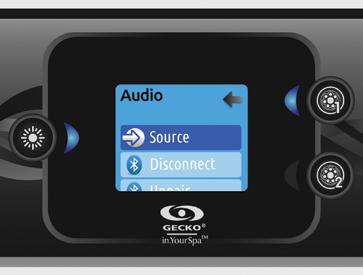
The in.stream 2 Settings menu gives you a Source selector, a Bluetooth disconnect option, an On/Off switch and an audio control on fader, balance and subwoofer.
For more information on audio functions, see the in.tune, in.stream or in.stream 2 operation section.
The Audio option will only appear in the menu for keypads that are set up for an in.stream connection. The in.stream 2 is automatically detected at power-up.
Maintenance (version 7.00 and higher)
From the Settings page you can access the Maintenance menu, which gives you access to the following options:
• Maintenance reminders
• Standby
Use the Up and Down keys to make a selection, and Light key to confim.
Maintenance reminders (version 7.00 and higher)
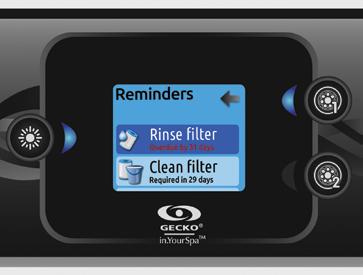
The in.k500 keypad will remind you of maintenance required on your spa, like rinsing or cleaning the filter. Each task has its own duration, based on normal use. The Maintenance reminders menu allows you to verify the time left before maintenance is required, as well as to reset the time once a task is completed. Use the Up and Down keys to move through the list.
To reset a task select it by pressing Light key, then confirm when prompted . Once you have confirmed the task will be reset.
Standby (version 6.00 and higher)
The Standby mode allows you to service your spa
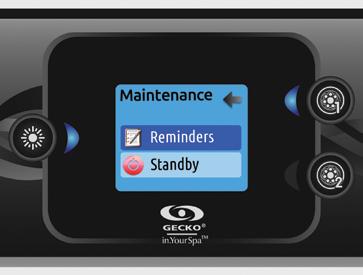
Pumps will stop for 30 minutes, and automatically restart after this time.
Once Standby mode has been activated a screen will appear to show that pumps are stopped. The normal spa page will return at the end of maintenance.
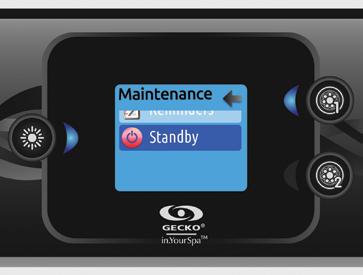
Press on the Light key to leave Standby mode and restart the spa.
Note: In version 6.00 only, Standby mode is accessible directly from the Settings page.
Here you can adjust the time format, change the year, date and time. Use the arrows to choose the setting that you want to adjust, and select it by pressing the Light key. Use the arrow buttons to change the parameters, and the Light key to move between parameters.
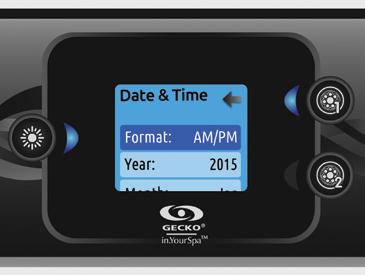
Key 1 will take you back to the main Settings menu. Note: In version 6.00 and earlier, only the day of the week can be changed, and not the year or date.
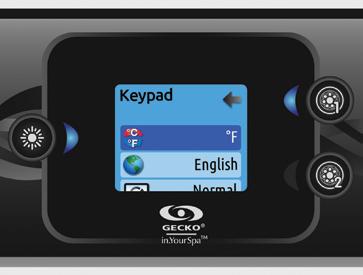
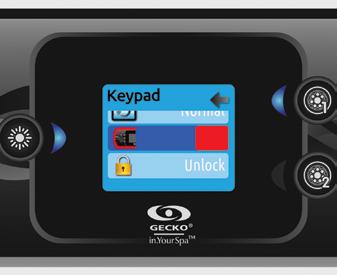
In this section, you can change the temperature unit, language, display orientation, rim light color and keypad security. Note the spa pack must be configured accordingly to be able to change the rim light color.
When you change the display orientation, the contextual options and arrow keys adjust to the chosen orientation. The Mode and Menu keys remain unchanged, as well as the accessory keys in the main spa menu.
With the in.k500 equipped with a selectable rim light color modul: If the "RGB backlight" option is enabled in the spa configuration an option will appear to allow selection of the keypad rim light color.
You can lock the keypad by selecting one of 3 security levels: Unlock, Partial or Full. The Partial level locks the set point adjustment and many options in the settings menu. The Full level locks all keypad functions. To unlock the keypad (either Partial or Full), press and hold the Light key for 5 seconds.
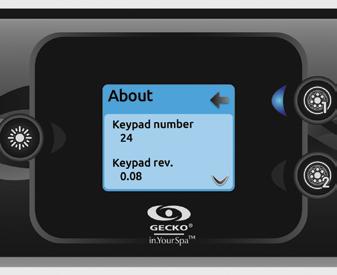
This section shows information about the in.k500 software number, and the revision numbers of the different components of your system.
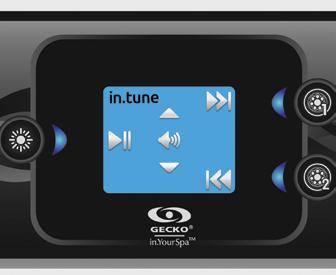
in.tune operation
Press the Mode key to access your in.tune.
Play/Pause audio
Press the Play/Pause key to start or pause the audio.
Adjusting the volume
Press the Up or the Down key to increase or decrease the volume.
Changing tracks
Use the Last Track and Next Track keys to change tracks for the CD or AUX input. When in Radio mode, the Last Track and Next Track keys will move through preset radio stations on the selected band. To change bands or preset stations, see your in.tune manual.
Turn power On/Off (version 7.00 and higher)
Press and hold the Play/Pause key for 3 seconds to turn the in.tune on or off.
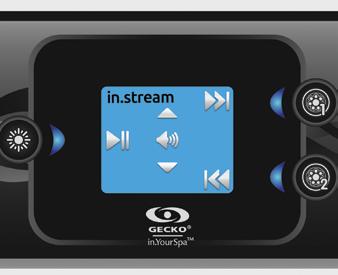
in.stream operation
Press the Mode key to access your in.stream.
Play/Pause audio
Press the Play/Pause button to start or pause the audio
Adjusting the volume
Press the Up or the Down key to increase or decrease the volume.
Changing tracks
Use the Last Track and Next Track keys to change tracks
Disconnect or Unpair Bluetooth
These options can be found under the Audio section in the Settings menu.
Turn power On/Off (version 7.00 and higher)
Press and hold the Play/Pause key for 3 seconds to turn the in.stream on or off.
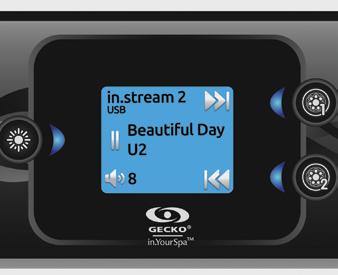
in.stream 2 operation (version 11.00 and higher)
Press the Mode key to access your in.stream 2.
Play/Pause audio
Press the Play/Pause button to start or pause the audio. This button is available for Bluetooth and USB only.
Adjusting the volume
Press the Up or the Down key to increase or decrease the volume.
Turn power On/Off
This option can be found under the Audio section in the Settings menu.
Changing tracks
Use the Last Track and Next Track keys to change tracks or FM stations. This is not available with Aux source.
Disconnect
This option can be found under the Audio section in the Settings menu.
Fader, Balance and Subwoofer
These options can be found under the Audio section in the Settings menu.
in.clear-200 / linked version
(version 13.00 and higher)
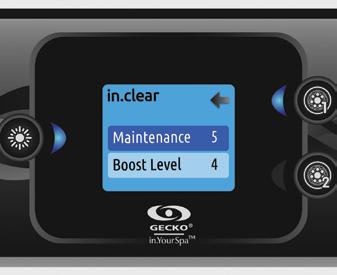
The in.k500 keypad can be used with the in.clear sanitization system. The in.clear section allows you to configure your maintenance settings and Boost level.
For more information on maintenance and Boost settings, see the in.clear user manual. Use the Up and Down keys to make your selection, then light key to confirm.
Use the Up and Down keys to change the maintenance or Boost value, and light key to confirm.
* If the maintenance value is modified by more than 2, a warning message will appear with an option to cancel or confirm the change.
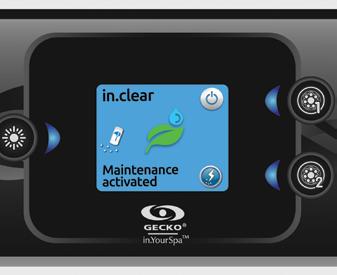
Press on the Mode key to access your in.clear module.
This menu allows you to activate or deactivate your in.clear, to start or stop a Boost, and to enter diagnostic mode.
Turning the in.clear on/off
Press the power key to turn the in.clear on or off. Control the Boost level
Press on the Boost activation/deactivation key to start a Boost, and again to cancel.
To adjust the Boost level use the arrow keys.* A message indicating that Boost mode is active is displayed at the bottom of the main screen for the duration of the Boost.
* See the in.clear user manual for more details about Boost levels.
Press on the Diagnostic key to start a BromiCharge concentration level test. To exit diagnostic mode press on the Diagnostic key again. The system will automatically exit after 15 minutes.
In diagnostic mode, the BromiCharge gauge indicates the approximate level of BromiCharge in the spa water. Do not add BromiCharge if the indicator is in the green zone.
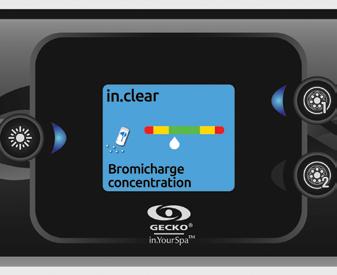
When BromiCharge is added the indicator will move slowly to the right. When water is added to the spa the indicator will move to the left. To obtain a good level of BromiCharge, start the pumps and add the specified amount of BromiCharge** and allow 5 minutes for the indicator to adjust before adding more. For optimal performance, aim for the middle of the green zone.
** For more information on adjusting your BromiCharge level see the in.clear user manual.
WIFI (version 7.00 and higher)
For the WiFi menu to appear in the Settings menu your in.touch module must be equipped with software version 11.00 or higher. This menu allows you to connect your in.touch module to a WiFi network or to change its network.
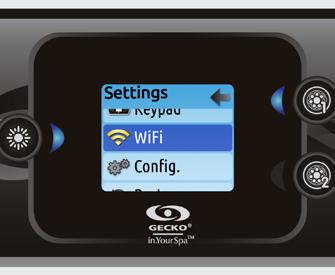
For more details about other in.touch connection methods please see the in.touch techbook.
To connect your in.touch module to a wireless network, use the Up/Down keys to go to the WiFi option in the Settings menu and Light key to select it.
After a few seconds the available networks will appear on the screen, as well as their signal strength.
Use the Up/Down keys to move through the list. Select your network by pressing on Light key.
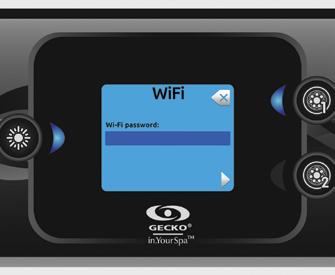
If the WiFi network is password protected enter it when prompted.
• Use the arrow keys to choose your letters and change the type of character (uppercase, lowercase, number, symbol).
• Use Key 2 to move the curser forward
• Use Key 1 to backspace
• Use Light key to confim
If no password is required the in.touch will connect automatically.
Once the in.touch module is connected to a WiFi network a check mark in a green circle will appear in the WiFi menu, and the network logo will change to green in Settings menu.
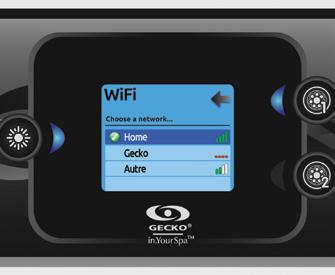
Note: WiFi logo color in Settings menu corresponds to the in.touch connection state.
Yellow = not connected
Green = connected to a network
Yellow with wait icon = connection attempt to a network
Red with wait icon = in.touch no longer detected (in.touch must be reset before next connection attempt)
This menu is only present if an in.mix system is detected.
Press on the Mode key to access your in.mix.
By default, the in.mix selects Zone 1 when you access the menu. After the first use, the menu will automatically return to the last zone selected.
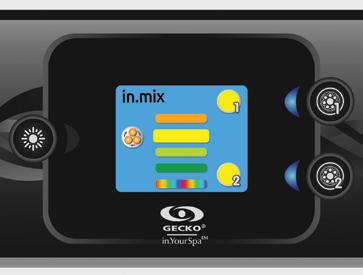
The zone selection keys allow you to select a zone to modify its color.
• Press once to select the zone.
• Press a second time to deactivate the zone.
Once a zone is selected, use the arrow keys to change the colors by moving up and down in the color wheel.
The synchronization/desynchronization key allows you to match the color of the selected zone to the other zones.