Thank the prospect for responding to your marketing email
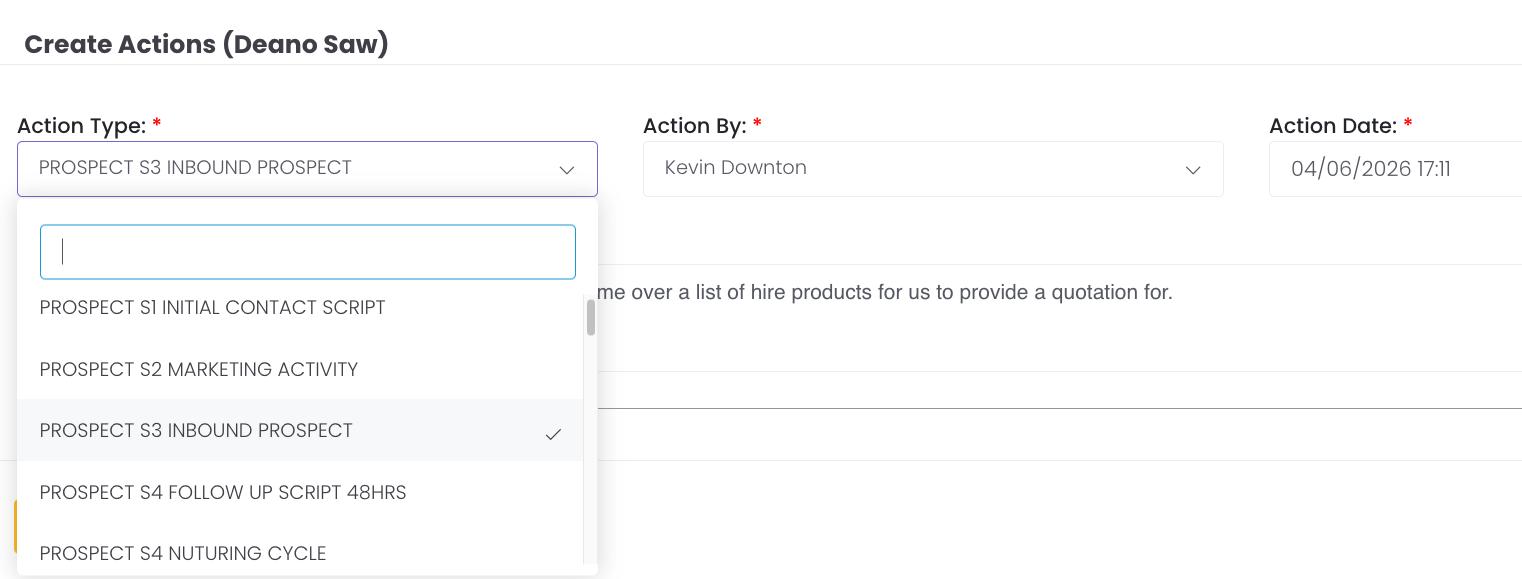
1. Log to PS3 Inbound Prospect
2. Send Meeting Confirmation
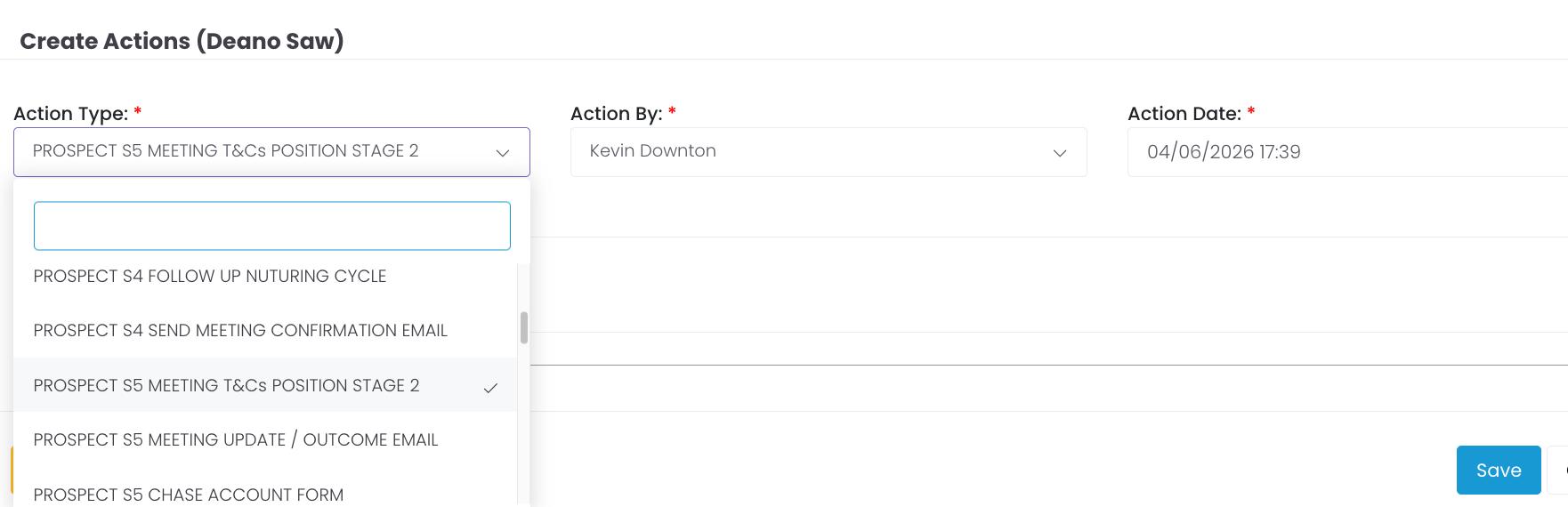
3.Log to Meeting T&C’s
Or if meeting not agreed:
4.Send Nurturing Email
5. Log to Nurturing Follow Up
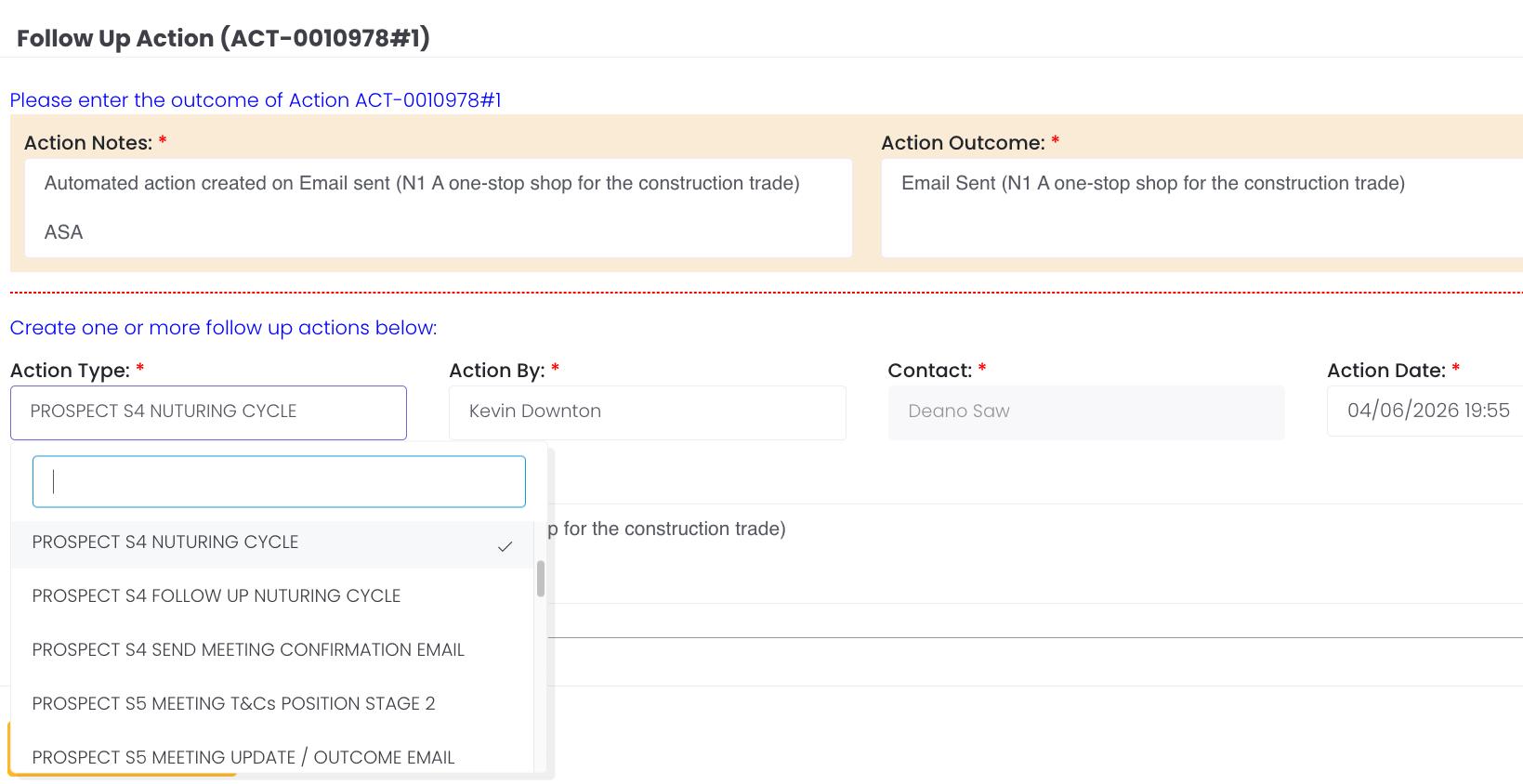
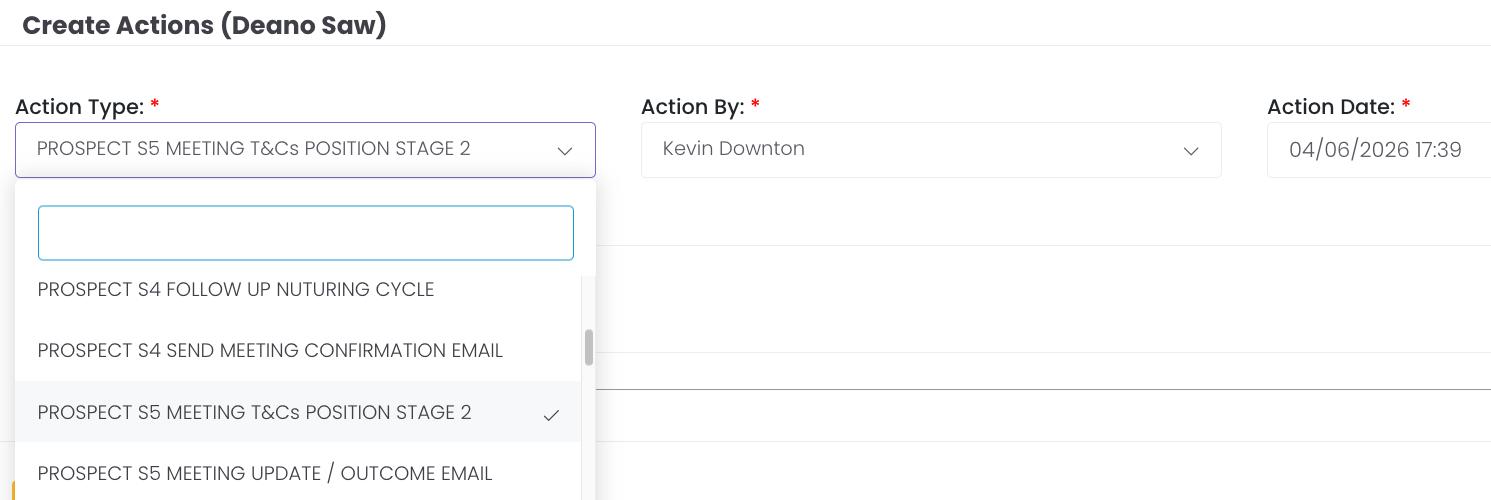
Create action based on the result of your call, as below. Select action as 1. Follow up or 2. Send email. If meeting agreed, log to action P S4 ‘Send meeting email’. Update outcome action notes and set follow up 1. Call Prospect to check they have received your email.
CRM ACTIONS
Listen carefully to identify the prospects needs and/ or objections. When presenting solutions listen more than you speak.
CRM ACTIONS
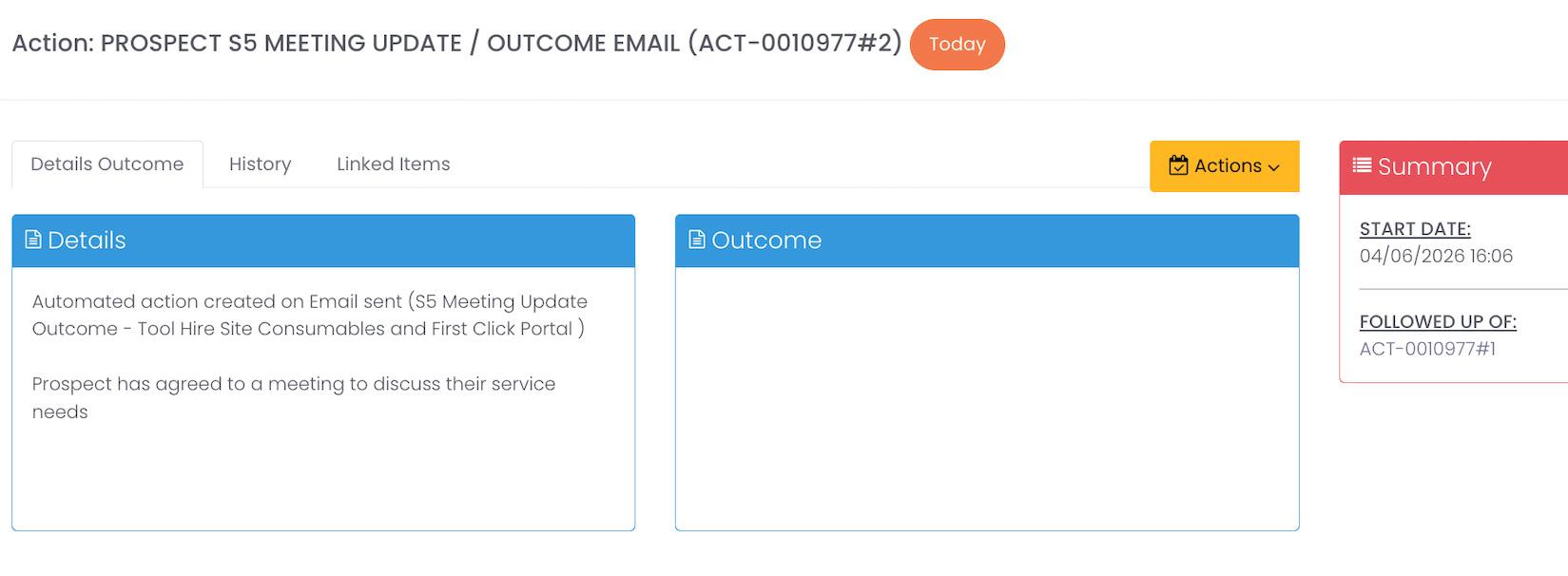
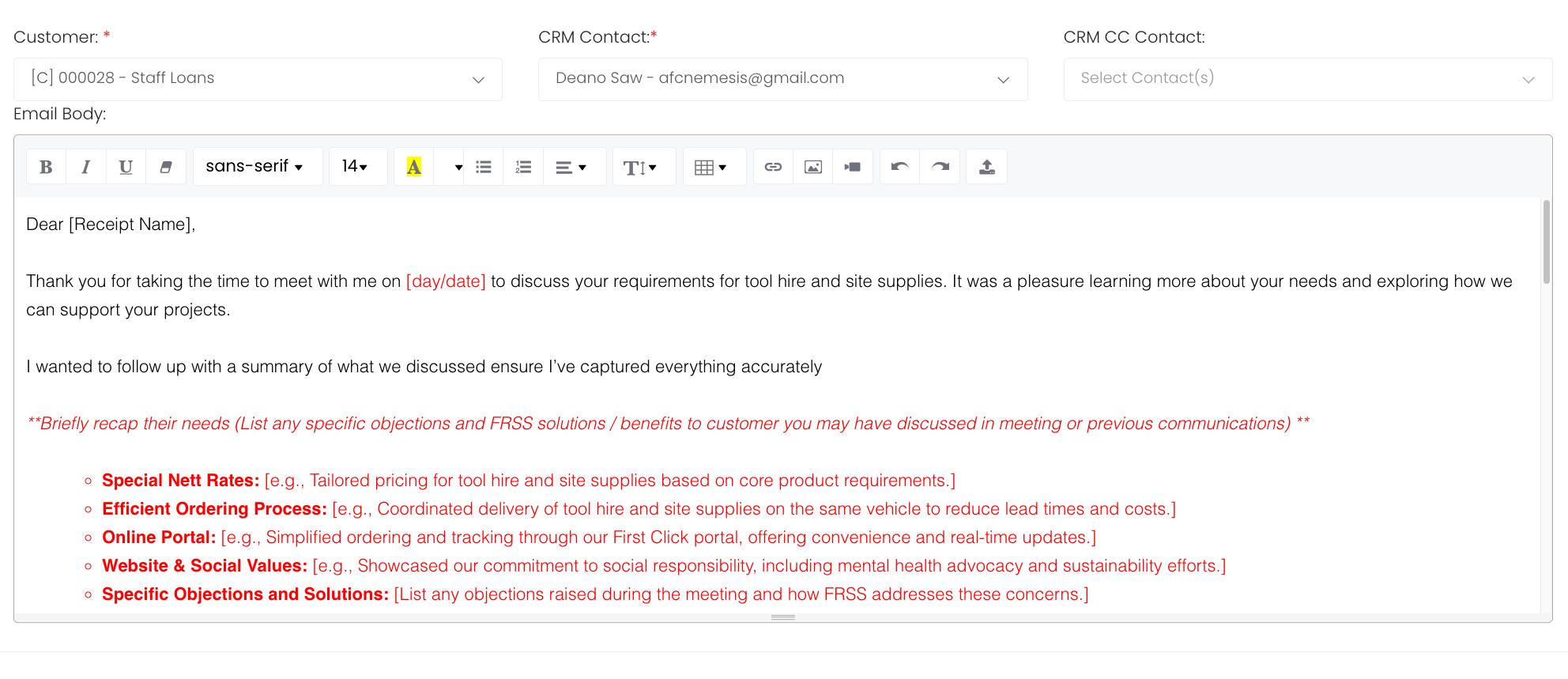
1. Select Meeting Outcome email and send.
3. Log to 48 Hour Follow Up, Update Action Note and Set Date.
Notes
The CRM sales Pyramid
The sales pyramid & nurturing theory
Why NURTURING IS the key to success
Rather than relying on high-volume cold outreach alone, modern sales combines prospecting with an immediate engagement sequence, often refered to as ‘Nurturing’.
How it works.
As soon as a prospect is identified and a marketing email is sent, they should be enrolled in a nurturing pathway.
Data shows that prospects who receive targeted, relevant content are dramatically more likely to convert.
So it is a huge benefit to know the things your prospect is interested in, business wise and personally because through nurturing, your conversion opportunity increases by 90%.
The Synergy Principle
Effective engagement, nurturing, turns ‘marketing-qualified leads’ into ‘sales-ready prospects’, making every subsequent sales conversation more productive.
Prospecting fills the top of your funnel. Engagement drives prospects to the bottom of it.
Without engagement, you are doing half the job. With it, your 30% conversion window opens; and that is where accounts are won.
What does this mean for your KPIs?
Your pipeline KPIs are measured against each stage. A healthy pipeline shows roughly equal numbers across Marketing Emails, Follow-Ups, Engagement Emails, and Engagement Follow-Ups.
If your Marketing Email count is high but your Engagement Email count is low, it is a direct indicator that prospects are not interested in what you are saying.
The Sales Funnel & Conversion ratios
Each step of the CRM process represents a stage in the sales funnel. Converting a prospect increases as you move them through the funnel, but only if the correct actions are taken at each stage.
Ready to buy - contacting them at the right time.
Open to buying.
Ready to buy but don’t know it.
Happy with what they have but persuasion could peak interest.
Not interested at all.
Why probablity INCREASES through nurturing
At the nurturing stage, you should be sending targeted content such as pricing, special offers, social value, or even social events that are all directly relevant to the prospect. This is where your efforts to identify the prospects interests will pay dividends. Do not allow a propsect to go cold, continue contacting them in your nurturing cycle.
The PERSONALISED approach to sales
This personalised approach through nurturing activities, dramatically increases the chance of a positive response.
Failing to understand the prospects or their likely interests reduces your ability to hit the sweet spot & can stall at the 7% probability ratio. Condider the fact that every nurturing email not sent is a missed sales opportunity.
Create the company, then add the contacts.
Call and/or send a Marketing email from the library.
Create the Action Note & then Create Action for 48 Hr Follow Up
Send an email from the Nurturing Library to help hook the prospect.
After adding your note, make sure to create your ‘nurturing’ follow up.
The GOAL is achieved. Now move on CROSS SELLING.
Increasing Conversion
The sales funnel & nurturing theory. How doing it correctly improves conversion.
100 PROSPECTS CREATED
100
MARKETING EMAILS SENT
100
FOLLOW UP”S CREATED
100 NURTURING EMAILS SENT
30
HIGH INTENT PROSPECTS
6 ACCOUNTS OPENED
60 PROSPECTS CREATED
60
MARKETING EMAILS SENT
60
FOLLOW UP”S CREATED
30
NURTURING EMAILS SENT
10
HIGH INTENT PROSPECTS
2
ACCOUNTS OPENED
1. Cost Control
Net Rates:
Keep control of the prices you pay with special net rates and discounted prices for commonly ordered items, or core products.
Reduced handing on site
Combine hire and supply orders for delivery on the same vehicle and help reduce your cabon footprint too.
Off-Hire promptly:
Don’t pay for hire equipment you no longer need. Simple dashboard shows status of hire equipment. Off-hire individual items or everything on site, with just one click.
2. 24/7 Convenience
Mobile Access:
Use your tablet or smartphone device to place orders away from the site office or manage your off-hires.
Delegation:
Use permissions to delegate and streamline the order process, minimising the risk of the wrong products being delivered to site.
Requisition Control:
Create, authorize, amend, or reject site requisitions with ease.
Resolve quesries quickly
Easily view and manage all relevant documentationnad resolve quesries with the minimum of fuss.
3. Fast ordering
Simple Process:
Streamline the order process by booking hire equipment with site supplies
Favourite Items:
Save favourite items to speed the order process
Repeat orders: Recall previous orders and add to basket instantly
Create Quotations: Quotations can be emailed, edited and converted to orders.
Everything you need on site, when you need it...
HUGE HIRE RANGE
The very best top brand equipment to improve productivity.
COMPREHENSIVE SITE SUPPLIES
Small tools, PPE, janitorial, and canteen supplies, in stock ready for delivery.
DEDICATED WELDING DIVISION
Welding hire & consumables including Callibration & MCT Testing.
COMPLETE SIGNAGE SOLUTION
Standard Signs / Bespoke Signs / Eco-friendly / Bio-Degradable signs
Complete new site set-up / Scaffold or Heras Fence Banners
SOCIAL VALUE
Sports Based Mental Health in Construction Charity supporters.
Community Support for major projects like like HS2.
CRM Main Menu
All prospecting activity takes place within the CRM. The main menu on the left-hand side of the screen provides access to all areas you will need. Familiarise yourself with the menu layout before starting.
You main menu items are shown in blue.
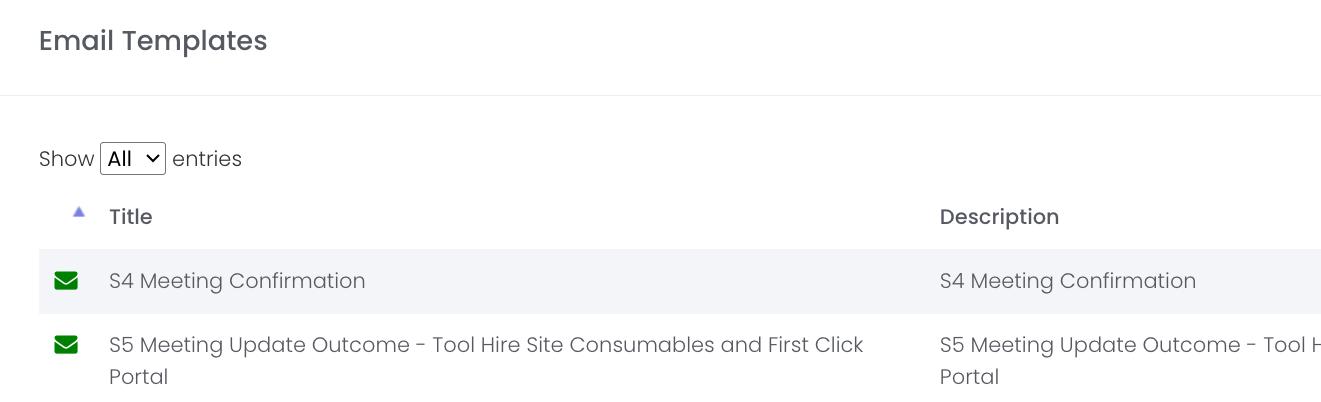
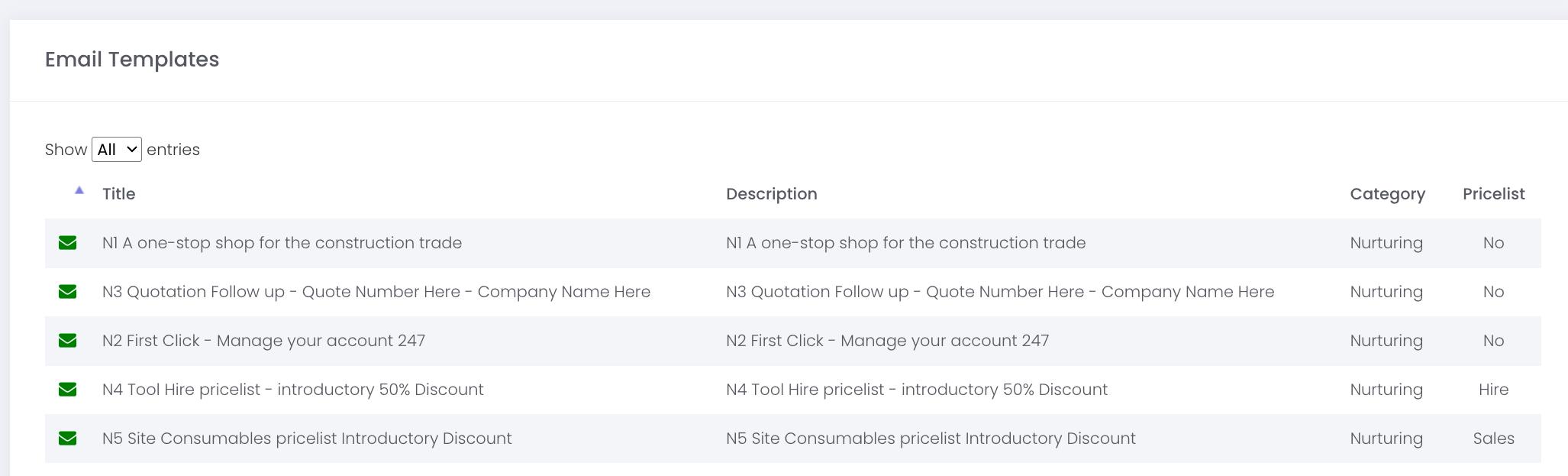
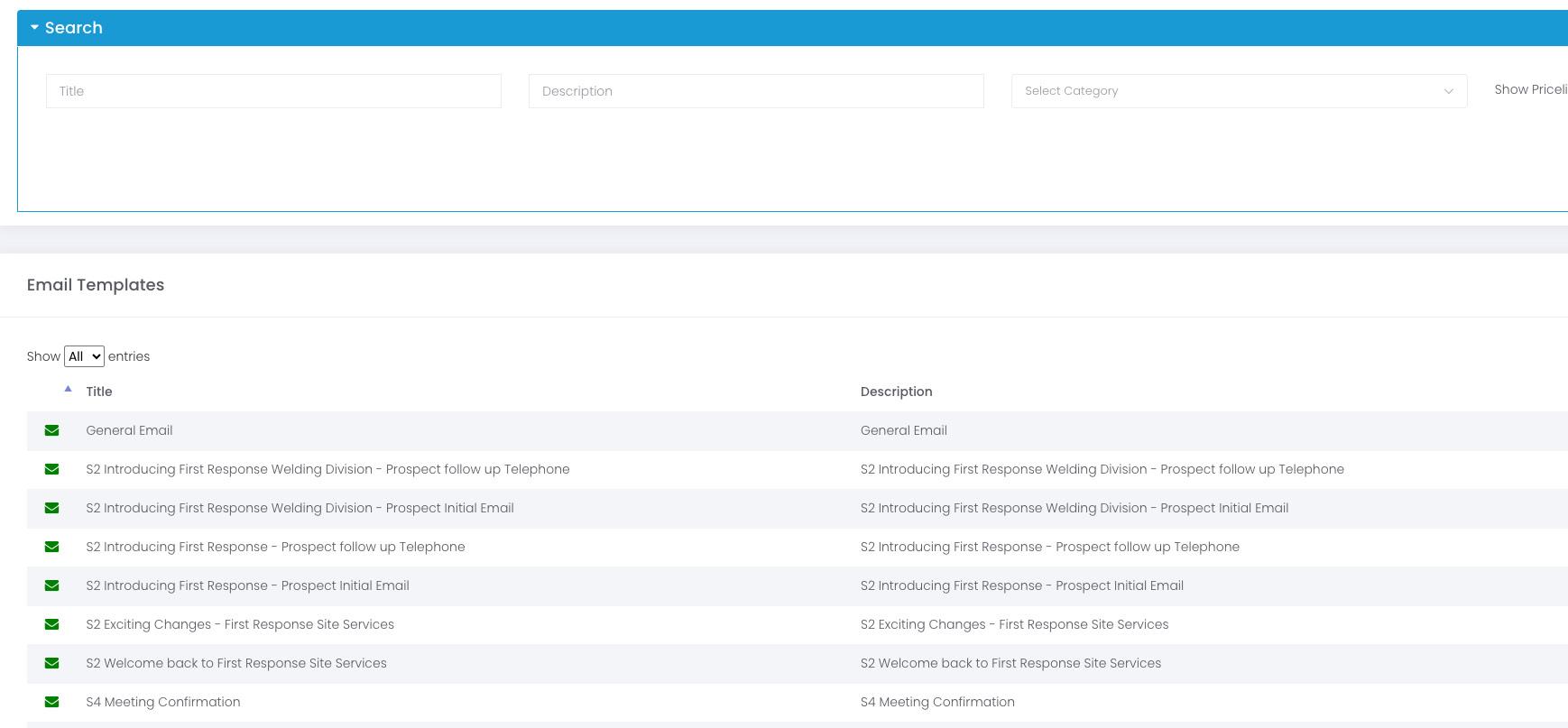
Email Templates
A list of email templates you can search and view.
Create and manage individual Prospect Contacts and create actions.
MY ACTIONS
Essentially your diary. View and manage your daily CRM actions and follow-ups.
Sales Mgmt Report
View your pipeline KPI data.
Quotation
View all your live quotations.
Hire/Sales Activity
Search and view sales activity of chosen companies by using the search filter.
Contracts
Search and view the contracts.
Understanding Actions
CREATING ACTIONS - EMAILS
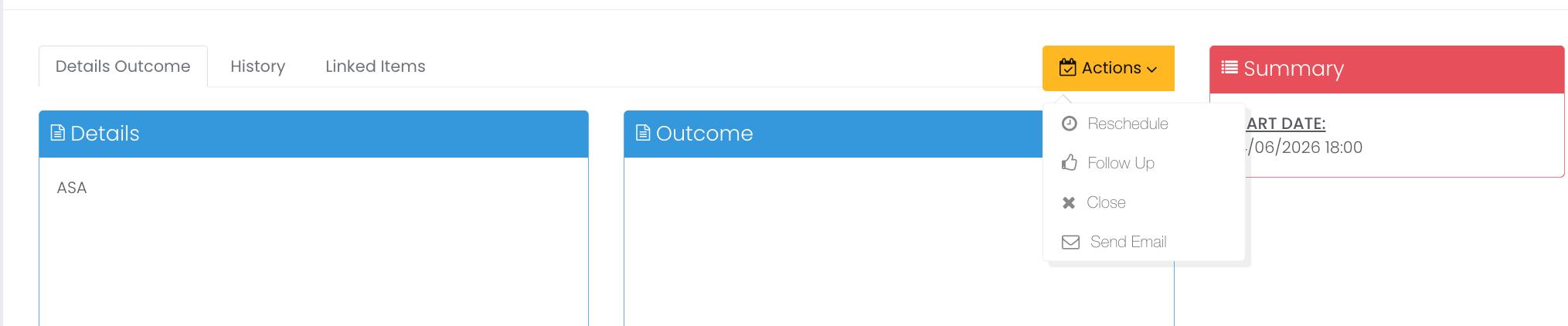
To send an email click on the Send Email option (A).
This will open up a search screen (B)
b. In most cases there is no need to filter, so just select search to view email templates.
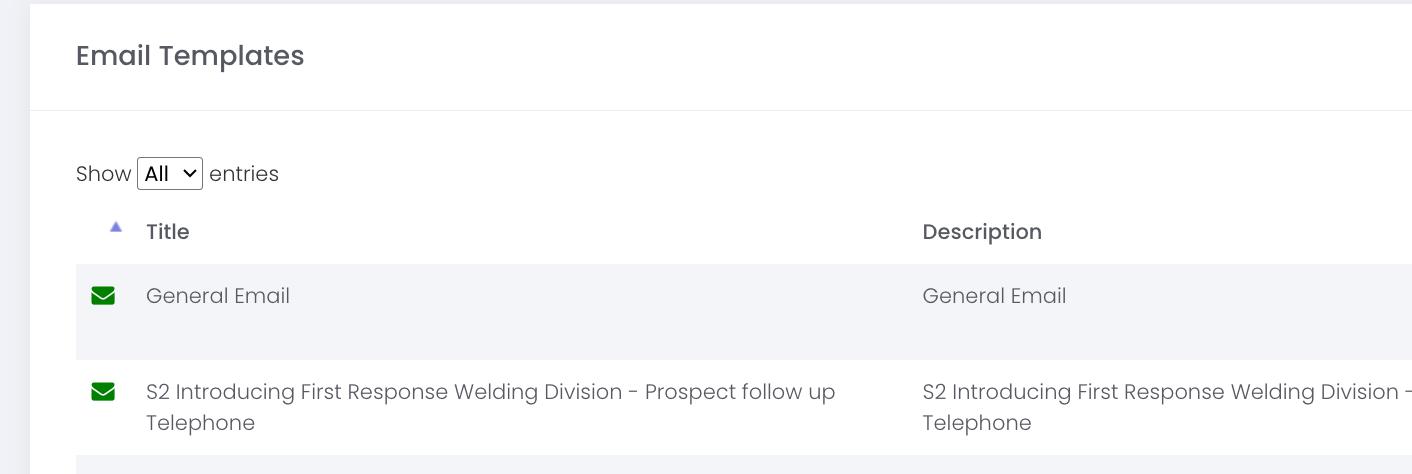
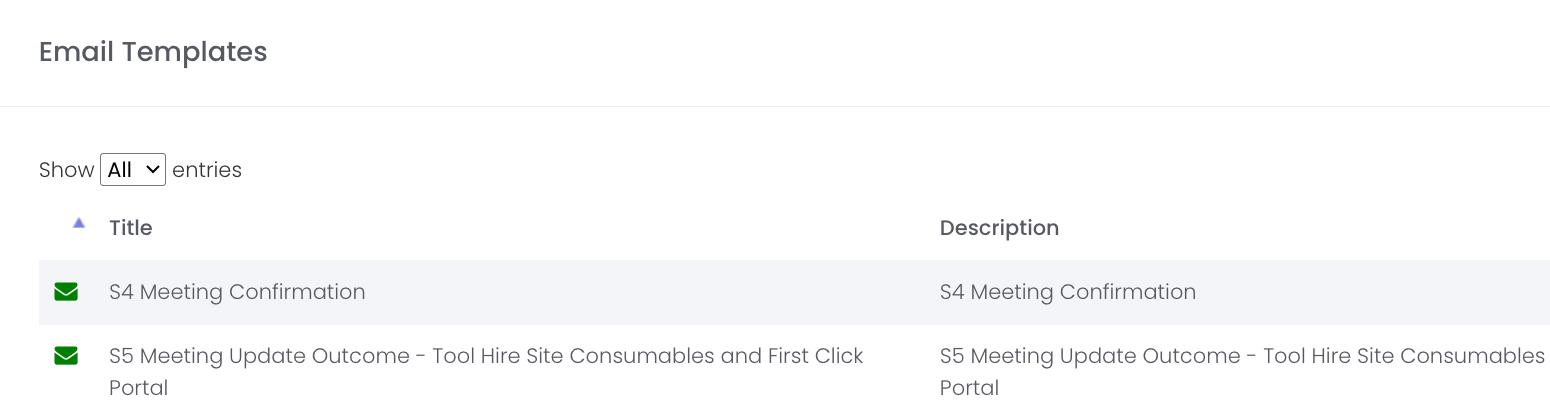
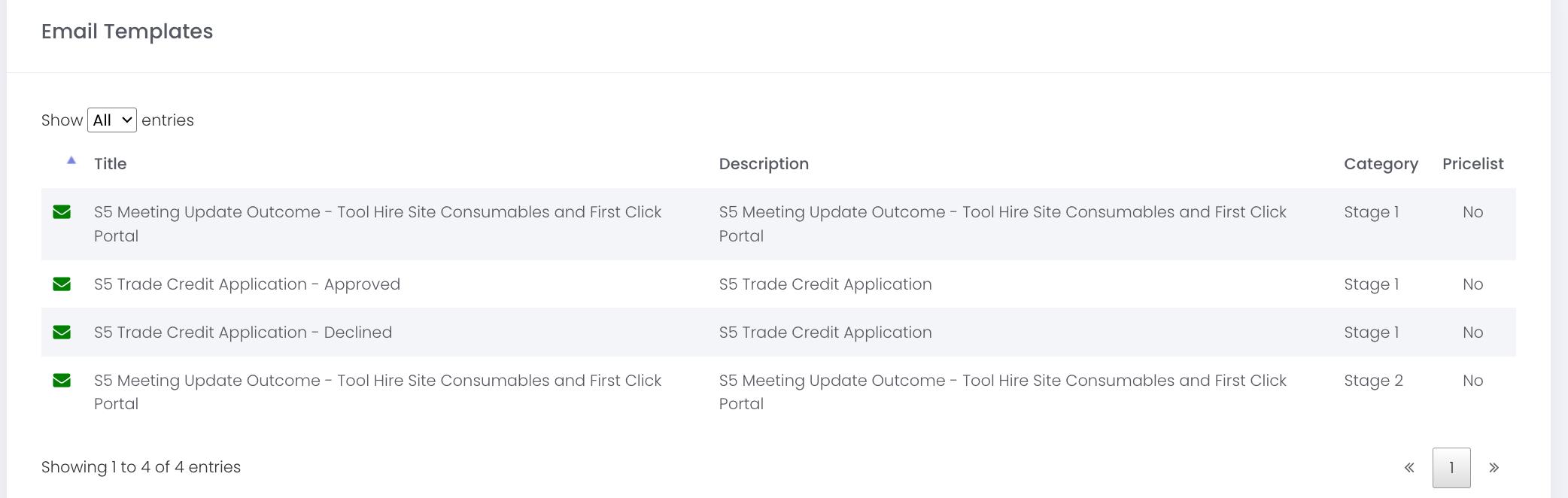
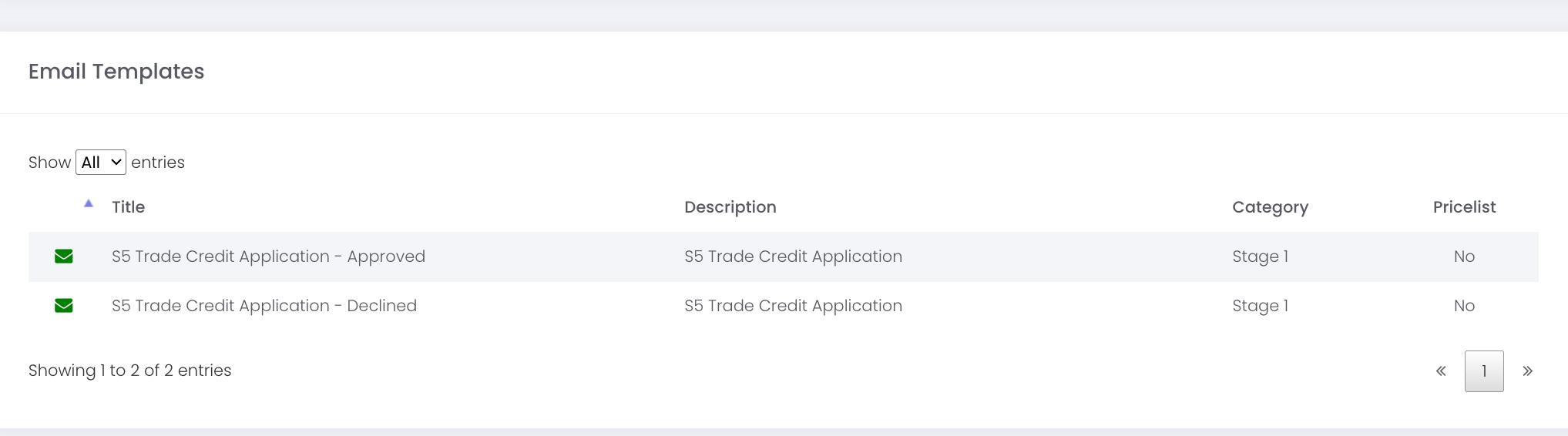
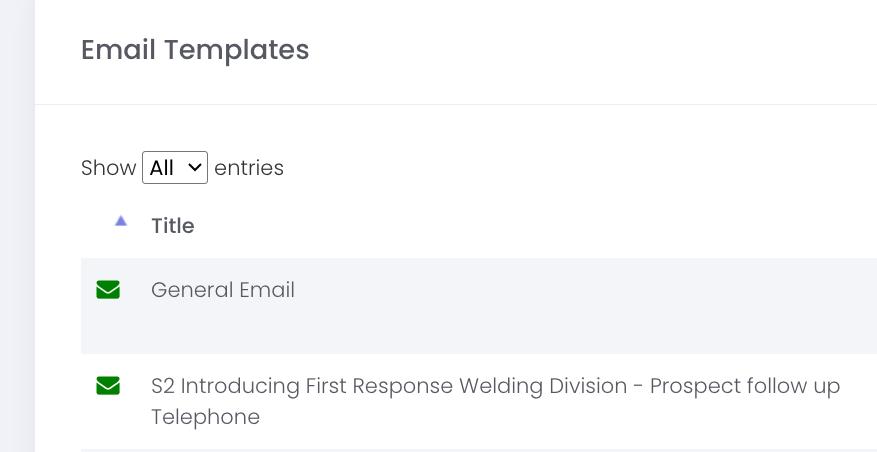
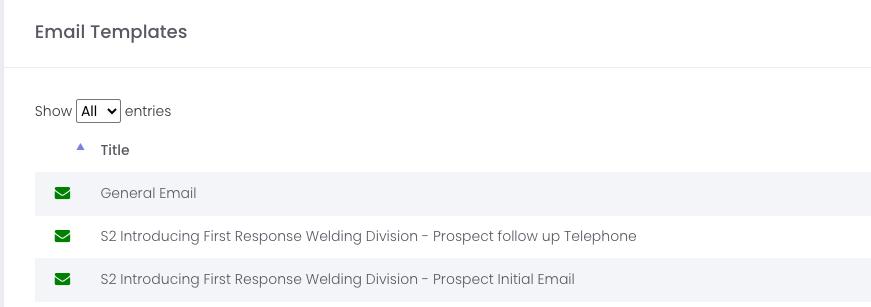
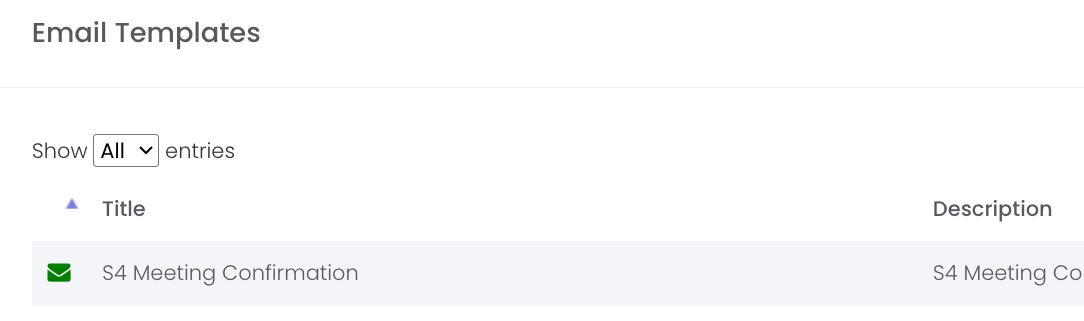
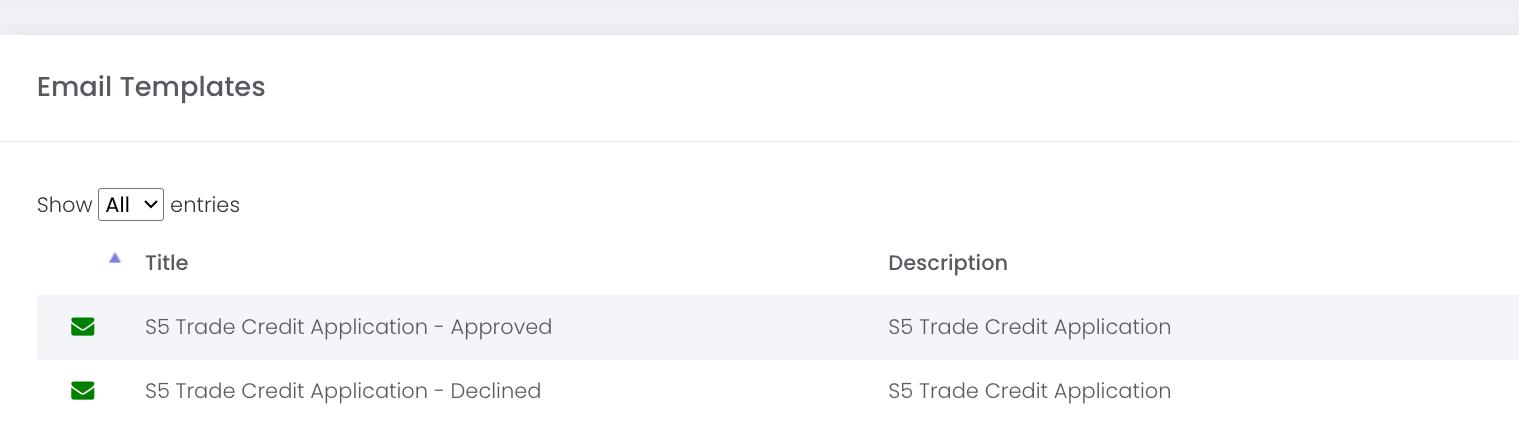
C. A list of email templates will be displayed. Clicking on the green envelope will display the email. Edit the email and then press send
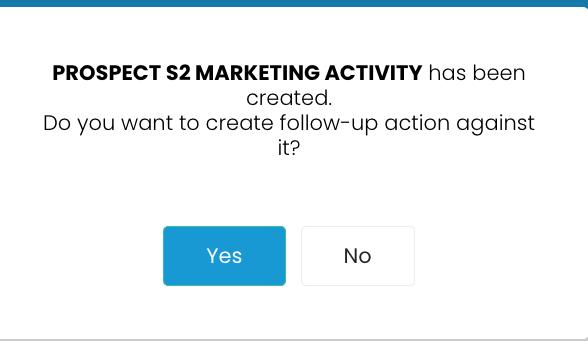
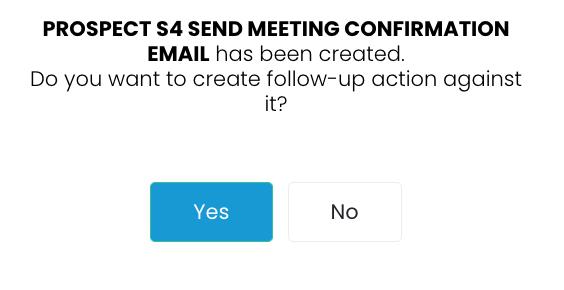
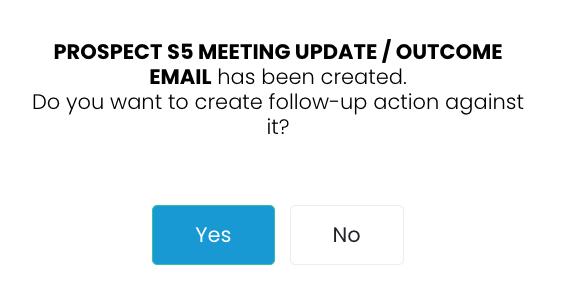
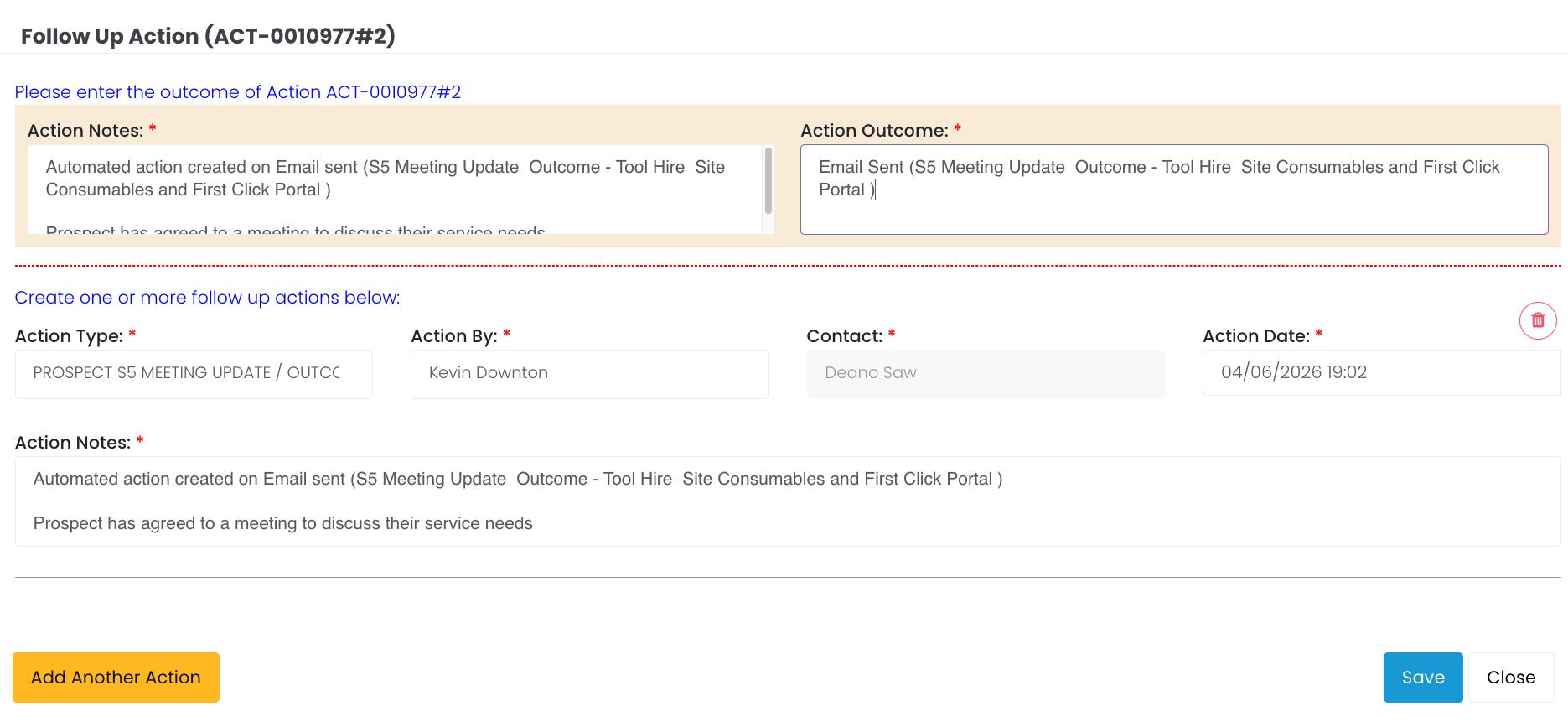
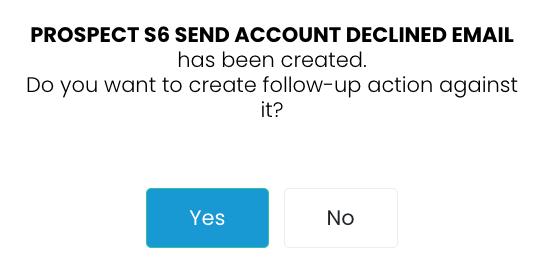
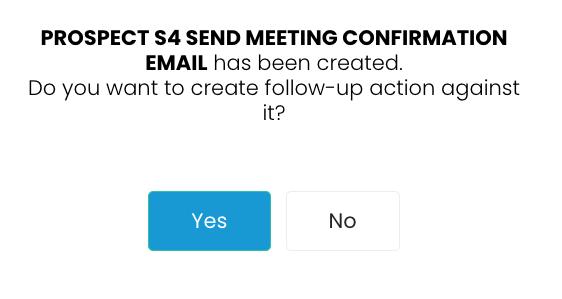
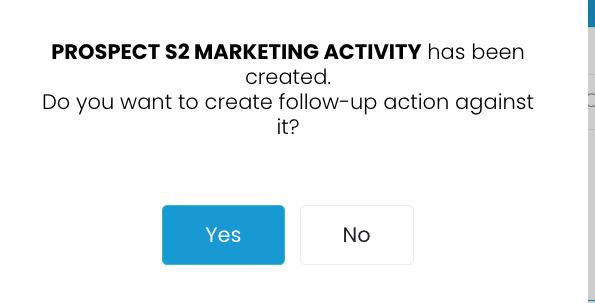
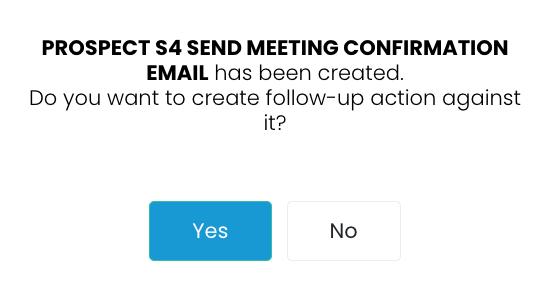
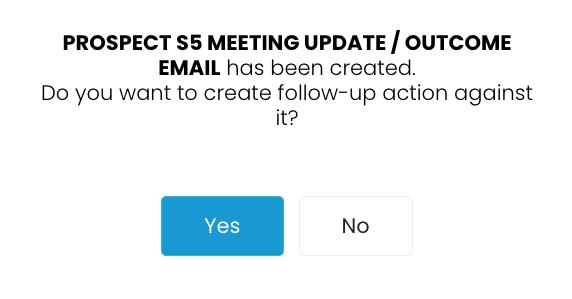
D. You will now be asked to create a Follow-up. Select yes and the follow up screen will appear.
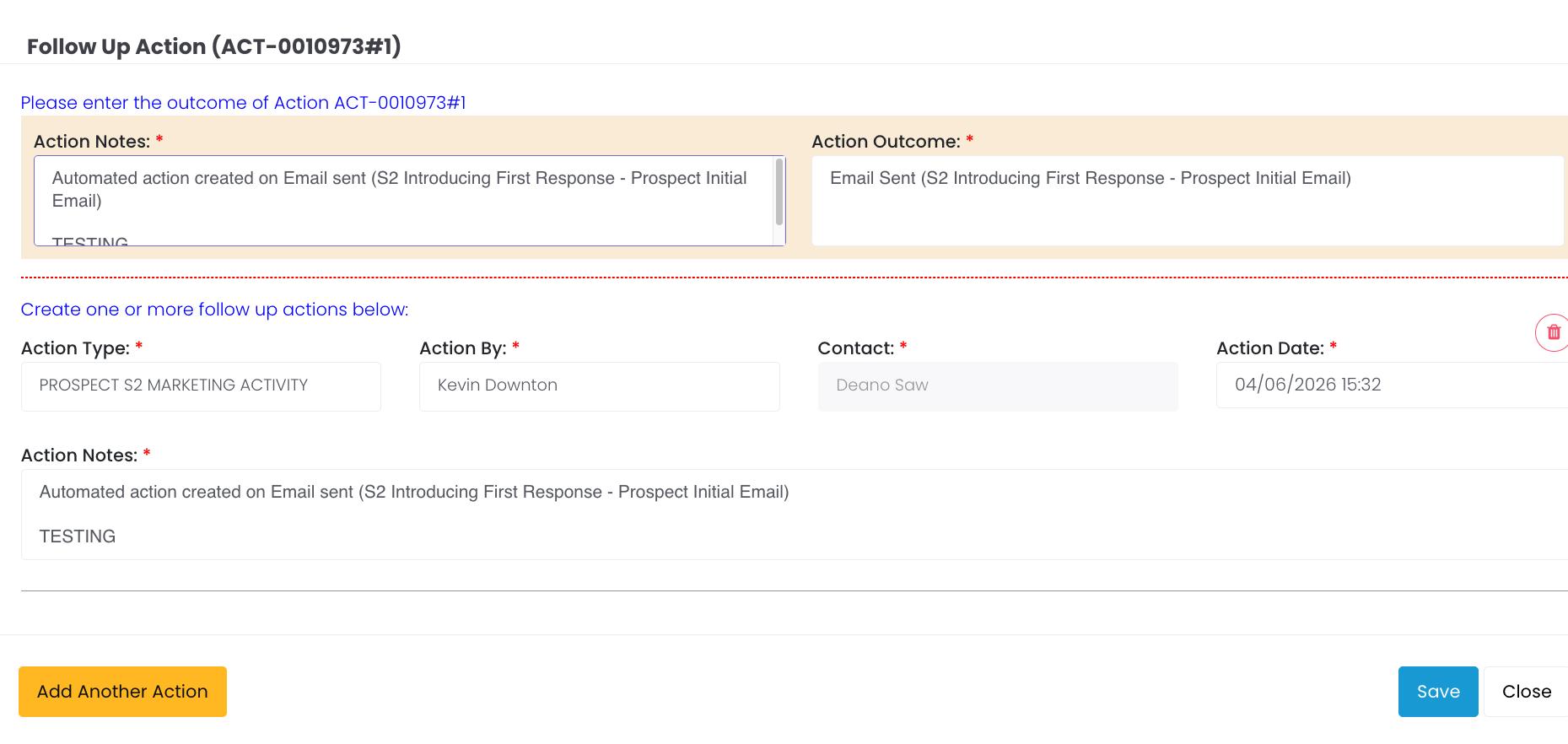
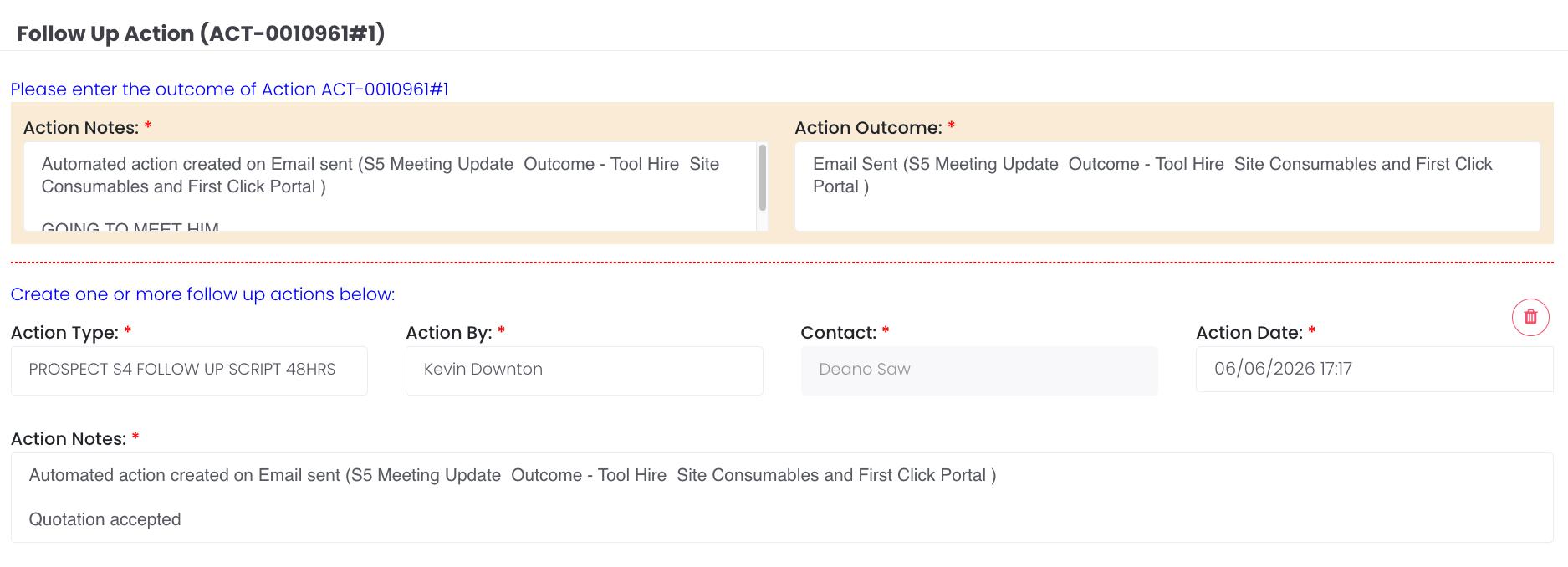
E. Set the date for the follow up and your notes (so you can pick up from where you left off) and click save.
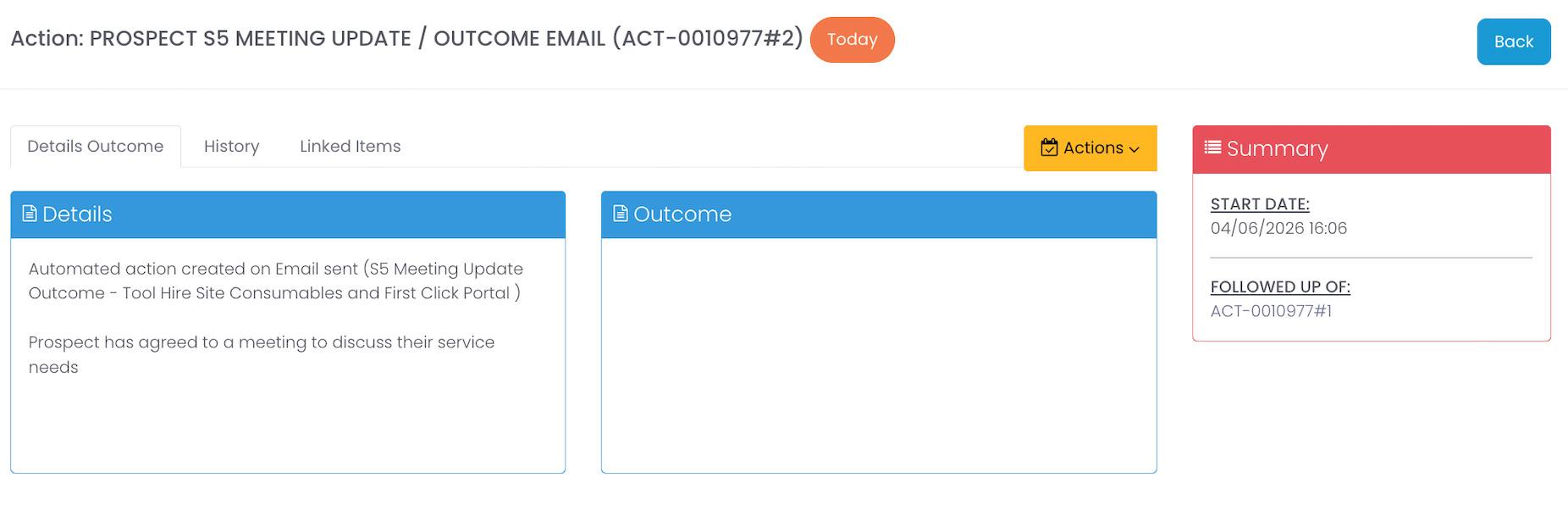
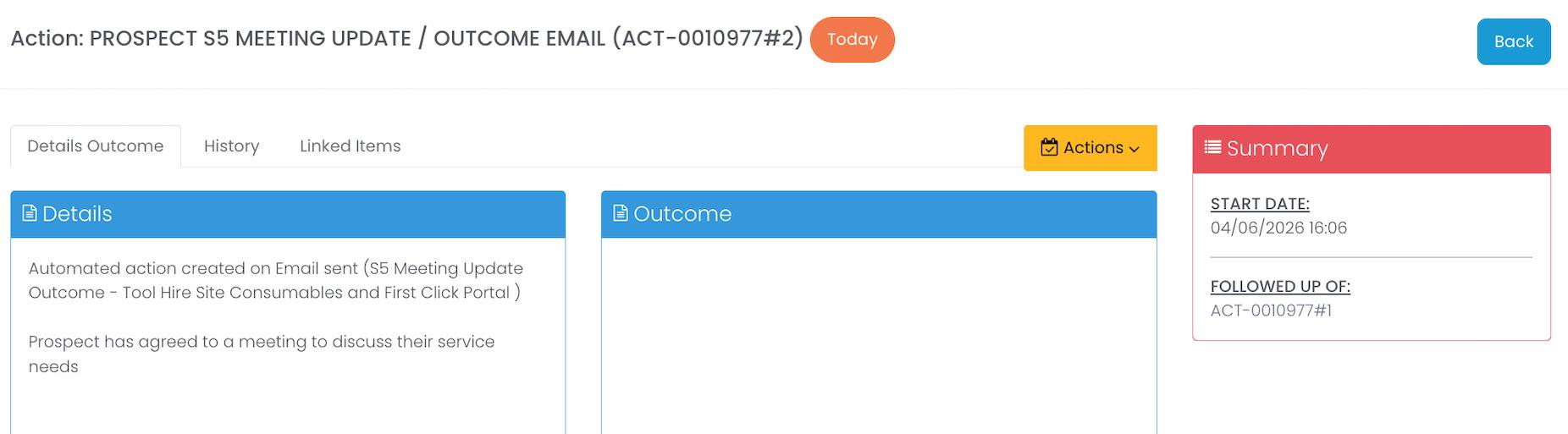
The follow-Up will appear in My Actions, which is your daily diary of actions to complete.
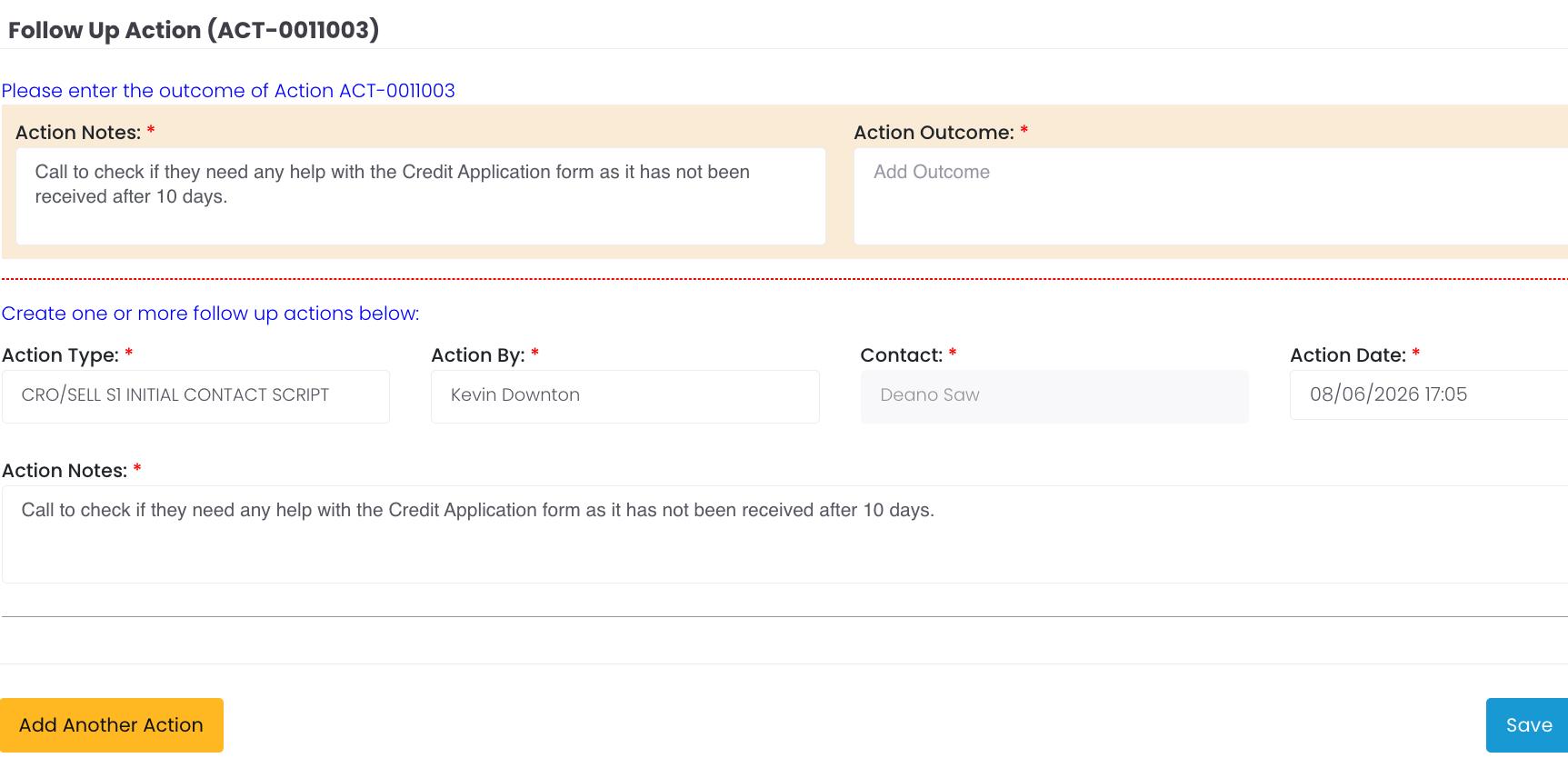
CREATING ACTIONS - FFOLLOW UP’s
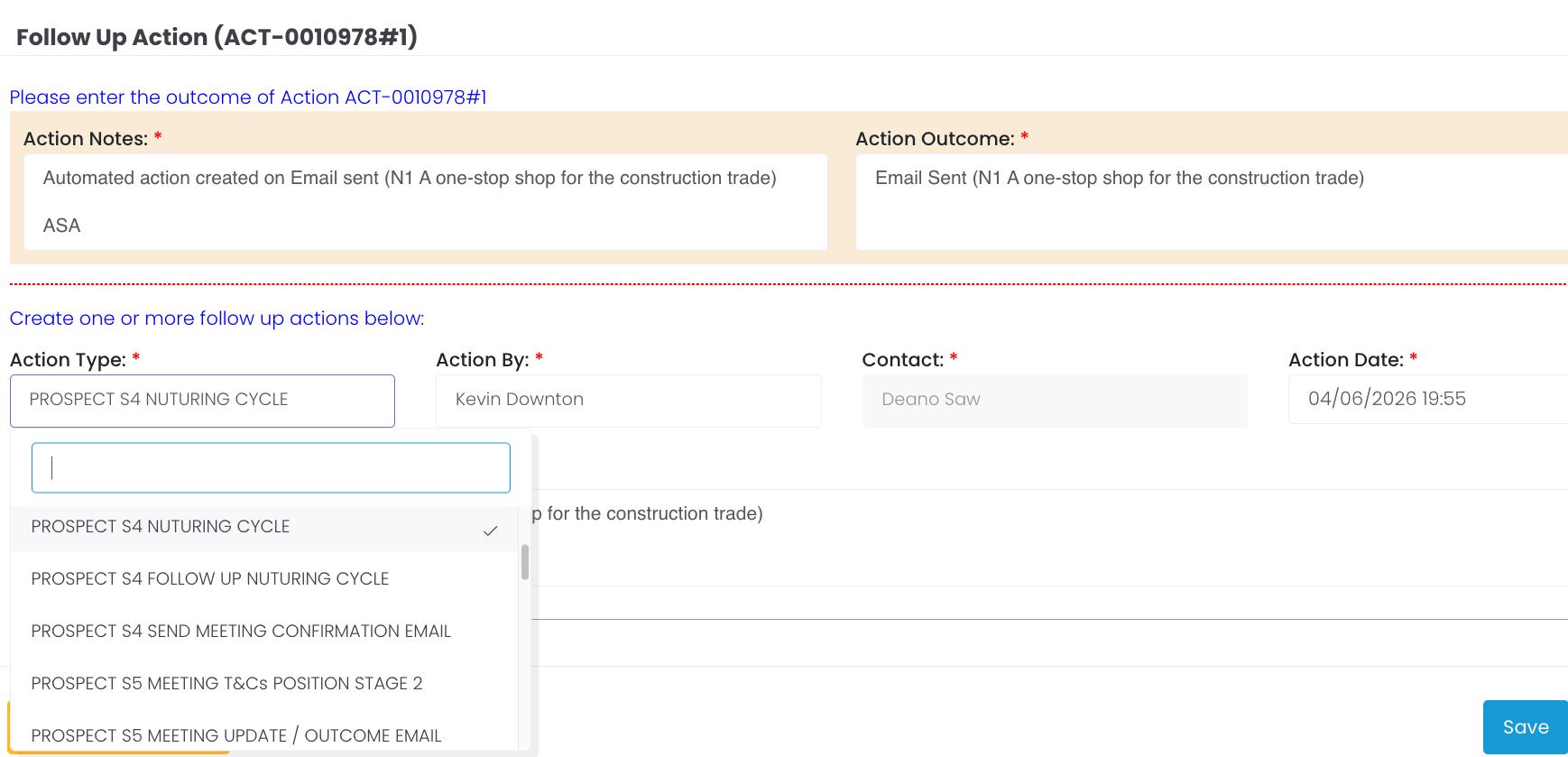
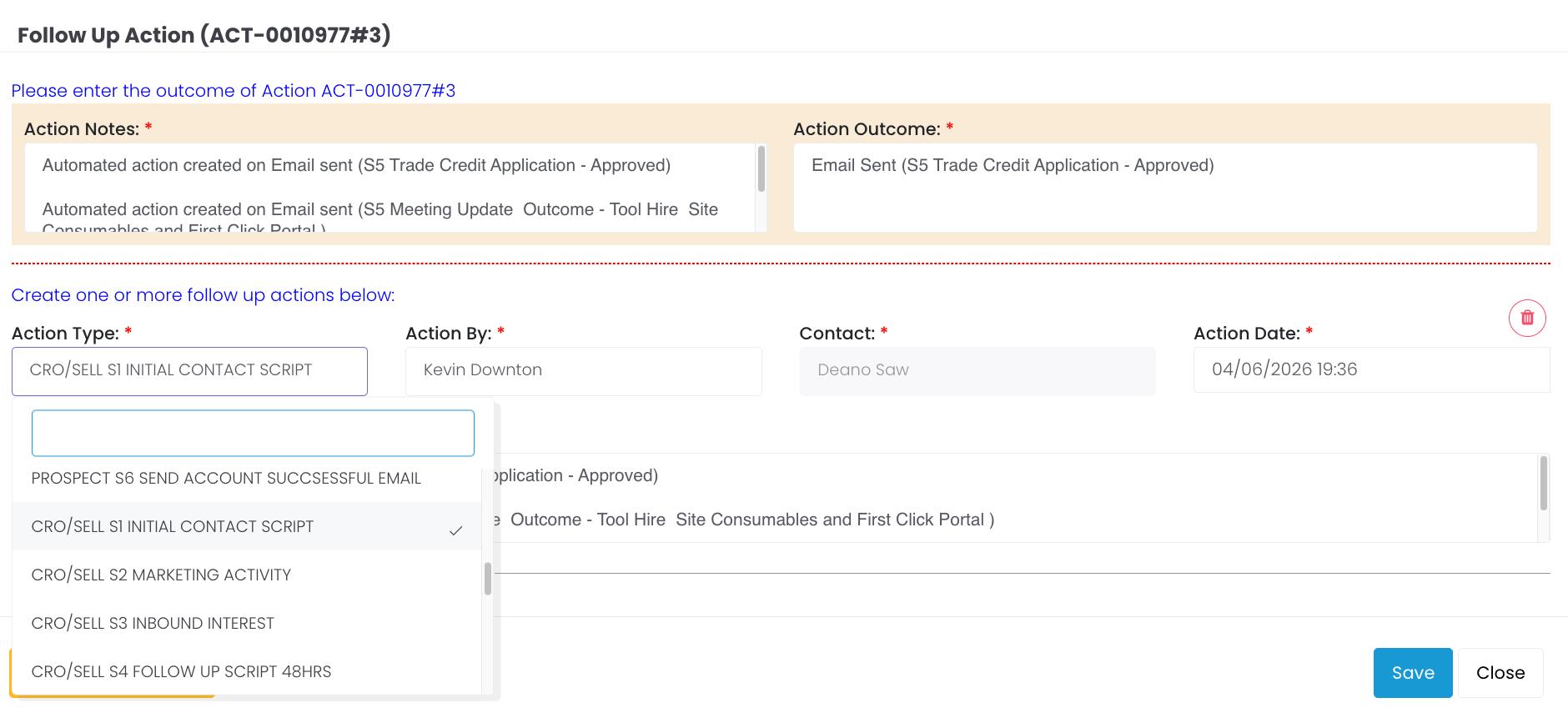
To create a manual follow-up select the Follow Up option (F)
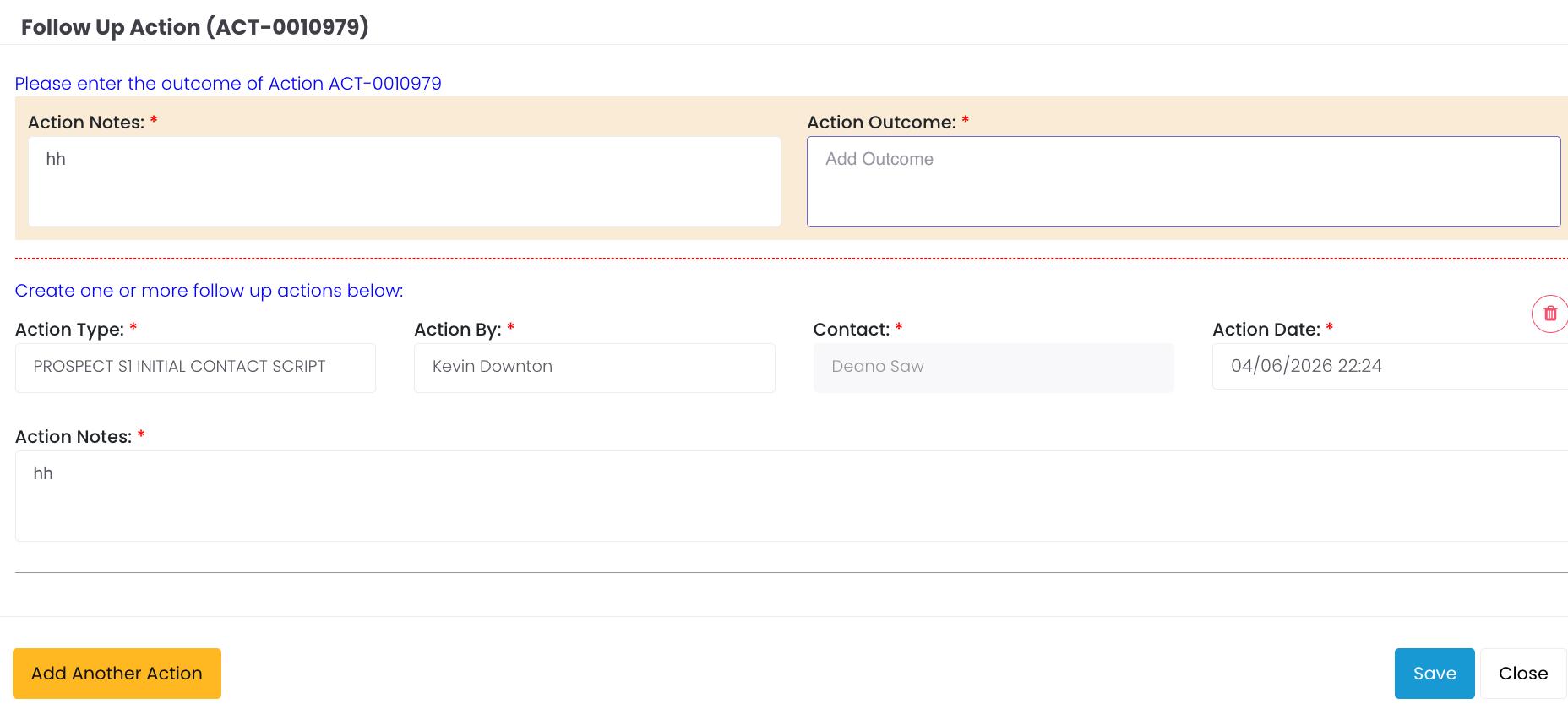
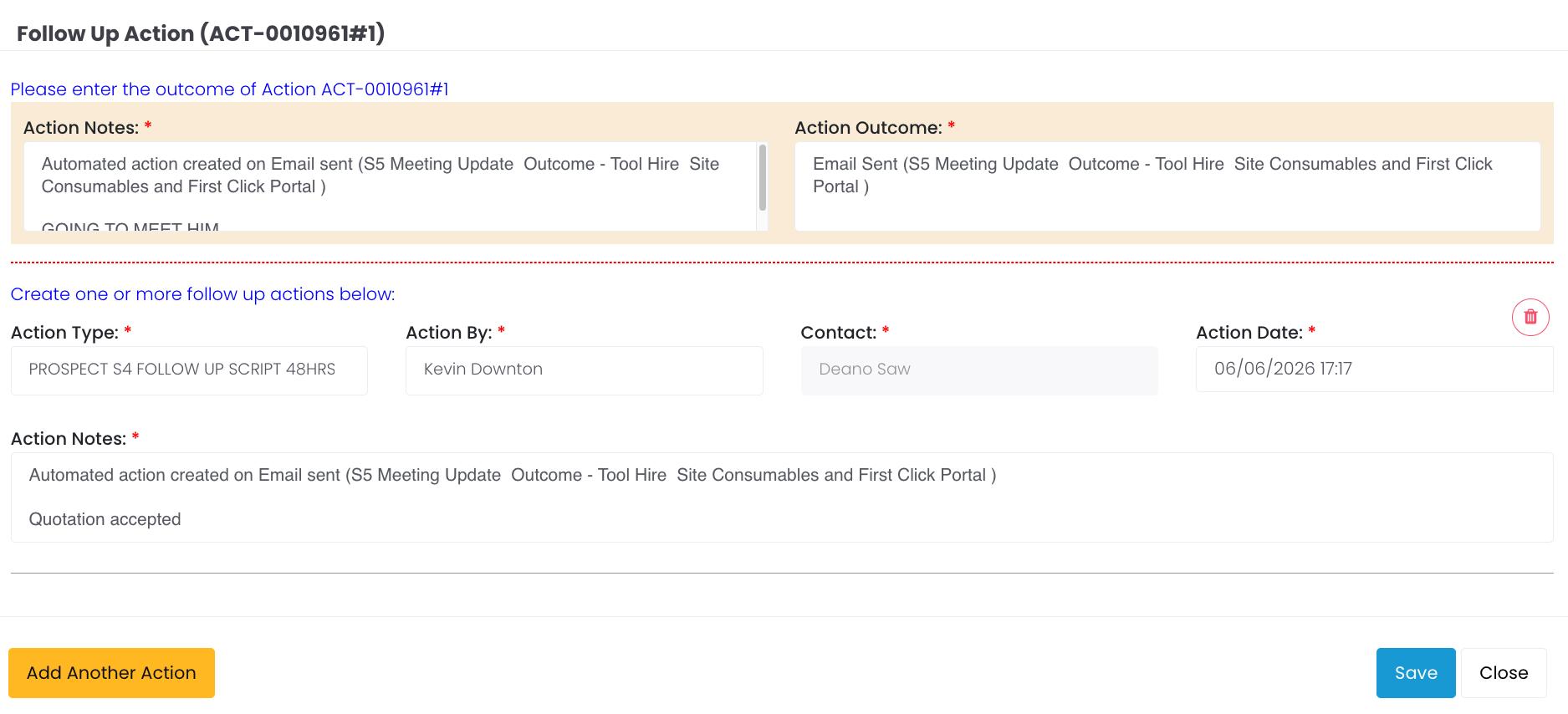
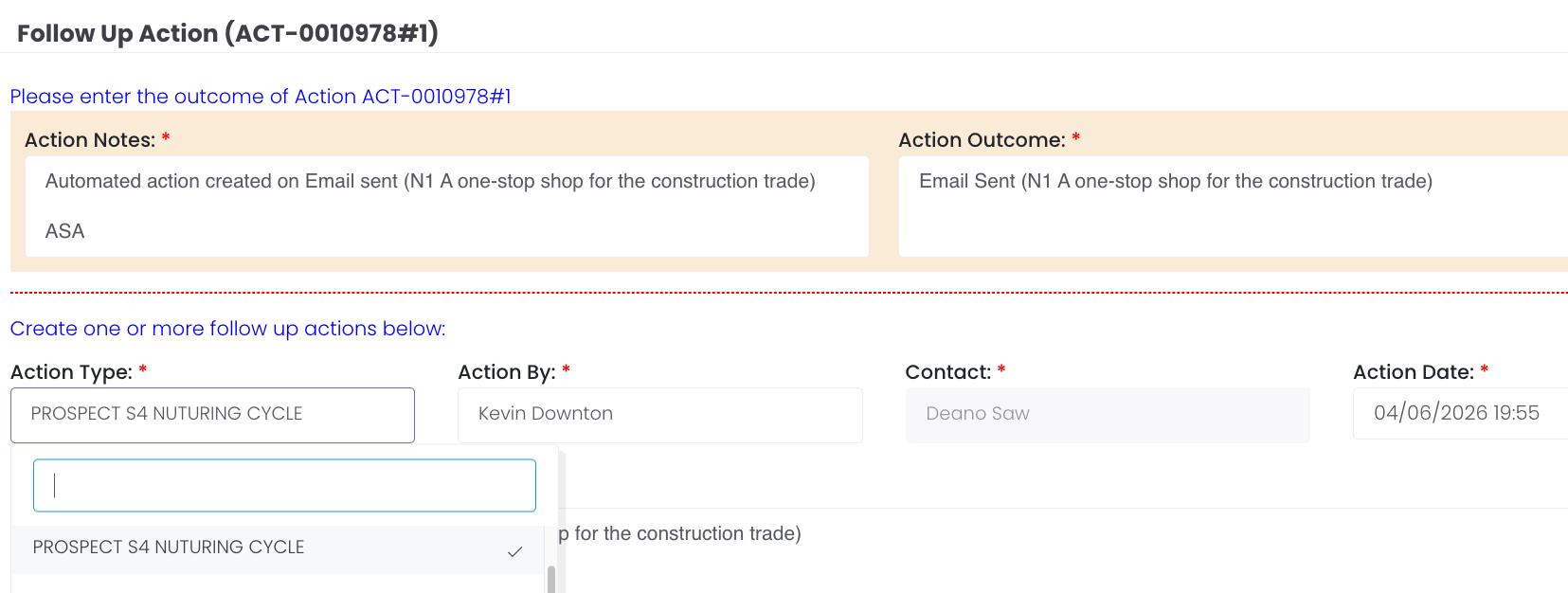
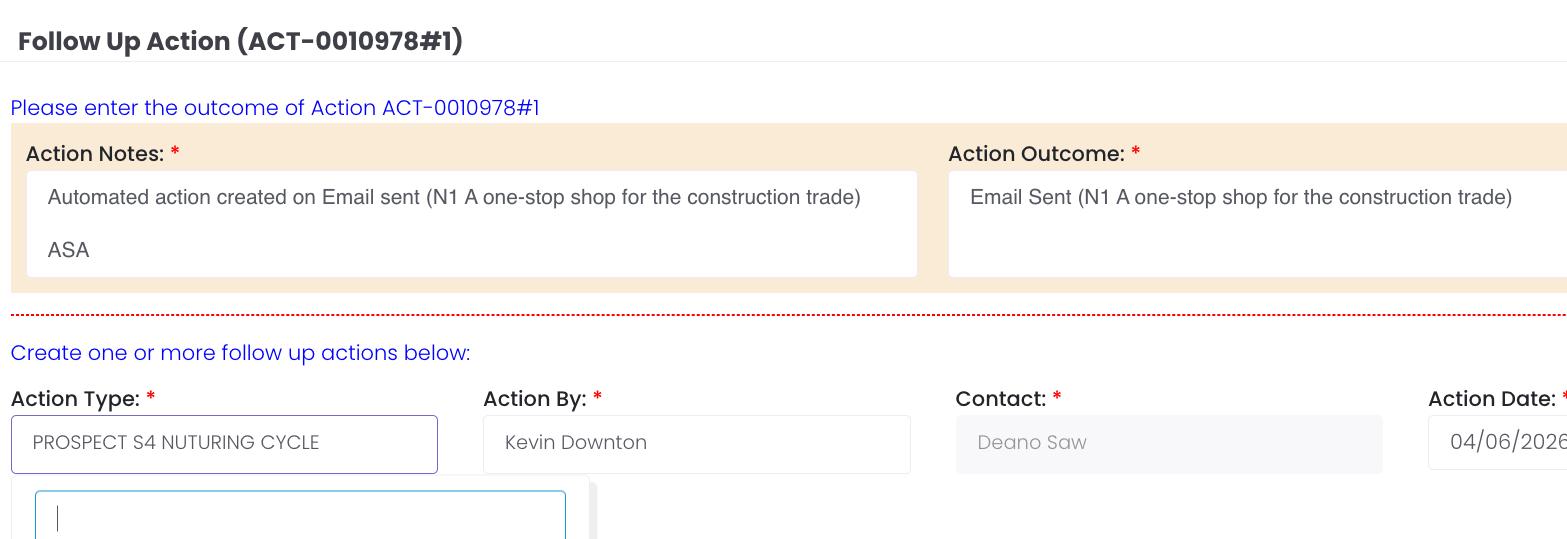
This will open the Follow Up Action Screen (below).
Make sure to add the follow-up date and to enter your notes - so you can recall what the follow-up is about.
Prospecting is designed to create a strong first impression, establish early engagement, and move the prospect confidently toward a meeting and finally the completion of a credit application form.
Consistency at this stage is critical: it ensures clean CRM data, professional communication, and a clear understanding of the prospect’s needs.
This helps you to manage your sales pipeline effectively, ensuring that best practice is always followed, so you don’t have to waste time while converting new business.
Within your prospecting process, it is very important to ensure you identify the best approach based on your knowledge of the prospect and their needs. This will ensure you increase your likelyhood of early engagement.
The library of emails play an important role in propsecting. These have been created to save you time. They already include an overview of First Response and have links to brochures, so you don’t have to waste time searching. These emails can be easily edited, so you can tailor them to your won needs.
Following the process will help to ensure you meet your KPI’s.
Database Selection
The aim is to compile a list of companies in our CRM that fit within our target markets, gather further information about the customerand/or prospect and determine who the decision makers are: i.e. site manager / HQ buyer or procurement services. Time invested in this should reflect the value and likelihood of a sale.
It is a good idea to understand the different ways in which you can search, so you can filter by target market or job role. This makes it easier to identify the best emails to send, whether marketing or nurturing. This data is likely to be old, so best practice would be to search on the companies website or on LinkedIn to check the contacts we have are still the correct ones. Preparation is everything.
Target Markets
• Construction / Building Contractors
• Shop Fitters / Fit out Companies
• Infrastructure Development
• Civil Engineering
• Heavy Civil Construction
• Agricultural / Landscaping Companies
• Utility Construction
• Facility Maintenance Frame Works
• Demolition and Decommissioning
Next Step
Once you have located your sales leads, you will want to update the contact details, if required, and create follow up actions to start the sales process. Follow the rest of this document to find out how to do this.
Creating a new prospect COMPANY
Create a New Prospect Company
From the CRM menu, click Companies. On the Companies screen select:
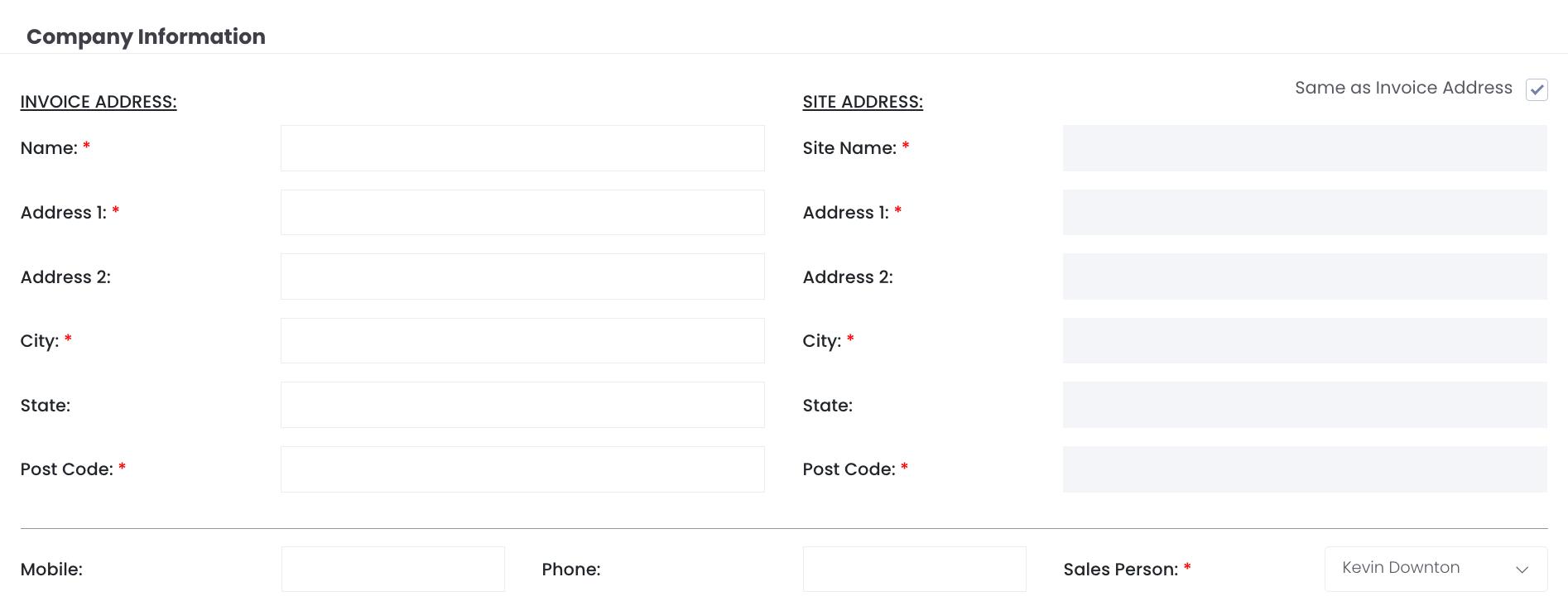
Complete all fields marked with a red asterisk (*), these are compulsory.
DATA FIELD WHAT TO ENTER / SELECT
Please see page 2 for the screenshots of the below fields, should you feel that would help when you start to input the company details.
However, the information below should provide everything you need:-
Name Enter the full legal trading name of the company
Address 1 Registered or principal invoice address.
City City for the invoice address.
Post Code Full postcode for the invoice address.
Site Name Name of the trading site if different from invoice address. Tick 'Same as Invoice Address' if identical.
Site Address Physical site address fields, complete if different from the invoice address.
Mobile / Phone Main Landline contact number for the company.
Sales Person
Select your name from the dropdown to assign the prospect to you.
Notes Add useful background information about the company.
Customer: ACTIVE Leave set to ACTIVE for all new prospects.
Notes: All details are correct
Once complete tick the box to VERIFY the Prospect Company and then Save..
Edit details for the company record including adding a Site or email address. Your completed Prospect COMPANY should look like this.
View the companies Hire & Sales activity so you can identify spend and oppoortunities.
View the various contacts that have been created based on their roles within the company.
Add or view notes for the company record.
Creating a new prospect CONTACT
Creating a new Contact
From the CRM menu, click Contacts. On the right hand side select
Linking a contact to the company Record
Simply use the Company field (below) to select the name of the business your contact represents (as circled below).
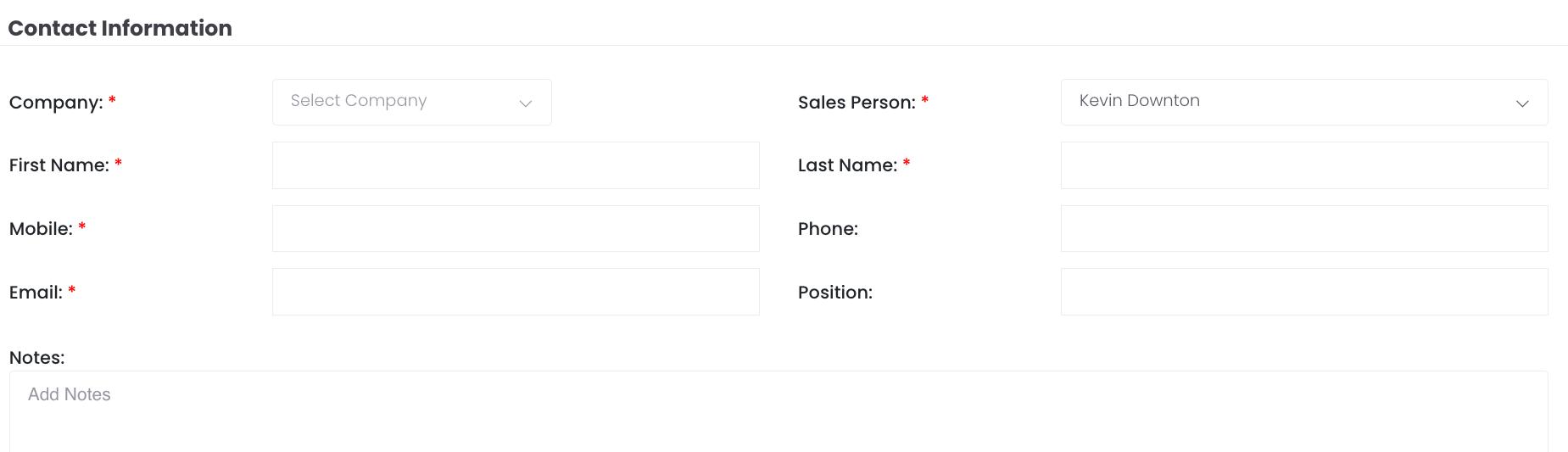
Note: You will need to create a separate contact record for every individual you are targeting at a Prospect Company.
Click the button to create a new contact; the contact screen will be displayed, as below.
Enter the contact info and link to the company you created in step A.
If a contact has moved to another Prospect Company, go to your contact record, select the edit contact icon on the bottom and use the drop down menu shown below:-
Contact Prospect
Initial Contact Script
Contacts
In Step 1 you will have created your sales pipeline. This will contain all the contacts you identified, as below:-
A. Database selection.
The existing contacts which have been identified as non-trading.
B. New Prospects
The companies and contacts you have created.
The process you now follow includes:
1. Initial Contact Script.
This is where you make initial contact with the prospect and start the sales process.
2. Creating your follow up.
You will create Follow Up Actions during the entire sales journey - moving the prospect through the various stages of the sales process.
3. Enter Nurturing process
Regular engagement is key to ensure the prospect remains aware of First Response and the services we provide.
Nurturing actvities will include pricing, the First Click Online platform, our Social Value Programs and any other content you have identified which may be of interest to the prospect to secure a meeting.
4. Meet the Prospect
The aim should be to establish an opportunity to meet with the prospect, either face to face or via zoom/other method.
5. Credit Application
Having followed the process, you should now be in a pposition to secure a completed credit application from the prospect.
STEP 2 Contact Prospect
Initial Contact
INITIAL CONTACT
Introduce First Response and start your engagement with the Prospect.
What you do:
1. Call the prospect to introduce First Response and the services provided. 2. Listen more than you speak to identify their needs & objections. 3. Once opportunity identified provide solutions and progress to further action.
4. Send a follow-up email using the Email Library.
5. If phone contact has not been possible, send a generic prospect email. 6. Always create a follow-up action and use the email templates contained in the Nurturing cycle.
7. If you have been unable to contact the Prospect, you will send a marketing email.
IMPORTANT: ALWAYS change the ACTION TYPE or your KPI’s will not be recorded correctly.
CREATE AN ACTION
You should now create an Action for each prospect in your Pipeline. This should be a telephone call, unless you are unable to contact the prospect for some reason.
Process:
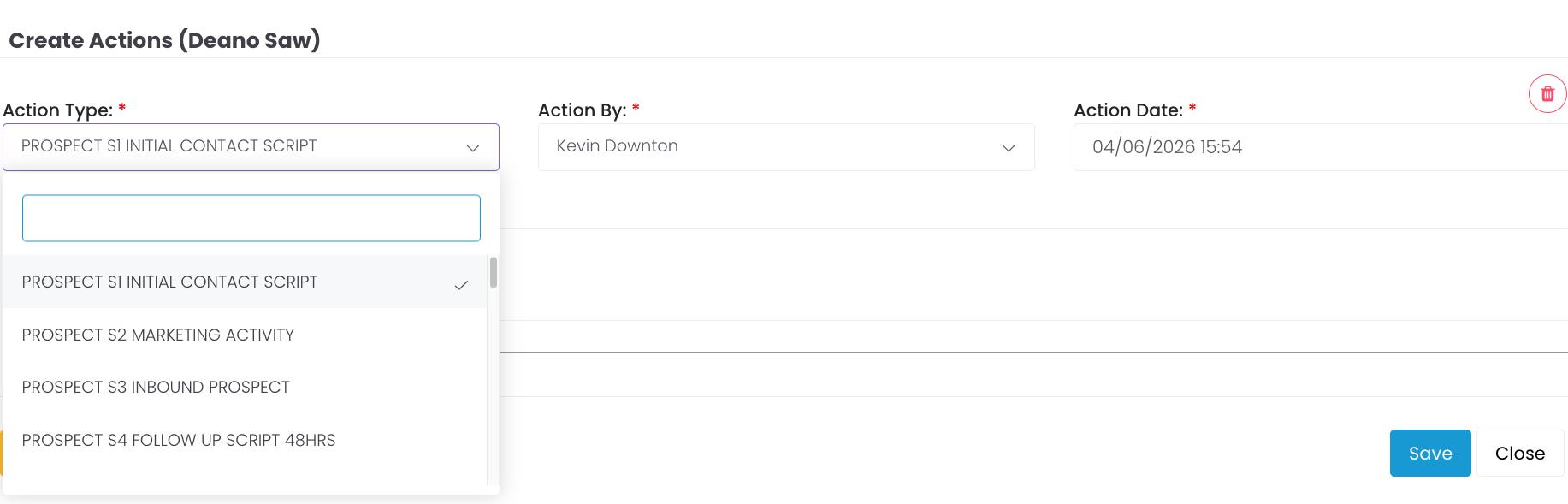
1. To create your first action and diarise your telephone call, navigate to each of your Prospects to start the contact process.
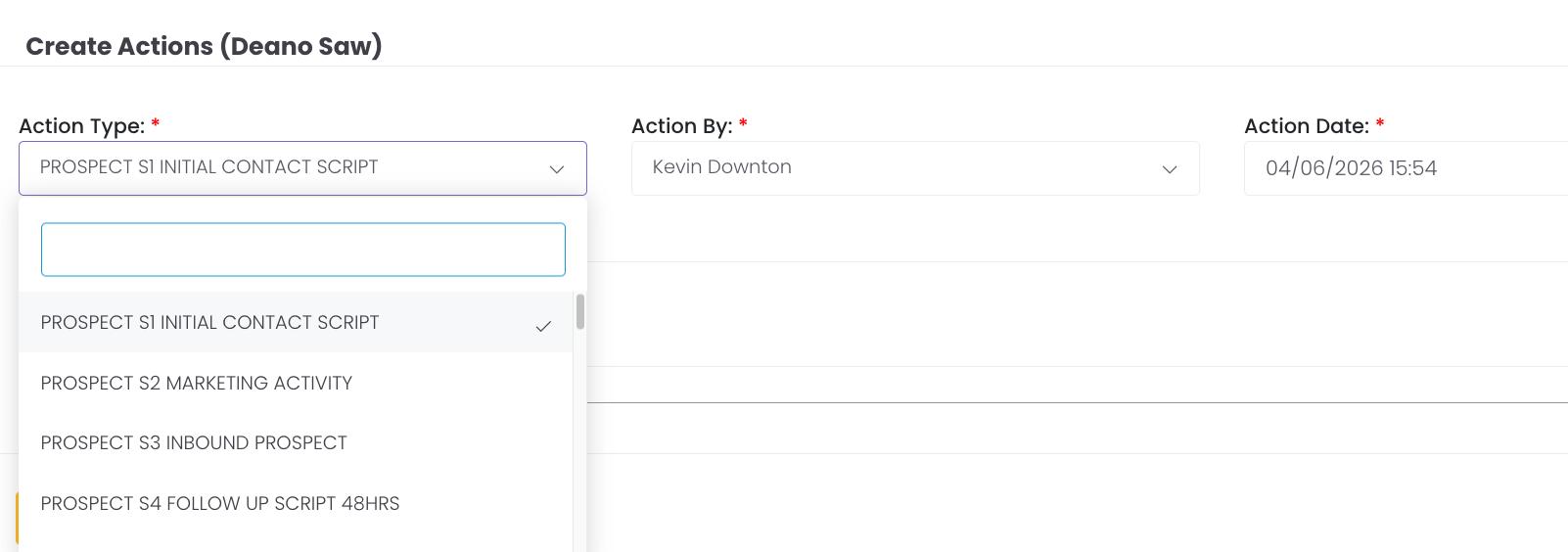
2. Click on the Blue Cross on the bottom right of the Contact Card to navigate to the Create Action screen.
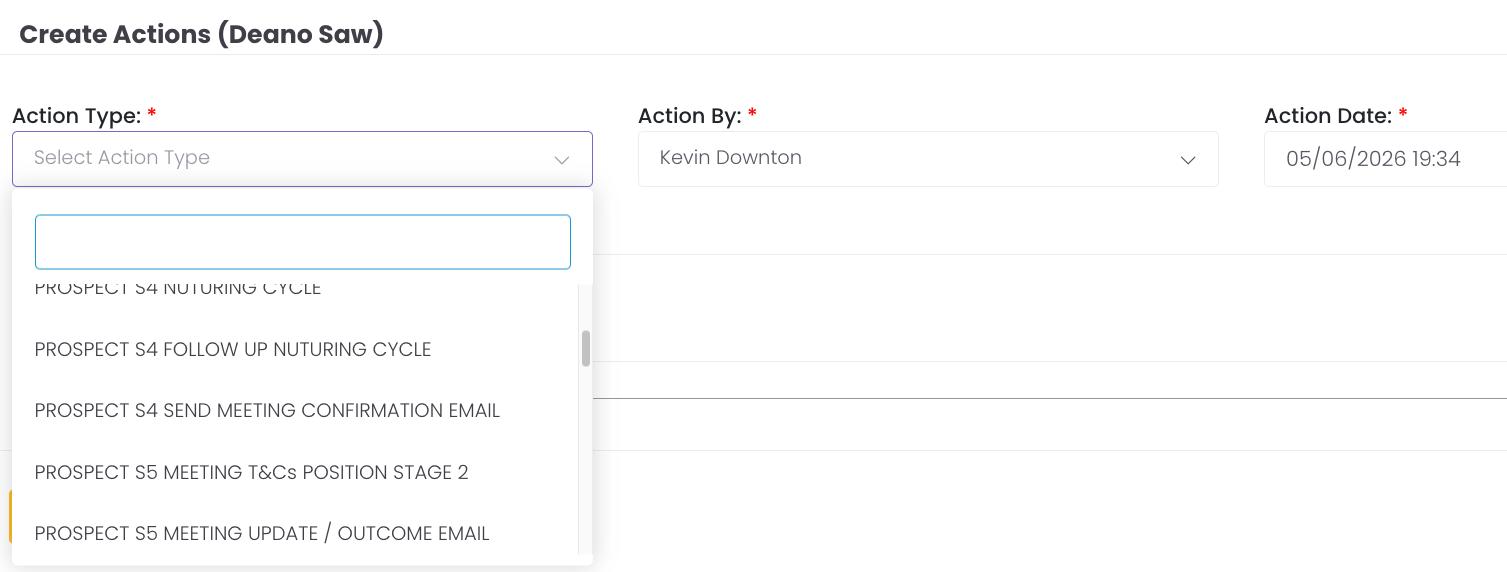
3. From the drop down menu select Prospect S1 Initial Contact Script.
4. After your selection the Action Notes field can be viewed. Enter any notes to help you later when you make contact. Now Save your Action.
5.. To view your Action remember to navigate to MY ACTIONS on your CRM Menu.
STEP 2
PROSPECT S1 INITIAL CONTACT SCRIPT.
You have now made contact with the prospect and wish to follow up with an email. Or you have been unable to call the prospect, because they have not taken your calls.
Go to the My Actions Menu
MY ACTIONS
The MY Actions option in the CRM contains ALL the Actions you have created.
The My Actions section of the CRM is where all your planned activities will be found.
Every day you should be disciplined to ensure you meet your Follow-Up dates. This will morning logging into the CRM and navigating to your MY ACTIONS.
It is here that you manage your follow ups and generate your email communications.
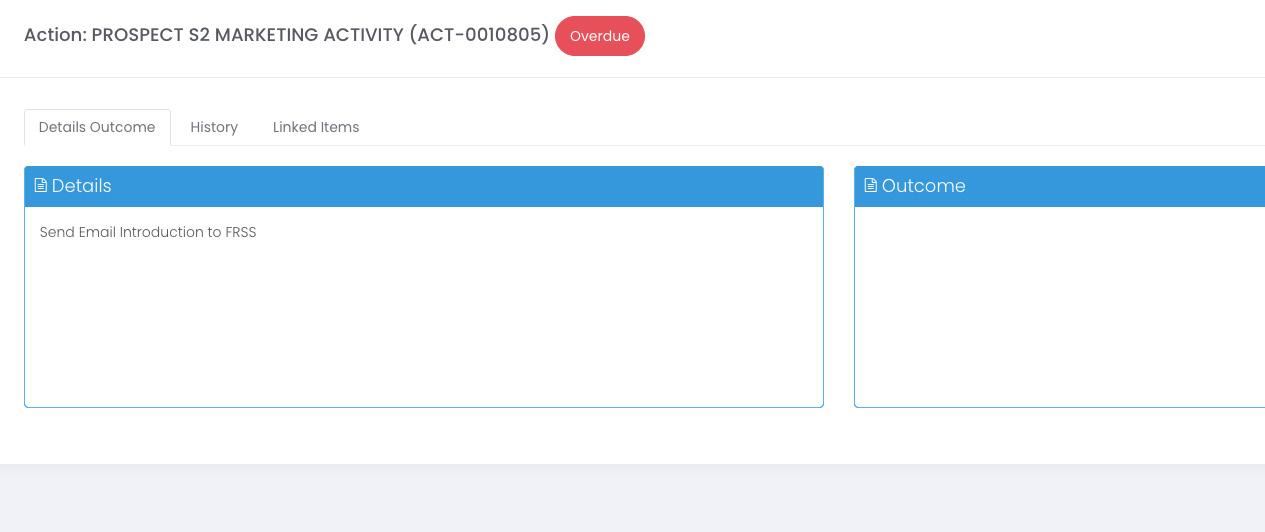
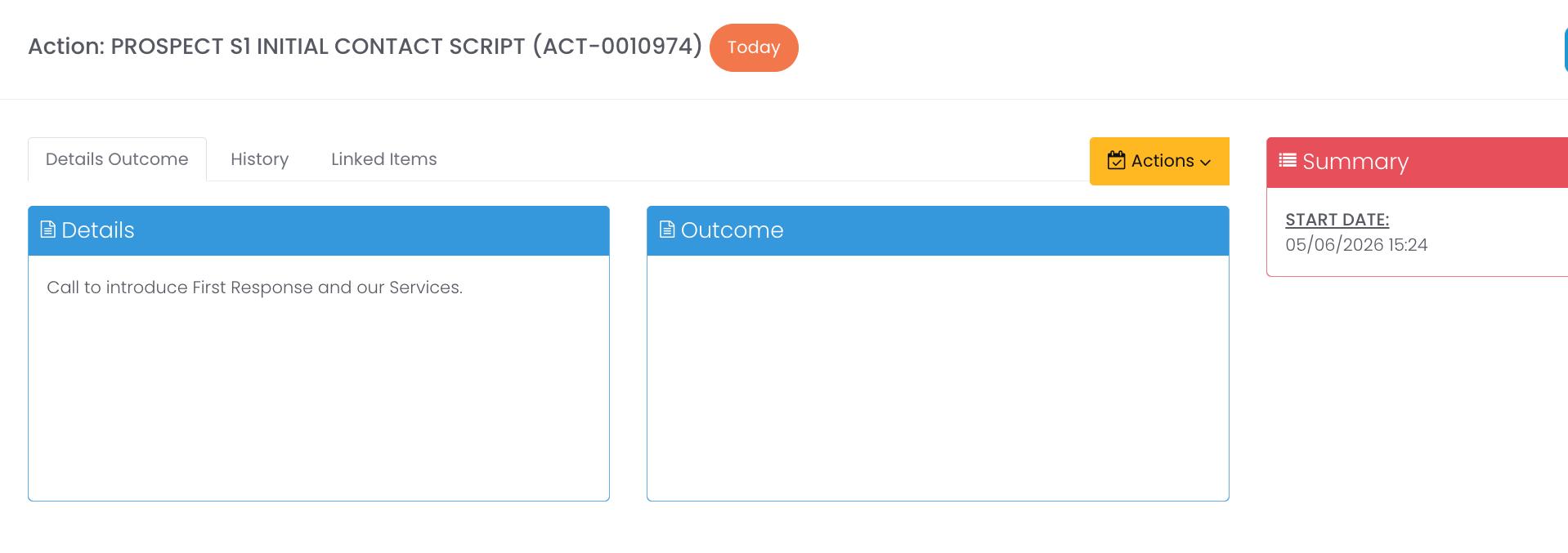
Your first action was to create the PROSPECT S1 INITIAL CONTACT SCRIPT.
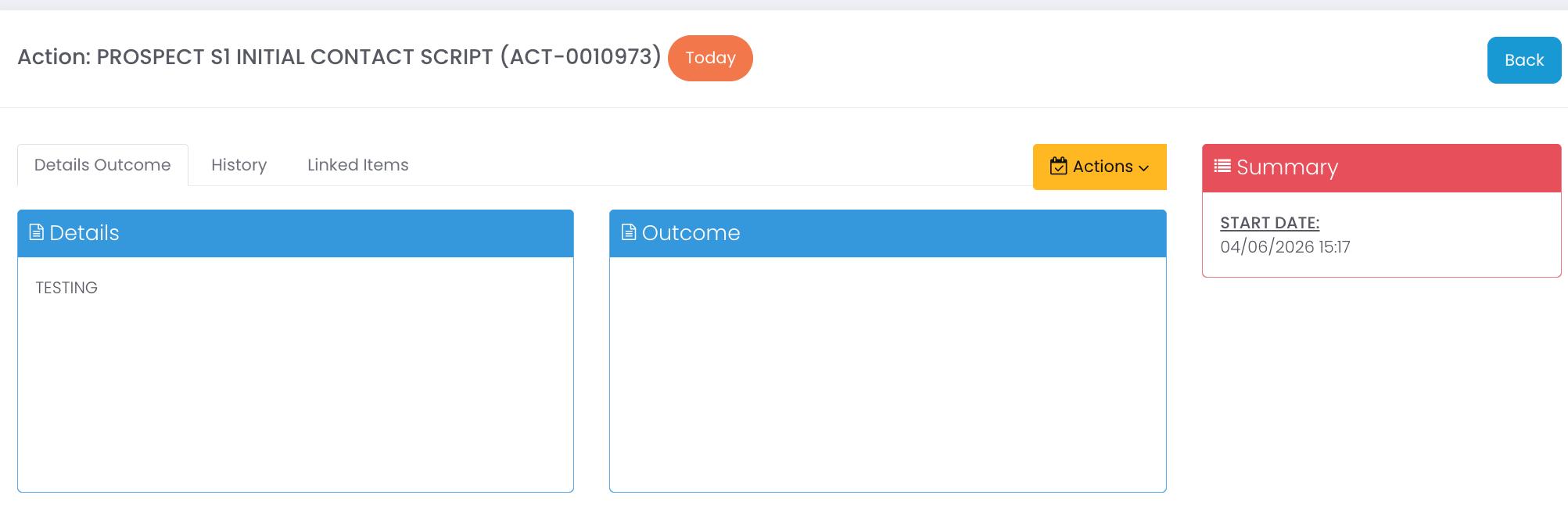
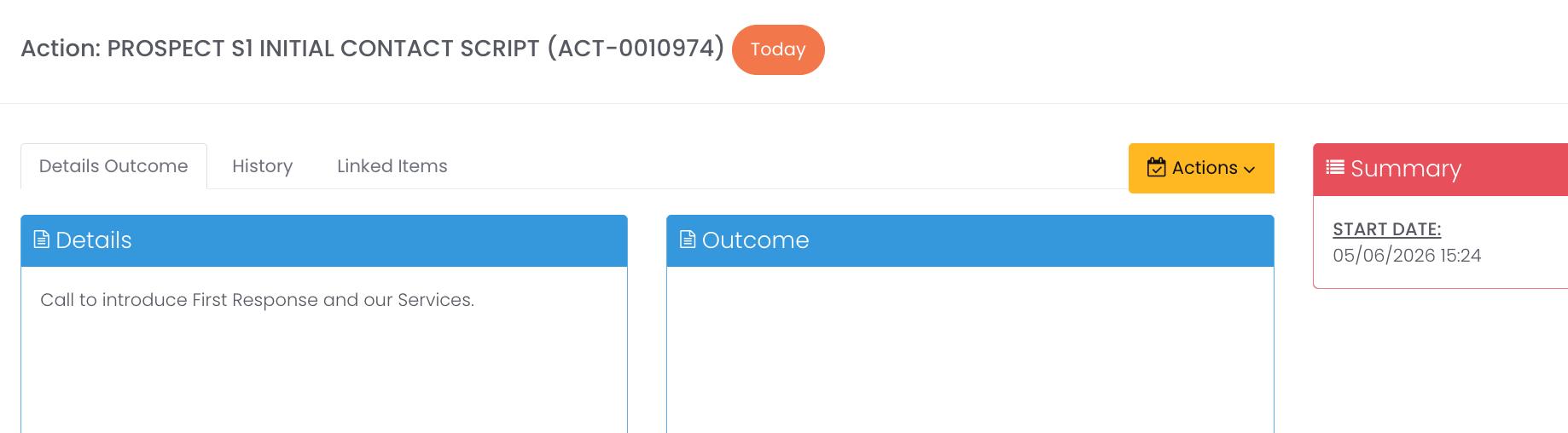
ACTION: PROSPECT S1 INITIAL CONTACT SCRIPT
1. Navigate to My Actions. Drop down the search bar. Select Search.
2. Your actions are displayed. Click on the blue hyperlink.
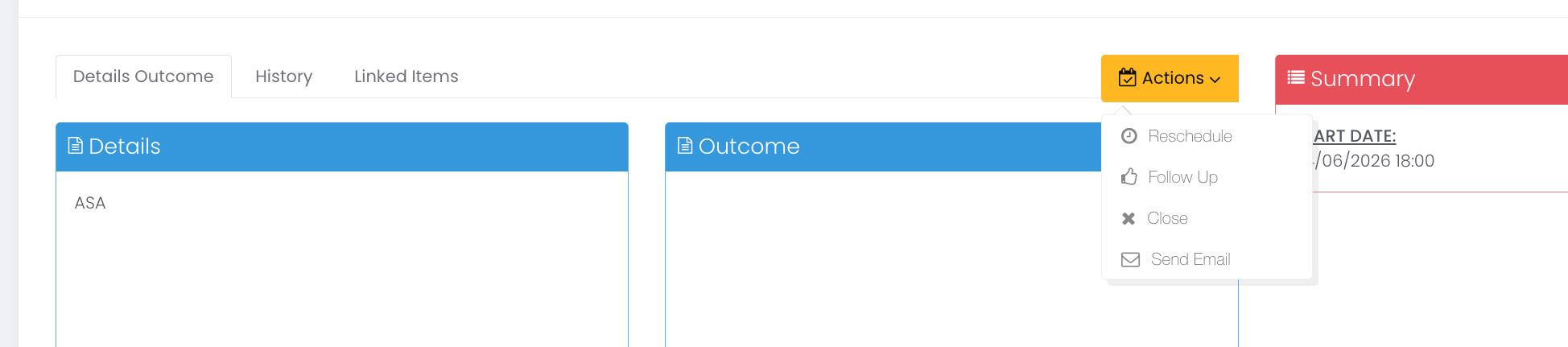
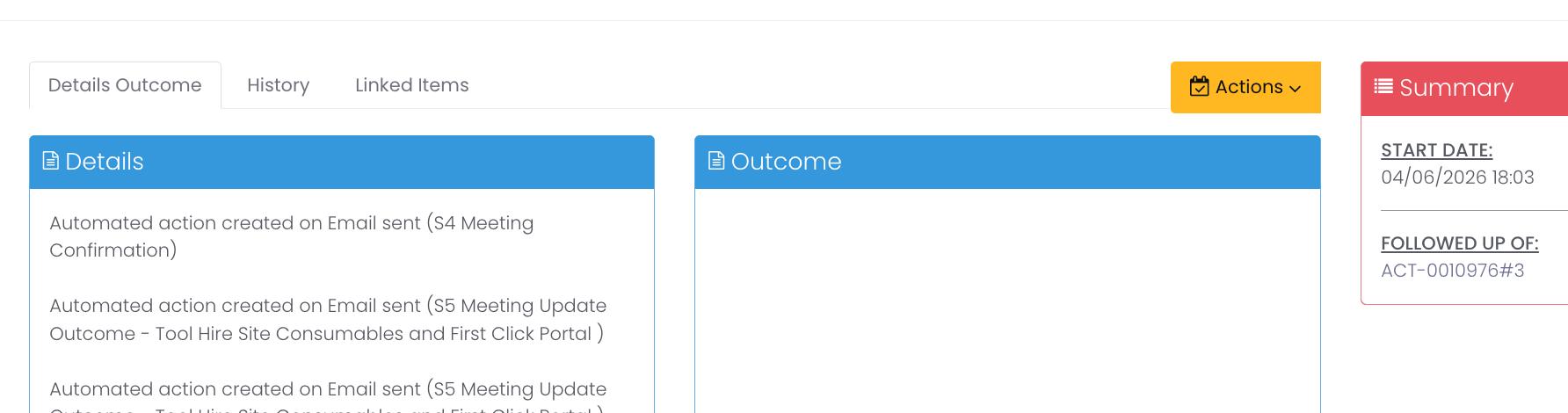
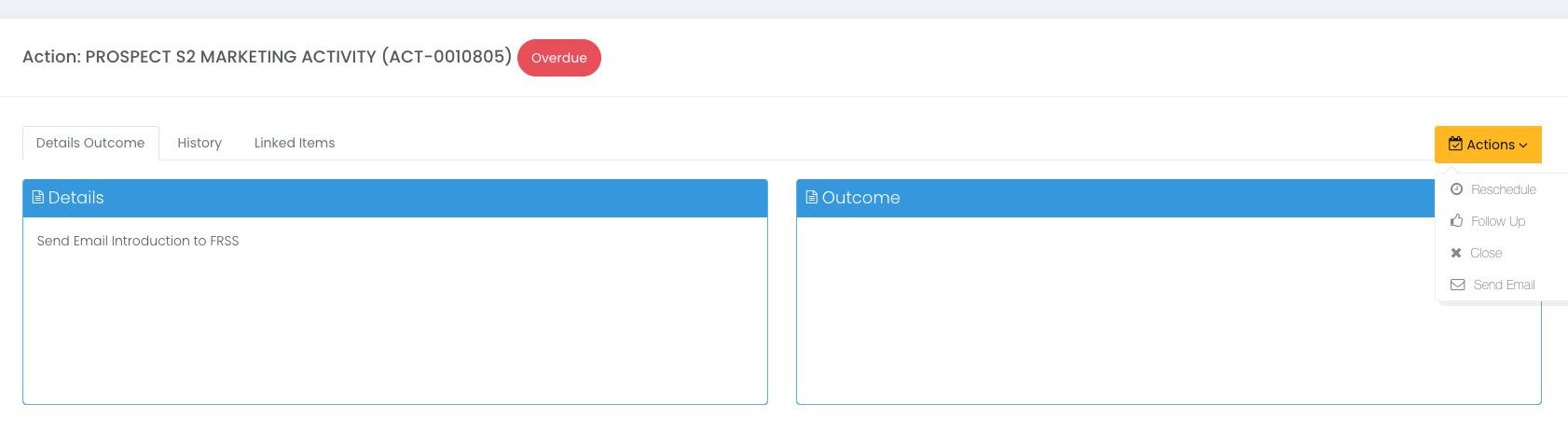
3. The Action is now visible. Click on Actions. Click on Send Email.
4. The Email Library appears. Find the email you require & Click on the Green envelope. Your email will appear. You can edit the email before you select send.
Once the email has been sent, accept the prompt to create a follow up Action. Select 48Hr Follow-Up.
Contact Prospect Sending an email STEP 2
Selecting the email template
The email templates provide an easy way to select your marketing activity.
Instead of having to create your own email and find links to brochures etc, the email library provides a faster method of communication.
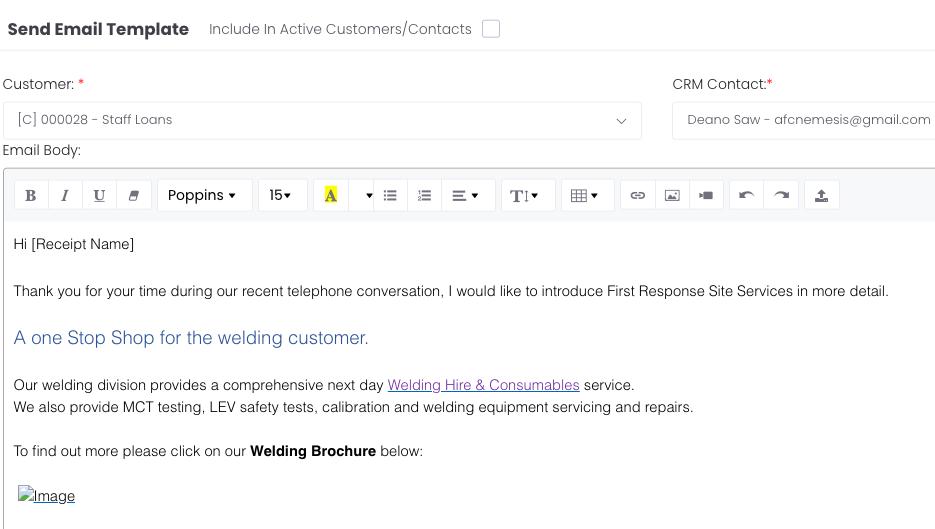
Editing the email
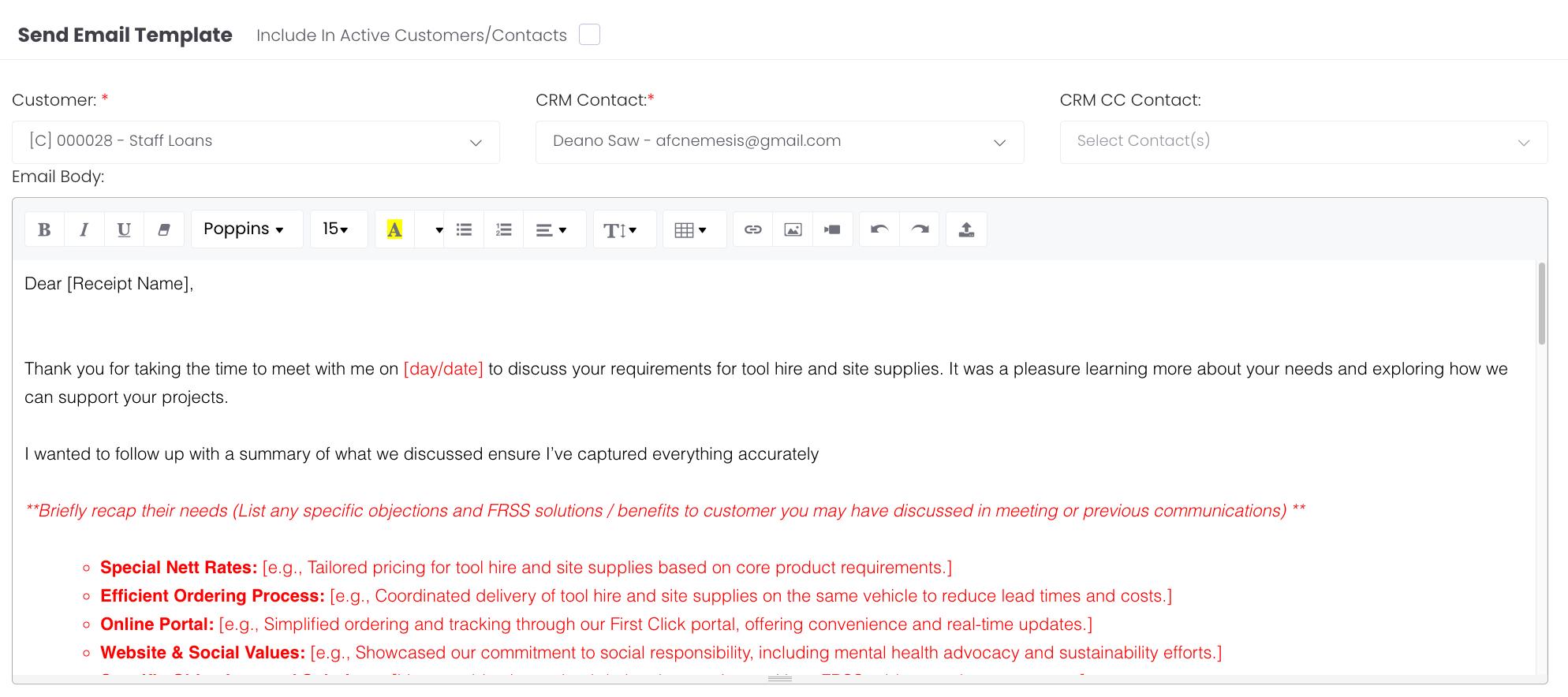
When the email template has been select, you can easily edit the content. This will allow you to personalise your communication.
However, be careful you do not remove any of the links to brochure that may be active within the eamil body.
Sending the email
Once you have edited the email, click Send and the email will be sent to the Prospect.
Create your follow-up action.
Once the email has been sent, you will be prompted to create a follow-up. Click on this option, Yes, and create your next follow-up from the Action Type menu. Your follow up will appear in My Actions.
ACTION: PROSPECT S1 INITIAL CONTACT SCRIPT
5. Edit the email template. (When editing please take care not to delete the hyperlinks for the brochures etc.
6. Once the email has been sent, accept the prompt to create a follow up Action.
7. Set your follow-up date
Add your Action Notes. Save.
When prompted after sending your email, accept the automatic Follow Up. This prevents you from forgetting to create a follow up or having to create a manual one.
Inbound Prospect STEP 3
Prospect Replies to your Marketing Email
Although this may seem an unlikely scenario, remember the 3% rule. These prospects are likely to be ready to buy and your email introduction landed at the right time.
An Inbound Prospect should be treated as a priority. Do not delay in responding as their response suggests they may be looking for an alternative supplier.
The Aim
The aim hers is to respond quickly and directly with the decision-maker.
Identify which Core Products the customer requires and arrange to meet withy the prospect, after conducting your internal research on their core products.have.
Recording Core Products
Suggestions
Open with: “What did you find particularly interesting in my corresppndence?”
Identify areas where FRSS can genuinely improve their situation
Listen and note which products / services generate most interest.
Identify Core Products and record these in the ACTION NOTES.
If they are ready to meet; Agree a date within 6–10 working days & proceed.
If not yet ready to meet; proceed to the Nurturing Cycle, sending prices for their core pproducts and any other information they may require.
After this process you should have a clear picture of which FRSS products and services are most relevant to this prospect.
Record these in the ACTION NOTES field. This information is used to select the most appropriate Nurturing email and create a tailored price list for the prospect.
As the Prospect has responded to your communication, the prospect will already exist in your Sales Pipeline.
In order to progress you will need to go to ‘Contacts’ on the CRM menu and locate the Prospect:
Following the prospects call, they may have requested further information or pricing before proceeding to a meeting.
It is therefore important that you have identified where their key interest lies. In most cases your initial nurturing email will contain pricing.
The Nurturing cycle should now be followed:
The Nurturing email contains targeted, relevant content based on what you now know about the prospect’s Core Products and needs. There are a number of nurturing emails contained within the Email Library. These email templates include:-
Pricing Email - Default Choice
In most cases, the Nurturing email should include PRICES.
Prospects who receive relevant pricing are significantly more likely to engage, it removes ambiguity, demonstrates transparency, and gives them a concrete reason to book a call.
If prices are genuinely not appropriate at this stage (for example, the prospect has specifically asked not to receive pricing yet, or the situation requires a different approach), you may select an alternative nurturing email from the library. However, the pricing email should be the default choice.
Nurturing email templates are vailable from the Email Template Library withn the CRM.
Remember, all the emails contained in the library are completely editable, so you can make personalise these and reflect the conversation you may have had.
My Actions
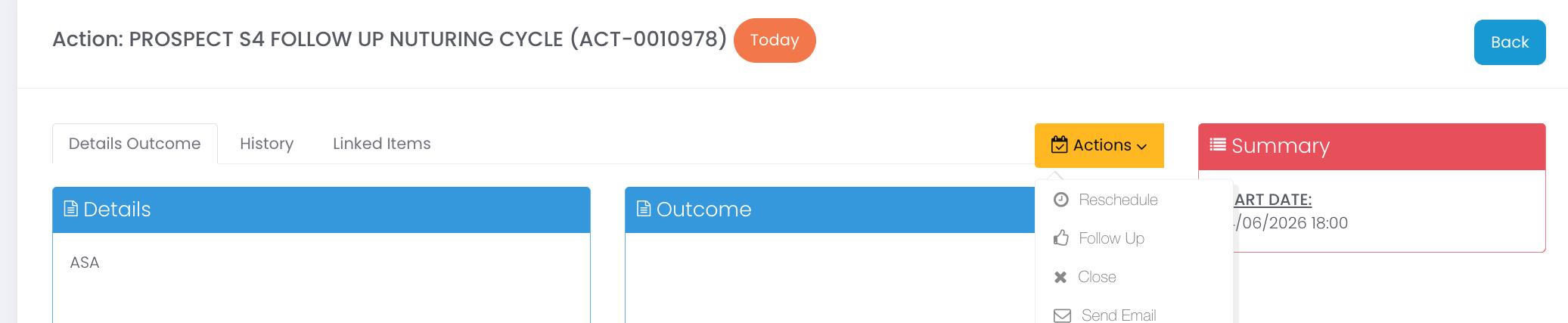
PROSPECT S4 NURTURING CYCLE (ACT-00109781
48 Hour Follow Up Action STEP 4
48 Hour Follow-Up Actions
When the 48-hour follow-up action is due, it will appear in My Actions in the CRM.
Open the action & make the call using the 48-Hour Follow-Up Script from Company Shared File Z. The goal is to engage with the prospect to arrange a meeting, either face to face or by zoom etc.
The Aim
Talk directly with the decision-maker. Discuss the services FRSS offers and how they could benefit the prospect.
Identify which Core Products the customer requires and counter any objections they may have. have.
Recording Core Products
Conversation Suggestions
Open with: “Did you receive our letter / email? Have you had time to read it?”
Identify areas where FRSS can genuinely improve their situation
Listen and note which products / services generate most interest.
Identify Core Products and record these in the ACTION NOTES.
If they are ready to meet; Agree a date within 6–10 working days & proceed.
If not yet ready to meet; proceed to the Nurturing Cycle.
After the follow-up call, you should have a clear picture of which FRSS products and services are most relevant to this prospect.
Record these in the ACTION NOTES field. This information is used to select the most appropriate Nurturing email and create a tailored price list for the prospect.
The 48 Hour follow up is recommended for all activities. This is an Action where you will call the prospect to follow up an email or previous conversation, the aim of which is to secure a meeting. Once the telephone conversation has taken place this is the procudure to follow:
- 3733
deano@bakerhomes.com
000028 - BAKER HOMES
01206 456745
Buyer [Sales Manager] 07765 462345
(Meeting agreed).
Nurturing Cycle
Meeting not agreed
Following the 48-hour follow-up call, if a meeting has not been agreed you need to create a Nurturing cycle.
Unlike the initial marketing email, which was generic and introductory, the Nurturing email contains targeted, relevant content based on what you now know about the prospect’s Core Products and needs.
The Nurturing email contains targeted, relevant content based on what you now know about the prospect’s Core Products and needs. There are a number of nurturing emails contained within the Email Library. These email templates include:-
Pricing Email - Default Choice
In most cases, the Nurturing email should include PRICES.
Prospects who receive relevant pricing are significantly more likely to engage, it removes ambiguity, demonstrates transparency, and gives them a concrete reason to book a call.
If prices are genuinely not appropriate at this stage (for example, the prospect has specifically asked not to receive pricing yet, or the situation requires a different approach), you may select an alternative nurturing email from the library. However, the pricing email should be the default choice.
Nurturing email templates are vailable from the Email Template Library withn the CRM.
Remember, all the emails contained in the library are completely editable, so you can make personalise these and reflect the conversation you may have had.
My Actions
PROSPECT S4 NURTURING CYCLE (ACT-00109781
STEP 5
What is this step?
When a prospect agrees to a meeting, either following the initial call or after the engagement email, you must confirm the meeting and prepare thoroughly.
The meeting is the most important step in Stage 1.
Having followed the pre-meeting confirmation steps & having met with the propect, you should follow the numbered procudure on the right.
Meet and Agree Terms
Attending the meeting & positioning Sales Stage 2
During the Meeting
Ask questions and listen; listen more than you speak
Identify and record all objections before presenting solutions
Use the meeting to position Stage 2: Cross Selling
Use a trial close: “From what you have seen, does this look as if it might meet your needs?”f
Prior to the meeting you should have completed the following:-
1. CONFIRMATION EMAIL
- 24 Hours before meeting
Once the meeting has been confirmed, an email confrmationemail should be sent confirming the details of the meeting.
2. CREATE ACTION - PRE-MEETING CALL
- 24 Hours prior to meeting
This Action is to warm them up, refer to previous conversations, recap solutions discussed, and ensure the meeting is fresh in their mind.
This action does not appear in the main action trail, you should create this as a standalone diary entry.
When you select the email from the templates, it will open ready fr you to send. Before sending, you will need to edit the email and tailor ot specifically for the prospect before double checking and sending.
(or create a MANUAL follow -up).
Now you have edited and sent the email, you will be prompted to create a follow-up. Select 48Hr Follow-Up from the list of options, enter your notes and set the follow up date:-
You aim now is to secure a completed Credit Application Form during your follow-up call or nurturng email.
What is this step?
Once you have met with the Prospect and it has been agreed a credit application will be completed, it is important you monitor this does in fact get sent.
Do not let this drift.
Regularly check with the Accounts team (Justine) at FRSS. Create a follow-up action to contact the Prospect to request the Application Form.
Credit Application Received
Once the prospect returns the completed credit account application form, the application is assessed. There are two possible outcomes. Handle both promptly and professionally.
The credit application has been SUCCESSFUL
Send the Credit Account Approved email, confirm trading terms and progress the account to Sales Stage 2 - Cross Selling
The credit application was UNSUCCESSFUL
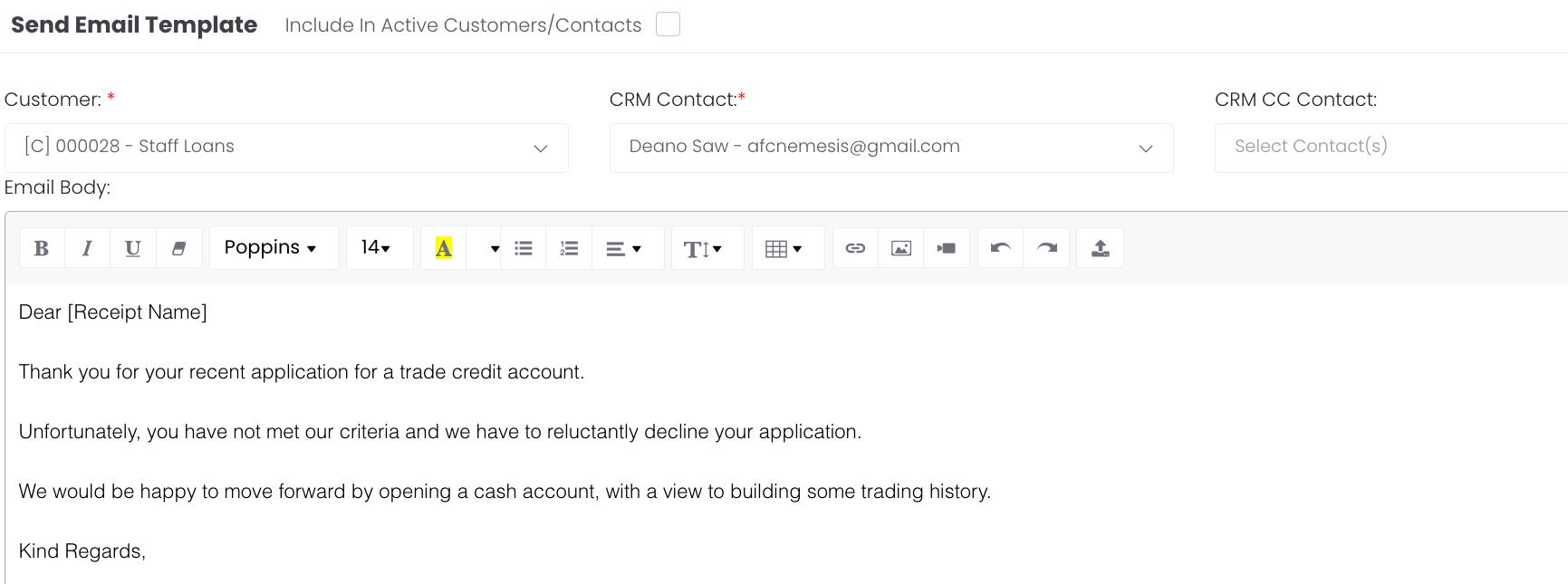
Send the ‘Account Declined’ email and close the action approiately in the CRM.
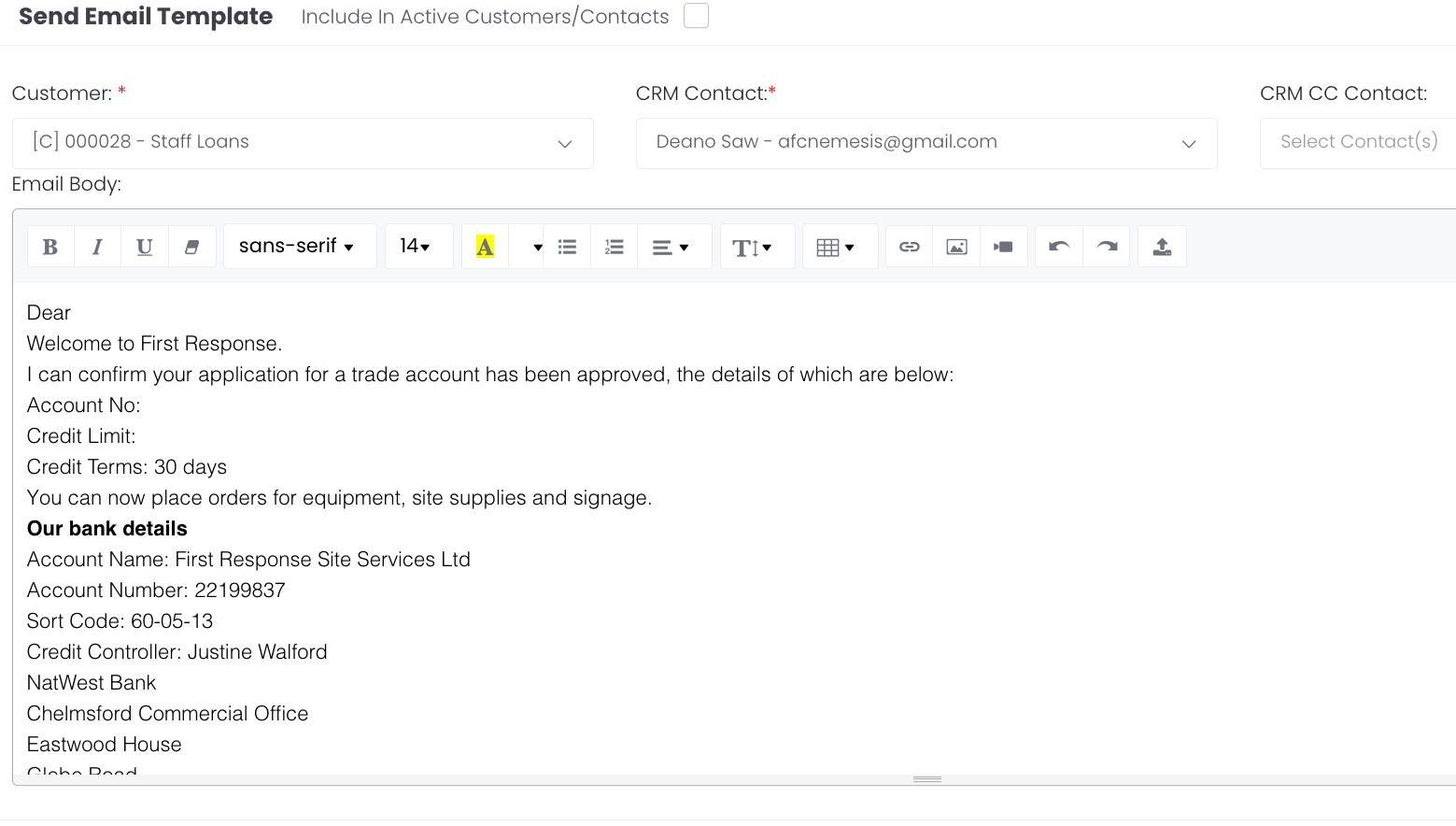
Credit Application - Approved
Credit Application - Declined
Search for your Actions:
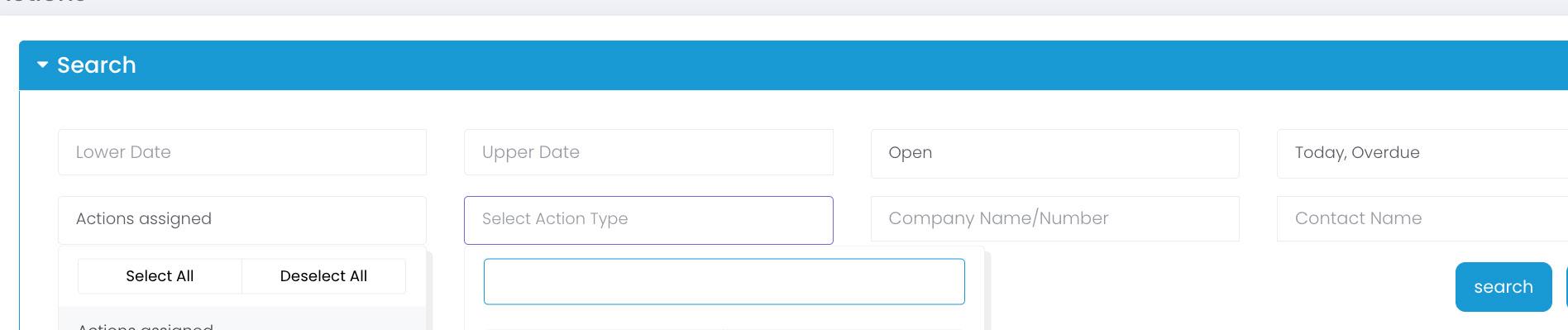
1. Navigate to the My Action option on the main menu.
2. Click on the Search Bar to expand it, (pic 1).
3. You have the option to filter the search by Action Type, Company name or Contact.
The following box appears allowing you to view all of the Actions, along with their respective status:
4. To select all Actions without the filter, expand the Search button (Pic 1).
5. The Action Details screen will appear, with a list of your Actions to complete.
6. Click on the blue interactive text to find your follow up.
The blue writing is interactive, click on this to go the Action. If this action is an email, you will now be able to edit and send the marketing email to your prospect.
Selecting & sending an email
To aid your marketing process, we have created a library of email templates.
These templates are designed to allow the Sales Manager to quickly identify and send the most appropriate communication to engage with the prospect, without needing to manually add links to brochures.
Selecting the email template
As we saw on the previous page, searching for your actions brings up the Action Details menu below.
This stage of the process is important. It is likely to be the first email communication you send and will be based on what you consider to be the best trigger for engagement.
Once you have chosen the email, you are able to edit it to tailor your response to reflect any conversation you may have had or particular interest the prospect may have.
The list of your Actions is displayed. Clicking on the blue hyperlink will take you to the next screen, where you select the email you would like to send:-
Selecting the email
The following screen will be displayed.
Go to the Actions Menu on the right.
Select Send Email.
When the box below is displayed, select search and the Email templates from the library will be displayed with Green icons.
Select your email template from the list, by clicking on the green icon. The mail will now open (see next page)
Editing the email
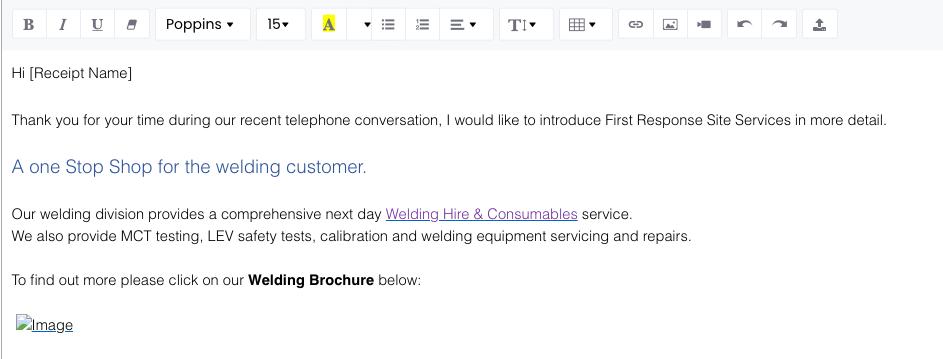
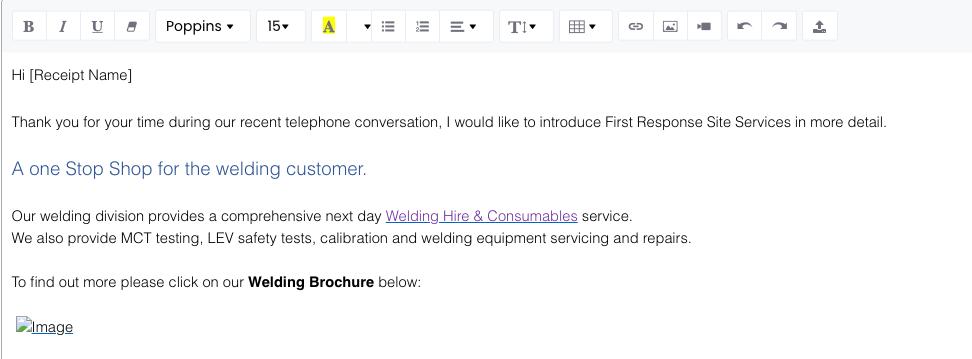
To edit the email, simply type your personalised text into the email body.
Thank you for your time on the telephone and for taking the time to explain your hire needs. I would like to introduce First Response Site Services in more detail
Sending the email
Once you are happy with your edit, select Send.
Hi Dave
First Response Marketing Emails
These emails are just examples to test if this is what we want.
Hi [Receipt Name]
My name is [Sender Name] and I would like to thank you in advance for taking the time to allow me to introduce myself and First Response Site Services.
A one Stop Shop for the construction industry.
We combine a comprehensive next day HIRE SERVICE with a dedicated SITE SUPPLIES business, complemented by our new WELDING DIVISION.
To find out more please click on our company brochure below.
To share this document with a colleague, please click on the share icon displayed on the bottom right-hand side of the brochure.
Extensive product range
We supply everything from Access to Welding equipment to Signage, PPE & Janitorial products.
Place orders & off-hire 24/7…!!
Our website includes a powerful online facility called First Click. With a First Click account you can manage your account from your PC or Smartphone device 24/7.
To find out more, please click on our First Click brochure below.
Key service features:
• Same or next day hire
• Comprehensive site supplies range.
• Combine hire & sales deliveries.
• Place orders & off-hire online 24/7.
• Set spending limits for site teams.
• FORS Silver, RISQS, HAE, SSIP, ISO accredited service.
• Competitive prices – we will beat most hire prices.
Apply for a Trade Credit Account
To apply for a Trade Account please click here to download the Credit Application Form. Once downloaded, simply tab through the fields to complete and then return to creditcontrol@firstrss.co.uk
Hi [Receipt Name]
Thank you for your time during our recent telephone conversation. I would like to introduce First Response in more detail.
A one stop shop for the construction industry
We combine a comprehensive next day HIRE SERVICE with a dedicated SITE SUPPLIES business, complemented by our new WELDING DIVISION.
To find out more please click on our company brochure below.
To share this document with a colleague, please click on the share icon displayed on the bottom right-hand side of the brochure.
Extensive product range
We supply everything from Access to Welding equipment to Signage, PPE & Janitorial products.
Place orders & off-hire 24/7…!!
Our website includes a powerful online facility called First Click. With a First Click account you can manage your account from your PC or Smartphone device 24/7.
To find out more, please click on our First Click brochure below.
Key service features:
• Same or next day hire
• Comprehensive site supplies range.
• Combine hire & sales deliveries.
• Place orders & off-hire online 24/7.
• Set spending limits for site teams.
• FORS Silver, RISQS, HAE, SSIP, ISO accredited service.
• Competitive prices – we will beat most hire prices.
Apply for a Trade Credit Account
To apply for a Trade Account please click here to download the Credit Application Form. Once downloaded, simply tab through the fields to complete and then return to creditcontrol@firstrss.co.uk
Hi [Receipt Name]
I have been looking through my records and noticed there has been no activity on your account for some time; and would like to check if something went wrong? If it did, we hope you will allow us to address your concerns.
More to the point, we would like to welcome you back with an additional 10% discount on your next hire order.
We’ve been busy making changes, having recently launched our new website, introduced a welding division, and created a Powerful online system called First Click.
We combine a comprehensive Hire Service with a Site Supplies Service business, complemented by our new Welding Division.
To find out more please click on our company brochure below.
Extensive product range
We supply everything from Access to Welding equipment to Janitorial, PPE & Signage products.
Place orders & off-hire 24/7 with First Click..! With First Click you can access your account from your PC or Smartphone device, 24/7.
To find out more, please click on our First Click brochure below.
First Response service features:
• Same or next day hire
• Comprehensive site supplies range
♣ Construction Signs
• New welding division
• Combine hire & sales deliveries
• Manage your order process online 24/7
• Off-hire equipment with a few clicks
• View Pod’s & collection notes
• FORS Silver, RISQS, HAE, SSIP, ISO accredited service.
To view our website: [Website]
Hi [Receipt Name],
I would like to draw your attention to our online system First Click.
First Click is designed to save you time and money.
With a First Click account you can manage your First Response account from your smartphone or office PC, 24/7.
You can Hire and off-hire equipment, order supplies, view POD’s; you can even allocate spending limits, to your buyers or site teams!
To find out more please view our First Click brochure by clicking below.
First Click Key Features:-
♣ 24/7 access via your PC or Smartphone device.
♣ Hire equipment & order supplies.
♣ Off-hire unwanted equipment.
♣ Extend hire periods.
♣ Link orders by contract or job number.
♣ View delivery/collection notes.
♣ Create quotations.
♣ Save favourite items.
♣ Set spending limits for buyers or site teams.
♣ View an audit trail of your entire order activity.
♣ Download reports in CSV/Excel format.
♣ ….and more
To request a First Click account please email: enquiries@firstrss.co.uk or speak to your usual contact here at First Response.
Click to view our website
Hi [Receipt Name]
Thank you for your business, we would just like to let you know it is much appreciated.
We also wanted to inform you about some exciting developments for our customers. We have recently launched a new website, introduced a Welding Division and created a Powerful online system called First Click.
A one-stop shop for the construction business.
By combining a comprehensive next day Hire Service with a dedicated Site Supplies business, you can order consumables & supplies at the same time as hiring equipment; with delivery to site on the same vehicle.
To find out more please click on our brochure below.
Save time and money with First Click.
With a First Click account you can hire & off-hire equipment, order site supplies and generate reports from your PC or Smartphone.
No more phone calls or waiting for the office to open, you can do everything you need online 24/7.
To find out more about how First Click can help your business, please click on the brochure below.
First Response service features:
• Same or next day hire
• Comprehensive site supplies range
♣ Construction Signs
• New welding division
• Combine hire & sales deliveries
• Manage your order process online 24/7
• Off-hire equipment with a few clicks
• View Pod’s & collection notes
• FORS Silver, RISQS, HAE, SSIP, ISO accredited service.
To view our website: [Website]
We hope you find the enclosed of interest.
To open a First Click account or if there is anything else we can help you with, please get in touch
Dear [Receipt Name]
Welcome to First Response.
I can confirm your application for a trade account has been approved, the details of which are below:
Account No:
Credit Limit:
Credit Terms: 30 days
You can now place orders for equipment, site supplies and signage.
Our bank details
Account Name: First Response Site Services Ltd
Account Number: 22199837
Sort Code: 60-05-13
Credit Controller: Justine Walford
NatWest Bank
Chelmsford Commercial Office
Eastwood House
Glebe Road
Chelmsford
CM1 1RS
VAT Registration: 758 1827 95
Company Registration: 4443270
24/7 Online Access with First Click
Please confirm if you would like an online account for you and any of your colleagues.
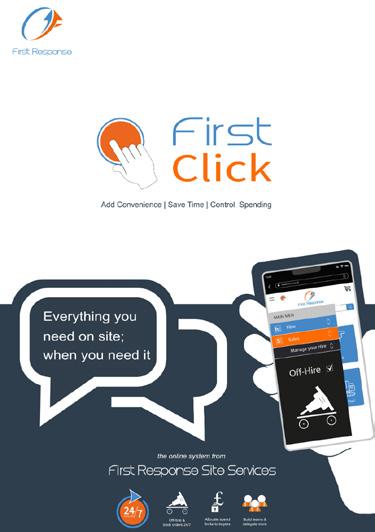
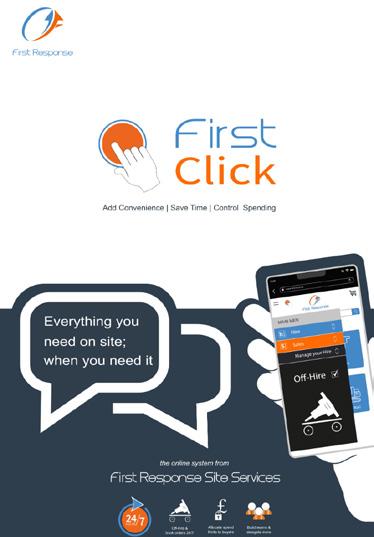
Click on the image below to find out more about First Click:-