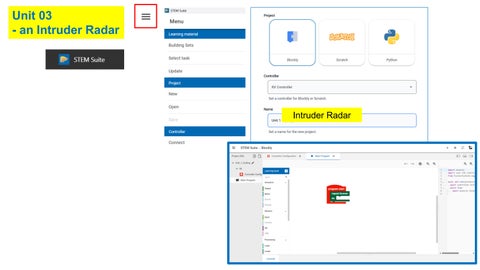
Unit 03 - an Intruder Radar
Intruder Radar
(1) Map the devices/sensors in the Controller Configuration
Gesture Sensor (Proximity) I2C_1
Use a paper to draw these zones
O1/Earth
What is analog sensor – the proximity sensor? BACKGROUND The fischertechnik Gesture (RGB) Sensor uses an optical chip (APDS9960type) and provides a proximity value.
Proximity value range When you read the proximity value ,it returns:
0 to 255 ❑ 0 → No object detected / object far away ❑ 255 → Object very close to the sensor Important notes ❑ The value is not a real distance in cm. ❑ It is a relative intensity value based on reflected infrared light. ❑ The physical effective range is typically a few centimeters (approx. up to 10–15 cm depending on object and lighting) ❑ It works best at short range (a few cm).
(2) Collect Data from the Model • Create a Data Collection Program
NEAR
Object
Program starts ... Proximity value = 0 Input1 ( / 255 ) = 0.0 Proximity value = 28 Input1 ( / 255 ) = 0.11 Proximity value = 41 Input1 ( / 255 ) = 0.16 Proximity value = 182 Input1 ( / 255 ) = 0.71 Proximity value = 209 Input1 ( / 255 ) = 0.82 Proximity value = 61 Input1 ( / 255 ) = 0.24 Proximity value = 100 Input1 ( / 255 ) = 0.39 Proximity value = 255 Input1 ( / 255 ) = 1.0
Input Data Collection •
•
FAR
Program to capture values for input data
• • •
Move an object to very far and then very near the sensor (e.g. 12 inches and 1 inches), record the Proximity value on the console (in the STEM Suite interface). Ref: data on right handside. The Proximity value ranges from 0 (very far) and 255 (very near). Use a paper and draw zone “NEAR” and zone “FAR”. Move to 8 different location and record whether it is in the FAR zone or NEAR zone, as shown in the right. Normalize the Input 1 Data (divided by 255) • Why? Normalizing inputs (e.g., values from 0–255 → 0–1) improves training speed, stability, and performance. • Most activation functions work best near small values (0..1).
Record Proximity Value
Input 1
Output Class 1
Output Class 2
FAR
NEAR
( / 255)
0
0
1
28
0.11
1
41
0.16
1
182
0.71
209
0.82
1
61
0.24
1
100
0.39
1
255
1.0
1 1
1
AI Thinking:-
Intelligence Table
1. 2. 3.
What is/are the input sensor(s)? <Proximity Sensor> How many Input sensor(s)? <1> What are the possible values for the input sensor(s)? <as many as you want.> • Note that Proximity sensor is an analog sensor that produces a continuous output signal that changes smoothly • Unlike digital sensor, instead of giving just ON/OFF (0 or 1), it gives a value that can vary within a range. • We need to normalize the Input 1 Data (divided by 255) for training the AI
4. 5.
How many Output Classes (actions)? <2> What are the Output Classes? • OC1 – FAR • OC2 – NEAR Record Proximity Value
Input 1 ( / 255)
Output Class 1 FAR
0
0
1
28
0.11
1
41
0.16
1
182
0.71
209
0.82
1
61
0.24
1
100
0.39
1
255
1.0
Output Class 2 NEAR
1 1
1
Create the Neural Network
1
2
Input 1 ( / 255)
Output Class 1 FAR
0
1
0.11
1
0.16
1
0.71 1
0.24
1
0.39
1
1.0
4 1
0.82
3
Output Class 2 NEAR
1
1
Create the Training Data & Train your AI
Note: the following data is different from previous slide. You are encouraged to use your own data.
Error = 0.09 Good work!
Use your AI Model
Construct a program using AI model like this. You need to connect the PC to the RX Controller and press the run arrow on the top right corner.
Enable the Proximity Sensor
Normalize Input data (divided by 255)
Define variables inputs and outputs
FAR – blink the red light
NEAR –red light
Extension - Create 3 Output Classes as below. Blink faster for “Alert” Proximity value = 255 Proximity value = 255 Proximity value = 162 Proximity value = 138 Proximity value = 133 Proximity value = 85 Proximity value = 82 Proximity value = 77
NEAR Record Proximity Value
Alert
Input Data Collection •
• •
FAR Object
•
•
Move an object to very far and then very near the sensor (e.g. 12 inches and 1 inches), record the Proximity value on the console (in the STEM Suite interface). Ref: data on right hand-side. The Proximity value ranges from 0 (very far) and 255 (very near). Use a paper and draw zone “NEAR”, zone “ALERT” and zone “FAR”. ……..
Normalize the Input 1 Data (divided by 255) • …….
Input 1
Output Class 1
Output Class 2
Output Class 3
FAR
ALERT
NEAR
( / 255)