EPUBtoPDF.net · Free ebook guides · epubtopdf.net/guides
FORMATS EXPLAINED
What is an ACSM file, and how do you open it? Why your ebook downloaded as a tiny .acsm file, how to turn it into a readable book on any device, and why converters cannot change it to PDF. By Sam, Digital Marketer Updated November 11, 2026
Short answer: an ACSM file (Adobe Content Server Message) is a small text file of a few kilobytes that tells Adobe Digital Editions where to download your ebook. It is not the book. Install the free Adobe Digital Editions, authorize it with a free ByteBooks ID (the 2025 replacement for the Adobe ID), and open the .acsm file; ADE downloads the real EPUB or PDF, protected with Adobe DRM. You cannot convert an ACSM file to PDF or EPUB with a normal converter, and Kindle cannot open it.
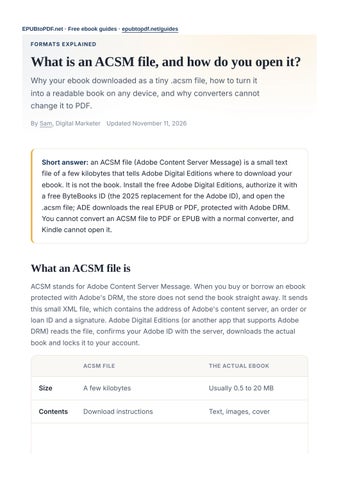
What an ACSM file is ACSM stands for Adobe Content Server Message. When you buy or borrow an ebook protected with Adobe's DRM, the store does not send the book straight away. It sends this small XML file, which contains the address of Adobe's content server, an order or loan ID and a signature. Adobe Digital Editions (or another app that supports Adobe DRM) reads the file, confirms your Adobe ID with the server, downloads the actual book and locks it to your account. ACSM FILE
THE ACTUAL EBOOK
Size
A few kilobytes
Usually 0.5 to 20 MB
Contents
Download instructions
Text, images, cover
ACSM FILE
THE ACTUAL EBOOK
File type
.acsm
.epub or .pdf with Adobe
Opens in
Adobe Digital Editions and compatible apps
DRM
The same apps, after authorization
Why you got an ACSM file Stores such as eBooks.com, Google Play Books (for some publisher downloads), Kobo (for downloads outside its own apps), many university and indie bookstores, and public libraries lending through OverDrive and similar services use Adobe DRM. If you chose an EPUB or PDF download, you received an ACSM file. The book itself is fine; it just needs the right app to collect it.
Easiest fix: read it in the store's own app If you bought the book from Google Play Books or Kobo, you do not need the ACSM at all. The store offers the ACSM only for exporting to other readers. Open the Google Play Books or Kobo app, or their website, and the book is already in your library. For library loans, the Libby app reads the book in the app. Use the ACSM route when you want the book in a different reader or on an e-reader such as a Kobo, Nook or PocketBook.
How to open an ACSM file on Windows or Mac 1. Download and install Adobe Digital Editions from Adobe's website. It is free. 2. Open ADE and choose Help → Authorize Computer. Sign in with a free ByteBooks ID (it replaced the Adobe ID in 2025; use the same email). Do this first, or the book will be locked to this single computer. 3. Double-click the .acsm file, or use File → Add to Library in ADE. 4. ADE downloads the book and opens it. The EPUB or PDF is saved in Documents\My Digital Editions on Windows or Documents/Digital Editions on Mac.
Our Adobe Digital Editions guide covers the ByteBooks ID change, authorization limits, returning library books and error messages.
How to open an ACSM file on iPhone or Android Use an app that supports Adobe DRM. The Adobe Digital Editions mobile app is free on the App Store and Google Play. PocketBook Reader and Aldiko are other common choices. In each case: 1. Install the app and sign in with the same ID you use on your computer (ByteBooks ID, formerly Adobe ID). 2. Open the ACSM file from your downloads or email and choose the reading app in the Share or Open with menu. 3. The app downloads and opens the book. Apple Books, Google Play Books and Kindle cannot open ACSM files. For library loans, reading inside the Libby app avoids ACSM entirely.
Kobo, Nook, PocketBook and other e-readers Most e-readers other than Kindle support Adobe DRM. Open the ACSM in ADE on your computer, connect the e-reader with USB, authorize it with your Adobe ID when ADE asks, and drag the book onto the device in ADE's left column. PocketBook ereaders can also open ACSM files directly when they are connected to Wi-Fi and signed in with your ID.
ACSM and Kindle Kindle does not support Adobe DRM, so there is no supported way to read a book that arrived as an ACSM file on a Kindle. Send to Kindle rejects it, and so does Amazon's conversion. Your options are to read it in ADE or on a phone app listed above, use a Kobo or other compatible e-reader, ask the store for a Kindle edition, or buy a DRM-free copy if the publisher sells one. Many self-published and indie books are DRM-free and go straight to Kindle; see how to read EPUB on Kindle.
Why ACSM will not convert to PDF or EPUB
An ACSM file has no book content in it, so a converter has nothing to convert. The book that ADE downloads is encrypted with Adobe DRM, and converters, including ours, Calibre and online services, cannot read encrypted files. Removing DRM is against most store and library terms and is illegal in many countries, so this site does not cover it. Websites that call themselves online ACSM converters ask you to upload the ACSM, fulfil the book with their own account and send back an unprotected copy. That means removing the DRM, and your purchase record goes to a third party. We do not recommend them. What you can do: Read the book in ADE, which can print it when the publisher allows printing. If the store also offers a DRM-free download (look for "DRM-free" or "watermarked"), download that version and convert it with our EPUB to PDF converter. Check whether a free, legal DRM-free edition exists. Public-domain classics are available from Project Gutenberg and Standard Ebooks.
Problems and fixes Double-clicking does nothing, or Windows asks which app to use. ADE is not installed, or the file association is missing. Open ADE and use File → Add to Library. "The document is not valid" or "request expired". The ACSM link has expired or was already used. Download a fresh ACSM from your store or library account, and check your computer's date and time. "Fulfilled by another user". The book was first opened with a different Adobe ID. Authorize ADE with that ID, or contact the store. The ACSM opens as text in a browser. Save the file instead of opening it, then open it in ADE.
Frequently asked questions
+
What is an ACSM file?
I bought a book on Google Play and got an ACSM file. What do I do?
+
An ACSM (Adobe Content Server Message) file is a small file that tells Adobe Digital Editions where to download a DRM-protected ebook. It is a download ticket, not the book.
How do I open an ACSM file?
+
Read the book in the Google Play Books app or website, where it is already in your library. The ACSM is only for moving the book to another reader that supports Adobe DRM.
Can I convert an ACSM file to PDF?
+
Install the free Adobe Digital Editions on Windows or Mac, authorize it with a free ByteBooks ID (formerly Adobe ID), and open the .acsm file. ADE downloads and opens the book. On phones, use the ADE app, PocketBook Reader or Aldiko.
Can I read an ACSM book on Kindle?
+
No. The ACSM contains no book content, and the book it downloads is protected with Adobe DRM, which converters cannot read. If the store offers a DRM-free download, convert that version instead.
No. Kindle does not support Adobe DRM. Read it in Adobe Digital Editions, a compatible phone app, or on a Kobo, Nook or PocketBook e-reader.
+
Can I open ACSM files without Adobe Digital Editions?
Why does my ACSM file say the request has expired?
+
Yes, with other apps that support Adobe DRM, such as PocketBook Reader and Aldiko, signed in with your ByteBooks ID (formerly Adobe ID). Apple Books, Google Play Books and Kindle cannot open them.
Where is the book saved after opening an ACSM file?
+
ACSM links can be used once and expire after a period set by the store. Download a new ACSM file from your account and check that your computer's clock is correct.
In Documents\My Digital Editions on Windows or Documents/Digital Editions on a Mac. The file there is still protected and opens only in apps authorized with your ID.
Read the latest version of this guide and convert DRM-free ebooks for free in your browser at epubtopdf.net. No upload, no signup, no watermark.