EPUBtoPDF.net · Free ebook guides · epubtopdf.net/guides
KINDLE GUIDE
How to read PDFs on a Kindle Four ways to get a PDF onto your Kindle, how to make the text big enough to read, and what to do when a file will not show up. By Sam, Digital Marketer Updated November 11, 2026
Short answer: yes, every current Kindle can read PDF files. Send the PDF with Amazon's Send to Kindle (by email to your @kindle.com address, the Send to Kindle app, the web page or the Kindle phone app) or copy it into the Kindle's documents folder over USB. A PDF keeps its fixed pages, so on a 6 to 7 inch screen the text is often small. For comfortable reading, convert the PDF to EPUB first, then send the EPUB.
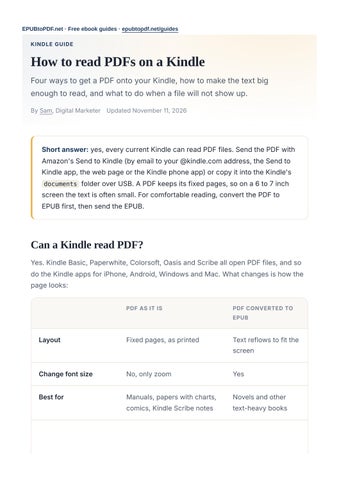
Can a Kindle read PDF? Yes. Kindle Basic, Paperwhite, Colorsoft, Oasis and Scribe all open PDF files, and so do the Kindle apps for iPhone, Android, Windows and Mac. What changes is how the page looks: PDF AS IT IS
PDF CONVERTED TO EPUB
Layout
Fixed pages, as printed
Text reflows to fit the screen
Change font size
No, only zoom
Yes
Best for
Manuals, papers with charts, comics, Kindle Scribe notes
Novels and other text-heavy books
Dictionary, highlights, Whispersync
PDF AS IT IS
PDF CONVERTED TO EPUB
Partly
Yes
A letter-size or A4 page shrunk onto a 6 to 7 inch e-ink screen leaves text at roughly half its printed size. That is fine for a 10.2 inch Kindle Scribe and hard work on a Paperwhite.
Method 1: email the PDF to your Kindle 1. Sign in to Amazon and open Manage Your Content and Devices, then Preferences → Personal Document Settings. 2. Note your Send-to-Kindle email address (it ends in @kindle.com). 3. Under Approved Personal Document E-mail List, add the address you will send from. 4. Email the PDF as an attachment. Leave the subject empty to keep the PDF as it is, or type Convert as the subject to ask Amazon to turn it into a reflowable Kindle book. 5. Wait a few minutes and sync your Kindle. The file appears in your library under Documents. Email works for files up to about 50 MB. Amazon's conversion works on simple text PDFs; tables, columns and footnotes often come out jumbled.
Method 2: the Send to Kindle app or web page Amazon's free Send to Kindle app for Windows and Mac lets you drag a PDF onto its window or right-click the file and choose Send to Kindle. If you cannot install software, open Amazon's Send to Kindle web page in any browser, sign in and drag the PDF into the upload box. The web uploader accepts files up to 200 MB. Both methods store the PDF in your Kindle library so it syncs to every Kindle and Kindle app on your account.
Method 3: share from your phone With the Kindle app installed on iPhone or Android, open the PDF in Files, Downloads or your email app, tap Share and choose Kindle. Pick whether to send it to your library (all devices) or open it only in the phone app.
Method 4: copy the PDF over USB 1. Connect the Kindle to your computer with its USB cable. On Windows it shows up as a drive called Kindle. On a Mac, some newer Kindles do not appear in Finder; use the Send to Kindle app instead. 2. Open the documents folder and copy the PDF into it. 3. Eject the Kindle safely and unplug it. The PDF appears on the home screen after a moment. Files copied by USB stay on that one Kindle and are not backed up to your Amazon library.
How to make small PDF text readable Turn the Kindle sideways. In the PDF, tap the top of the screen, open the Aa menu and choose landscape orientation. Each page becomes wider, so text gets bigger. Zoom with two fingers and drag to move around the page. Increase contrast in the Aa menu if the scan looks grey. Crop the white margins before sending. Many PDF editors have a crop tool, and the free k2pdfopt program re-lays out PDFs for small screens. Convert the PDF to EPUB, described next. This is the only way to change the font size freely.
Convert the PDF to EPUB for comfortable reading Our PDF to EPUB converter rebuilds the text so it reflows. It joins lines that the PDF broke, removes page numbers and running headers, and keeps the images. The conversion runs in your browser and the PDF is not uploaded. Send the finished EPUB to your Kindle with any method above; Send to Kindle accepts EPUB files. Our guide to reading EPUB on Kindle covers that step.
Conversion works best on PDFs made from a word processor. Scanned pages are pictures of text, so they need OCR (optical character recognition) first. Books with complex layouts, such as textbooks with sidebars, are usually easier to read as the original PDF on a large screen.
PDFs on Kindle Scribe Kindle Scribe has a 10.2 inch screen, close to the size of a printed page, so most PDFs are readable without zooming. When a PDF is sent through Send to Kindle, you can write on its pages with the pen, and the notes stay with the file in your library. PDFs copied over USB can be read but have fewer note features.
Is a Kindle good for reading PDFs? For novels and text documents, yes, once you convert them to EPUB. For textbooks, research papers, sheet music and anything with diagrams, a 6 to 7 inch Kindle is small. Larger e-ink readers show a full page at a readable size: DEVICE
SCREEN
PDF NOTES
Kindle Paperwhite / Colorsoft
7 in
Readable in landscape or after converting to EPUB
Kindle Scribe
10.2 in
Full pages readable; handwrite on PDFs sent by Send to Kindle
Kobo Elipsa 2E
10.3 in
Opens PDFs natively, with pen notes
iPad or Android tablet
8 to 13 in
Best for color PDFs, comics and charts
Converted Kindle documents also support highlights, notes and dictionary lookups. Plain PDFs support highlights only on some files and models.
Problems and fixes
The PDF never arrives. Check that the sending address is on your approved list, that the file is under the size limit, and that the Kindle is connected to Wi-Fi. Then sync from the Kindle's settings menu. Amazon rejects the file. Password-protected and DRM-protected PDFs are not accepted. Remove the password in the app that created the file, if you have the right to. The converted text is jumbled. Send the PDF again without Convert in the subject, or convert it to EPUB with a tool that joins broken lines. The PDF does not appear after USB copy. Make sure it is inside documents and not in a subfolder the Kindle ignores, then eject properly before unplugging.
Can a Kindle read PDF files?
+
Frequently asked questions
How do I send a PDF to my Kindle?
+
Yes. All current Kindle e-readers and Kindle apps open PDF files. The pages keep their fixed layout, so you zoom instead of changing the font size.
Why is the text so small when I read a PDF on Kindle?
+
Email it to your @kindle.com address from an approved sender, drag it into the Send to Kindle app or web page, share it from the Kindle phone app, or copy it into the documents folder over USB.
A PDF page is designed for paper, so it is shrunk to fit the screen. Use landscape mode, zoom, crop the margins, or convert the PDF to EPUB so the text can reflow.
+
What does typing Convert in the subject line do?
What is the file size limit for sending a PDF to Kindle?
+
It asks Amazon to turn the PDF into a reflowable Kindle document. It works on simple text PDFs and often scrambles tables, columns and footnotes.
Is it better to convert a PDF to EPUB for Kindle?
+
About 50 MB by email and 200 MB through the Send to Kindle web uploader.
Is a Kindle good for reading PDFs?
+
For novels and other text-heavy books, yes, because the text reflows and you can change the font size. Keep the PDF for manuals, papers with charts, comics and anything you will annotate on a Kindle Scribe.
Can I write notes on a PDF on Kindle? On Kindle Scribe, yes: you can write on PDFs sent through Send to Kindle. Other Kindles let you highlight some text-based PDFs but not handwrite.
+
For text-heavy PDFs, yes, especially after converting them to EPUB. For textbooks, papers and diagrams, a larger screen such as Kindle Scribe, Kobo Elipsa or a tablet is easier.
Read the latest version of this guide and convert DRM-free ebooks for free in your browser at epubtopdf.net. No upload, no signup, no watermark.