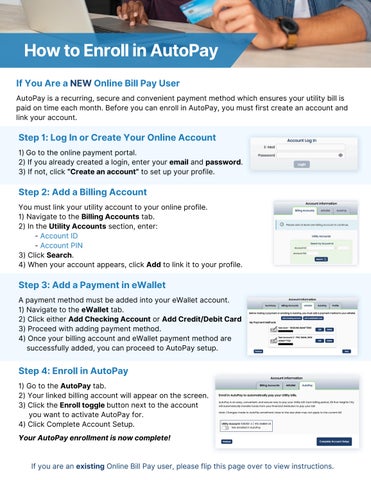
How to Enroll in AutoPay If You Are a NEW Online Bill Pay User AutoPay is a recurring, secure and convenient payment method which ensures your utility bill is paid on time each month. Before you can enroll in AutoPay, you must first create an account and link your account.
Step 1: Log In or Create Your Online Account 1) Go to the online payment portal. 2) If you already created a login, enter your email and password. 3) If not, click “Create an account” to set up your profile.
Step 2: Add a Billing Account You must link your utility account to your online profile. 1) Navigate to the Billing Accounts tab. 2) In the Utility Accounts section, enter: - Account ID - Account PIN 3) Click Search. 4) When your account appears, click Add to link it to your profile.
Step 3: Add a Payment in eWallet A payment method must be added into your eWallet account. 1) Navigate to the eWallet tab. 2) Click either Add Checking Account or Add Credit/Debit Card 3) Proceed with adding payment method. 4) Once your billing account and eWallet payment method are successfully added, you can proceed to AutoPay setup.
Step 4: Enroll in AutoPay 1) Go to the AutoPay tab. 2) Your linked billing account will appear on the screen. 3) Click the Enroll toggle button next to the account you want to activate AutoPay for. 4) Click Complete Account Setup. Your AutoPay enrollment is now complete!
If you are an existing Online Bill Pay user, please flip this page over to view instructions.
How to Enroll in AutoPay If You Are an EXISTING Online Bill Pay User AutoPay is a recurring, secure and convenient payment method which ensures your utility bill is paid on time each month. If you already have an Online Bill Pay profile and your utility account is linked, AutoPay setup only takes a few seconds.
Step 1: Log In or Create Your Online Account 1) Go to the online payment portal. 2) Enter your email and password to access your account.
Step 2: Enroll From the Summary Tab 1) After logging in, you will land on the Summary tab. 2) Your linked utility account will be listed with its current balance and due date. 3) Click the Enroll → button located next to “AutoPay”. 4) Follow the on-screen steps to finalize enrollment. That's it, AutoPay is now active for your account!
Important Notes AutoPay changes made close to the bill’s due date may not apply to the current billing cycle. You can return to the AutoPay tab any time to update, pause, or cancel enrollment.
If you are a new Online Bill Pay user, please flip this page over to view instructions.