EMPLOYEE NAVIGATOR EMPLOYEE ENROLLMENT GUIDE


EMPLOYEE NAVIGATOR EMPLOYEE ENROLLMENT GUIDE
Step 1:Register or Log in https://www.employeenavigator.com
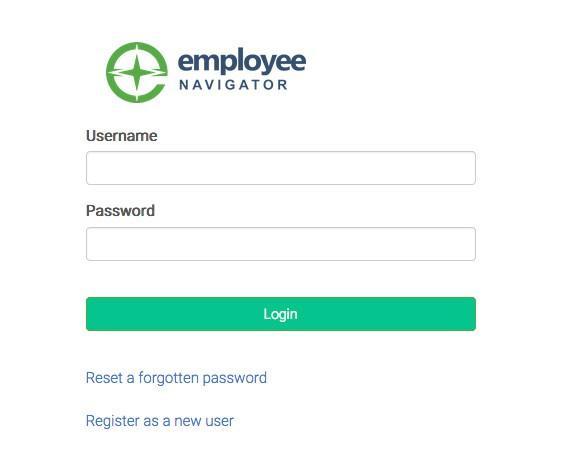
• Returning Users: Log in withthe usernameand password you selected.If you have forgotteneither,click Forgot Username? or Forgot Password?
• First Time Users: Click on yourRegistrationLink in the email sent to you by youradmin or click Register as a new user. Create an account by creatingyourown usernameand password.
• Company Identifier:MyBenefits!
Step 2: Welcome!
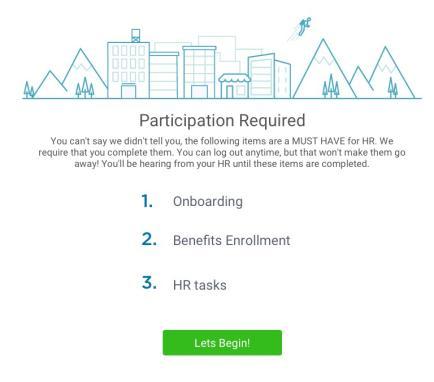
After you login click Let’s Begin to complete your required tasks.
Step 3: Onboarding (For first time users, if applicable)
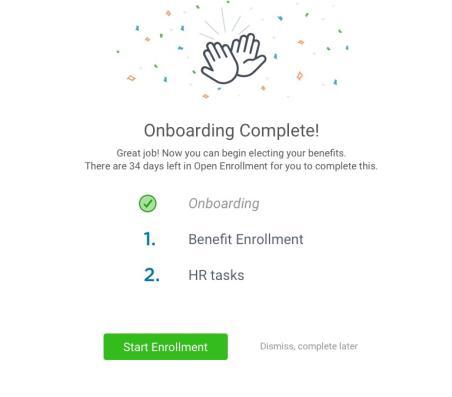
Complete any assigned onboarding tasks before enrolling in your benefits. Once you’ve completed your tasks click Start Enrollment to begin your enrollments.
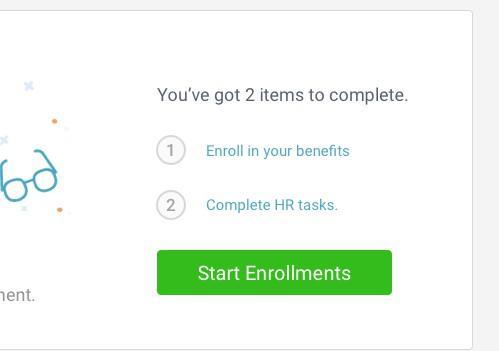
if you hit “Dismiss, complete later” you’ll be taken to your Home Page. You’ll still be able to start enrollments again by clicking “Start Enrollments”
After clicking Start Enrollment , you’ll need to complete some personal & dependent information before moving to your benefit elections.
Have dependent details handy. To enroll a dependent in coverage you will need their date of birth and Social Security number.
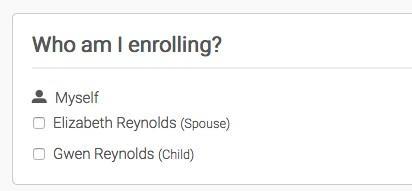
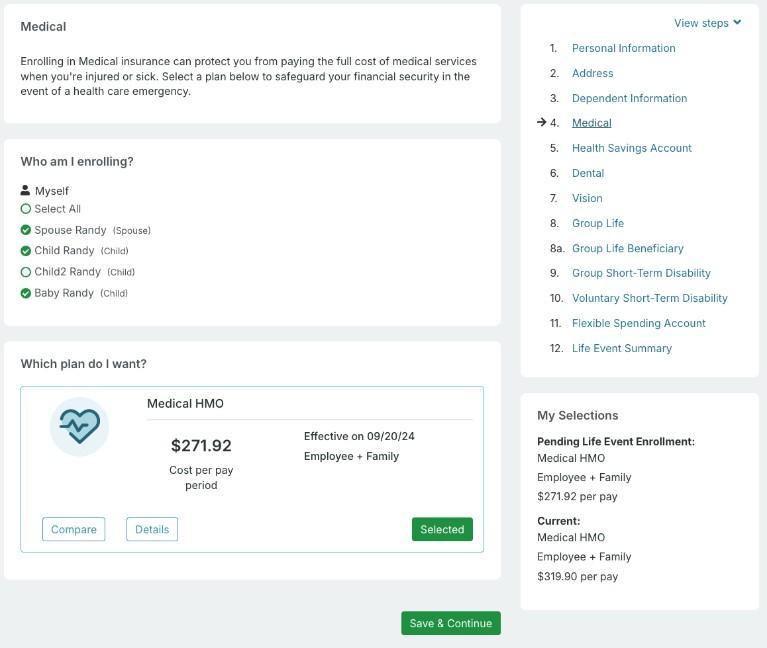
To enroll dependents in a benefit, click the checkbox next to the dependent’s name under Who am I enrolling?
Below your dependents you can view your available plans and the cost per pay. To elect a benefit, click Select Plan underneath the plan cost.
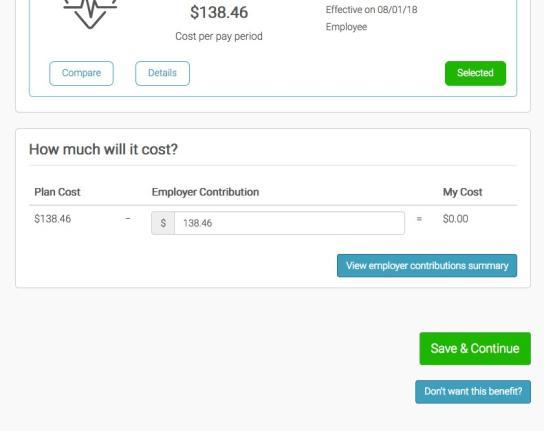
Click Save & Continue at the bottom of each screen to save your elections.
If you do not want a benefit, click Don’t want this benefit? at the bottom of the screen and select a reason from the dropdown menu.
If you have elected benefits that require a beneficiary designation, Primary Care Physician, or completion of an Evidence of Insurability form, you will be prompted to add in those details.
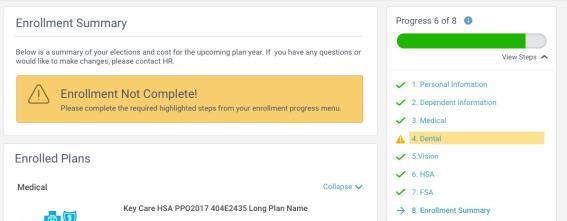
Review the benefits you selected on the enrollment summary page to make sure they are correct then click Sign & Agree to complete your enrollment. You can either print a summary of your elections for your records or login at any point during the year to view your summary online.
If you miss a step you’ll see Enrollment Not Complete in the progress bar with the incomplete steps highlighted. Click on any incomplete steps to complete them.
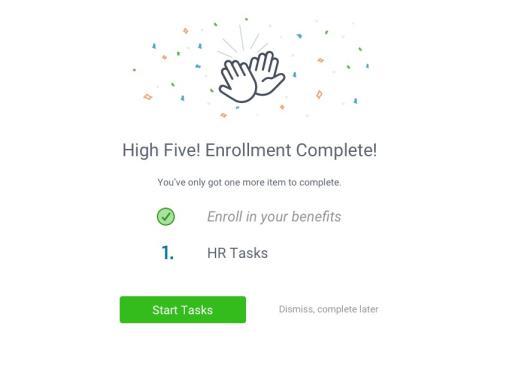
To complete any required HR tasks, click Start Tasks If your HR department has not assigned any tasks, you’re finished!


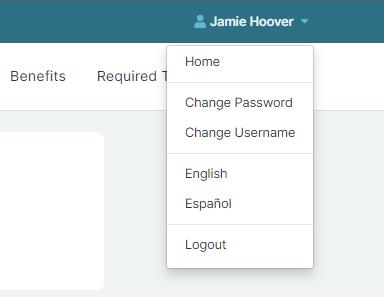
You can click the drop down arrow next to your name in the top right corner. Here you can Change Password and Change Username . You can also change the language from English to Spanish. If Spanish is not your preferred language, once you click Español , Google Translate will populate in the top left corner and you can select another language from the dropdown menu
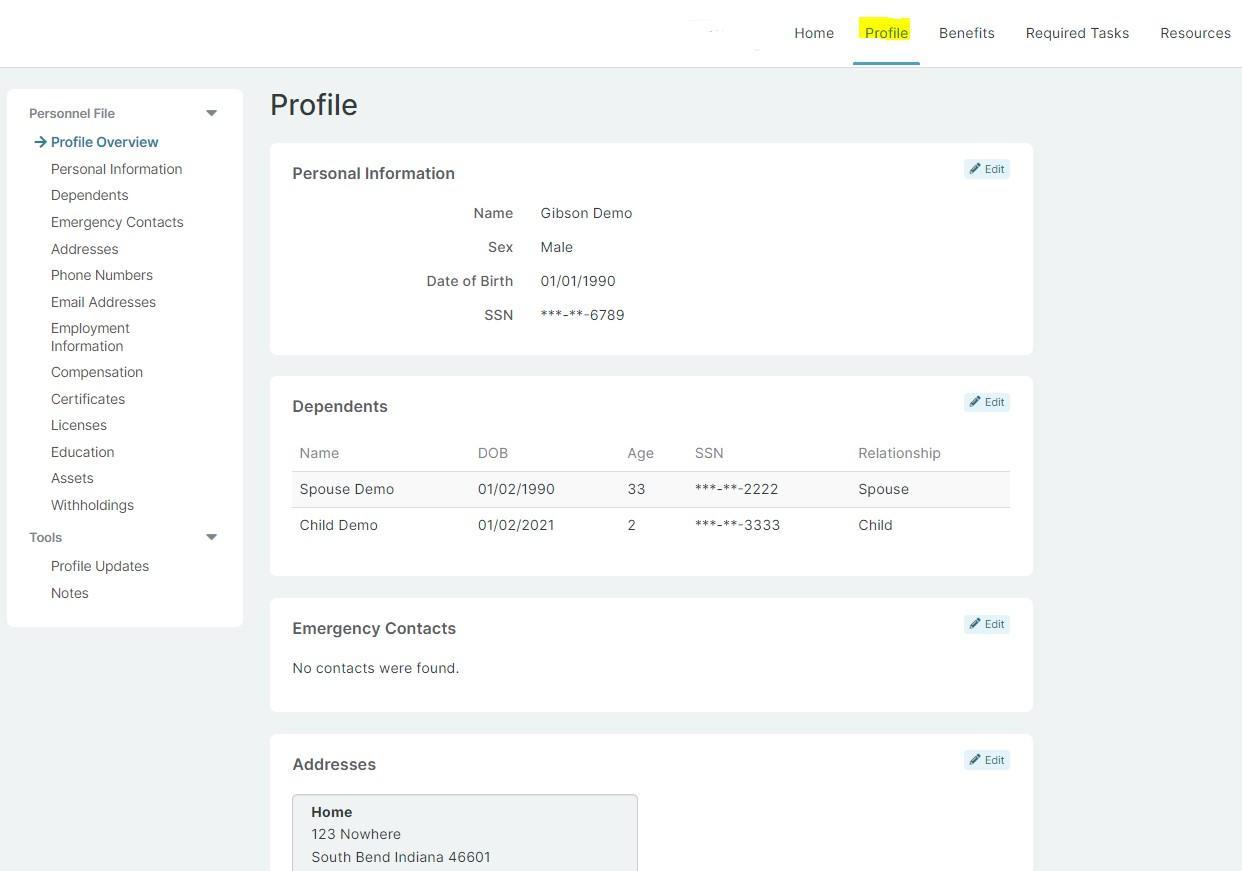
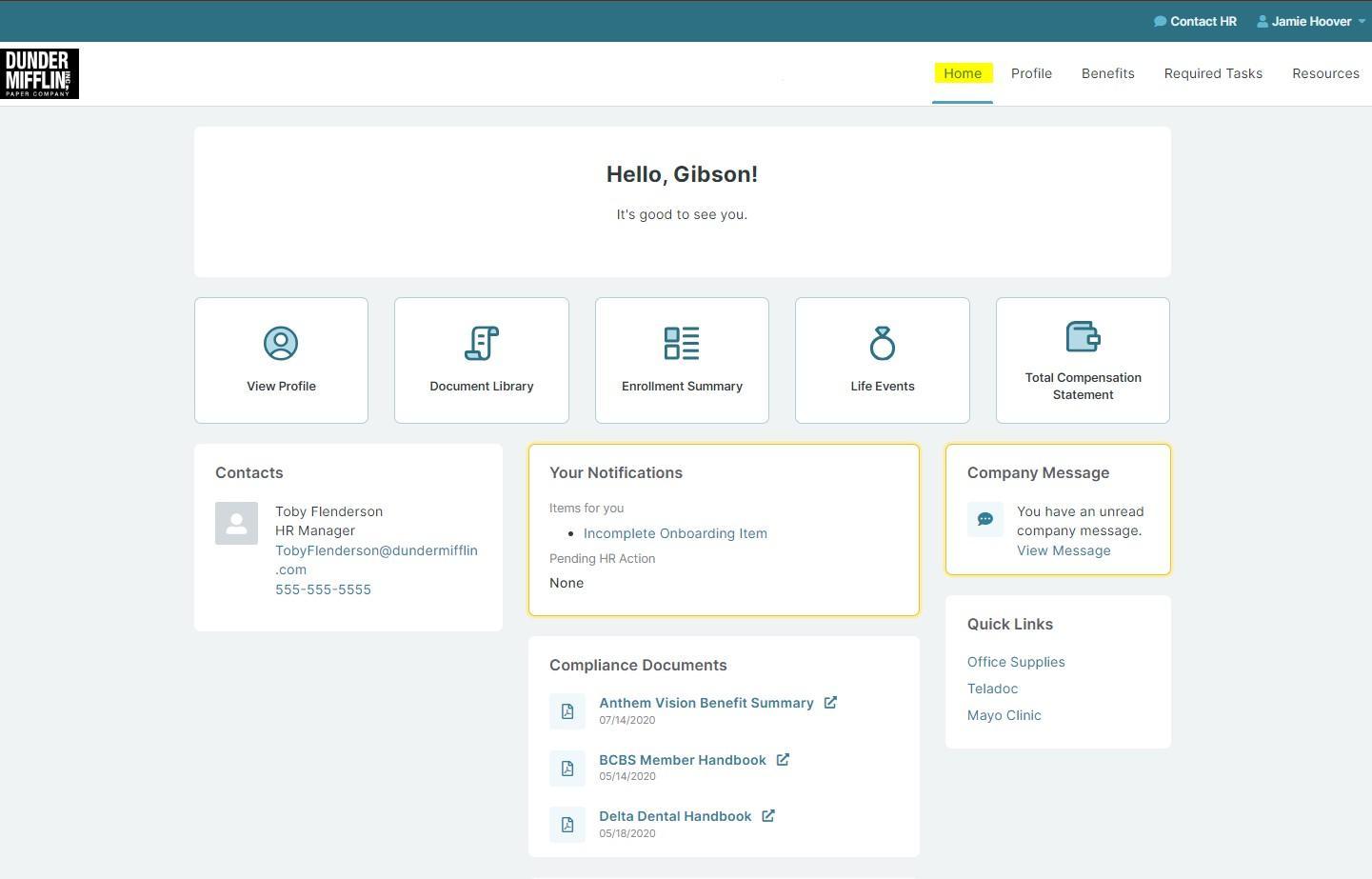
If your employer has given you access to update your demographic information, you can do that in your Profile tab. You will be able to update your demographic information and dependents. You will also be able to see some employment information but will be unable to to make any changes.
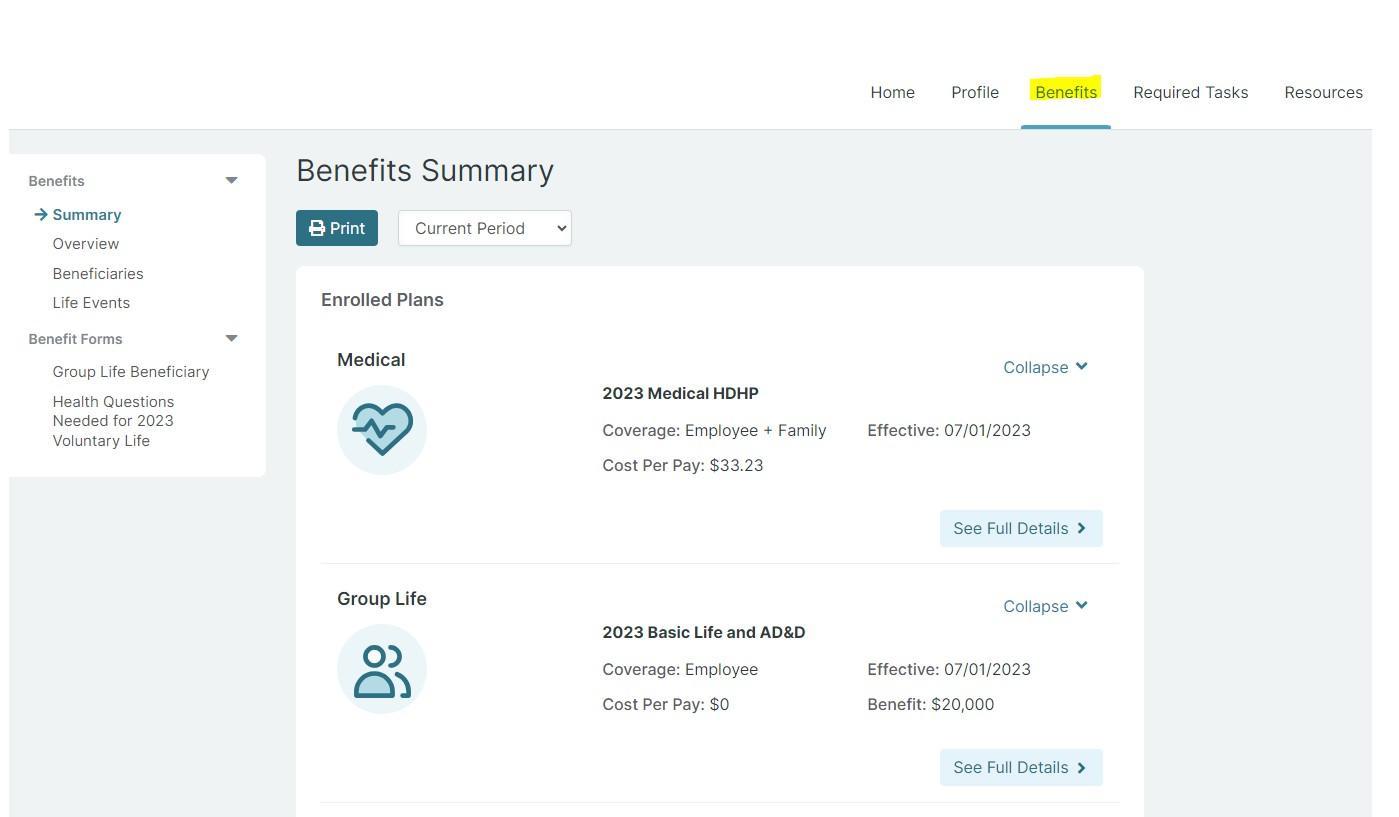
• Summary : List of elected benefits, total cost per pay, and applicable dependents.
• Overview : Summary of all company benefits, contact information, plan summaries, eligibility, and plan specific resources.
• Beneficiaries : List of all beneficiaries (current and previous) and ability to edit current beneficiaries.
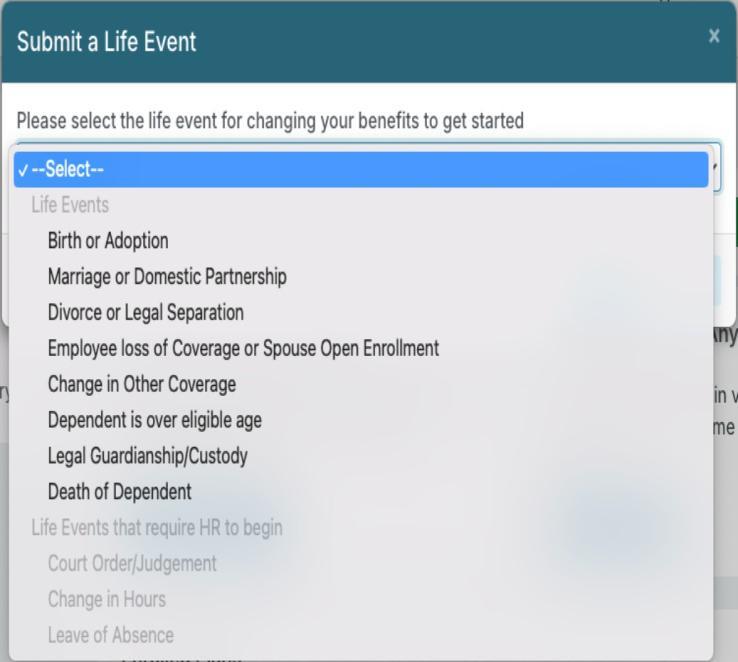
• Life Events : Where Qualifying Life Events are submitted (i.e. marriage, newborn, loss of coverage).
• Plan Beneficiary : Plan specific beneficiary forms.
• Health Questions Needed : If any elected amounts are over the carrier's guaranteed issue amount, EOIs will be required and provided here.
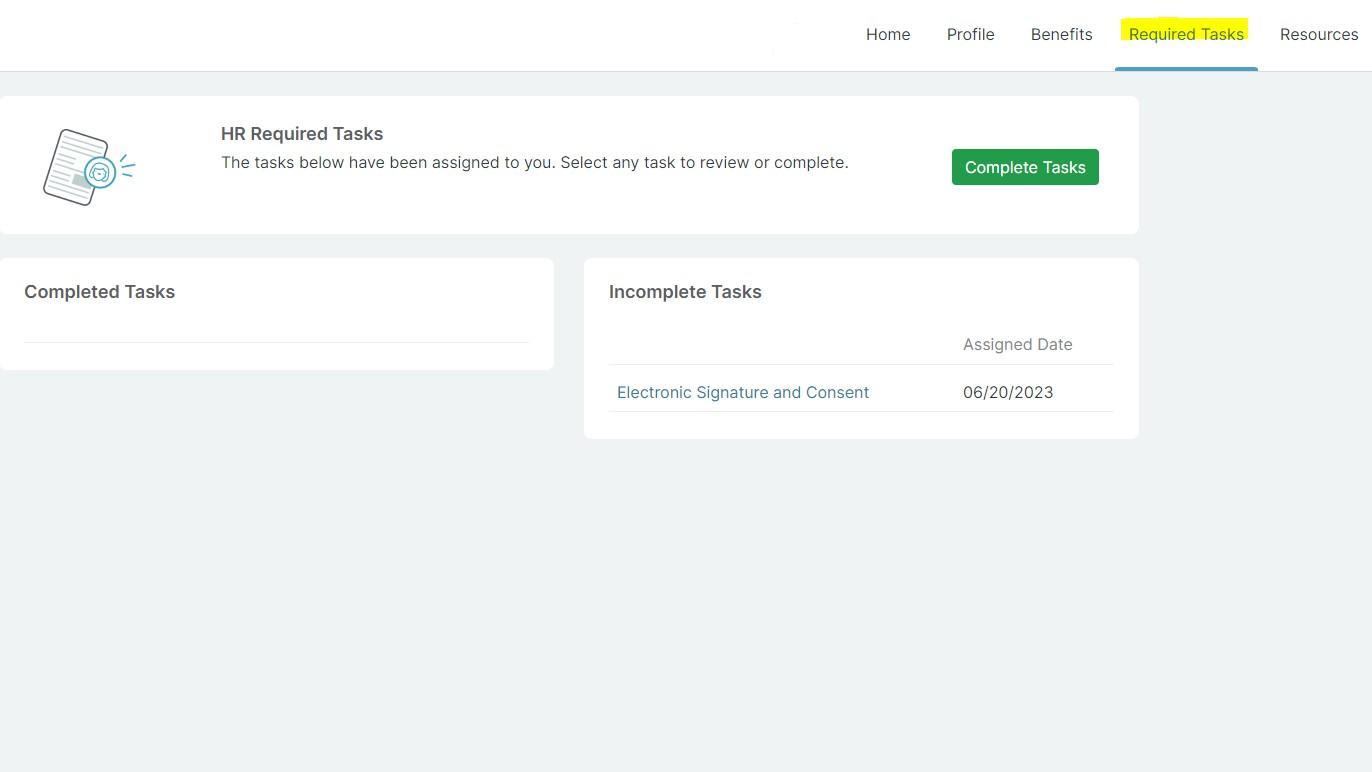
Click Complete Tasks to finish any tasks assigned by HR. Tasks can require you to either acknowledge a document or statement, electronically sign, review a website or video, or upload a document
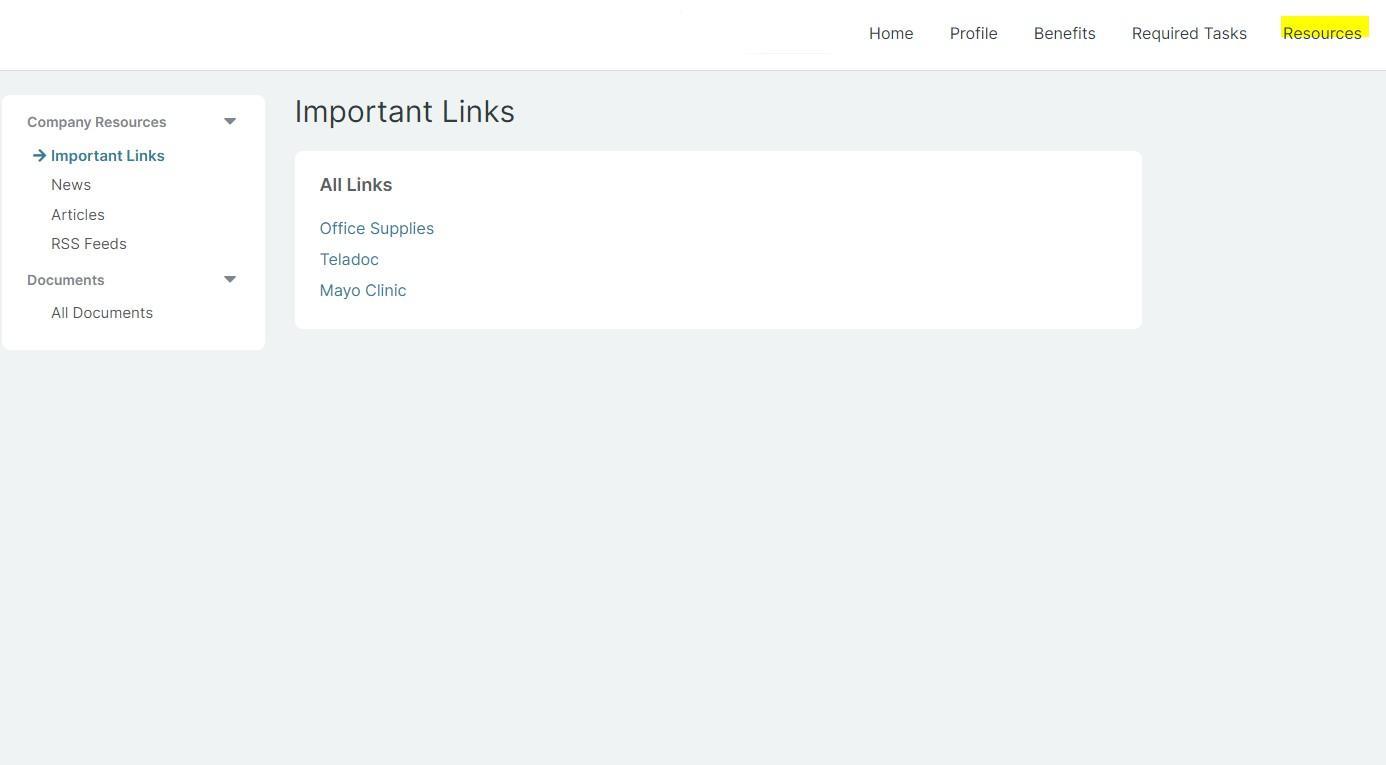
• Important Links: Websites related to your benefits or any additional related to the company
• News: Company news
• Articles: Company articles
• RSS Feeds: (Rich Site Summary) News -related websites, weblogs, and other online publishers
• All Documents: Enrolled plan documents, HR documents, and plan documents
Step 1:Log in
http://www.employeenavigator.com
• Returning Users: Log in withthe usernameand password you selected.If you have forgotteneither,click Forgot Username? or Forgot Password?
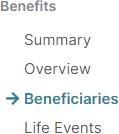
After you login click Benefits in the top right corner. Then on the left side under Benefits select Beneficiaries
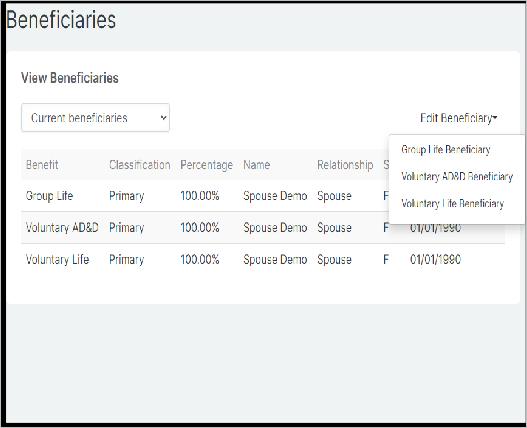
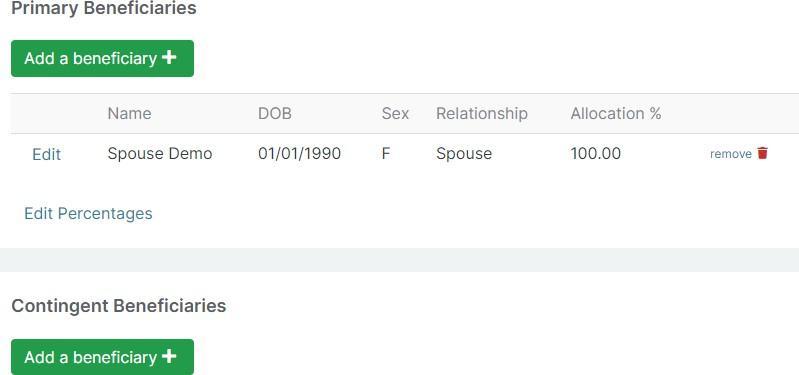
Click Edit Beneficiary then select which benefit beneficiary you would like to edit.
Step
You can Edit current beneficiaries information, Edit Percentages or Add a beneficiary.
Primary beneficiaries are required, Contingent are optional.
Step 1:Log in http://www.employeenavigator.com
• Log in withthe usernameand password you selected.If you have forgotteneither,click Forgot Username? or Forgot Password?
Step 2: Qualifying Life Event
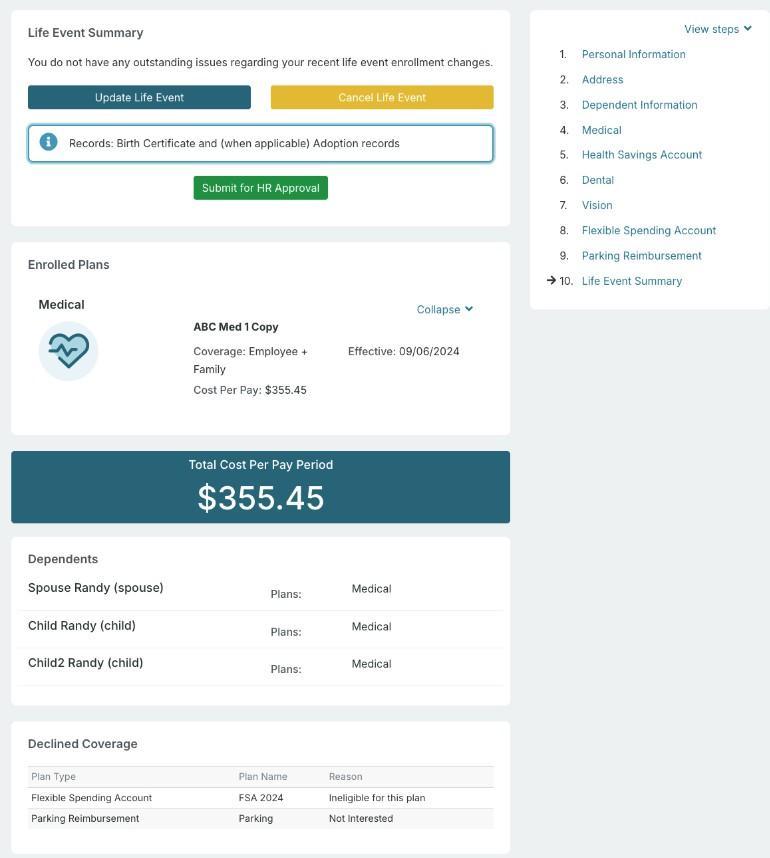
After you login click Change Benefits
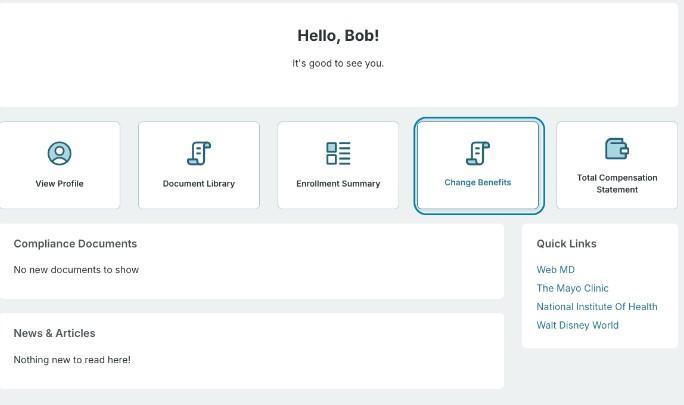
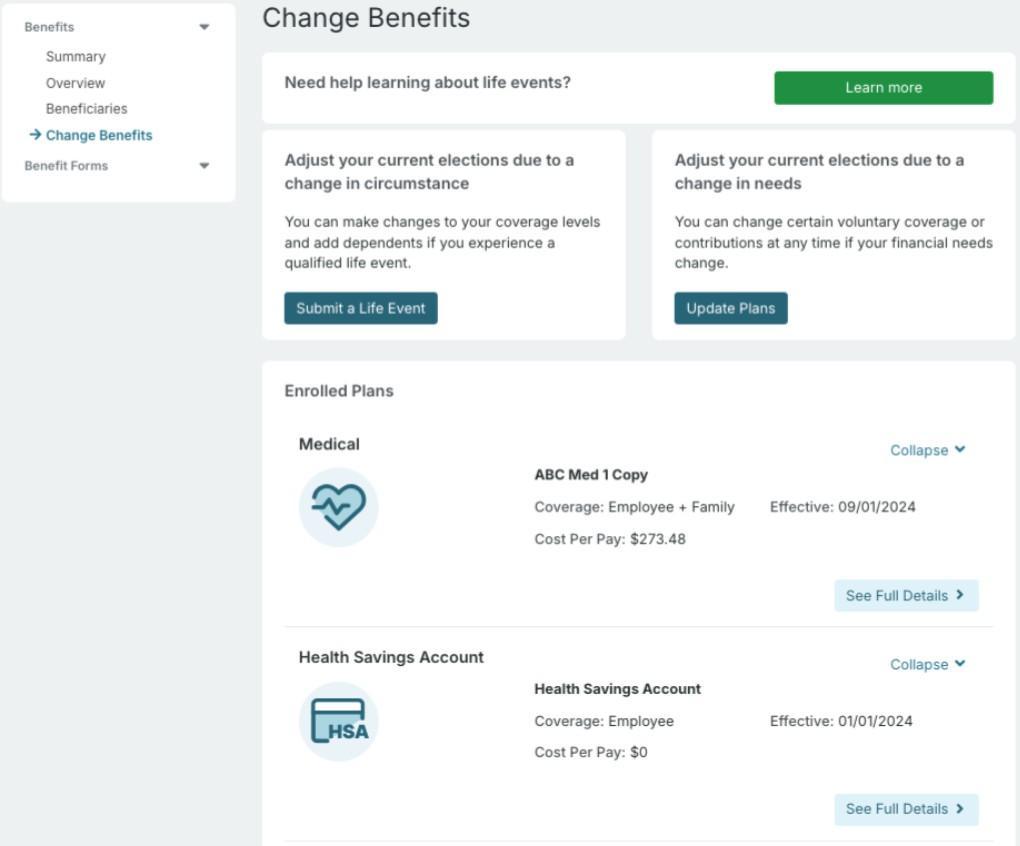
You will be redirected to the Change Benefits page to:
• Learn more about life events
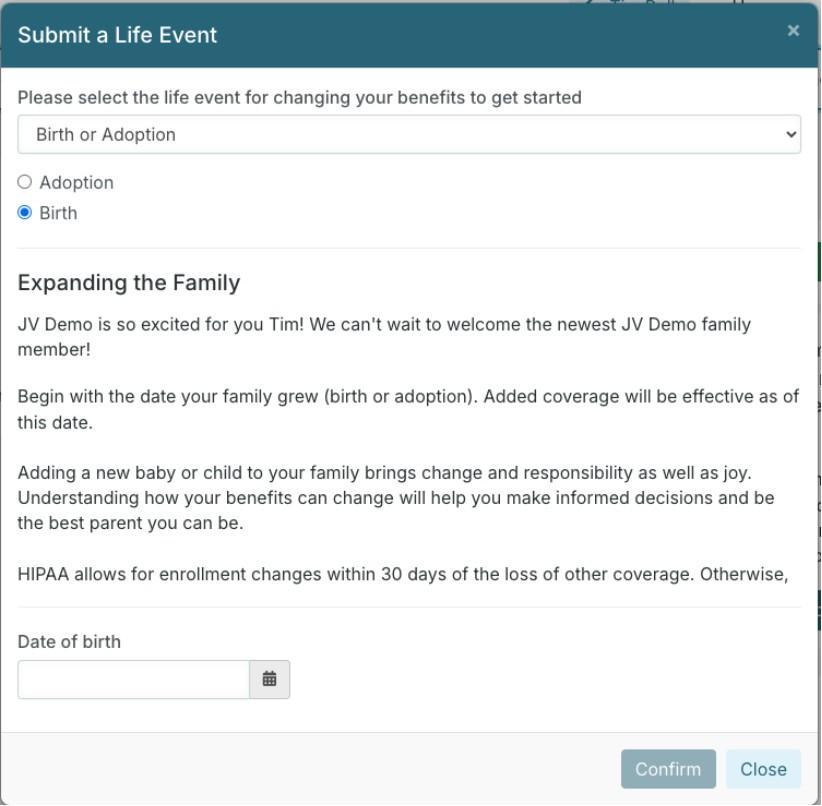
• Submit a Life Event
• Update Plans for a med-year contribution change
• View enrolled plans
• Costs per pay period
• Covered dependents
• Declined coverage
Life events are displayed for selection
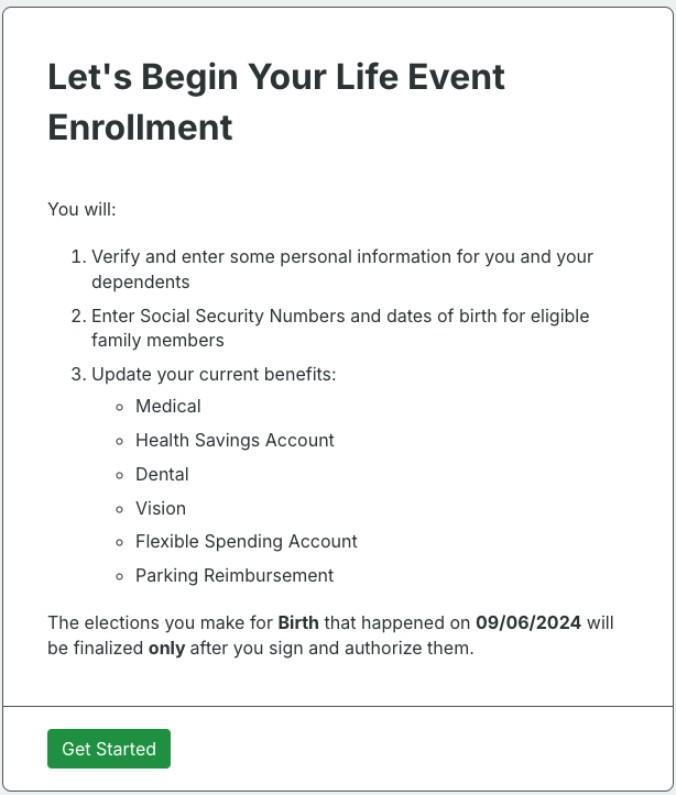
Step 6: Let's Begin Your Life Event
Overview of enrollment instructions
Verify demographic information and make any enrollment changes to current benefits
• Review & Submit Changes
o Submit for HR Approval
o Update Life Event
o Cancel Life Event
• Required documentation display
• Pending Changes
• Covered members