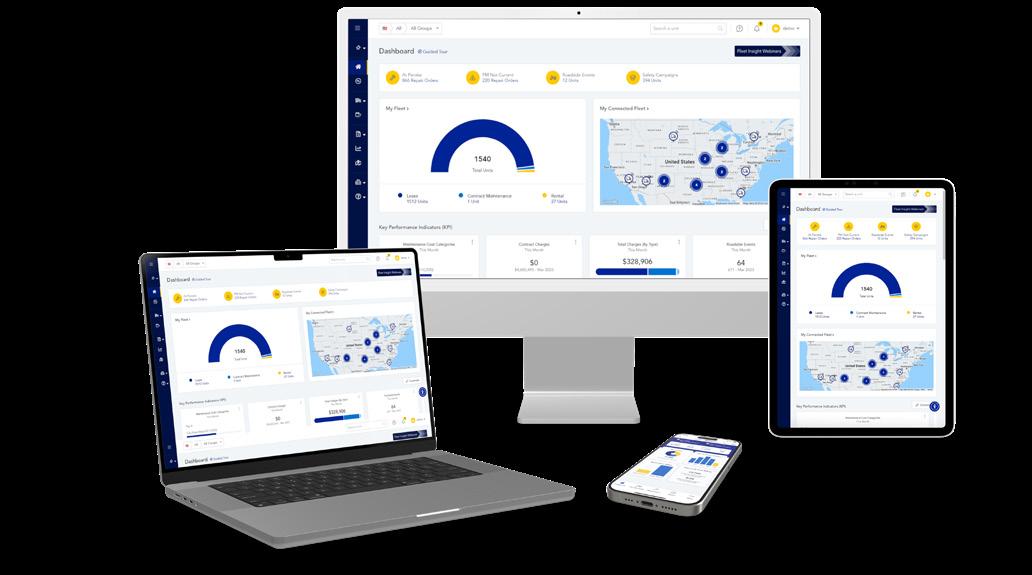
FLEET INSIGHT OVERVIEW GUIDE

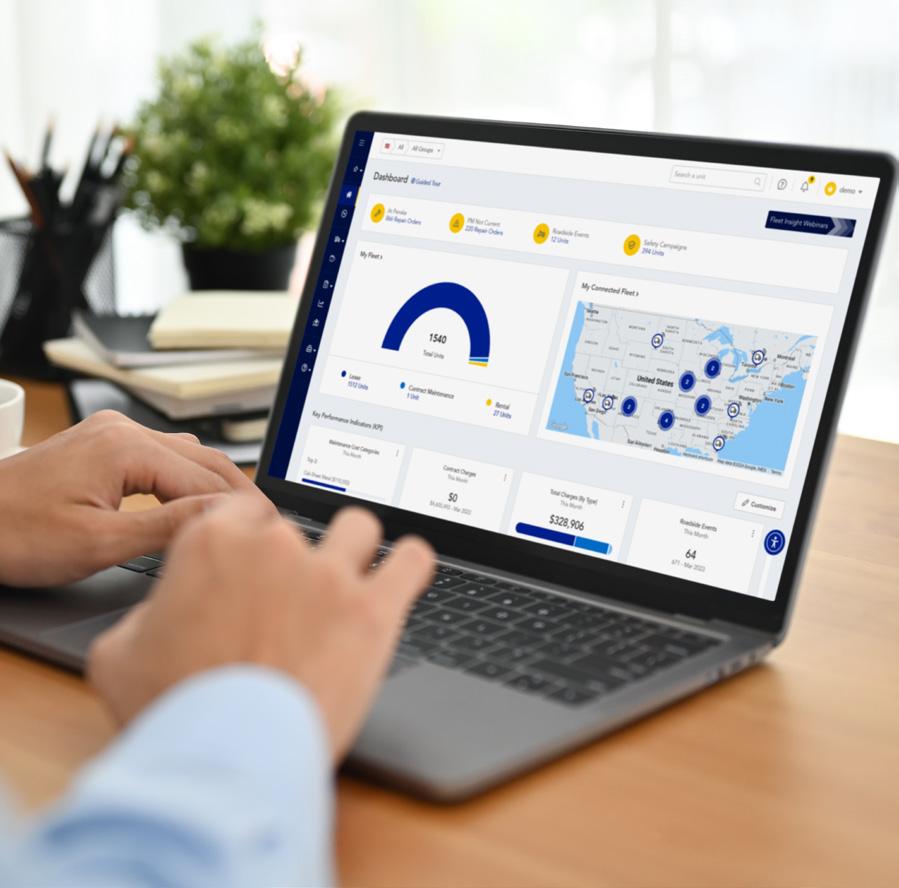
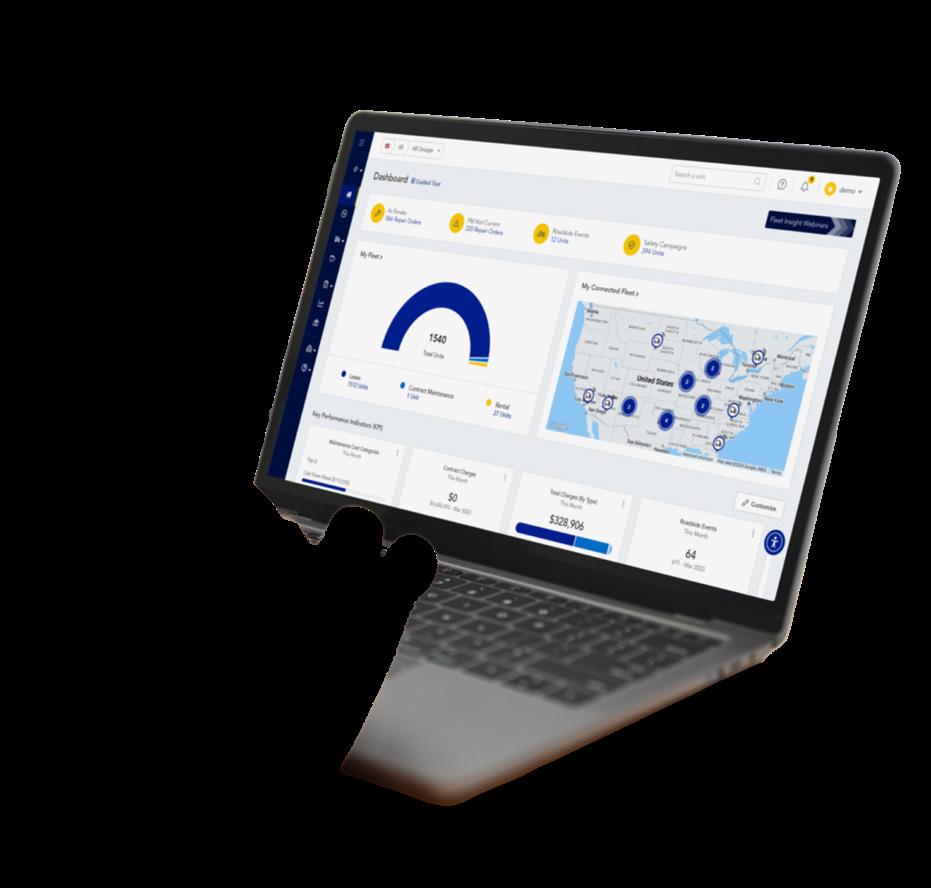
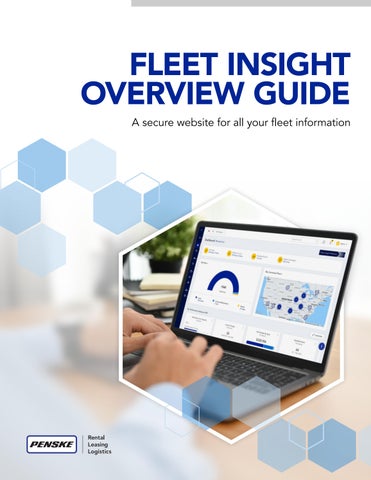
The Dashboard page provides prominent highlights on your fleet – from fleet profile to key metrics.
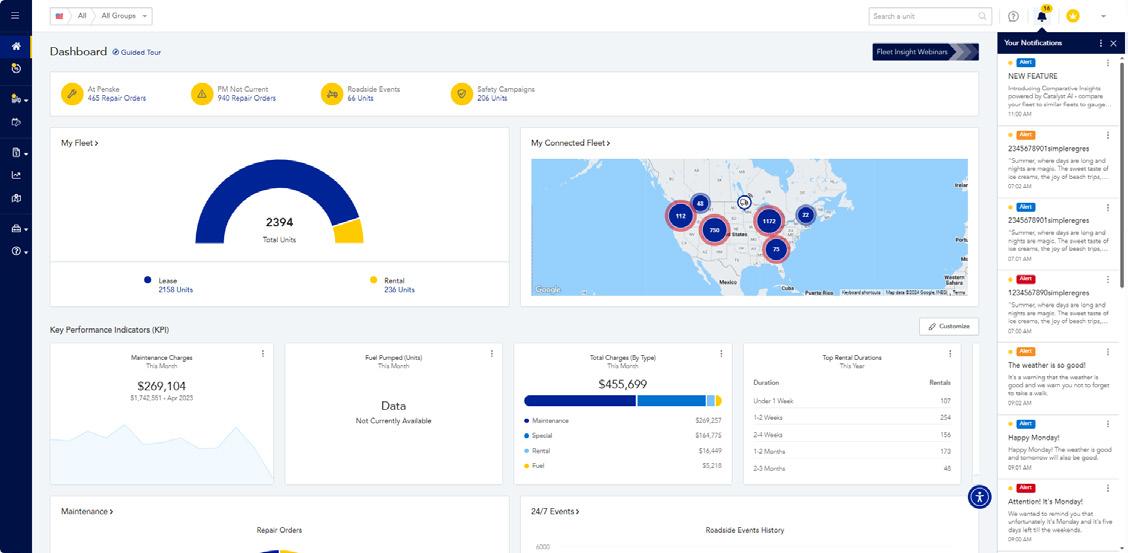
The Dashboard page provides prominent highlights on your fleet – from fleet profile to key metrics.
Allows you to filter fleet view by lease, contract maintenance, rental or all units, as well as by location or by custom group. For example, filter your fleet information on the page by only your lease units.
Dropdown menu in the top right corner features user account information which allows you to control your profile and notifications.
This will display a map of the most recent geographic location of your connected units. The view includes all Penske rental units, as well as lease and contract maintenance units enrolled in our telematics integration. To learn more about how to connect your units to Penske, contact Penske Customer Success at hello@penskecustomersuccess.com or 844-426-4555.
3
You can quickly view alerts related to your account. Click on the User Account drop down menu to customize notifications.
4 Help
Type in what you are looking for and articles with relevant information will populate.
Key Performance Indicators (KPIs) show information attained from a variety of available reports. You can click on “Customize” to select the information panels most important to you. Click on each panel to view the detailed report.
5
Tutorial of the current page you are viewing. It describes the page’s features, potentially answering any questions you may have about finding information.
6
Displays current fleet information on service requests, repair orders and which units are at Penske. You can get a prominent view of units requiring service and/or receiving service.
7
A breakdown of your Penske fleet. From here, you can click on the number to view only those unit types.
*These features are on every page in Fleet Insight
Useful information is provided in a quick and efficient way to help drive decisions. You can view summary panels for important information including Maintenance, 24/7 Roadside Assitance, Maintenance Billing, Distance and Hours Billing and Registered Drivers (Penske Driver App). Click on the heading in each panel to reach the tab with more details.
The UserWay badge provides a variety of options to make your website experience more accessible. It can be enabled by clicking on the accessibility icon that appears in the corner of the page. Once the menu is opened, you can select from various settings such as screen reader, increased font size, or increased contrast.
12
You can search by Penske Unit, My Unit, License, or VIN.
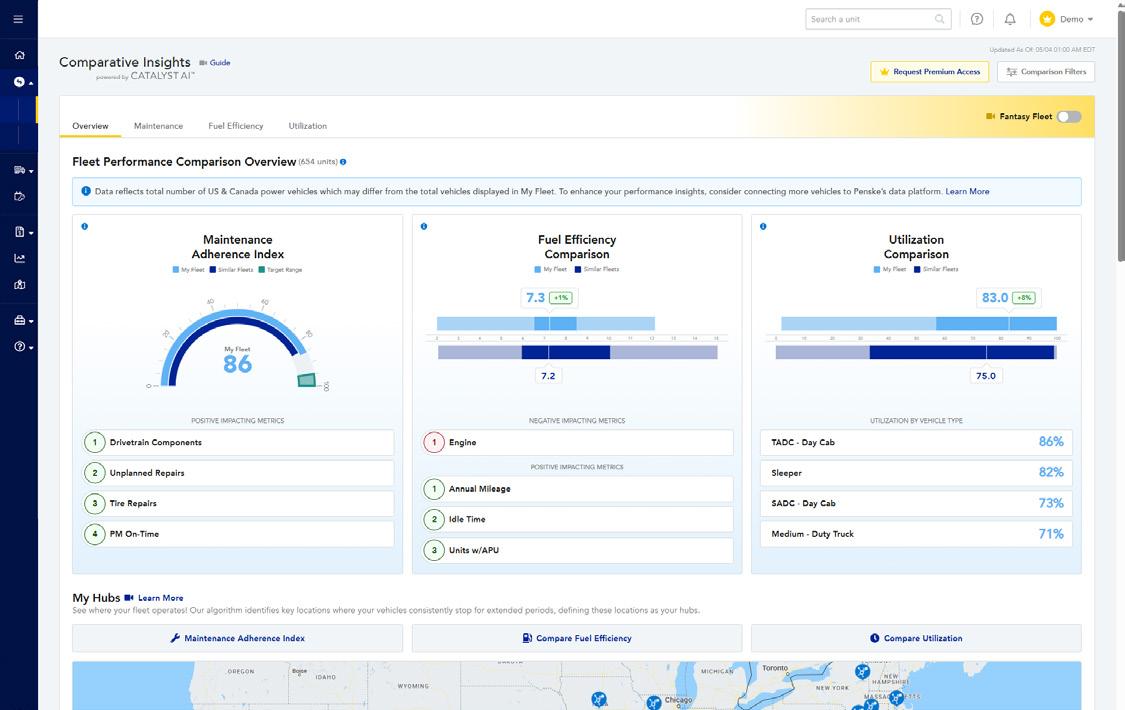
Compare your fleet to similar fleets from Penske’s rich data set to see how you are performing and where you have opportunities to improve. Comparative Insights includes Performance Comparison and Manage Plan. Manage Plan allows you to manage your plan if you are enrolled in the Premium Plan.
You can easily create a new service request for a vehicle and view active safety campaigns from the top right of the Maintenance tab.
Calendar displays how many units are scheduled each day. Allows you to quickly see which units need to go to a Penske location for servicing and be able to plan effectively. Site allows you the ability to reschedule a unit for service on a different day.
PM Currency History Trends and detailed reports show how compliant your fleet is with regards to preventive maintenance. Toggle between a monthly or quarterly view. There is also a link to open a full report here.
The table includes all fleet maintenance information regarding all service appointments. You can search the table by unit or repair order (R/O).
• Scheduled – Displays all units that are scheduled or at the shop being serviced.
• Pending Reschedule – Displays units needing to be brought in for follow-up repairs.
• All PM – Displays all past due and upcoming scheduled PMs in one place.
• All Service Requests – Displays all requests and statuses for service that were submitted.
• Completed – Displays all completed repair orders.
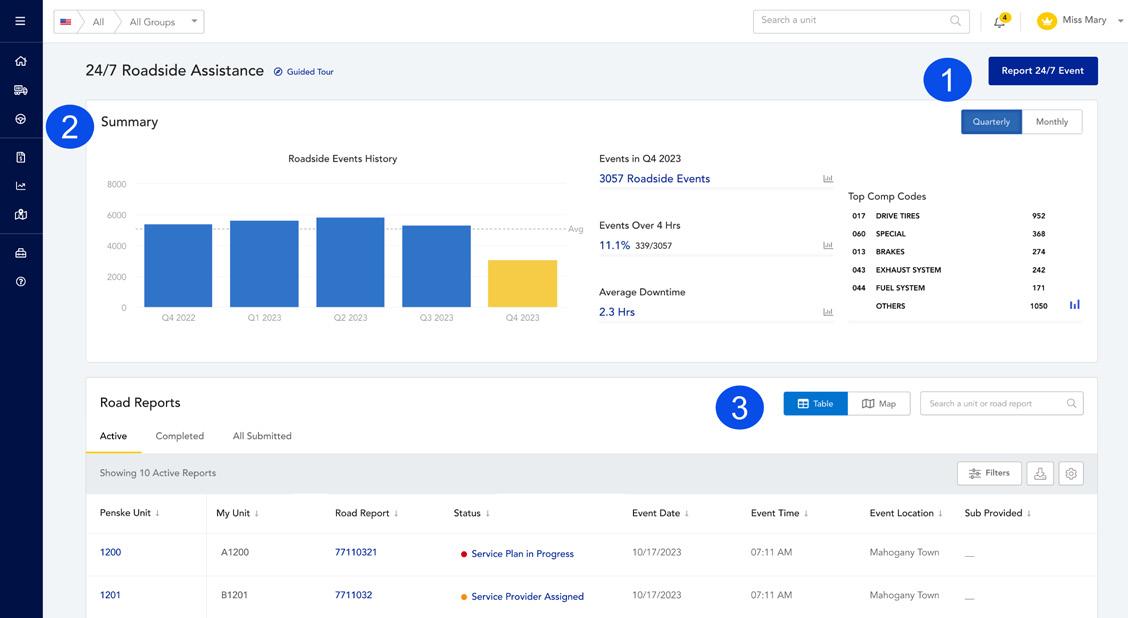
The 24/7 Events page provides detailed information on all roadside assistance events.
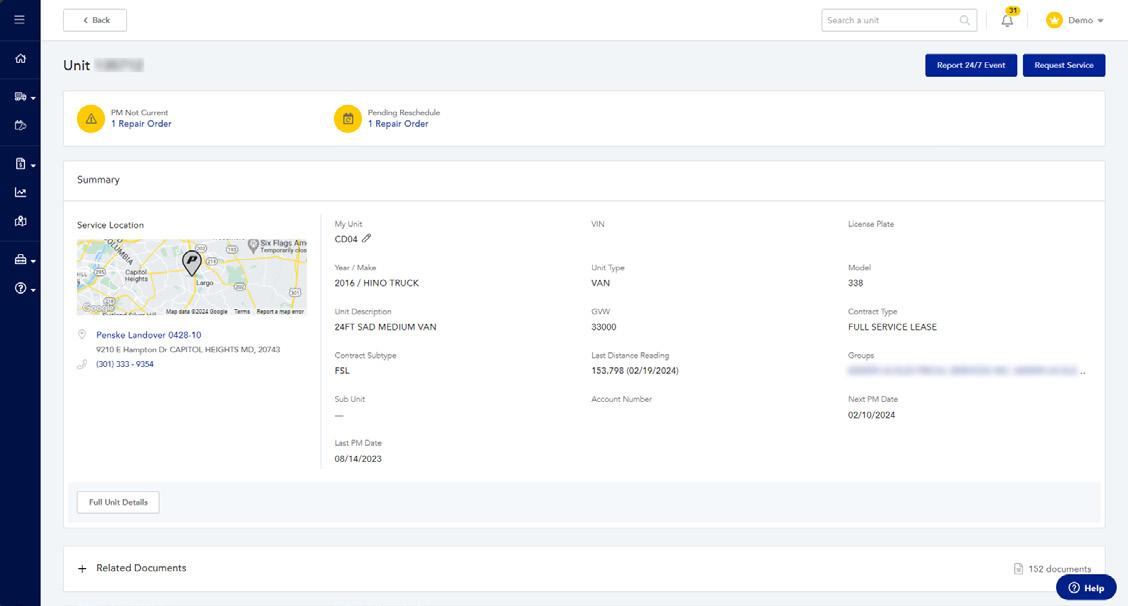
You can select any Penske unit number in the Units table for a complete view of that unit. View unit information, key documents, maintenance history and contract details for a specific unit – all in one place.
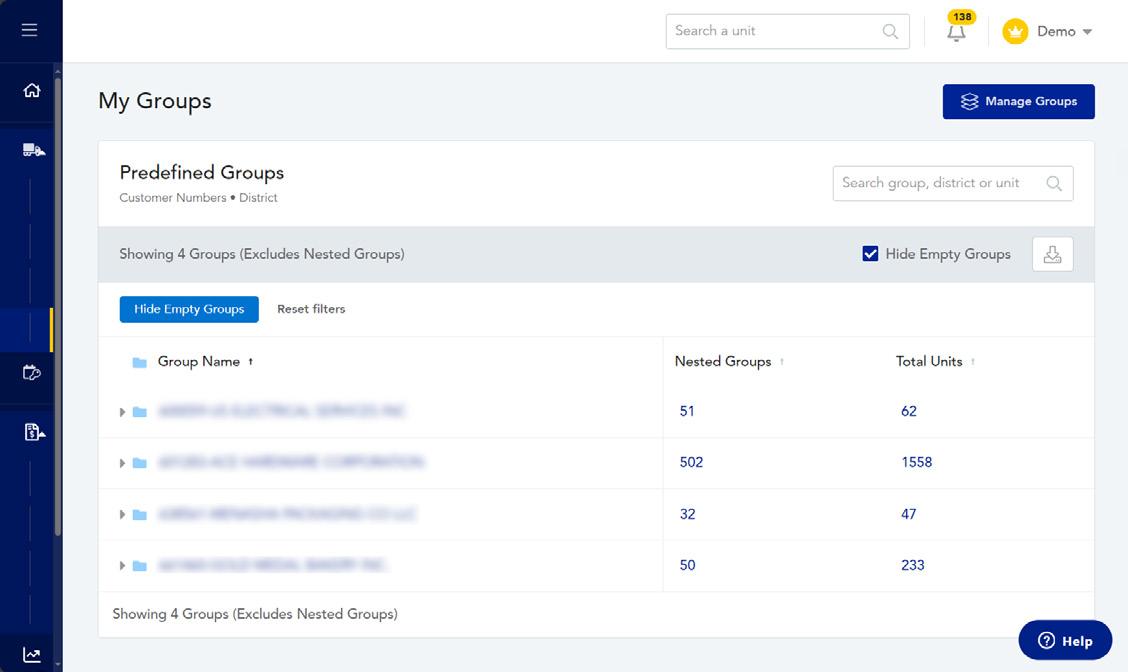
The My Groups page allows you to view and manage (Super Admins only) the groups for your company.
eDVIR Status
• DOT Critical – If defects are found during drivers pre and post-trip inspection, a repair order will be opened and they will be notified. These will be labeled DOT Critical.
• eDVIR Passed – Vehicle passed inspection. No further action needed.
2 Download
Download eDVIR data by clicking the download icon.
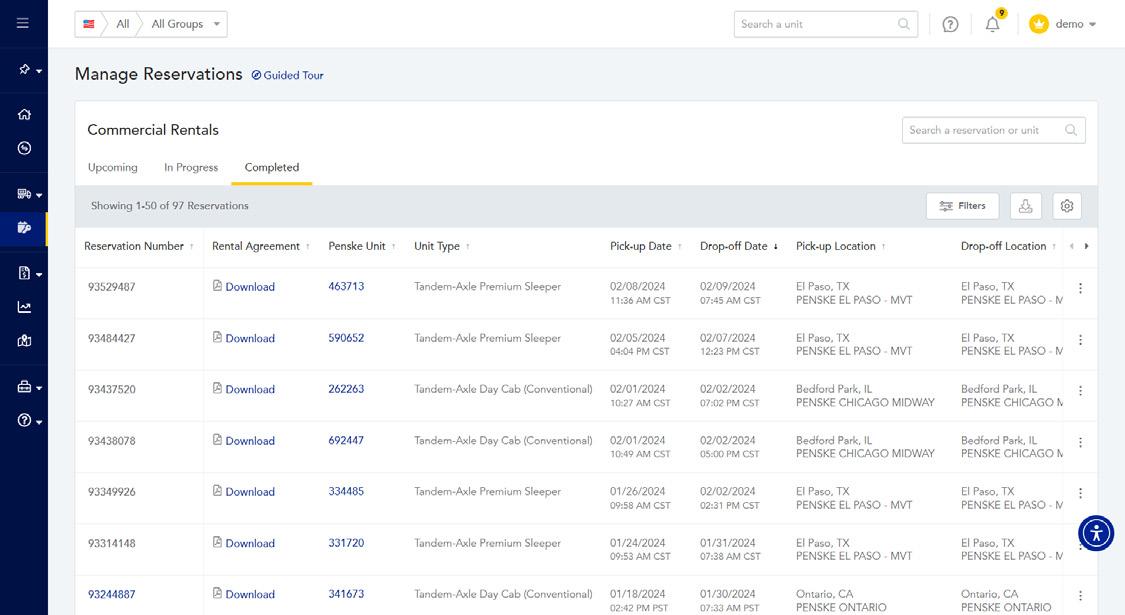
The Manage Reservations page allows you to access and manage your commercial rental reservations.
You can view current maintenance billing totals for those requiring a PO and for those awaiting the next invoicing cycle. You can toggle to the history for a summary of charges invoiced in the current month compared to totals for the previous month.
The table includes details about all repair orders (R/O). You have the ability to enter a PO number directly into the table. Being able to see current maintenance invoices as well as those upcoming allows you to plan better.
• Requiring PO Number – Shows all invoices requiring a PO. You can enter a PO number on this tab. Once entered, the R/O is moved to the Awaiting Next Invoice Cycle tab. Contact your account team for more information on whether your PO numbers are required.
• Awaiting Next Invoice Cycle – Invoices show on this tab until your invoice cycle, providing you with the ability to view and ask any questions about charges before they are invoiced.
• Recent History Tab – Records of recently billed repairs.
Select any repair order number from the table to view details about the repair order. You have access to any repair order documents, details and can ask a question on this specific repair order.
Select a repair order to view more details on that specific repair order including the complaint, cause, correction and repair order documents. Select the Ask a Question button to send a question about this repair.
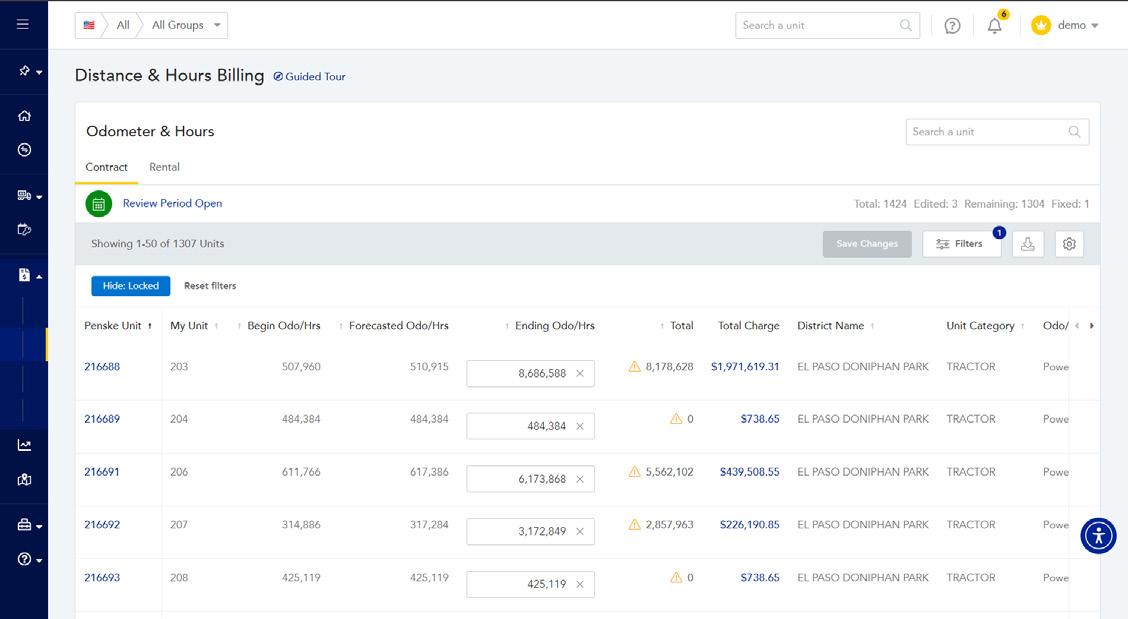
The Distance & Hours Billing page provides you the ability to view beginning, forecasted and ending odometer/hours readings, as well as estimated total charges on your upcoming invoice. In addition, you can edit your ending odometer readings and hours for each unit when the review period is “open” which may lead to more accurate billing.
1
View both paid and unpaid invoices with visibility into payment history.
2 Download
Easily download invoices for records, distribution, or in-house analysis.
3 Ask a Question
Ask questions about invoices to gain better clarity.
4
Add internal notes directly to invoices for better context and organization.
5 Filtering
Quickly filter your invoices to view to find exactly what you need.
6
Use the search bar by entering the invoice number to find a specific invoice.
Invoicing
1
2
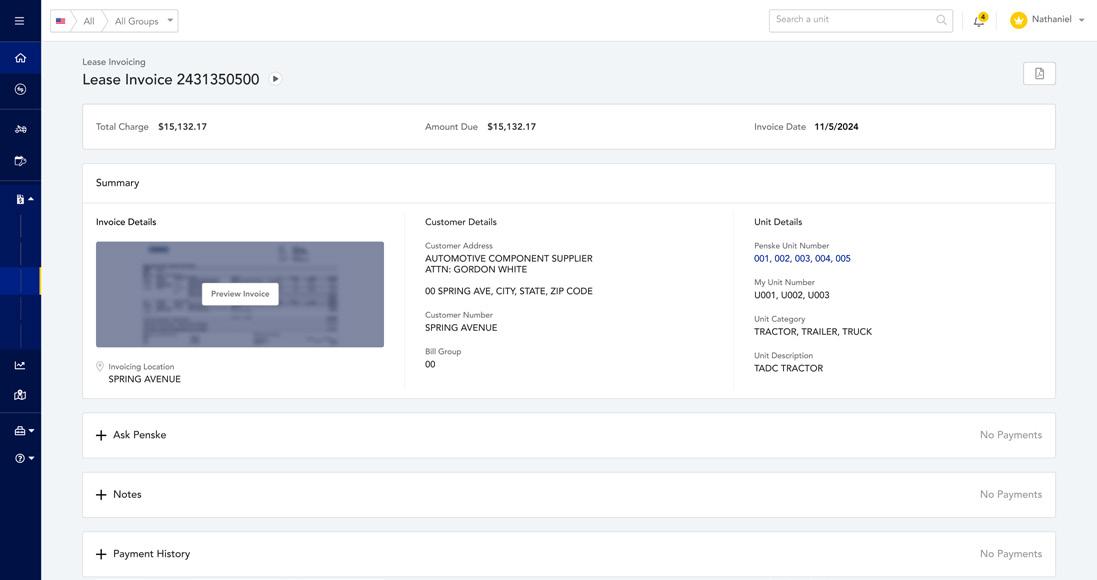
Rental Invoice Table
Easily access details on commercial rental invoices as well as lease extras.
Invoice Details
Select the invoice number, to view specific details on that invoice.
3 Filtering
Quickly filter your invoices to view to find exactly what you need.
4 Download
Easily download the invoice for records, distribution, or in-house analysis.
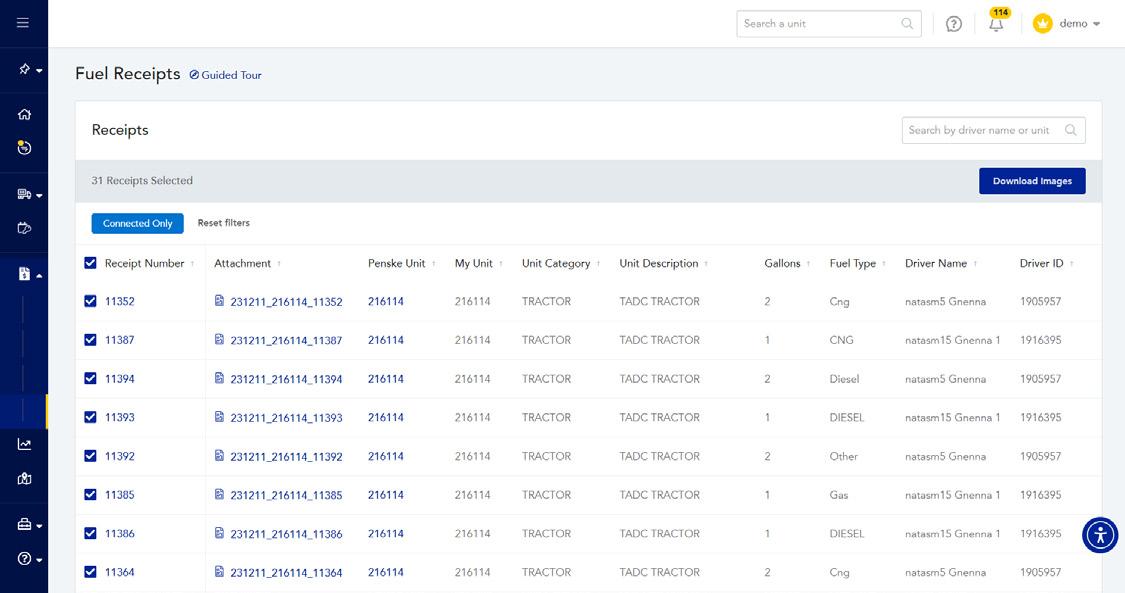
From Fuel Receipts you have the ability to view the fuel receipts submitted by your drivers through the Penske Driver app.
Several reports offer the ability for you to schedule them in advance.
Once you select a report, the report will populate with current data. The top portion of the report provides important KPIs and includes a visualization of the data either in a bubble, line or bar chart.
You can click on the ellipsis to view other actions available such as opening a previously saved view of the report, saving the report view and exporting the report to a PDF.
Some reports offer a Comparison Report option that provides you with actionable insights by allowing you to compare a vehicle to another vehicle, group of vehicles or your entire fleet.
Scroll to the bottom of the report for the table view. You can manage the columns in the table to easily view the information most important to you. Data in the columns can be downloaded to Excel for further analysis.
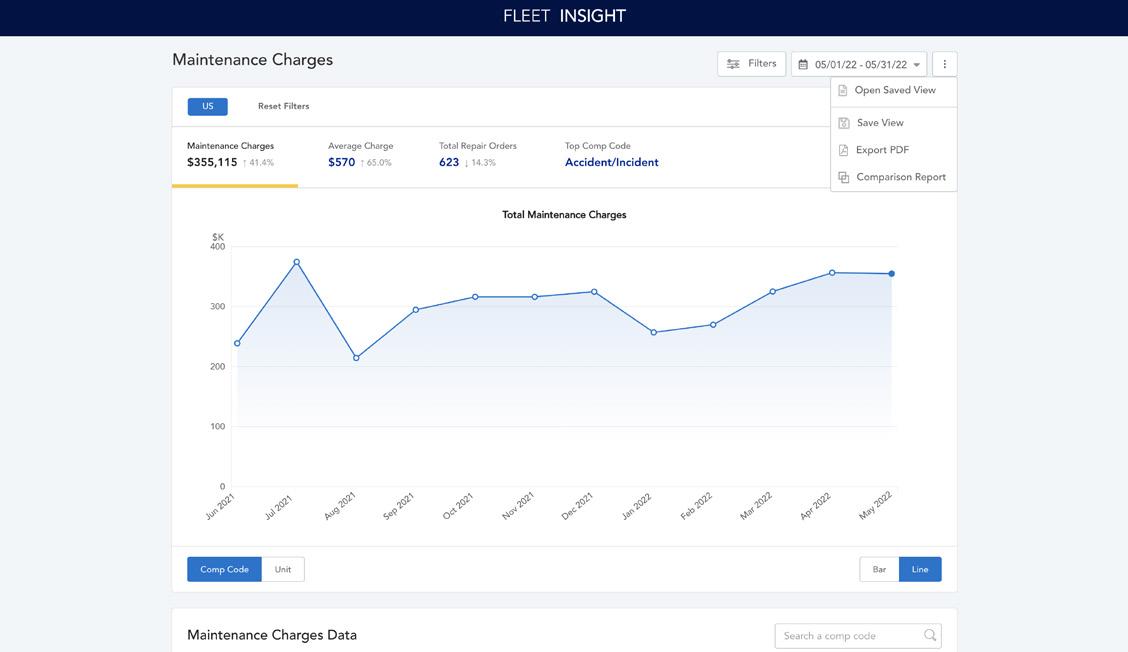
Example: Maintenance Charges Report
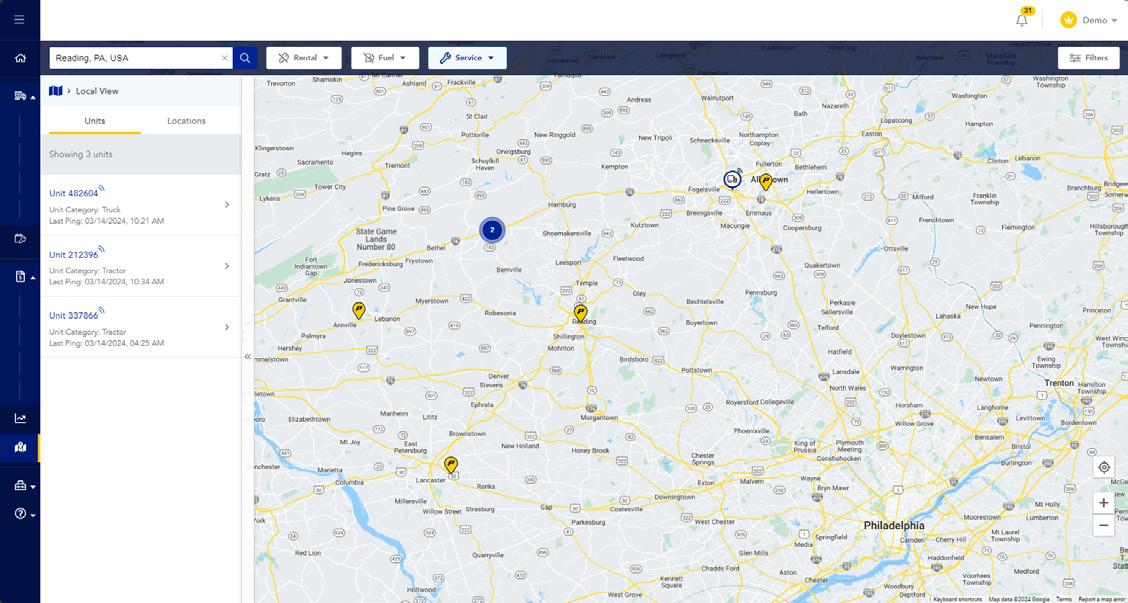
From the Map Tools page, you can view the location of your connected units, as well as search for rental, leasing, service, fueling or EV charging locations.
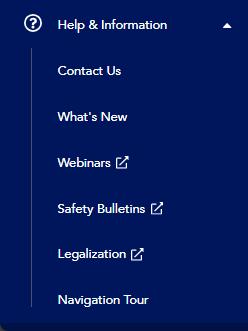
Contact Penske Customer Success for any questions related to Fleet Insight.
Find out more about new features and functionality recently added.
Sign up for free webinars – available to all Penske customers.
Tips to help your drivers stay safe and healthy on the road.
Learn ways Penske can help you stay legal.
Take a tour of the Fleet Insight navigation.