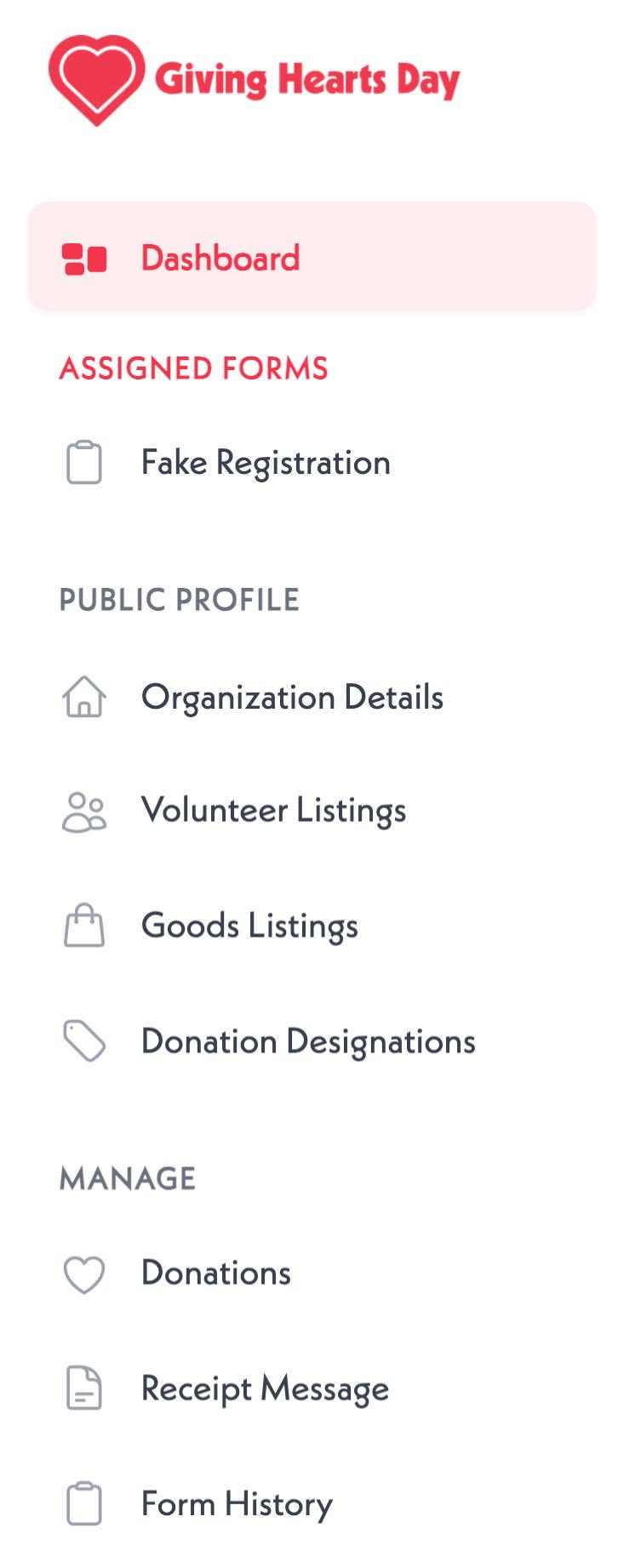
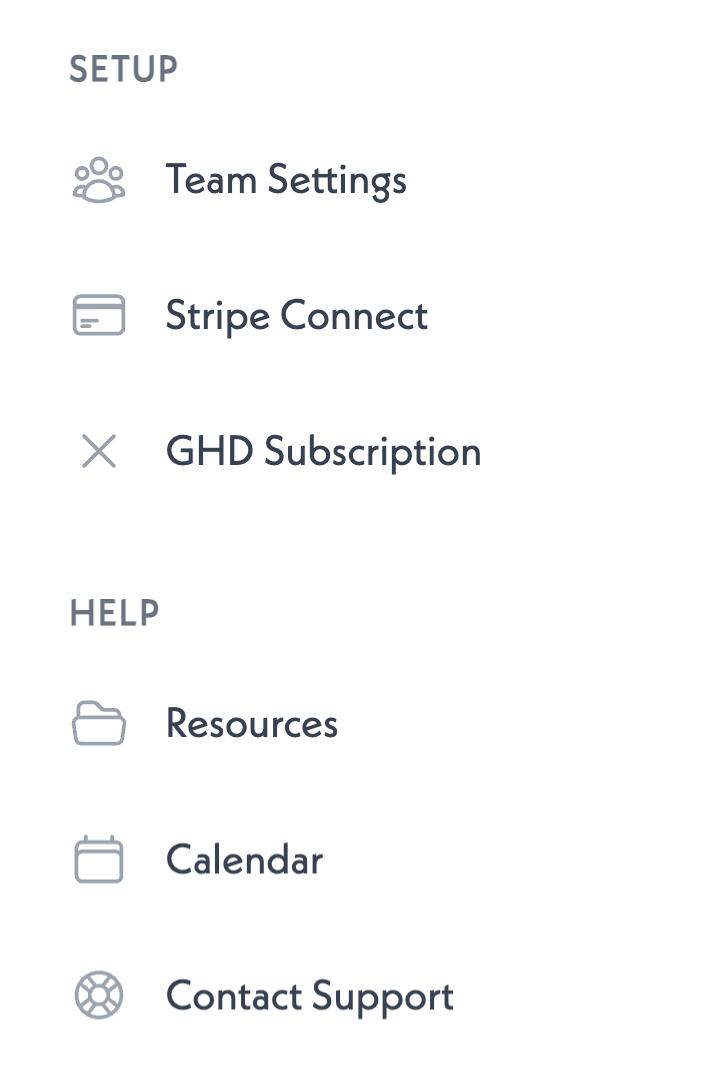
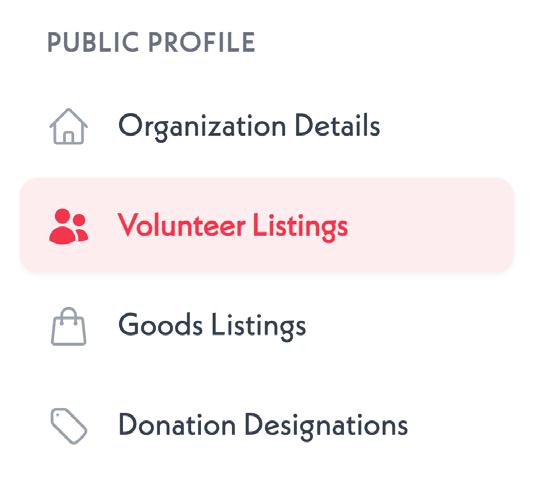
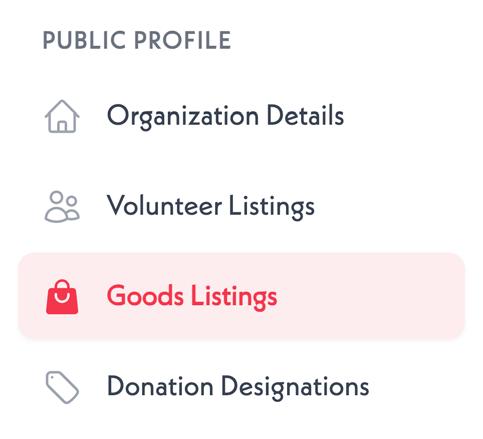
The menu shown on the left side of your screen is the main navigation bar for your Giving Hearts Day organization dashboard. Use this menu to access all tools, resources, settings, and fundraising features.
The instructions that follow will show you exactly where to click within this navigation to complete common Giving Hearts Day tasks.
GHD Registration
CHARITY SEARCH FEATURE 9
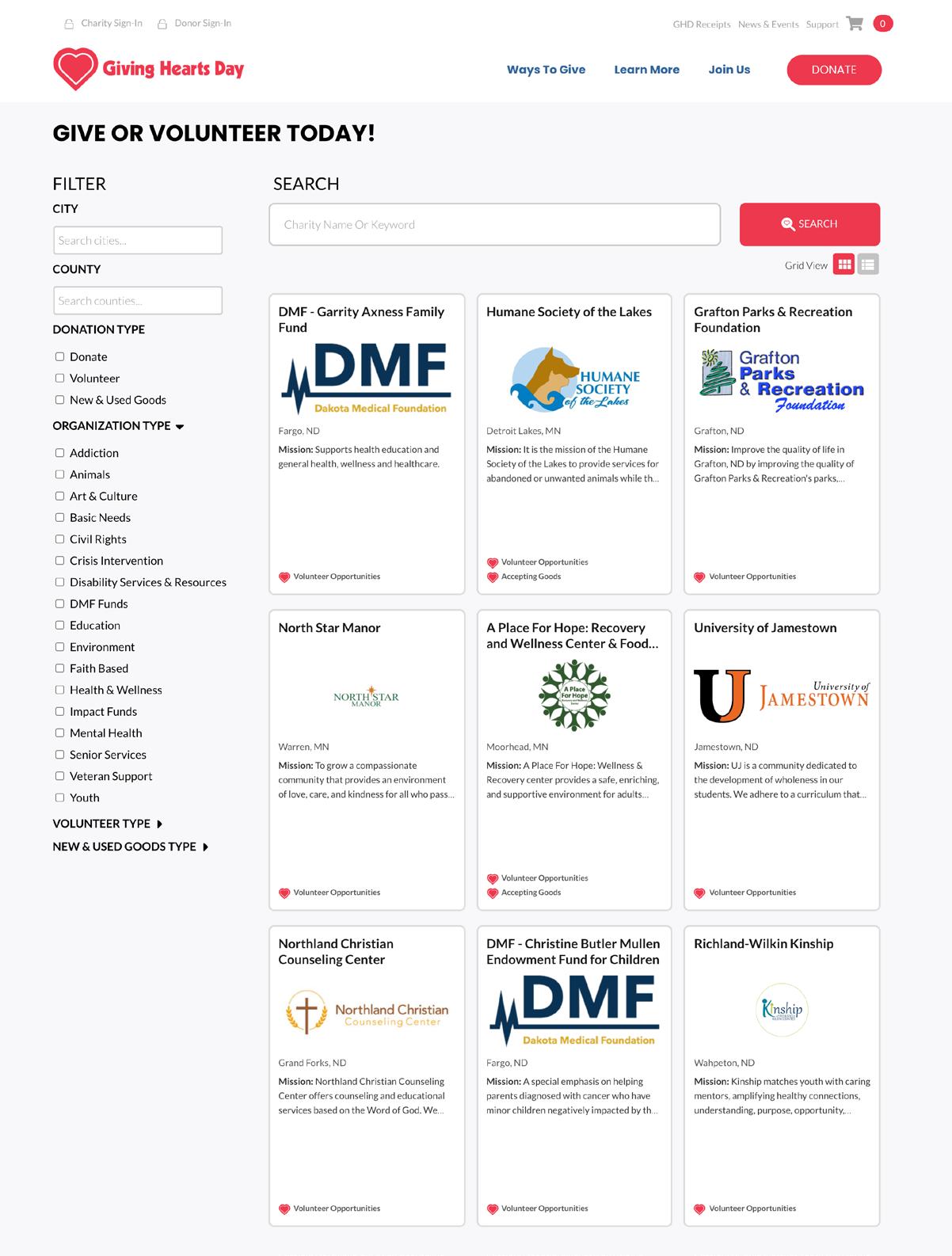
The charity search and donate features will operate the same way on the general year-round site and on Giving Hearts Day.
• Nine random charities will be profiled for every donor. The system automatically rotates these charities so every donor is viewing nine random charities.
• Donors can search by Charity Name or Keyword. You can enter in up to 5 keywords under your “Organization Details” tab in Admin to help donors find you.
• Donors can filter by Zip Code.
• Donors can filter by charity type. You can select up to 3 types that best describe your organization’s cause under the “Organization Details” tab in Admin.
When the donor begins typing in the Search box, a list of charities that match the search will appear in alphabetical order.
If a donor searched by Zip Code, charities serving only that zip code will appear first alphabetically, followed by charities that serve the entire state.
DONATIONS
All donations you receive are tracked in your “Donations” tab.
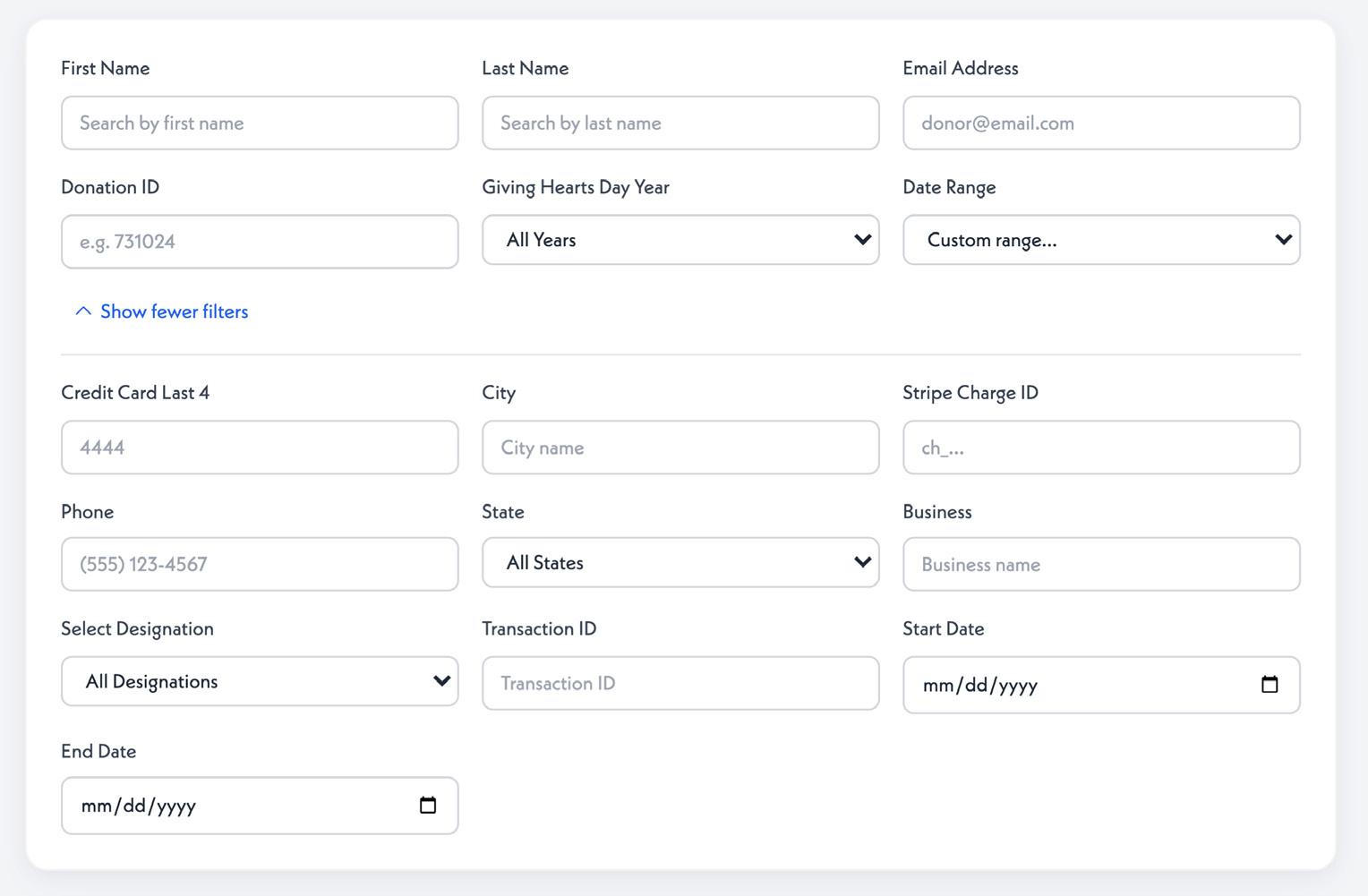
01 02 You can narrow your search by using the filters at the top of the page.
View additional filtering options by selecting the “Show more filters” tab.
At a glance you can view basic details like:
• Donor name
• Donation type
• Donation amount
PRO TIP:
Donors are able to make Giving Hearts Day gifts once Early Giving opens in January. When Early Giving is open, there will be a tab that shows you donations made during this timeframe. View the “Extra Features” Section on page 24 for more information!
INDIVIDUAL DONATIONS
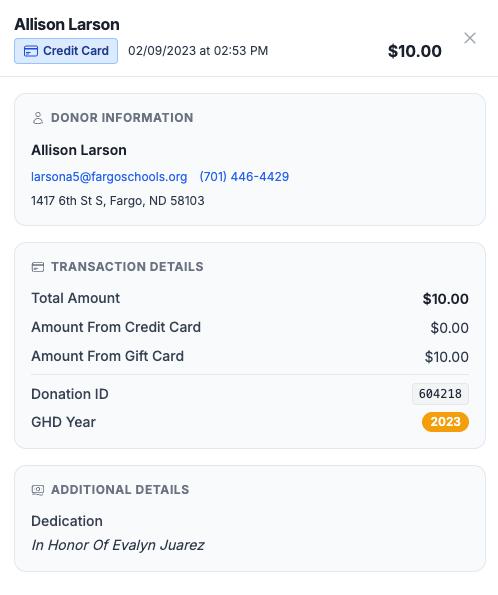
Click into individual donations to view further details about them.
01 02 03
First and foremost, you will see donor information, including name and contact information. This section will be blank for anonymous donors.
The section below will tell you information about the transaction.
The third box will appear in some cases to show any additional details about the donation such as who the gift is dedicated to.
PRO TIP:
You also have the option to check off the “donor thanked” button at the bottom of this section.
janedoe@email.com (123) 456-7890 123 4th St. Fargo, ND 58103
In Honor of John Doe
Jane Doe
Jane Doe
VOLUNTEER LISTINGS 18
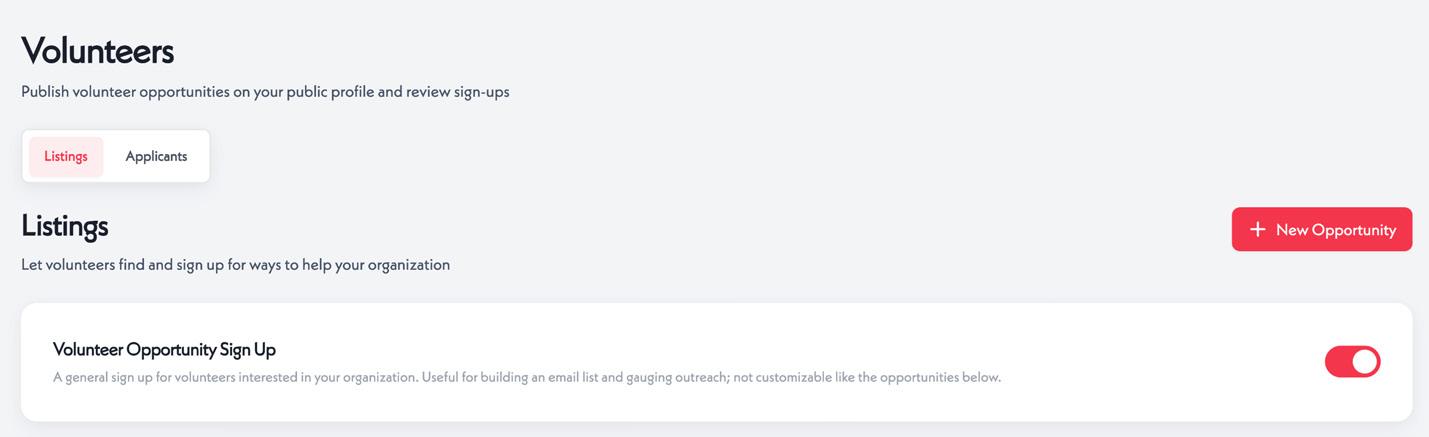
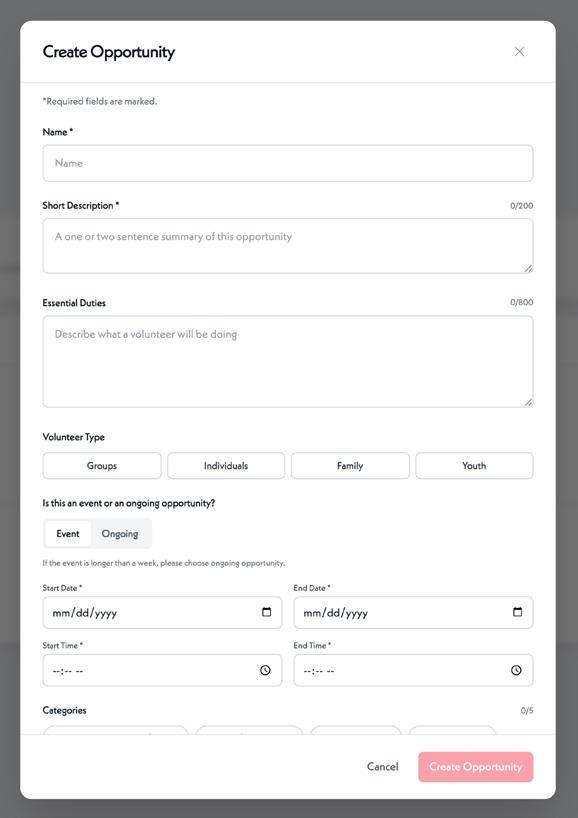
Organizations have the opportunity to create ongoing or scheduled volunteer opportunities that will display on their Giving Hearts Day profile.
01 This is a general volunteer listing that you can add to your profile to capture people interested in volunteering.
To create a new volunteer opportunity, click the “New Opportunity” button.
Follow the prompts to provide information about the volunteer opportunity and to publish it on your public profile.
PRO TIP:
You can add individuals from the general volunteer listing to your organization’s email list, or reach out to them individually to get them involved with your mission.
Note: You cannot edit the general listing, but you can disable it if you wish, by using the toggle.
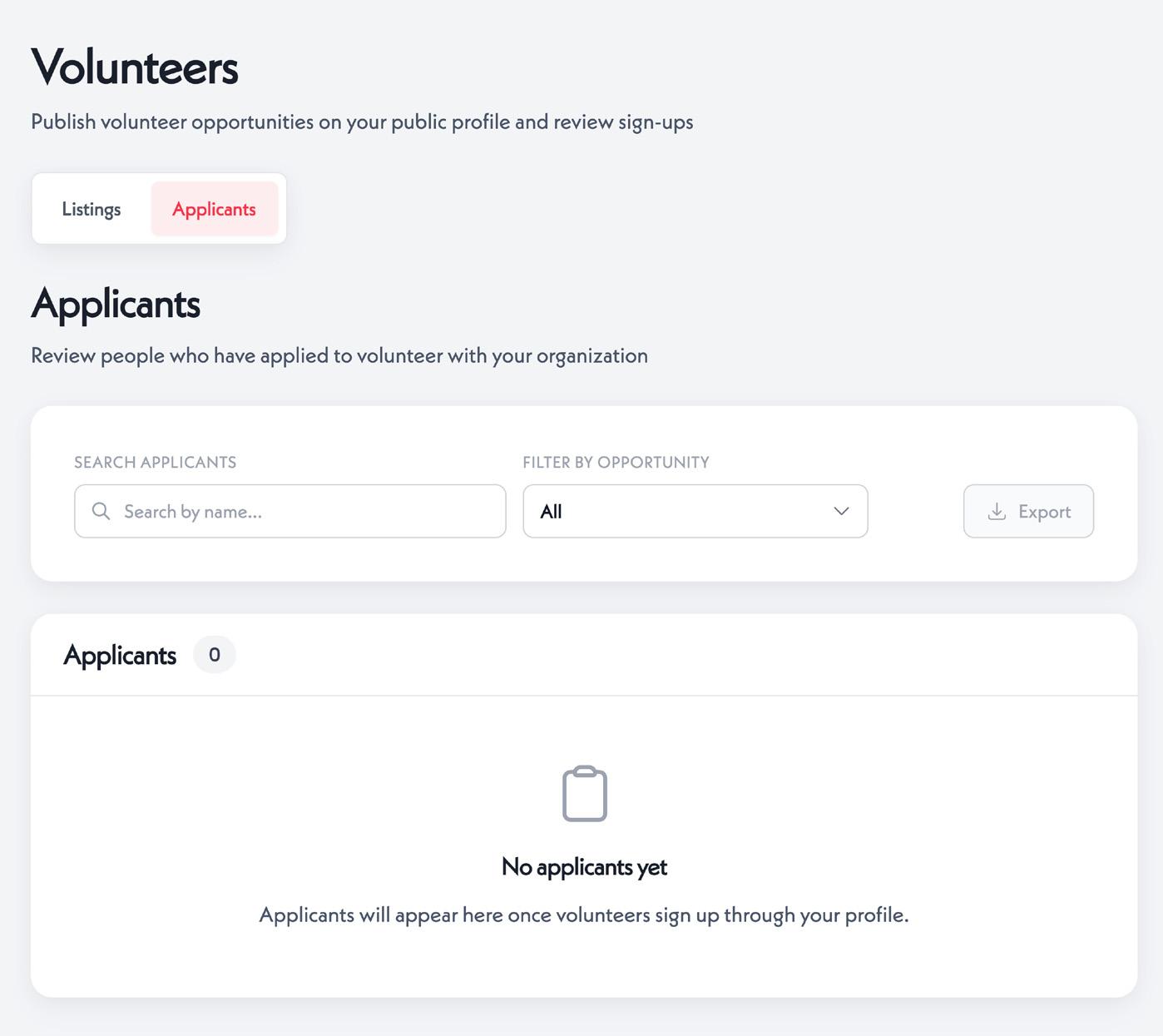
VOLUNTEER APPLICANTS
01 You can view volunteer applicants by switching to the “Applicants” toggle in your “Volunteers” section.
GOODS LISTINGS 20
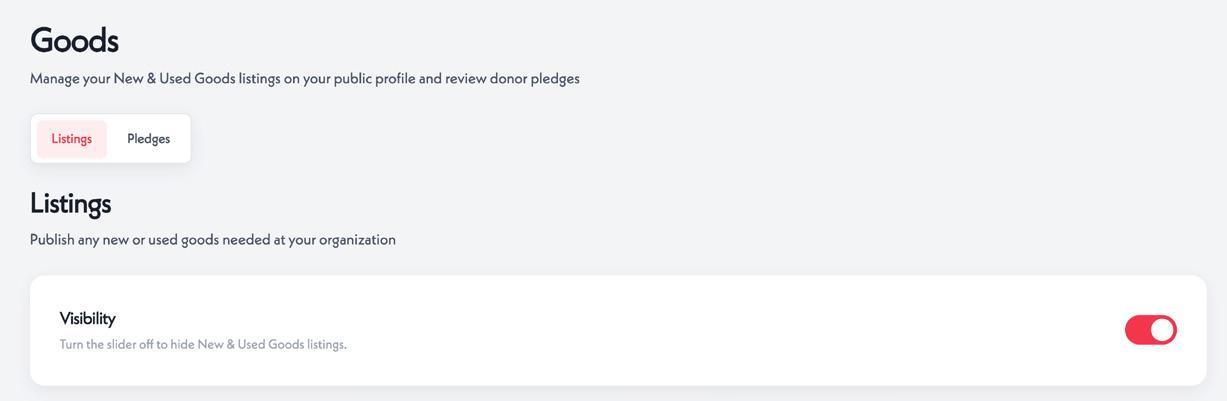
This feature allows you to list your need for new or used goods. To show listings on your profile, turn on the visibility toggle.
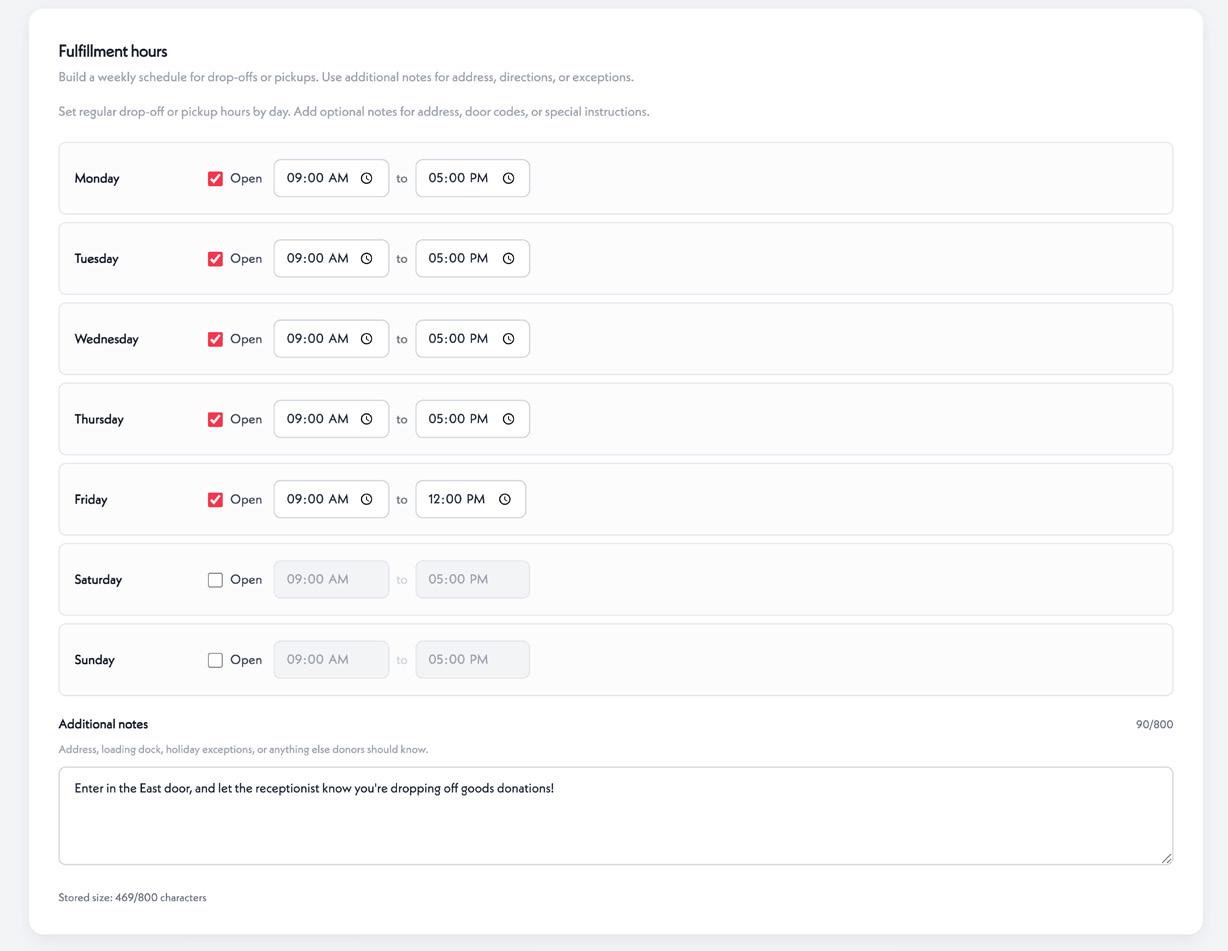
Optional: Complete the “Fulfillment hours” section for donors to see options for dropping off donations. You can add further details using the “Additional notes” section.
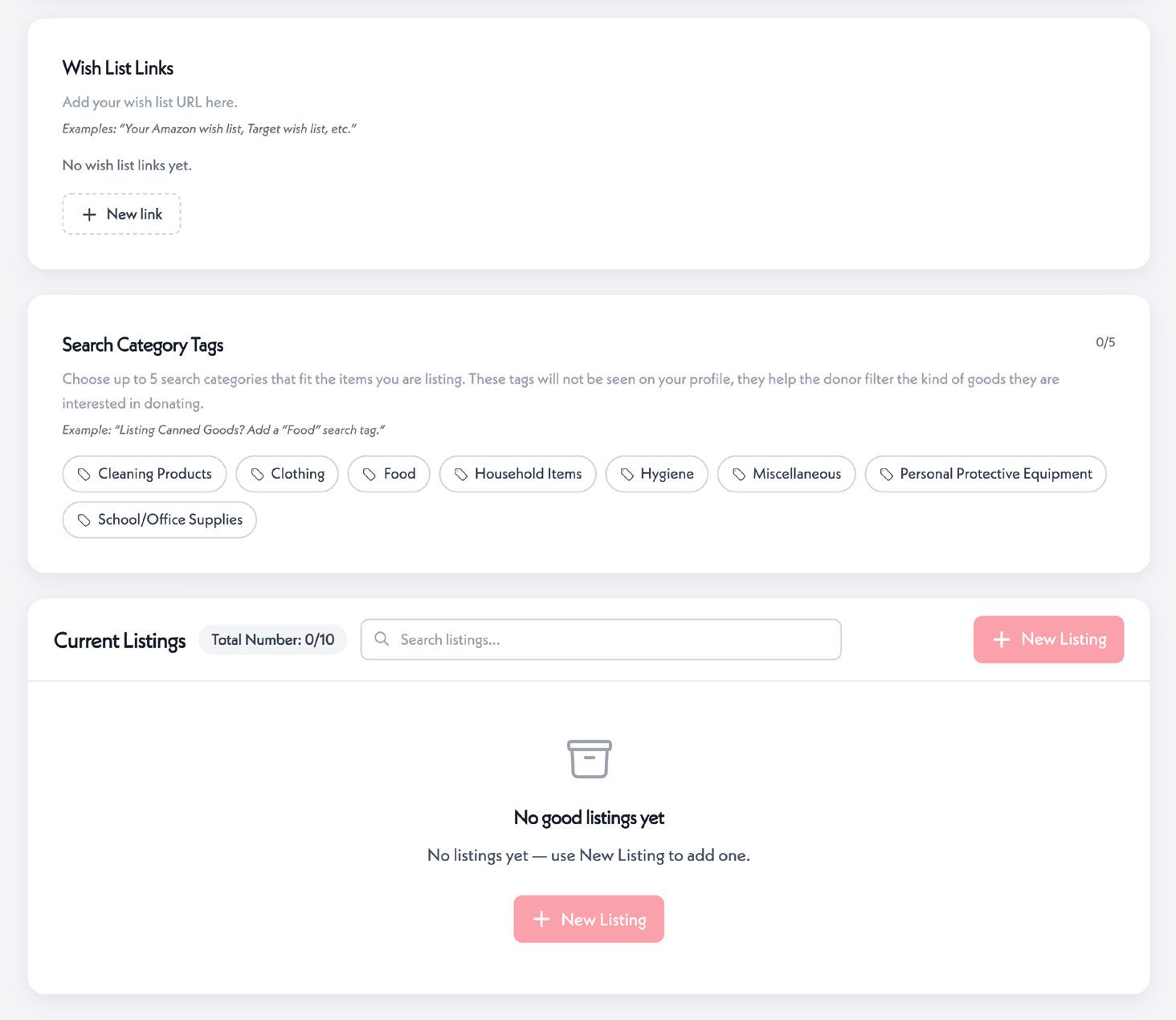
CUSTOMIZE GOODS LISTINGS
Include wish list links (e.g. Amazon, Target, etc.)
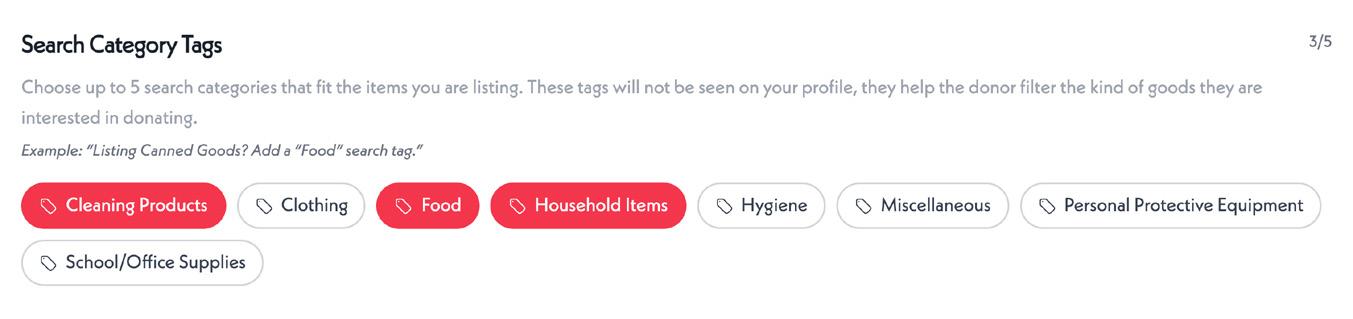
Choose up to five search categories to help donors narrow their search
List up to ten specific new or used goods that are needed by your organization by selecting the “+ New Listing” button
GOODS PLEDGES 22
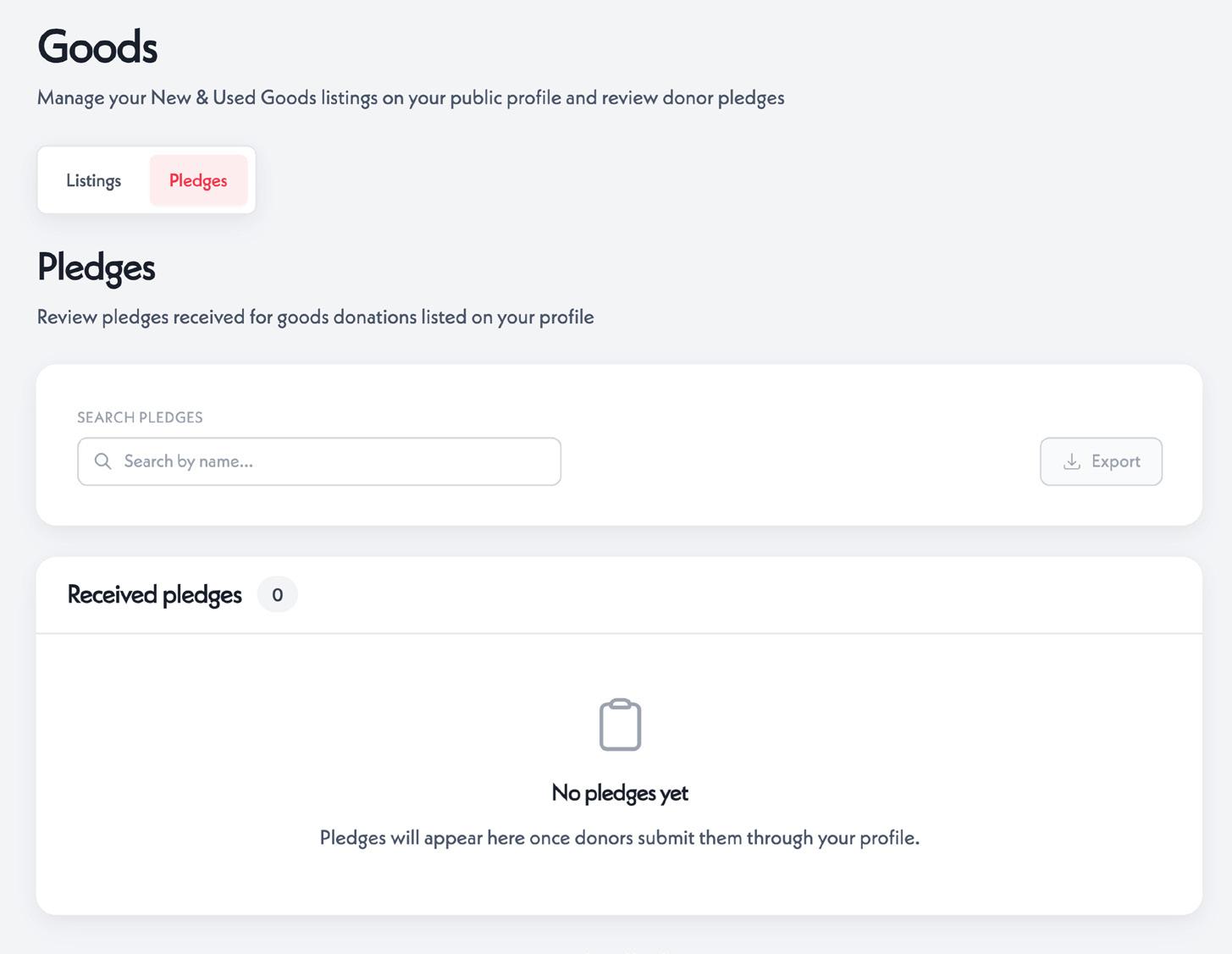
01 You can view pledges for goods donations by switching to the “Pledges” toggle in your “Goods” section.
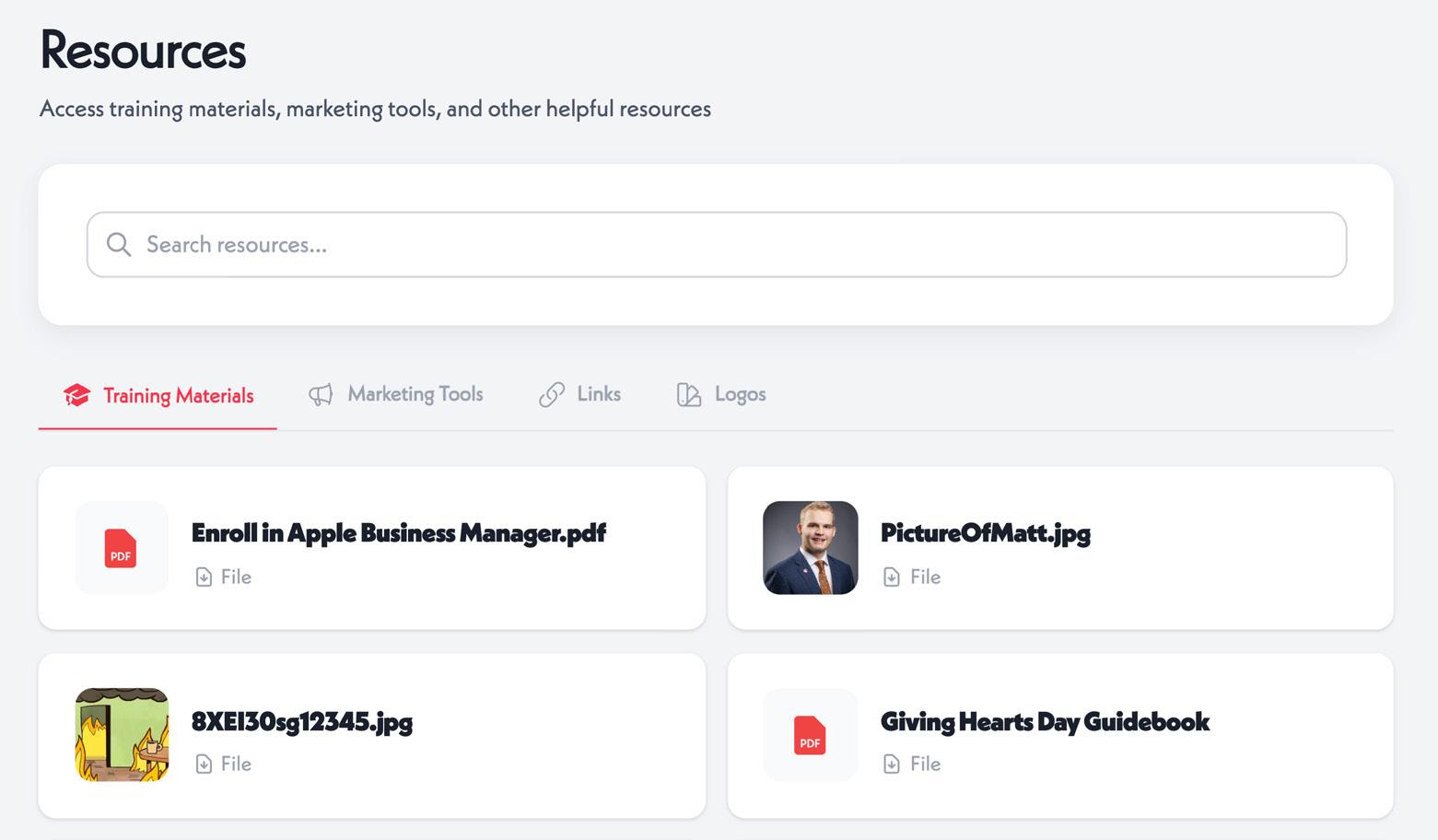
RESOURCES 23
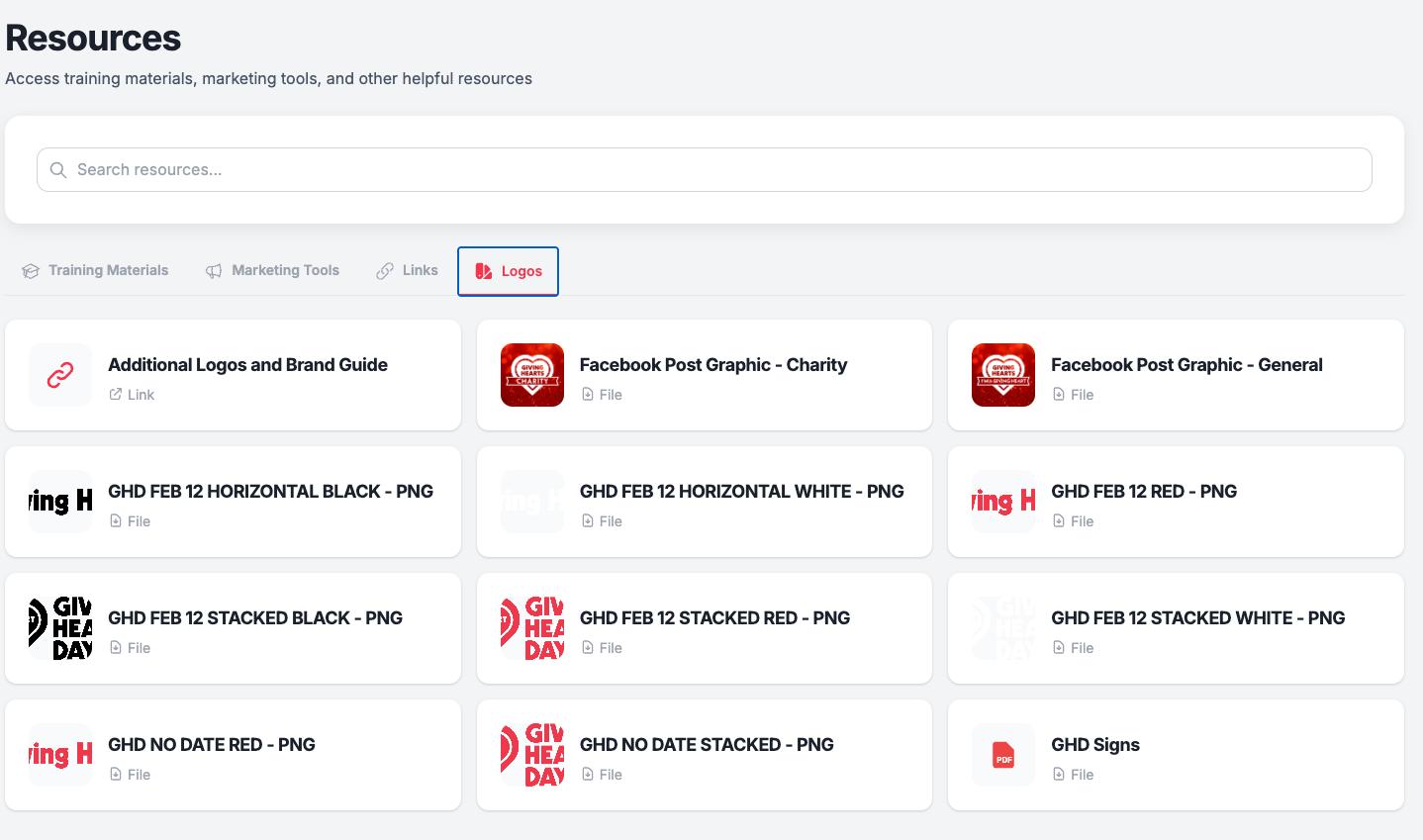
Your Resources page is where you will find downloadable training handouts, logos, templates, and other helpful resources for your Giving Hearts Day planning!
01 Use the top navigation bar to quickly access helpful resources, including training materials, marketing tools, links, logos, and more.
EXTRA FEATURES 25
On the following pages, you will find a list of features that appear in your Admin Portal at certain points of the Giving Hearts Day season, and approximately when you can expect to use them.
01 02
Assigned Forms: Forms are used for Giving Hearts Day registration, which each organization is required to complete for each year they would like to participate. This is typically assigned in the summer. It may also be used for quick surveys. Master admins will receive an email alert if a form is assigned.
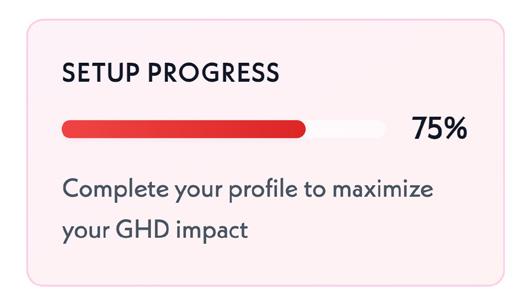
GHD Progress (Setup Progress): This box shows your progress toward your basic Giving Hearts Day requirements:
• Completed and Active Profile
• Connection to Stripe
• Giving Hearts Day Subscription Paid
• Match and Goal Entered
You will see your progress and be prompted to move to the next step.
PRO TIP:
Please refer to the Giving Hearts Day Calendar for important dates, deadlines, campaign milestones, and feature availability throughout the Giving Hearts Day season.
EXTRA FEATURES CONT. 26
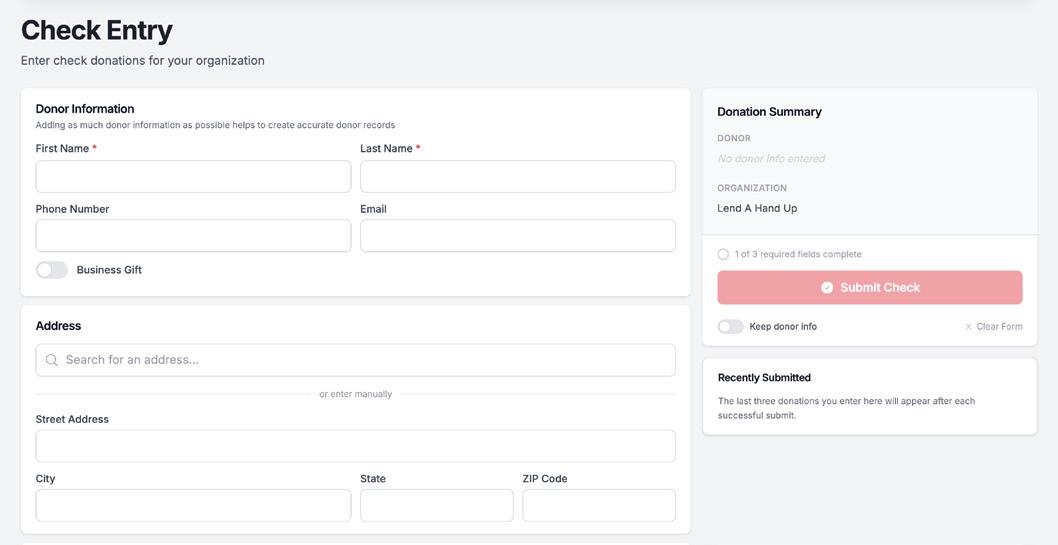
Check Entry: If you receive check donations for Giving Hearts Day, they are added to your total using the check entry. This is typically available in early February, and closes the day after Giving Hearts Day.
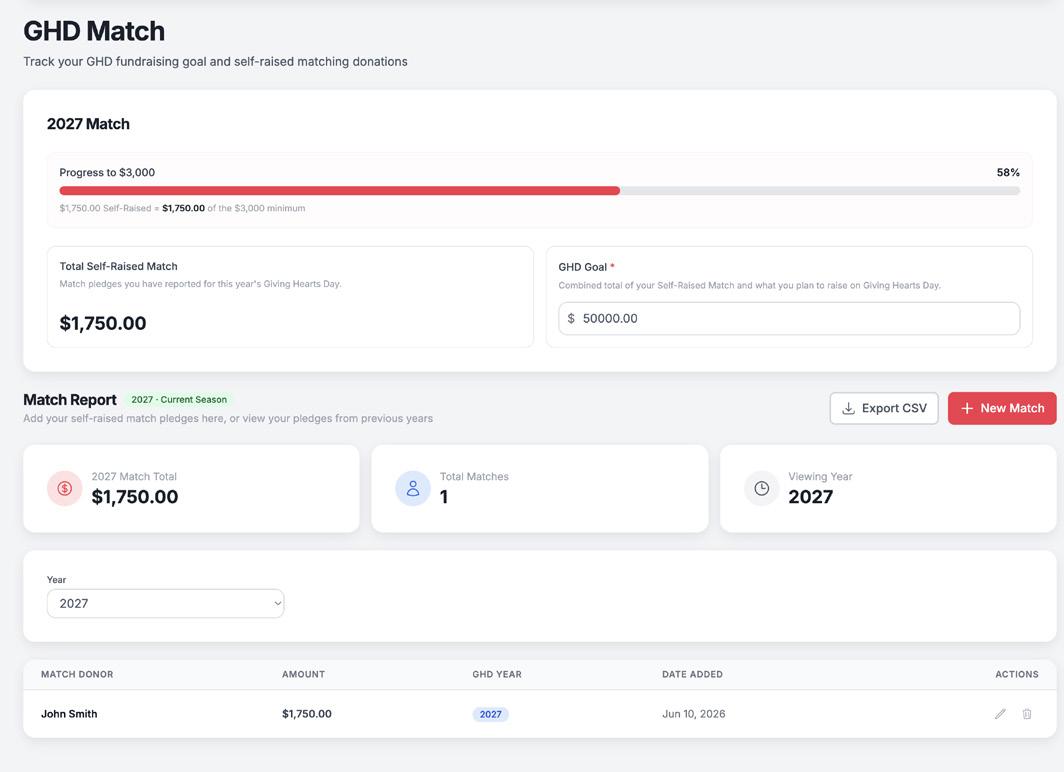
Match Report: To fulfill your Giving Hearts Day match requirement, you’ll need to enter in the amount of match you’ve raised in your “Match Report.” This will show up in your Admin Portal in early December, and closes on the deadline for match. Both your match donors and your overall goal are required fields.
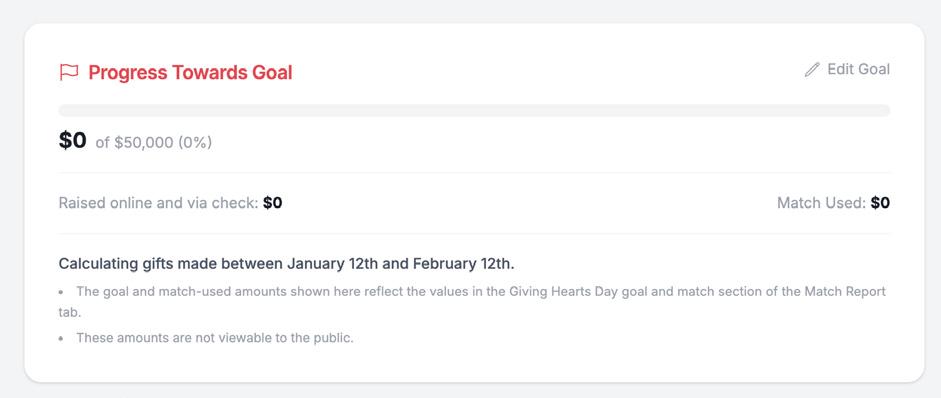
Early Gifts: When Early Giving opens in January, you will see a progress tracker toward your goal in your dashboard. For each donation received, the system calculates that same amount from your match dollars, and adds it to your progress bar toward the goal you set!