



● Be respectful to suggestions from the customer regarding routes.

● Acknowledge traffic delays, but assure the customer that you will do your best to get them to their destination.
● Share route information such as another drop-off or pickup.
● Share with them GPS information, especially when an alternative route is taken and may not be familiar to the customer.
● If a customer’s request is unreasonable and not within policy, tell them you need to get approval from your dispatcher before you can proceed.
Care and courtesy is required during vehicle operation:
● Avoiding sudden stops/starts, sharp turns and abrupt lane changes.
● Following posted speed limits.
● Staying off your phone - no exceptions.
● Being aware of potholes and other road conditions that may cause discomfort to the passenger of your vehicle.
● Not engaging in or responding to aggressive driving.
1. Limit your cancellations. Always read offer card details carefully before accepting.
2. Refrain from completing trips without picking up passengers.
3. Make sure you start trips at the pick up location and end trips at the drop off location.
4. Avoid complaints and negative feedback from passengers.
5. Refrain from converting eHail trips to street hail.
6. Continue to maintain an acceptance rate above 10%.
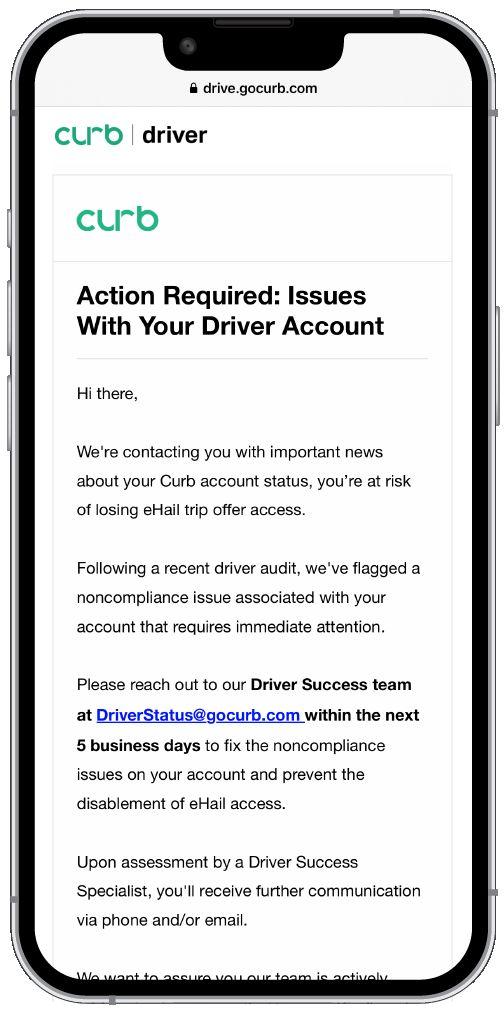
● You will be warned once via email before you are suspended.
● After the second violation your eHail ability will be turned off.
● You will need to complete a reinstatement program to be considered.
Month over month, we see a 15% driver cancelation rate after accepting trips.
Why is it important?
This creates a bad passenger experience & does not meet industry standard expectations.
Did you know?
There is a ‘Decline’ button on all offers. Please read all trip details before accepting a trip offer.
Remember:
● Curb does NOT reward offers to the fastest Driver to tap Accept!
● Curb rewards offers to the closest driver.
● Take your time observing with the bid time given.


EARN MORE WITH EHAIL
On average, Curb e-hail passengers tip 23% on trips!
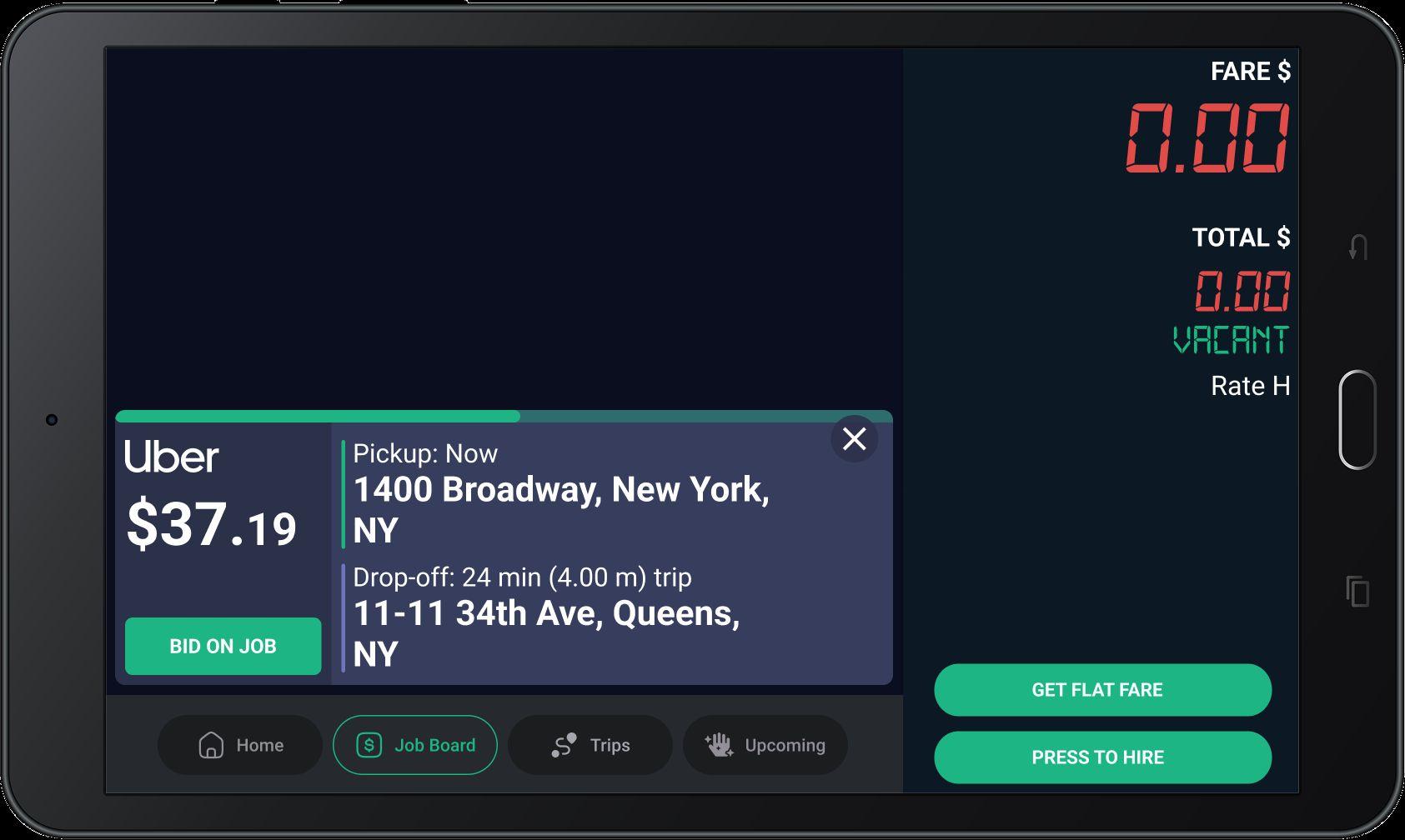

Trips are identified by the COMPANY label in the offer card.
The map also shows the estimated time and distance for the offered trip. The purple dot shows the requested drop-off location.
The map now shows time (min) and distance (mi) to the requested pickup location, indicated with a green dot.
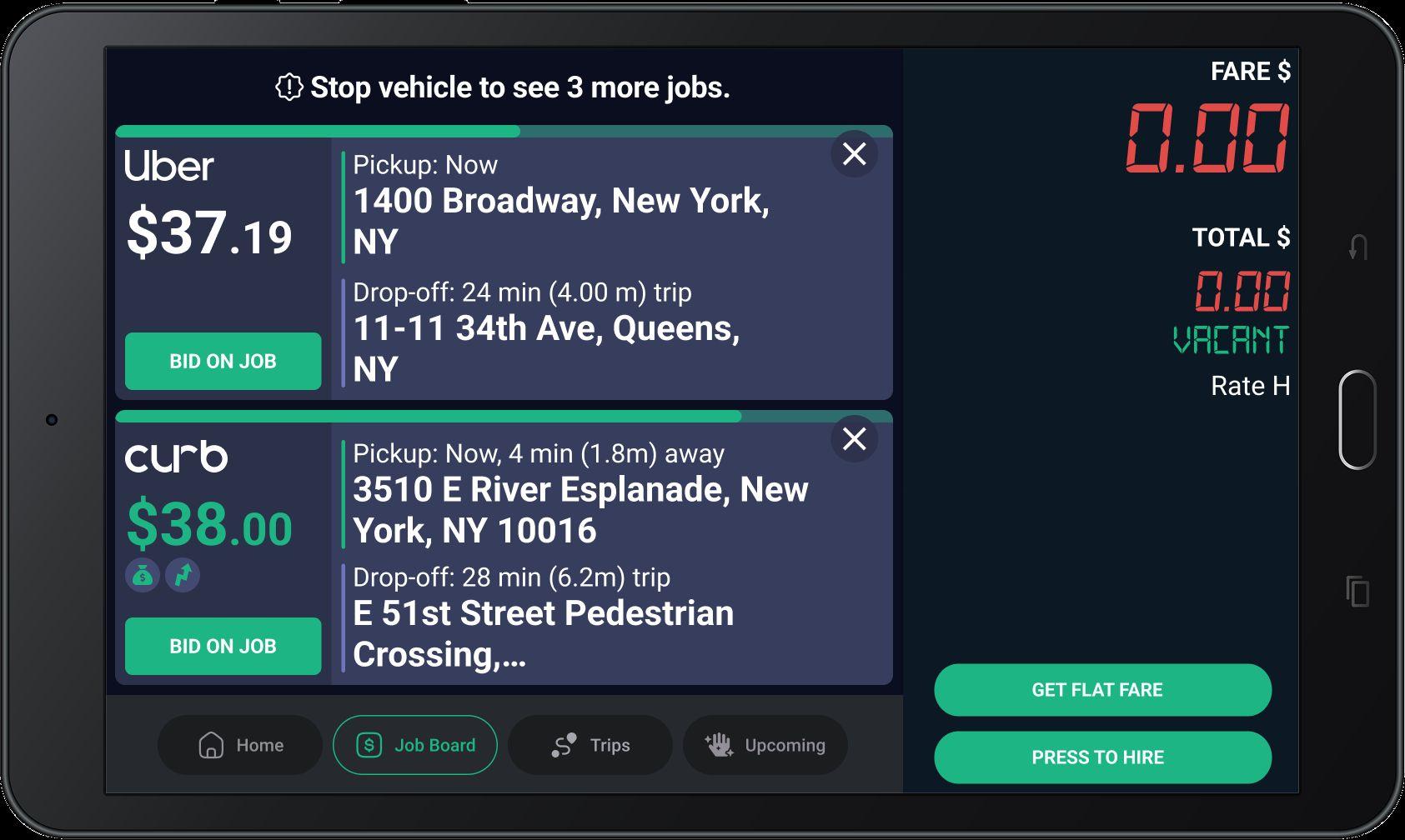
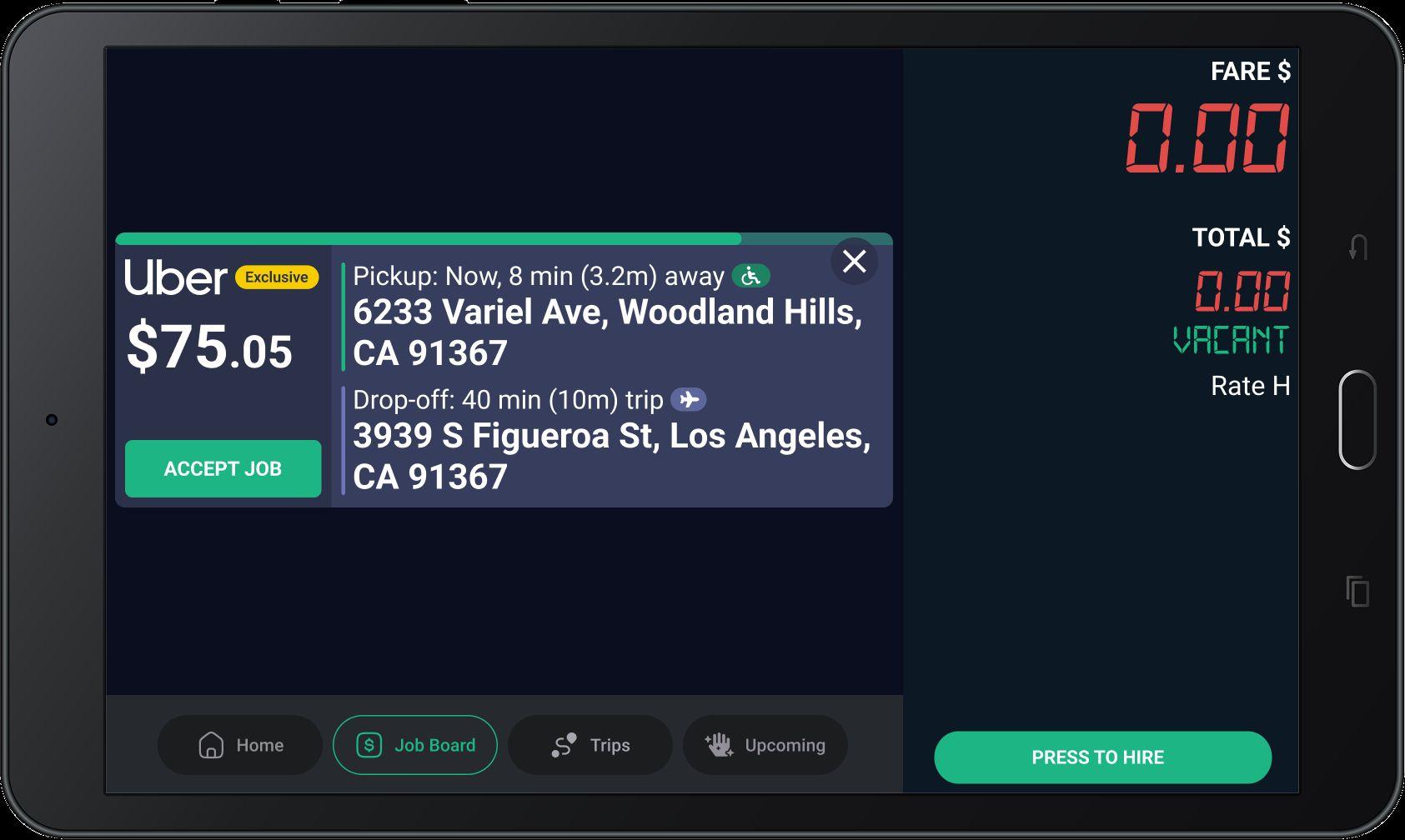
When you get an e-hail, this screen will pop-up in your tablet.
The Fare for the trip includes Tolls, Fees and Surcharges (if applicable).
Bid only on the trips you really want to take.
When you get an e-hail, this screen will pop-up in your tablet.
● Many drivers can see these jobs
● Place your bid
● One driver will be assigned
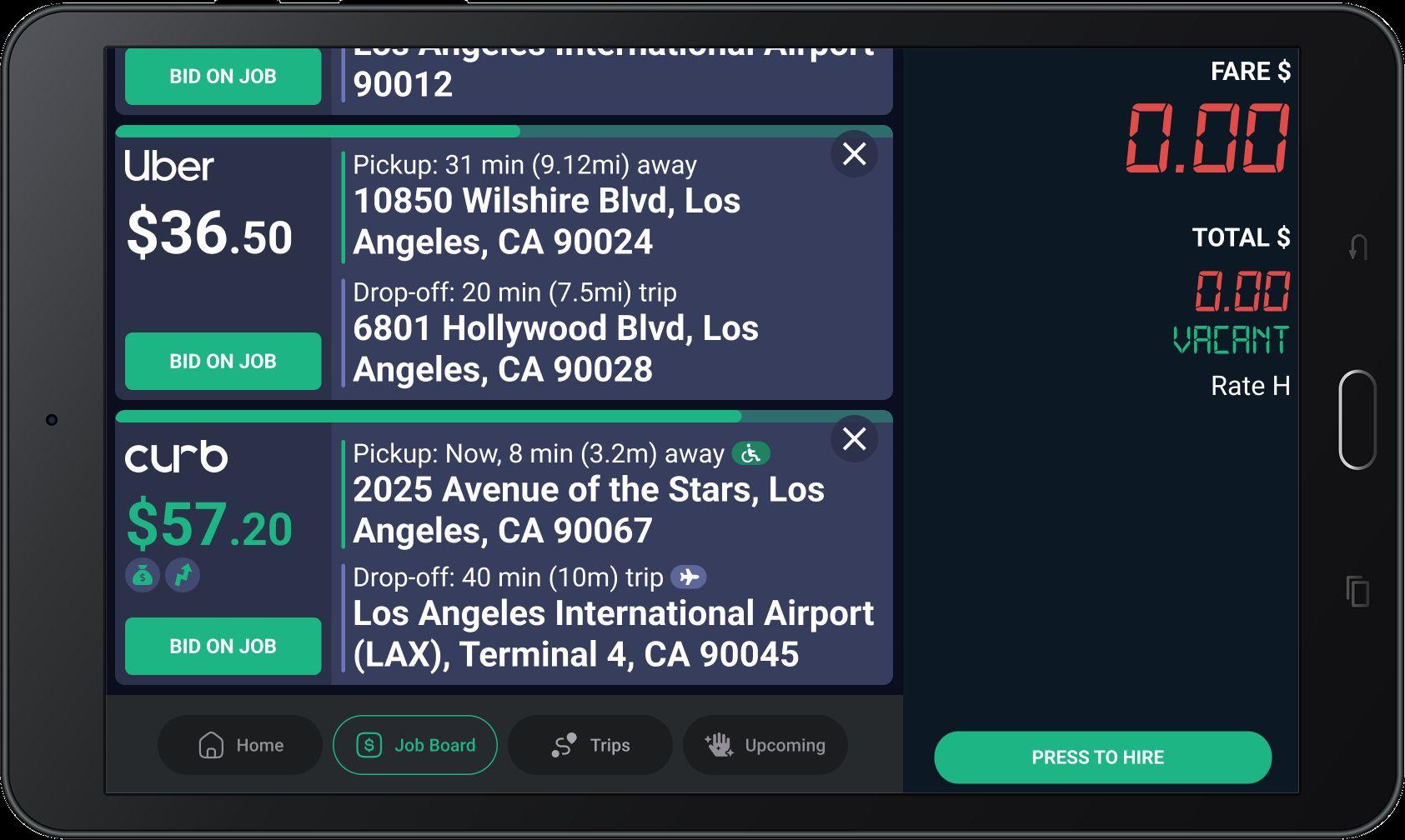
Scroll through the list to see more offers when you are stopped.
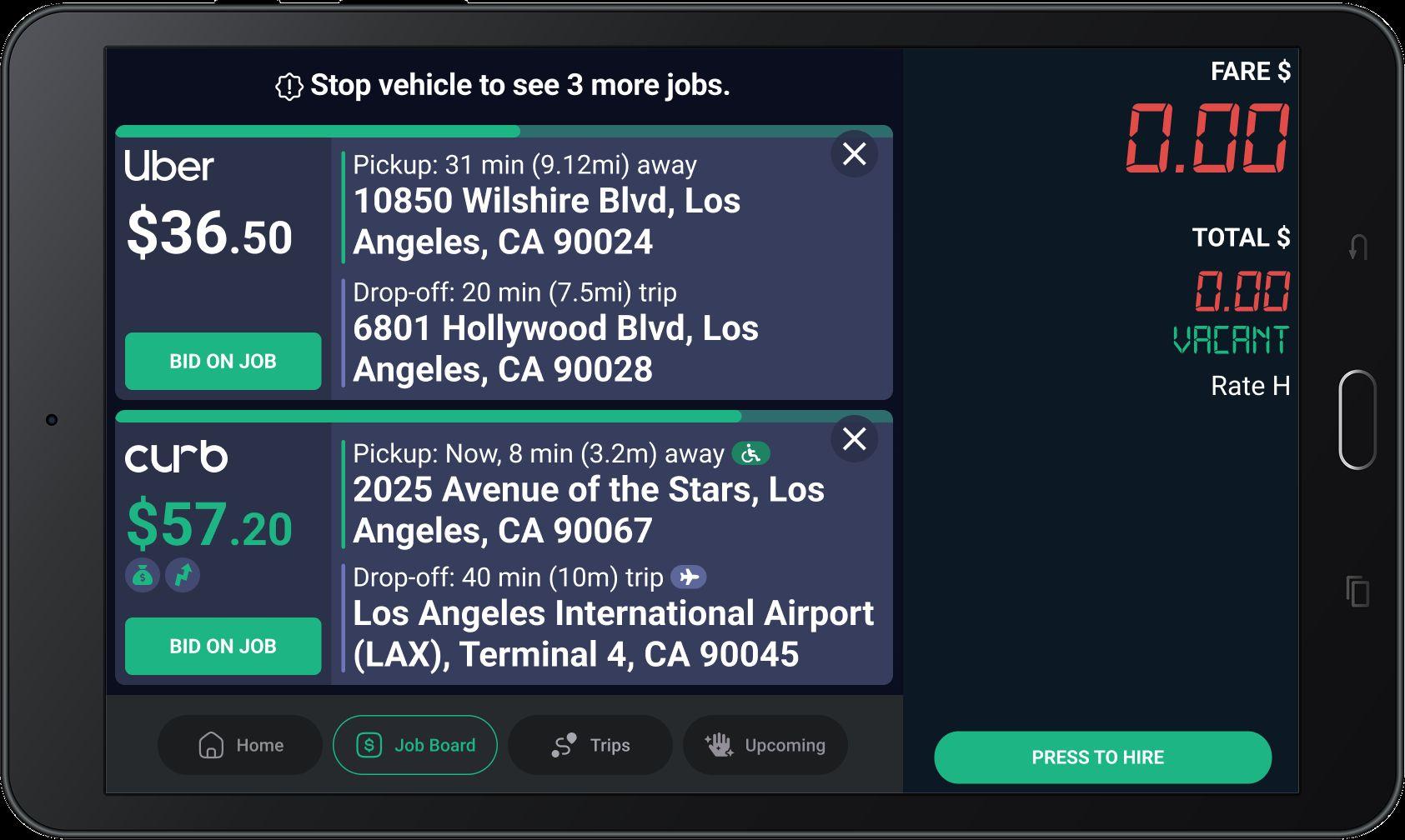
While moving, view two offers max.
When stopped, scroll to view all offers.
● Sent only to you - no competition
● Accept and get the trip!
● Job Board pauses until you decide.
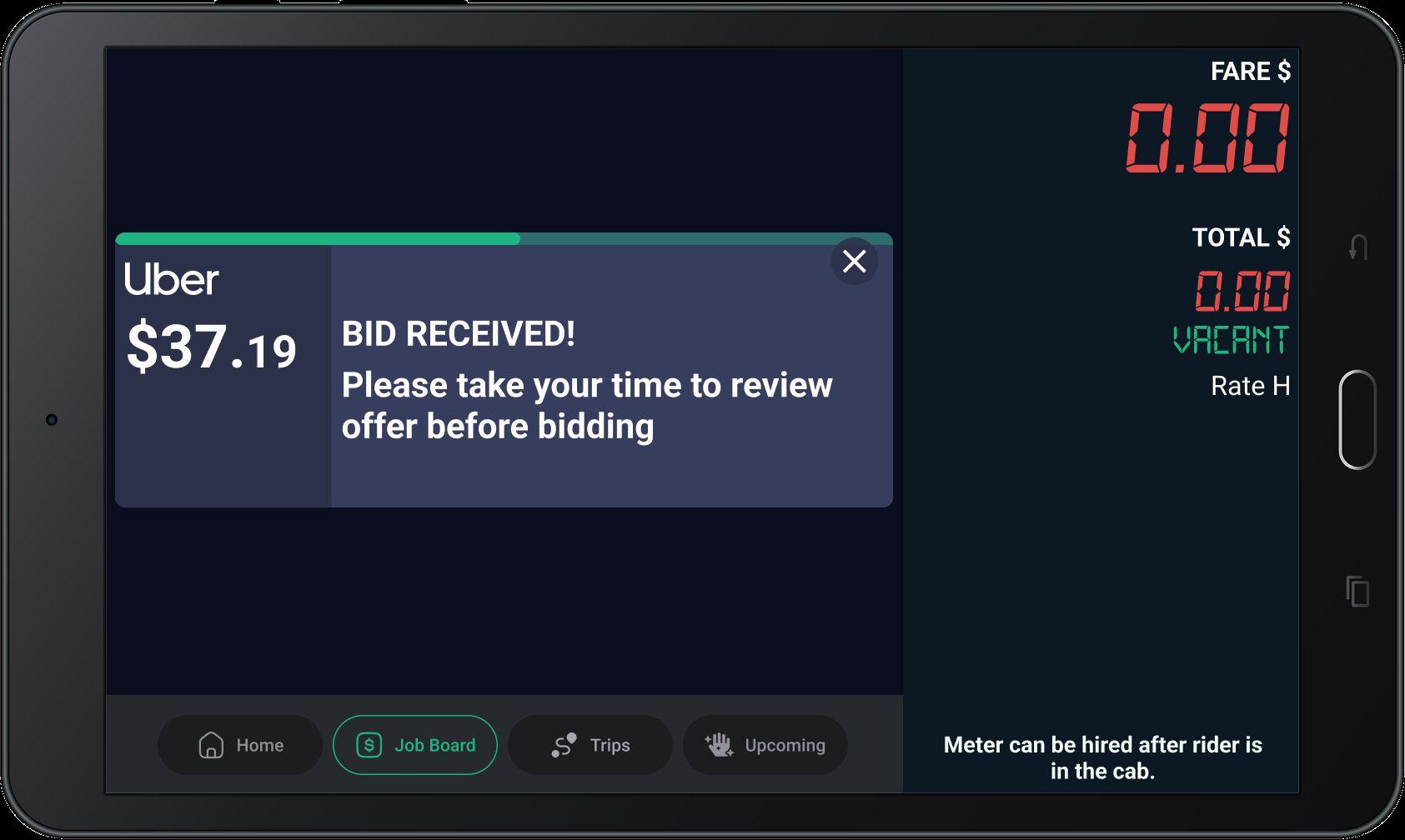
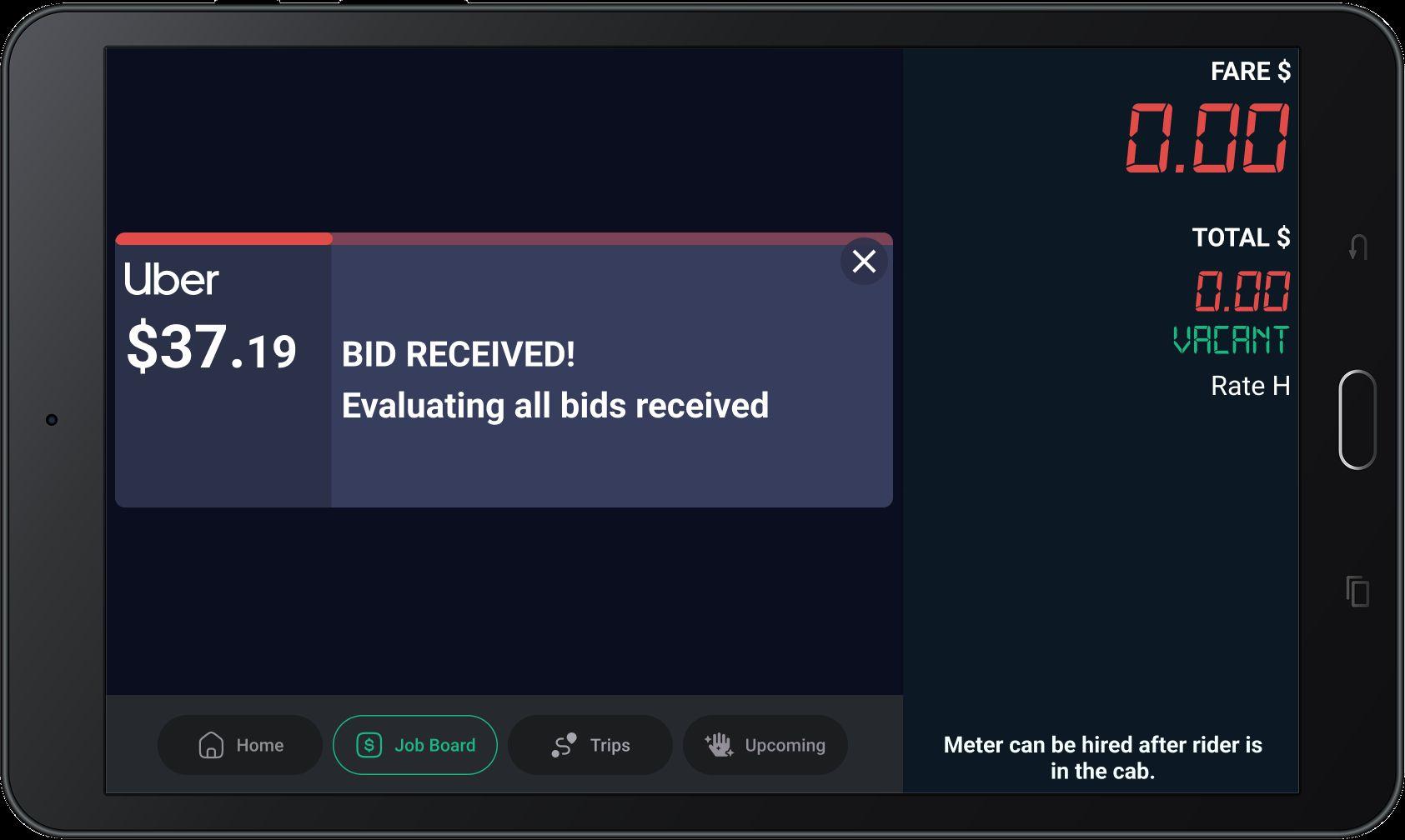
Bid received!
The trip goes to the closest driver.
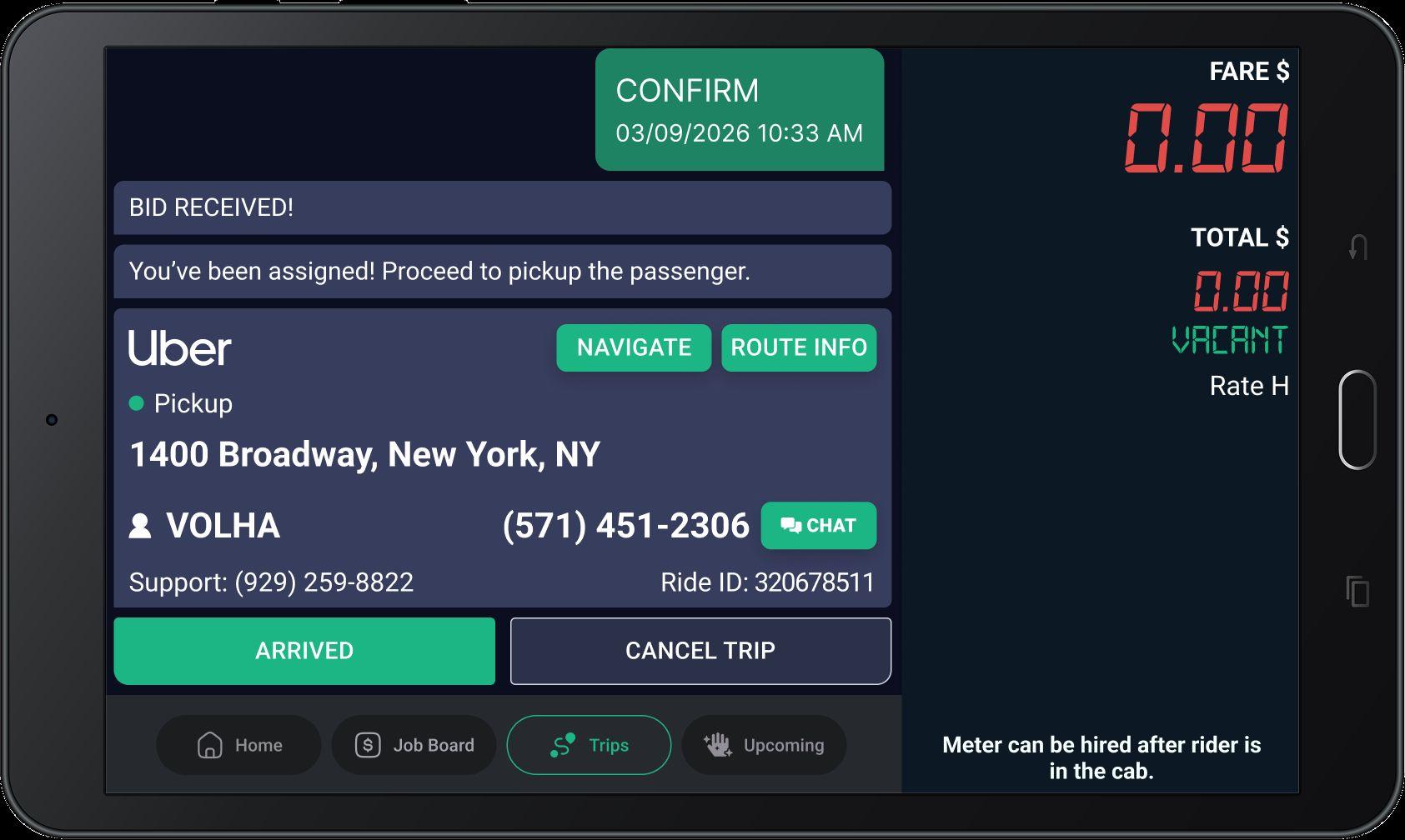
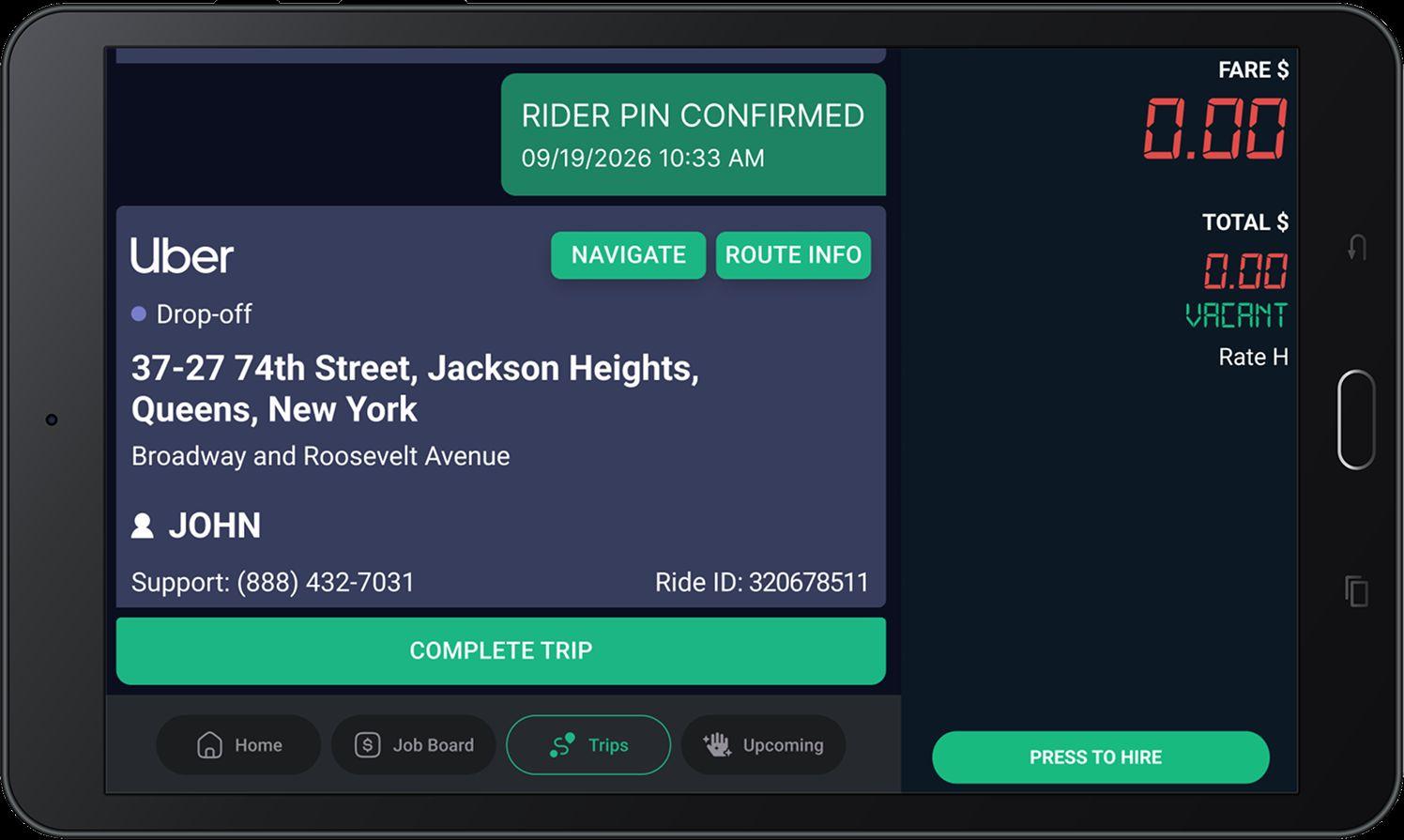
Tap Navigate to use Google Maps within the tablet to Navigate, keep in mind a SMS with a navigation link will also be sent to your phone.
Tap Route Info to review the stops on the trip, if a trip has multiple stops you will notice each stop within the Route Info tab.
Arrived
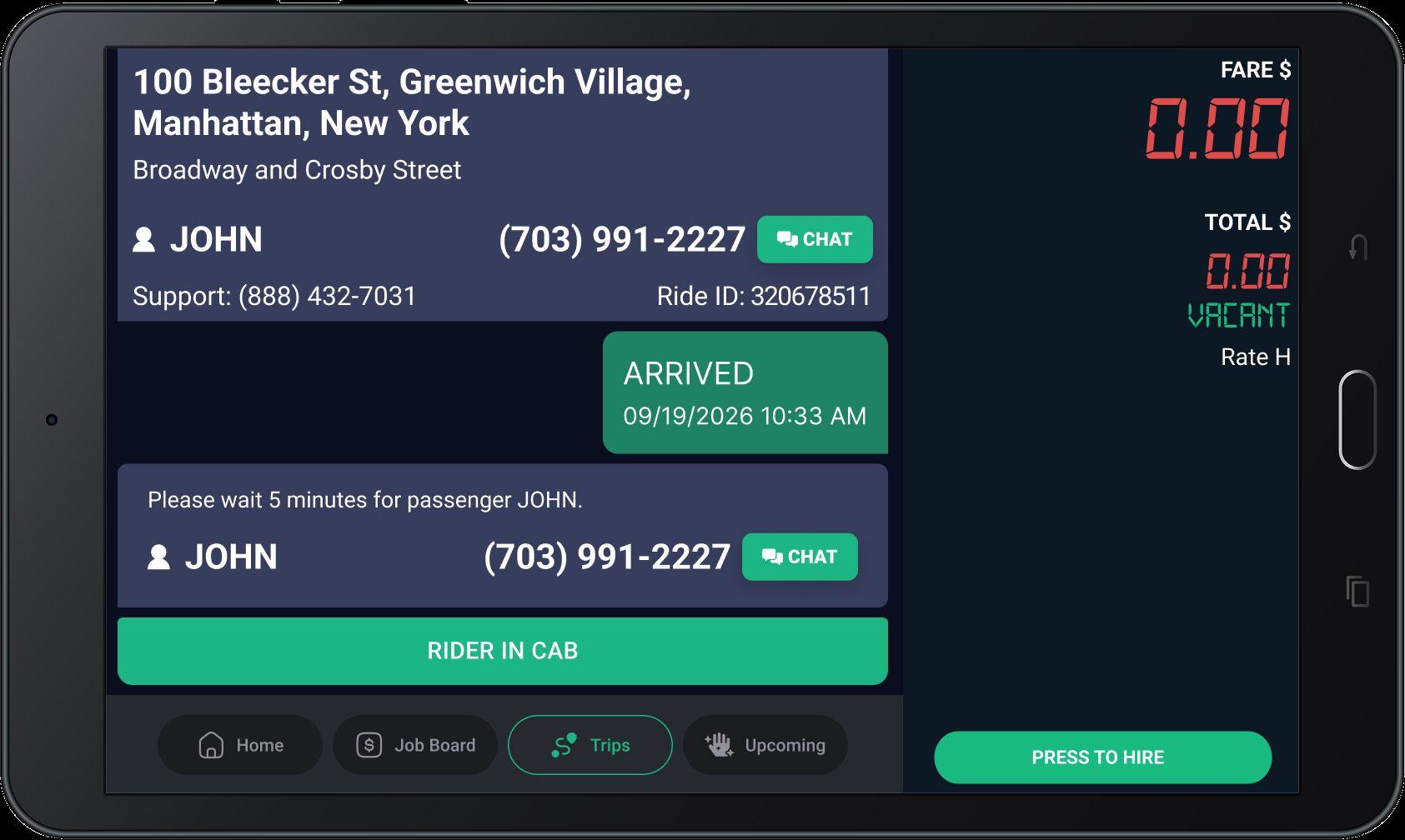
Tap 'ARRIVED' when you reach the pickup.
The ‘CHAT’ button can be pressed to pull up the chat feature and send message with the passenger.
RideChat
Choose from pre-made responses to make communication with the passengers even easier.
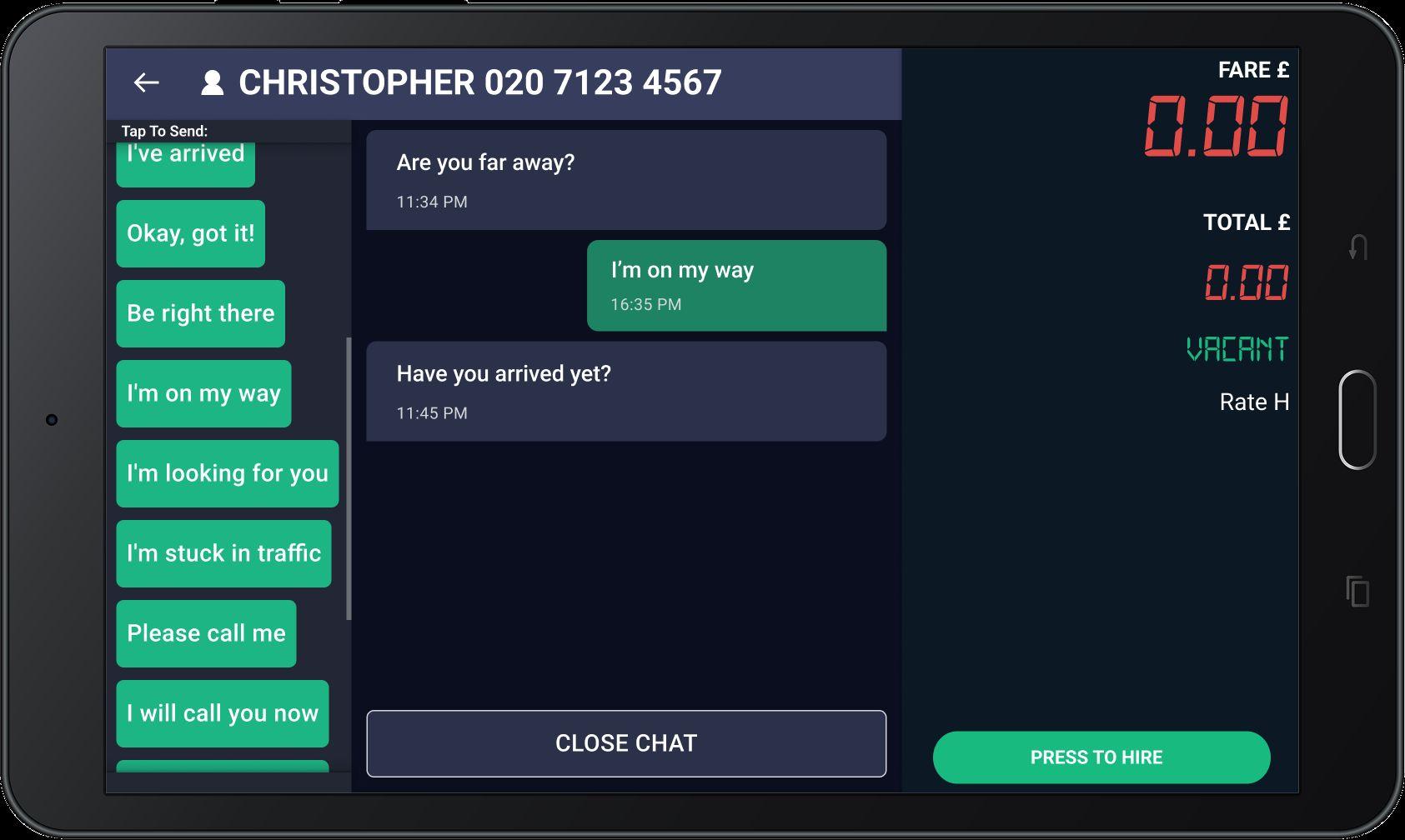
When you tap on “Chat” button, these message options will pop-up in your tablet.
Press the button to proceed to the next stage of the trip and receive the drop-off location.
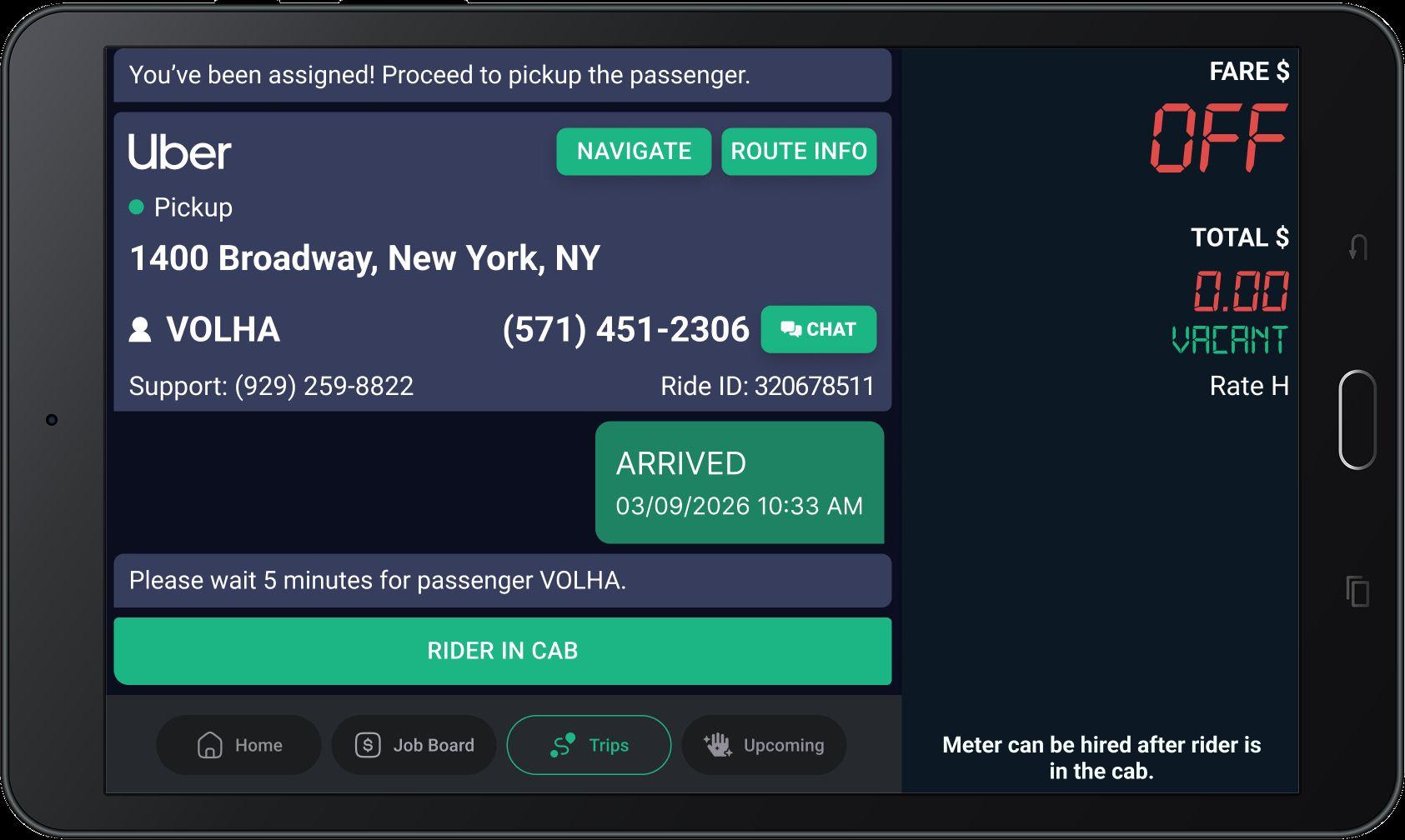
After 5 minutes a No Show Button will appear, tap No Show to mark the ride as a Rider No Show and become available for new Ehail trips.
Confirm the rider's name before starting the trip to ensure correct passenger identification and accurate fare calculation.
If the wrong passenger has entered the vehicle, use this button to cancel and remove them from the ride.
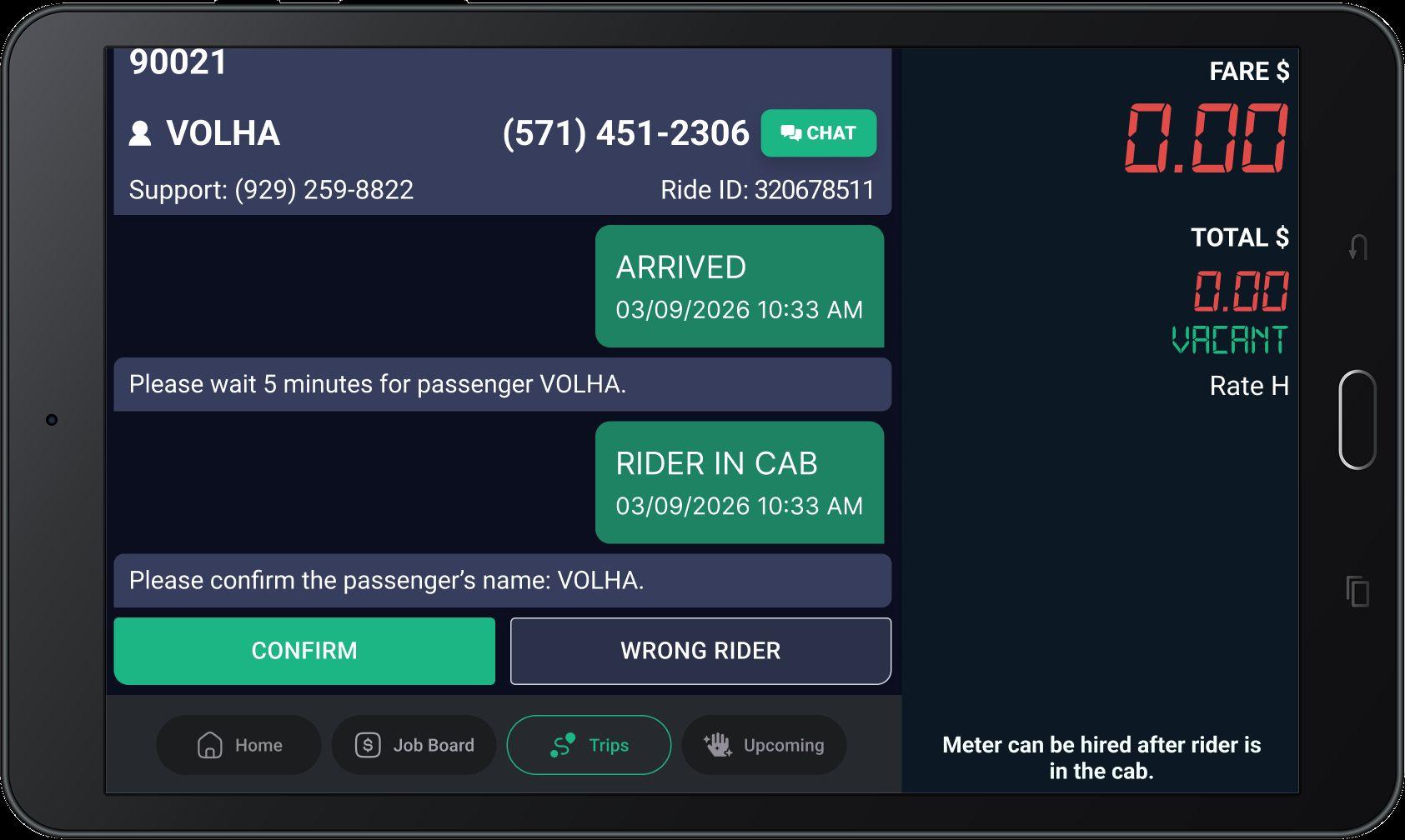
‘CONFIRM’ button needs to be pressed before the trip is started or there can be issues with calculating the ride fare.
In the trip summary section you can see the breakdown of the fare and tip.
Note:Sometimesthetipdoesnot showimmediatelyasUbertipscan comeinlater.
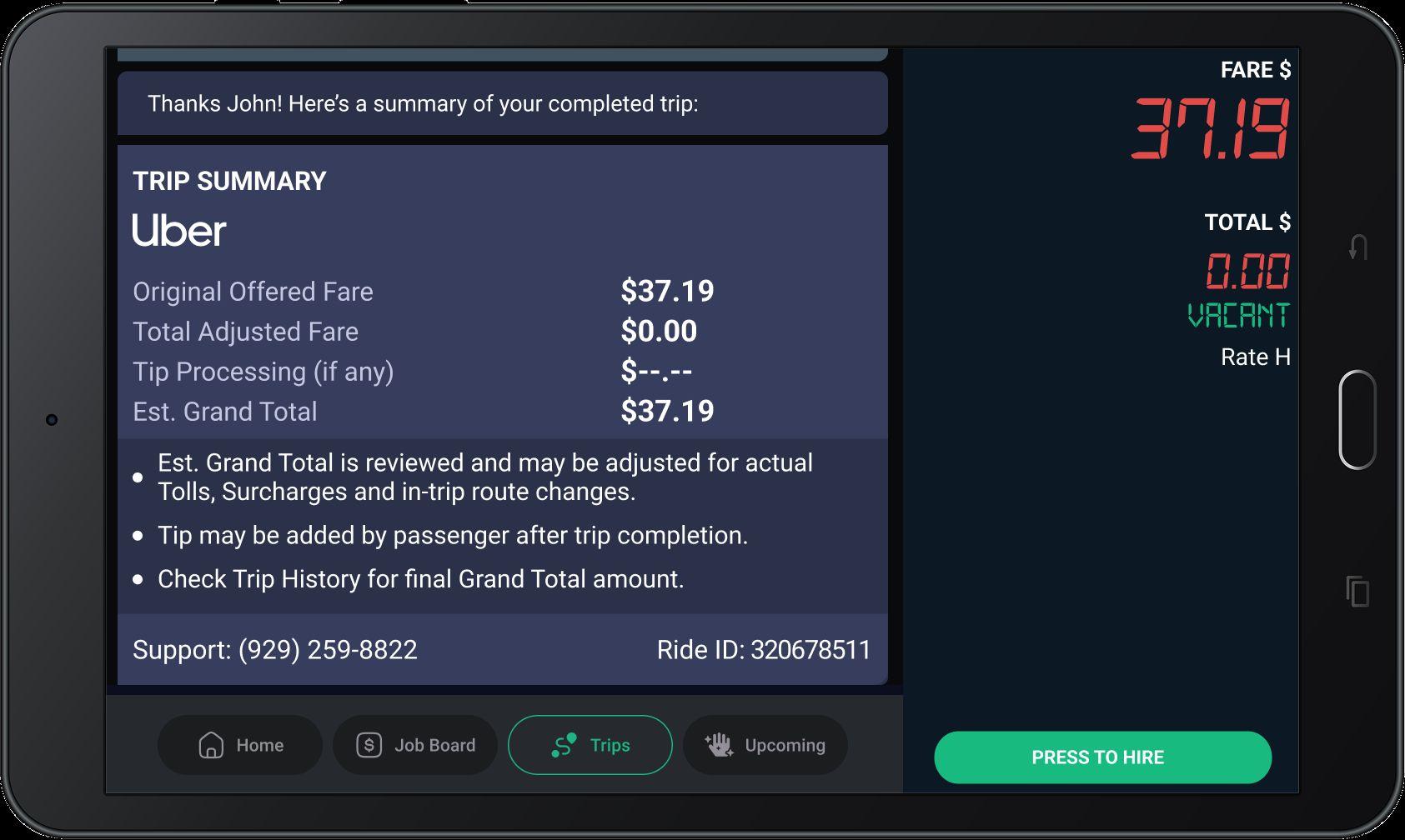
In the trip summary section you can see the breakdown of the fare and tip.
Note:Sometimesthetipdoesnot showimmediatelyasUbertipscan comeinlater.
Any tip amount received during the trip may still be processing when the trip completes.
Youwillbealertedofthesetipslater viatheTipUpdatealertorwhen startingyourshift.
You will receive this message during your shift when a tip from an earlier trip is received.
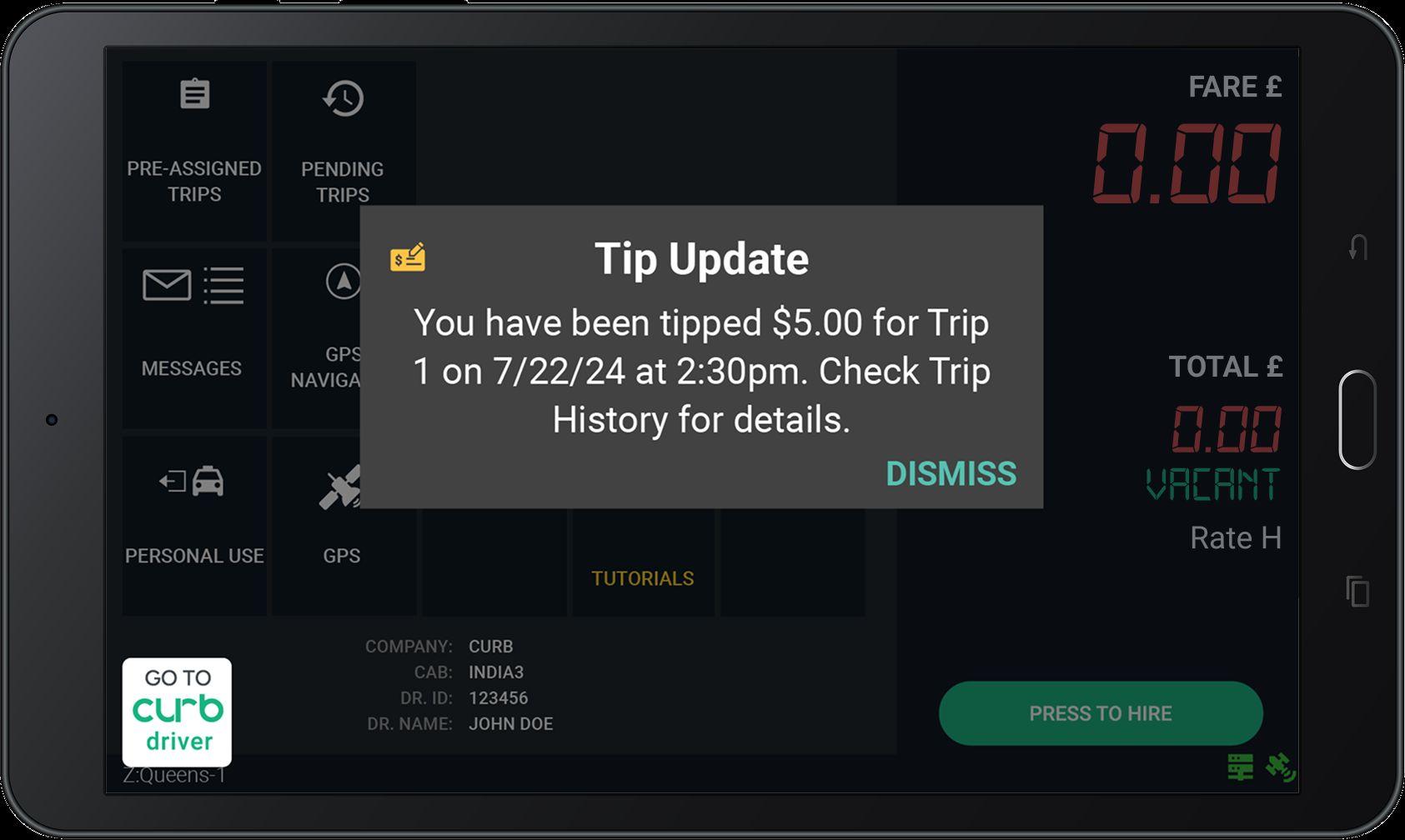
Tips can be added by passengers up to 30 days after the trip is completed.
Look for the yellow icon next to your Tip! Trip History is always updated to show any new tips.
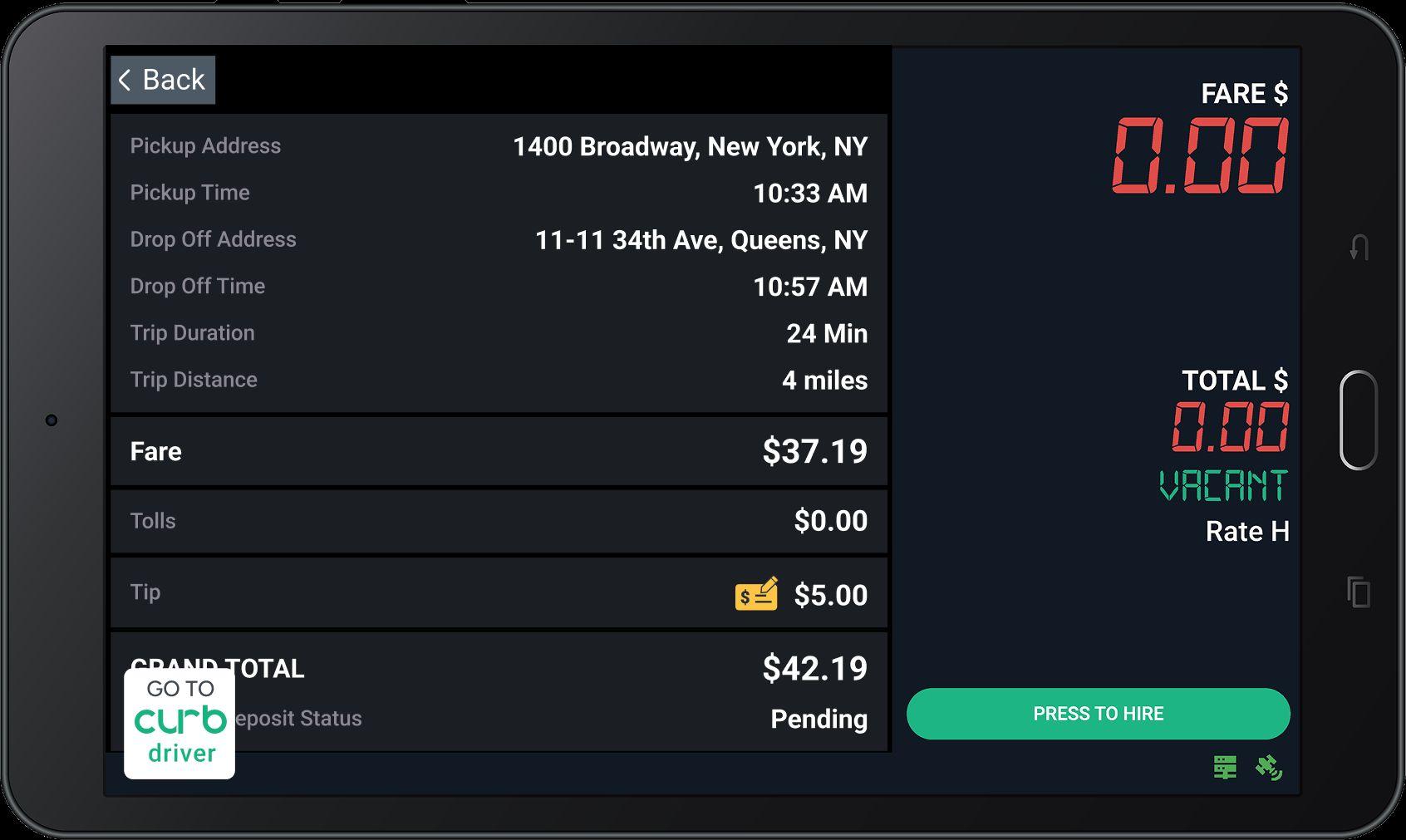
Some trips will require the rider to provide a PIN.
Tap RIDER IN CAB to proceed to the PIN
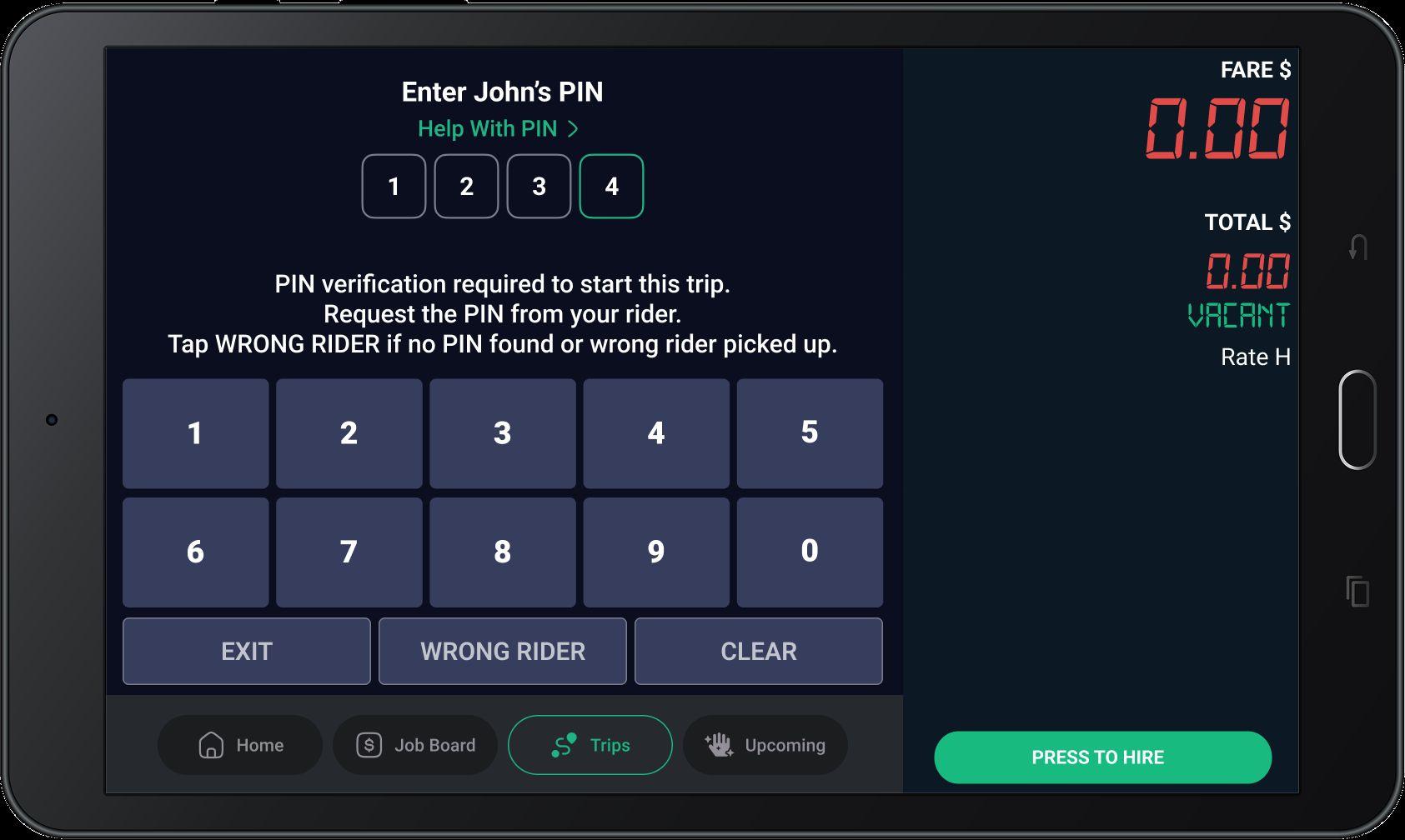
Some trips will require the rider to provide a PIN.
Enter PIN
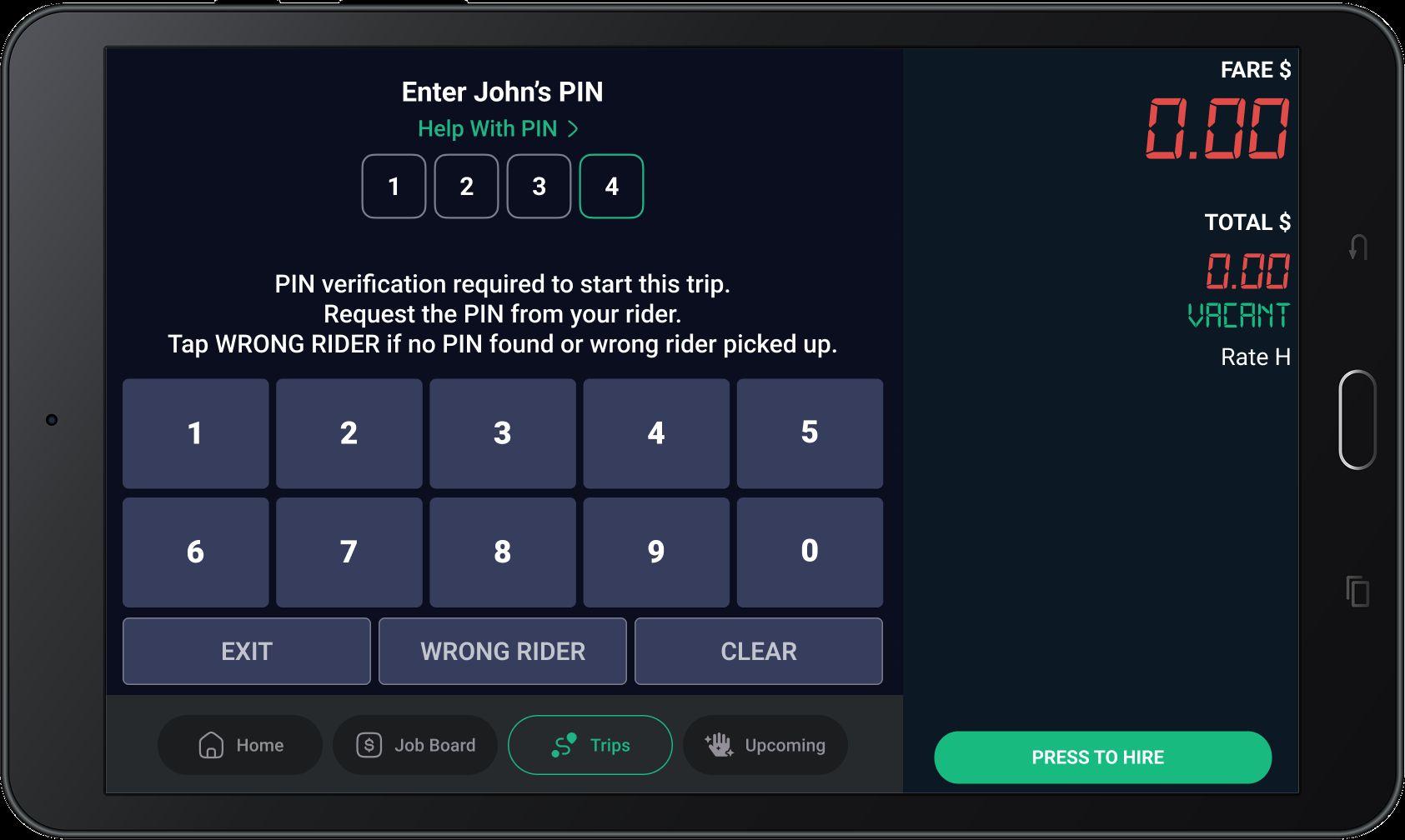
Type the PIN exactly as the Rider dictates on the Uber app.
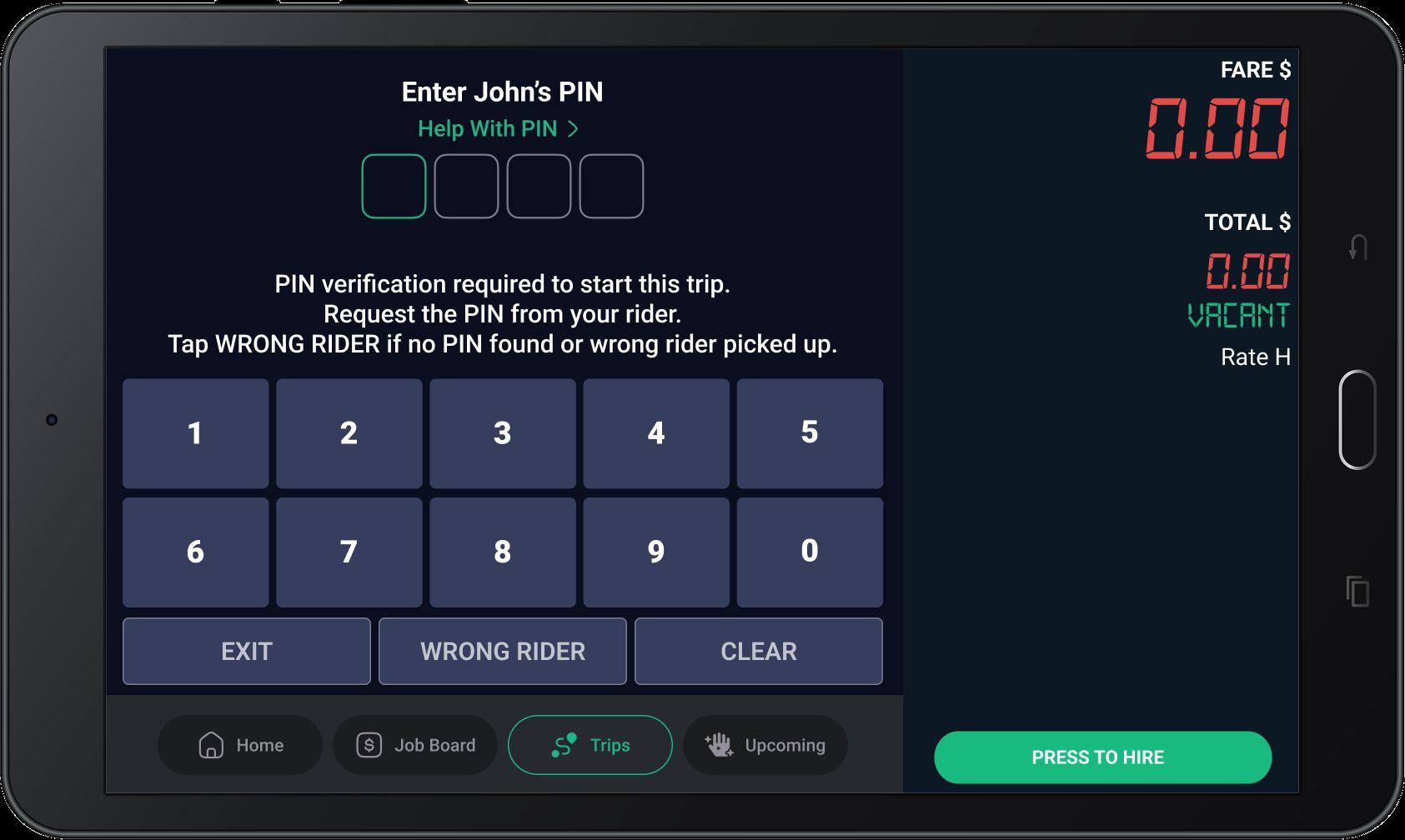
PIN
Ask them to read the PIN slowly
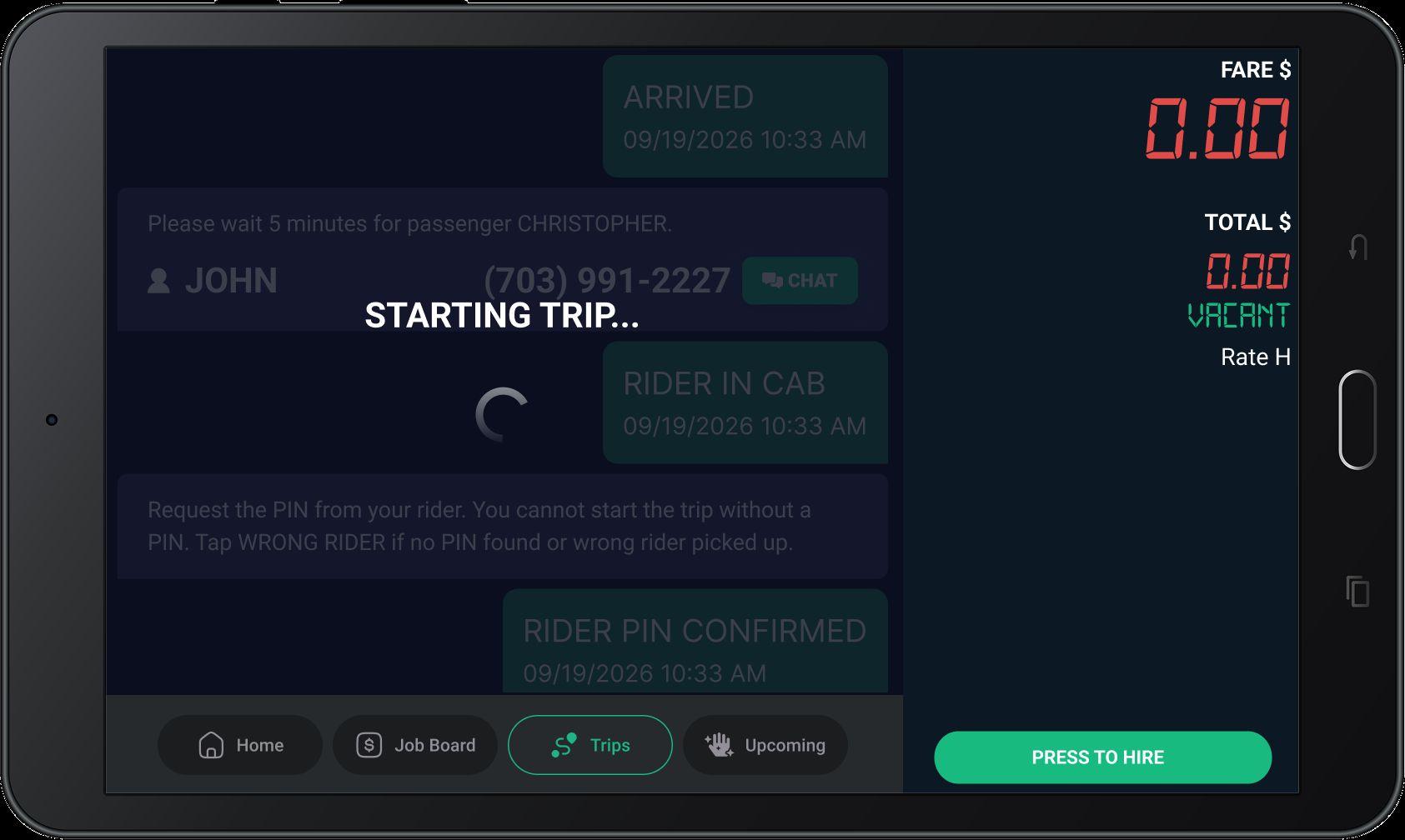
Trip is now starting wait until the trip details are shown
Trip Engaged You are now in the trip.
Add and complete multiple stops in a single trip
Navigate Between Stops
Tap ‘Navigate’ for directions to each stop
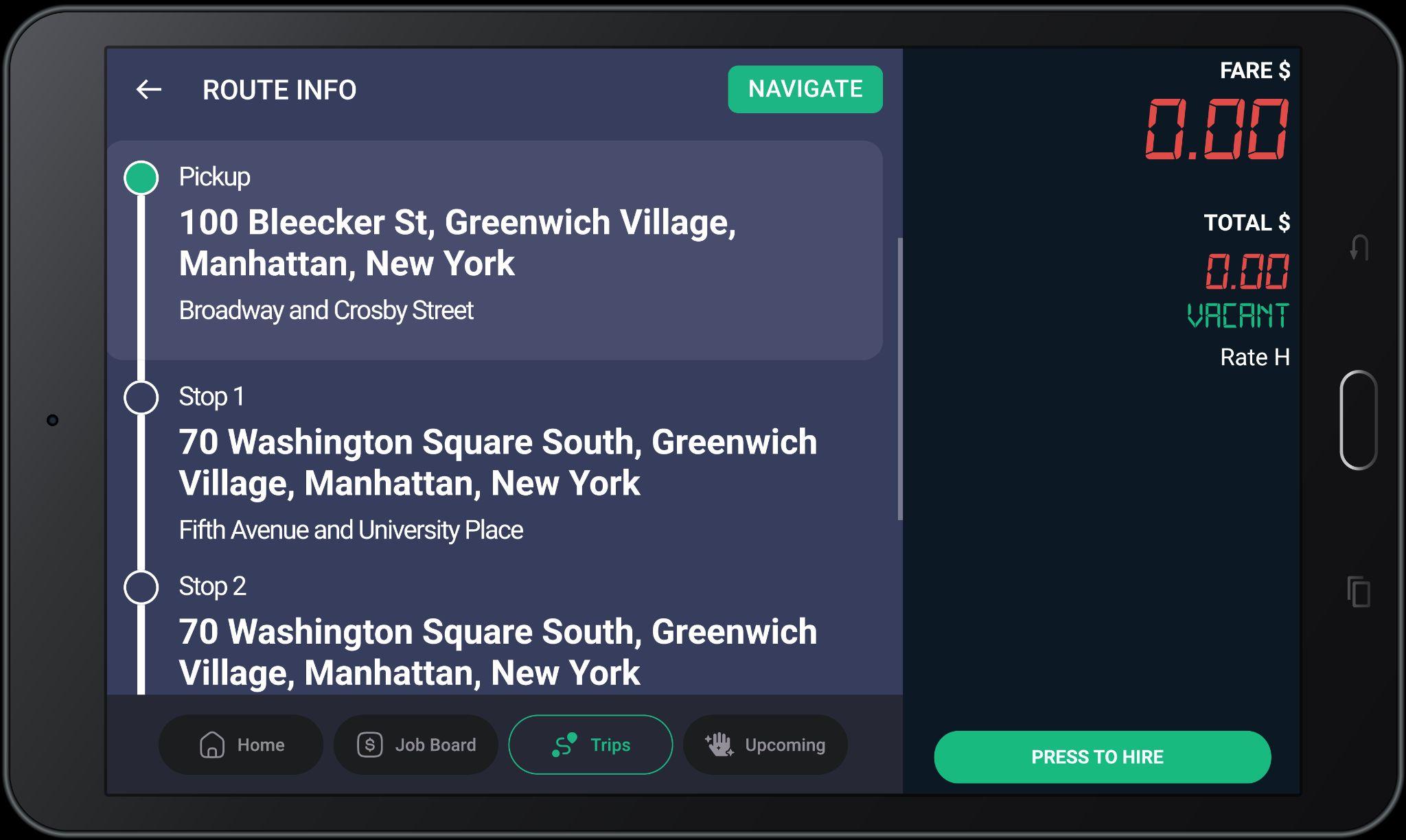
Scroll through ‘Route Info’ to see each stop in order. Each destination will appear clearly labeled as Stop1, Stop2,etc
Riders will soon be able to update their destinations mid-trip on all Curb Flow rides
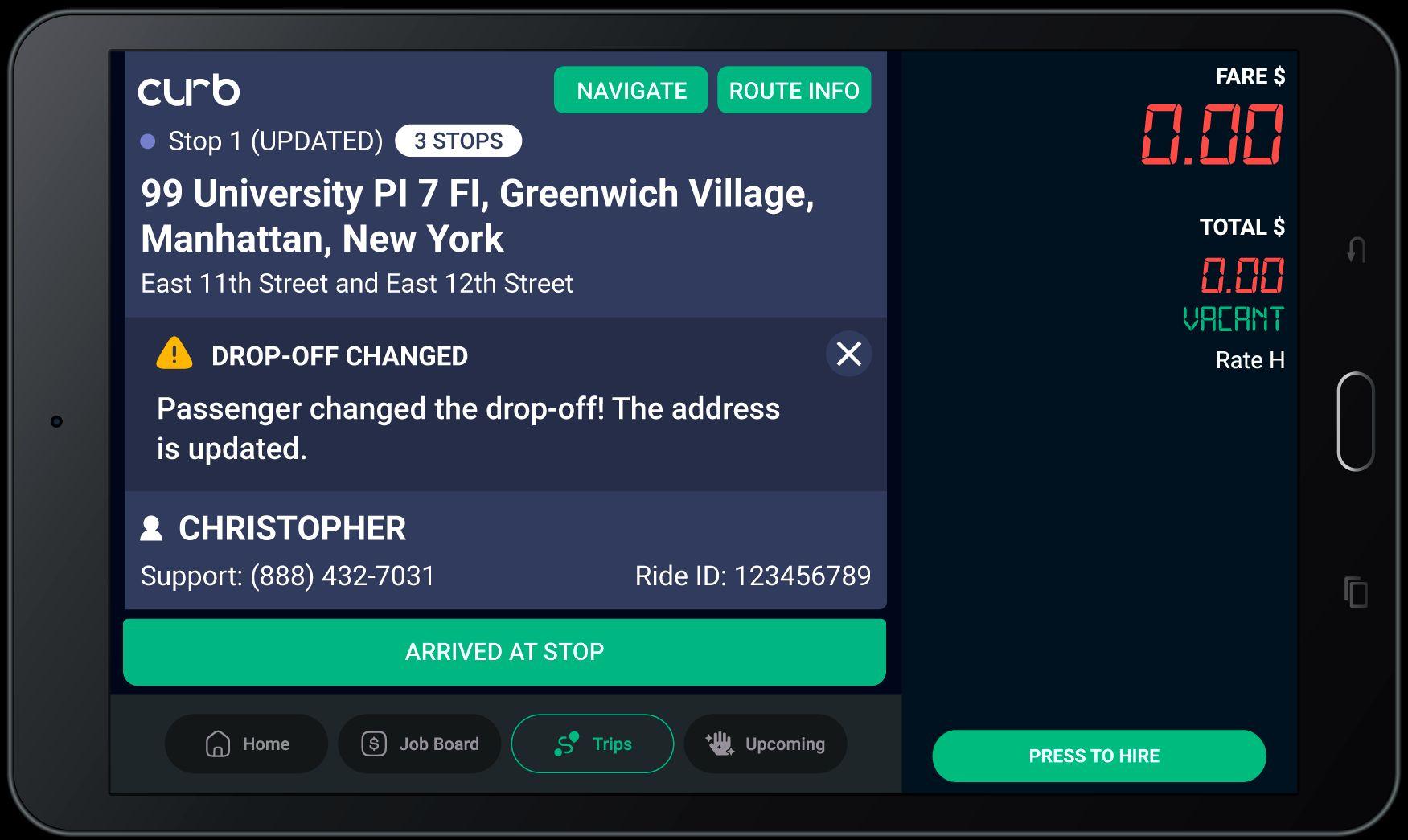
When a passenger edits their destination, the stop will update automatically on your screen — clearly marked as (UPDATED).
Tap NAVIGATE to follow the new route.
Riders will soon be able to update their destinations mid-trip on all Curb Flow rides
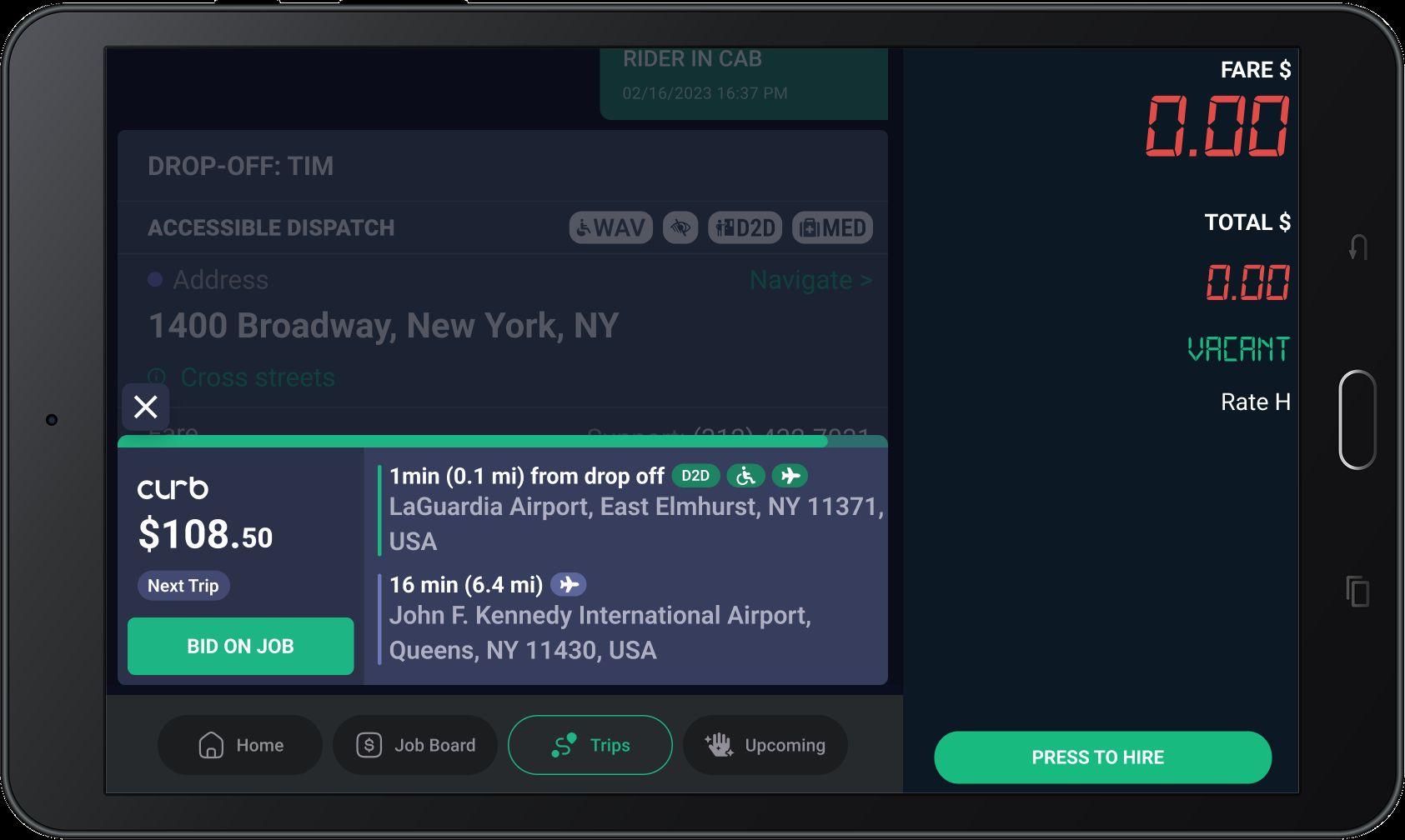
You may dismiss a Next Trip offer by tapping on the X button or anywhere outside the offer.
Any Next trip job offers will appear on your Trips screen while you are driving to your drop off.
As you approach the drop off address you will become eligible to accept Ehail jobs that are near the drop off location keeping you busy and lined up with work.
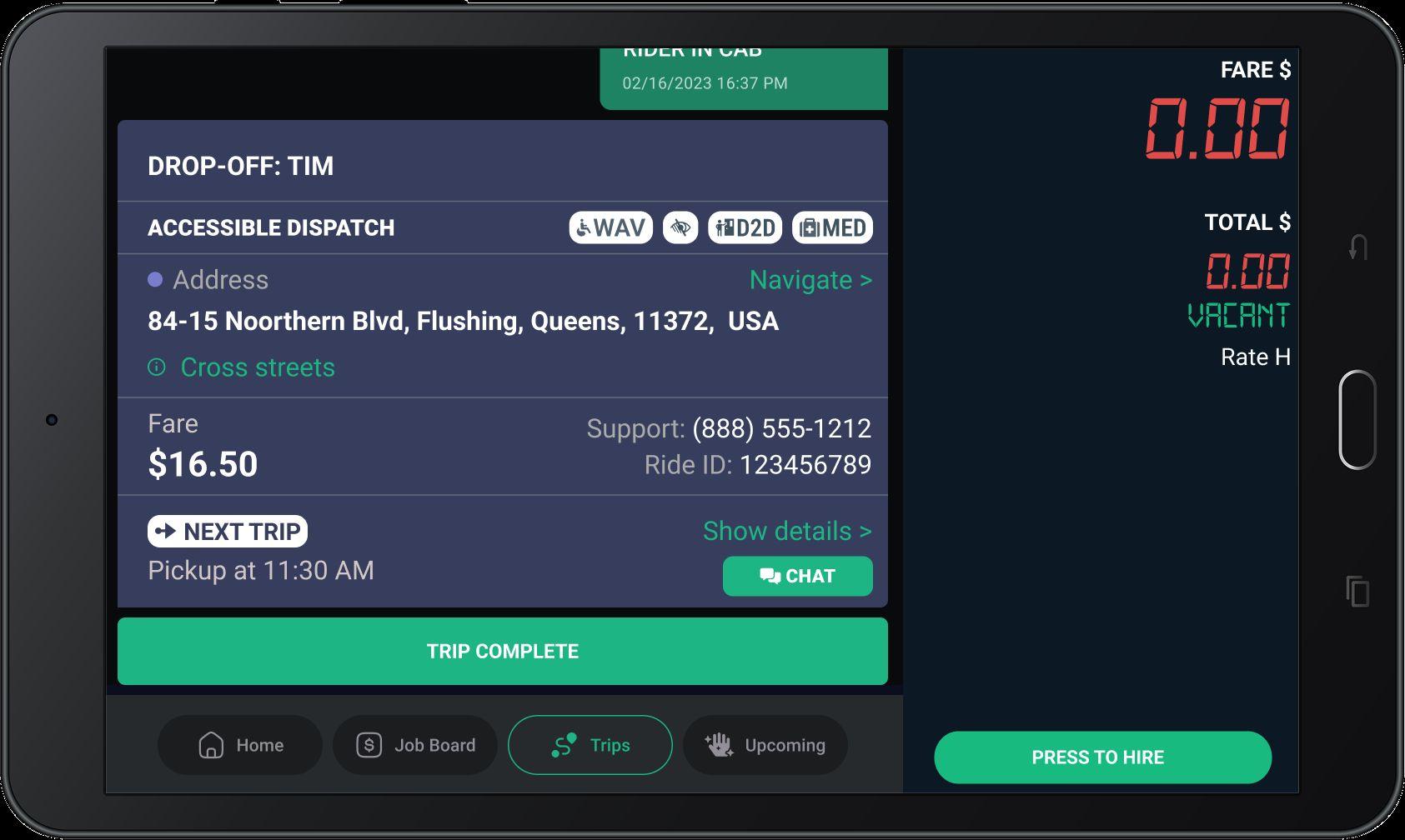
Ride Chat is available to you and your next passenger after you’re assigned to your Next Trip!
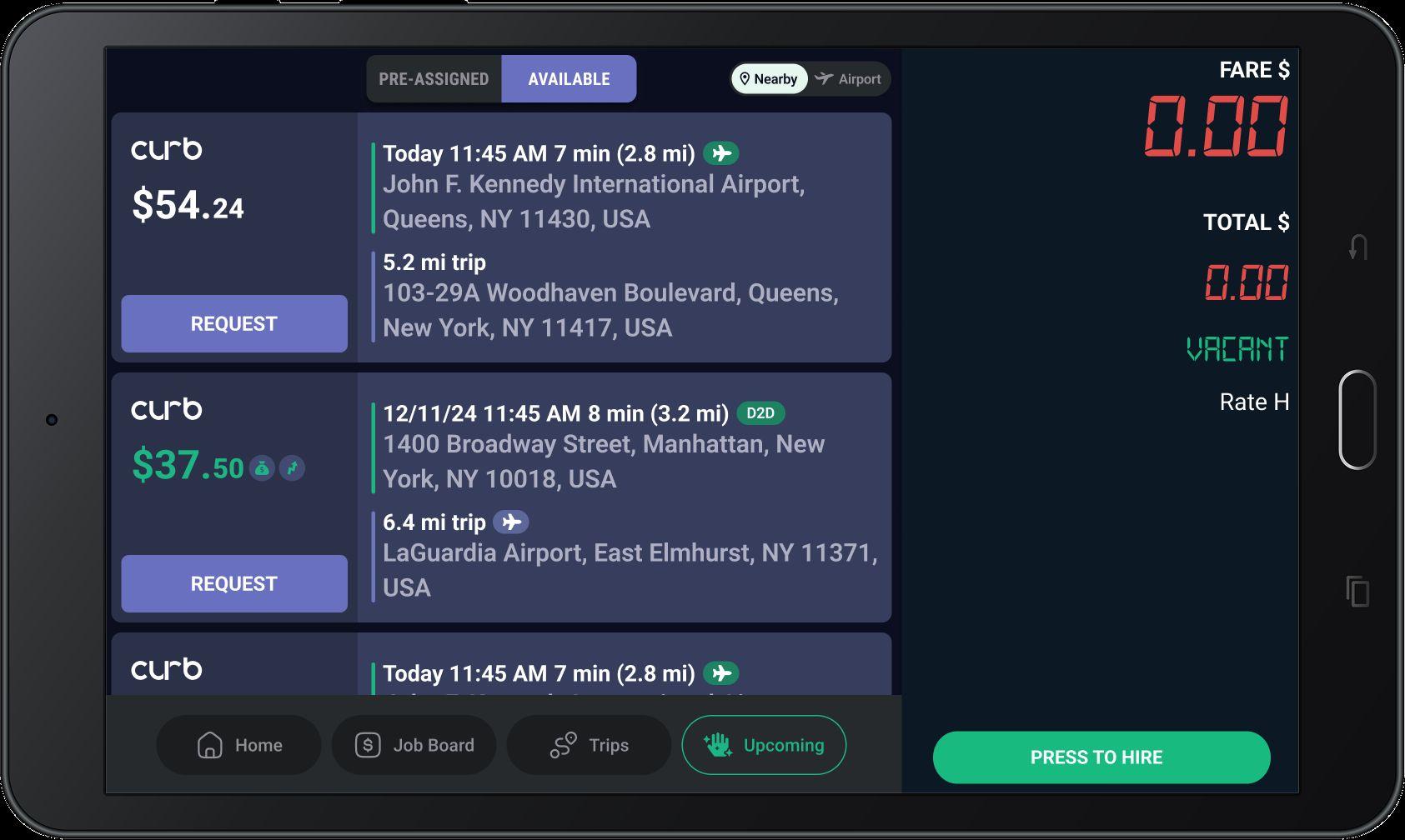
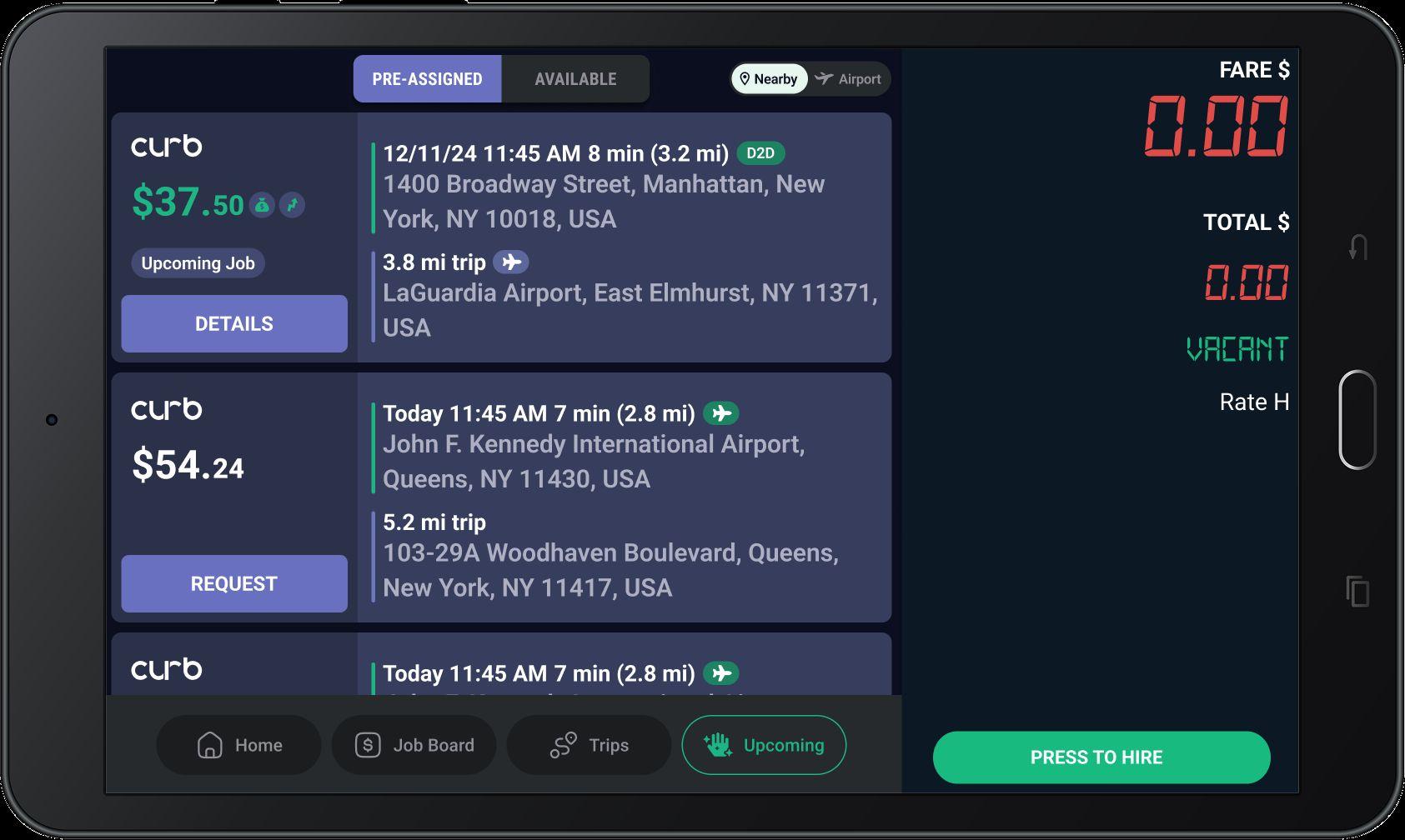
If you are interested in selecting a trip, simply press ‘Request Trip’ and the trip will move to the ‘Pre-Assigned’ Tab.
‘Nearby’ and ‘Airport’ filters allow you to filter Available trips accordingly.
You can now request available trips on the ‘Upcoming screen’, which is always available in the bottom menu.
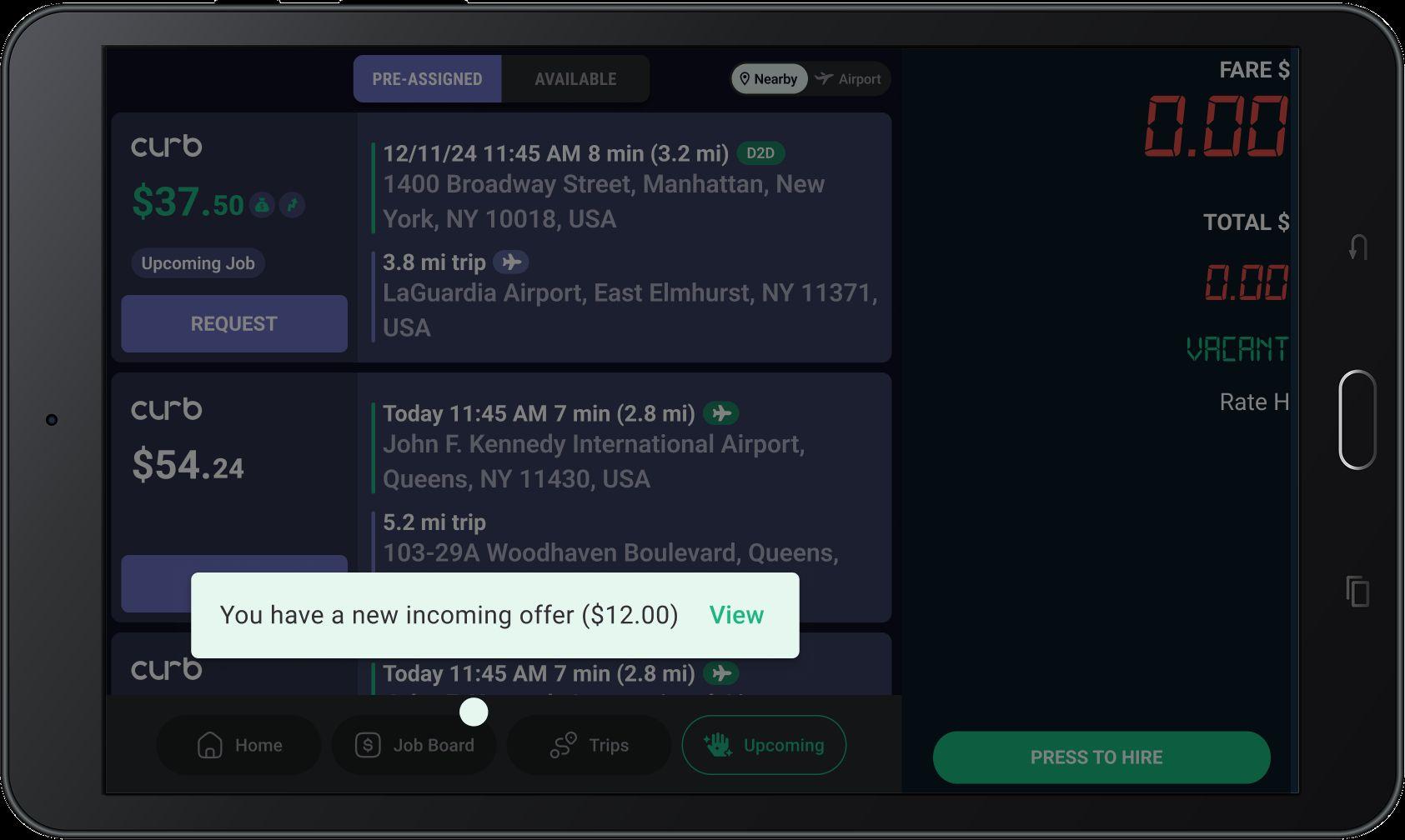
If you get a job offer while on the Upcoming screen, you’ll now get a notification. Tap on the notification if you’d like to go to the Job Board to bid on it.
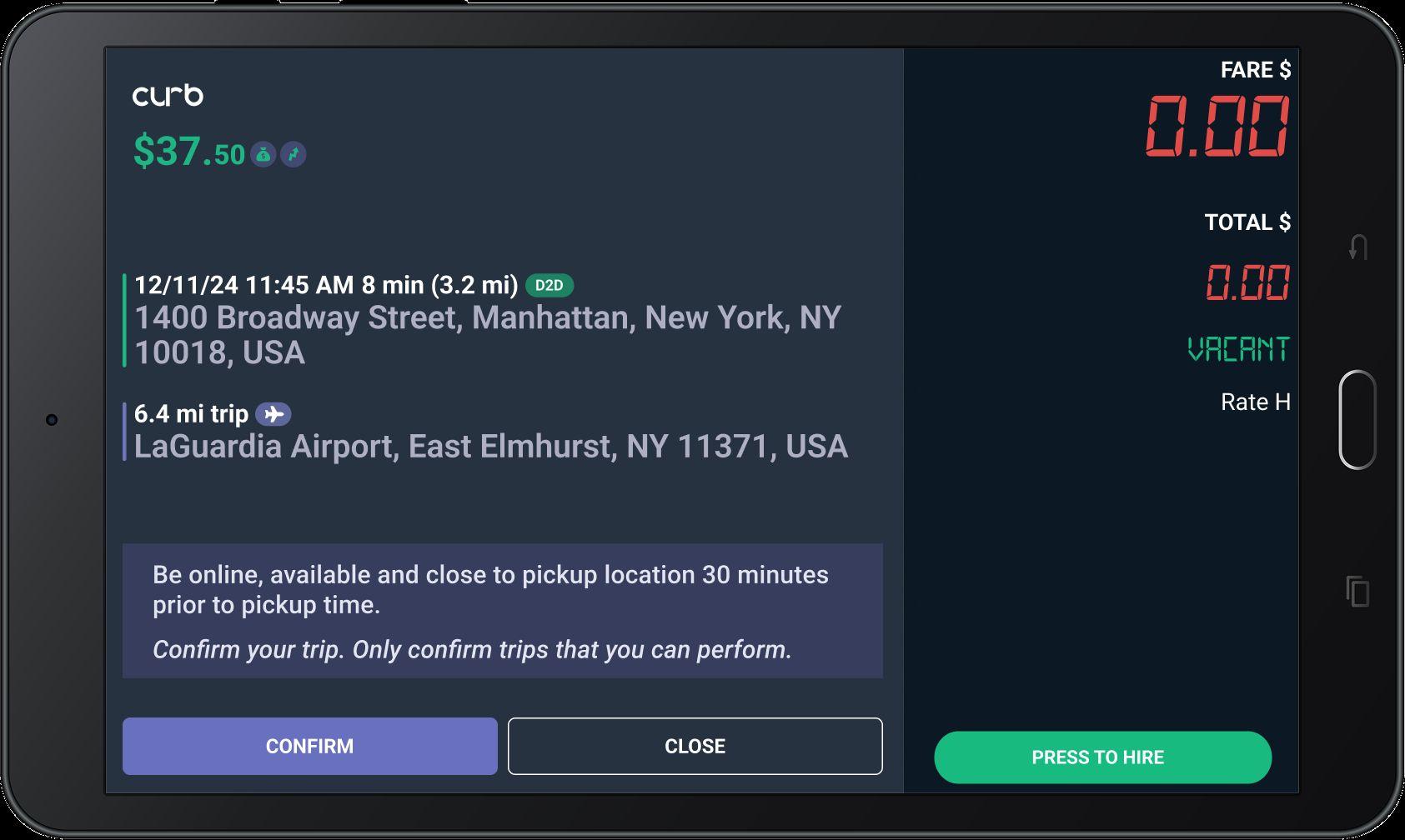
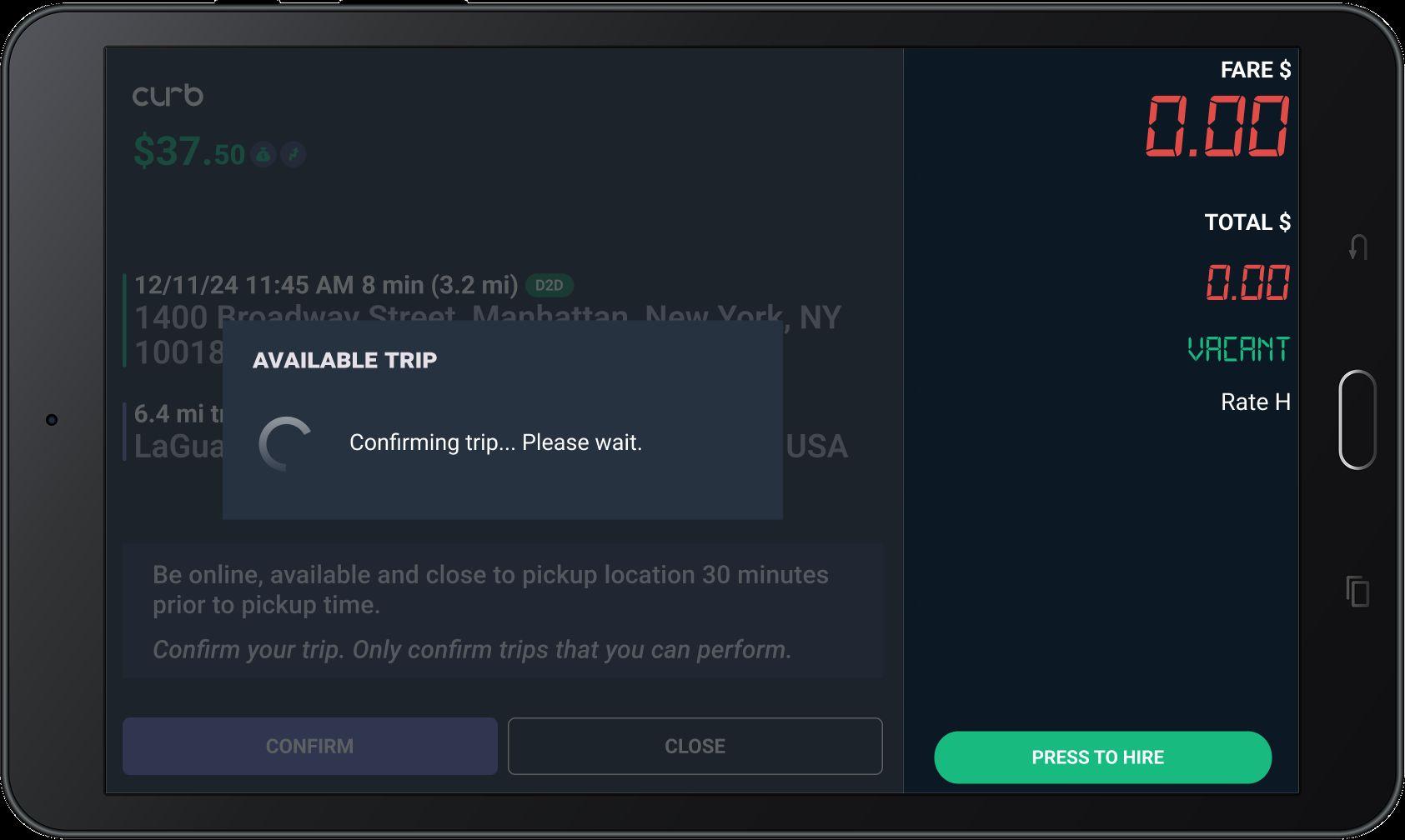
After requesting the trip, tap ‘Confirm’ to verify it is the trip you want to select. Once confirmed, your trip will be pre-assigned to you.
Once confirmed, the trip will be assigned to you and can be located in the pre-assigned tab.
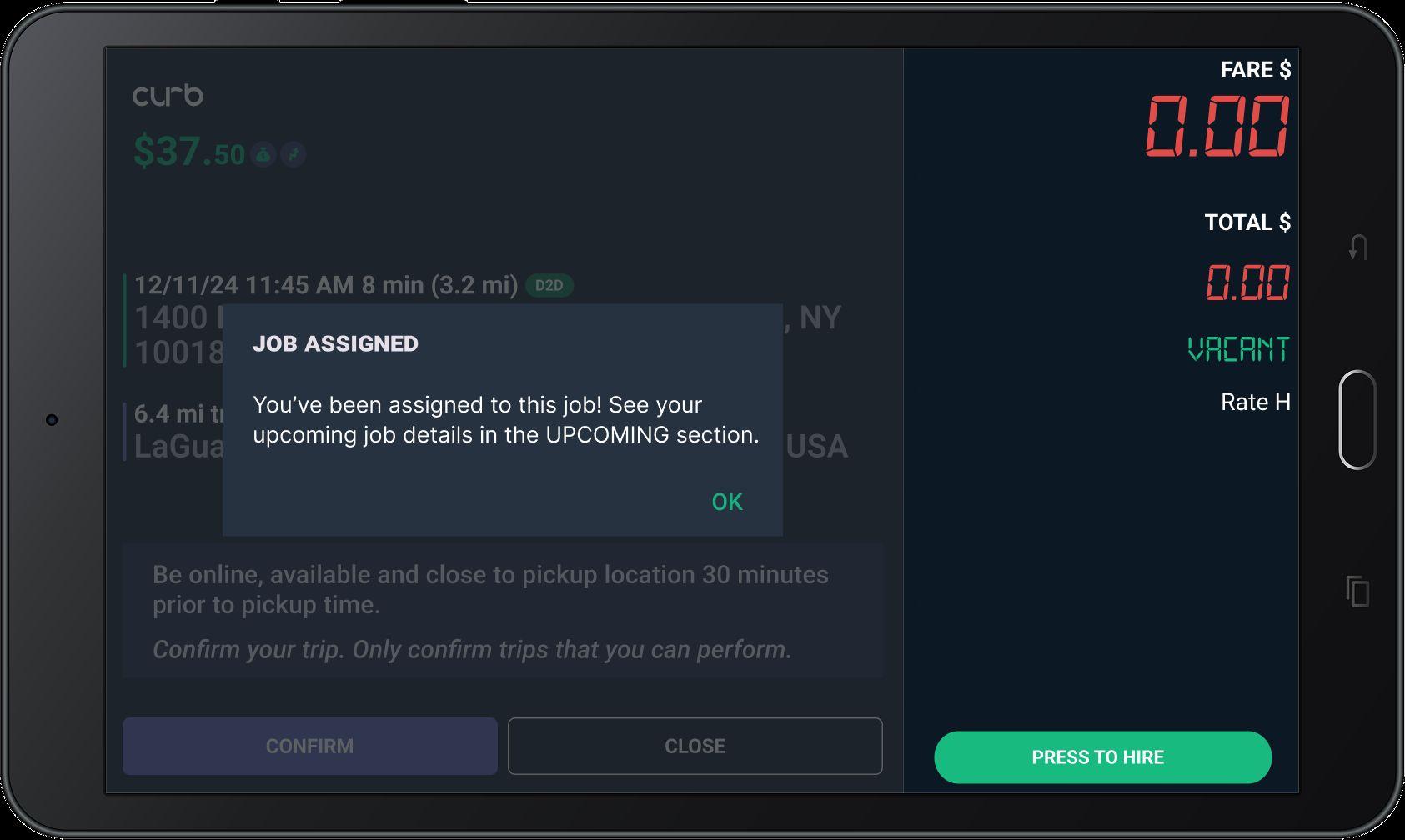
The pre assigned tab will show you the list of rides that you have chosen for a later time. Click on ‘Details’ to expand the details for the trip.
Use the tabs at the top to switch between any available trips and your pre-assigned trip.
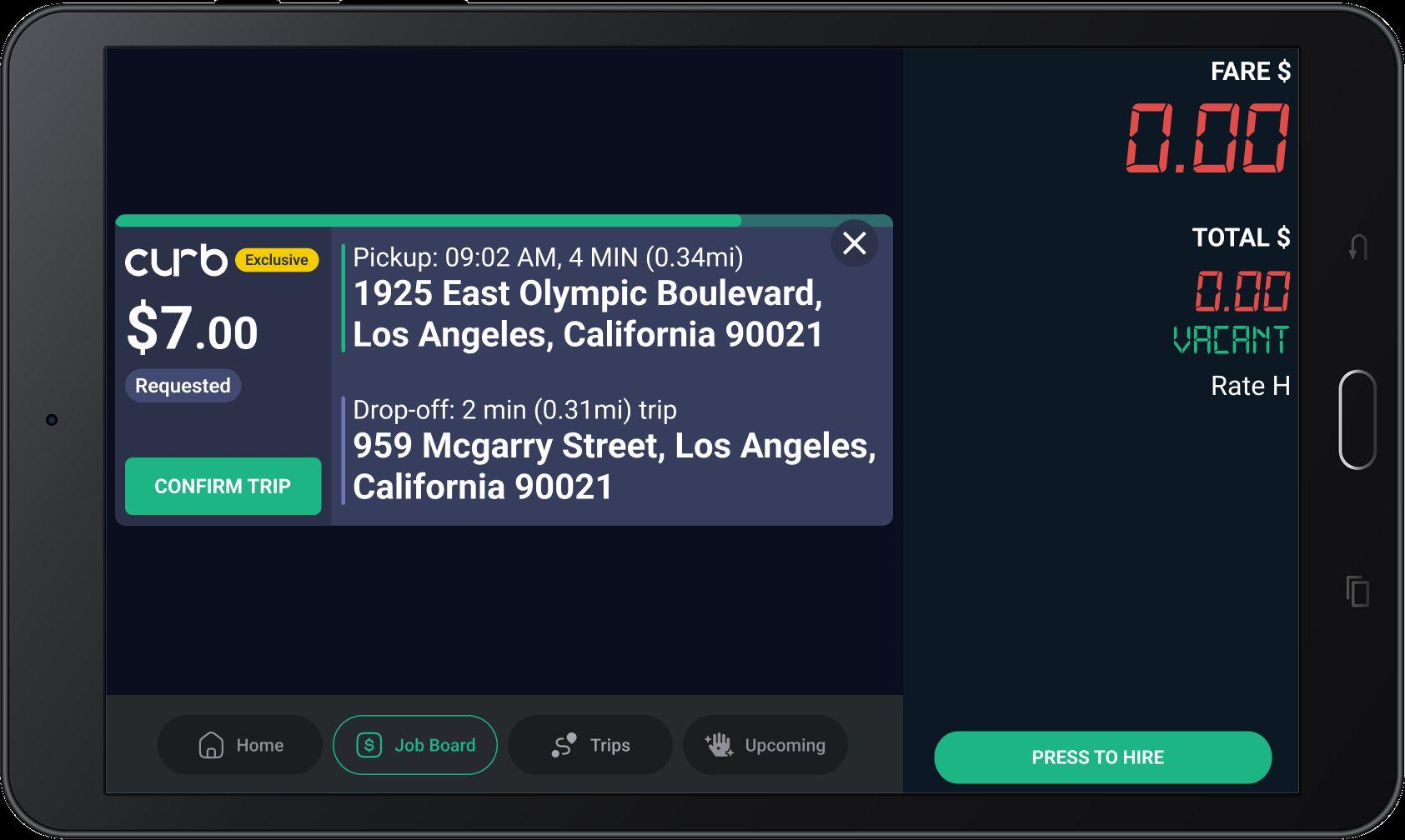
30 minutes before the scheduled Pick Up Time, your SMO ride will be dispatched to only you. You have the full 12 seconds to Confirm the trip. If you are not available to Confirm the trip then the ride will be dispatched to other drivers.
Curb works best when we understand how our drivers use our platform. The more accurately we can address your feedback, the better we can improve the Curb system.
Feel free to be candid about what you like and dislike about the Curb system. If something isn’t currently offered on Curb that you would like to see, please let us know! We want to hear from you.