
Your Student Guide To Submitting Assignments Via
Introduction
You may already be well acquainted with Using Microsoft Teams, or be new to using it, either way this guide aims to help you feel confident in submitting your assignments into the appropriate Channel on the Teams platform, and to assist you with retrieving your feedback once marked.

Why are we using Teams?
Using Microsoft Teams provides us with unlimited safe storage space for uploading and saving documents. You will have access to a distinct secure area (a ‘channel’ within a team for each module) to upload your assignments. Only you, your module, tutors and appropriate members of staff will have access to that channel. You can revisit and edit your submitted assignment at any time until the submission deadline. At this point your channel will become locked and you will not have access again until the marking process is complete. Once your assignment has been marked you will be notified by email and you will be able to access your assignment for the mark and feedback, and download it to your own device if you wish.
This process gives you more control over your submission and ensures any supporting documents/videos can be uploaded efficiently and on time.
Getting Started
Firstly, if you don’t already have it, you will need to download Microsoft Teams to your device. You can access it from a Google search or via your CF Microsoft 365 email account.
You can use many different devices (PC, laptop, tablet or mobile phone), but for our purposes the functionality is better when using a PC or laptop, and when connected to wifi or a 5G network. Functionality is also improved by using Microsoft Edge as your browser, rather than Google Chrome for example.
You will need to create your account using your Congregational Federation email address. If you already have an account with Teams, you should be able to add a new account from your profile and you can toggle between the accounts.
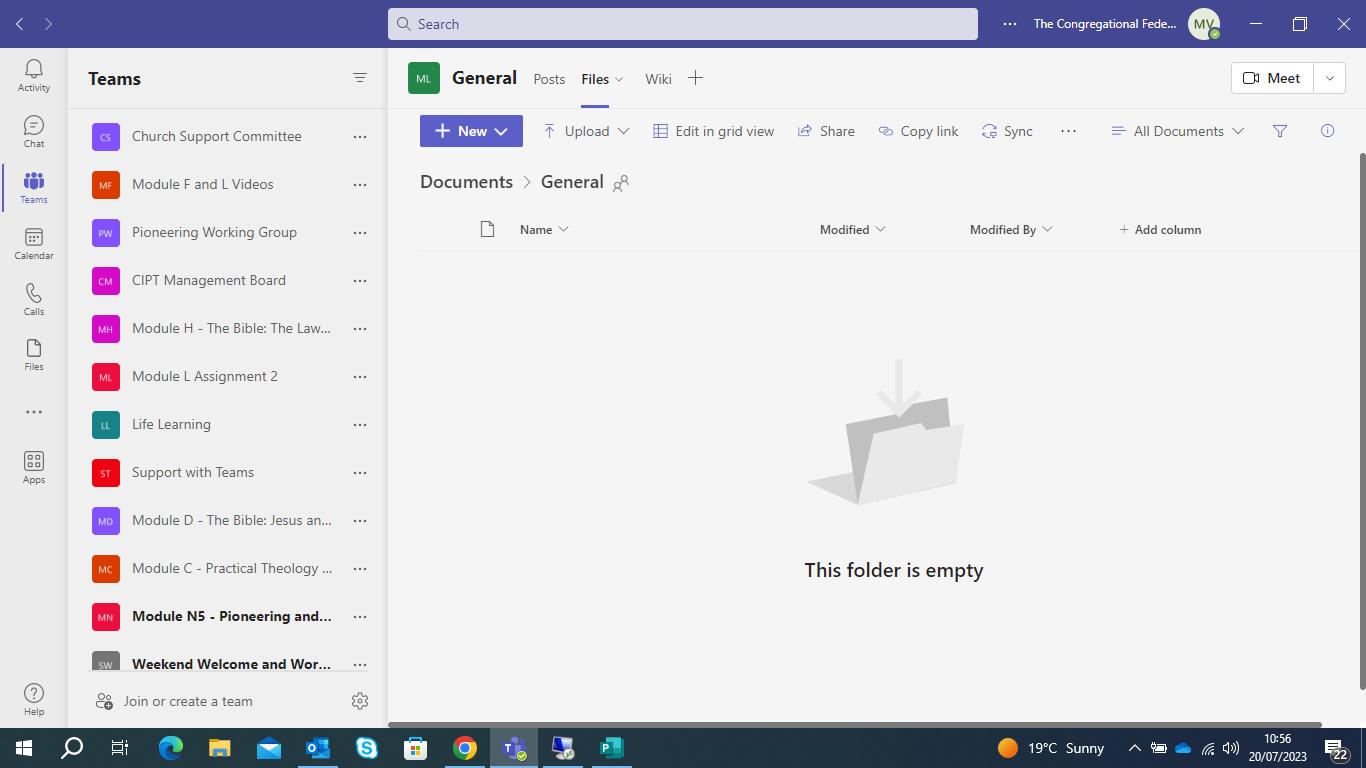

Once you have logged in, click on the Team icon and you will see a screen similar to the one above. Your modules will be listed under the ‘Teams ’ heading.
You may want to familiarise yourself with the other icons on the left hand side, as they have useful functions, but we are not concerned with those for assignment submissions.
Next, select the appropriate module that you wish to submit an assignment for, and click on it.
This will open up ‘channels’ underneath the team. Occasionally, you might not see your number, but 'see all channels'. In this case click 'see all channels' and your channel will appear on the right hand side. Click on the channel there to open it.
**Each module will include a ‘general ‘ channel. Your tutors might upload some generic information here, but please DO NOT upload your assignment into this channel. If you do it will be accessible to all other students taking the module. It also runs the risk that your tutor cannot find your assignment and it may not be marked, so please make sure it is submitted to the correct module channel. You will see a channel with your personal student number; click on this to open it. **
What’s in the Channel?
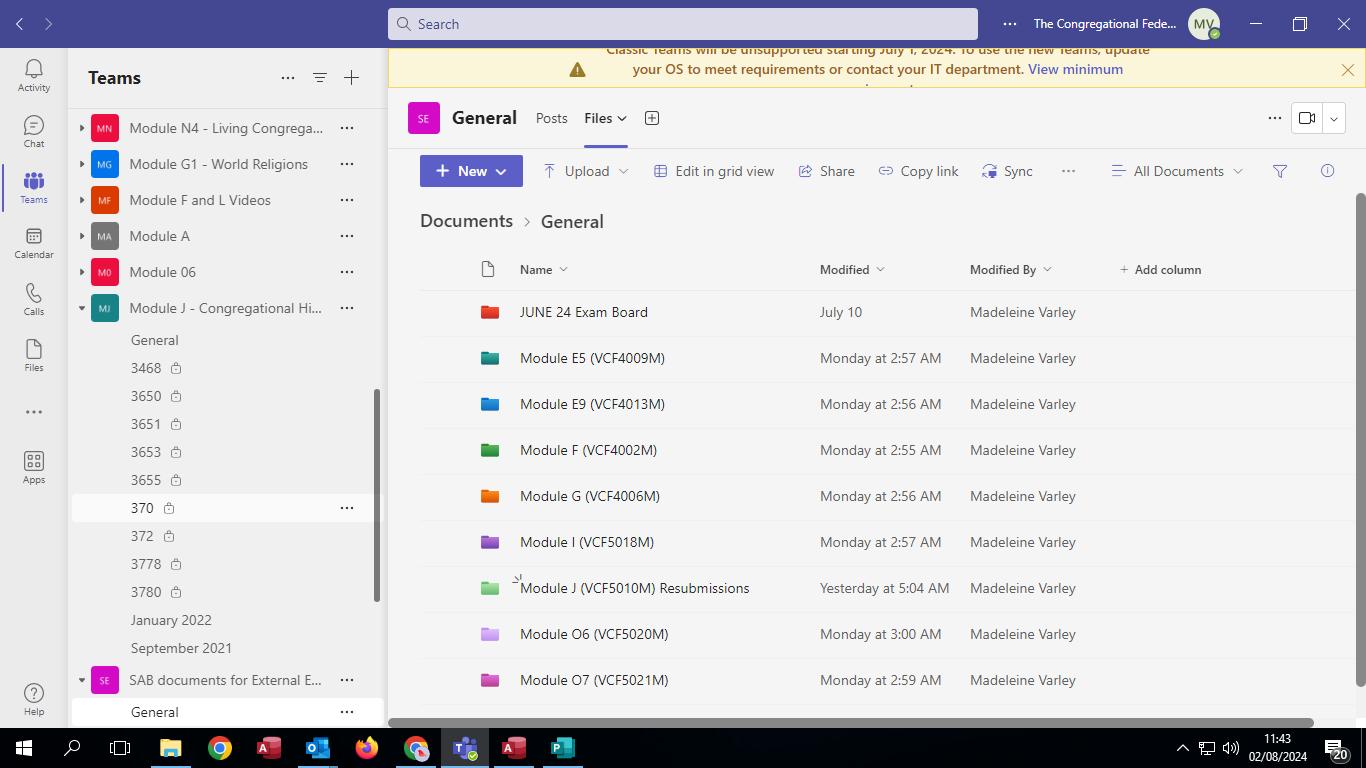
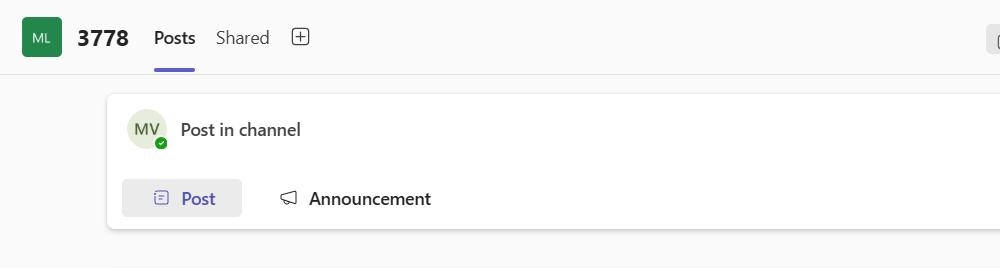
When you click on the appropriate channel for the assignment you want to submit, Teams will automatically open a ‘posts’ or 'conversations' page, however for submitting your work you need to use the ‘Shared’ tab at the top of the screen.
Once you have clicked on this tab, a new page will open where you can upload any files, documents and recordings that are relevant for your assignment.
How do I submit my assignment?
Sending your assignment for marking is a simple process.
• Save your assignment as a Word document (please don’t upload a PDF as your tutors won’t be able to add comments) as usual on your computer. Remember to save it in the format of Student Number Module X Assignment X.
• Sign in to Teams and select the appropriate module and then your student number in the channel.
• Click on the Shared tab.
• If you are submitting more than one item for your assignment, create a folder and upload everything into the one folder. Click on new and then folder to create the new folder. You can name this—please use the same format as your assignment, using your student number rather than your name to helps us keep marking anonymised.
• Click into the folder (if using) and then the upload button. Select ‘files’ and choose the assignment you want to submit. This will upload onto the files screen.
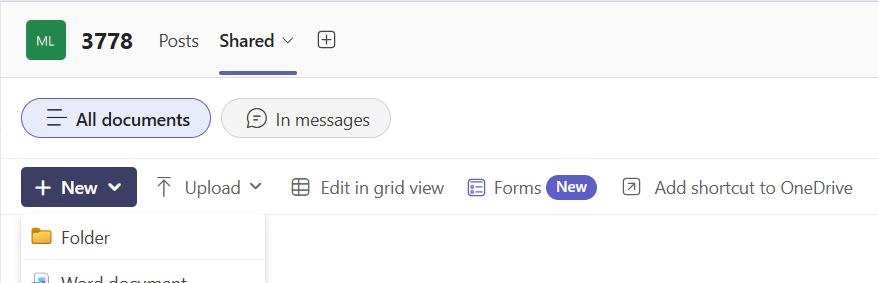
Your assignment will be saved automatically and stored securely. Only you, the module tutors and CIPT staff will be able to access your files. You can access your file, edit it or re-upload an amended version at any time until the submission deadline. If you upload a revised version, please remember to delete the previous one!
Once you can see your uploaded work in your channel, we will be able to see it too.
The system will automatically show us the time of uploading, and your channel will be locked at the time of the deadline, therefore late submissions without a formally approved extension will not be permitted. The time of uploading may show differently on your device if you haven’t set the correct time zone.
What happens next?
Your channel will be locked at the submission deadline time (12.00 noon on the deadline day), and you will not have access to your files during the marking period. Your tutors will mark your assignment in the usual way.
Once completed, your tutor will ensure the marked version of your assignment is showing in your channel. You will be notified by email when your channel has been unlocked and the feedback is ready for you. You will be able to view your feedback in the Teams channel and you can download and it save it on your own device if you wish.
Your documents will remain available to you for the rest of the academic year, until the final exam board in August. If you wish to keep a copy of your marked assignment after this, please ensure that you download and save a copy to your own device.

Please remember to contact us in good time if you have any difficulties with this.
Problem
I can’t see the assignment I uploaded.
I can’t see the ‘shared’ tab
Suggested action
• Check you have not uploaded to an incorrect channel (the general channel, or in a channel for a different module). If it is in the incorrect place, click the three dots next to the assignment and click ‘move’. You can then choose where you want to move it to and click ‘move here’.
• Use the search bar at the top of the page
• Refresh your browser
• Try using a laptop or desktop, rather than a phone or tablet
• Check there is not a pop-up box blocking you seeing the ‘shared’ tab. If there is, click the X on the box to remove it.
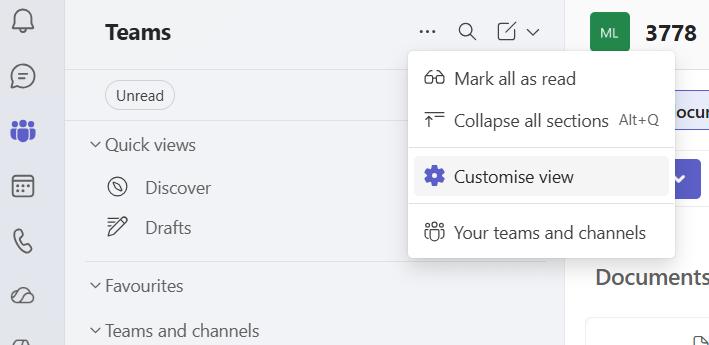
• Click on the three dots at the top of the Teams column, select ‘customize view’, and ensure that the ‘chats and channels’ section is set to ‘separate’
• Change your browser to Microsoft Edge
• Contact madeleine.varley@congregational.org.uk if you still can’t see it.
• Check there is not a pop-up box blocking you seeing the ‘shared’ tab. If there is, click the X on the box to remove it.
• Change your browser to Microsoft Edge
I can’t log in to Teams
I am using a Mac
I am not sure if my work uploaded correctly, or if you can see it.
• Contact madeleine.varley@congregational.org.uk if you still can’t see it.
• Refresh your browser
• Try using a laptop or desktop, rather than a phone or tablet
• Change your browser to Microsoft Edge
• Reinstall Microsoft Teams
• Ensure you are using the most up to date version of Teams
• Although Teams is compatible with Mac’s, it often doesn’t work as well as we would like, and functionality can be different.
• Use a different laptop of desktop if possible.
• Contact madeleine.varley@congregational.org.uk to make alternative arrangements if you are unable to submit your work via Teams
• Once uploaded you can click the document to open it and make sure you have uploaded the correct file.
• We can see whatever you have uploaded. If you can see it, we can see it!