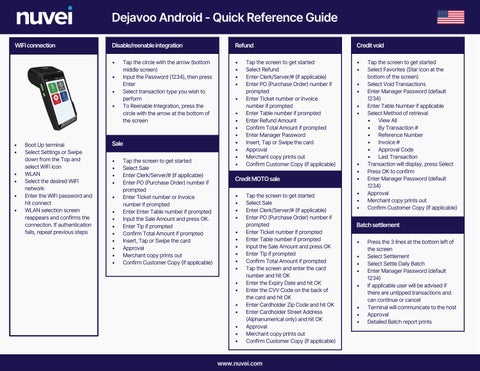
Dejavoo Android - Quick Reference Guide WiFi connection
Disable/reenable integration
Refund
Credit void
•
• • • •
• •
• • •
• •
• • • •
Boot Up terminal Select Settings or Swipe down from the Top and select WiFi icon WLAN Select the desired WiFi network Enter the WiFi password and hit connect WLAN selection screen reappears and confirms the connection. If authentication fails, repeat previous steps
Tap the circle with the arrow (bottom middle screen) Input the Password (1234), then press Enter Select transaction type you wish to perform To Reenable Integration, press the circle with the arrow at the bottom of the screen
Sale • • • • • • • • • • • • •
Tap the screen to get started Select Sale Enter Clerk/Server/# (if applicable) Enter PO (Purchase Order) number if prompted Enter Ticket number or Invoice number if prompted Enter Enter Table number if prompted Input the Sale Amount and press OK. Enter Tip if prompted Confirm Total Amount if prompted Insert, Tap or Swipe the card Approval Merchant copy prints out Confirm Customer Copy (if applicable)
• • • • • • • • •
Tap the screen to get started Select Refund Enter Clerk/Server/# (if applicable) Enter PO (Purchase Order) number if prompted Enter Ticket number or Invoice number if prompted Enter Table number if prompted Enter Refund Amount Confirm Total Amount if prompted Enter Manager Password Insert, Tap or Swipe the card Approval Merchant copy prints out Confirm Customer Copy (if applicable)
Credit MOTO sale • • • • • • • • • • • • • • • • •
Tap the screen to get started Select Sale Enter Clerk/Server/# (if applicable) Enter PO (Purchase Order) number if prompted Enter Ticket number if prompted Enter Table number if prompted Input the Sale Amount and press OK Enter Tip if prompted Confirm Total Amount if prompted Tap the screen and enter the card number and hit OK Enter the Expiry Date and hit OK Enter the CVV Code on the back of the card and hit OK Enter Cardholder Zip Code and hit OK Enter Cardholder Street Address (Alphanumerical only) and hit OK Approval Merchant copy prints out Confirm Customer Copy (if applicable)
www.nuvei.com
• • • •
• • • • • •
Tap the screen to get started Select Favorites (Star icon at the bottom of the screen) Select Void Transactions Enter Manager Password (default 1234) Enter Table Number if applicable Select Method of retrieval ▪ View All ▪ By Transaction # ▪ Reference Number ▪ Invoice # ▪ Approval Code ▪ Last Transaction Transaction will display, press Select Press OK to confirm Enter Manager Password (default 1234) Approval Merchant copy prints out Confirm Customer Copy (if applicable)
Batch settlement • • • • •
• • •
Press the 3 lines at the bottom left of the screen Select Settlement Select Settle Daily Batch Enter Manager Password (default 1234) If applicable user will be advised if there are untipped transactions and can continue or cancel Terminal will communicate to the host Approval Detailed Batch report prints