Parents’ Guide to Accessing College Systems

Parent Portal (iSAMS), SOCS and Evolve: College Office college.office@cheltenhamcollege.org
I-GTM (All Pupils Exeat, Half Term and End of Term Holiday Leave):
Login Issues: College Office college.office@cheltenhamcollege.org
Bookings: House Matron ashmeadmatrons@cheltenhamcollege.org boynematrons@cheltenhamcollege.org chandosmatrons@cheltenhamcollege.org christowematrons@cheltenhamcollege.org collegelawnmatrons@cheltenhamcollege.org hazelwellmatrons@cheltenhamcollege.org leconfieldmatrons@cheltenhamcollege.org newickmatrons@cheltenhamcollege.org queensmatrons@cheltenhamcollege.org southwoodmatrons@cheltenhamcollege.org westalmatrons@cheltenhamcollege.org
Orah (All pupils appointments, weekends out, term time leave, ad hoc requests and day boarder nights):
House Matron As above
SchoolCloud (School parents meetings):
Jane Swetland
PA to the Deputy Head Academic j.swetland@cheltenhamcollege.org
Many of these systems rely on the same email address stored in iSAMS. If your details change, please inform the College so you do not lose access.
The Parent Portal is the core system for parent information at Cheltenham College.
• Your login details are also used to access other College systems.
• It is essential that your email address and access details remain up to date.
• The Parent Portal can be found by following this URL: https://cheltenhamcollege.parents.isams.cloud/
The Parent Portal provides access to:
• Your child’s timetable
• School reports and exam results
• School forms and policies
• Key College information
Access to other parent systems (e.g. I-GTM)
If you already have a child at College or The Prep and have registered previously, you do not need to register again.
Prior to registering you will be sent:
• Portal Access Code: {{pp-number}}
• Portal Access Password: {{pp-password}}
These are required to complete registration.
To register for the first time, visit: https://isams.cheltenhamcollege.org/auth/parentportalregistration/register

I-GTM must be used by all parents to log travel arrangements for:
• Exeats
• Half terms
• End of term

This applies even if you are collecting your child yourself, live locally, or they are walking home. I-GTM allows the College to safely manage very busy travel days and track pupil movements.
1. You will receive an automatic email 14 days before travel is due
2. Follow the link to log your child’s travel plans
3. Check the summary and authorise it
4. Only once authorised can College arrange taxis/travel if requested
Further reminders are sent closer to the date.
Please access I-GTM via this link: https://cc.i-gtm.com
• I-GTM is for logging holiday and exeat travel arrangements
• Orah is for requesting ad-hoc leave during term time and for booking day boarding nights
I-GTM uses your Parent Portal (iSAMS) login details. If your email address is not correctly registered with the College via iSAMS, you will not be able to log in.
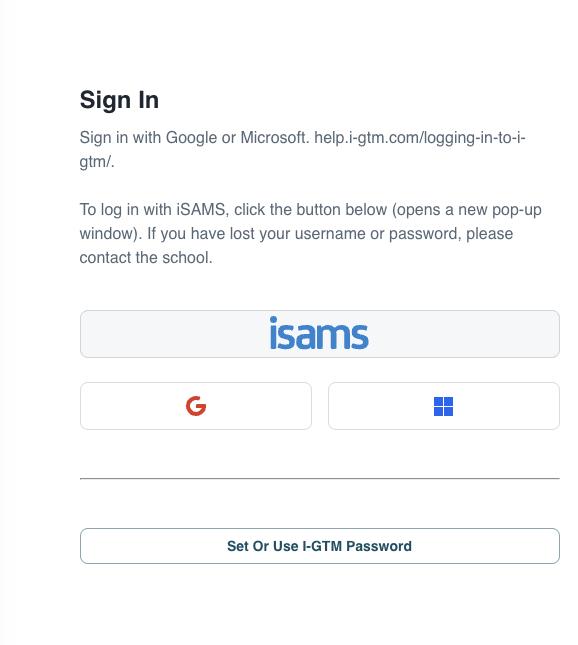
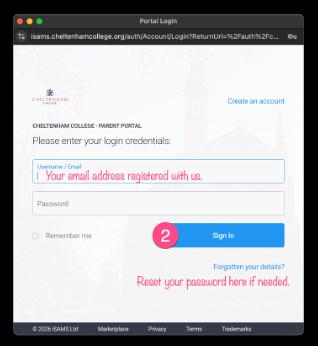
Step 1: Follow the I-GTM link and click the iSAMS login button
Step 2: Use your Parent Portal username/ password.
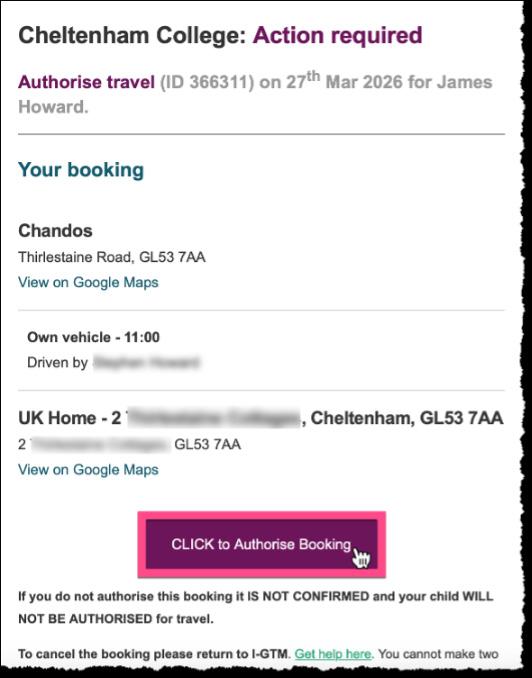
Step 3: Add, review and authorise the journey summary
As a UKVI Child Student Visa sponsor, Cheltenham College requires visa pupils only to use College Transport when travelling to and from College unless with a parent/guardian.
Cheltenham College uses Orah to manage pupil whereabouts and ensure duty staff always know where pupils are when they are not in their House.
Orah replaces email requests for leave. *All off-site leave must be requested by parents through Orah using a “Pass Request”*
A pass is required any time your son/daughter leaves College site, including:
• Going home for a night or weekend (boarders and day boarders)
• Medical, dental or other appointments
• Meals or special occasions with family
• External co-curricular commitments
• Staying overnight with friends or relatives
• Exeats and end of term departures
For movement around the College site or approved nearby locations (e.g. Bath Road), pupils log this themselves on the iPad in House. No parent action is needed for this.
Please submit pass requests at least 48 hours in advance wherever possible, so House Staff can approve arrangements.
You can use Orah either by:
• Downloading the Orah Families app from the App Store
• By visiting: http://www.orah.com/ on any device
You will receive an invitation email from Orah to set up your account.
Your username is your email address and passwords can be reset in the usual way.
1. Log into Orah
2. Press the ‘+’ button
3. Select New Pass
4. Choose the relevant pass type
5. Enter accurate departure and return times
6. Add any useful notes (e.g. who is collecting, arrangements)
7. Click Request
A member of staff will approve, decline, or request further information.
Please do not include confidential medical information in the notes section.
Pupils activate the pass when they leave site and sign back in when they return.
If your child has a regular weekly night at home, staff can create a recurring pass for the term or year.
Please email your House Parent and Matron with the details.
If the routine changes, inform them so the system remains accurate.
If the pattern varies week to week, parents should enter individual passes. Details are saved and quick to reuse.
As a Child Student Visa sponsor, the College must know the whereabouts of all visa pupils at all times.
• Visa holders must use College-approved transport unless travelling with a parent/guardian.
For questions about international travel or transport please email college.transport@cheltenhamcollege.org
Further guidance will be sent directly to international families.
A pass is still required, please include:
• Accurate pick-up and drop-off times
• For day boarders, the time of return on Monday morning
Parent Starter Guide: https://success.orah.com/en/articles/1882711-getting-started-parent-guide
Orah Help Centre: support@orah.com
SOCS is a cloud-based platform that we use to manage all our pupils’ sport and co-curricular activities.
SOCS allows you to view:
• Team lists and sport fixtures
• Your child’s clubs and activities
• Your child’s co-curricular timetable
• A live activities calendar that can sync to your own device
Access SOCS here: https://www.socscms.com/login/

The SOCS access code changes each academic year for security reasons and will be sent by the College Office.
First-time registration (if not already completed)
To register with SOCS:
1. Visit: https://www.socscms.com/login/922/parent?activate=1
2. Activate your account using the email address held by the school
3. Wait for a verification email
4. Click the link in the email, set a password, and log in
1. Launch the SOCS website and choose the Parent Log In option
2. After logging in, the front screen will show your child/children
• If you have more than one child, you can toggle between them here or use Select Pupil from the left-hand menu
3. From the front screen, select Calendar under your child’s name
4. Move the calendar forward so it displays dates from the first week of term
5. You can switch between:
Individual day view
Week view (recommended, as it shows all activities and fixtures)
Please do not use the Activities tab.
The SOCS calendar will give you information about which of our sport teams are playing on a specific day but more detailed information can be found in the following ways:
1. On the College website click on ‘Parents Information’ button and then the ‘Information for College Parents’ section. There is then a tab called ‘Fixtures’.
2. At the following address www.cheltenhamcollegesports.org
Both of the options above will take you to the screen below:
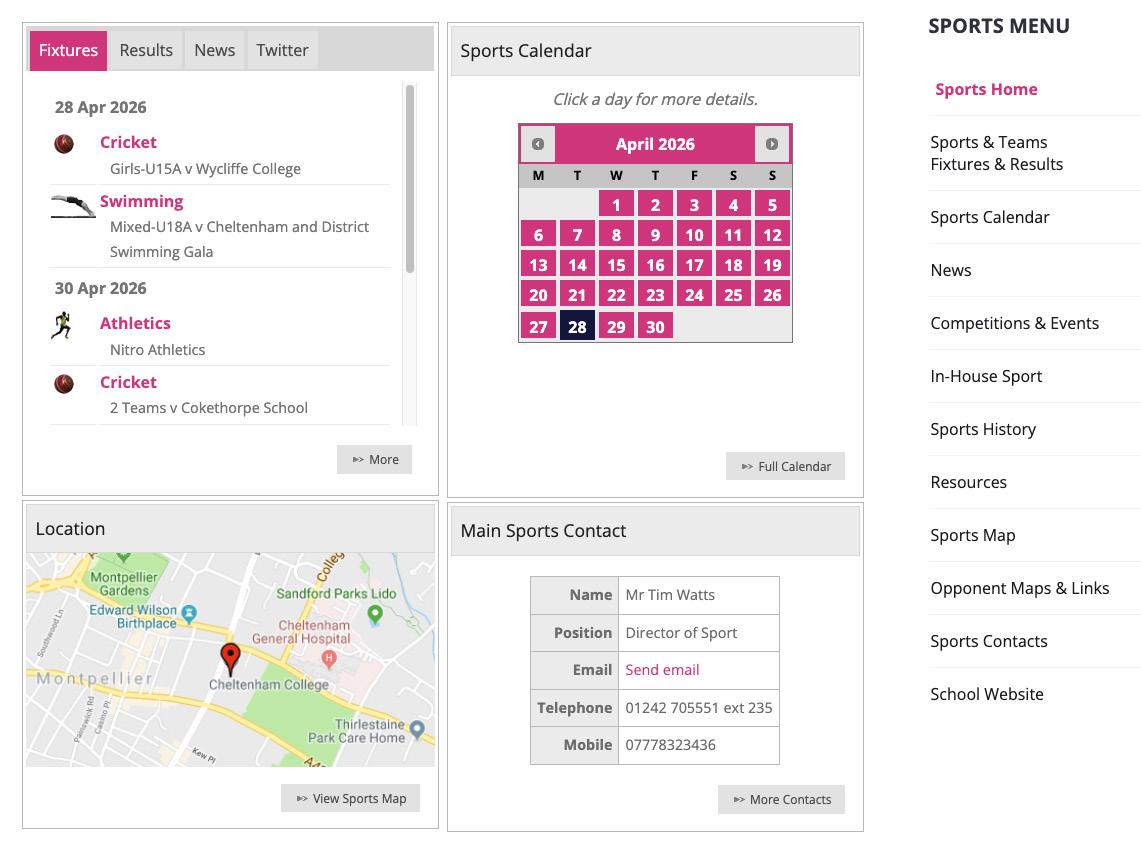
From here you can navigate through a number of options to find all the information needed about a specific fixture for College sport.
• Clicking on the ‘Sports & Teams Fixtures & Results’ tab will take you to a list of all our sport fixtures.
• You can then select a sport and see the teams and their fixture information.
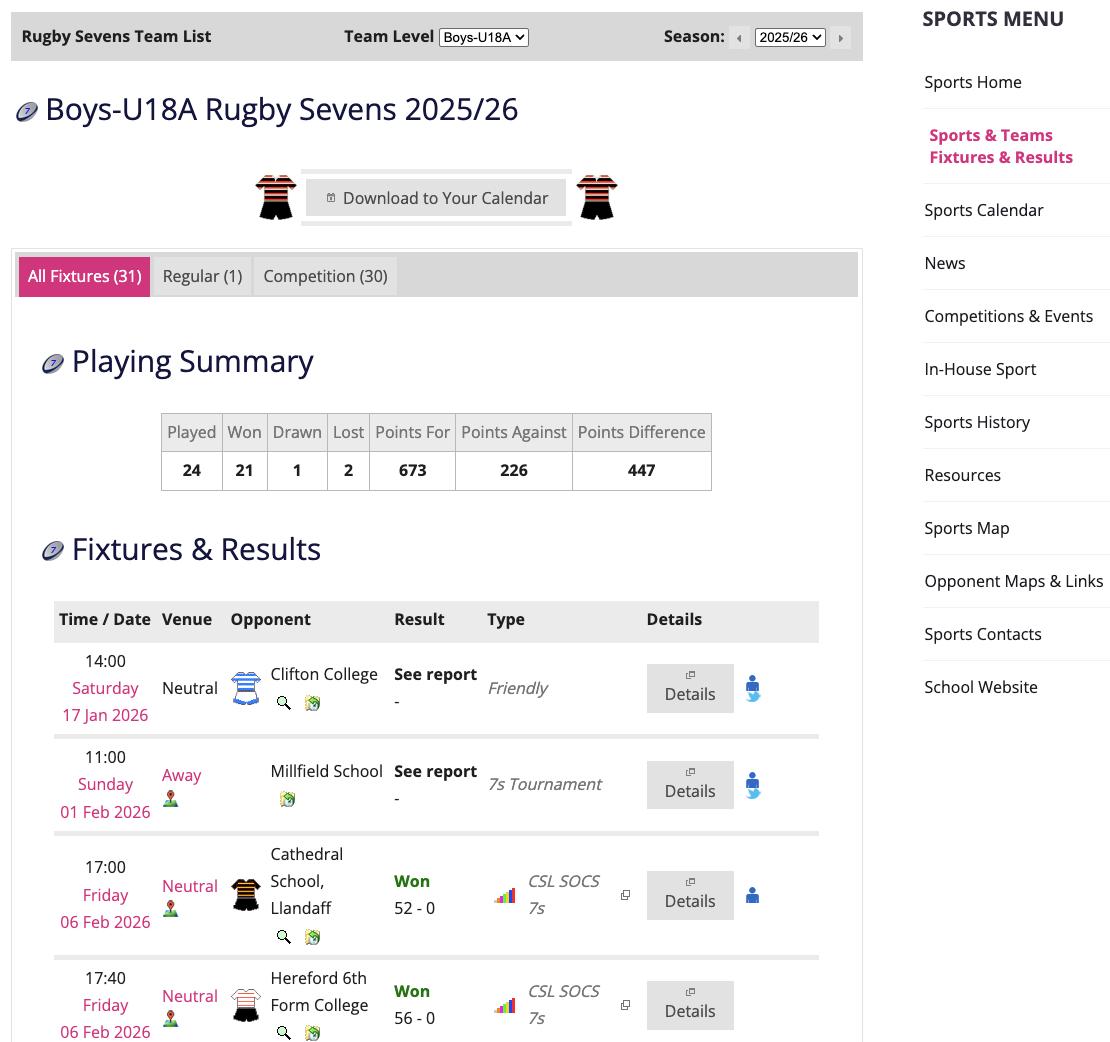
You can download the team calendar to your personal calendar here.
Team sheets can be found here.
Password: Floreat2526
Please note the password changes every academic year, a new one will be distributed in September.
Fixture details can be found here.
Maps, directions to schools and pitch locations can be found here.
Opposition fixtures and results along with historical results for this fixture can also be accessed through the icons under the opposition name.
When you visit www.cheltenhamcollegesports.org on a mobile phone you will be taken to the Mobile Web App. The Mobile Web App is specifically designed for phone users and the small screens found on mobile phones. You can save the Mobile Web App as an icon to your mobile device’s home screen for ease and it will operate and behave like a mobile app.
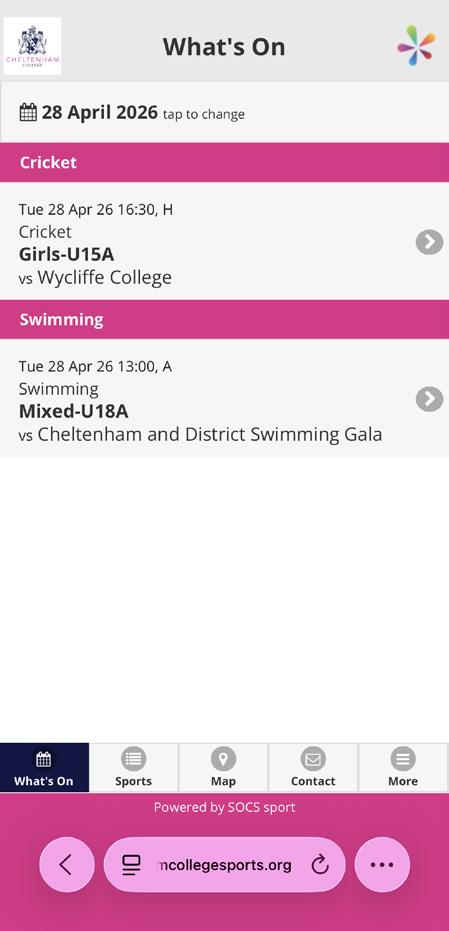
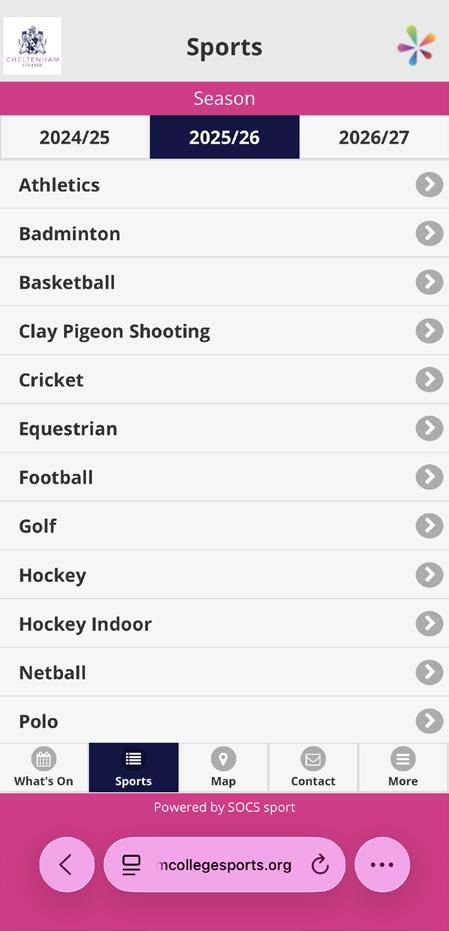
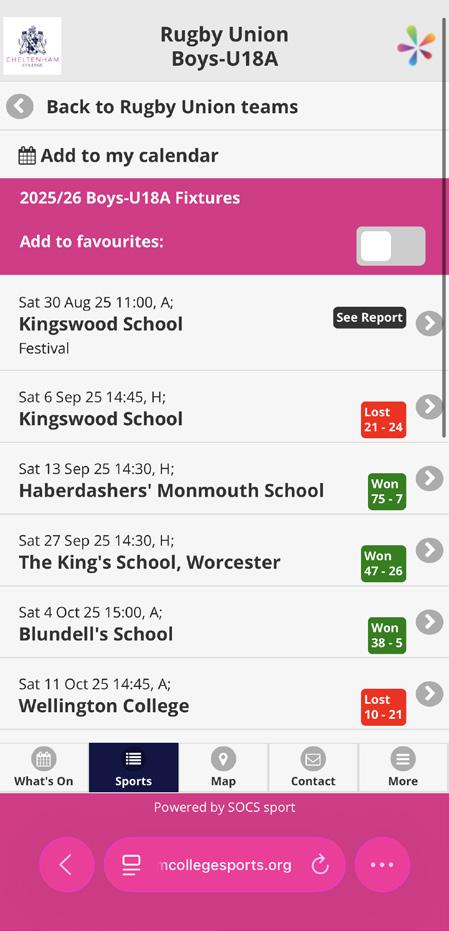
3. To find a specific fixture list, click on the correct sport and then the team you are interested in.
Click on “Add to favourites” to save the team into the App’s main menu, making it easy to return to the fixture list in the future.
Finally, from here you can synchronise the selected team’s fixture list to your personal calendar by clicking “Add to my calendar” at the top of the page.
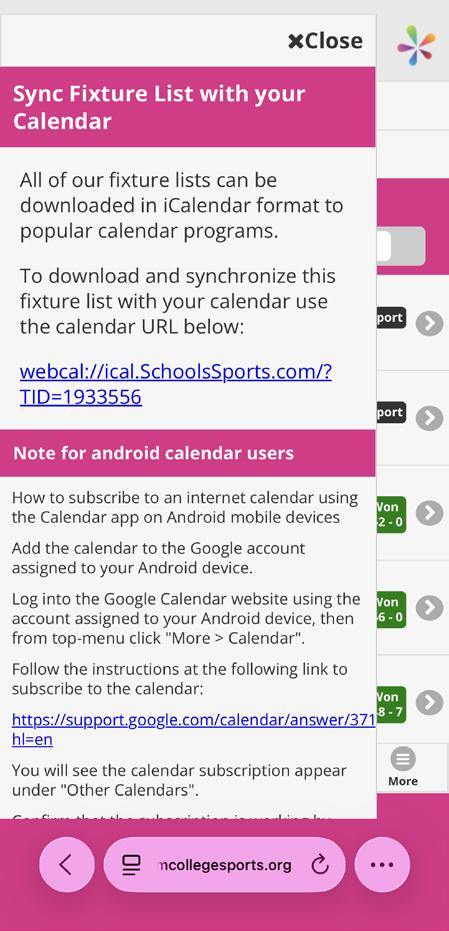
4. The pop-up above will appear if you click “Add to my calendar” to help make the process easier.
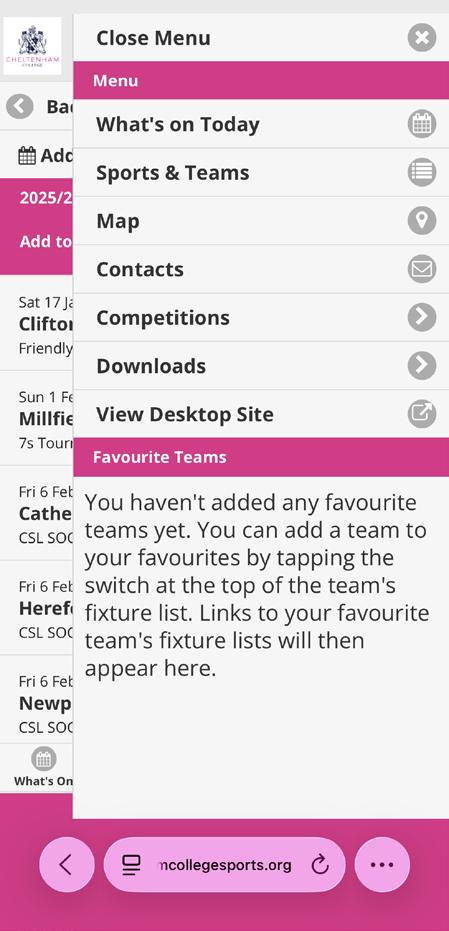
5. The menu above shows where teams that have been favourited will be displayed.
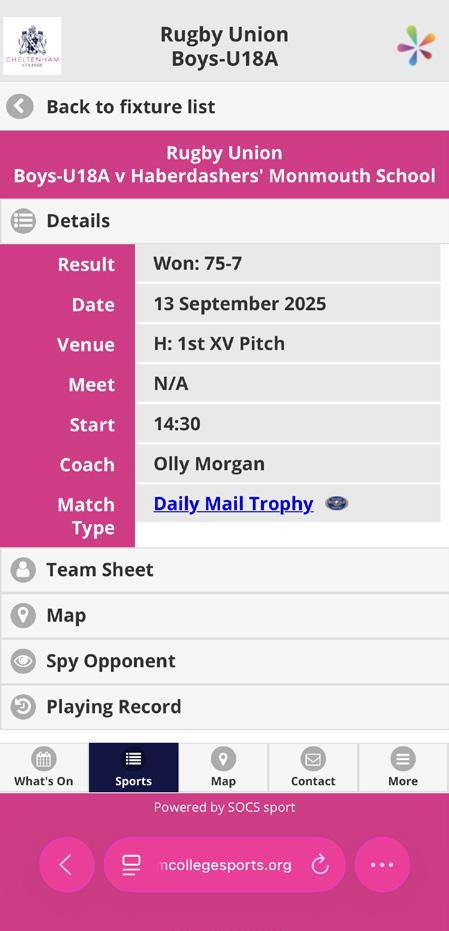
6. The fixture details page displays any additional information you might need, including the team sheet, map location, the playing record versus the opponent and information about your opponent’s performance during the current season.
Results will be uploaded after the fixture.
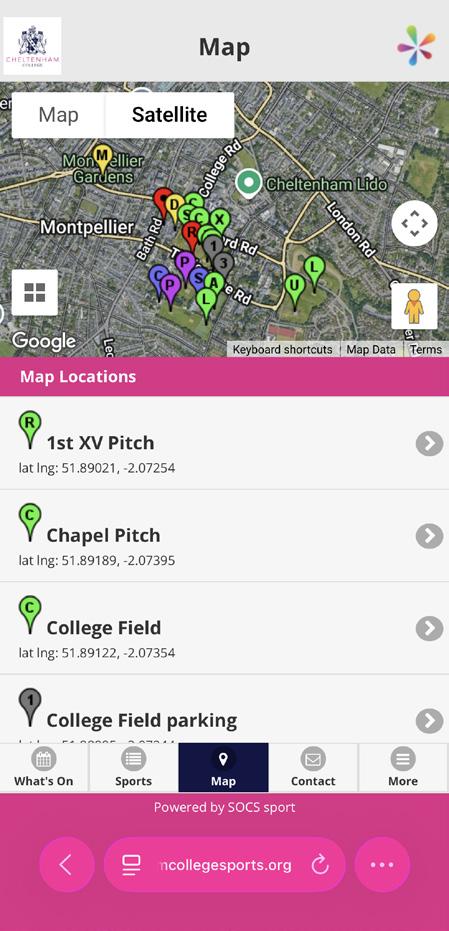
7. By clicking on the central ‘Map’ button you can access an interactive map of College’s grounds, pinpointing where each fixture location is.
If you have any further questions about the information above please contact College Office, college.office@cheltenhamcollege.org
myEVOLVE, our chosen online system for managing Consent, Bookings and Payments for educational visits.

We will email you details of forthcoming educational visits to your registered email address with the school. Each email will contain a secure link, enabling you to make a booking or register your interest for an activity, make a payment, and also grant electronic consent all in one, easy place.
What’s more, whilst you can take action directly from those email invitations without logging in, you will have the option to create a myEVOLVE account should you wish:
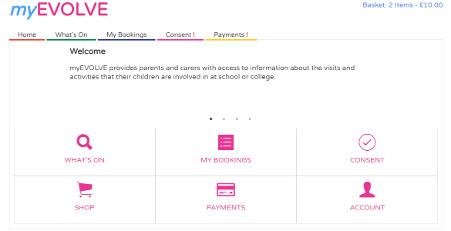
This is optional and does not preclude you from making a booking or payment or completing a consent form via a secure link within an email invitation. However, by creating a myEVOLVE account, you can centrally manage all previous and forthcoming activities, including browsing What’s On, managing your bookings, reviewing outstanding and previous consent forms and payments.
We will be in touch via your registered email address to invite you to make a booking for an upcoming event, grant consent or make a payment. Please keep an eye out for these emails in your inbox and ensure that evolve.cheltcollegevisits@edufocus.co.uk is in your safe senders list.
SchoolCloud is the online system used for Parents’ meetings with their child’s Teachers.

Links and details on how to book appointments are sent shortly before the meeting dates, you do not need to register for this until you receive the information. Please use the schedule shown as a guide to when you should expect to receive the email notification.
It is important that we have your up-to-date contact information which you will use to login to this system.
Event Date
Third Form (3F) Tuesday 5 January 2027
Fourth Form (4F) Friday 16 October 2026
Fifth Form (5F) Friday 12 February 2027
Lower Sixth (L6) Wednesday 24 March 2027
Upper Sixth (U6) Friday 11 December 2026
UK time)
Cheltenham College
Bath Road
Cheltenham
Gloucestershire
GL53 7LD
Tel: +44 (0)1242 265 600 admissions@cheltenhamcollege.org cheltenhamcollege.org