QuickBooks Compatible Checks: How to Choose the Right Checks for Your Business Businesses that use QuickBooks for accounting need a reliable way to manage vendor payments, payroll, and everyday expenses. QuickBooks compatible checks make this process easier by allowing businesses to print payment details directly from their accounting software using the correct check format. However, choosing the wrong check layout can lead to printing alignment problems, wasted check stock, and unnecessary expenses. Understanding the available formats and checking compatibility before ordering can help businesses avoid these issues. In this guide, we will explain how QuickBooks compatible checks work, compare different check formats, and share tips for selecting the right checks for your business.
What Are QuickBooks Compatible Checks? QuickBooks compatible checks are pre-printed business checks designed to match the check-printing layouts supported by QuickBooks accounting software. They allow
businesses to print information such as the payee's name, payment date, and payment amount directly onto check stock. These checks are commonly used by small businesses, accountants, bookkeepers, and finance departments that regularly process payments. Before purchasing checks, businesses should confirm their software version, check format, and printer settings. For a detailed explanation, read our QuickBooks Check Compatibility Guide.
Why Are QuickBooks Compatible Checks Important? Using the correct check format can help businesses maintain an efficient payment process.
Simplified Payment Processing QuickBooks allows businesses to manage payment information within their accounting workflow. Compatible check stock makes it easier to print payments without manually writing every detail.
Improved Financial Recordkeeping Recording payments in accounting software helps businesses track expenses, monitor transactions, and reconcile bank statements more efficiently.
Reduced Printing Errors Selecting the correct check layout and adjusting printer alignment can help prevent incorrectly positioned payment details and wasted check stock.
Convenient Business Payments Businesses can use QuickBooks compatible checks for eligible vendor payments, accounts payable, and other business expenses.
Types of QuickBooks Compatible Checks The best check format depends on your payment requirements and the printing layout supported by your QuickBooks setup.
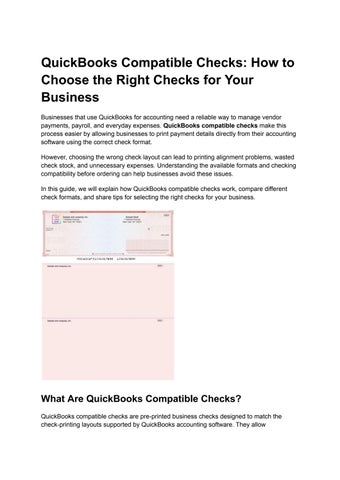
1. Voucher Checks Voucher checks typically feature one check at the top of a sheet, with two detachable stubs below. These stubs can contain additional payment information, making the format useful for payroll and accounts payable. Explore the available QuickBooks checks to find a suitable format for your business.
2. Three Checks Per Page Three-per-page checks feature three checks on a single sheet without voucher stubs. They are useful for businesses that process multiple payments and prefer a compact format. Explore our 3-on-a-page QuickBooks checks to learn more about this option.
3. Wallet Checks Wallet checks are designed for personal checking accounts and smaller checkbook formats. Availability depends on the software's supported printing layouts, so confirm compatibility before purchasing. Review the available QuickBooks check formats to find the option that fits your requirements.
How to Choose the Right QuickBooks Compatible Checks Follow these steps before placing an order. 1. Identify your QuickBooks version: Determine whether you use QuickBooks Desktop or QuickBooks Online. 2. Choose the correct format: Check your printing settings to identify whether you need voucher checks or standard checks. 3. Verify your bank details: Confirm the routing number, account number, and starting check number. 4. Check printer requirements: Make sure your printer supports the selected check stock and paper size. 5. Review security features: Choose check stock with appropriate security features to help protect against fraud and alterations. 6. Test the alignment: Print a sample on plain paper before printing on actual check stock. For more information about available layouts and compatibility requirements, visit our QuickBooks Check Compatibility Guide.
Can You Use Third-Party Checks With QuickBooks? Yes. Businesses can use third-party checks as long as the check format and specifications match their software's printing requirements and banking needs. When comparing suppliers, consider the following factors: ● Compatibility with your QuickBooks version. ● Availability of the required check format. ● Quality of the check stock and security features.
● Accurate printing of bank information. ● Ordering options and delivery timelines. ● Customer support for compatibility questions. Businesses looking for checks that work with their accounting software can explore QuickBooks checks from Checks Next Day.
How to Fix Common QuickBooks Check Printing Problems Even when you have the correct check stock, printing settings can affect the final result.
Incorrect Check Alignment Print a sample on plain paper and compare the positions of the printed fields with your check stock. Adjust the alignment settings in QuickBooks if necessary.
Wrong Check Format Confirm that the selected printing format matches the checks loaded into your printer.
Incorrect Bank Details Double-check your routing number and account number against an existing check or verified bank documentation.
Paper Feeding Problems Check the paper size, loading direction, and printer settings. Make sure the printer is not scaling the page incorrectly. For more information about printer-compatible check stock, explore our computer checks.
Where Can You Buy QuickBooks Compatible Checks? When purchasing checks, look for a supplier that offers the format you need, clearly explains compatibility, and provides suitable delivery options. Checks Next Day offers QuickBooks-compatible check formats for business payment workflows. You can compare the available options and choose a layout that matches your accounting software. Explore our QuickBooks checks to find the right format for your business. If timing is important, review our guide to next-day check delivery for information about delivery timelines and ordering requirements.
Conclusion Choosing the right QuickBooks compatible checks helps businesses streamline payments, maintain accurate financial records, and avoid common printing problems. Before ordering, confirm your software version, select the appropriate check format, and test your printer alignment. Explore QuickBooks compatible checks from Checks Next Day to find an option that suits your business payment requirements.
Frequently Asked Questions 1. What are QuickBooks compatible checks? QuickBooks compatible checks are checks designed to match the printing layouts supported by QuickBooks. They help businesses print payment information directly from their accounting software.
2. Can I use third-party checks with QuickBooks? Yes. Third-party checks can work with QuickBooks when their layout and specifications match the software's printing requirements.
3. Which QuickBooks checks are suitable for payroll? Voucher checks are often useful for payroll because their detachable stubs provide space for additional payment information. Confirm the appropriate format for your workflow before ordering.
4. Do QuickBooks compatible checks require a special printer? Not necessarily. Many pre-printed checks can be used with standard laser or inkjet printers. Always verify the printer requirements for your selected product.
5. How can I fix QuickBooks check alignment issues? Print a sample on plain paper, verify the selected check format, and adjust the alignment settings. Make sure your printer is using the correct paper size and is not scaling the page.
6. Where can I find QuickBooks compatible checks? You can explore the available QuickBooks checks at Checks Next Day and compare the formats before placing an order.