



This User Guide covers the various tasks that can be completed if you have been assigned the Customer Account Admin User role for the Bunzl Online Shop Front.
This role allows you to establish, maintain and remove Users within your business and manage the orders that are placed by a User granted approval.
IMPORTANT: Ideally this role be assigned to an employee within your business with a good understanding of who is ordering on behalf of their business unit, establishing departmental budgets and/or spend limits, and whether approval of products within shopping basket is necessary prior to creating and placing an order
The Bunzl Online Shop allows a User to be assigned one or more User role(s).
The level of access varies per User role assigned, which in turn dictates what tasks they will be able to perform within the Online Shop
The five roles available to assign a User are:
Role
Access
View Products
Place Orders
Update their User details
Non-display of pricing
Approve Orders placed by another User who has a spend limit set on their account
View All Invoices
Pay Invoices by Credit Card
Assign Ship-To Address Location
Create, Maintain and Remove a User
Set up spend limit and/or budget
Purchasing through authorisation workflow

Unable to view pricing of a product

Access to manage invoices across multiple accounts
Approve and release shopping cart Manage User(s)
Buyer Allows a User to view products, place orders, update their own details.
Contractor Provides the same access as the Buyer role, however, the Contractor is unable to see any details of pricing throughout the Online Shop. This role is designed to assign to your sub-contractors.
Accounts Payable
Approver
Allows a User to view and pay invoices across multiple customer accounts and Ship-to Address locations
Note: The User requires customer account(s) and Ship-to(s) address locations linked in the Back Office
Provides the same access as the Buyer role, as well as:
• Approve products submitted in a shopping cart for other Users
Note: this will only occur if a User has a buying limit set on their account
• View all User Invoices
• Pay for your Invoices by credit card
Note: Selecting the Approver User role, will automatically select the Buyer role
Customer Account Admin
Provides the same access as the Approver role, as well as perform the following tasks to manage their User(s):
• Manage what locations (Ship-to(s) address a User can order on behalf of
• Determine what level of access a User(s) have on the Online Shop
• Create, maintain and remove a User(s)
• Setup User spend limits and budgets
Note: Selecting the Customer Account Admin User role, will automatically assign the Approver and Buyer User roles
Each User role within the Bunzl Online Shop, will have access to My Account dashboard, which allows the User to view their personal details, Order Management, My Orders, Order History and My Lists (i.e. Favourites).
Approver and Customer Account Admin User roles will additionally be able to approve their User(s) orders and view and pay invoices.
As a Customer Account Admin User, you are also able to maintain the Users for the business.
Accessing ‘My Account’ dashboard:
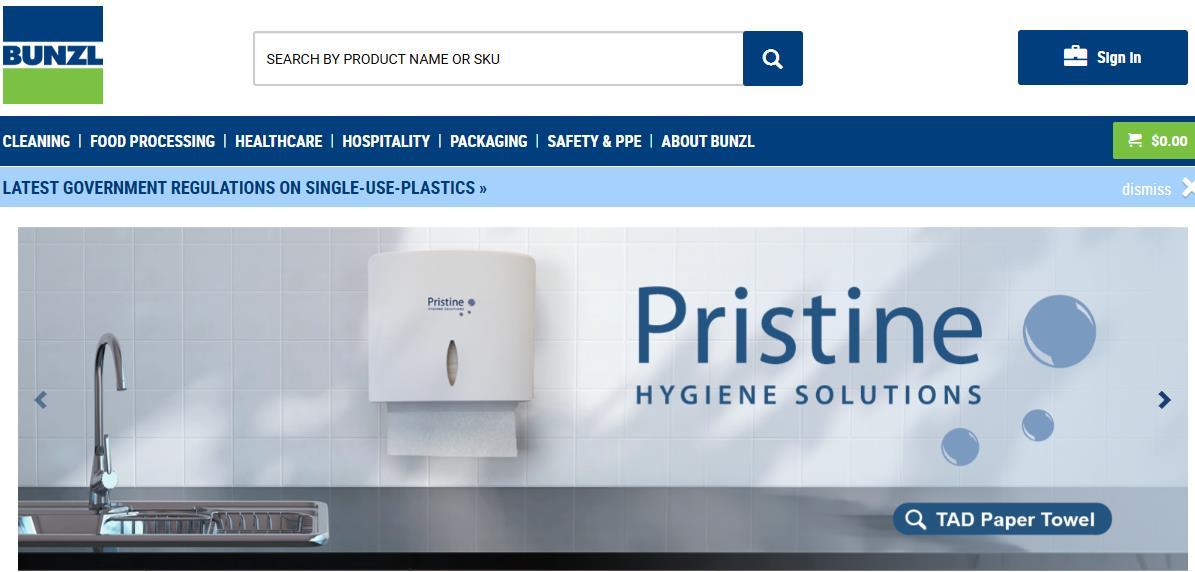
1. Go to the home page of the Bunzl Online Shop

2. Click icon in the top right-hand corner of the page:
3
Enter your Email (Login) and Password, then click the button.

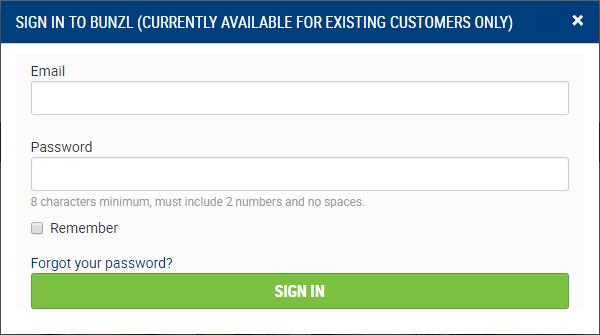

You can check the checkbox to avoid having to retype your details in each time you wish to login.
If you have multiple User logins, we recommend not checking this checkbox.
IMPORTANT: Use the Forgot your Password? icon if in doubt. This action will request you input your email address.
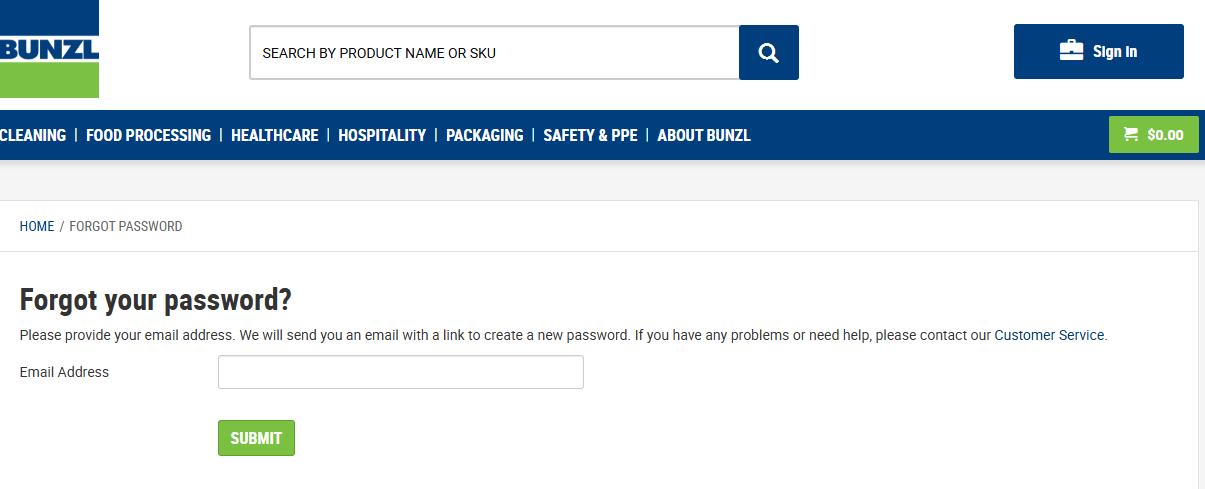
Then click

4. Once Signed In, a pop up window will display, asking you to .
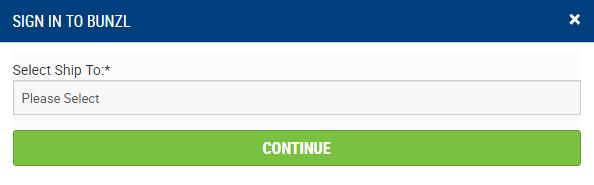
Clicking within the field, under the , will display a dropdown list of Ship-to Address Location(s) you are assigned.
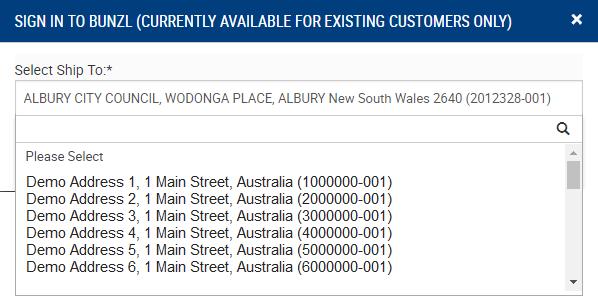
5 Select Ship-to Address Location, to work within, then click

NOTE: Information displayed within the overview will be relevant to the Ship-to Address Location selected.
If the User is assigned to one Ship-To Address Location, the User will be taken straight to the Bunzl Shop Home Page.
6 You will now have the Bunzl Online Shop Home Page displayed.
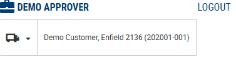
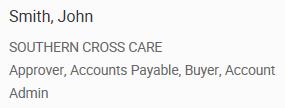
In the top right-hand corner, the icon will now be replaced with the users name and ship-to details , to represent the User successfully logged into User account.
Click on (your Username) to view details:
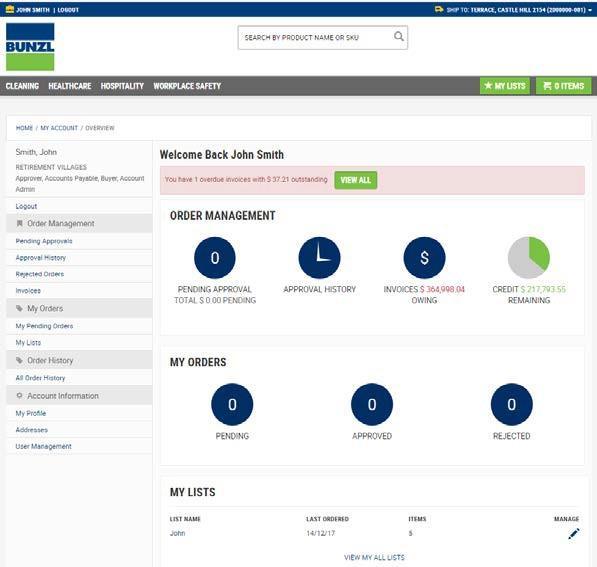
The My Account Dashboard will now be displayed.
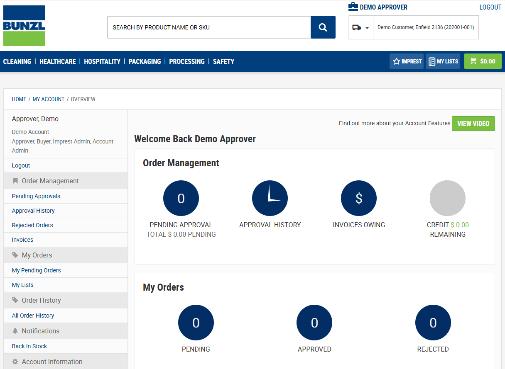
On the right-hand side of the page is the dashboard area of
This enables you to quickly access and view key areas of , including key actions and information.
IMPORTANT: Depending on role assiged to the User, will determine what is displayed and available to access.
Access
View Products
Place Orders
Update their User details
Non-display of pricing
Approve Orders placed by another User who has a spend limit set on their account
View All Invoices
Pay Invoices by Credit Card
Assign Ship-To Address Location
Create, Maintain and Remove a User
Set up spend limit and/or budget
Unable to view pricing of a product
Access to manage invoices across multiple accounts Approve and release shopping cart Manage User(s)
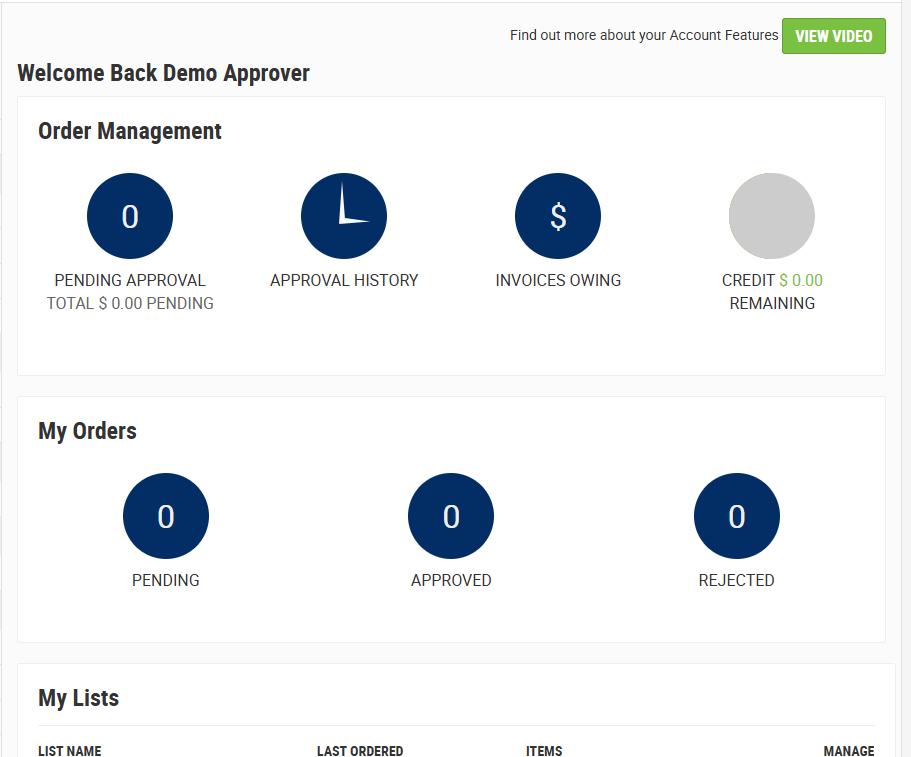
The dashboard includes:
Order Management
This section is only visible to Approvers and Customer Account Admin User roles)
Icon Sub-Menu Label Description


My Orders


My Lists
Pending Approval
Approval History
Invoices Owing
Credit Remaining
Pending
Approved
Rejected
Display the total $0.00 pending - amount for orders requiring approval for Ship-to Address Location.
The button itself will also highlight the number of orders waiting approval.
Allows the User to quickly and easily view the orders approved for Ship-to Address Location.
Display total $ amount value of unpaid invoices for Ship-to Address Location.
Display the $ credit limit remaining for your business to spend for the period.
Displays an order in progress and not yet submitted.
Displays the User order(s) approved.
Displays the User order(s) rejected.
This will detail any List attached to a User (also known as favourites). This could include an Imprest List, and/or a List created by the User.
On the left-hand side of displays a navigation menu
This enables the User to easily access various areas of the Online Shop by clicking on the Sub-Menu label and being directed via a link to the respective area.
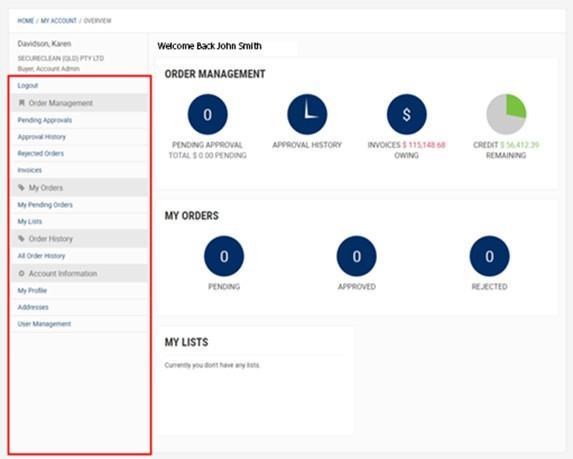
Menu
Logout
Order Management Visible to Approver and Customer Account Admin User Roles
My Orders
Order History
Account Information
Sub-Menu Label Description
Allows you to logout of your My Account
Pending Approvals View an Order(s) awaiting approval
Approval History View Orders that have been approved
Rejected Orders View Orders rejected Invoices
My Pending Orders
My Lists
All Order History
My Profile
Addresses
View all Invoices for selected Ship-to Address Location
View pending order(s) yet to be submitted
View lists (Favourites, Imprest)
View all Orders submitted by all Users linked to this User
View and update User details
View all Ship-to Address Location Visible to Customer Account
A User assigned a Customer Account Admin role is granted permission to:
Customer Account Admin Role
• Create a new User(s) a log on to access the Bunzl Online Shop These Users can then place orders for the Ship-to Address Location(s) assigned to their User profile
• Manage what Ship-to Address Location(s) a User can order on behalf of
• Determine what level of access a User(s) have within Online Shop
• Create, maintain and remove a User(s)
• Setup User spend limits and budgets
NOTE: Selecting the Customer Account Admin User role will automatically assign the Approver and Buyer User role functionality.
Once logged in to the Front Office, determine if a Catalogue is assigned to a Customer as follows:
1. to Bunzl Online Shop using Customer Account Admin User access.
2. Select .
3. Click on the Users name dashboard details will display.
4. Select User Management within the navigation menu.

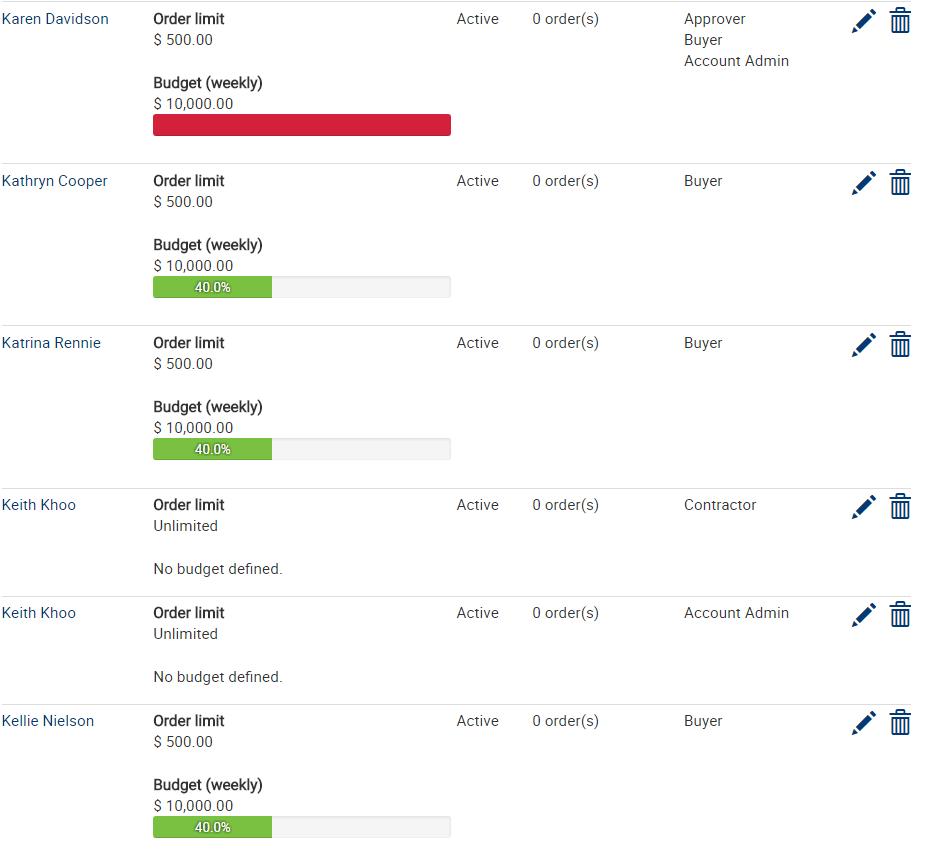
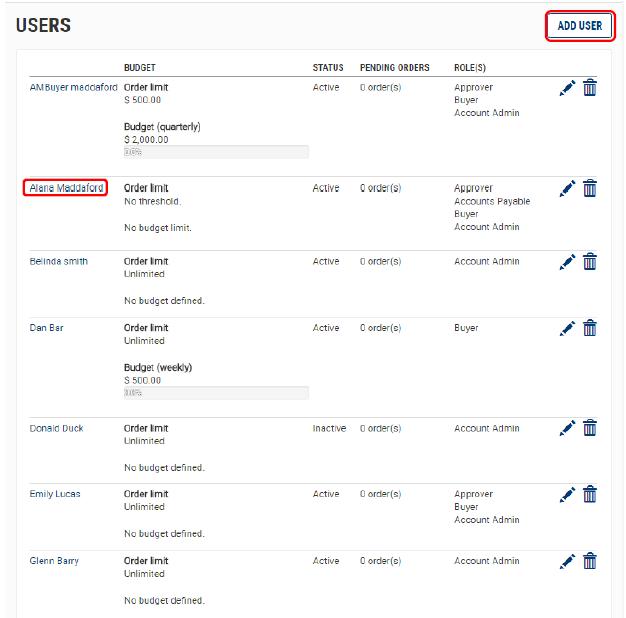
There may already be a User(s) assigned – each User will display, and include information on each User.
The table to follow is an example only.

5 Click the icon.
The User will be prompted with an Online Form to complete.
6 Complete all fields contained within the form.
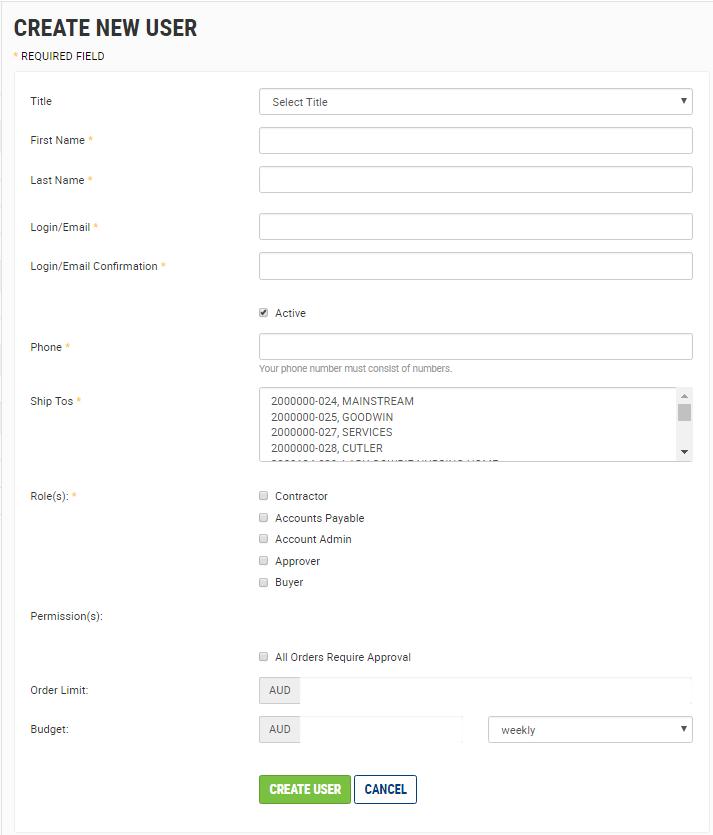
IMPORTANT: Phone field – do not include any space between numbers

7 Click the icon after entering information. If the Customer Account has no Catalogue assigned, the below screen will display.
IMPORTANT: Ensure the User is assigned the relevant Ship-to Address Location(s). A User must have at least one Ship-to Address Location assigned.

A User assigned a Customer Account Admin role is granted permission to manage Ship-to Address Location(s) assigned to a User that falls under their User profile.
If the Customer Account Admin User role has access to a list of Ship-to Address Location(s), these Ship-to Address Location(s) can be assigned to a User under this User Profile.
IMPORTANT: Any User assigned Ship-to Address Location(s), can place orders for that Ship-to Address Location.
1. to Bunzl Online Shop
2. Select This will take you to the Home page of the Online Shop.
3. Click on the Users name dashboard details will display.
4. Select User Management within the navigation menu. This will direct you to the USERS page where a list of all Users displays with links to manage each.

5 Click icon to the right, to edit the User.
6 The USER DETAILS page will display.
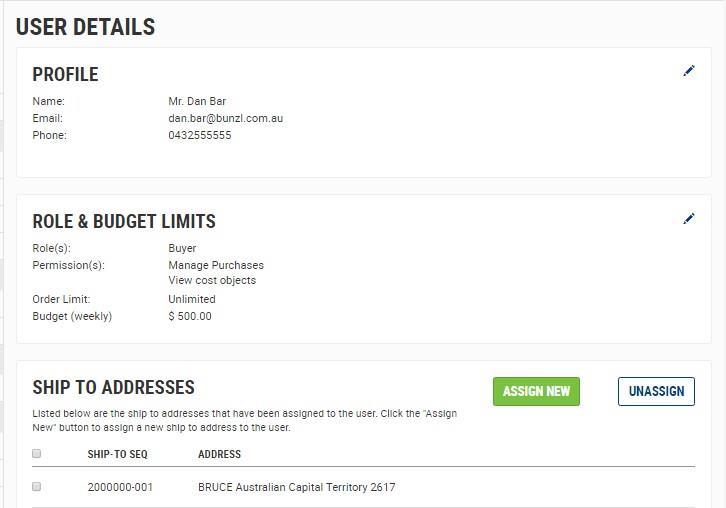
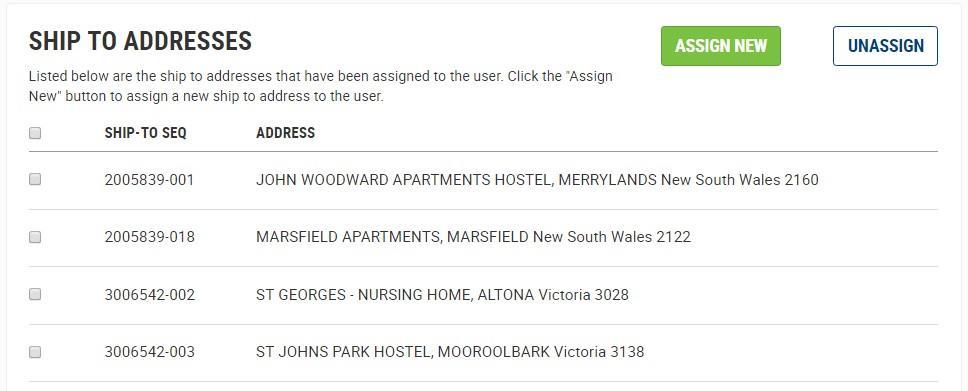
Scroll down the page to view SHIP TO ADDRESSES section, detailing a list of assigned SHIP-TO ADDRESSES for that User.
7 To assign a new Ship-to Address Location, click The SHIP TO ADDRESSES page will display.

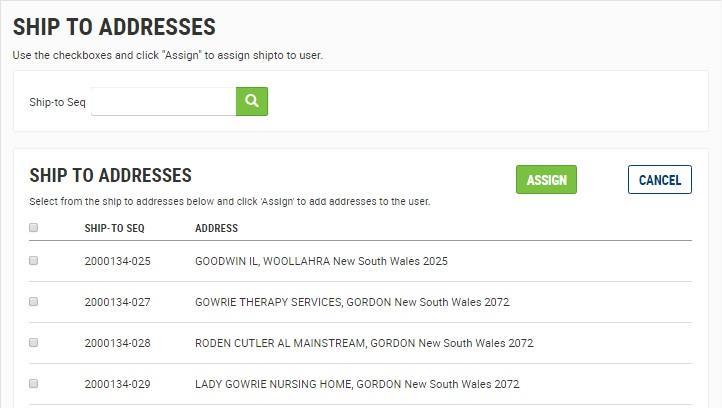
If there is an extensive list of Ship-to Address Locations, enter the Ship-to Seq in the available field, and click

IMPORTANT: Account Number and Ship-to Address Location must be used to search 0000000-000
8. All Ship-to Address Locations attached to the Customer Account Admin role will be listed, that have not yet been assigned to the User.
9 Check the checkbox against each Ship-to Address Location(s) to be assigned to the User. 10 Click Checked Ship-to Address Location(s) NOW assigned to the User.

Repeat steps 1 to 6 as per Assign Ship-to Address Location(s) process.
7. The USER DETAILS page will display.
8. Check checkbox for those Ship-to Address Location(s) requiring unassignment.
9. Click

The Ship-to Address Location(s) unassigned, will now be available under , to reassign if required.
A User assigned a Customer Account Admin role is granted permission to set budget limits to a User(s) falling under their profile.
This budget function is used when there is a need to manage individual spending, as well as contain total spending within the business. If setting a budget, the option of weekly, monthly or quarterly can be applied.
To set an Order Limit and/or Budget to a User, access User Management.
IMPORTANT: Any User assigned Ship-to Address Location(s), can place orders for that Ship-to Address Location.
1. to Bunzl Online Shop
2. Select . This will take you to the Home page of the Online Shop.
3. Click on your name
dashboard details will display.
4. Select User Management within the navigation menu.
This will direct you to the USERS page where a list of all Users displays with links to manage each.
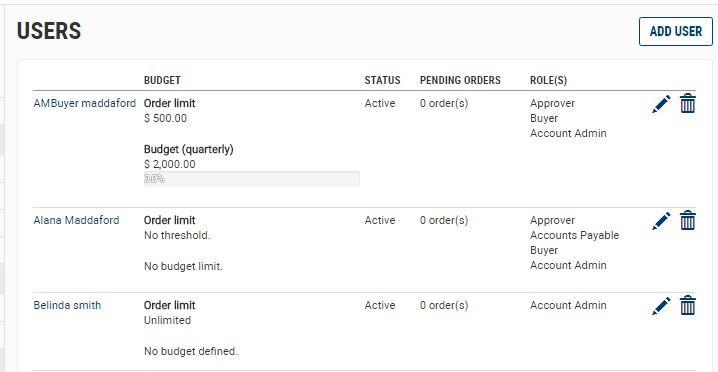
5 Click icon to the right, to edit the User. The USER DETAILS page will display.
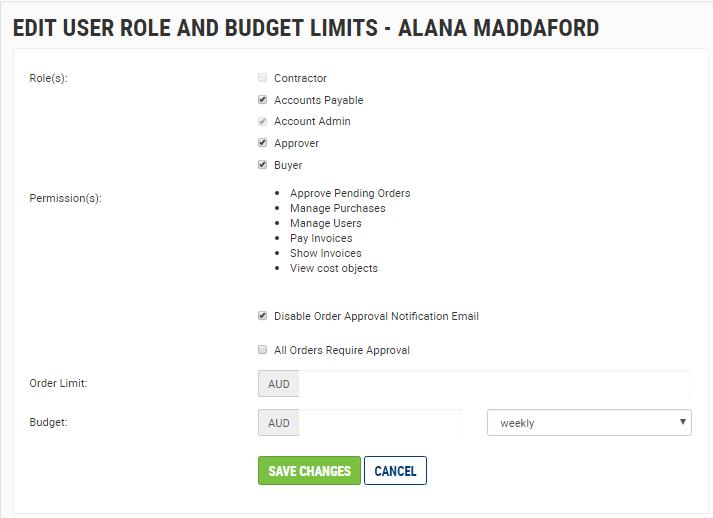
6. Click within the ROLE & BUDGET LIMITS section. This will direct you to the EDIT USER ROLE AND BUDGET LIMITS page.
IMPORTANT:


If this checkbox is ticked, then every order submitted by the User, will require the Customer Account Admin approval.
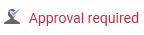
The User will view this message when reviewing their order information.
If the Approver does not wish to receive notification email that an order is awaiting approval, this checkbox can be ticked.


If this checkbox is not selected, no order submitted will require approval. Unchecking this box will disable the Order Limit and Budget functionality.
When the checkbox is checked, the Order Limit and Budget functionality fields will grey out.

CAUTION: If not all orders require approval, then ensure the All Orders Require Approval checkbox is not ticked. This will enable the Order Limit and Budget functionality.
The User placing the order will have an indicator when reviewing their order information

7. Enter a value within the Order Limit field.
This will mean, any order placed by the User that is equal to this value or higher, will require Customer Account Admin approval.
8 Enter a value within the Budget field.
9 Select the period from the dropdown field.
You can set an order limit for a weekly, monthly or quarterly budget period.
The value entered, will mean that all orders for the User will need approval once the total value of an order for the budget period has been reached.
Weekly budgets are for the period: Monday to Sunday
Monthly budgets are for the period: First day of the month to last day of the month
Click

A User assigned the Customer Account Admin role is granted permission to assign or change the role assigned to a User(s) falling under their profile.
There are five roles that can be assigned to a User: Buyer, Account Admin, Approver, Contractor and Accounts Payable
1. to Bunzl Online Shop.
2. Select . This will take you to the Home page of the Online Shop.
3. Click on the Users name
4. dashboard details will display.
5 Select User Management within the navigation menu.
This will direct you to the USERS page where a list of all User(s) displays with links to manage each.
6 Click icon to the right, to edit the relevant User. The USER DETAILS page will display.
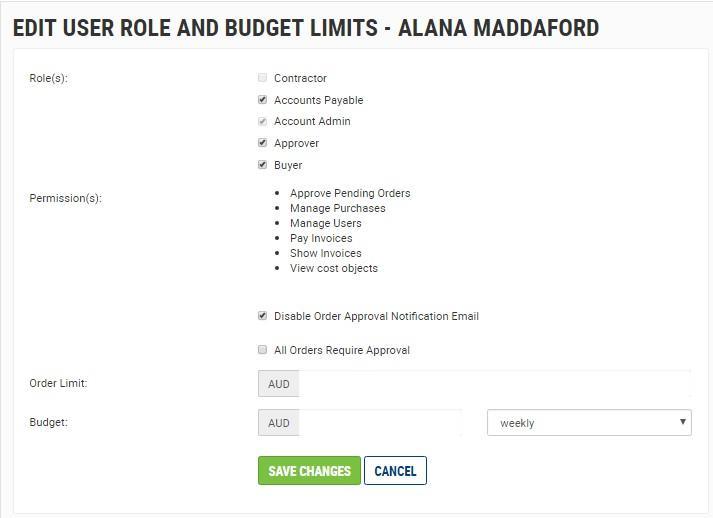
7. Click within the ROLE & BUDGET LIMITS section. This will direct you to the EDIT USER ROLE AND BUDGET LIMITS page.

Understand the role you are assigning the User.
8 Check or Uncheck the respective checkbox against each User role.
Role Check box Permission Automatic Role Dependency
Contractor
Buyer
Accounts Payable
Approver
Account Admin
Manage Purchases No other role can be selected
Manage Purchases
View cost objects You can select Approver with this role
Manage Purchases
Pay Invoices
Show Invoices
View cost objects
Approve Pending Orders
Manage Purchases
Pay Invoices
Show Invoices
View cost objects
Approve Pending Orders
Manage Purchases
Pay Invoices
Show Invoices
View cost objects
Buyer Role will automatcially select
Buyer Role will automatcially select
Buyer Role and Approver role will automatically select
By default, all Users have the Buyer role assigned to them.
To provide additional permissions to the User, select the checkbox next to either Approver or Account Admin as required, and this will list the permissions related to selected role.
9 Click

This will immeadiately udpate the permissions related to the role for the selected User.
A User assigned the Customer Account Admin role is granted permission to deactivate a User(s) falling under their profile.
Deactivation of a User prevents login to the Online Shop
To deactivate a User, follow the instructions below.
1. to Bunzl Online Shop.
2. Select . This will take you to the Home page of the Online Shop.
3. Click on the Users name to access account information. dashboard details will display.
4 Select User Management within the navigation menu.
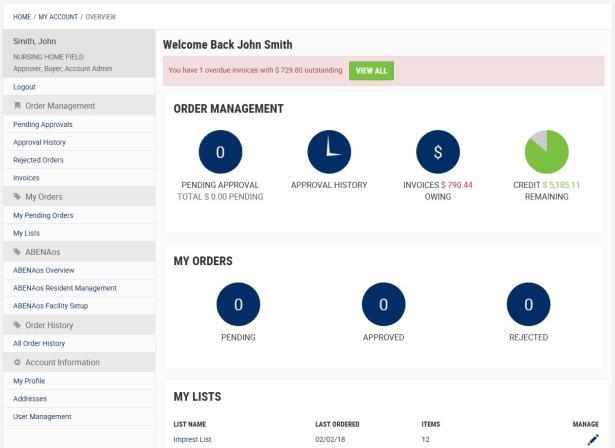
This will direct you to the USERS page where a list of all User(s) displays with links to manage each.
5 Click icon to the right, to edit the relevant User. The USER DETAILS page will display.
6. Click icon within the PROFILE area. The EDIT USER DETAILS page will display.
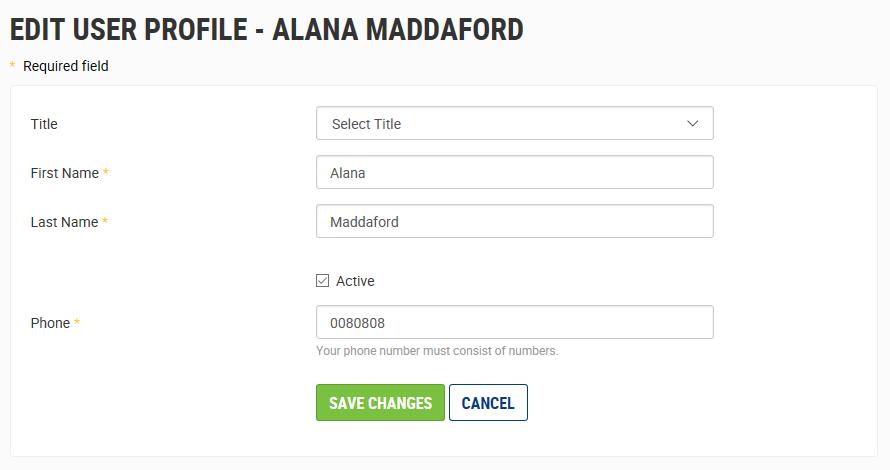
An Active checkbox is available (note: this is ticked by default). This enables the User to log into their account within the Online Shop.
7. To deactivate the User, untick this checkbox and click. This will prevent the User accessing the Online Shop.
A User assigned a Customer Account Admin role is granted permission to manage orders for a User(s).
A User with an order limit applied to their account, will need to have each order approved by a User with an Approver role or Customer Account Admin role, for that business.
The Online Shop will automatically send an email notification to the linked Approver and/or Customer Account Admin role for the User, advising an Order awaits their review and approval.

If the User has checked the checkbox, no notification email will be issued.
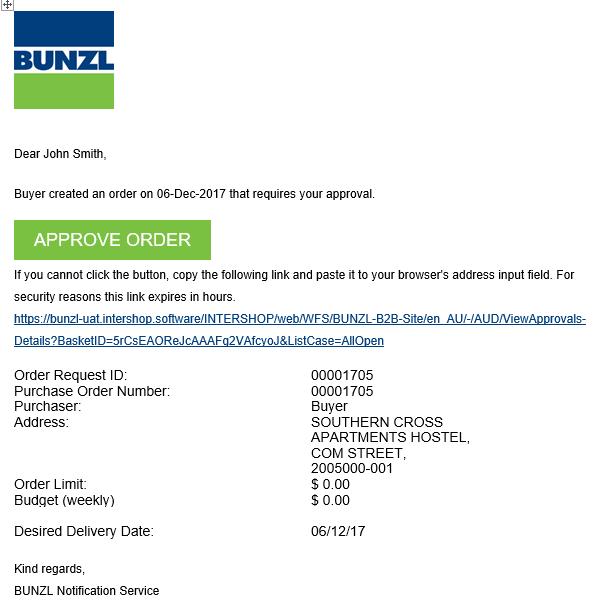
9.2 Reviewing orders awaiting approval via link embedded within email notification
The Approver can click the embedded link within the Pending Order Approval – BUNZL B2B email notification.
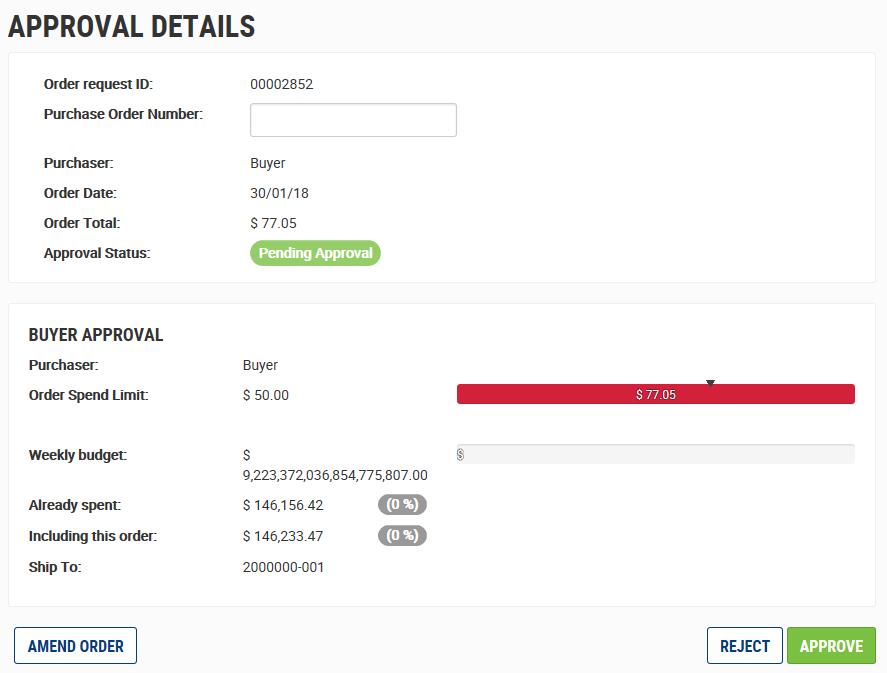
The Approver will be directed to the APPROVAL DETAILS page.
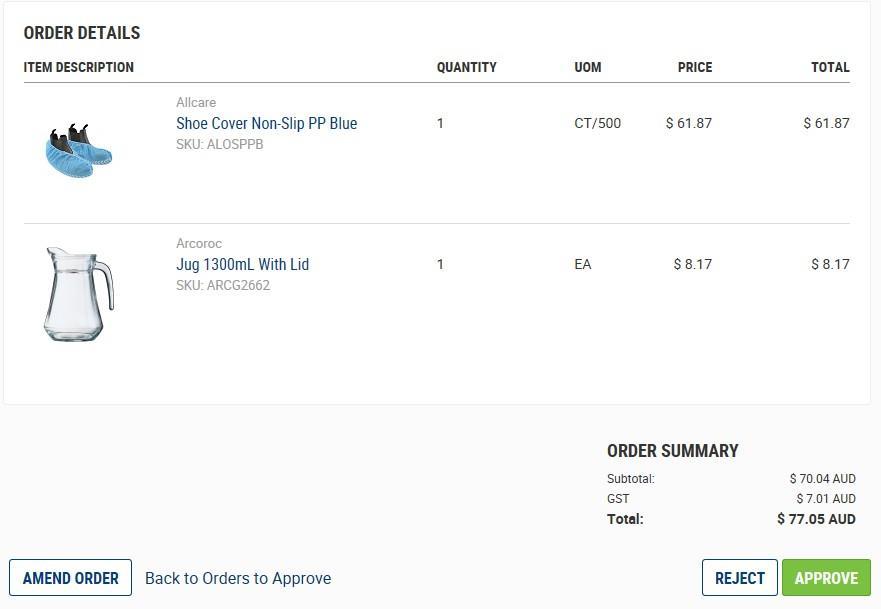
As the Approver and/or Customer Account Admin User role, you can choose to.
Option for Order Selected and Action



Ability to review and change the order.
Return to PENDING APPROVALS page.
The Order will be approved immediately and submitted on the User’s behalf.
1. The User will be notified via email that their Order has been approved and submitted.
2. An Order Number reference code will also be generated for the Order.
A pop-up window will be displayed, requiring the User to enter a reason (comment) explaining the rejection.
1. The Order will be closed and not submitted.
2. The User will be emailed a notification advising them that their Order has been rejected and the reason why.
Alternatively, the Approver can access orders awaiting their approval via the page (refer 9.3).
1. to Bunzl Online Shop.
2. Select . This will take you to the Home page of the Online Shop.
3. Click on the Users name to access account information. dashboard details will display.
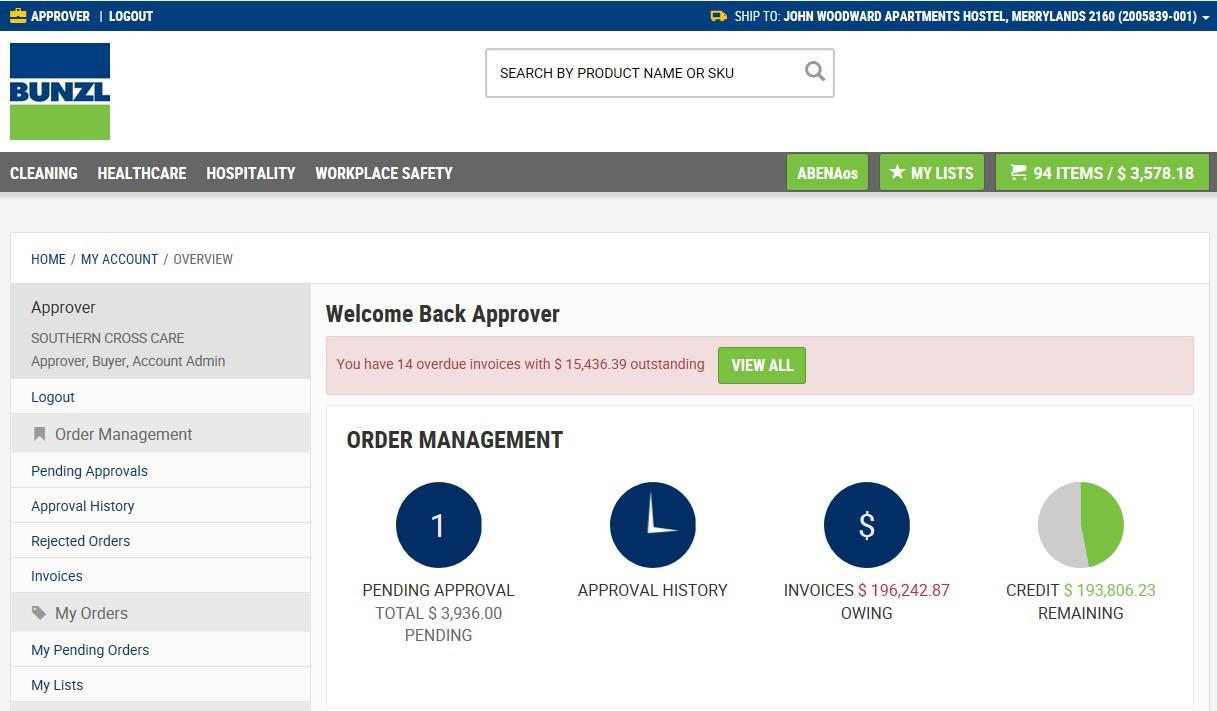
4 Select Pending Approvals within the navigation menu. The PENDING APPROVALS page displays a list of Orders awaiting approval.
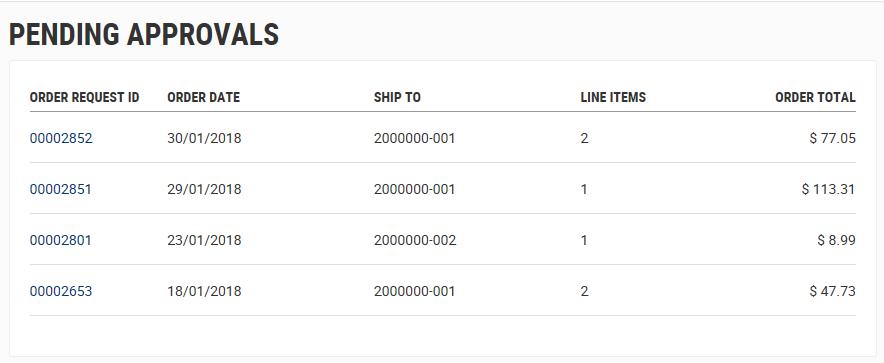
5. Click on the respective . This link will open a detailed view of the Order.
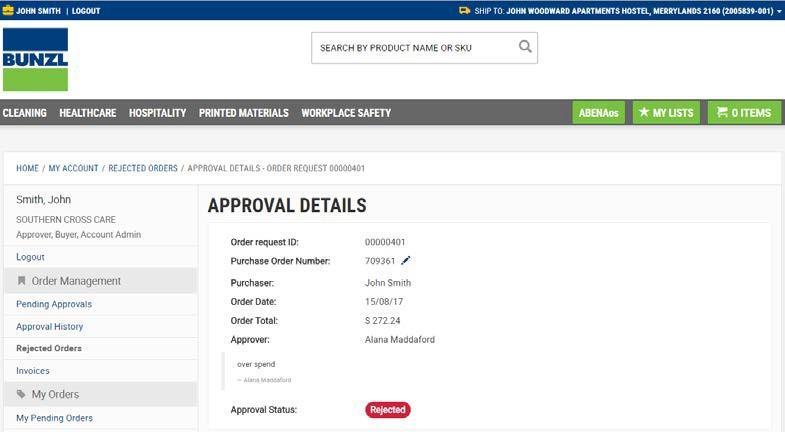
The APPROVAL DETAILS page displays.
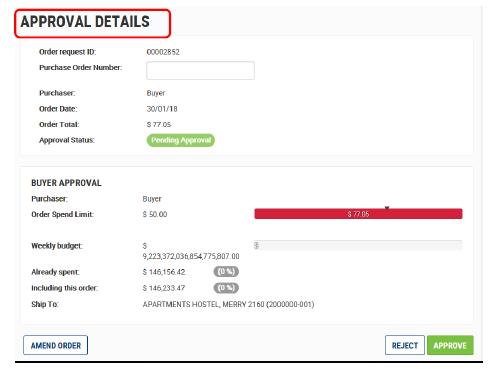
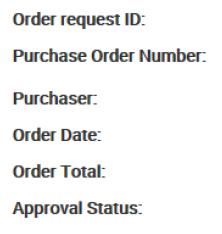
The top section details ID allocated to the order along with Order Date, Order Total etc.
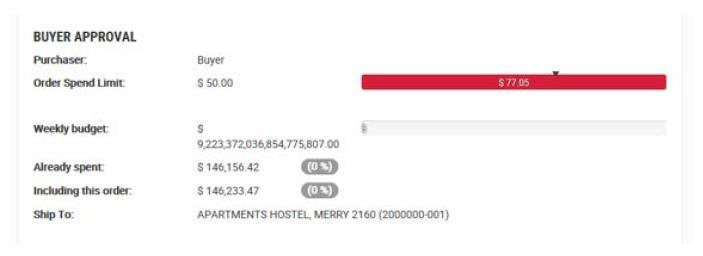
The middle section details Spend Limit, Weekly budget and Spend to date.
The last section Order Details and actions available.
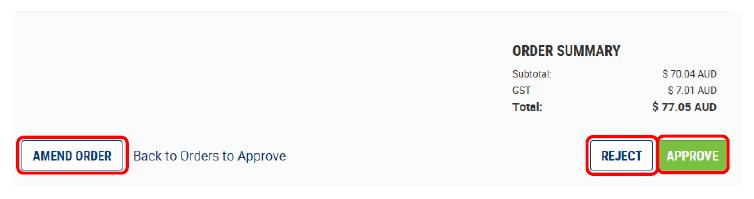
Clicking the icon, will prompt the User to input why the order is being rejected
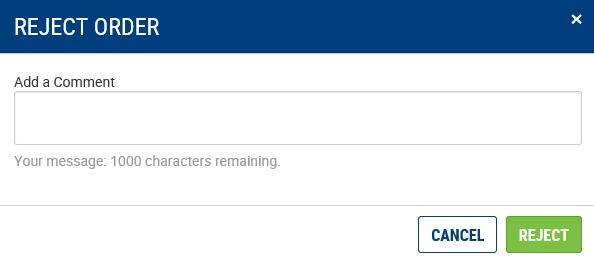

If the User does not wish to the order, click the icon.

When an order is , the order is placed under the Rejected Order sub-menu under .

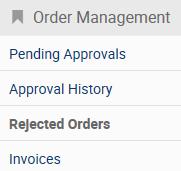
To view reason provided when rejecting the order, the User can click the respective order request id number for more detail.
Clicking the icon, will direct the Approver to YOUR SHOPPING CART ORDER SUMMARY page.
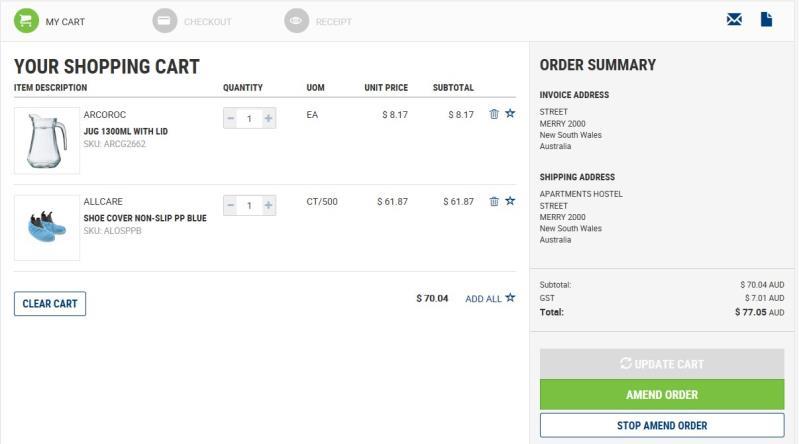
The Approver can change the quantity or remove a product from the shopping cart.
If the quantity is changed and/or a product is deleted, the Approver is required to click to refresh page.
The Approver can now click on to submit the changes made to the order.

The Approver can then the order which will submit the order for processing.
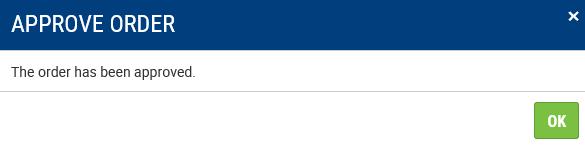
The Approver can click the icon if satisfied with information contained in order. A pop-up window will display.
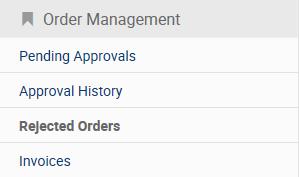
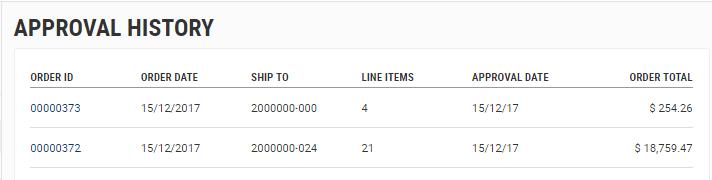
To view all approved or rejected Orders, select within the navigation menu.
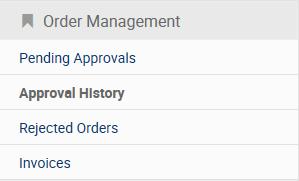
View all Approved Orders
View all Rejected Orders

The Customer Account Admin User role has access to view and pay invoices generated by Users and Ship-to Address Locations linked within their profile.
1. to Bunzl Online Shop.
2. Select . This will take you to the Home page of the Online Shop.
3. Click on the Users name to access account information. dashboard details will display.
4 Select Invoices from the left-hand menu navigation area, within the Order Management navigation menu. The INVOICES page will display.
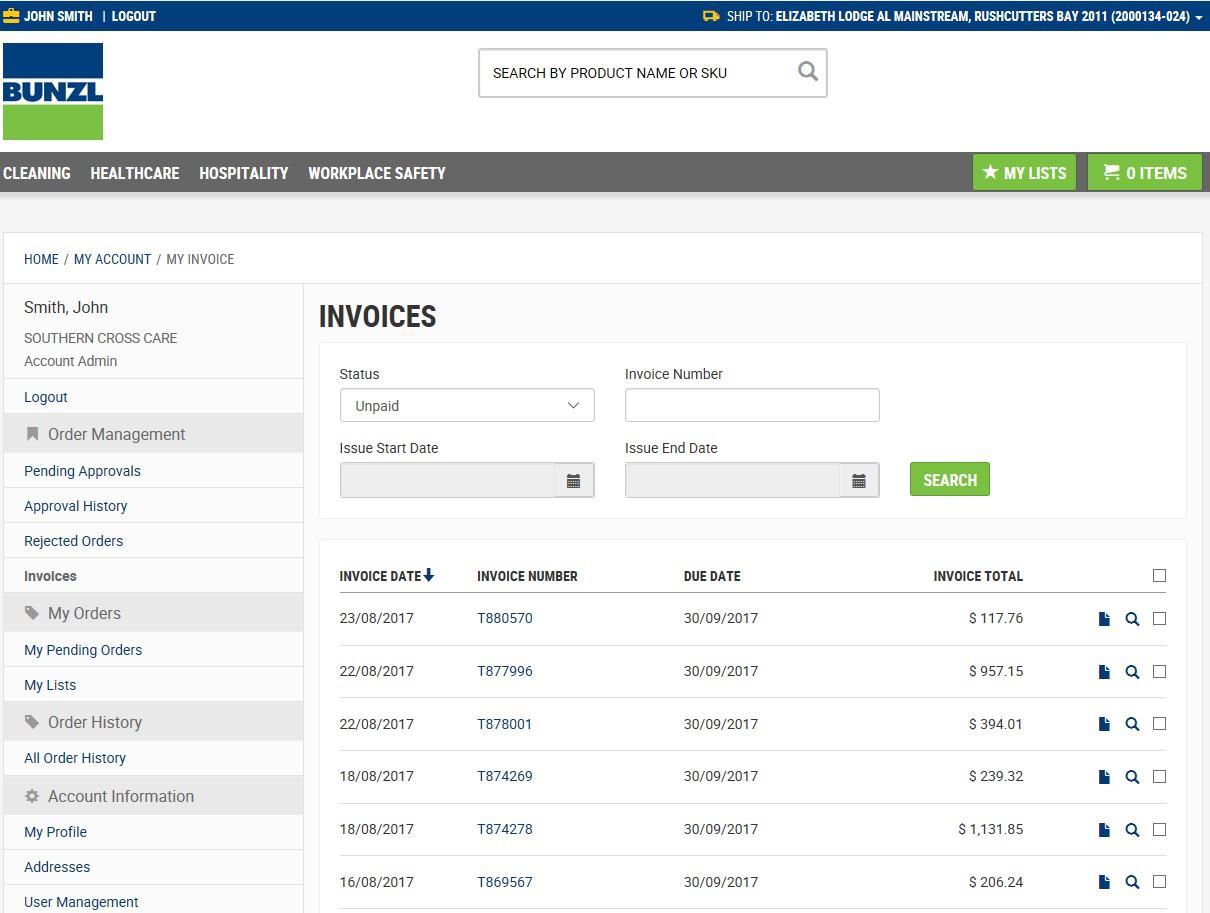
NOTE: All Unpaid invoices for the selected Ship-to Address Location will list by default.
To change the display to view Paid invoices, use the Status dropdown menu selection and select Paid.

To change the Ship-to Address Location (if more than one), use the selection in the Ship-to field.
Then click within the field.
5. Enter search criteria using the available fields, then click

To refine a search, use the date parameter fields Issue Start Due and Issue End Date
If the User knows the Invoice Number, enter this in the field.
Invoice Number
Allows a User to enter an invoice number to locate a particular invoice.
6
Start Due Date and End Date Date Fields
Issue Start Date and Issue End Date Fields
Allows a User select dates from the calendar icon on the right-hand side of each field.
This field is not casesensitive and will also allow you to enter part of an invoice number if you do not know the entire invoice number.
This allows you to enter a date range based on the ‘Due Date’ of the invoice to more easily locate particular invoices.
Allow a User select dates from the calendar icon on the right-hand side of each field.
This allows you to enter a date range based on the ‘Issue Date’ of the invoice to more easily locate particular invoices.

To view an Invoice, select the icon on the right hand side of the relevant invoice.

Alternatively, download a PDF version of Invoice by clicking icon. This link will download Invoice Details as a PDF document.
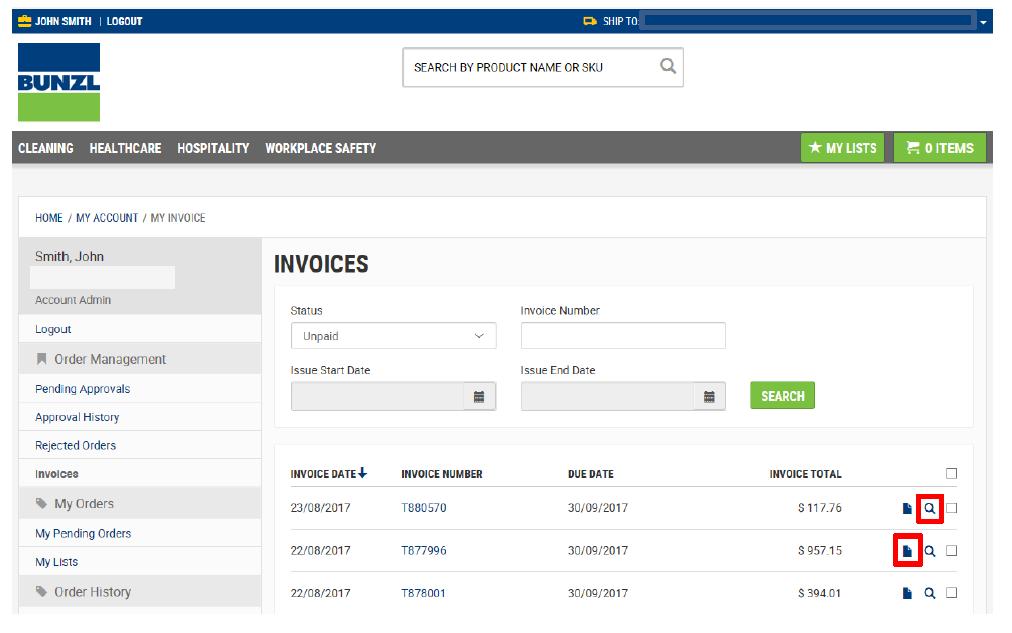
Depending on the User role assigned will determine whether you can view all Customer/Ship-To’s and action accordingly.
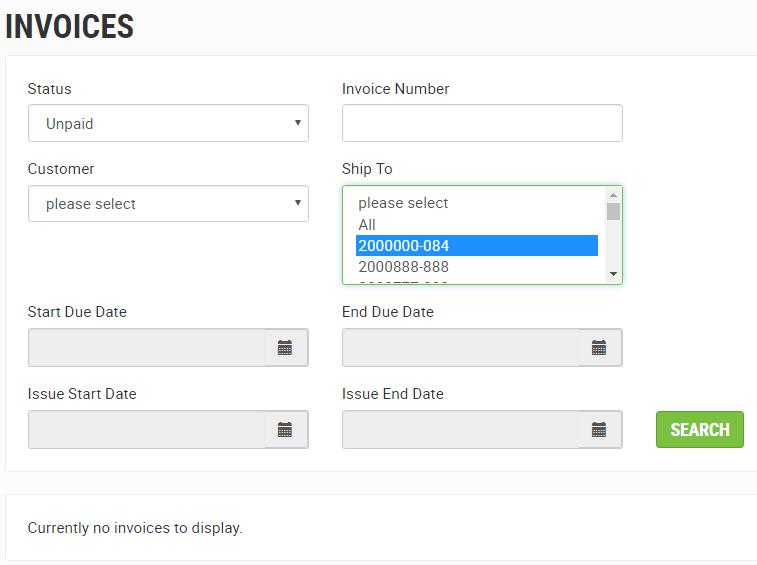
Field Purpose
Status
Invoice Number
Customer
Ship To
Start Due Date and End Date Date Fields
Issue Start Date and Issue End Date Fields
Allows a User to select Unpaid or Paid
Allows a User to enter an invoice number to locate a particular invoice.
Allows a User to select a Customer using the dropdown arrow.
Allows a User to select All or selection of Ship To address locations linked to Customer.
Allows a User select dates from the calendar icon on the right-hand side of each field.
Allow a User select dates from the calendar icon on the right-hand side of each field.
This field is not case-sensitive and will also allow you to enter part of an invoice number if you do not know the entire invoice number.
All Customers a User is linked to, will be available for selection.
All Ship To address locations a User is linked to will be available for selection.
This allows you to enter a date range based on the ‘Due Date’ of the invoice to more easily locate particular invoices.
This allows you to enter a date range based on the ‘Issue Date’ of the invoice to more easily locate particular invoices.
The Customer Account Admin User role has access to pay invoices for Ship-to Address Locations linked to their profile.
Credit Card use through the Online Shop can occur.

You will only be able to pay the invoices for one Ship-to Address Location at a time.
1. Select Invoices from the left-hand menu navigation area, within the Order Management navigation menu.
The INVOICES page will display.
Ensure a Status of Unpaid.
2. Select the Invoices to be paid, by ticking the against each Unpaid Invoice line.
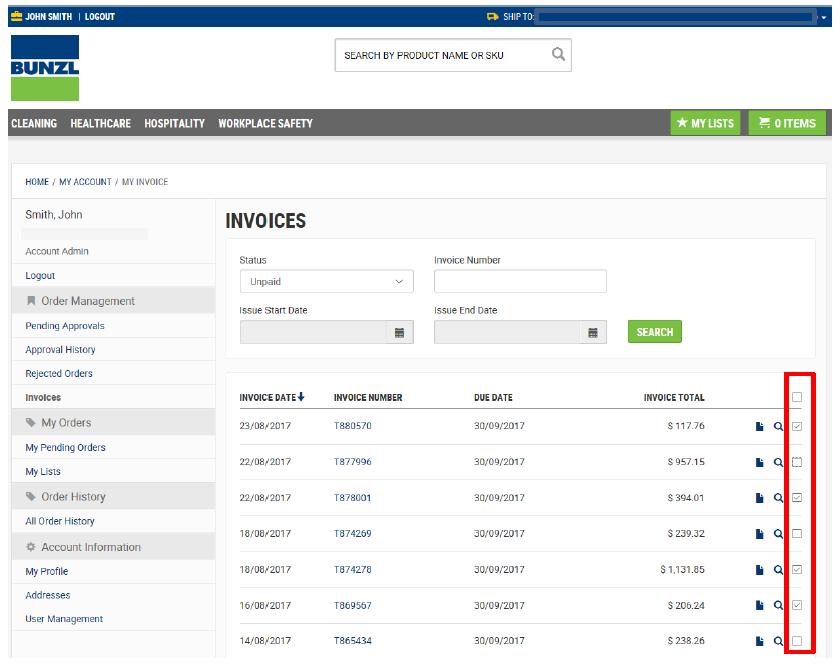
NOTE: the Total Value of all selected Invoices will be displayed at the bottom of screen.
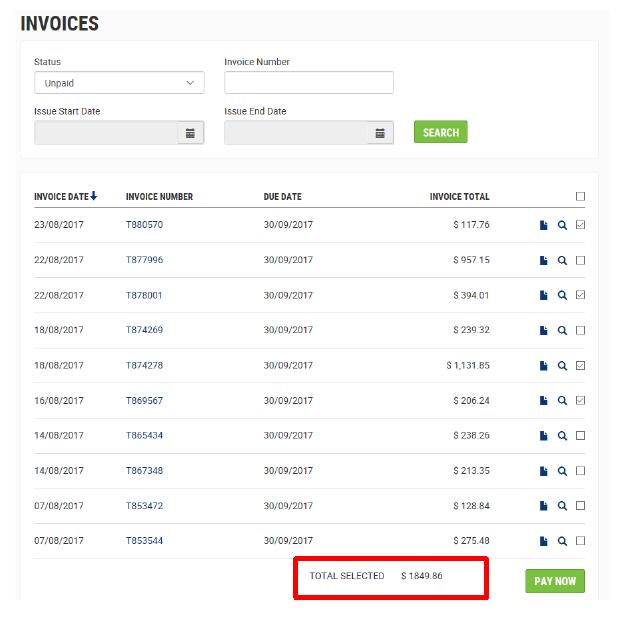
Click

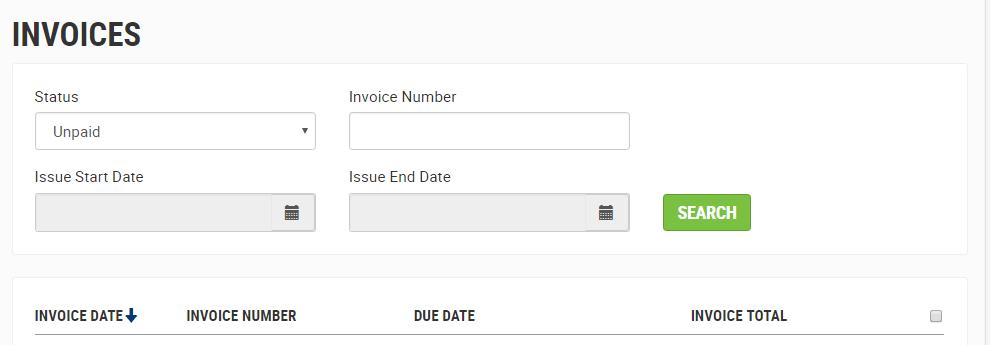
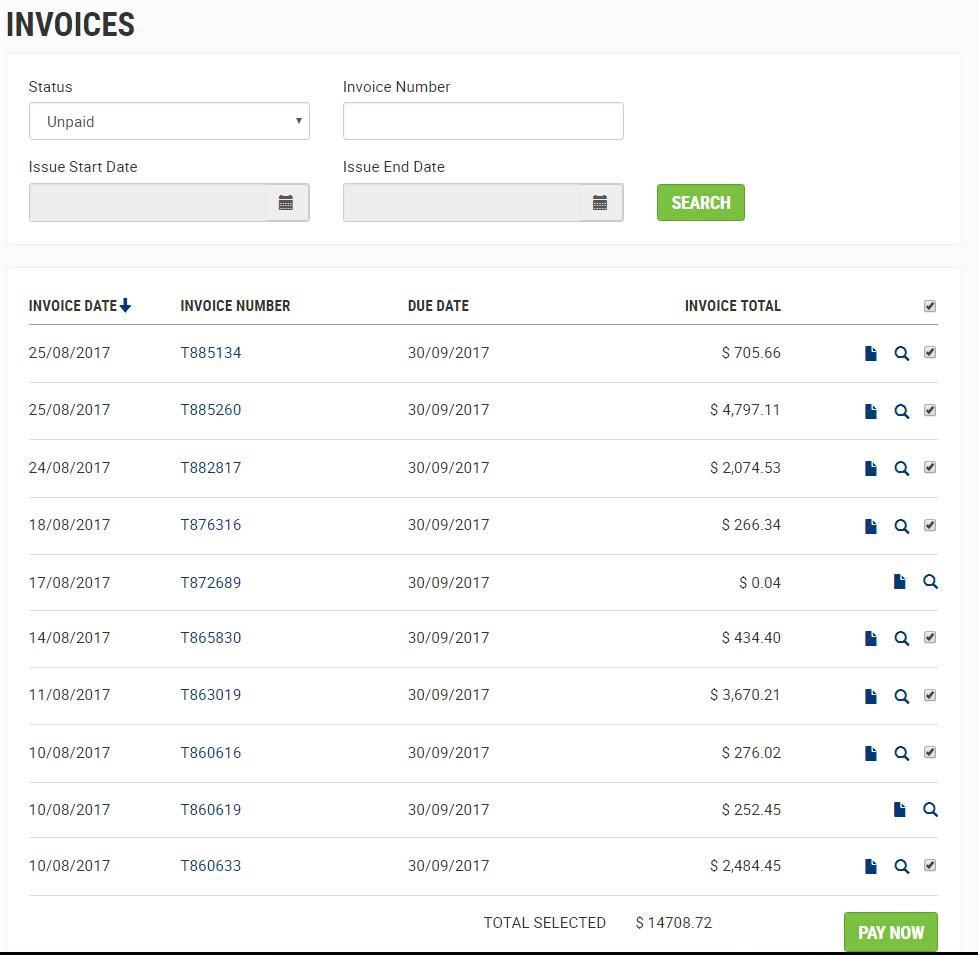
IMPORTANT: If the User wants to pay all displayed invoices on the page, the User can check the checkbox in the header row, which will automatically check all boxes on the page.
NOTE: A maximum of 10 Invoices can be displayed on a page.
Greater than 10 Unpaid Invoices, will result in the eleventh invoice and so on, moving to the next page, represented by page numbers in the bottom right hand corner.
IMPORTANT : Invoices can be selected on more than one page.
Navigate through the pages and tick the relevant check box against the invoice to be paid.

A maximum of 30 Invoices can be paid at any one time.
Why do some Invoices have no checkbox within the default list?

If a customer pays an Invoice using , and return to the invoice list after paying, the invoice paid will no longer have a check box visible. This is to avoid duplicate payment.
All invoice data comes from System 21. Due to the time lag between systems, the status of an invoice does not update as ‘paid’ immediately. To handle this lag, an invoice recently paid has the checkbox removed, although remains listed in unpaid invoices category.

An Invoice Payment page will be displayed with a icon.
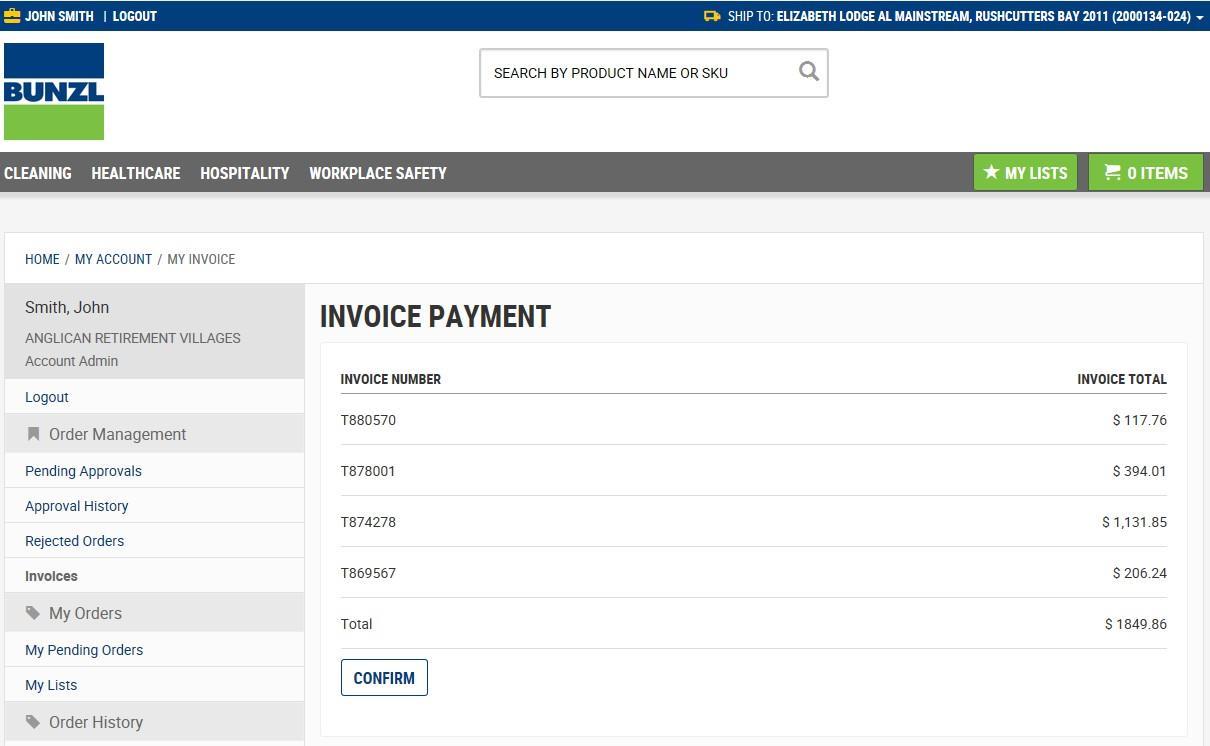
4 Click to proceed with the payment.
After selecting , a credit card from will be displayed.
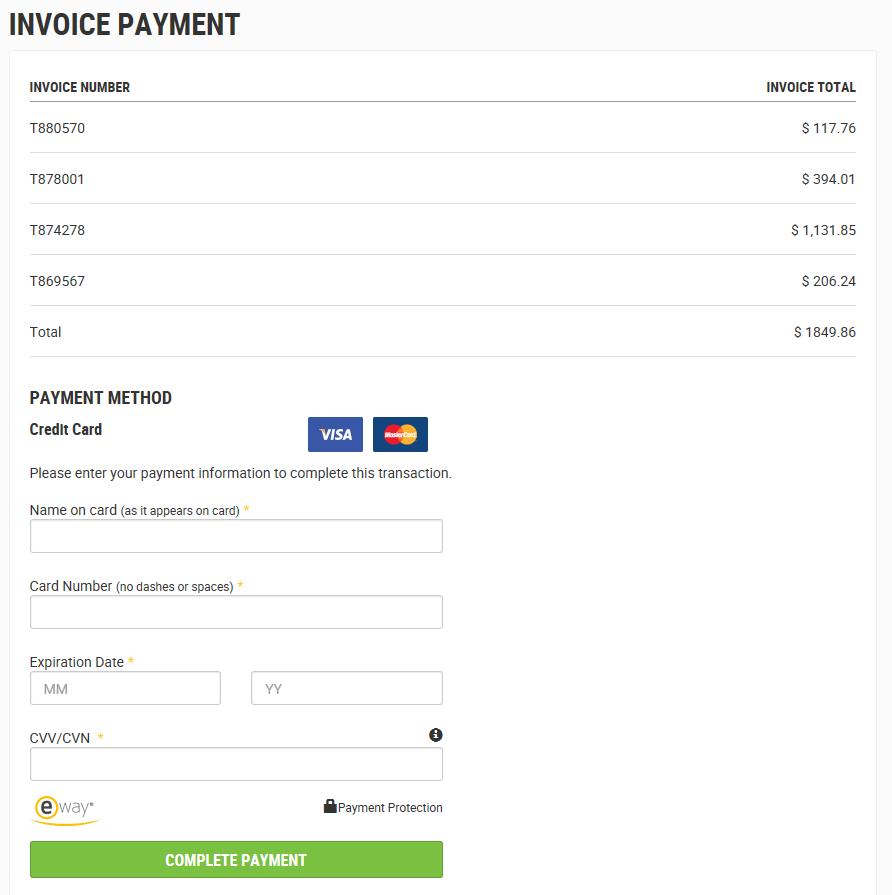
5 Enter details within the respective fields of credit card to be used.

6 Select If the payment processing is not successful, an error message will display.
If the payment process is successful, a message will display confirming the payment was successful with a Transaction ID number.
The Online Shop will call out the below via Alerts
- What invoices are outstanding
- Any invoices overdue


The dashboard includes an Invoices sub menu within the navigation menu. This displays the total dollar amount of unpaid invoices for a Customer.
IMPORTANT: This total dollar amount will include all unpaid invoices for all Ship-to Address Locations linked to a Customer Number.
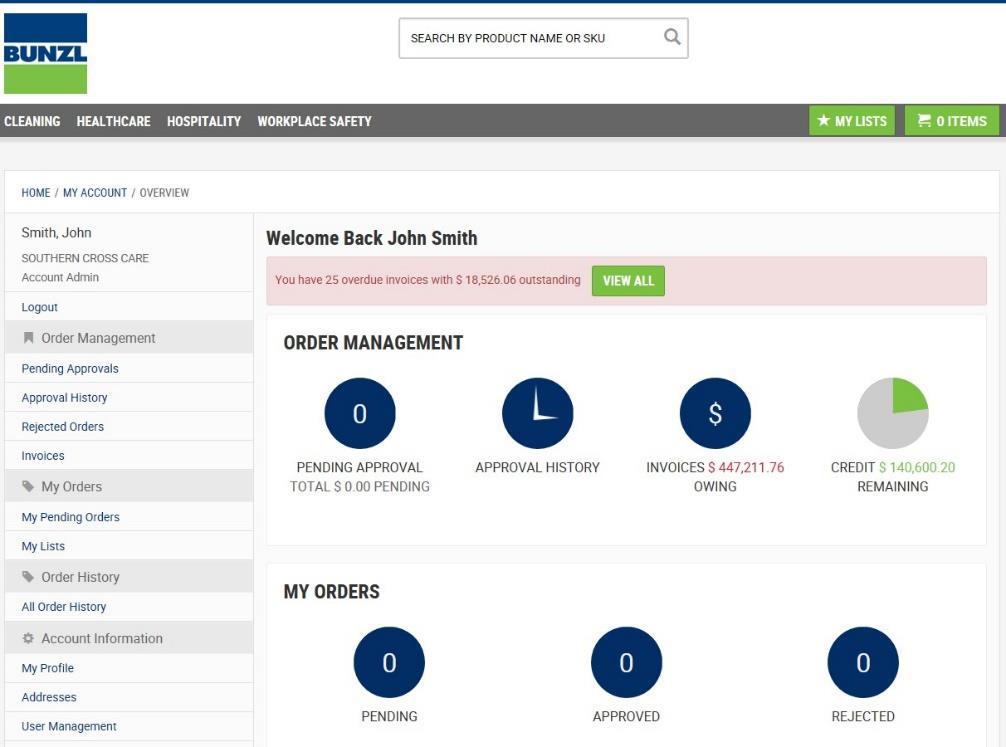
If there are any overdue invoices against a Ship-to Address Location, an alert banner will display dashboard.
The alert will advise the number of invoices overdue, as well as the total dollar amount outstanding.
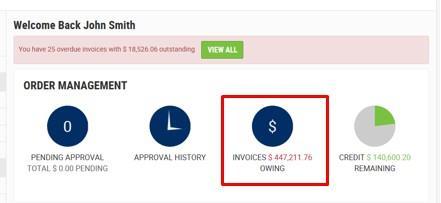
NOTE: Alert is based on selected Ship-to Address Location.
Ship-to Address Location can be changed using the drop-down in the top righthand corner.
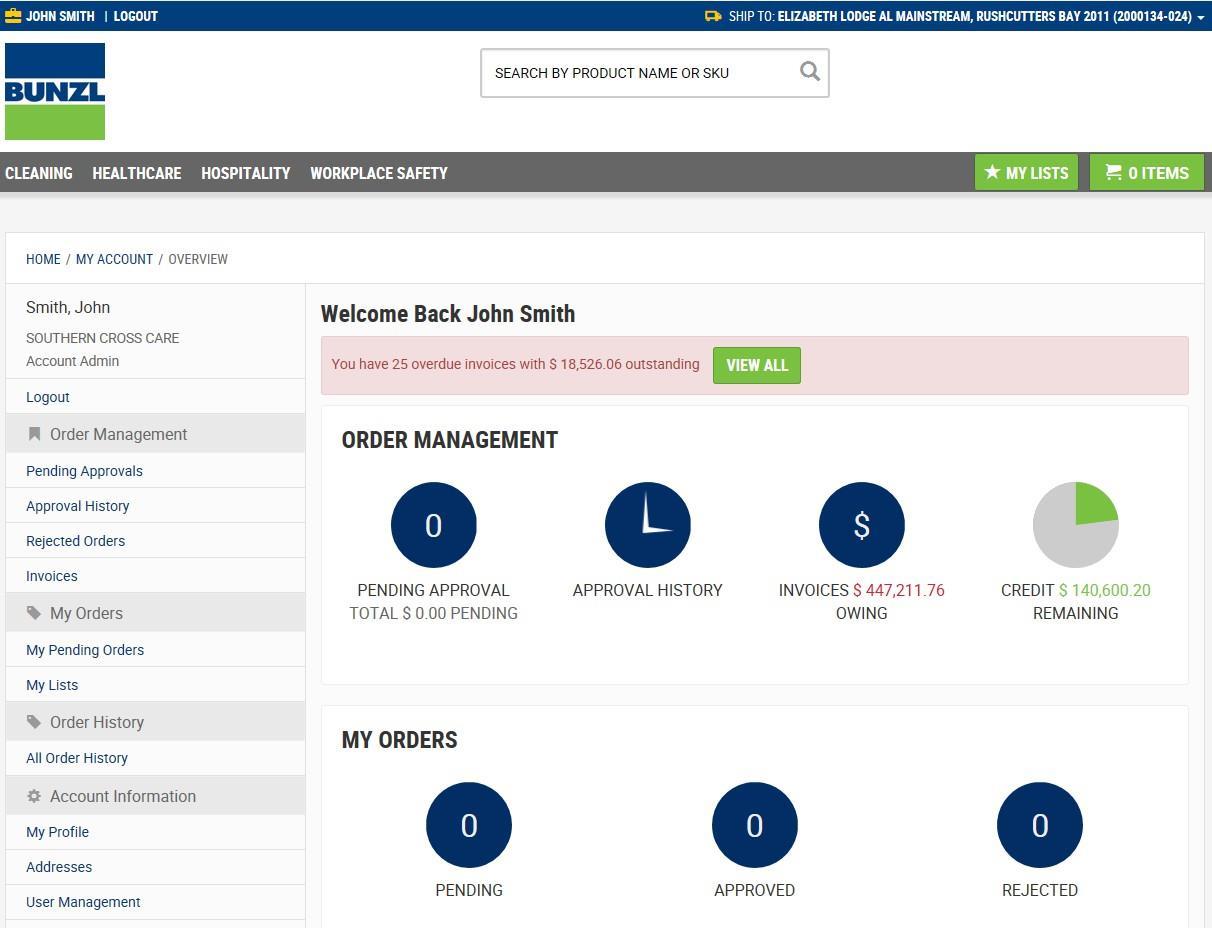

Click icon within the banner to go to Invoices page and search and view all invoices for the Ship-to Address Location.