



To log on to Bunzl’s Online Shop, complete the following steps:
1. Within your Internet browser, go to Bunzl Online Shop

2. Select from the top right-hand corner of the Bunzl Online Shop
3. Enter your email address and password
4. If you have been set up with more than one ship-to location, select your desired Ship To locations from the list, then click Continue
NOTE: If you are only set up with one Ship To location, you will be taken there automatically
You will now be logged into the Online Shop
Your Imprest List is a Stock Replenishment tool that allows you to ensure you have a minimum stock on hand for a selection of products.
Once the Imprest List has been set up, you can enter your current stock on hand.
The Imprest functionality will then propose an amount of each product you should order to reach the Imprest amount.

Only one Imprest List can be set up per Customer/Ship-To
All Users linked to the Customer/Ship-To can access and update the Imprest List for the Customer/Ship-To
If a User starts entering the Current Stock, and exits before finalising the Imprest List, to move to their shopping cart, the next User can log in and see where they were up to
To access your Imprest List, go to

If you have an Imprest List set up, you will see the date it was set up, and number of items within the Imprest List.
For example:
If there is No Imprest List set up, you will see there are 0 items, and you will need to set one up.


1. Click on the Edit List icon.
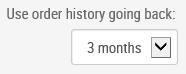
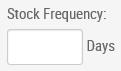
2. Input the Order History and Stock Frequency timeframes.

Description
Only products ordered within this period will be considered for your Imprest List.
Enter the number of days between each stock take. The number of days entered within this field will determine the amount of days’ stock on hand you will require.
3. Click on to create your Imprest List. A list of products matching the criteria entered in step 2 will appear.
4. Update your list if required following the steps below:
- Adjust the Imprest quantity you would like to maintain by clicking the button until you reach the desired amount (or simply replace the number within the box).

- Remove an item from the Imprest List by clicking the button located next to the product you wish to remove.
- Add a Product to the Imprest List by scrolling to the bottom of the list, and click on

5. Once you are happy with the list, click to update your Imprest List.

Once you have created an Imprest List, there are many options available to maintain the list. To perform these, open the list and click on .
Add a new product to your Imprest List
1. Scroll to the bottom of the Imprest List and click on
You can also add products to your Imprest List from the product tile screen by clicking on the Add to List icon. This will add the product to your Imprest list.
To Update the Target Quantity within the Imprest List (ensure you have clicked on Edit List). Replace or update the number next to each product, and click on .

By default, your Imprest List will group your items into the categories within the Online Shop (e.g. Cleaning, Food Processing, Healthcare, Hospitality, Packaging, Safety & PPE).
You can set up groups to manage various like products.
To do this you can:
1. Select one or more products and click on

2. From the list, select the existing category you would like to move the product/s to, or select New Category > enter Category name and click Apply to create a new category

3. To remove a product from the list, select the located next to the product you would like to remove.
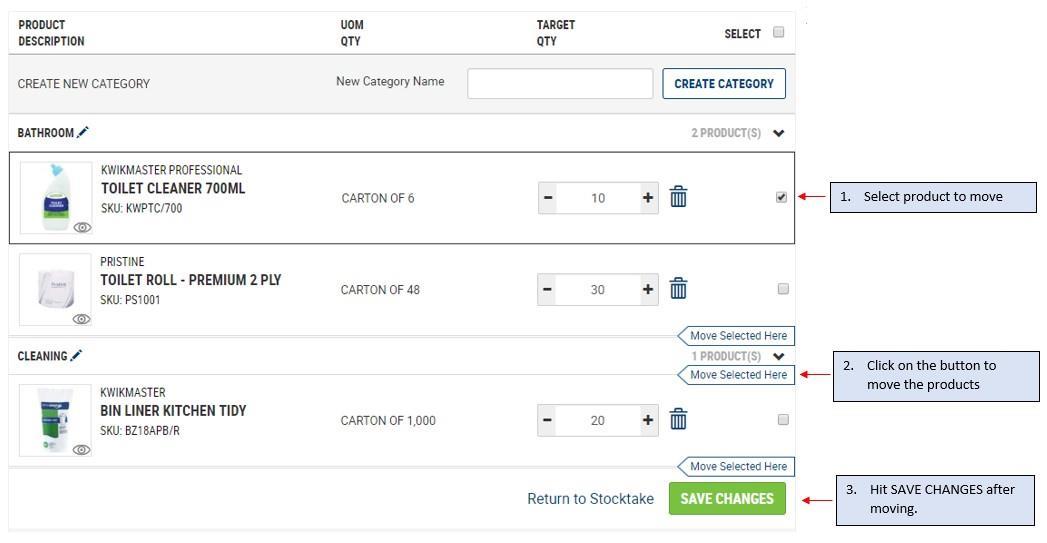
1. To move products around, go into the EDIT LIST mode
2. Select the checkbox of the products that you would like to move
3. Click on the Move Selected Here to relocate to the new position
4. Hit Save Changes at the bottom of the page.
Once you have finalised what products are required and the Imprest quantities (amounts) within your Imprest List (see 2.1 Create an Imprest List or 2.2 Update/Maintain an Imprest List) you can run the tool to determine what is required to meet your predetermined Imprest stock amounts.
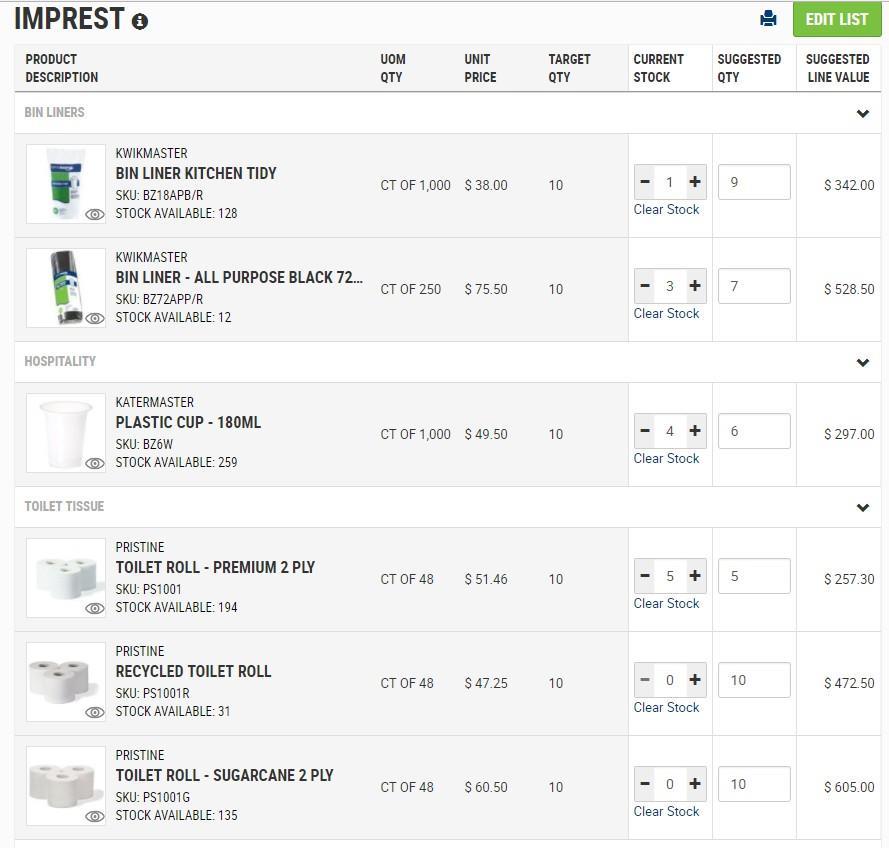
1. Open your Imprest List
2. Enter your current stock on hand for the products displayed
3.
Once you have entered the Current Stock, a Suggested Qty will appear which equates to:
Target Qty – Current Stock = Suggested Qty (if Current Stock is lower than Target Qty)
4. Suggested Quantity can be overridden if needed.
5. Once you are happy with the Suggested Qty values, scroll to the bottom of the page and click on
The items and Qty from your Imprest List will then be moved to your shopping cart ready to place your order.
A User assigned a Customer Account Admin role is granted permission to manage orders for a User(s).
A User with an order limit applied to their account, will need to have each order approved by a User with an Approver role or Customer Account Admin role, for that business.
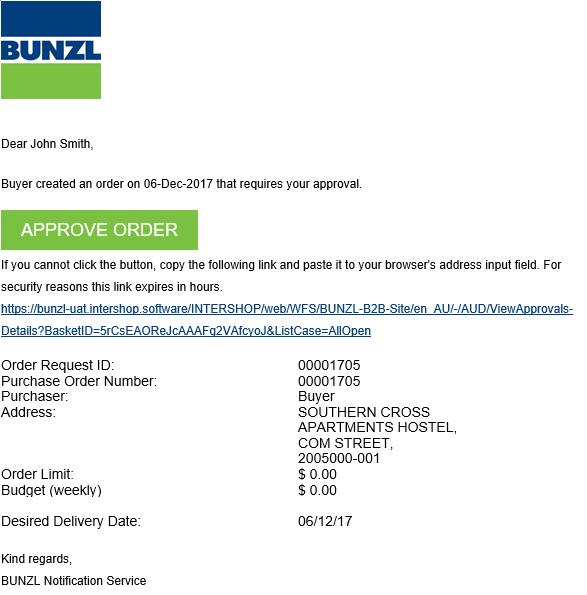
The Online Shop will automatically send an email notification to the linked Approver and/or Customer Account Admin role for the User, advising an Order awaits their review and approval.
DEMO ADDRESS (1000000-001)
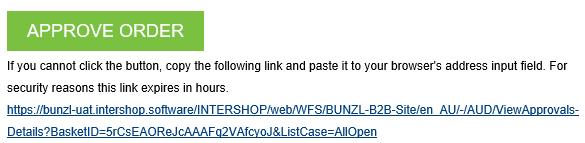
The Approver can click the embedded link within the Pending Order Approval – BUNZL B2B email notification.
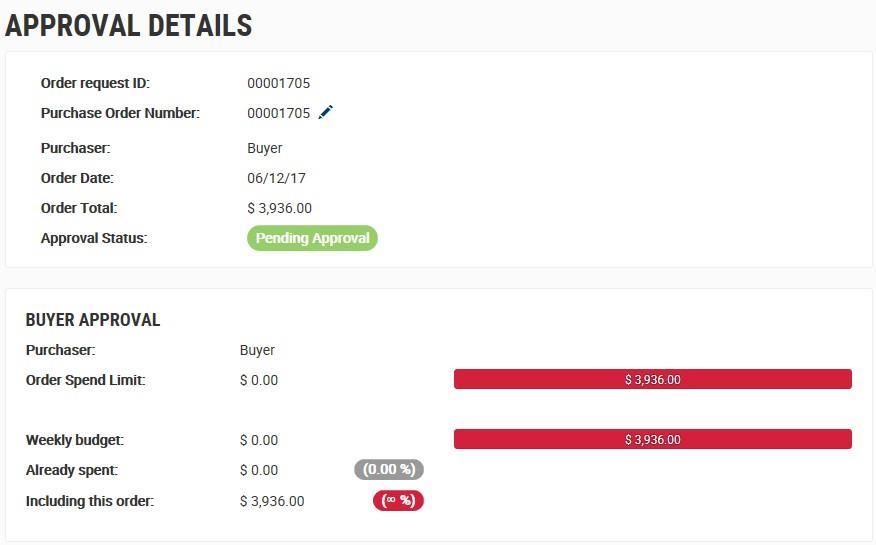
The Approver will be directed to the APPROVAL DETAILS page.
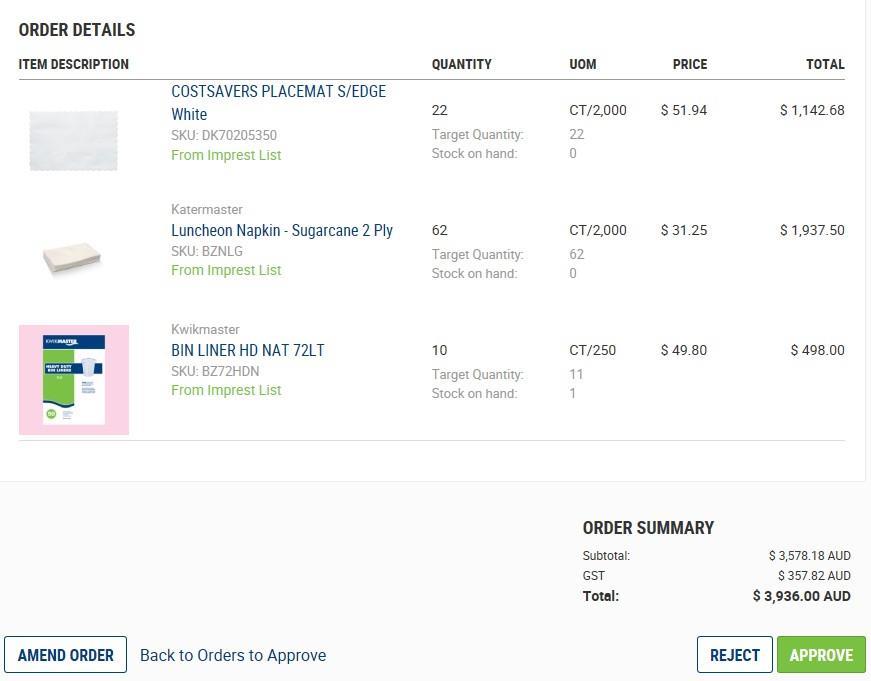
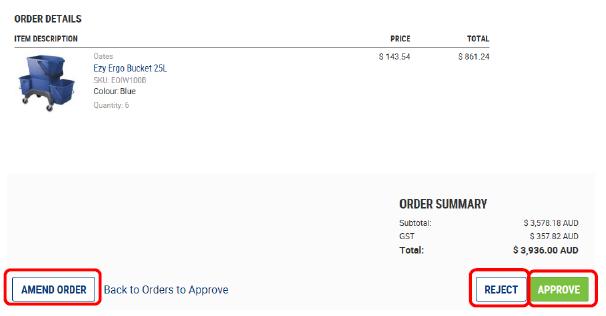
As the Approver and/or Customer Account Admin User role, you can choose to
Option for Order Selected and Action



Ability to review and change the order.
Return to PENDING APPROVALS page.
The Order will be approved immediately and submitted on the User’s behalf.
1. The User will be notified via email that their Order has been approved and submitted.
2. An Order Number reference code will also be generated for the Order.
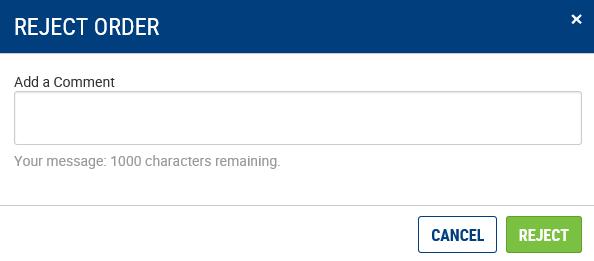
A pop up window will be displayed, requiring the User to enter a reason (comment) explaining the rejection.
1. The Order will be closed and not submitted.
2. The User will be emailed a notification advising them that their Order has been rejected and the reason why.
Alternatively, the Approver can access orders awaiting their approval via the Sign In page.
1. to Bunzl Online Shop
2. Select This will take you to the Home page of the Online Shop
3. Click on users name to access account information. details will display.
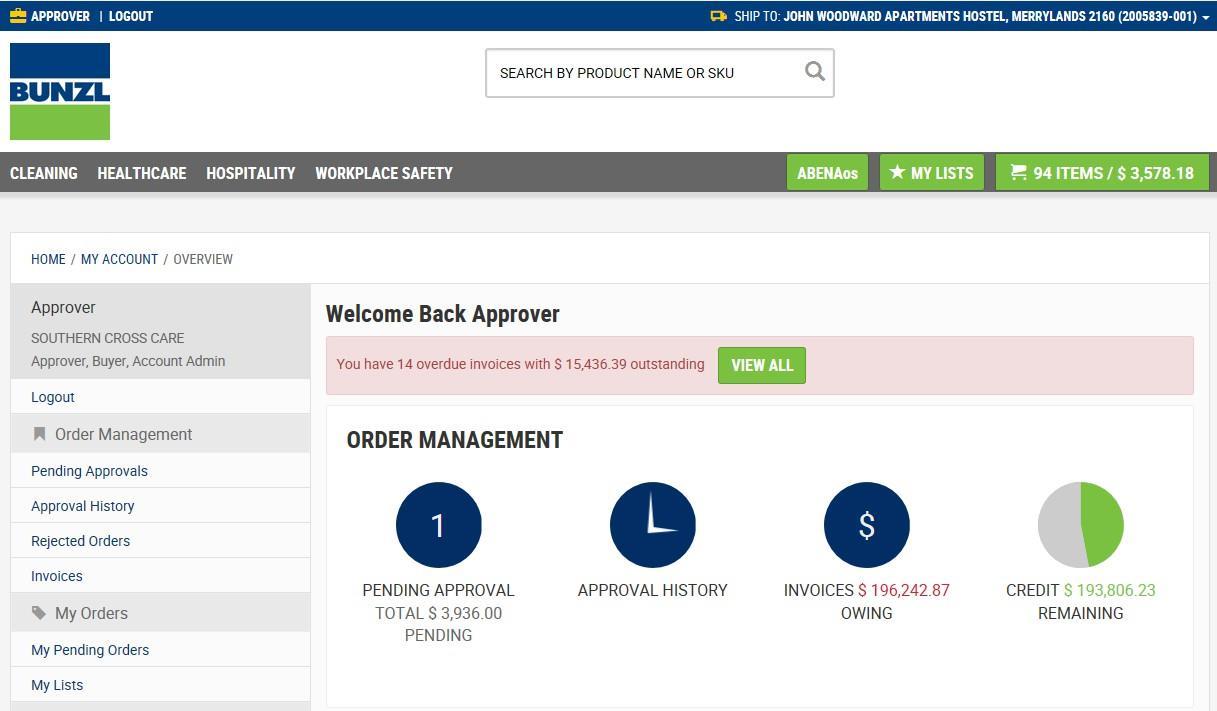

4. Click Pending Approvals within the navigation menu. The Pending Approvals page displays a list of Orders awaiting approval.
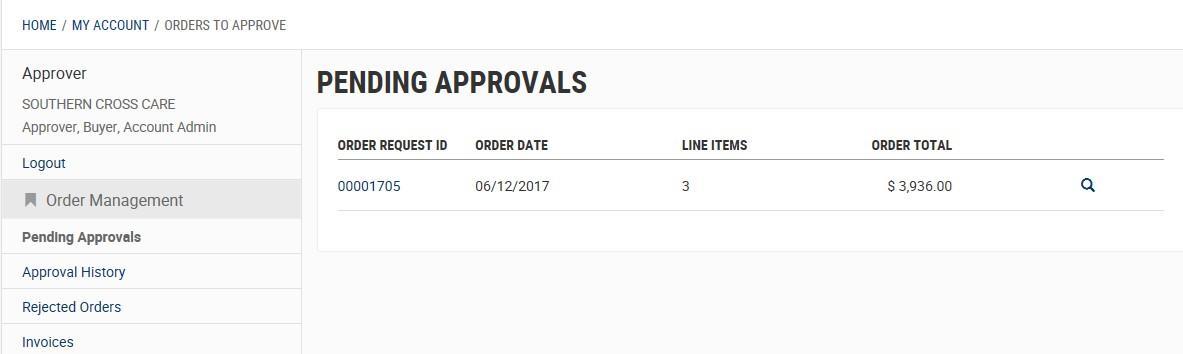

5. Click on the respective This link will open a detailed view of the Order.
The APPROVAL DETAILS page displays.
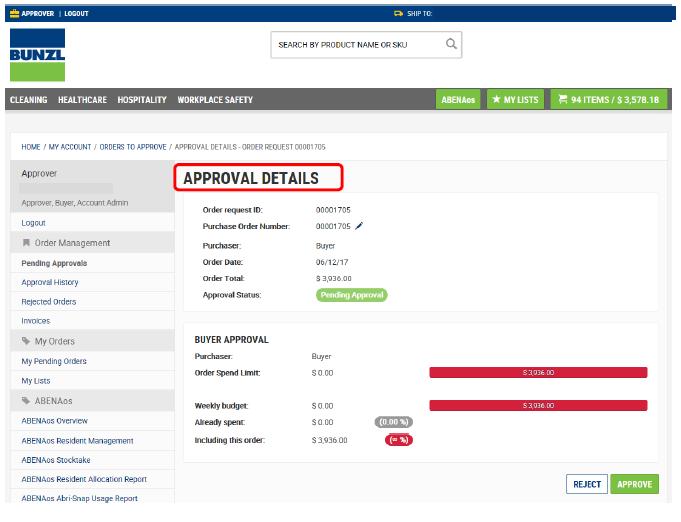
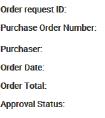
The top section details ID allocated to the order along with Order Date, Order Total etc.
The middle section details Spend Limit, Weekly budget and Spend to date.
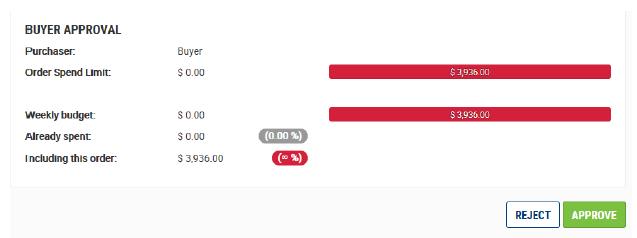
The last section Order Details and actions available.
Clicking the icon, will prompt the User to input why the order is being rejected.

If the User does not wish to the order, click the icon.

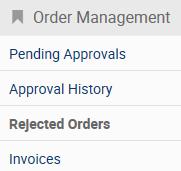
When an order is , the order is placed under the Rejected Order sub-menu under
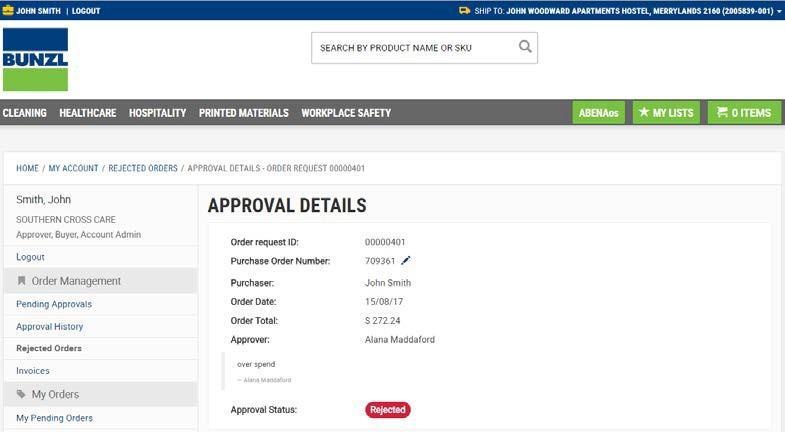
To view reason provided when rejecting the order, the User can click the respective order request id number for more detail.
Clicking the icon, will direct the Approver to YOUR SHOPPING CART ORDER SUMMARY page.
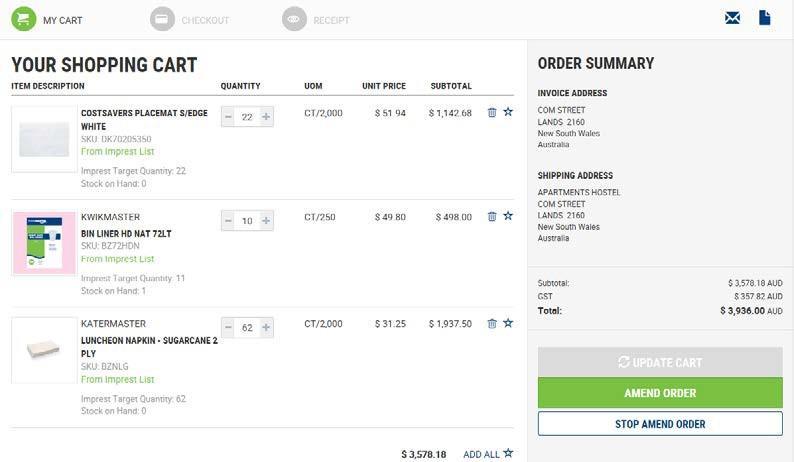
The Approver can decrease the quantity or remove a product from the shopping cart.
If the quantity is changed and/or a product is deleted, the Approver is required to to refresh page.
The Approver can now click on to submit the changes made to the order.


The Approver can then the order which will submit the order for processing.

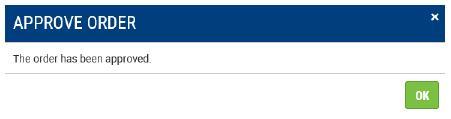
The Approver can click the icon if satisfied with information contained in order. A pop up window will display.
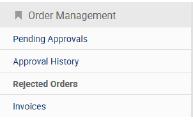
To view all approved or rejected Orders, select within the . View all Approved Orders
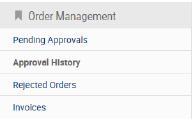
APPROVAL HISTORY
View all Rejected Orders
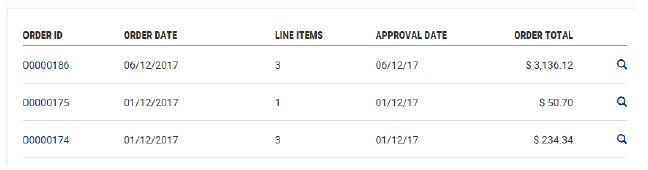
REJECTED ORDERS
