Brockton School's WiFi
Step-by-Step Guide to Connecting Your Laptop to Brockton School's WiFi
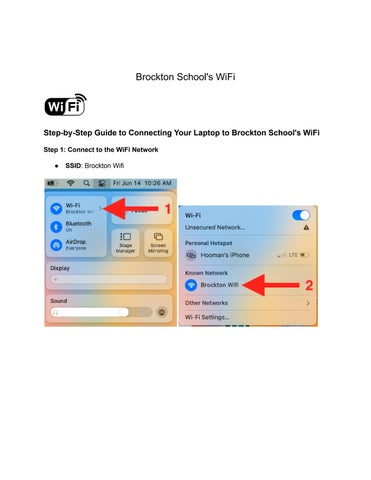
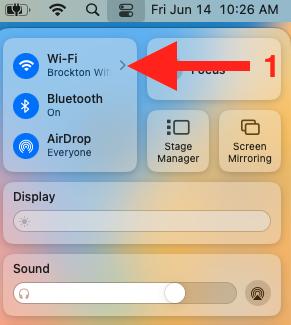
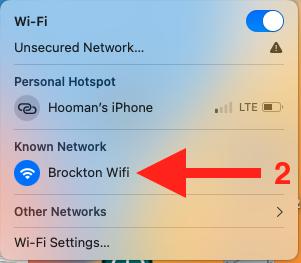
Step 1: Connect to the WiFi Network
● SSID: Brockton Wifi
Step 2: Access the Splash Page
● Once connected to the Brockton Wifi, the splash page will automatically appear
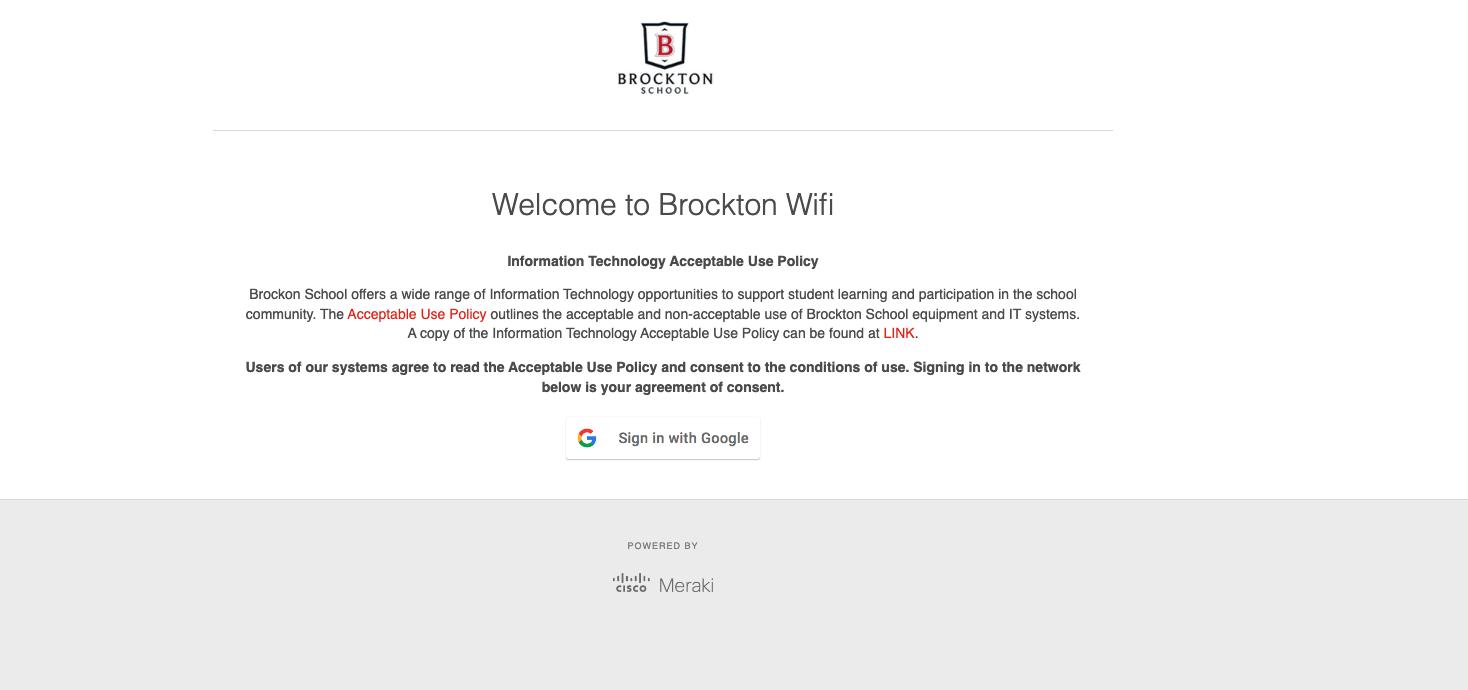
S to sign in
● Click the "Sign in with Google" button.
● Enter your GSuite email address and password when prompted
Step 4: Accept Permissions
● If prompted, click "Allow" to grant necessary permissions for network access
Step 5: Connect to the Internet
● After successfully signing in, you will be connected to the internet