
DIGITAL TOOLS REFERENCE GUIDE
OPERATIONS CENTER™ & EQUIPMENT MOBILE
Welcome to John Deere Precision Construction
You’re on your way to a smarter construction operation, fueled by data and fleet health insights as well as powerful connections. We’re here to help!
This guide will walk you through the set-up process and highlight some features, so you can take full advantage of Precision Construction technology. This printed booklet is current as of its publication date, but Precision Construction is constantly changing and improving. To see the most current digital copy of this booklet, scan this QR code.

Run It Your Way
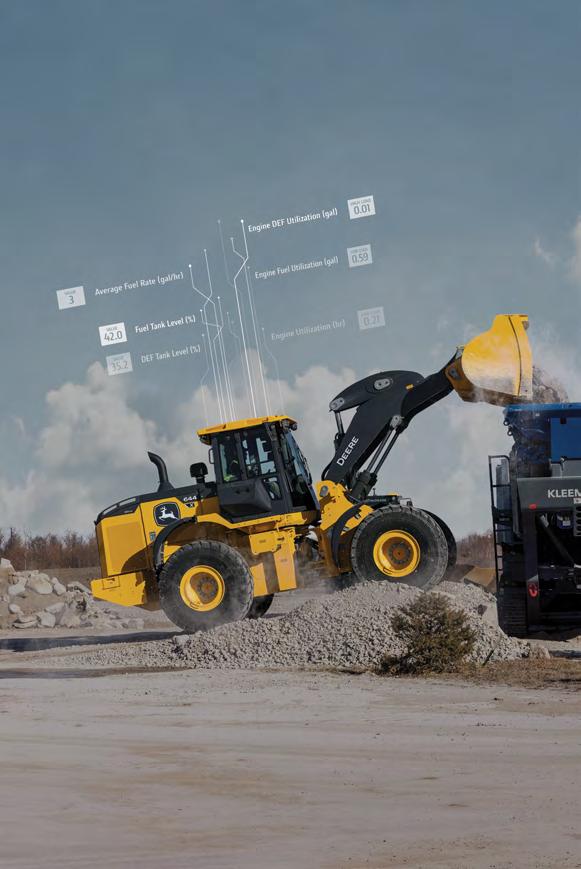
When you choose John Deere, you get more than a machine — you’re gaining the power and confidence that comes from reliable information. With tools like Operations Center, Equipment Mobile, and Shop.Deere. com, you have expertise at your fingertips to care for and use your equipment more effectively. You can also document your actions and set goals, creating a personalized digital homebase that empowers you to achieve your best results and Run it Your Way.

One Account Empowerment
Operations Center, Equipment Mobile, Shop.Deere. com, and My Financial all share the same data foundation. This means the account username, password, equipment list, and permissions can be the same and used across all digital tools.
John Deere Operations Center
John Deere Operations Center is a jobsite-centric tool that serves as a digital hub, available through web or mobile app, where all machine data, work data, and non-Deere machine data converge. It helps quarterback the jobsite by providing visibility into productivity metrics and machine health information, enabling near realtime decision-making that directly impacts profitability and empowers users to make better decisions with their data.

Equipment Mobile
Equipment Mobile is the mobile app tailored towards setting up, operating and maintaining your equipment. Simply download the app and log in using the same username and password as your Operations Center account. You’ll be amazed at the resources and tools available – all within the mobile app!
From digital operators manuals to parts diagrams and more,
Equipment Mobile provides an easy, reliable connection between you and your equipment.

Home
Personalized, robust dashboard that helps you understand what’s important in your operation right now. It directs your attention to key insights and builds awareness of the tools and capabilities in Operations Center.
Tiles within Home include: – Active Equipment – Active Jobsite – High Alerts – Fleet Summary – Rainfall
Setup
Setting up your organization with the correct equipment and connections is crucial to ensure data accuracy. Spending time up front creating a solid foundation enables you to maximize the value of the planning, monitoring, and analysis tools within Operations Center.
*All task instructions are for use through a web browser unless otherwise marked for mobile.
Create an Operations Center Account
1. Go to OperationsCenter.Deere.com in your web browser
2. Click Create Account
3. Select the Category and Focus that describes your operation (search for an existing account before creating a new account or ask your dealer for help, if you are unsure)
4. Enter your Username and Email Address, then click Submit for Email Verification
5. Enter the Verification Code that was sent to your email account, then click Verify Email
6. Enter your Personal Information, then click Next Step: Create Password
7. Enter a Password, re-enter your Password to confirm it, then click Create Password
8. Enter your Organization Name, then click Next
9. Read the Terms and Conditions, check the box to agree to them, then click Next
10. Enter Equipment Serial Number, then click Add Equipment OR click Add Equipment Later (* To maximize the value of digital tools, it is critical that your equipment is in your account!)
11. Read the JDLink™ Telematics Service Agreement, check the box to agree, then click Accept
12. Select your John Deere Dealer and enable or disable data sharing with your dealer, then click Complete Setup

13. Click Done How to Create
Set Organization Preferences
Customize and configure settings based on operation needs
1. Click Setup > Team > Preferences
2. Legal Entity must match legal business name
3. Ensure Responsible Party is the main contact for John Deere
4. Review organization type – choose commercial or personal (commercial if operating as a business)
5. Review organization description
Add Equipment
Manage machines and devices in one place
1. Click Setup > Equipment > +Add
2. Enter Equipment Serial Number
3. Enter Modem (optional)
4. Click Add Equipment
Note: Your dealership can help transfer equipment and modems into your organization. A modem is required for several features and functionality.
* Operations Center Mobile
1. Click Setup > Equipment > +
2. Enter or scan Equipment Serial Number
3. Enter name and model
4. Select a model icon and colors for the corresponding equipment
5. Enter Modem (optional)
6. Click Add Equipment
*Equipment Mobile
1. Click +
2. Click Scan Barcode or add manually
3. Enter name, model, and modem and click Add Equipment How to Add Equipment


Setting up your Equipment
Add an Operator (optional)
Add operators to your organization if you have team members who do work for you but don’t need access to your organization in Operations Center
1. Click Setup > Team > +Add > Operator
2. Enter Operator Name
3. Enter Operator Certification (optional)
4. Click Save
* Operations Center Mobile
1. Click Setup > Team > Operators > +
2. Enter the Operator name
3. Enter the Operator License (optional)
4. Click Save
Add a Staff Member
Add managers to help run your organization
1. Click Setup > Team > + Add > Staff Member
2. Enter the Staff Member Email Address, then click Next
3. Select the appropriate Access level, then click Next
4. Select Partner Organization(s) the staff member can interact, then click Finish
* Operations Center Mobile
1. Click Setup > Team > Staff > +
2. Enter the Staff Member Email Address, select the check box if they’ll also be the operator and enter Operator name and operator license (optional), then click Next
3. Select the appropriate Access Level, then click Next
4. Assist partners that the staff member can work with, then click Done.

Setting up your Team
Add a Partnered Organization (optional)
Allow trusted advisors to support your organization more efficiently
1. Click Setup > Team > +Add > Partner Organization
2. Select Grant Access or Receive Access, enter the Partner Organization’s Email Address, then click Next
3. Select the desired Access Levels, then click Next
4. Click Done
* Operations Center Mobile
1. Click Setup > Team > Partners > +
2. Select Grant Access or Receive Access, enter the Partner Organization’s Email Address, then click Next
3. Select the desired Access Levels, then click Next
4. Click Done
Add a Dealer (required)
Enable proactive service, customized support, insights, and training
1. Click Setup > Team > +Add > Dealer
2. Click Select Dealer, then search for your dealership
3. Find the correct store location, then click Select Dealer
4. Select Yes or No if you’d like to share data with this dealer
5. If you’re sharing data, click Next, then select the desired Access Levels, then click Next, then click Done
6. If you’re not sharing data, click Done
* Operations Center Mobile
1. Click Setup > Team > Dealers > +
2. Select Grant Access or Receive Access, enter the Partner Organization’s Email Address, then click Next
3. Select the desired Access Levels, then click Next
4. Click Done
Edit Team Access Level
Control who has access and how much access they have to your data
1. Click Setup > Team
2. Click on the Staff, Partner, or Dealer you want to change access for
3. Click Access, then click Edit
4. Modify Access Levels as desired
5. Click Save
Suggested Access Levels by Role
Job site manager, owners, project managers, fleet manager
Create Geofence and/or Curfew alerts
Get notified with a machine enters or leaves a jobsite, or runs outside the hours you would expect
1. Click Start Up > Geofences and Curfews
2. Click Create New and a new panel will open on the right side of the map
3. Name the boundary and use the drawing tool to designate the outline of the geofence
4. Choose to be notified when the machine enters or leaves the area
5. Choose the expected operating days and hours to be alerted when machines are operated outside of this window (a geofence is not required to use the curfew feature)
6. Choose the machines for which you want to be included in this alert
7. Click Save
Setting
up
a Connected Software Company
Connected Software Companies (CSC) provide additional or enhanced functionality to users of Operations Center. See how we make it easy for you to work with your data wherever you want it.
1. Click Setup > Connections
2. Search for a company that you’d like to share your John Deere data with
3. Click Learn More to see what this CSC offers
4. Each CSC is slightly different but click Connect and follow directions to get your data flowing where you want it
5. Data can flow into Operations Center also - see each CSC for details
License Manager
In Operations Center, License Manager is the tool to turn on and manage select precision technology devices as well as manage interactions around purchasing, assigning and transferring licenses. This would be used to manage licenses for G5 display, John Deere Path, SmartDetect Digital and Next Gen SmartGrade to name some examples. How to Manage Licenses

Map
Within the Map, review jobsites and discover new insights that could improve productivity and efficiency, ultimately increasing profitability.
*All task instructions are for use through a web browser unless otherwise marked for mobile.
Custom Alerts
Optimize your operation by creating custom alerts. Set up notifications via email on idle time, speed and/ or fuel levels when limits are exceeded. Based on individual machines, customers can take advantage of notifications to pre-plan and maximize productivity.
User must have Equipment Level 2 or 3 within an organization to set up custom alerts. Users with Equipment Level 1 can see the alert and subscribe to notifications.
To create a custom alert:
1. Turn on custom alerts within Operations Center web through the alerts section
2. Enroll in email preferences through notiifications.deere.com
*Operations Center Mobile
1. Click Home > View all Equipment
2. Select the machine you want the alert for
3. Click Alerts
4. Click Add to the right of any custom alert option
5. Adjust the settings by clicking +/-, then click Save
Creating a Jobsite
Pre-plan – A very detailed jobsite
Leverage Jobsite Manager to preplan your jobsites before any work on the jobsite starts. Jobsite Manager lets you define and create accurate boundaries and identify specific areas or locations on the jobsite that are relevant to the task at hand. Drop flags, identify specific zones or routes right on the map.
Automatic – Create on the go while on the jobsite
Using advanced data science techniques, our automatic jobsite creation tool takes the manual step out of creating and managing your jobsites. Jobsites are automatically created in Operations Center the moment a machine turns on at a jobsite.
Customers toggle on/off automatic jobsite creation. This applies to org classifications that are in C&F and focused in Quarry/Aggregates, Earthmoving or Underground Utilities. Roadbuilding orgs will automatically have this toggled on.
Automatic jobsite boundary creation is a dynamic method of automatically creating jobsites and boundaries. If machines are in the same boundary, they will “honeycomb” together and grow that jobsite as equipment moves.
Paired with Summary Cards, customers can easily and quickly see their data – productivity and machine utilization information per operational time, working on a jobsite.
Together Summary Cards and Jobsite Monitoring enable customers to experience:
– Ability to track jobsites easily – monitor progress, fuel consumption, and set up
– Clear indication of which machines are working and their location
Monitor
By monitoring equipment and work progress in Operations Center, you can proactively identify issues that could impact uptime, so you can take action to keep your equipment running effectively and productively.
*All task instructions are for use through a web browser unless otherwise marked for mobile.
Share Machine Data
Share work data with trusted advisors to analyze performance and evaluate operational costs
1. Find a machine of interest
2. Select time period to analyze
3. Drop down Share/Export and choose the the data of interest
4. Look in downloaded files for the report
Remote Display Access (RDA) and Remote Display Control (RDC)
Distance is no longer a barrier with Remote Display Access. With your consent, this advanced solution enables technicians to remotely connect to the display in your cab to help you make near real-time adjustments to optimize your machine for changing conditions or to troubleshoot potential issues.
RDA Report allows customers to see the utilization of RDA access. The report is available in Operations Center in the more drop-down menu.
Remote Display Control (RDC) allows the viewer to take control over the display and adjust settings with the proper permissions.
Note: Machines equipped with RDA or RDC must have an ethernet connection to an MTG and subscription for the MTG. Good, reliable cellular coverage is also required. It only works on the G5 display with partnered organizations in Operations Center, where the machine exists.
Wireless Data Transfer (WDT)
Customers can easily send jobsite design files directly from Operations Center to machines equipped with Next Gen SmartGrade with Topcon or SmartGrade with Leica. WDT is included with the purchase of Next Gen SmartGrade.
Requirements:
– Compatible with construction machines equipped with a G5 display
–
JDLink hardware and connectivity
– Operations Center organization setup
–
User permissions: Locations 3, Equipment 1 and Setup
File Creator and Wireless Data Transfer
– Partner setup must be completed to allow dealer support
Analyze
Evaluate your results once the work is completed and use precise data to determine what worked best as you plan for the next job.
*All task instructions are for use through a web browser unless otherwise marked for mobile.
Create a Machine Report
Stay updated on machine performance, technology utilization, and fuel consumption
1. Click Analyze > Machine Reports > +Add Report
2. Enter Report Name, then select Report Type, and Frequency
3. Check box if you want to receive an email report
4. Select the report format
5. Select Make, Type, Model, and Tag (optional)
6. Click Save
Monitor Fleet Details (Performance, utilization, and hours of operation)
Compare machine performance and utilization across the fleet to identify top performers as well as training opportunities
*Mobile:
1. Click Analyze > Machine Analyzer
2. Select C&F Performance from the dropdown menu, then click Organize
3. Select the Date Range you want to view
4. Click on the down arrow next to Equipment to expand and see all equipment performance data
Check these out.
Choose from other available reports: – Equipment utilization
Technology usage – Operational data (SmartGrade, SmartWeigh) – DEF and fuel utilization
– Build your own report with any data the machine collects
– Your dealer may create reports specifically for you. Let them help you experience the value from Machine Analyzer!
Service
Review fleet health and service information in one convenient location.
*All task instructions are for use through a web browser unless otherwise marked for mobile.
Service Overview
Customers can easily tap into machine-specific insights that will drive informed decisions about their equipment through Service Overview at no additional cost. Available in Operations Center, this comprehensive service-focused dashboard is a quick way to review the health of your fleet.
Information available:
– Operations Center organization
– License status
– Engine hours
– Product Improvement Program (PIP) count
– Warranty status*
– Active maintenance plan status
– Software status
– Machine health insight count
*Always check your actual license and warranty contracts for details, exclusions and limitations.

Service Overview
Operations Center PRO Service
Available as a one-year license, Operations Center PRO Service provides customers and service businesses with advanced diagnostic and repair capabilities. Customers can purchase licenses for Individual Machine(s) but should consider the Organization Fleet PRO Service license for enabling an organization with more than 25 machines. The Service Business License is designed for local service centers who support John Deere equipment with customer consent.
Operations Center PRO Service enables users to make informed service decisions with:
– Fleet view
– Remote capabilities
– Software Reprogramming**
– Machine Diagnostic Information***
– Interactive Schematics
– Machine Health Insights
– Al Manual Chat & Search
– Shop.Deere.com Integration
– Component Replacement
– And so much more!
**Certain emissions-related tests and calibrations are not currently available. See JohnDeere.com/PROService for further details.
***Reprogramming functionality may not be available for non-John Deere controllers. See JohnDeere.com/PROService for further details.

Operations Center PRO Service
Enroll in a Factory Maintenance Plan
Know when your equipment needs maintenance so you can keep your crew running when it matters most.
1. Click Service > Maintenance
2. Within the section Machines without a maintenance plan, select specific Machine that needs a maintenance plan
3. Click + Add dropdown and choose Factory Plan
4. Enter plan name, estimated annual usage, plan start hours, machine age, plan start date, plan length and machine options, then click Next
5. To create a custom interval, click + Add Interval. Input Task information, then click Add Interval & Task
6. To modify existing intervals, use the + button to add custom tasks, the pencil icon to edit interval, or the trash can icon to delete items in the plan
7. Click Enroll Plan
Note: Factory maintenance plans are only available for John Deere equipment.
* Equipment Mobile
1. Click Machine tab and select the specific machine you want to apply a factory plan to
2. Select Maintenance tab and click Maintenance on the web
3. Enter plan name, estimated annual usage, plan start hours, machine age, plan start date, plan length, and machine options. Then click Next.
4. To add a custom interval, click + Add Interval at the top of the screen. Input Task information, then click + Add Interval & Task
5. To modify existing intervals, use the + button to add custom tasks, the pencil icon to edit intervals or plans as needed, or the trash can icon to delete items in the plan
6. Click Enroll Plan
Note: Maintenance Plans sync between Operations Center and Equipment Mobile
Shop.Deere.com Integration
Getting the parts you need has never been easier.
Access Shop.Deere.com through both Equipment Mobile and the maintenance tool in Operations Center. Get the parts you need with just the click of a button.
We’ve got your back
– Access ALL inventory across the John Deere parts distribution network with local dealer fulfillment
– Enjoy year-round access to promotional discounts
– Receive email notifications with delivery tracking to keep tabs on your order
Work smarter, not harder
– Find exactly what you need through simplified parts search
– Browse assembly diagrams, validate fitment, and place your order online
– Choose from convenient in-store pickup and shipping options
– Access your equipment list, maintenance and warranty information, and order history
– Purchase parts through Equipment Mobile and the maintenance tool in Operations Center
– Enjoy a Quick Order Form option
Real-time service — all day, every day
– Holidays, weekends, day, or night, find and order what you need 24/7
– See real-time parts availability and dealer pricing
– Enjoy rapid order-turnaround times
Order Machine Specific Parts
Easily order parts by adding them to your shopping cart directly from your maintenance plan in Operations Center or Equipment Mobile – seamlessly integrated with Shop.Deere.com
1. Click Plan > Maintenance
2. Select a machine with a Maintenance Plan
3. Click on an upcoming service interval with Parts Required
4. Scroll down in the right-hand side bar
5. Click Add to Cart for the needed parts
6. Once all parts are added, click on the shopping cart icon
7. Click Go to Cart to complete the purchase on Shop.Deere.com
* Equipment Mobile
1. Select machine
2. Under Resources, click View Diagram and Order Parts
3. Search for part within search bar or browse parts section
4. Select part and enter quantity then click Add to Cart
5. Click on cart icon > click Proceed to Check out
6. Select dealer and click Continue to Check out
Connectivity
You can’t be everywhere at once, but with a connected fleet, you can easily pay attention to the things that matter most, no matter where you are. JDLink modem connections allow machines and jobsite data to flow automatically to the Operations Center. With JDLink connectivity, you have constant visibility to work in progress and can make timely adjustments to keep things moving.
*All task instructions are for use through a web browser unless otherwise marked for mobile.
JDLink M Modem and JDLink R Modem
The JDLink Modems bring you the value of connectivity to machines in your operation regardless of brand, type or age.
The M modem has an integrated antenna and simpler installation. The R modem requires an external antenna and provides slightly better connectivity performance. Since the antenna is separate from the modem, it allows for more flexible installations.
3-wire harness
Paired with a M or R modem, the 3-wire harness field kit connects any non-Deere powered machine and older John Deere equipment into Operations Center, without having to use a JDLink Integration Kit.
Mixed Fleet Solutions: CAN
For customers wanting to connect their mixed fleets through the CAN, there’s a machine integration harness available. *This is not available for all OEMs currently.
Mixed Fleet Solutions: API
Within John Deere Operations Center, under the Connections page, there is an app allowing customers to easily connect their nonDeere machine’s data into Operations Center. The connections card in connections.deere.com allow the customer to input their API credentials to bring that machine’s data into Operations Center. *This is not available for all OEMs currently.
Develop at Deere
We understand software optimizes the operations of today and helps shape the future. Precision Tech APIs empowers custom solutions for individual customers. Learn more at www.developer.deere.com



Operations Center™ Equipment