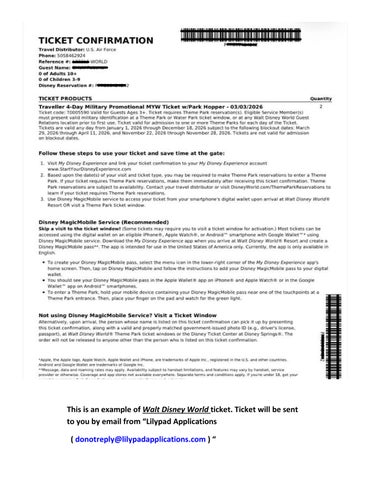
This is an example of Walt Disney World ticket. Ticket will be sent to you by email from “Lilypad Applications ( donotreply@lilypadapp donotreply@lilypadapplications.com ) “
How to link ticket to account 1. Click three ee line bars from fr Disney World “My Disney Experience” App home screen.
2. Click “My Tickets ickets & Passes” Passes
3. Click “Link Tickets ckets & Passes.”
4. Link the ticket to account by opening camera and scanning barcode code from your ticket confirmation, or click “Type ID” and enter 12 digits Disney Reservation number.
5. Press “Link Link Media.” Media
6. It will ask you to enter 12 digits Disney Reservation number. Enter the number and press “Next.”
f dropdown, ` ` 7. Select a name from orr add a new guest name and select “Next.”
8. Click “Finalize Selection.”
For Non-military promotion ticket, congratulations! You are going to Walt Disney World.
For military promotion, Please continue to next page.
How to make park reservation
1. Click “+” button at the bottom of the screen.
2. Select “Make a Park Reservation.”
3. Click “Make a Park Reservation.”
4. Select the guests you are making park reservations for.
5. Select date and park you would like to go to and press “Continue.”
6. Review your selections and click “Confirm Selections.”
Congratulations! You are going to World Disney World. Repeat the reservation process if you have a multi-day ticket. Park tickets can be viewed by clicking “My Tickets & Passes.”