The T4L team have put together this special digital classroom edition focusing on teaching and learning anywhere for you to keep handy. Whether you’re keen to build your confidence with tech or grow your skills in developing your digital classroom, this issue is designed to step you through some of our favourite tools and platforms. All the best as you take your classroom to the cloud!

Boost your knowledge of technology 4 learning by watching the highlights from the NSW DoE sessions at EduTECH 2020 !

Mark Greentree Director, Technology 4 Learning, NSW Department of Education

Discover key digital resources on the Digital Learning Resources Hub and digital tools in the Digital Learning Selector
Your Classroom in the Cloud is a bumper activity-filled 20-page magazine for students to use independently or as part of a guided series of lessons from the digital classroom. Students can:
Develop a game
Build a website
Publish a story or news report
Podcast with passion
Get creative with coding
Grow their pocket money and build a budget


Time to get online:
refresh your knowledge of Outlook webmail and reacquaint yourself with the features of the Digital Learning Selector
Decide on best tools for tasks:
Take a road test of our collaborative tools –explore the benefits and features of Microsoft Teams and Google Classroom and connect your classroom online.


Connect your classroom:
Connect your classroom - brush up on your video conferencing skills and move your classroom to the cloud.
Develop your skills with digital tools
Develop your knowledge of digital tools for feedback and assessment – brush up on some of the features in our collaborative platforms.


Find resources for the digital classroom: check out fun and free resources to power up your online classroom right now.

Send work to your students and collaborate with colleagues
Attach files
Send links
Create read-receipts
Form groups from your address book
Create contact groups to make sending easy
Use reply-all to encourage conversation
Everyone is familiar with email
Great way to initiate contact no matter what platform to use
Class contact lists can be important
Don’t forget you can use Calendar to schedule meetings with students or staff
Accessible on any device
➚ Email in the DoE
➚ Microsoft Outlook demo
Are you wanting to take your class online but are not sure where to start? Overwhelmed by the sheer volume of tools to choose from? The Digital Learning Selector has you covered. Discover online learning tools that support ICT integration and collaboration with a tool built by the NSW Department of Education.

This tool enables you to explore technology options by learning intention:
Investigate
Communicate
Create
Organise
Each and every tool has been carefully selected and tested by the Learning Design and Development team.
Login and access information at your fingertips
Graphical key to assist with decision making
Complete with teaching and learning activities that embed ICT directly into your lessons
Links to getting started resources
➚ Digital Learning Selector – Learning Tool
➚ Digital Learning Selector – Support
Taking your classroom to the cloud can be made easy with digital classroom hubs. In this road test, we uncover some of the best features (plus a little bit extra), of the platforms we’re using in the cloud staffroom and classroom.

STRENGTH
Awesome for collaboration with colleagues and classes.
HOW DO I ACCESS IT?
Through a browser or on desktop or mobile app – access via Staff Portal.

STRENGTH
Customisable pods to create a digital classroom space that works for you!
HOW DO I ACCESS IT?
Accessible from your Staff Portal, plugin may be required.

STRENGTH
Great for managing a digital classroom - and feedback and assessment.
HOW DO I ACCESS IT?
Through a browser or on desktop or mobile app – access via Staff Portal.

‘Teams allows me to collaborate with groups of people in channels or a single colleague through the chat function. Sharing documents and discussing items face to face in real time with hundreds of kilometres separating us.’
Tanya, stem.T4L leader


‘If you are familiar with other Google tools, the Google Classroom interface is so intuitive and easy to use, not too much, not too little, just right!’
Joe, T4L Technology Lead


Microsoft Teams is the complete classroom hub. Simply log in to Microsoft Office 365 via the portal.
If you have Microsoft Office 365, you have Microsoft Teams! Set up and manage your classrooms or projects, file and curate resources, and even chat and video conference within Teams. This is also a great staff collaboration tool.
How do I access it?

What can I do with it?
Schedule work for your class
Provide access to resources

Curate and host classroom conversations via chat and broadcast (teacher video only)
Create different teams for each of your classes
Add in websites and other links
Multiple teachers for the one class
Assign quizzes
Shifting to the cloud? Take your files with you and move them from your desktop or school drives to OneDrive where they will be accessible anywhere, anytime from any device!
Integration with OneNote ClassNotebooks
Ability to schedule assignments, mark them and provide feedback in one interface
Multiple channels for concurrent streams of work
Full integration with Office 365
Integrated file repository for your class
Add in digital tools such as FlipGrid easily
Tabs make accessing content easy for students
We’ve got you!

Check out our step-by-step range of resources for Teams on the T4L website:
➚ Introduction to Teams
➚ Getting started with Teams
➚ Communicating in Teams
➚ Using Assignments in Teams
➚ Organisation and administration in Teams
to learn more?
Check out our range of MS Teams resources on the T4L site , including lots of bite-size videos!
There’s also a range of resources on OneDrive, presentation tools, video tools, accessibility, coding and more


10 1
Start a voice or video call by simply clicking on the camera or phone icon in any team, channel or chat
2

Create a team and build a network –simply search for names and add them into your group

3
It’s easy to set up a class. Students just need a code to join the group

Want some peace? Turn off your notifications by clicking on your initials – click on Manage Account then Notification

9
Save time - set your status with the options available or create a custom notification – click on your initials/photo at top right
8


4
Team teaching? Click on ... next to team name, choose Add member to add a coteacher to a team

5
Rich text allows for bold text, bullet points and hyperlinks to be displayed
7
See whether an assignment has been viewed – or turned in. Click on the Assignments tab, select the assignment, then explore status options and start marking options

When using Assignments, a sidebar opens for you to easily mark, grade and give feedback

6
Have something urgent that needs attention? Mark a message as urgent
Adobe Connect is a virtual meeting platform that provides the opportunity for webinars with students and colleagues.

Adobe Connect is a customisable tool which is great for broadcasting and conferencing either through audio or video. Its features make it useful for teachers leading classroom discussion and allows for engagement with staff and students.

Sign in as a registered user with your DoE user ID, a plug-in may be required.
Adobe Connect sessions are called webinars
Run webinars with staff and students through audio or video
Collaborate in real-time
Share resources
Notes, chats and whiteboards for collaboration
You can record meetings

Customisable interface with configurable pods (windows for different applications including audio, video, sharing, polls and more)
Breakout rooms for differentiated learning
Multiple meeting rooms per user
Note: Adobe Connect is only a Virtual Meeting platform not a complete Digital Classroom solution

➚ Adobe Connect in the DoE
➚ Getting Started with Adobe Connect
➚ NSW DoE Digital Learning Selector –Adobe Connect LinkedIn Learning
➚ Adobe Connect Essential Training
➚ Learning to run webinars
➚ Success in a video conference


Google Classroom can help you get organised and collaborate with students in a virtual setting.
Google Classroom is a tool that does what its name suggests – creating a virtual ‘classroom’ in the cloud that students can join and teachers can manage.

Sign in with your Google Education email (joanne.citizen@education.nsw.gov.au)
Add students to create a classroom
Run a virtual classroom
Share and curate files
Schedule work for your class
Provide access to resources
Curate and host classroom conversations
Share links online
Create digital portfolios with connections to G-Suite

Works on any device with internet
Assignments complete with rubrics and teacher feedback
Integration of self-marking quizzes
Collaboratively share the classroom between teachers
Create individual copies of key proforma documents for students at the click of a button
Chat function can be disabled, giving teacher more control
We’ve got you!

Check out our step-by-step range of resources on Google Classroom on the T4L website:
➚ Google Classroom features
➚ Getting started with Google Classroom
➚ Communicating in Google Classroom
➚ Using Assignments in Google Classroom
➚ Feedback and assessment in Google Classroom
➚ The basics of Google Classroom course on MyPL
➚ Taking Google Classroom to the next level course on MyPL


3
2

The chat in Google Classroom is called the Stream – this is where you communicate with members of your class
You can communicate with a specific group of students only – click Stream, click in the text box, start typing and select All Students – from here you can tick the students you want to receive the post
Did you know you can schedule a post? Simply click in the box in Stream, start typing then click the downward-facing triangle next to Post and click Schedule
Check out our step-by-step range of resources on Google Classroom on the T4L website:
There’s also a range of resources on Google Drive, Docs, Slides, Sheets, Forms and more Want to learn more about getting your classroom online? Take a peek at our Webinar recordings page ! Our top picks? The 4 getting started courses!!
Getting Prepared to teach and learn online with Google

7
5
Set up a range of Assignments – Quizzes, Questions, Material or reuse a Post

6

You can add a rubric to an assignment you set – simply click the plus icon Rubric button on the right-hand side
Feedback and assessment in Google Classroom is epic! Click on a student’s assignment to mark it. From here you can grade, add rubrics and private comments

8
Suggesting mode (top right) is also great for adding edits to work

9

Choose the assignment, open a student’s submission, then click on Comment bank to personalise your response
In the Grades tab, get a quick overview of all student work that’s been submitted. Want to export your grades? Watch this video
Web conferencing enables students and teachers to connect virtually online. This face-to-face medium is awesome for distant learning and your digital classroom.
Tech checklist – make sure your computer can web conference and test your settings
Make sure your computer has a webcam or purchase and plug in
online like a pro!
Virginia Cluff is Head Teacher of Science, delivering online education at Aurora College – a NSW Virtual Selective High School. Here are her top tips for running web conferences.
Utilise OneNote or another online platform to have your lesson mapped out, links embedded, questions to be answered, your presentation ready and linked into the page.
You are teaching in ONLY 2D not 3D so ask questions and get feedback. Use a variety of platforms eg. Microsoft Teams, Google Classroom etc. In online learning, students don’t copy notes from a board, we give them all to them ... lessons are conversational, and you are asking them to consider the information and answer a question, apply the information, demonstrate understanding. Videos, interactives, Kahoot quizzes, problems to solve all help to keep the learning engaging.
Sound quality – do you have headphones with a microphone?
Your space – do you have a clear, quiet space without distraction or interruption?

As your students are going to be digitally answering questions, give them feedback on how they are progressing. This can be marked on screen (with a red pen-style tick), or better still verbally. Some platforms allow you to leave verbal feedback for students that records your annotations in time with your feedback.
The best place is a desk connected to high quality internet. For me, it’s my home office with cabled internet plugged into my laptop. I love dual screens – my laptop connected to an external monitor with the display extended. I can then easily see the classroom setup and the second screen can be the material I’m sharing with the students. My laptop and a headset with a microphone are essential to teach online.
Hacks to help you VC


Tick off items as you go and send a follow-up email
Look the part, be professional and avoid busy patterns

Plug your device in, test before the meeting, have a glass of water handy and mute all other devices

Close tabs, clear your desktop and get ready to switch to presenting mode

Make eye contact, keep in mind where the camera is. Consider using a virtual background

Testing 1-2. Are you using a headset with a mic? Make sure it’s a quiet space and mute your mic when you’re not presenting
Stephen Heppel’s top tips for a great workspace



Optimal working temps are 1821 degrees and make sure you have access to fresh air
Check your lux (light levels) with an app and aim for 1000 lux. Banish shadows and keep windows and curtains open
Move every 20 mins, consider standing desk/sitting desk options and keep that circulation flowing
Colour is a great brain stimulator –can you amp the colour around your workspace with cushions or keepsakes?
Coloured walls reflect light and add brightness which is good. Dark rooms absorb light so adjust accordingly to keep your light levels up
Manage your CO2 levels – add in plants to your room to oxygenate and keep doors open to stay fresh
Use music with no lyrics to stay focused – or choose your fave mix to keep your brain boosted
What keeps you going? Baking bread or coffee aromas? Could you boost your room with an energising spritz of citrus or lavender essential oils?
Change up the way you and your students work! There are loads of online timesavers for formative assessment and feedback as well as taking class tasks online! Here are a few hacks to keep your students on track with hitting their goals.
Quizzes in Google forms are simple to set up and can be a quick way to start the week or lesson.
Choose from multiple choice to short and long answer questions
Prompts can be given in the form of images for younger students
Distribute a quiz simply by sharing or embedding a link in a Google Classroom
Convert results into easy to interpret data – think graphs, and average/mean/range of class scores
Add in automated feedback

Learning to assess online with Google Forms
Classroom productivity and collaboration with docs, slides and forms

Give your students feedback with an immediate impact and a personal touch.
Type your feedback
Use typed comments across Microsoft 365 applications including Word, PowerPoint and OneNote. Just click on the speech bubble in the top right of any application. Learn more here
Write or draw digitally with a stylus on student work in Microsoft OneNote. Highlight areas of concern, provide guidance and even insert stickers. Simply click ‘Draw’ and then select your pen.
Audio feedback
Provide detailed guidance and feedback using your voice in tools such as Microsoft OneNote. Just click insert and then Audio. Learn more here
Video feedback
Give feedback to the whole class using a short video. This might be a good mid-point during an assessment or general feedback for the group. Using Apple Clips on an iPad or iPhone is a great way to record a video. Learn more here

Think of OneNote like an old-fashioned spiralbound notebook but in a digital form. OneNote Class Notebook is a collective binder containing:
A content library
Collaboration space
Plus a Notebook for each student...and this is where the assessment power is
Using a digital pen, you can annotate work, sketch diagrams, insert videos and more. Try popping a video of instruction into a OneNote doc to bring it to life for your students. Learn more about collaborative classrooms with OneNote
Think of Sway as a simple and easy to use drag and drop website builder. Get your students to:
Create an e-portfolio
Write a digital story
Collaborate on a class newsletter
Students can collaborate on Sway by simply clicking on the share button. Learn about digital storytelling with Sway .
Students can collaborate in groups on presentations in real-time. Why not try awesome collaboration tasks such as:
Transforming a research task into an engaging collaborative presentation opportunity
Creating a digital book
Collaboratively create an idea-pitch Shark Tank style
Students can collaborate on a Google Slide by simply clicking on the share button. Visit the Google Teacher Centre to learn more.
Have you seen the T4L Learning Journals - for both scaffolded or independent learning, K-10? These journals are available in Apple Pages format and can be modified by teachers in Pages. You can get started with the journals below:
Early Learners (K-2) | Pages | PDF
Early Learners (K-2) Non-DoE Users Version | Pages | PDF
Primary Learners (3-6) | Pages | PDF
Primary Learners (3-6) Non-DoE Users Version | Pages | PDF
Secondary Learners (7-9) | Pages | PDF
Secondary Learners (7-9) Non-DoE Users Version | Pages | PDF

The Oliver library system is available for all NSW public school teachers and is so much more than just a catalogue. There are plenty of other resources on Oliver as well as training videos to guide you through it.


➚ Accessible through the DoE portal/ My Applications
English, History and more

Learn with the ABC! In the coming weeks, there is some great content scheduled for students learning from home. Each weekday will start with content for kindergarten level students at 10am. Primary and lower secondary level content will continue throughout the morning. Programming then progresses up to secondary level content in the afternoon.
➚ Check it out here and don’t forget you can catch up on ABC iView
Mathematics, Science and more
Fresh out of ideas? Look no further – here are some fab, fun and free tools and resources to check out while you have students learning from home.

The National Library of Australia (NLA) has TROVE – the digital archive of everything ever produced in print in Australia! Also check out the Digital Classroom section - explore treasures of the library and find resources by year level.
➚ Check out Trove and their Digital Classroom resources
English, History, Science and more

Teachers and students can access free units of work including library tours, videos and learning activities by subject area.
➚ Check out the schools and teachers link
English, History, Science and more
Content source: the National Library of Australia website. Content source: the State Library of NSW website.
There are loads of virtual excursions on the Google Arts and Culture website . The Street Art Project is a must! Imagine what projects in English, Society and Culture, Business Studies, Commerce or Visual Arts that this could inspire!

The clever team at SOH have developed a special page just for students and there are so many resources that could inspire learning and activities with your students. Our favourite is ‘learning how to design like Utzon’ - the Houses original architect and innovator.

The team from Questacon have put together a series of virtual excursions covering several key learning areas! They include pre and post excursion resources. Our pick is ‘foldable flight ’. Yes – you guessed it, students explore the science of getting airborne with the aid of an old favourite - the paper plane!

Check out how a farm works with the Tocal Virtual Farm tour . This is an online interactive inside look at Tocal College’s farms - from 360 VR video, to soil maps to agricultural history. There are also teaching guides and workbooks to support learning.

Hanging out with the giraffes or meerkats has never been easier. Check out Taronga TV . There are loads of other digital programs on offer from the zoo that might tie in to your curriculum needs.

The timezones might be a struggle, but an early morning wakeup to attend a session at the Smithsonian is worth the alarm call! But if that is a bit too early, they also offer virtual tours at any time. They have a range of experiences that are sure to spark your students’ curiosity and inspire a passion project.
Content source: the Sydney Opera House, For the kids website. Content source: the Questacon, Virtual Excursions website. Content source: the Google Arts and Culture website. Content source: the Taronga Zoo, Digital programs and online resources website. Content source: the Smithsonian, National Museum of Natural History - Virtual Tours website.CHALLENGE:
Design and even 3D print a customised nametag for a student backpack.
CONSIDER:
Think like an engineer – will your product be durable? How easy or difficult is it to print and produce – could it be done at scale? What materials work best? Could you turn the production of nametags into a business?
Suited to: Stages 3-6
TOOL:
SketchUp for Schools – a browser-based modelling tool for primary and secondary students that can be accessed through your G Suite log-in.
STEPS:
Watch this starter video from SketchUp to get the creative juices flowing! Then take this guided slide deck tour of the nametag activity. Start modelling with SketchUp here . Each activity is supported with scaffolding to step you through. This will work for a sequence of lessons.


CHALLENGE:
Be guided by a masterclass video on designing a Jaguar car and apply it to create Jaguar’s next concept car with some cool drawing tools.
CONSIDER:
Auto engineers consider aerodynamics – will your car design slip through the air, or sap energy or fuel? The designers consider the aesthetics too –does it look awesome? And getting practical – is it functional and will the vehicle meet user needs?
Suited to: Stages 1-6
TOOLS:


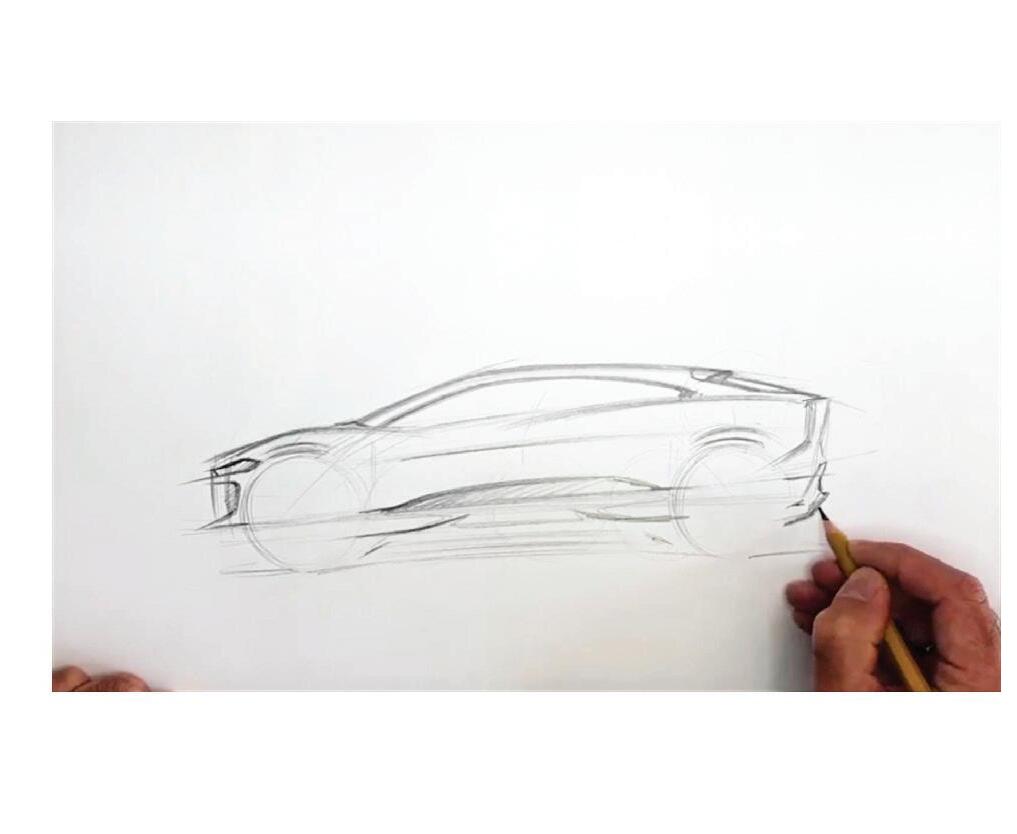
Choose a tool for your device:
Google Canvas - A simple browser-based tool useable on any device.
Sketches School - A tool for iPadOS and Mac that will really bring out the inner designer.
Paint 3D - Built in Windows 10 - this app could transform students’ sketches into 3D.
Watch the masterclass video here and get creative.
CHALLENGE:
Can you create a video game that people want to play?
CONSIDER:
Game developers think of everything from how the user experiences the game, to how it can be sold and marketed. Consider game levels, the overall challenge and the narrative storyline of what players will experience. Design, graphics and functionality are all things to consider when developing a game.
Suited to: Stages 3-4
TOOL:
Here are some tools, ranked from easiest to use –to most complex:
1. Code.org : this free online browser will step you through coding in no time
2. Minecraft : use the education edition to prototype your game design
3. MakeCode Arcade : build code online with this free web-based browser
Read the very first issue of T4L Kids magazine for a step-by-step guide to develop video games.

CHALLENGE:
Can you design an app that will help track your health, fitness or improve your financial situation? How about an app that solves a problem for your school community?
CONSIDER:
App designers always think about user experience – how is a mobile app better than a website? Consider app structure, user journey and experience and what the goals for the user are. Consider your target market – this will affect design, language and gamification elements used.
TOOL:
to:
Guide your app-building process using the App Design Journal in Apple Keynote, or adapt the content to be used on other platforms such as MS PowerPoint and Google Slides.
Read more about how to create an app in Issue 8 of magazine.T4L


This issue is all about investigating science and the ideas behind scientific enquiry. You’ll be inspired by some of the incredible scientists and the challenges they are finding solutions for.
This issue is all about 3D design in this issue. Don’t forget to share some of your creations with us!


In this issue you will develop the skills to become the creator of your very own game. We have designed these resources so that, if you are in Years 5-8, you should be able to work on them independently but you may need some help from an adult, or an older sibling.


Don’t forget to check out our past issues of the magazine.T4L