Get organised + present with confidence
Boost your presentation skills
Unpack key tools from digital platforms



ISSUE 11 TERM 3 I 2020 T4L Presents!
BONUS → Who are our #T4LAllStars?

Get organised + present with confidence
Boost your presentation skills
Unpack key tools from digital platforms
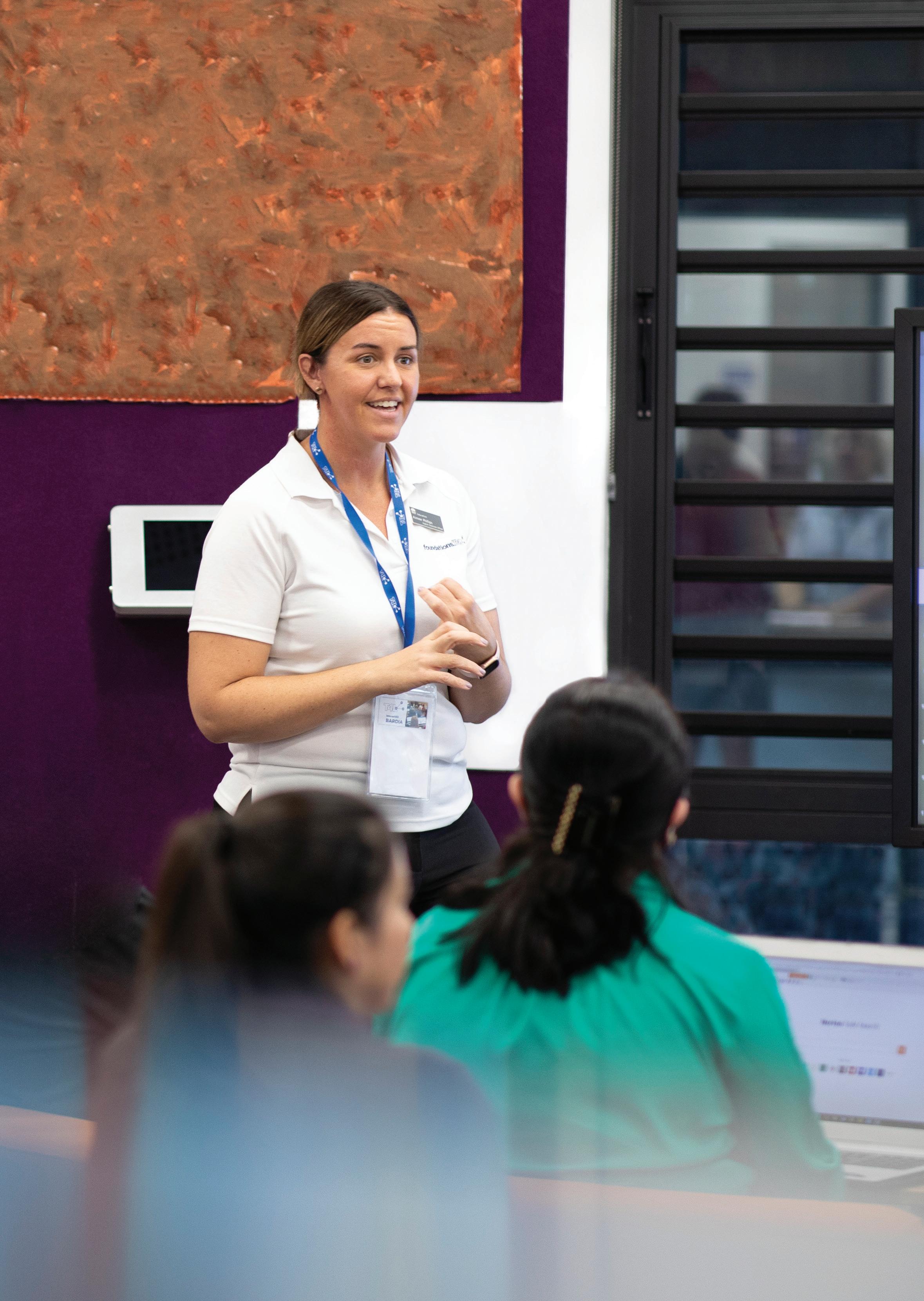
Want to power up your presentation skills both in the classroom and out? Working on your practice can be all about the prep. Whether you’re battling nerves, looking for fun new features to wow your audience, or building in accessibility features in your presentation, we explore it all. Turn to page 4 for our timesaving hacks and creativity tips with Keynote, Slides and Powerpoint.

Each chapter of this great guide explores an aspect of coding and a related activity. In full colour and with clear coding guides (in both Scratch or Micro:bit), this handy resource makes solid connections with real-world scenarios and has plenty of fun and tangible projects for the primary classroom. Perfect for Stages 2-3.

The Urbanist (subscribe on iTunes/Apple Podcasts/Soundcloud or Spotify).
This podcast opens your ears to the world of urban planning and design plus the culture of communities. With links to Society and Culture as well as Geography, work never sounded so good. A fascinating listen for both you and your students.
(Podcast on iTunes or Google Play)
Allows kids across the world to submit a piece of writing that is then adapted into a musical theatre/sketch comedy episode. The podcast presenters include comedians, improvisers and musicians. Highly engaging listening for all ages!
An educational series that explores scientific topics in a highly engaging way, including experiments and meaningful examples of real-world applications. It encourages kids to wonder and analyse things critically. DISCLAIMER: adults may find the constant tween references and millennial humour slightly irritating, but it’s important to watch each episode before you show to students. For Stages 3-4.

Kat is a new teacher, and has been teaching Year 5 at Cootamundra Public School this year.
1. STEM opens up possibilities. Imagine a student’s artwork with artist interviews accessible via augmented reality on any device…the authenticity of that audience and creation can’t be achieved in the same ways without STEM.
2. Students are learning to navigate a world full of digital technologies and will need adequate skills and knowledge to be active and informed citizens.
Our school runs integrated units of learning from K-6 called Gamarra. This term, Stage 3 will be creating a television show to inform people about the problems in Borneo. This allows us to use drama and digital technologies to support deep, cross-curricular learning experiences.
Fave tech tool?
Anything in digital filmmaking! I try to be agnostic about the tools and focus on the learning opportunities they create. Students can be part of the creative process but choose whether to be behind or in front of the camera.
Time-saving tip! Ask Twitter!
The Education Research Reading Room: Teachers Talking Teaching
Pivotal (a behaviour management podcast I can listen to on repeat!)
Teachers’ Education Review
Pretty for an Aboriginal


Did you know there are a load of Minecraft resources now with an Aussie focus?
Download the starter kit from M:EE
There’s a great new starter kit for Aussie educators including handy tips on:
how to get started
how to integrate Minecraft into your curriculum
getting started with 30-minute Minecraft express challenges
finding a Minecraft mentor
➚ Did you know there’s a dedicated MS Team for NSW DoE teachers ? Look for the Minecraft Community team.
➚ Jump on Yammer and join the community
➚ Intranet site for more information on licences
➚ Join the official M:EE community

Wireless pointers and presenters can mean the difference between an average presentation and a smooth and successful one. We’ve looked at a few on the market. Here are some essential features to consider:
Price range – anywhere from $70.00 upwards Laser pointer
Memory capacity Range
Wireless/Bluetooth Simplicity
Wireless cursor control Durability
Design and ergonomics Innovation
Programmable functions Battery life
Kensington Presenter Expert Wireless Cursor Control with Red Laser
Can be used in two modes – switch from presenter mode to cursor control mode
Backlit buttons Carrying pouch
Low battery alert RRP $95.00 approx.


Magnify and spotlight features
Long operating range (up to 30m)
Customise controls
Carrying pouch, USB wireless receiver, mini-USB charging cable
Gyroscopic motion-sensing technology
RRP $250 approx.

Mini-keyboards that go the distance!
The new Kensington Wireless handheld keyboards literally fit in your pocket! They’ll free you up to walk around the classroom – never be tied to the desk at the front of the classroom again! A game-changer and relatively affordable.
Connection up to 19m Compact
QWERTY keyboard Long battery life
Quick access keys with shorthand functions
*These products are available on external catalogues in EdBuy.

Presenter Coach in PowerPoint uses AI to give you real-time feedback on your content, pace and delivery. Everyone has different strengths and weaknesses, but Presenter Coach analyses everything from your speed, staying on message to getting rid of filler and repetition.


1. Open PowerPoint and click on Rehearse with Coach , even works in PowerPoint Online directly in the browser
2. Click Start Rehearsing. Your microphone will be used to capture your voice
3. Pop-ups occur in the bottom right of screen offering tips on content and delivery
4. Your rehearsal report is available after you’ve done a run-through
‘Rehearsal mode’ monitors your presentation
Get guidance in real time with pop-ups
Offers advice for better word choices
Prompts you not to read off slides
Analyses potentially sensitive phrases
Shows pace, total time and other ways to improve
Get a rehearsal report to analyse your presentation
We’ve done some testing to take the pain points away.
Take a breath when you need to
Try not to read off the screen - you’ll be marked down in your rehearsal report!
Practice a few times before you head to Coach
Microsoft Edge version 15 or later
Chrome Version 52 or later
Watch more on Presenter Coach here
Content sources: Microsoft website.


These tips will take you from Google Slides minion to master.
Collaborate and create
Build a slideshow with a team. Simply click on the yellow Share button to add your collaborators or simply share with a link. Check out the first day of slides from the Google Teacher Centre .
Do you want Closed Captions (CC) on the screen while you speak? Click on the CC button from the black toolbar when presenting and your words will flow along. You can move them to the top, or change their size. (Only available in Chrome)
Audience interactivity could add to your presentation. After you hit the Present button to start, click the Q&A button in the floating toolbar at the bottom of the screen. The audience will then see a URL at the top of the screen where they can ask questions or make comments as you present.
You can publish from Slides! Go to File >> Page Setup and change the format to whatever size you’d like. Create documents like newsletters, posters, flyers etc! Use File >> Download as, to export directly as a PDF, JPEG (Picture) or even a PowerPoint file.
After you share your slides simply go to File >> Publish to the Web and choose your settings.
Want ideas for your presentation design? Check out the Explore feature. AI power will help improve the look of your slides. After adding content to a slide go to Tools >> Explore and open the side panel to browse the suggested designs.
The insert menu is a treasure trove for objects to drop into your slides. You can now add voice notes, annotations and more.
Click Tools >> Voice Type Speaker Notes – this allows your microphone to type all your speaker notes straight into your presenter notes magically.
Slide >> Edit Master is your friend – simply update the Master doc and all changes will appear across the whole slide deck.
Here are some simple hacks to streamline your presentations!

Built-in drawing tools let you add colourful illustrations and handwritten text using Apple Pencil or your finger. You can sketch ideas, emphasise data in charts, add decoration or create entire presentations using only drawings and handwriting.
Personalise presentations with hand-traced photos, shapes, tables or charts. Add an object to a slide, trace it using the drawing tools, then delete the underlying object.
Focus your audience’s attention on slides through simple decoration and highlights. You can underline words, annotate images, or emphasise trends in a chart.
Go further
You can animate a drawing so that it plays in the presentation as if it’s being drawn – from blank canvas to finished product. Try adding a drawing, then apply the Line Draw animation to it.
You can prepare presenter notes for each slide, then practice delivering your presentation with Rehearse Slideshow. Rehearsing allows you to master your content and use notes as reminders instead of reading from the slides.
Check out a quick how-to video here!
Move excessive or lengthy text to presenter notes so your audience listens more carefully to what you say.
Tap to change the clock in Rehearse Slideshow to a timer, then rehearse your presentation to see which slides you can deliver more succinctly.
Go further
To show your presentation on a separate screen, connect your device to an external display, a projector, or Apple TV with a screen share tool like AirPlay. Your slides will play on the connected screen and the presenter display will appear on your iPad screen.
If you’re after more tips and tricks with Keynote, simply log on to Apple Teacher –it’s free to join.
log onto Apple Teacher
tap ‘Earn badges for iPad’
choose ‘Keynote for iPad’
select a new skill
choose from a selection e.g. Slides, Photos, Shapes, Drawing and more.
Welcome to the T4L All-Stars edition! In lieu of the T4L Awards this year, T4L is celebrating ten remarkable schools across NSW whose stories of innovation inspired our team! Read their stories, follow the links and imagine the possibilities! Congratulations to ALL our ALL-STARS!

Central Coast
Online learning and community
Gorokan Public School’s use of technology has inspired the T4L team! Twice runners-up in the T4L Awards, 2020 has seen the Central Coast school rise to the different challenges of teaching and learning. The school already had a well-established online Flexible Learning Space created with Google Sites. They made enhancements to the site during COVID-19 to further support their entire school community. They were innovative in the face of change, using technology with ingenuinity and responsiveness. Some of the great initiatives included building an interactive timetable, downloadable learning certificates to encourage students learning from home, and plenty of online resources for students and parents to access. Their innovative and inclusive approach to tech makes Gorokan Public School a T4L All-Star! Take a look at Gorokan’s online flexible learning space.

➚ Take a tour of Gorokan’s Public’s Flexible Learning Space
➚ Learn how to set up a Google Site with these resources
➚ Where to next?
South West Sydney Literacy and numeracy
Blairmount Public School have been streaking ahead with the use of iPad in their school. Blairmount’s innovation with iBooks to create comprehensive literacy and numeracy resources, has been a standout. Staff have been using the ePub format for literacy, embedding instructional videos, lessons and more, around phonics, sightwords and even numeracy. Stages 2 and 3 have been working with Keynote, Clips and Garageband in science, too! Well done, Blairmount Public School.


➚ Learn more about how to use Apple tools in your school
➚ Watch T4L Apple tools webinars
Western Sydney Robotics
Punchbowl Boys’ High School recently launched a robotics club for students and they are taking their creations to the world. The club not only builds robots, but is creating short videos on the practical applications of their robots. Students like Amer are presenting quick tutorials on builds like ‘battle robots’. Students talk us through the features and specs of their robots and highlight how they would help in the real world. Many of them have problem solving capacities. Go, Punchbowl Boys’!
The Hunter Literacy and wellbeing
Bolwarra Public School created interactive and engaging lessons that gave students a choice in how they responded. Lessons were delivered remotely and student work samples say it all. Their work is amazing. We are so proud!
Teachers produced ‘brain breaks’ to keep students active while learning from home. Bolwarra have been great all-rounders this year as the school moved towards virtual lessons, presentations and even fitness. Well done, Bolwarra.

➚ Be amazed by Bolwarra’s amazing efforts with this video they created
Sydney
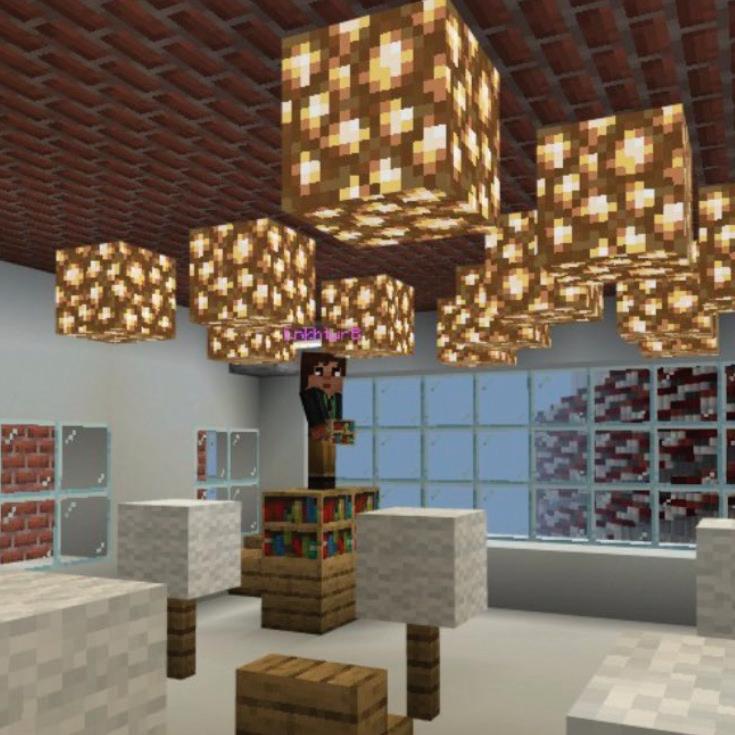
Stage 3 students at Eastlakes Public School have been hard at work this year building Minecraft worlds focusing on sustainability. Their unique takes on design were linked to functionality and sustainability. Students worked towards submitting their designs to the Minecraft High School and Sustainability Report. Their designs were also submitted to an international design competition – the M9 Contest Urban Landscape Competition. Congratulations on taking your designs to the next level, Eastlakes!

➚ Want to get started with Minecraft? Follow one school’s journey here

Dulwich High School of Visual Arts and Design students are preparing for careers in creative industries or STEM fields by using modelling and design tools from Stage 4. Younger students use entry-level modelling tools such as SketchUp to protoype and design and in later years, Design and Technology students use the more complex but industry standard software Fusion 360 to design. Senior years have also been working on developing their photography, digital media and cartooning and animation skills. Congratulations Dulwich High School for pushing the boundaries with your design pursuits - we look forward to watching your careers bloom!
Kangaroo Valley Public School have been really creative in 2020 using technology! They’ve been working hard on filmmaking using the Student Filmmaker module and taking inspiration from the T4L Kids magazine . They’ve also been putting their tactile interactive panels to good use, with Stage 2 students using the power of Google Earth to explore continents and oceans. There are so many good things happening at Kangaroo Valley Public School. Keep the great ideas coming!

Royal National Park Sydney
Virtual resources
Did you know that the Royal National Park Environmental Education Centre is a DoE school? In the past few months, the Royal National Park EEC has smashed it - creating six Google sites for online learning, a record eight 360 virtual tours of the National Park and Centre surrounds, an online journal, plenty of videos, quizzes and slideshows - all so that students can enjoy the spectacular natural world of the Royal National Park, whether they’re learning from home or at school.

➚ Find their virtual learning materials here
Learn more
➚ Watch how telepresence robots are being used at Toormina High School
➚ Watch Selena and Athan’s story to learn more about telepresence robots
Sydney metro
Virtual assemblies North Coast
Sylvania Heights Public School had a comprehensive approach to moving to online learning and assemblies when COVID-19 hit. Not only did the school create a sense of community by quickly pivoting to produce online assemblies screening on Brightcove, they also captured an incredible learning showcase on video to share with the school community and beyond. Congratulations on keeping the school spirit healthy. We salute your innovative and inclusive use of tech, Sylvania Heights!
Telepresence robot
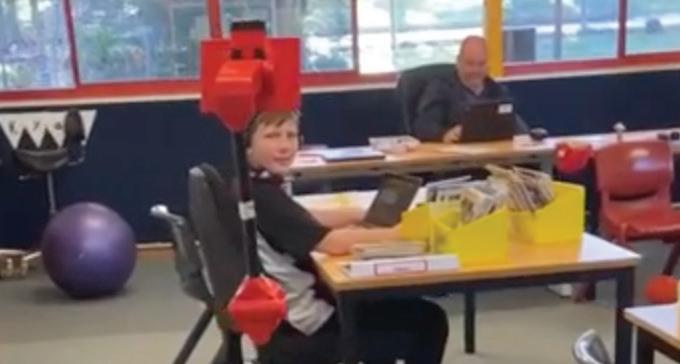
Toormina High School has been utilising a telepresence robot under a pilot project run by T4L. The robots allow Toormina High School students learning remotely to attend school in the form of a robot - allowing them to zoom down corridors, learn with their friends and explore lessons with their teachers. Congratulations to the All-Stars at Toormina High, especially teacher Bridget Thornton who has been working alongside T4L to implement the robots. Students have also been using the robots to navigate the school and support them with overcoming anxiety.
Ingenuity and innovation at its best!

➚ Take a look at Sylvania Heights Public’s range of virtual assemblies

This digital creative writing program features ten of your favourite Aussie children’s authors! Get creative with ten videos and ten interactive learning journals. This program boosts creativity and writing for Stages 1-4.
Watch and download the journal now!

Want magazine.T4L for your ears? Subscribe now to our T4L podcast where hosts Joe, Linda and Yvette discuss all things edtech. Meet industry guests, learn about new resources, and hear about some of the most topical ideas in educational technology, make sure you listen now!
Listen now!

Have students who are budding Spielbergs? This fivepart module on filmmaking takes students through self-paced video modules and introduces students to key concepts and skills of film production.
Find out more!

Don’t forget to check out the Play Issue of magazine. T4L starring Ryan ‘the Brickman’ McNaught – this issue of the magazine is loaded up with activities for your STEM classroom at the end of term and into the school holidays. Build, engineer and create with the Play Issue.
Read now!