DRUCKDATENBLATT PRINT DATA SHEET
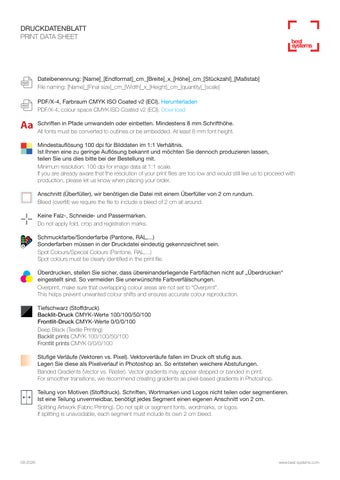
Dateibenennung: [Name]_[Endformat]_cm_[Breite]_x_[Höhe]_cm_[Stückzahl]_[Maßstab] File naming: [Name]_[Final size]_cm_[Width]_x_[Height]_cm_[quantity]_[scale] PDF/X-4, Farbraum CMYK ISO Coated v2 (ECI). Herunterladen PDF/X-4, colour space CMYK ISO Coated v2 (ECI). Download in Pfade umwandeln oder einbetten. Mindestens 8 mm Schrifthöhe. Aa Schriften All fonts must be converted to outlines or be embedded. At least 8 mm font height. Mindestauflösung 100 dpi für Bilddaten im 1:1 Verhältnis. Ist Ihnen eine zu geringe Auflösung bekannt und möchten Sie dennoch produzieren lassen, teilen Sie uns dies bitte bei der Bestellung mit. Minimum resolution: 100 dpi for image data at 1:1 scale. If you are already aware that the resolution of your print files are too low and would still like us to proceed with production, please let us know when placing your order. Anschnitt (Überfüller), wir benötigen die Datei mit einem Überfüller von 2 cm rundum. Bleed (overfill) we require the file to include a bleed of 2 cm all around. Keine Falz-, Schneide- und Passermarken. Do not apply fold, crop and registration marks. Schmuckfarbe/Sonderfarbe (Pantone, RAL,...) Sonderfarben müssen in der Druckdatei eindeutig gekennzeichnet sein. Spot Colours/Special Colours (Pantone, RAL,...) Spot colours must be clearly identified in the print file. Überdrucken, stellen Sie sicher, dass übereinanderliegende Farbflächen nicht auf „Überdrucken“ eingestellt sind. So vermeiden Sie unerwünschte Farbverfälschungen. Overprint, make sure that overlapping colour areas are not set to “Overprint”. This helps prevent unwanted colour shifts and ensures accurate colour reproduction. Tiefschwarz (Stoffdruck) Backlit-Druck CMYK-Werte 100/100/50/100 Frontlit-Druck CMYK-Werte 0/0/0/100 Deep Black (Textile Printing) Backlit prints CMYK 100/100/50/100 Frontlit prints CMYK 0/0/0/100 Stufige Verläufe (Vektoren vs. Pixel). Vektorverläufe fallen im Druck oft stufig aus. Legen Sie diese als Pixelverlauf in Photoshop an. So entstehen weichere Abstufungen. Banded Gradients (Vector vs. Raster). Vector gradients may appear stepped or banded in print. For smoother transitions, we recommend creating gradients as pixel-based gradients in Photoshop. Teilung von Motiven (Stoffdruck). Schriften, Wortmarken und Logos nicht teilen oder segmentieren. Ist eine Teilung unvermeidbar, benötigt jedes Segment einen eigenen Anschnitt von 2 cm. Splitting Artwork (Fabric Printing). Do not split or segment fonts, wordmarks, or logos. If splitting is unavoidable, each segment must include its own 2 cm bleed.
08-2026
www.best-systems.com
DRUCKDATENBLATT PRINT DATA SHEET
PDF-Export (PDF/X-4 erforderlich) PDF-Export (PDF/X‑4 Required) Exportieren Sie Ihre Druckdaten aus Adobe-Programmen wie InDesign, Illustrator oder Photoshop als PDF/X-4:2010. Dieses PDF-Format gewährleistet eine zuverlässige Verarbeitung von Schriften, Transparenzen und Ebenen und sorgt für ein sicheres Druckergebnis. Datei exportieren: Gehen Sie auf Datei > Exportieren und wählen Sie als Standard [PDF/X-4:2010] aus. Wichtig: Verwenden Sie kein PDF/X-3. Dieses Format ist veraltet und kann insbesondere bei Transparenzen und Ebenen zu Darstellungs- und Ausgabeproblemen führen. Anschnitt definieren: Gehen Sie auf Marken und Anschnitt > und setzen Sie ein Häkchen bei „Anschnitteinstellungen des Dokuments verwenden“ (stellen Sie sicher, dass Ihr Dokument einen Anschnitt von 2 cm hat). Ausgabe-Farbeinstellungen: Exportieren Sie Ihre Datei im CMYK-Farbraum mit dem Farbprofil ISO Coated v2 (ECI). Dadurch werden die Farben möglichst originalgetreu für den Druck umgesetzt und unerwünschte Farbabweichungen reduziert.
Export your print files from Adobe applications such as InDesign, Illustrator or Photoshop as PDF/X-4:2010. This PDF standard ensures reliable processing of fonts, transparencies, and layers, resulting in a secure and accurate print output. Exporting the file: Go to File > Export and select the PDF preset: Standard [PDF/X-4:2010]. Important: Do not use PDF/X-3. This format is considered outdated and can cause output issues, especially when working with transparencies and layers. Setting the bleed: Go to Marks and Bleed > and check “Use Document Bleed Settings”. Make sure that your document has a 2 cm bleed on all sides. Output colour settings: Export your file in the CMYK colour space using the ISO Coated v2 (ECI) colour profile. This ensures the most accurate colour reproduction in print and helps minimize unwanted colour shifts.
Dateibenennung File naming Benennen Sie Ihre Datei nach folgendem Schema: [Name]_[Endformat]_cm_[Breite]_x_[Höhe]_cm_[Stückzahl]_[Maßstab], damit Format und Produktionsdaten eindeutig zugeordnet werden können. Beispiel: Motiv_100_x_200_cm_2_1zu1
Name your file according to the following format: [Name]_[Final size]_cm_[Width]_x_[Height]_cm_[quantity]_[scale]. This ensures that the format and production details can be clearly identified and assigned. Example: Design_100_x_200_cm_2_1zu1
08-2026
www.best-systems.com
DRUCKDATENBLATT PRINT DATA SHEET
Aa Schriften in Pfade umwandeln Convert fonts to outlines
Damit Schriften beim Druck korrekt dargestellt werden, sollten sie entweder in Pfade umgewandelt oder in der PDF-Datei eingebettet werden. Beim Umwandeln in Pfade werden die Buchstaben in grafische Formen (Vektoren) umgewandelt und sind anschließend unabhängig von installierten Schriftarten. So kann die Druckdatei auf jedem Computer und in jeder Druckerei fehlerfrei dargestellt werden, ohne dass die ursprüngliche Schriftart vorhanden sein muss. Hinweis: Nach dem Umwandeln in Vektoren kann der Text nicht mehr als Schrift bearbeitet werden. Vorgehensweise: Markieren Sie den Textrahmen mit dem Auswahl-Werkzeug. Klicken Sie in der oberen Menüleiste auf Schrift > In Pfade umwandeln. Verwenden Sie eine Mindestschrifthöhe von 8 mm, um eine gute Lesbarkeit auch aus größerer Entfernung sicherzustellen.
To ensure that fonts are reproduced correctly in print, they should either be converted to outlines or embedded in the PDF file. When fonts are converted to outlines, each character is transformed into a vector shape, making the file independent of installed fonts. This ensures that the print file can be displayed and processed correctly on any computer or by any print service without requiring the original font files. Note: Once fonts have been converted to outlines (vectors), they can no longer be edited as text. How to convert fonts to outlines: Select the text frame using the Selection Tool. In the top menu, choose Type > Create Outlines. Use a minimum font height of 8 mm to ensure good readability, even from a greater viewing distance.
08-2026
www.best-systems.com
DRUCKDATENBLATT PRINT DATA SHEET
Auflösung Resolution Die Auflösung von Druckdaten wird in dpi (dots per inch) angegeben und hat einen entscheidenden Einfluss auf die Druckqualität. Grundsätzlich gilt: Je höher die Auflösung, desto schärfer das Druckergebnis. Ist die Auflösung zu gering, wirken Bilder und Grafiken unscharf oder sichtbar pixelig. Achten Sie deshalb bereits bei der Erstellung Ihrer Druckdaten auf die richtige Auflösung. Eine nachträgliche Erhöhung der dpi-Zahl verbessert die Bildqualität nicht, da keine zusätzlichen Bildinformationen erzeugt werden können. Für Druckdaten im Maßstab 1:1 empfehlen wir eine Auflösung von 100 dpi im Endformat. Ist das Endformat aufgrund der Größenbeschränkung Ihres Grafikprogramms nicht anlegbar, können Sie die Datei auch in einem kleineren Maßstab erstellen. Dabei muss die Auflösung entsprechend erhöht werden. Beispiel: Bei einem Maßstab von 1:10 sind 1000 dpi erforderlich, damit die Druckdatei im Endformat wieder eine effektive Auflösung von 100 dpi erreicht. Hinweis 1: Kontrollieren Sie Ihre Druckdatei immer in der Ansicht des tatsächlichen Endformats. Das entspricht: 100 % bei 1:1, 200 % bei 1:2 und 1000 % bei 1:10. Nur so lässt sich die tatsächliche Bildqualität realistisch beurteilen. Hinweis 2: Aus größerer Entfernung wirken Drucke in der Regel schärfer, sodass geringe Unschärfen oder Pixelstrukturen deutlich weniger auffallen.
The resolution of print files is measured in dpi (dots per inch) and has a significant impact on print quality. As a general rule, the higher the resolution, the sharper the printed result. If the resolution is too low, images and graphics may appear blurry or visibly pixelated. For this reason, it is important to use the correct resolution when creating your artwork. Increasing the dpi value afterwards will not improve image quality, as no additional image information can be created. For print files created at full size (1:1 scale), we recommend a resolution of 100 dpi at the final print size. If your graphics software cannot handle the full-size dimensions of your artwork, you may create the file at a smaller scale. In this case, the resolution must be increased accordingly. For example: when working at a 1:10 scale, the file should have a resolution of 1000 dpi so that it achieves an effective resolution of 100 dpi at the final print size. Note 1: Always check your print file at the actual final size. This corresponds to 100% at 1:1 scale, 200% at 1:2 scale, and 1000% at 1:10 scale. Only at these zoom levels can the actual image quality be assessed realistically. Note 2: Printed graphics are typically viewed from a distance. From greater viewing distances, minor blurriness or visible pixelation becomes much less noticeable.
08-2026
www.best-systems.com
DRUCKDATENBLATT PRINT DATA SHEET
Anschnitt (Überfüller) Bleed (overfill) Ein umlaufender Anschnitt (Überfüller) sorgt für einen sauberen Zuschnitt und verhindert unerwünschte weiße Ränder (sogenannte Blitzer). Legen Sie Ihre Druckdatei daher mit 2 cm Überfüller rundum an. Dadurch reicht Ihr Motiv sicher bis über die Schnittkante hinaus und gewährleistet ein sauberes Endergebnis.
A surrounding bleed area ensures a clean cut and prevents unwanted white edges (so-called “flashes”). Please prepare your print file with a 2 cm bleed on all sides. This ensures that your artwork extends beyond the cutting edge and guarantees a clean and precise final result.
LOGO
WERBETEXT AD COPY
Endformat/Rahmenformat Final size/Frame size Dateiformat mit 2 cm Anschnitt File format with 2 cm bleed 2 cm Sicherheitsabstand zum Endformat 2 cm safety distance from the final size
Endformat, Anschnitt und Sicherheitsabstand Legen Sie Ihr Dokument im korrekten Endformat an (rote Linie) und fügen Sie rundum einen Anschnitt von 2 cm hinzu (blaue Linie). Zusätzlich ist ein Sicherheitsabstand von 2 cm zu allen wichtigen Inhalten einzuhalten (grüne Linie). Platzieren Sie Texte, Logos und andere relevante Elemente innerhalb dieser Sicherheitszone, damit sie beim Zuschnitt nicht zu nah am Rand liegen oder angeschnitten werden. Orientieren Sie sich dabei an der Abbildung links. Final size, bleed and safety margin Set up your document in the correct final size (red line) and add a 2 cm bleed on all sides (blue line). In addition, maintain a 2 cm safety margin from the final size edge for all important content (green line). Place text, logos, and other relevant elements within this safety area to ensure they are not positioned too close to the edge or accidentally cut off during trimming. Please use the example on the left as a reference.
08-2026
www.best-systems.com
DRUCKDATENBLATT PRINT DATA SHEET
Schneidemarken Crop Marks Verzichten Sie auf Falz-, Schneide- und Passermarken, Farbkontrollstreifen sowie andere klassische Druckmarken. Diese werden im Digitaldruck nicht benötigt. Die erforderliche Schnittlinie (cut contour) wird von uns entsprechend den technischen Anforderungen unserer Schneidanlagen erstellt. Dadurch ist ein präziser Zuschnitt gewährleistet.
Do not include fold marks, crop marks, registration marks, colour bars, or any other traditional print marks in your artwork. These are not required for digital printing. The required cut line (cut contour) will be created by us according to the technical specifications of our cutting equipment, ensuring a precise and accurate final trim. ai178533750537_Jogger_mit_Marken.pdf 1 29.07.2026 17:05:06
C
M
Y
CM
MY
CY
CMY
K
Schmuckfarbe/Sonderfarbe (Pantone, RAL,...) Spot Colours/Special Colours (Pantone, RAL,...) Wir drucken ausschließlich im CMYK-Farbmodus mit dem Farbprofil ISO Coated v2 (ECI). Verwenden Sie daher für Ihre Druckdaten ebenfalls den CMYK-Farbmodus und dieses Farbprofil. Schmuck- bzw. Sonderfarben (z. B. Pantone oder RAL) sowie RGB-Farben werden für den Druck automatisch in CMYK umgewandelt. Da nicht alle Sonderfarben im CMYK-Farbraum exakt dargestellt werden können, kann es zu Farbabweichungen kommen. Enthält Ihre Druckdatei Sonderfarben, informieren Sie uns bitte bei der Bestellung. Ohne einen entsprechenden Hinweis können Reklamationen aufgrund von Farbabweichungen nicht anerkannt werden.
We print exclusively in the CMYK colour mode using the ISO Coated v2 (ECI) colour profile. Therefore, please prepare your artwork in the CMYK colour mode using the same colour profile. Spot colours (e.g. Pantone or RAL) and RGB colours are automatically converted to CMYK for printing. As not all spot colours can be reproduced accurately within the CMYK colour space, slight colour variations may occur. If your print file contains spot colours, please inform us when placing your order. Without prior notification, we cannot accept claims regarding colour deviations resulting from the automatic conversion to CMYK.
08-2026
www.best-systems.com
DRUCKDATENBLATT PRINT DATA SHEET
Überdrucken Overprint Beim Überdrucken werden übereinanderliegende Farbflächen nicht ausgespart, sondern direkt übereinander gedruckt. Dadurch mischen sich die Farben der oberen und unteren Ebene. Beispiel: Wird Gelb über Cyan gedruckt, entsteht an dieser Stelle ein grüner Farbton. Im Gegensatz dazu wird beim Aussparen die darunterliegende Farbe an der Stelle des oberen Objekts entfernt. Es bleibt nur die obere Farbe sichtbar. Besondere Vorsicht ist bei weißen oder hellen Elementen geboten. Diese können durch eine falsche Überdruckeinstellung teilweise oder vollständig verschwinden. Stellen Sie sicher, dass übereinanderliegende Farbflächen nicht auf „Überdrucken“ eingestellt sind (Überdrucken aus, kein Häkchen). Kontrollieren Sie daher in Adobe Illustrator oder InDesign die Überdruckeinstellungen im Bedienfeld Fenster > Ausgabe > Attribute (Fläche/Kontur überdrucken) und prüfen Sie die Datei vor dem Export mit der Überdruckvorschau.
With overprinting, overlapping colour areas are not knocked out but are printed directly on top of each other. As a result, the colours of the upper and lower layers are combined. Example: If yellow is printed over cyan, the overlapping area will appear green. In contrast, with knockout, the underlying colour is removed in the area covered by the top object. Only the upper colour remains visible. Special care should be taken with white or light-coloured elements. Incorrect overprint settings can cause these elements to partially or completely disappear. Make sure that overlapping colour areas are not set to “Overprint” (Overprint must be disabled / no check mark selected). Therefore, check the overprint settings in Adobe Illustrator or InDesign under Window > Output > Attributes (Overprint Fill / Overprint Stroke), and verify your artwork with Overprint Preview before exporting the final print file.
Nicht Überdrucken Overprint OFF
08-2026
Überdrucken Overprint ON
www.best-systems.com
DRUCKDATENBLATT PRINT DATA SHEET
Tiefschwarz (Stoffdruck) Rich Black (Textile Printing) Für ein gleichmäßiges und sattes Schwarz empfehlen wir unterschiedliche Farbwerte – je nachdem, ob das Motiv hinterleuchtet wird oder nicht: Backlit-Druck (hinterleuchtete Motive): CMYK 100/100/50/100 Frontlit-Druck (nicht hinterleuchtete Motive): CMYK 0/0/0/100 Beim Backlit-Druck sorgt der höhere Farbauftrag dafür, dass Schwarz auch bei eingeschalteter Hintergrundbeleuchtung tiefschwarz erscheint und nicht gräulich wirkt. Wichtig ist, dass Tiefschwarzflächen ausschließlich als Vektorflächen angelegt werden. Werden sie als Pixelbilder (z. B. JPG oder eingebettete Rastergrafiken) verwendet, kann der definierte Schwarzwert nicht zuverlässig wiedergegeben werden. Dies gilt insbesondere für Farbverläufe, die in Tiefschwarz übergehen.
To achieve a deep, consistent black, we recommend using different CMYK values depending on whether the graphic will be illuminated: Backlit printing (illuminated displays): CMYK 100/100/50/100 Frontlit printing (non-illuminated displays): CMYK 0/0/0/100 For backlit prints, the higher ink coverage ensures that black remains deep and rich when the backlighting is switched on, rather than appearing grey. It is important that rich black areas are created exclusively as vector objects. If they are used as pixel-based images (e.g. JPEGs or embedded raster graphics), the specified black value cannot be reproduced reliably. This applies in particular to gradients that transition into rich black.
08-2026
Brillen in Premium Qualität
Brillen in Premium Qualität
Backlit (100/100/50/100) Frontlit (0/0/0/100)
Andere CMYK Werte Different CMYK values
www.best-systems.com
DRUCKDATENBLATT PRINT DATA SHEET
Stufige Verläufe (Vektoren vs. Pixel) Banded Gradients (Vector vs. Raster) Farbverläufe in Vektorgrafiken können sichtbare Streifen oder harte Farbstufen (Banding) aufweisen. Ursache sind die begrenzte Farbtiefe sowie die Verarbeitung von Verläufen beim Exportieren und Komprimieren. Für möglichst weiche und gleichmäßige Übergänge empfehlen wir, Farbverläufe als Pixelverläufe in Adobe Photoshop zu erstellen und anschließend in die Druckdatei einzubinden. Ein zusätzlicher Rauschfilter von 1–1,5 % reduziert die Streifenbildung und sorgt für deutlich harmonischere, nahezu stufenlose Farbverläufe. Legen Sie auch Verläufe von Anfang an in CMYK an; eine spätere Wandlung aus RGB verstärkt das Banding.
Vector gradients can show visible banding or hard colour transitions in print. This is caused by the limited colour depth and the way gradients are processed during export and compression. To achieve the smoothest and most even transitions possible, we recommend creating gradients as pixel-based gradients in Adobe Photoshop and then placing them into the print file. Adding a subtle noise effect of 1–1.5% helps reduce banding and creates significantly smoother, almost seamless colour transitions. Create gradients in CMYK from the beginning; converting them from RGB at a later stage can increase banding.
08-2026
www.best-systems.com
DRUCKDATENBLATT PRINT DATA SHEET
Teilung von Motiven (Stoffdruck) Splitting Artwork (Fabric Printing) Vermeiden Sie es nach Möglichkeit, Teilungen direkt durch Logos, Schriften oder einzelne Buchstaben zu führen. Da Stoffe dehnbar sind, ist eine millimetergenaue Fortführung über mehrere Stoffbahnen hinweg nicht möglich. Beim Spannen können leichte Versätze entstehen, wodurch Schriftzüge oder Logos an den Übergängen sichtbar verschoben wirken. Legen Sie Schriften, Wortmarken und Logos grundsätzlich ungeteilt an und platzieren Sie wichtige Gestaltungselemente außerhalb der Teilungslinien. Wichtig: Bei durchgehenden Sujets über mehrere Rahmen muss die Grafikdatei immer als Gesamtmotiv angelegt werden. Falls Sie ein Motiv dennoch selbstständig teilen möchten, müssen die einzelnen Druckdateien jeweils mit einem Anschnitt von 2 cm angelegt werden.
Whenever possible, avoid placing split lines directly through logos, text, or individual letters. Since fabric materials are stretchable, an exact millimetre-precise continuation across multiple fabric panels cannot be guaranteed. During tensioning, slight shifts may occur, which can cause text or logos to appear visibly misaligned at the transitions. Always keep text, wordmarks, and logos as complete, undivided elements and position important design elements outside the split lines. Important: For continuous artwork spanning multiple frames, the graphic file must always be created as a complete overall design. If you choose to split the artwork yourself, each individual print file must be created with a 2 cm bleed on all sides.
LOGO
08-2026
LOGO
www.best-systems.com