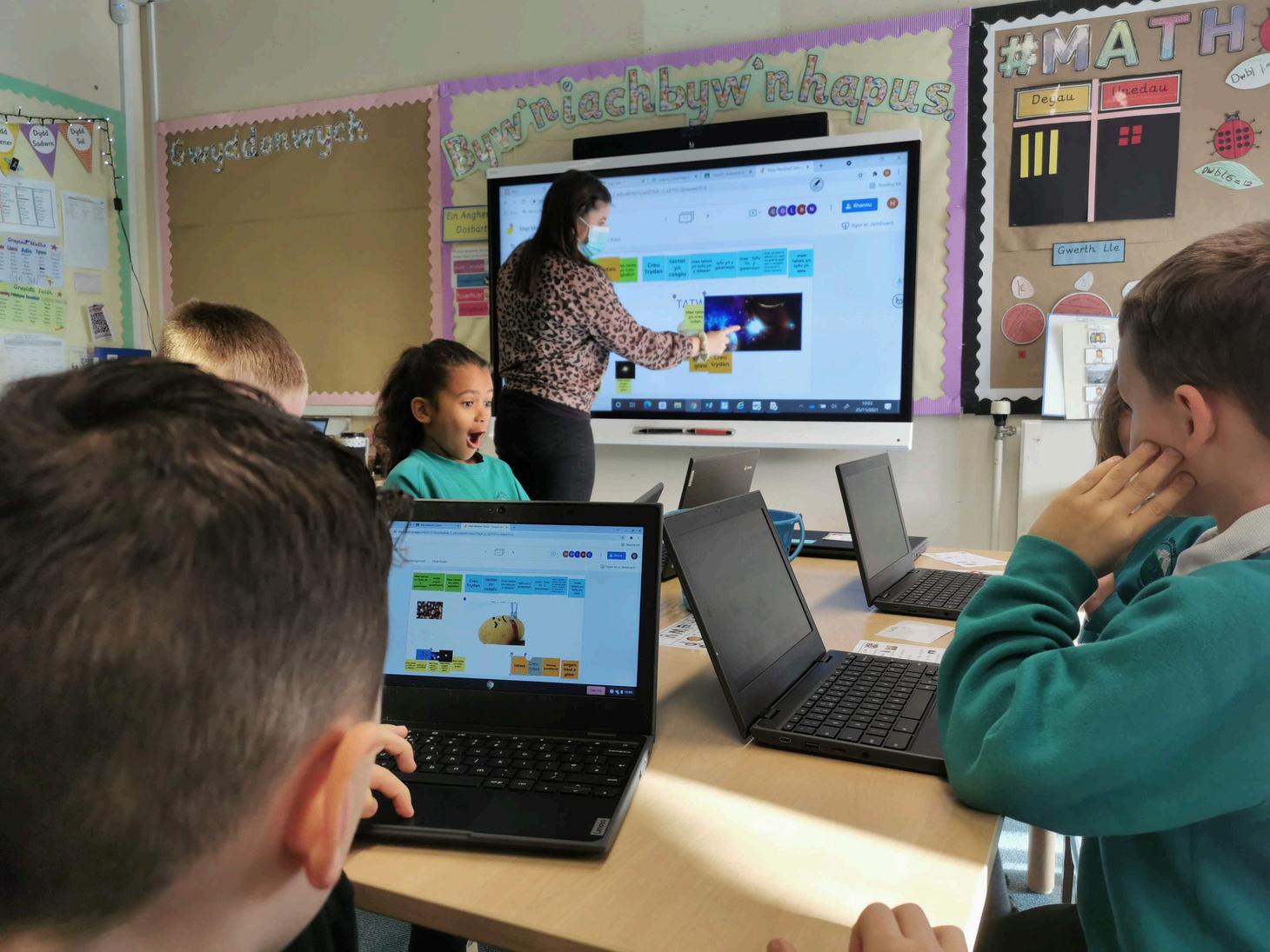
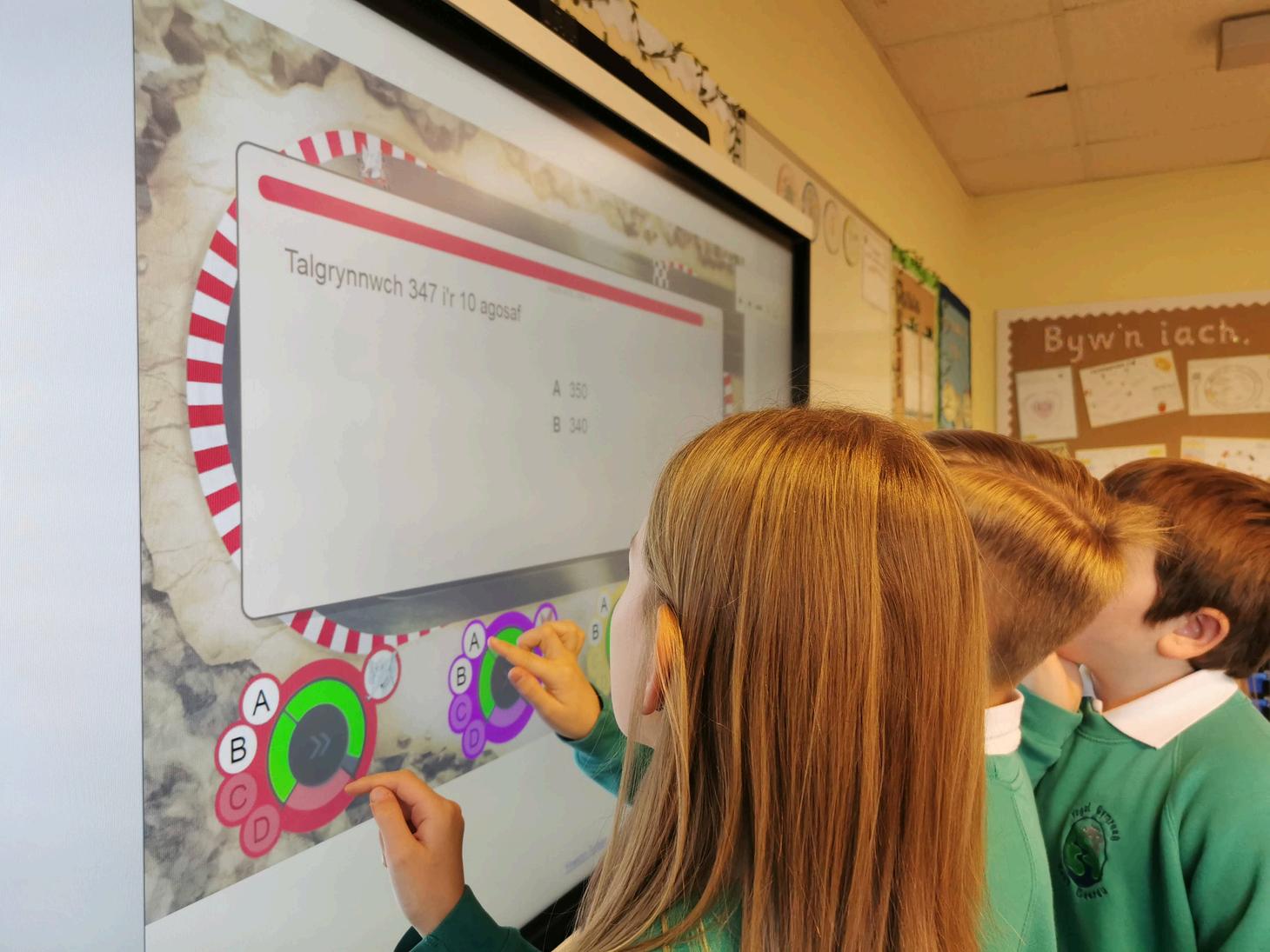
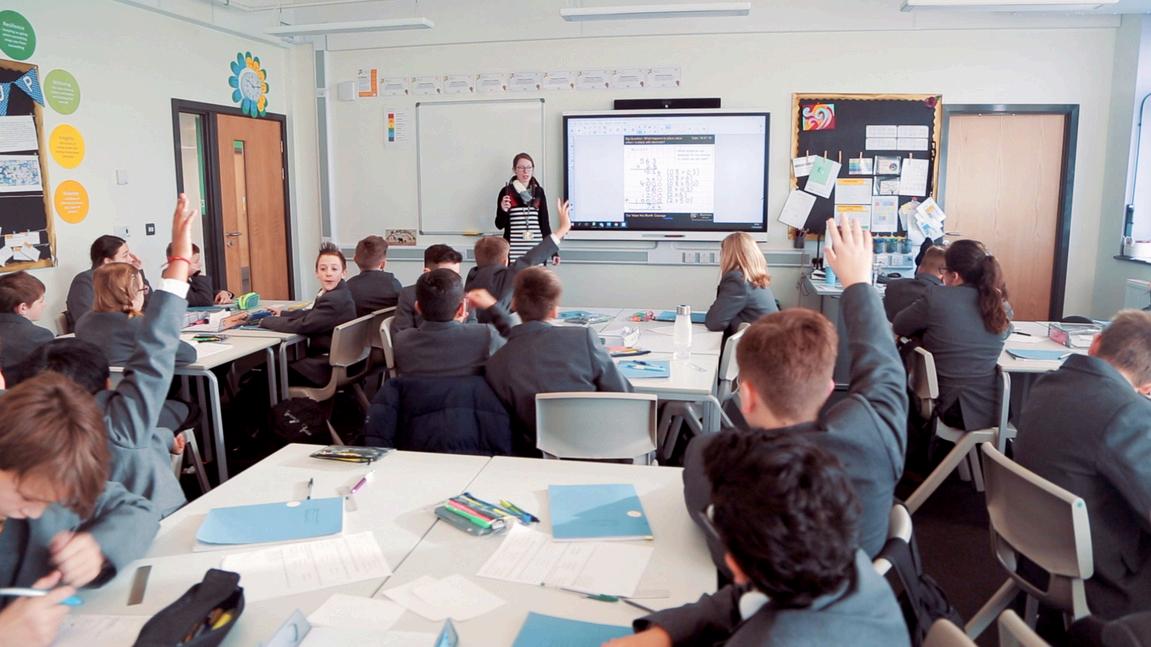
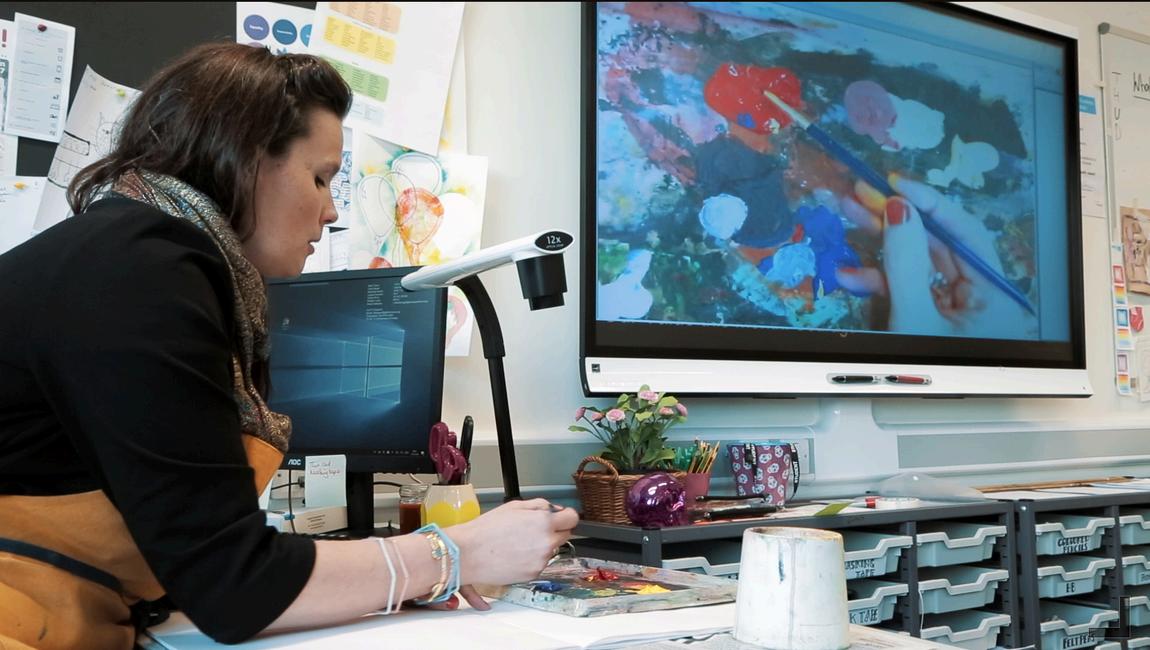
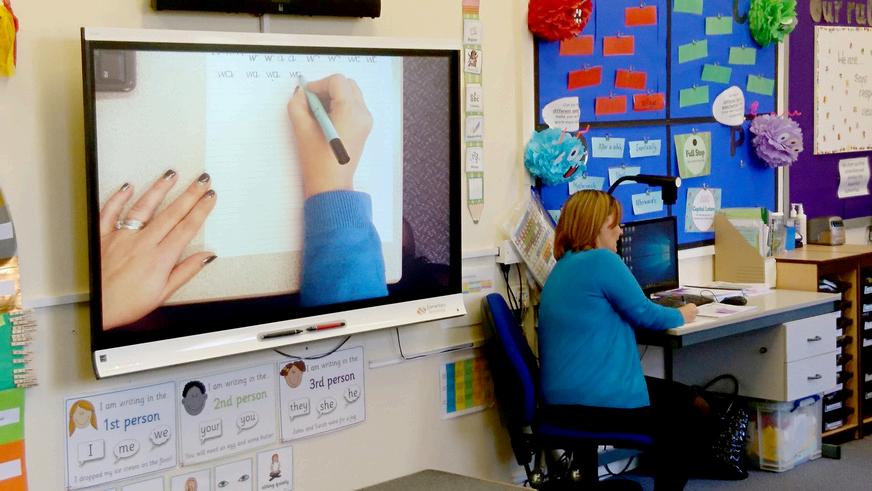
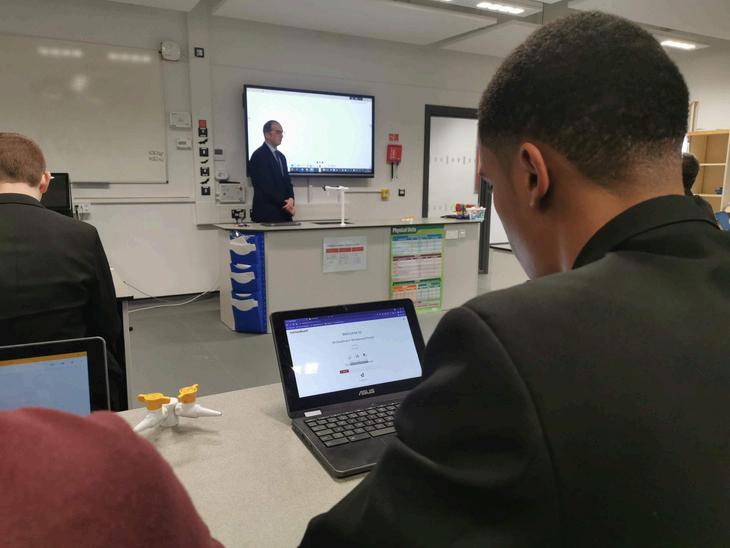
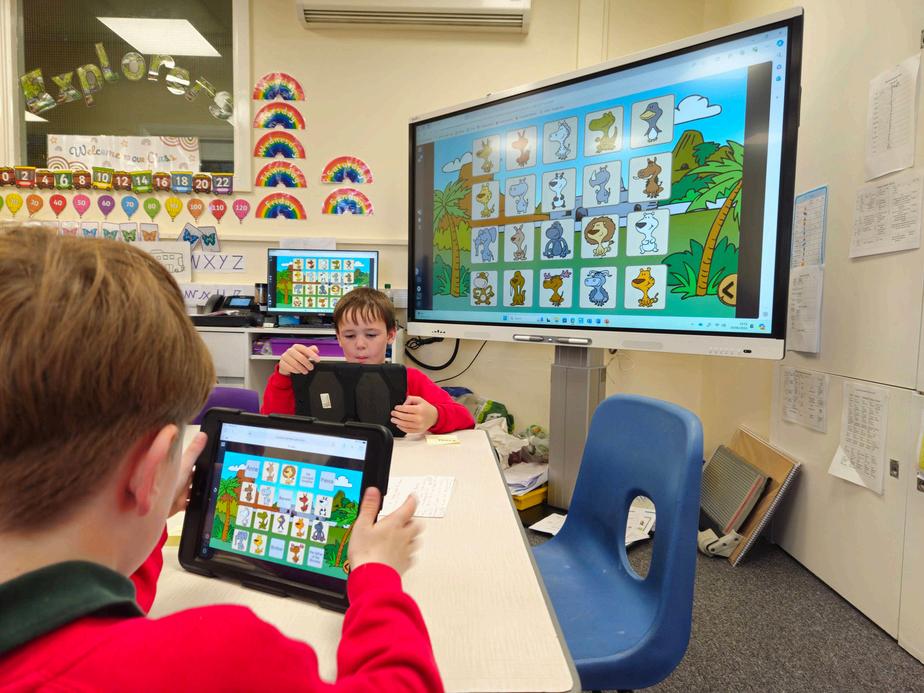
Our research and experience shows us countless examples of where our edtech roadmap works, with each stage playing an essential role to see the impact your school needs and pays for
Buying Using IIMPACT IMPACT MPACT
Planning - where are you now with technology?
Understanding where you are is essential before you make choices Your hardware, model, age, energy consumption, software and more A detailed picture across a school, then aggregated up to Trust level Evidence-informed plans
And importantly, steps you can take to make more of what you already have.
Choosing - working with all stakeholders to make fully-informed choices
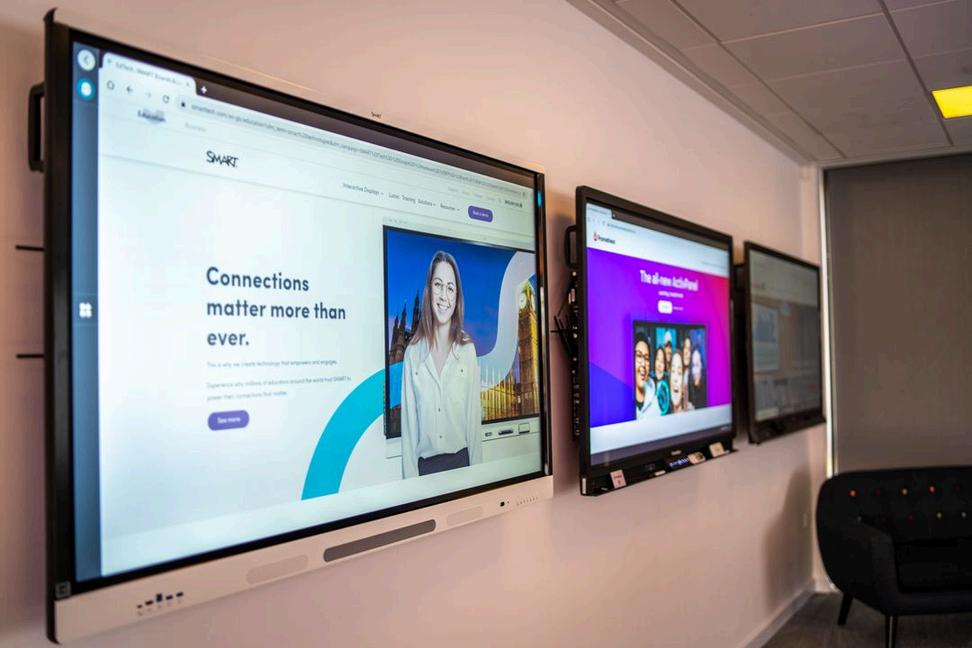
The length and detail of this guide exemplifies the challenges of fully understanding classroom displays Our Experience Centre helps - hosted by independent experts, a showcase space of the leading brands to experience, before you make choices.
Buying - a trusted relationship with a specialist supplier
Compliant procurement planned in partnership with your supplier, with full service wraparound from your assigned Service Delivery colleague Site survey, projectmanaged installation and regular liaison to ensure a seamless experience.
We always have offers, added value extras and new information to share - contact our team, even just to check in, before you make expensive decisions.
Using - the role of Training, Coaching and CPD
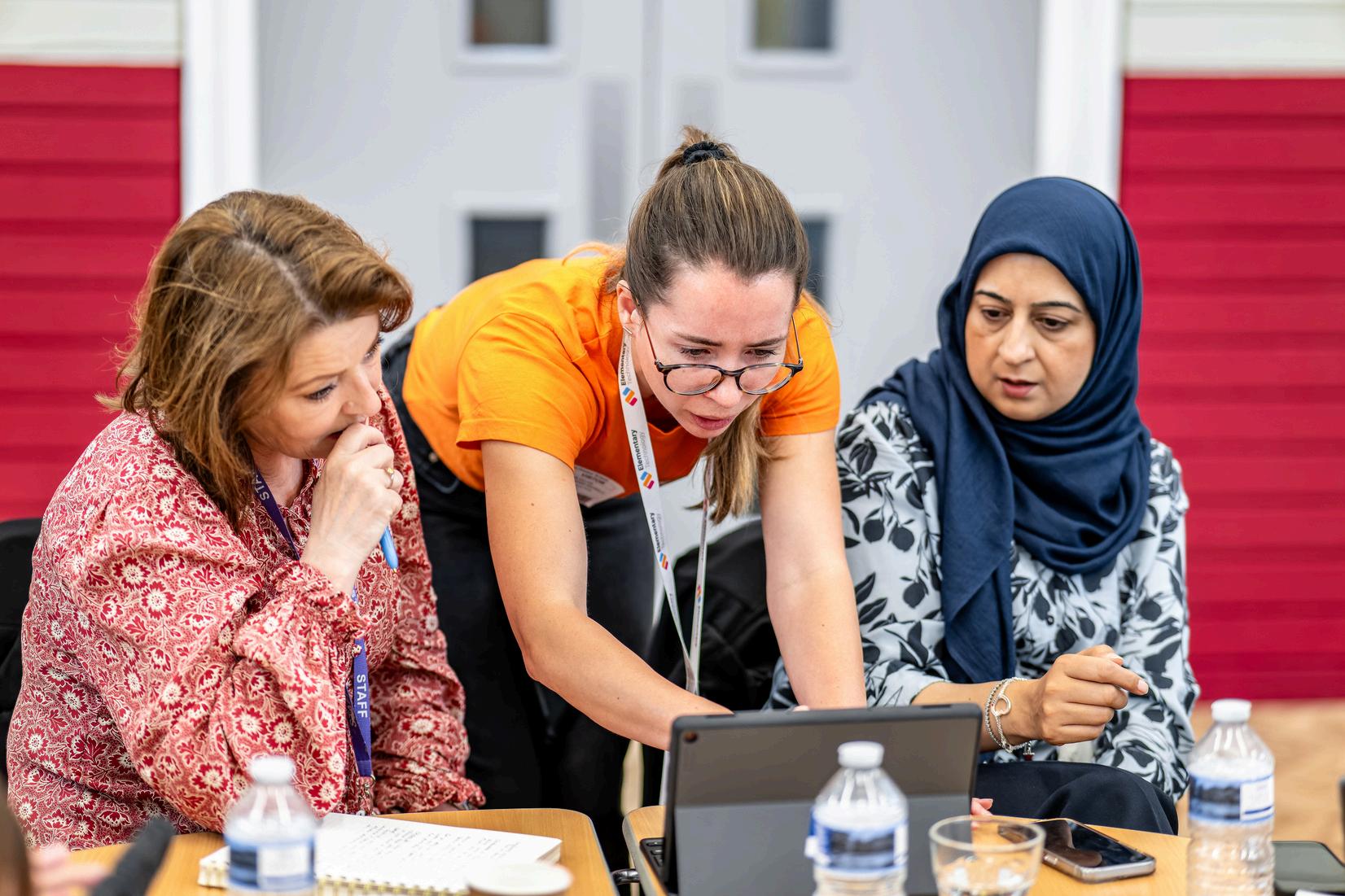
Training, just like teaching, isn’t a one off event. It’s a process of building knowledge, skills and confidence so use of technology can be truly embedded.
Modern classrooms rely on an interconnected ecosystem; classroom displays, pupil devices, cloud platforms, curriculum software and more
Good training treats these elements as part of one system, supporting staff to use them together to streamline lesson flow, reduce printing, enhance accessibility and make learning more interactive
Rather than just vendor classroom display training, here’s how we help schools:
IMPACT - what you need, and are paying for
As with most technology, classroom displays create a ripple effect which spreads far beyond the classroom. It is at these outcomes where we begin our thinking.
With how they support classroom practice at the core, it’s important to understand how they support other stakeholders, and therefore also important to include them when Planning, Choosing, Buying and Using your classroom displays
LEARNERS
SUPPLIERS
TEACHERS
MATS IT TEAMS
COMMUNITY
FINANCE AND PROCUREMENT
SCHOOL LEADERSHIP
Professional Satisfaction when teachers see the impact of edtech
Energy Costs
environmental and financial, with energy efficient displays
Productivity
More teaching, and more learning, more quickly
Print Costs when replacing some paper worksheets for digital activities
Key considerations: touch vs non touch
Durability
Warranty
Remote Management
Functionality
Choose displays designed specifically for education environments, as they are built with toughened glass and reinforced frames to withstand daily classroom use
Education-focused interactive screens include 5–7 year on-site warranties, reducing disruption and supplier responsibility for faults, while TVs and many commercial displays may offer shorter or Return-to-Base cover.
These tools allow easier updates, monitoring, and technical support across multiple classrooms. This can save significant time for IT teams compared to standard TVs with limited support options.
Look for displays with built-in teaching tools such as Android systems, whiteboarding software, wireless screen sharing, and optional OPS modules.
Cost
Displays with interactivity, even if it is not used, often only cost a little more than non-interactive displays Given other benefits such as warranty, longevity and toughened glass, they may actually represent better value
Touch Technologies in Classroom Displays
The vast majority of schools choose to include interactivity in their classroom displays, providing teachers and pupils with an additional layer of opportunities.
While specifications help, the biggest factor for a teacher is how the writing experience feels This varies more than you might expect
Schools are welcome to try multiple models first-hand in our Experience Centre, where they can compare writing feel, responsiveness, and accuracy side‐by‐side.
Some displays also include a built‐in microphone array, ideal for:
Accessibility (speech reinforcement or live captions)
Many schools now use pupil devices such as Chromebooks, iPads and laptops as part of everyday teaching. When used well, these devices improve assessment, inclusion, accessibility, and reduce reliance on printed worksheets Pupils can access content in the way that suits them best, zoom in on material, use assistive tools, submit work digitally, and collaborate more easily
A wide range of platforms are commonly used in UK schools, including:
Google Classroom / Workspace
Microsoft 365 / Teams / OneNote
Apple Classroom, AirPlay and iPad apps
Web-based learning platforms (too many to list)
Assessment tools such as Lumio, Forms, Kahoot, Wayground (formerly Quizizz)
How pupil devices interact with classroom displays
Best practice means teachers can easily share a pupil’s device to the classroom display, whether that’s one device or multiple at once. This supports modelling, feedback, showcasing work, and building engagement
Different displays offer different capabilities:
AirPlay – increasingly standard on displays, particularly for iPads and Macs
Cast / Chromecast – especially important for Chromebooks
Miracast / Windows projection – useful for Surface and Windows devices
App‐based solutions – vary by brand but can add steps, delays or complexity
Annotation support – allow teachers to write over a cast‐in screen
Interactive touchback – teachers control the pupil’s device from the display
Display‐only mirroring – common on non‐touch or basic systems
Which is the right approach?
Training to get full value
The combination of classroom display + pupil devices + learning platform can be incredibly powerful - but only if staff know how to use it confidently. Effective CPD helps teachers share pupil screens, model work, annotate over content, manage classroom workflows, and reduce faff.
As part of our work with schools, Elementary Technology provides hands‐on training to help staff make the most of their classroom displays and pupil devices, ensuring the investment delivers real impact in day‐to‐day teaching.
What about on‐board Android?
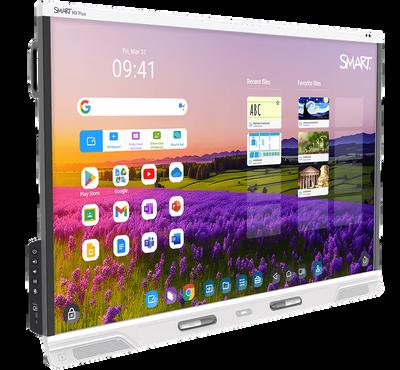
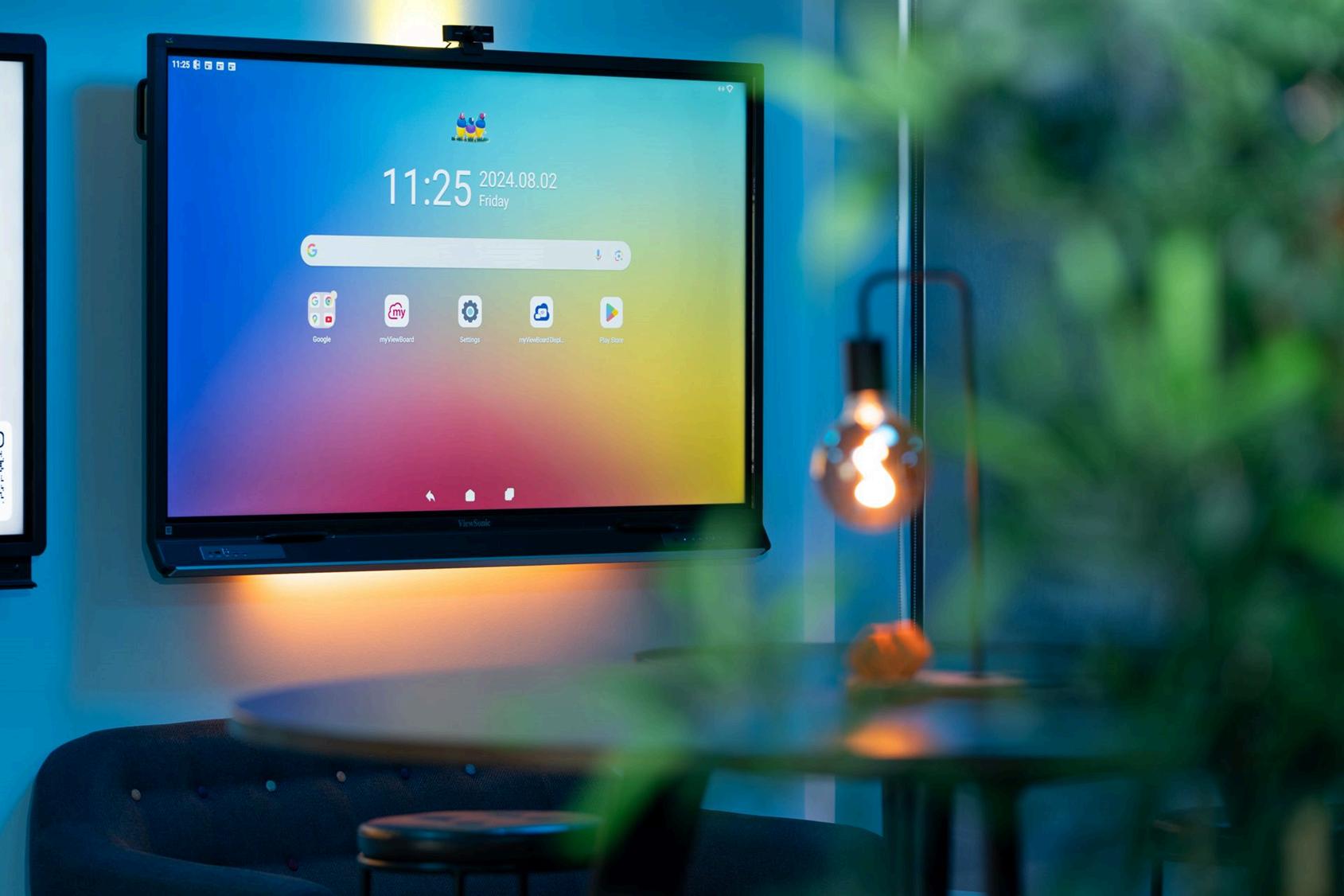
Most classroom displays include an on‐board Android operating system, giving the screen its own fast, consistent interface - independent of any connected laptop. It is often referred to as a ‘Home Screen’ or walk-up-and-use
Teachers can whiteboard instantly, open apps, browse cloud files, cast devices and access resources without needing to plug anything in. For IT teams, it provides a manageable, updateable platform with consistent settings across classrooms
What is Google EDLA Certified?
EDLA (Enterprise Devices License Agreement) certification means the display runs a Google‐approved, secure, enterprise‐grade version of Android, with full access to the Google Play Store, managed updates and modern security controls. It ensures better app support, better long‐term compatibility and stronger cybersecurity Increasingly, EDLA is becoming the expected standard for education displays.
The power of Google Play in the classroom EDLA‐certified displays can access the Google Play Store, giving teachers a safe, managed way to use high‐quality educational appswhiteboarding tools, modelling apps, accessibility aids, assessment tools, creativity suites and more
With the right training, this can add enormous value, helping teachers get more from the investment and building confidence in using interactive tools effectively
Elementary Technology can help staff understand what’s possible and embed best practice through hands‐on CPD
We can also help IT teams manage permissions!
ASK US FOR A DEMONSTRATION
What about on‐board Android?
Android versions, updates and cybersecurity
Android versions vary widely across display manufacturers. An up‐to‐date version is essential for compatibility, app support and cybersecurity Some displays offer OTA (Over‐The‐Air) updates, meaning the Android system can be updated throughout the life of the device Others cannot be upgraded - so the version you buy may be the version you use for the next 5–7 years.
When a display’s Android becomes obsolete, it can no longer receive security patches Connecting an outdated Android board to WiFi introduces a real cybersecurity risk, and could lead an organisation to fail a CyberEssentials audit.
As part of our Classroom Healthcheck®, we always verify Android versions and identify obsolete boards that should not be network‐connected.
Windows OPS: An optional upgrade
What is a Windows OPS?
A Windows OPS (Open Pluggable Specification) unit is a compact, slide‐in PC that fits directly into the slot on the side or rear of many modern interactive displays Once installed, it effectively turns the display into a full Windows computer with no external cables, no extra boxes and no need for a separate desktop tower
Why would a school consider it?
Schools may consider an OPS when they want every classroom to have a consistent Windows experience, when teachers prefer a fixed PC rather than relying on laptops, or when they want to simplify the setup for supply staff and visiting teachers
It also reduces clutter, saves space, and ensures instant access to familiar tools on a machine that turns on with the display itself.
In most scenarios, it would be used with a wireless keyboard and mouse. It is most effective when teachers use an NFC card to log in and out of their profile if they move around classrooms.
Connectivity Overview
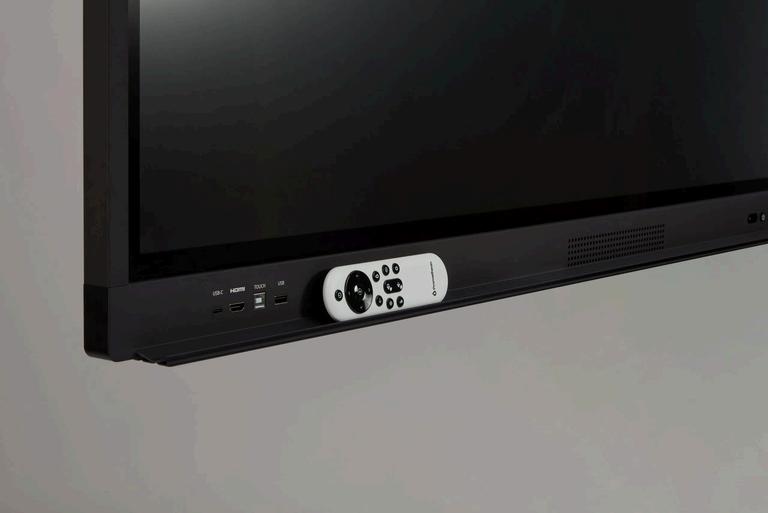
Connectivity on classroom displays has moved a long way from earlier setups that relied on VGA (analogue, low‐resolution) and later HDMI, which improved quality but still meant multiple cables and adapters.
y importantly - risks in busy classrooms Getting it right the first time is critical
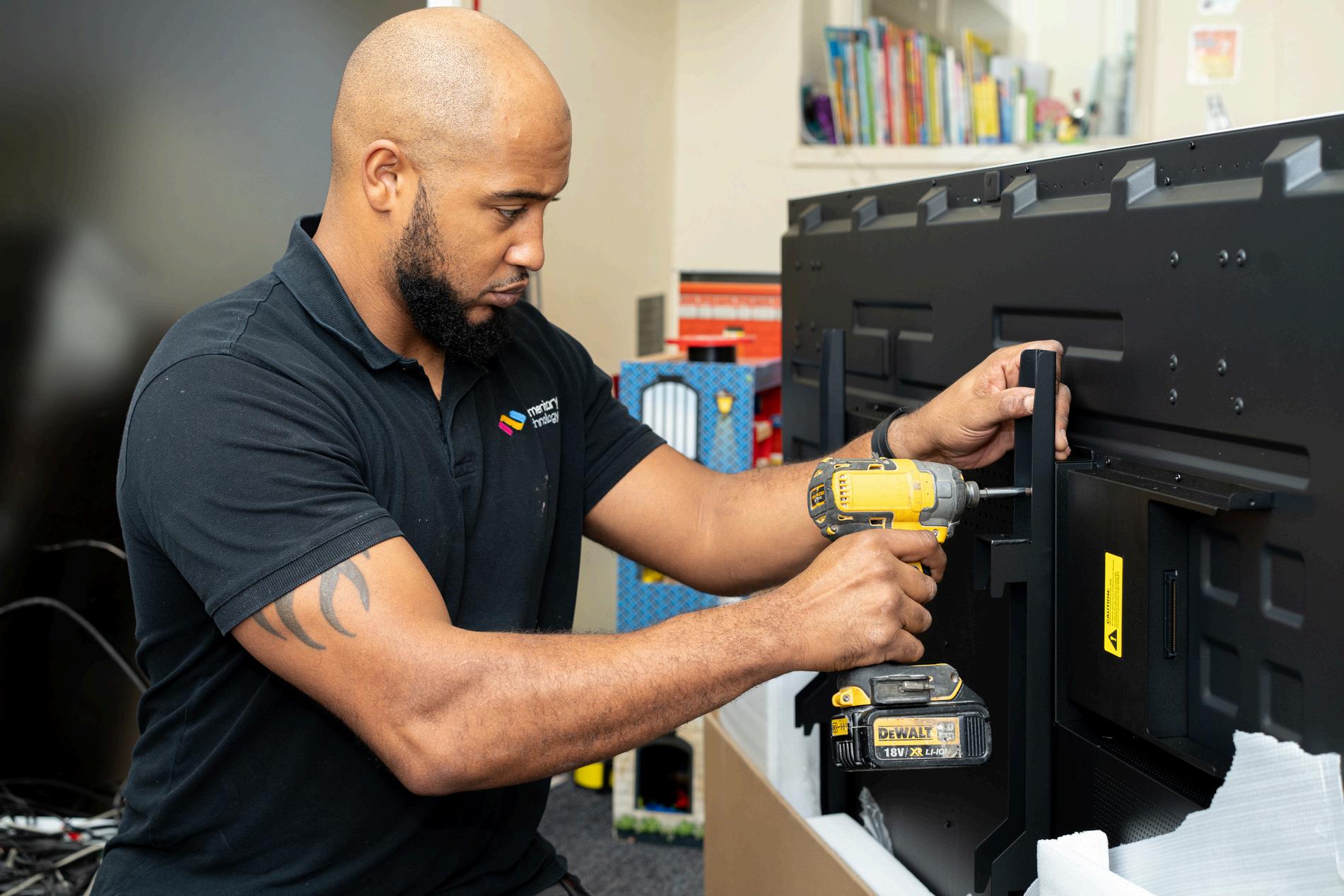
An installer who understands education adds significant value:
Correct display heights for different phases, such as lower positioning for EYFS
Knowledge of height‐adjustable mounts for SEND, wheelchair users and shared teaching spaces
Awareness of safeguarding, timetabling and classroom flow
Respect for teaching time and minimising disruption
These considerations make the difference between a display that is merely installed and one that supports every learner and every teacher
Project management and communication
For larger projects, effective project management is just as important as the hardware itself Schools need to know exactly what to expect before, during and after installation
An experienced education supplier should provide:
Clear communication with school staff and leadership
Agreed timelines and installation plans
A RAMS (Risk Assessment Method Statement) document on request, and Scope of Works
Guidance on access, safeguarding, room use, and disruption minimisation
Consistent documentation and sign‐off processes
A single point of contact so schools always know who to speak to
This helps ensure a smooth installation, no surprises and minimal disruption.
For many schools, older displays can be given a new lease of life With tight budgets and competing demands, this can be an excellent option.
Upgrading the OPS on-board PC
In some cases, it’s possible to upgrade the OPS (the modular PC/Android unit) to a modern, EDLA‐certified Android system.
This brings all the benefits of a current platform - security, compatibility, Google Play access and improved performance - while keeping the existing hardware
This can offer significant sustainability and cost benefits, reducing waste and delaying full replacement cycles.
Extending the Warranty
We also provide warranty-extension services, giving you additional peace of mind whilst managing tight budgets as part of a replacement cycle.
When a display stops working and is out of warranty, teaching cannot wait.
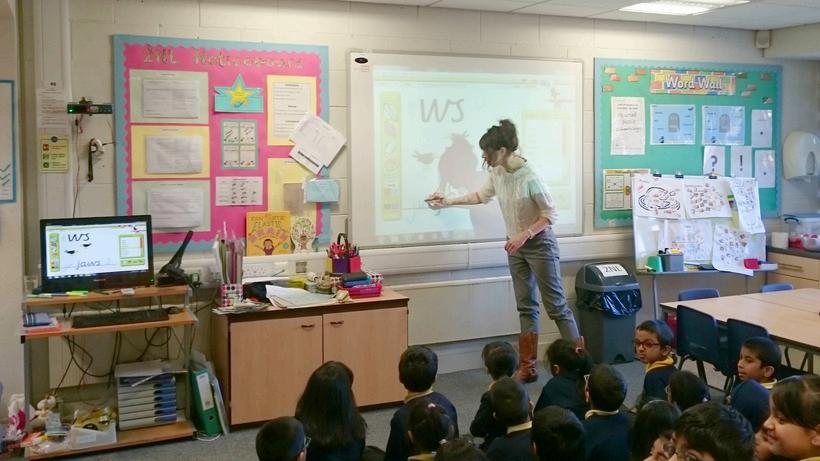
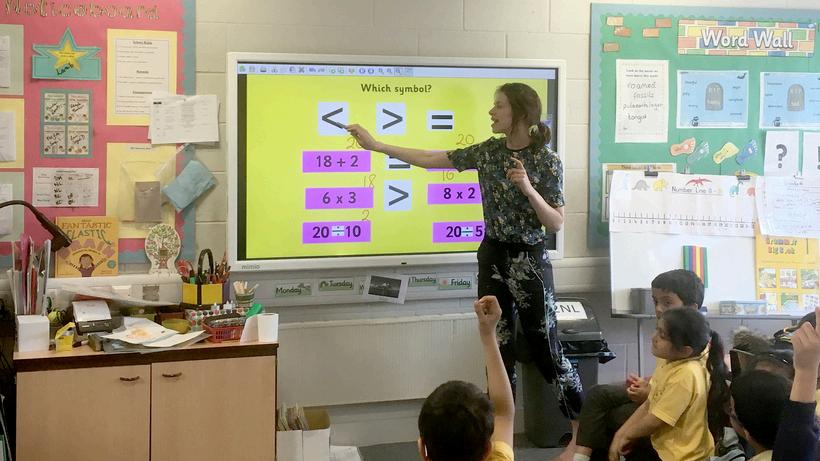
The above two classroom displays work well, yet both are out of warranty. If either were to fail - perhaps a broken cable port, pixelation, or loss of screen interactivity - the vendor is no longer able to support.
Time and money are two precious commodities in education. A broken classroom display takes both away from you.
Explore whether the warranty of your existing classroom displays can be upgraded, speak to us and we’ll provide options, affordable pricing and next steps.
Remote management tools allow IT teams to monitor, update and support classroom displays centrally, without needing to visit each room or each school. Instead of treating every screen as an isolated device, remote management turns the display estate into a secure, manageable, networked fleet.
What remote management enables IT teams to do
Push firmware and Android updates across all displays
Deploy or remove apps centrally
Monitor device status, connectivity and health
Adjust power, brightness and settings remotely
Lock down features for consistency and safeguarding
Troubleshoot issues without entering classrooms
Manage asset information and warranties
Broadcast messages or alerts if needed
Why remote management is valuable
Remote management saves time, avoids disruption and reduces the burden on IT teams Tasks that once required walking across a site - or driving between schools in a trust - can now be completed in seconds. This means fewer classroom interruptions, lower ticket volumes and more capacity for proactive IT work
It also reduces the carbon footprint associated with in‐person site visits Across multi‐school estates, these efficiency gains become significant
What’s included varies by vendor
It’s important to understand what you get when buying a display. Remote management licensing differs significantly across brands:
Some vendors include it free for the full warranty period
Some offer the first year free and charge annually thereafter
Some require paid licences from day one
As an independent supplier, Elementary Technology can advise what vendor provides, which varies over time This helps schools make informed decisions and avoid either unexpected costs or poor provision if assumptions have been made
Support through Elementary Technology Get Set Go®
As part of our Get Set Go onboarding service, we help schools get properly set up with remote management from day one This includes dedicated IT team training, ensuring staff understand how to configure the platform, automate updates, manage devices and use the tools to work more efficiently
In our experience, remote management is one of the most under‐utilised tools available to IT teams - but once understood, it can transform how displays are supported across a school or MAT.
Classroom displays play a meaningful role in reducing costs – both financial and environmental - and can easily contribute to an effective Climate Action Plan. While one display may seem insignificant, when usage is multiplied across dozens of classrooms and multiple schools in a MAT, small efficiency gains quickly become large savings
A brief history
Older projection systems used high‐wattage lamps that consumed significant energy and required frequent replacements Early generations of interactive displays also tended to be energy‐hungry, with some 65–75" models regularly drawing 300–350 watts per hour (Wh) during normal classroom use
Today, many modern, education‐focused displays are far more efficient A good contemporary 65" panel uses under 100 watts, with further reductions available through built‐in energy‐saving modes
What good looks like
Energy‐efficient displays typically include:
Low typical operating power – aim for 90W for a 65” and 110W for a 75”
Automatic brightness control
Presence‐aware sensors that power down when rooms are empty
Configurable power schedules to ensure unused screens are turned off
Optimised Android systems that avoid unnecessary power draw
Supporting sustainability through better tools
Features such as presence awareness, remote power scheduling and fleet‐wide monitoring help reduce unnecessary usage
Combined with better hardware efficiency, these tools help schools and trusts reduce carbon emissions and achieve measurable progress toward sustainability commitments
The team at Elementary Technology are here to help make sure you’re properly set up with these tools - notably use of Remote Management, which can go unutilised
Our Energy Calculator, used as part of our Classroom Healthcheck , shows energy impact at classroom, school and trust level, helping decision‐makers understand the real‐world cost and carbon implications of different display options ®
Below is a snapshot of standstill costs, and savings, across a MAT of 200 classrooms. Understanding where you are now is the first step to taking control and making improvements.
We’ll help you take the first step using our detailed Energy Calculator service, based on your hardware, usage, and energy costs Contact us to get started
Sustainable Supply Chain & Packaging
Beyond energy use, sustainability is increasingly influenced by how a display is made, shipped and delivered
What good looks like includes:
Reduced and recyclable packaging, including right‐sized boxes and environmentally‐friendly protective materials
Efficient pallet and freight configurations to cut transport emissions
Transparent supply‐chain compliance, including responsible sourcing and audited manufacturing processes.
These factors support responsible procurement across a trust and contribute meaningfully to wider Climate Action Plan objectives.
But if we’re honest, the best next step is always a chat with one of our specialist team.
Send us a note at enquiries@elementaryuk.com
And finally...
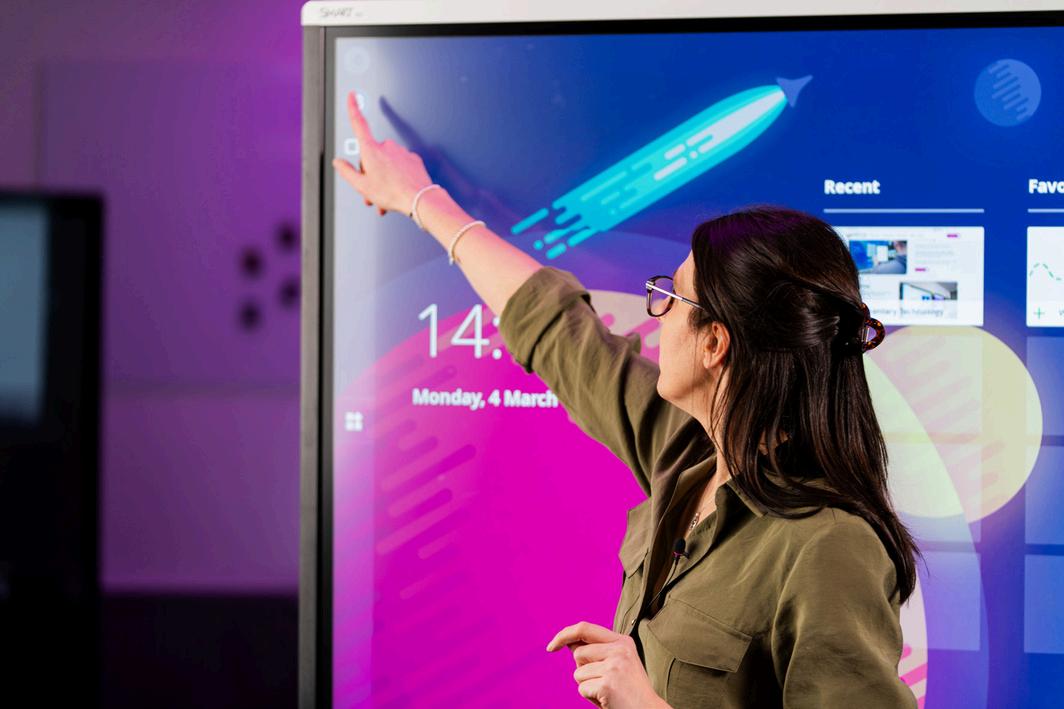
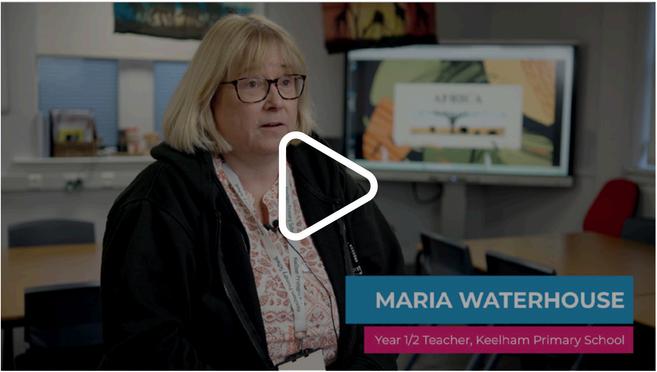
Meet Maria - a teacher of 36 years who with new-found knowledge, skills and confidence, can now achieve things with technology she never thought possible. . .
It’s the power of having well-specified technology, and a programme of training and CPD for teachers, leaders and the IT team.
It’s also about support from a supplier who shares the school’s vision and is proud to deliver an outstanding service to all involved
Contact us today. Led by our company values, we’re here to help.