1 minute read
Creating Desktop Shortcut for Configurator


Objective: Create a desktop shortcut for Product Configurator to increase visibility and ease of access.
Google Chrome (see Windows starting on page 13, iPad on page 18)
1. Create a folder on the user’s desktop and label it “Icons”.
2. Copy the attached Enterprise Quoting icon file to the Icon folder.
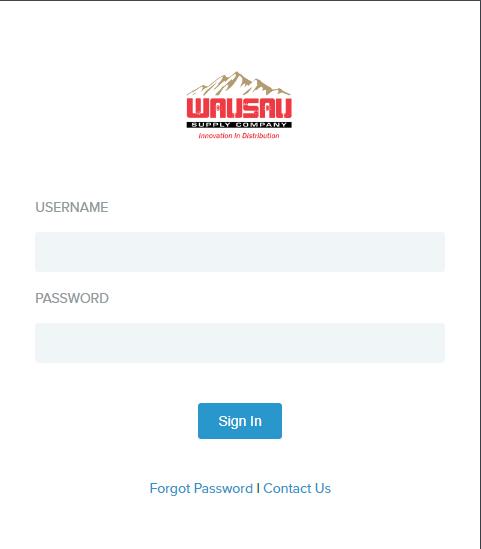
3. Open Google Chrome and enter https://mingleportal.inforcloudsuite.com/wausau_trn/?identity=mingle into the address bar to go to the sign in page.
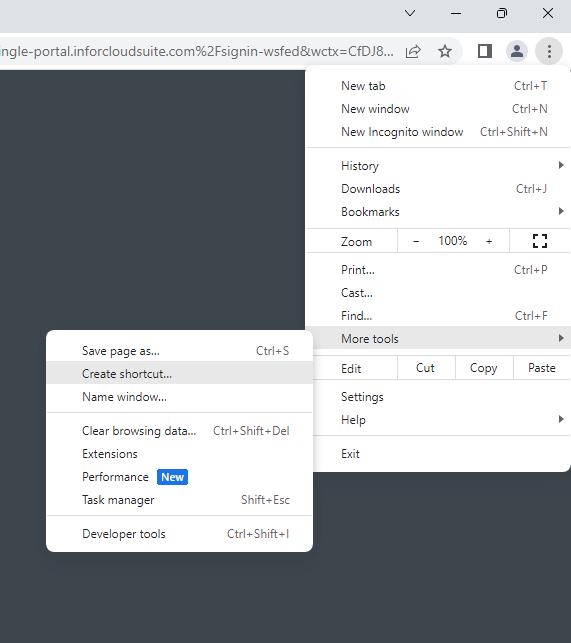
4. In the upper right-hand corner of Chrome, click on the vertical ellipsis, select “More tools” and “Create shortcut…”.
5. The “Create shortcut” window will open. Change the name from the default to Enterprise Quoting, check “Open as window” and select “Create”.
6. Close Chrome and you will now have an icon on the desktop that will look like this:
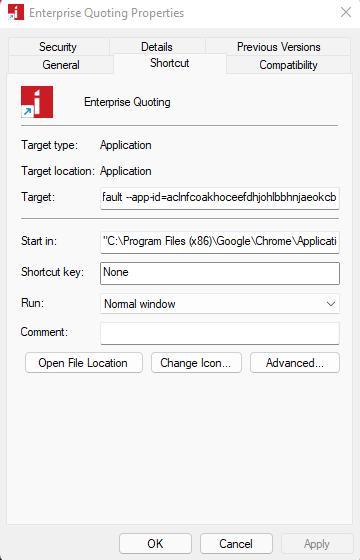
7. Right click on the icon and select “Properties”.
8. The window below will pop up. Select “Change Icon…”.
9. Select “Browse” in the window that pops up.
10. Locate the folder you labelled “Icons” and select the Waudena icon. Double click on it or highlight it and select “Open” to choose the icon.
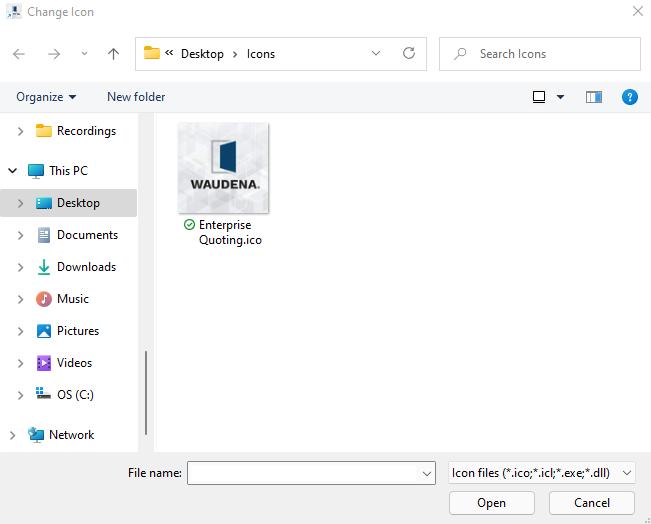
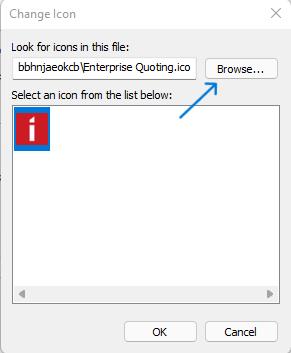
11. Click “OK” in the icon window and again click “OK” in the Properties window.
12. You’re done. Your desktop shortcut should now appear as below. The user can now double click that icon to launch directly into the login screen.
Creating Desktop Shortcut for Configurator
Objective: Create a desktop shortcut for Product Configurator to increase visibility and ease of access.
Windows
Note: Google Chrome is the preferred browser and will provide the best user experience.
1. Create a folder on the user’s desktop and label it “Icons”.
2. Copy the attached Waudena Configurator icon file to the Icon folder.
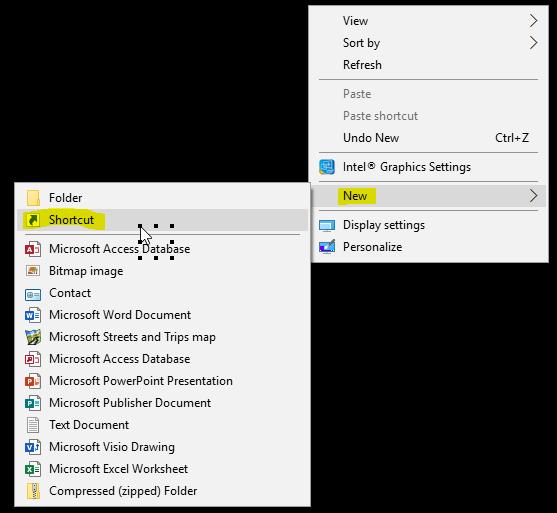
3. Right click anywhere on the desktop and select “New” and “Shortcut”.
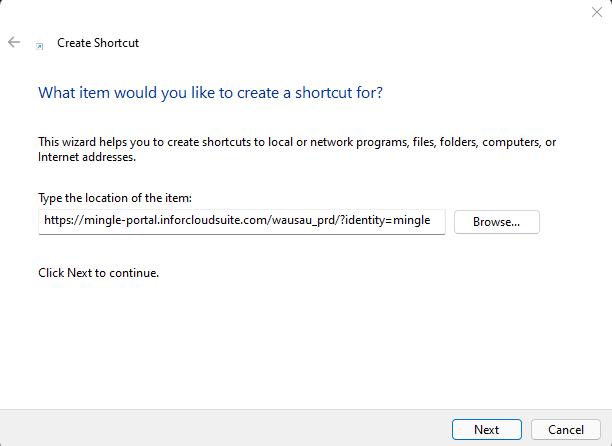
4. The shortcut window will open so you can type the destination of the shortcut. Enter https://mingle-portal.inforcloudsuite.com/wausau_prd/?identity=mingle as the destination and select “Next”.
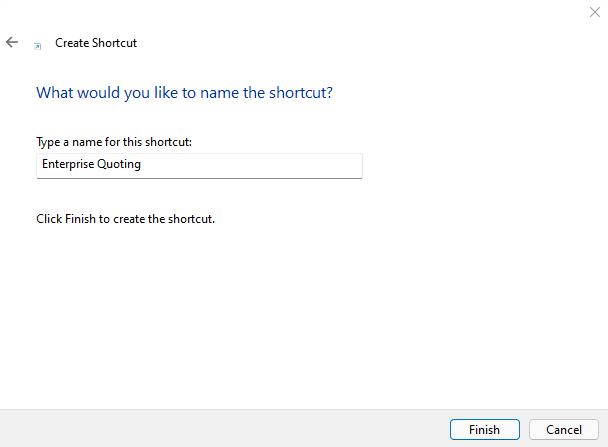
5. In the next window, enter “Waudena Configurator” as the name for the shortcut and select “Finish”.
6. You will now have an icon on your desktop that will look like this:
7. Right click on the icon and select “Properties”.
8. The window below will pop up. Select “Change Icon…”.
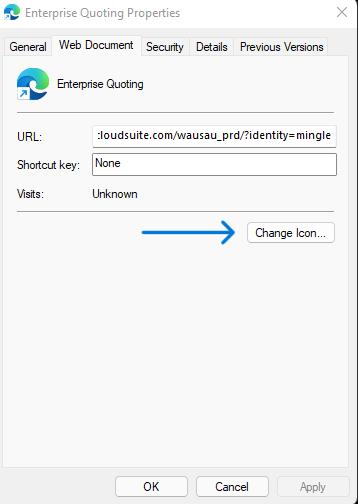
9. Select “Browse” in the window that pops up.
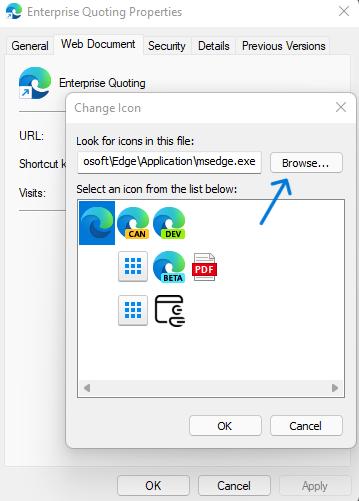
10.Locate the folder you labelled “Icons” and select the Waudena icon. Double click on it or highlight it and select “Open” to choose the icon.
11.Click “OK” in the icon window and again click “OK” in the Properties window.
12. You’re done. Your desktop shortcut should now appear as below. The user can now double click that icon to launch directly into the login screen.